Barcode Technology

Barcode History

Barcode Label Paper

Barcode Printer

Barcode Application

Inventory Management

AI Barcode QRCode

Barcode Scanner

Barcode Software

Barcode Software B

Barcode Software C

Barcode Software D

Barcode Software E

New Technology A

New Technology B

Robot Technology

Barcode Types

Barcode Types B

Barcode Types C

Barcode Types D

Barcode Types E

Barcode Types F

Electronic Technology

Psychology at Work

Barcode Technology and Barcode Software Related   <<< Back to Directory <<<

How to prepare for GS1 Sunrise 2027

Do retail companies need to purchase new equipment for GS1 Sunrise 2027?

GS1 Sunrise 2027 is a plan for global supply chains to transition to higher-dimensional barcoding. Currently, standard one-dimensional (1D) barcodes (such as EAN/UPC) only contain basic product identification information and cannot meet the growing demand for product information transparency, traceability and authentication.

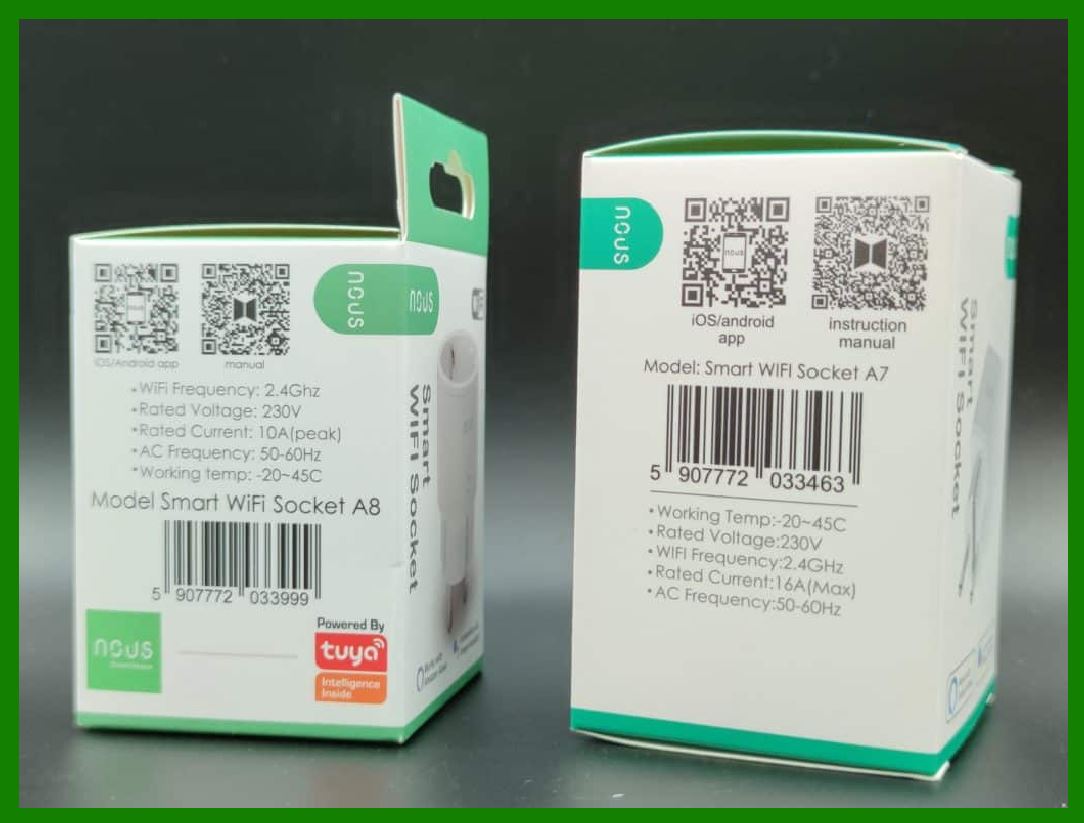
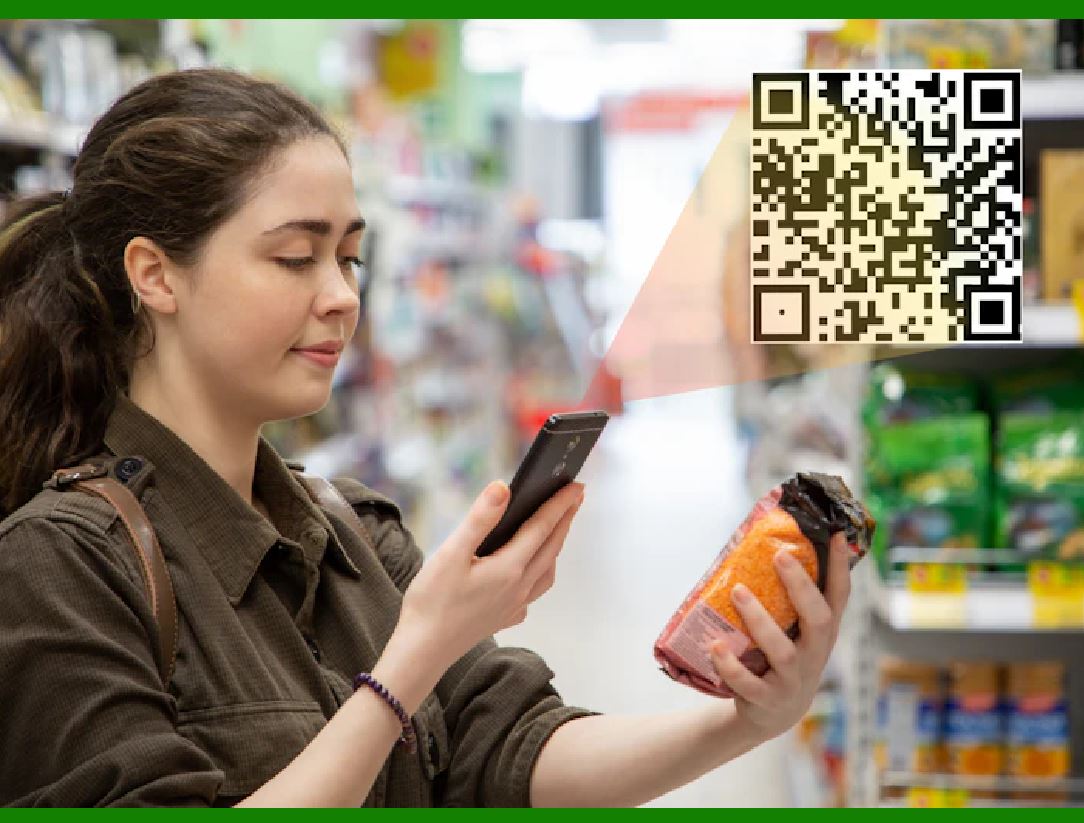
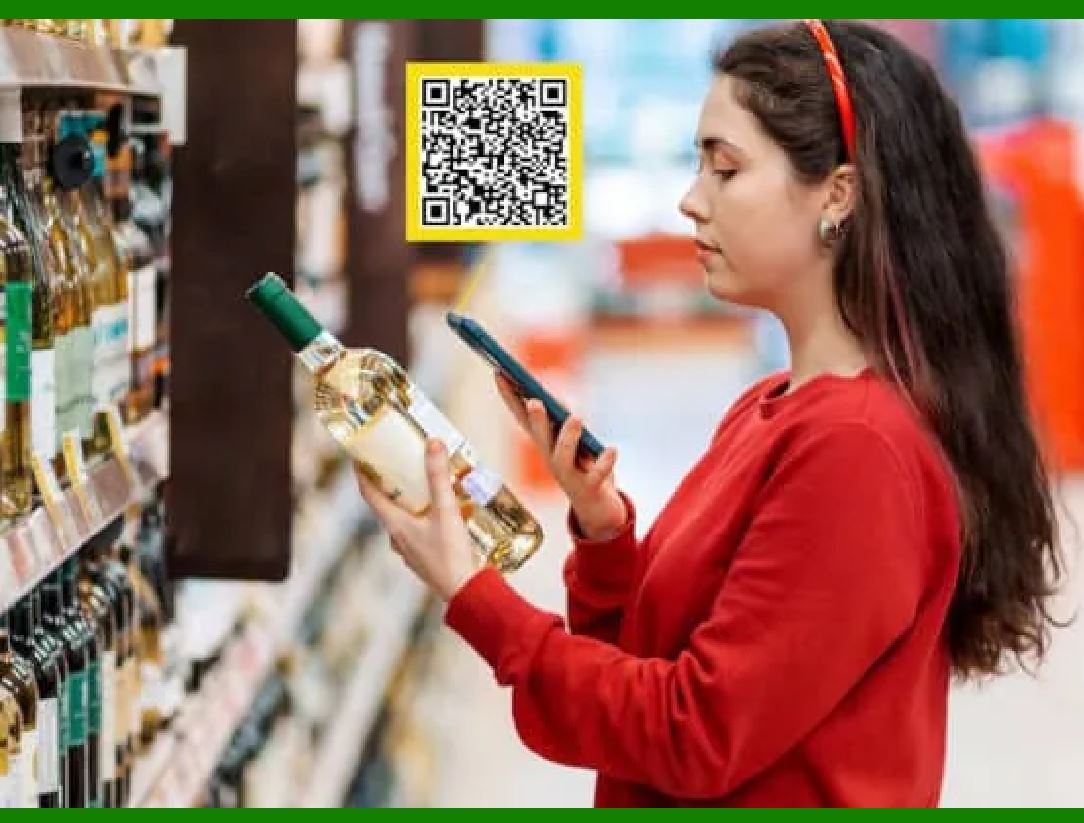
The GS1 Sunrise 2027 plan stipulates that by 2027, retail businesses will need to accept 2D barcodes for scanning at the point of sale (POS) or point of care (POC). 2D barcodes can carry more information than just price inquiries, helping to improve inventory management, improve recall readiness, promote sustainability and ethical sourcing, and enhance brand trust. Through GS1 Digital Link, consumers can obtain required information such as nutritional information, allergens, sustainability and procurement data with a single scan of their smartphone. These barcodes can also be used for point-of-sale price inquiries and patient bedside medication management. and other supply chain processes.

If you are a retail business, I recommend that you be prepared to embrace 2D barcodes to better meet future needs. You can learn more about GS1 Sunrise 2027 and 2D barcodes to prepare your organization and scanning system.

To upgrade your device to support 2D barcodes, you can follow these steps:

1. Understand 2D barcode types:

First, you need to understand the different types of 2D barcodes. GS1 offers several options, including GS1 DataMatrix, Data Matrix with GS1 Digital Link, and QR Code with GS1 Digital Link.

2. Choose the right 2D barcode for your business:

Choose the best 2D barcode based on your needs and product type. For example, GS1 DataMatrix is suitable for small products, while QR Code is suitable for large products or when more information is needed.

3. Update POS systems:

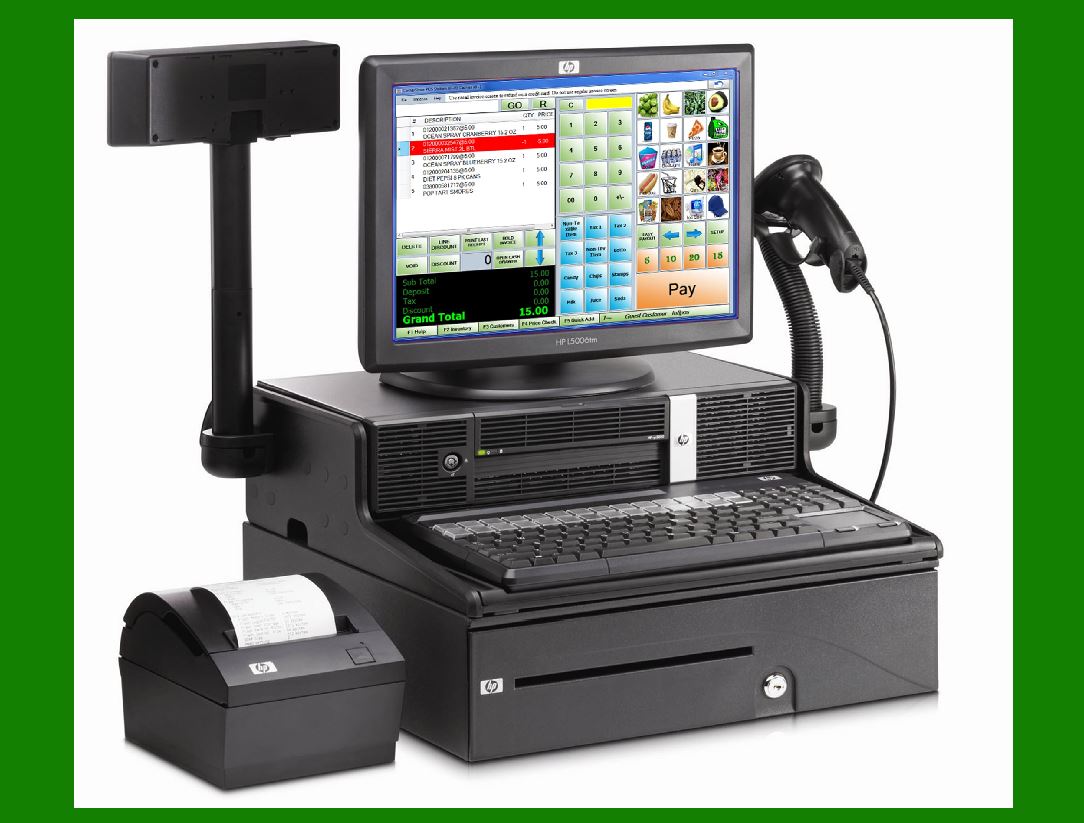
Make sure your point of sale (POS) system is updated to scan 2D barcodes and process at least GTINs (Global Trade Item Numbers). Currently, many POS systems already support 2D barcodes, but you need to make sure your system is upgraded.

4. Transitional Dual Marking:

Until all retailers complete the system update, you will need to mark your products with both the 2D barcode and the existing EAN/UPC barcode. This will help smooth the transition and ensure your products are scannable at the point of sale.

5. Train your employees:

Make sure your employees know how to scan and process 2D barcodes. Provide training to ensure a seamless transition.

6. Choose the appropriate hardware:

If you need to purchase a new device, choose a scanner or mobile device that supports 2D barcodes. For example, the SocketScan S720 is an affordable, reliable and easy-to-use option for upgrading from 1D barcodes to 2D/QR codes.

7. Stay updated:

As technology evolves, stay tuned for the latest developments in 2D barcodes. GS1 releases regular updates to ensure your business is always up to date with the latest standards and best practices.

Note that 2D barcodes can carry more information than just price inquiries, helping to improve inventory management, increase recall readiness, promote sustainability and ethical sourcing, and enhance brand trust.


EasierSoft Barcode Label Design & Bulk Printing Software

---- Use Excel Data to Batch Print Barcodes on Label Sheets or Roll Labels  

---- How to use this barcode software

Download:  Free Barcode Software + Barcode Label Designer

Download Free Barcode Software at Softonic

     Download at CNET

Once you obtain a GS1/UPC/EAN barcode, or other barcode type and QR code, you can use our free software to batch print barcode labels onto Roll label paper using a professional label printer, or to batch print barcodes onto Avery 5160 label sheets using a regular laser or inkjet printer. Our software has free and paid versions.

The free version fully meets your needs for batch printing GS1/UPC/EAN barcodes. The paid version can import data from Excel and databases to batch print barcode labels with different values.

How to Start

Input Data

Import Excel Data

Print Barcode

Barcode Format

Label Designer

All Screen Shot

Export Barcode Image

Save Template

Output Word Excel

How to Use & FAQ:

Sample - Avery 5162 (2x7) Label Sheet

Example: Print barcodes to 5*3cm roll

Example: Print barcodes to 5161 label

Example: Print barcodes to 5162 label

Example: Print barcodes to 5163 label

Example: Print barcodes to 5164 label

Example: Print portrait orientation 5164

Example: Print barcodes to 5167 label

Example: Print barcodes to 5168 label

Example: Print portrait orientation 5168

Example: Print barcodes to 5169 label

Example: Print barcodes to 5660 label

Example: Print barcodes to 5661 label

Example: Print barcodes to 5662 label

Example: Print barcodes to 5663 label

Example: Print barcodes to 5664 label

Example: Print portrait orientation 5664

Example: Print barcodes to 5873 label

Example: Print barcodes to 5874 label

Two ways to import Excel data

Import Excel Data - Pro Edition

Import Excel Data - Std Edition

Import Data from Excel - Detail

Load Data From Excel File

Data Editing Table

Copy Data From Excel

Four ways to input barcode data

Add ASCII Key E

Input Multiple Lines of Text for Barcodes

Generates Sequential Serial Numbers

Import or copy data from Excel sheets

Special sequence number generation

Std Details: Simple Input Form

Std Details: Multiple Line Text Input

Details: Sequence Barcode Generator

Examples: Sequence Barcode Generator

Import Data From Excel Spreadsheet

Barcode Data Correspondence Diagram

Data Editor

Editing a Single Row Data in Form

Batch Editing Multiple Rows of Data

Batch Data Editing - Example 2

Design & print complex barcode labels

Configuring Text Elements on Label

Configuring Barcode Elements on Label

Configuring Image Elements on Label

Setting Line Elements on Label

Designing Labels for 5164 Sheet

Advanced Page Layout Settings

Add Barcode Elements to a Label

Highlights

Excel integration: Import data directly from Excel to generate and print barcodes in bulk.

Label designer: Create complex labels with multiple barcodes, text, logos, and shapes.

Batch printing: Print thousands of barcodes at once using standard inkjet/laser printers or professional barcode printers.


Flexible editions:

Standard Edition: Simple batch printing with Excel data.

Professional Edition: Adds command-line automation for workflow integration.

Label Designer Edition: Advanced design features for complex labels.


Why Choose Our Barcode Solutions?

Cost-effective: Free online generator and permanent free desktop version available.

Easy to use: No technical expertise required—just input data and print.

Versatile: Supports nearly all 1D and 2D barcode types, including QR codes.

Trusted: Recommended by CNET and widely downloaded by users worldwide.


Suitable Use Cases

Small businesses and startups needing quick barcode labels for products.

Retailers and online sellers managing inventory with batch barcode printing.

Manufacturers requiring sequential or custom barcode labels for packaging.

Educational and testing environments where barcodes are used for tracking.


CONTACT

cs@easiersoft.com

If you have any question, please feel free to email us.


https://free-barcode.com


<<< Back to Directory <<<     Barcode Generator     Barcode Freeware     Privacy Policy