Barcode Technology

Barcode History

Barcode Label Paper

Barcode Printer

Barcode Application

Inventory Management

AI Barcode QRCode

Barcode Scanner

Barcode Software

Barcode Software B

Barcode Software C

Barcode Software D

Barcode Software E

New Technology A

New Technology B

Robot Technology

Barcode Types

Barcode Types B

Barcode Types C

Barcode Types D

Barcode Types E

Barcode Types F

Electronic Technology

Psychology at Work

Barcode Technology and Barcode Software Related   <<< Back to Directory <<<

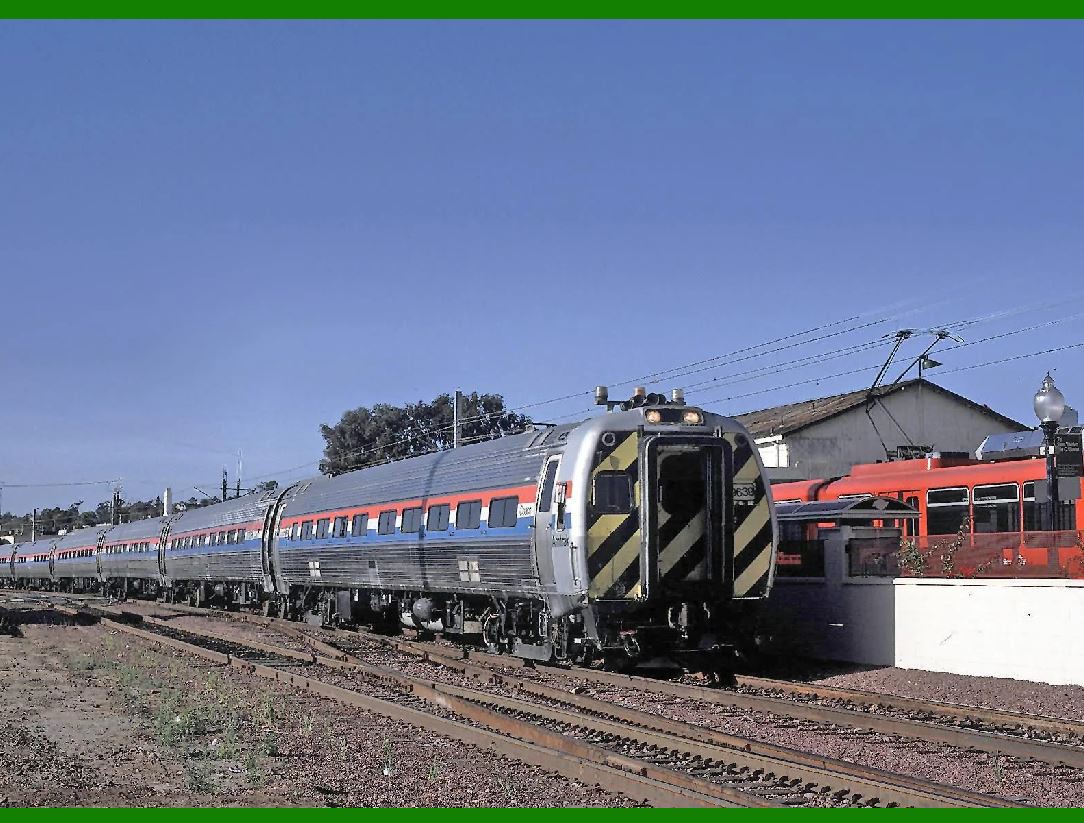
1961, Railroad KarTrak barcode system

1961. Barcoding system for railway vehicle identification (KarTrak).

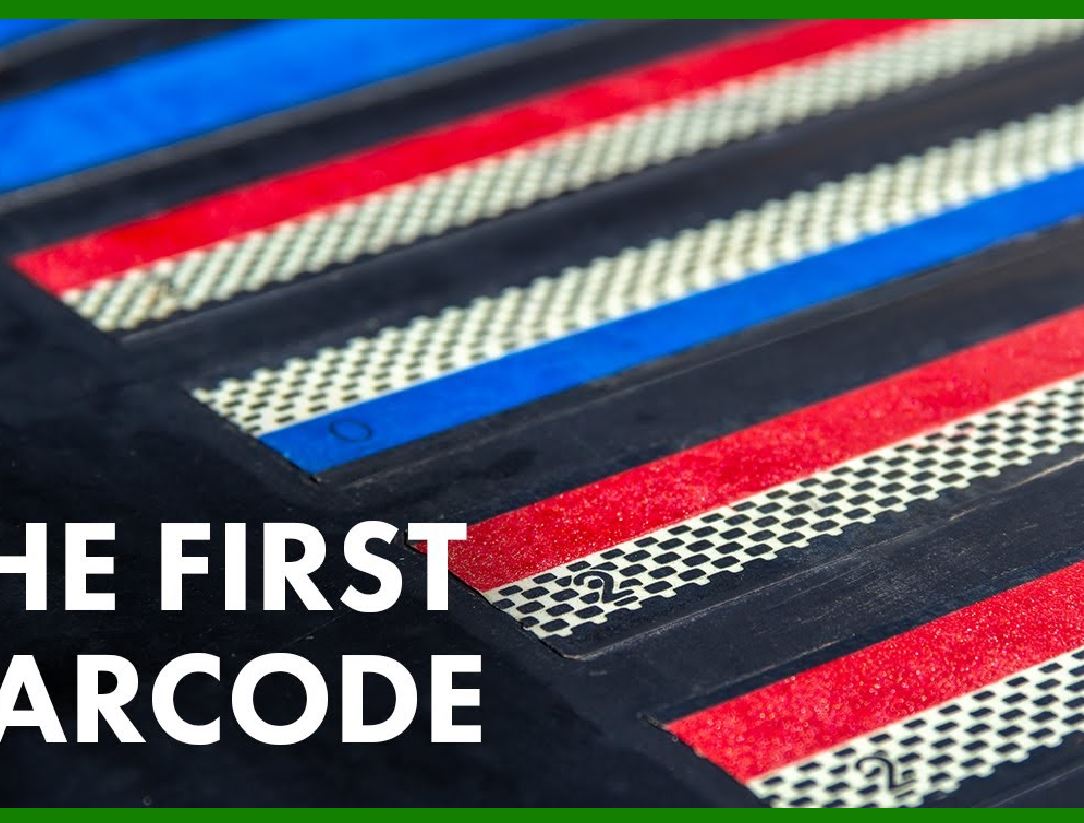
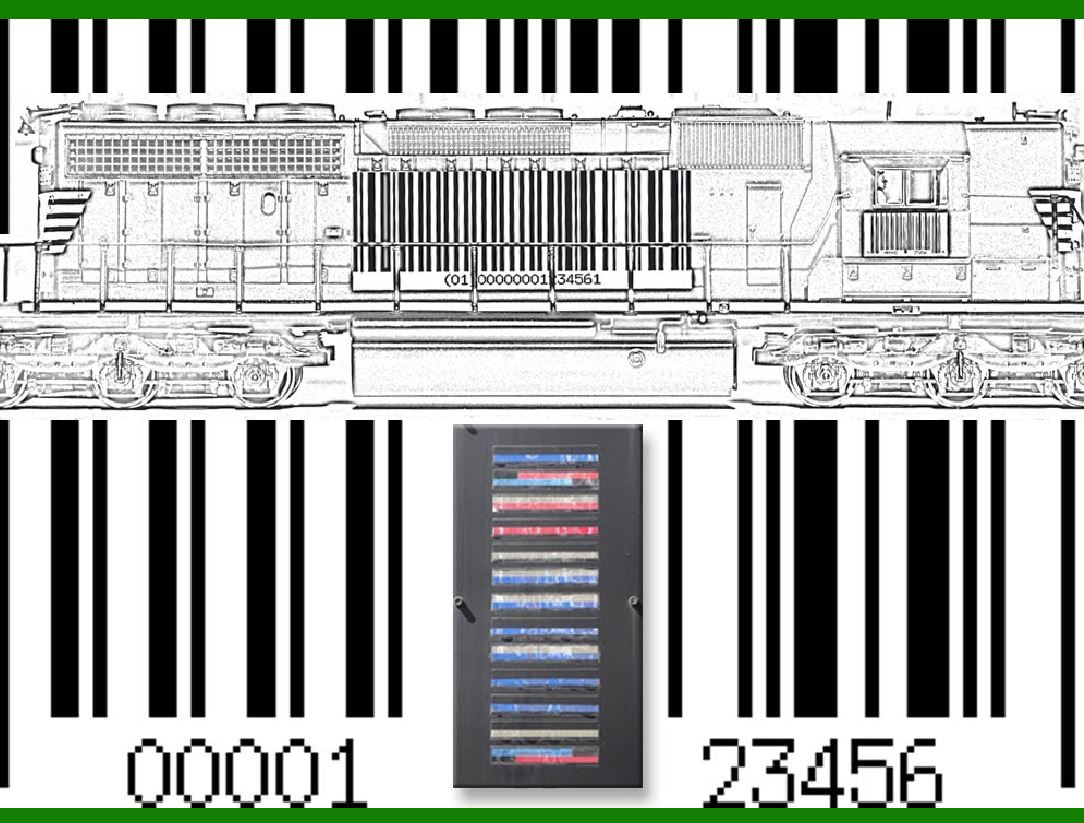
In 1961, the railroad industry pioneered a system called KarTrak (also known as Automatic Car Identification or ACI). This innovative system aimed to automatically identify railcars and other rolling stock using a colored barcode.

Here's the backstory: The US rail industry faced a significant challenge—tracking individual railcars while they were in motion, sometimes at speeds of up to 60 miles per hour. The existing code-based system was complex and incomprehensible to the average person. Railcars would often get lost, leading to inefficiencies and delays.

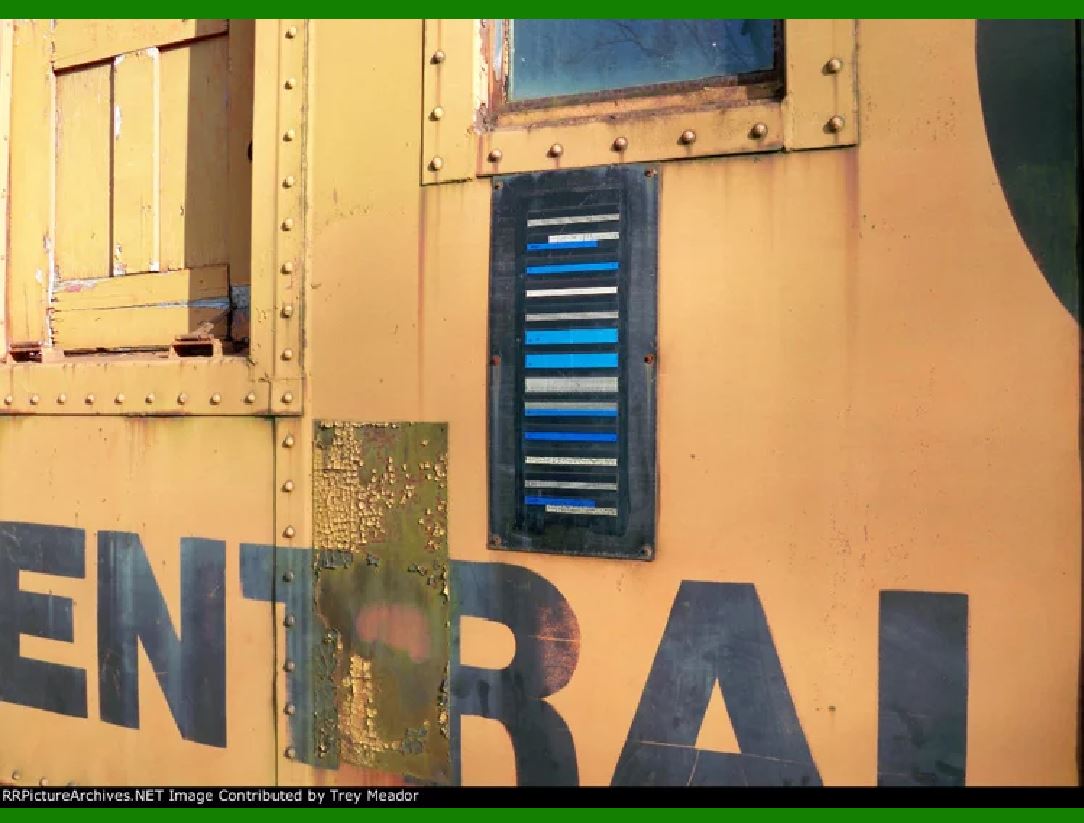
The KarTrak system was designed to address this problem. It featured colored barcodes that could be read while the train was moving, regardless of weather conditions. These barcodes were placed on train cars and allowed for efficient tracking. The goal was to keep the cost of each device under one dollar.

However, despite its promise, KarTrak faced challenges. It wasn’t fully integrated with computer systems, providing only printouts for individual ACI scanners. While it was installed for testing on the Boston and Maine Railroad, widespread adoption was slow.

So, before barcodes became ubiquitous in grocery stores, they were already making tracks—literally—on railcars!

During his time as an undergraduate, David Jarrett Collins worked at the Pennsylvania Railroad and became aware of the need to automatically identify railroad cars. Immediately after receiving his master's degree from MIT in 1959, he started work at GTE Sylvania and began addressing the problem. He developed a system called KarTrak using blue, white and red reflective stripes attached to the side of the cars, encoding a four-digit company identifier and a six-digit car number. Light reflected off the colored stripes was read by photomultiplier vacuum tubes.

The Boston and Maine Railroad tested the KarTrak system on their gravel cars in 1961. The tests continued until 1967, when the Association of American Railroads (AAR) selected it as a standard, Automatic Car Identification, across the entire North American fleet. The installations began on 10 October 1967. However, the economic downturn and rash of bankruptcies in the industry in the early 1970s greatly slowed the rollout, and it was not until 1974 that 95% of the fleet was labeled. To add to its woes, the system was found to be easily fooled by dirt in certain applications, which greatly affected accuracy. The AAR abandoned the system in the late 1970s, and it was not until the mid-1980s that they introduced a similar system, this time based on radio tags.

The railway project had failed, but a toll bridge in New Jersey requested a similar system so that it could quickly scan for cars that had purchased a monthly pass. Then the U.S. Post Office requested a system to track trucks entering and leaving their facilities. These applications required special retroreflector labels. Finally, Kal Kan asked the Sylvania team for a simpler (and cheaper) version which they could put on cases of pet food for inventory control.

Interestingly, one of the key innovators in the history of barcodes, David J. Collins, later went on to create the laser scanner capable of reading small barcode labels as we know them today.


EasierSoft Barcode Label Design & Bulk Printing Software

---- Use Excel Data to Batch Print Barcodes on Label Sheets or Roll Labels  

---- How to use this barcode software

Download:  Free Barcode Software + Barcode Label Designer

Download Free Barcode Software at Softonic

     Download at CNET

Once you obtain a GS1/UPC/EAN barcode, or other barcode type and QR code, you can use our free software to batch print barcode labels onto Roll label paper using a professional label printer, or to batch print barcodes onto Avery 5160 label sheets using a regular laser or inkjet printer. Our software has free and paid versions.

The free version fully meets your needs for batch printing GS1/UPC/EAN barcodes. The paid version can import data from Excel and databases to batch print barcode labels with different values.

How to Start

Input Data

Import Excel Data

Print Barcode

Barcode Format

Label Designer

All Screen Shot

Export Barcode Image

Save Template

Output Word Excel

How to Use & FAQ:

The supported barcode types

Load Excel data (pro)

Manually copy data from Excel files

Filter some data for printing

Edit imported barcode data

Input data (Pro)

Label Designer

Edit data in Label designer

Label Designer - Add new label

Label Designer - Printing

Set the barcode label format to be printed

Other Barcode Label Format Settings

Barcode types supported by this program

Barcode Label Font Settings

Configuring the Barcode Print Rotation

Text Alignment for Barcode Labels

Automatically Adjusting Barcode Width

Text Beneath the Barcode

Configuring Barcode Size

Auto Calculate the Barcode Size

Export Barcode images

Export Barcode Image Format

File Names for Exported Barcode

Resolution of Exported Barcode Images

Fixed Folder for Exporting Barcode

Default Barcode Image Export Format

Print bulk barcodes quickly

Print barcodes to Avery 5160 label

How to bulk Barcode Printing

Sample - Avery 5162 (2x7) Label Sheet

Example: Print barcodes to 5*3cm roll

Example: Print barcodes to 5161 label

Example: Print barcodes to 5162 label

Example: Print barcodes to 5163 label

Example: Print barcodes to 5164 label

Example: Print portrait orientation 5164

Example: Print barcodes to 5167 label

Example: Print barcodes to 5168 label

Example: Print portrait orientation 5168

Example: Print barcodes to 5169 label

Example: Print barcodes to 5660 label

Example: Print barcodes to 5661 label

Example: Print barcodes to 5662 label

Example: Print barcodes to 5663 label

Example: Print barcodes to 5664 label

Example: Print portrait orientation 5664

Example: Print barcodes to 5873 label

Example: Print barcodes to 5874 label

Two ways to import Excel data

Import Excel Data - Pro Edition

Highlights

Excel integration: Import data directly from Excel to generate and print barcodes in bulk.

Label designer: Create complex labels with multiple barcodes, text, logos, and shapes.

Batch printing: Print thousands of barcodes at once using standard inkjet/laser printers or professional barcode printers.


Flexible editions:

Standard Edition: Simple batch printing with Excel data.

Professional Edition: Adds command-line automation for workflow integration.

Label Designer Edition: Advanced design features for complex labels.


Why Choose Our Barcode Solutions?

Cost-effective: Free online generator and permanent free desktop version available.

Easy to use: No technical expertise required—just input data and print.

Versatile: Supports nearly all 1D and 2D barcode types, including QR codes.

Trusted: Recommended by CNET and widely downloaded by users worldwide.


Suitable Use Cases

Small businesses and startups needing quick barcode labels for products.

Retailers and online sellers managing inventory with batch barcode printing.

Manufacturers requiring sequential or custom barcode labels for packaging.

Educational and testing environments where barcodes are used for tracking.


CONTACT

cs@easiersoft.com

If you have any question, please feel free to email us.


https://free-barcode.com


<<< Back to Directory <<<     Barcode Generator     Barcode Freeware     Privacy Policy