1. Introduction to Barcode Printer Drivers and Installation |
1.1. What Is a Barcode Printer Driver? |
A barcode printer driver is software that allows the computer to communicate with a barcode printer. It converts data into a format the printer can understand, enabling the printing of barcodes, labels, and tags. |
1.2. Types of Barcode Printers |
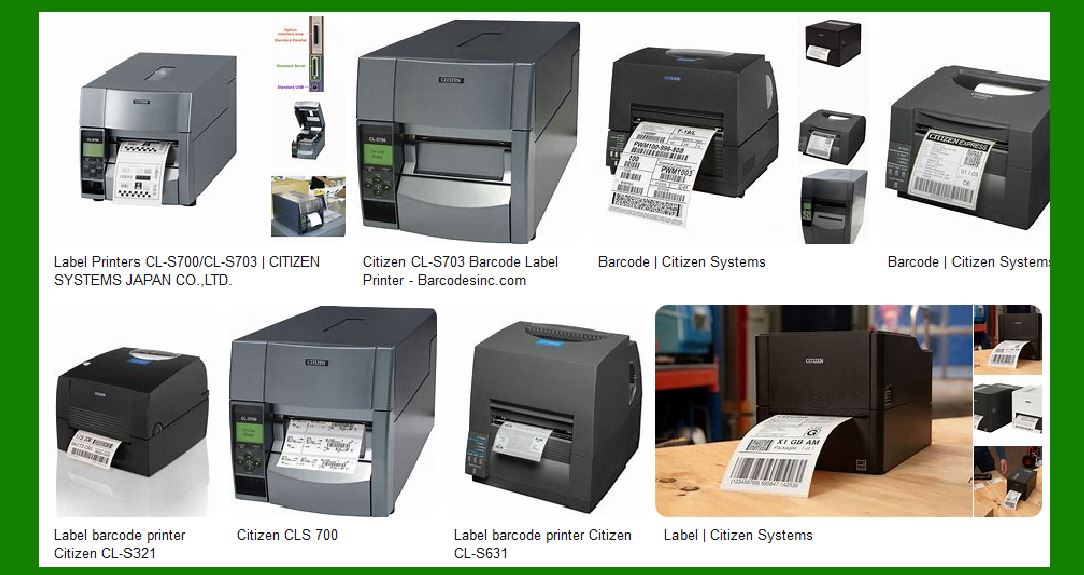
Thermal Transfer Printers |
Direct Thermal Printers |
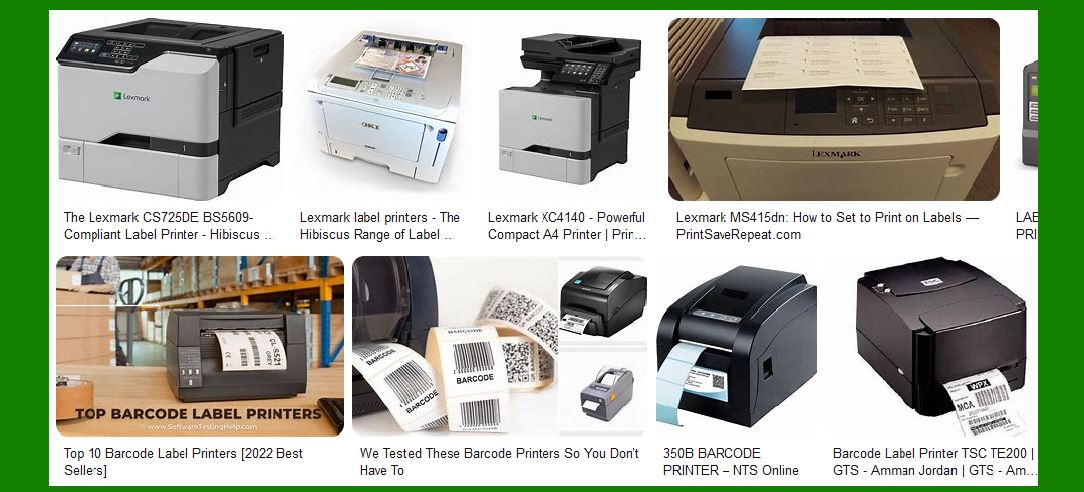
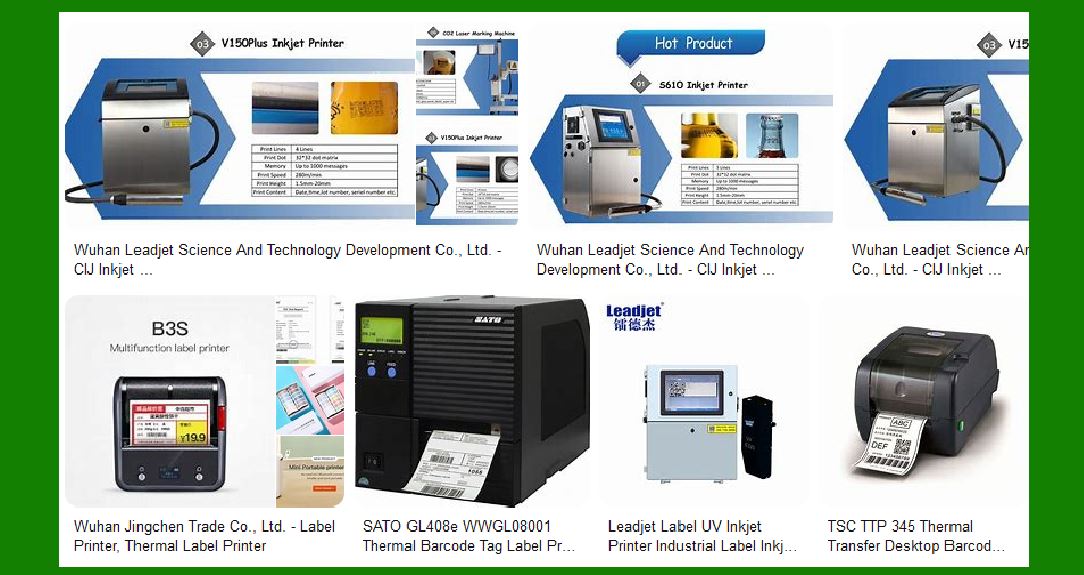
Inkjet Printers |
Laser Printers |
1.3. Importance of Printer Drivers in the Printing Process |
Role in ensuring compatibility between software, hardware, and operating systems. |
How drivers impact print quality and printer functionality. |
1.4. General Overview of Driver Installation Process |
Understanding the installation procedure, including downloading, setting up, and configuring the barcode printer driver. |
|
2. Detailed Process of Barcode Printer Driver Installation |
2.1. Preparing for Installation |
Ensuring the barcode printer is unboxed, connected, and powered on. |
Verifying that the operating system is compatible with the printer model. |
2.2. Choosing the Right Driver Version |
Where to find the appropriate driver (manufacturer’s website, third-party websites). |
Checking operating system requirements (Windows, macOS, Linux, etc.). |
2.3. Installation on Different Operating Systems |
Windows Installation Process: |
Driver installation from a CD/DVD or download. |
Step-by-step guide for Windows 10, Windows 11, and older versions. |
Troubleshooting common issues (e.g., compatibility mode, admin privileges). |
macOS Installation Process: |
Downloading drivers from the App Store or manufacturer's site. |
Driver configuration and troubleshooting on macOS. |
Linux Installation Process: |
Using open-source drivers and utilities. |
Step-by-step guide for different Linux distributions. |
2.4. Installing Barcode Design Software |
Compatibility with drivers. |
Common software for designing and printing barcodes (e.g., ZebraDesigner, BarTender). |
2.5. Driver Configuration |
Setting up the correct resolution, media type, and print speed. |
Configuring the printer’s communication port (USB, Ethernet, Bluetooth, etc.). |
2.6. Testing the Printer |
Printing a test label. |
Adjusting settings for the best print quality. |
|
3. Common Compatibility Issues During Driver Installation |
3.1. Operating System Compatibility |
Compatibility issues with older or unsupported versions of operating systems (Windows XP, Windows 7, macOS versions). |
Solutions for operating system updates or using virtual machines. |
3.2. Printer Model and Driver Version Mismatch |
How mismatched printer models and driver versions can cause malfunction. |
Checking the driver version before installation. |
Troubleshooting steps when the wrong driver is installed. |
3.3. Firmware Incompatibility |
How outdated firmware can cause conflicts with newly installed drivers. |
Steps to update firmware on the printer. |
3.4. 64-bit vs. 32-bit Systems |
Installing the correct driver for 64-bit or 32-bit systems. |
Issues related to software and hardware architecture. |
3.5. USB Port Compatibility |
USB version incompatibility (USB 2.0 vs. USB 3.0). |
Solutions for USB driver conflicts. |
Troubleshooting tips for slow or no connectivity. |
3.6. Network Printer Issues |
IP configuration problems. |
Printer not being recognized on the network. |
Troubleshooting network connectivity issues with drivers. |

|
4. Common Errors and Troubleshooting Solutions |
4.1. Driver Not Found or Missing |
How to handle a situation where the driver installation cannot locate the printer. |
Common fixes, such as manually pointing the installer to the correct folder or downloading the correct driver. |
4.2. Printer Offline or Not Recognized |
Identifying the root cause (cabling, connection, or driver issue). |
Fixing printer offline status, especially in networked environments. |
4.3. Poor Print Quality Due to Driver Issues |
Common print quality problems (blurry barcodes, incorrect spacing, and missing characters). |
How drivers affect print density, resolution, and ink/toner use. |
4.4. Incompatibility with Other Software |
How barcode software interacts with printer drivers. |
Resolving issues between the barcode design software and printer drivers. |
4.5. Error Messages During Printing |
Decoding common error messages from drivers. |
How to troubleshoot these errors effectively. |
|
5. Advanced Configuration and Optimization |
5.1. Setting Up Advanced Printer Features |
How to configure print speed, print resolution, and media types. |
Setting up multiple printers in a multi-user environment. |
5.2. Barcode Printing with Custom Fonts |
Installing and configuring fonts for printing custom barcodes. |
Ensuring proper encoding of barcode data. |
5.3. Resolving Conflicts in Multi-Printer Environments |
Using the same driver for multiple printers. |
How to resolve conflicts when multiple printers are connected to the same network or computer. |
5.4. Printer Driver Updates and Patches |
Importance of keeping the printer driver up to date. |
How to safely update the driver without disrupting printer functionality. |
|
6. Best Practices for Maintaining Barcode Printer Drivers |
6.1. Regular Driver Updates |
Importance of periodic updates to ensure the printer functions optimally. |
How to check for driver updates on the manufacturer’s website. |
6.2. Driver Backup and Restoration |
Creating a backup of the installed drivers for easier restoration. |
Using system restore points to safeguard against installation issues. |
6.3. Optimizing Printer Settings for Longevity |
Adjusting printer settings to prevent wear and tear on components. |
Proper calibration techniques to extend the life of the printer. |
6.4. Preventive Maintenance and Troubleshooting |
Regular maintenance to avoid common errors. |
How to spot signs of driver failure early. |

|
7. Barcode Printer Drivers in Special Use Cases |
7.1. Mobile Barcode Printers |
Unique challenges with mobile barcode printers and driver installation. |
How to configure drivers for mobile and handheld barcode printers. |
7.2. Integration with Warehouse Management Systems (WMS) |
Connecting barcode printers to warehouse management systems for seamless integration. |
Troubleshooting printer drivers when using WMS software. |
7.3. Multi-location Printer Networks |
Managing printer drivers across multiple locations or offices. |
Centralized printer management tools for remote installation. |
|
8. Conclusion |
8.1. The Future of Barcode Printer Drivers |
Trends in driver technology and barcode printing (cloud-based drivers, IoT-enabled printers). |
Predicting how future advancements in operating systems will impact driver installation and printer compatibility. |
This outline provides an in-depth framework for the topic. |
|
Here’s a deeper dive into the importance of printer drivers in the printing process: |
1. Introduction to Printer Drivers |
A printer driver is a critical component in the printing process. It is a software program that acts as a communication intermediary between the computer (or other devices) and the printer hardware. Without the correct driver, the operating system wouldn't be able to control the printer, resulting in issues with printing or the inability to print altogether. |
The primary role of a printer driver is to ensure the data generated by the computer (documents, images, barcodes, etc.) is correctly translated into a format that the printer can understand. This is especially important for barcode printers, where precision, accuracy, and quality are crucial for the readability of the printed barcode. |

|
2. Key Functions of Printer Drivers in the Printing Process |
2.1. Data Conversion and Communication |
The most fundamental role of a printer driver is to convert the data being sent to the printer into a language that the printer hardware can understand. For barcode printers, this means translating the raw data (such as the characters or numbers that make up the barcode) into a format that is suitable for barcode generation. |
Data formatting: Barcode data typically needs to be formatted as per specific barcode symbology standards (e.g., Code128, QR codes, PDF417). The driver ensures the data is structured according to the barcode standard. |
Encoding: The driver handles the encoding of information in the appropriate format, whether that be alphanumeric characters, numbers, or special symbols, which are essential for generating the correct barcode pattern. |
Rasterizing: The driver converts the data into a rasterized format (bitmap) that the printer can print, ensuring that fine details, such as the narrow spaces and bars in a barcode, are accurately rendered. |
2.2. Print Settings and Configuration |
Barcode printers offer a variety of settings that can significantly impact print quality. These settings include print resolution, print speed, label dimensions, and media type. The printer driver plays an important role in setting and configuring these options. |
Print Resolution: The driver allows users to specify the resolution of the print output, typically measured in dots per inch (DPI). Higher DPI settings are essential for printing high-quality barcodes, ensuring that the lines are crisp and legible for scanners. |
Print Speed: Printer drivers often allow users to adjust the print speed, which impacts the time taken for the printer to complete a job. Faster print speeds may reduce the quality of the print job, especially in barcode printing, where precision is crucial. |
Media Configuration: Barcode printers often use different media types (thermal labels, cardstock, plastic, etc.). The driver configures the printer to accommodate the media being used and adjusts printing techniques for optimal results. |
Label Sizing: The printer driver ensures that the layout of the label or tag is printed accurately, accounting for margins, barcode size, and other layout factors to ensure that barcodes fit within the designated area. |
2.3. Communication Protocol and Printer Connectivity |
Printer drivers are responsible for establishing communication between the printer and the computer. This communication may occur over different interfaces: |
USB: Many barcode printers are connected via USB, and the driver facilitates data transfer through this port. |
Ethernet or Wi-Fi: In networked environments, drivers ensure that the printer can communicate over Ethernet or Wi-Fi, ensuring the printer is accessible from different devices. |
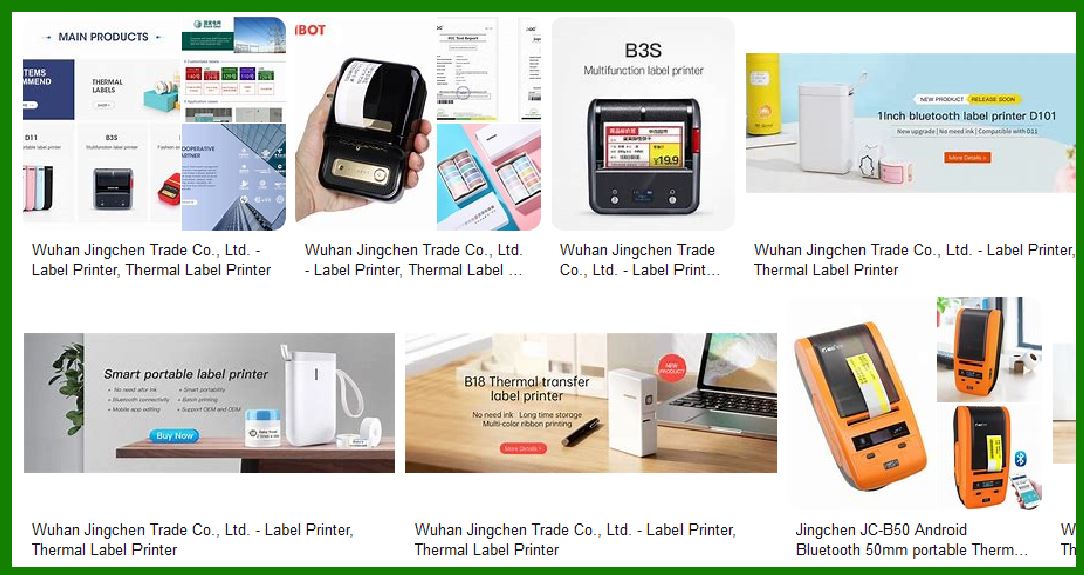
Bluetooth: For mobile or portable barcode printers, Bluetooth connectivity is commonly used, and the driver allows seamless wireless printing. |
The driver also manages errors related to communication, such as buffer overflows, data loss, or connection failures, ensuring smooth operation. |
2.4. Error Handling and Feedback Mechanisms |
Printer drivers are crucial for managing and reporting errors that may occur during the printing process. These errors can range from hardware malfunctions to issues with data encoding or paper jams. |
Error Feedback: The driver monitors the printer’s status and provides real-time feedback to the computer. This includes notifications such as low ink, paper out, or printhead malfunction. |
Troubleshooting: When issues arise, the printer driver is essential for diagnosing and suggesting corrective measures. This can include checking connections, replacing components, or adjusting print settings to solve issues like poor print quality or unscannable barcodes. |
Data Integrity: In barcode printing, ensuring that data is correctly formatted and encoded is critical. The driver helps maintain data integrity by ensuring that the print job adheres to the right standards (such as the size and shape of the bars in a barcode). |
2.5. Print Job Management and Queuing |
Printer drivers often play a role in managing multiple print jobs, especially in environments with multiple printers or heavy workloads. In networked environments, where multiple users share a printer, the driver is essential for managing the print queue and prioritizing jobs. |
Job Queue Management: The driver allows users to manage print jobs (pause, cancel, or re-order), ensuring that barcode labels are printed in the correct order and without delay. |
Batch Printing: Barcode printers are often used in batch printing scenarios, where a large volume of labels or barcodes needs to be printed quickly and efficiently. The printer driver optimizes these processes, ensuring the print job is processed as a continuous flow without interruption. |
|
3. The Role of Printer Drivers in Barcode Printing |
Barcode printing is highly specialized and requires precise control over several factors to ensure the barcode can be scanned successfully. Printer drivers for barcode printers must therefore handle several additional responsibilities: |
3.1. Barcode Symbology and Encoding Support |
Different types of barcodes (QR codes, Code 128, UPC, etc.) require different encoding and printing methods. Printer drivers ensure that the correct barcode symbology is selected and that the data is encoded appropriately. |
Symbology Selection: The driver allows the user to select the type of barcode they want to print, whether it is linear (e.g., Code 39, UPC) or 2D (e.g., QR Code, Data Matrix). |
Error Correction: Barcode drivers support error correction algorithms to ensure that even if a barcode gets damaged (due to ink smearing, wear, etc.), it can still be readable by scanners. |
3.2. Calibration and Print Precision |
Printer drivers in barcode printers are also responsible for ensuring that the barcode is printed at the right size with the correct print density. This is critical for barcode scanners to read the barcode. |
Dot Density: Barcodes, especially 2D barcodes, require high dot density for printing. A driver will ensure the printer's resolution matches the required standards for readability. |
Calibration for Alignment: Barcode printers often need to be calibrated for optimal print alignment, particularly when printing multiple labels. The driver helps automate this process, ensuring each label is printed within the correct borders and barcodes are aligned perfectly. |
3.3. Multi-Label Layout and Design Support |
For applications where multiple barcodes are printed on a single page (for example, shipping labels or product labels), the driver ensures that the layout is structured correctly, and there’s no overlap of barcodes or other content. This helps in saving media and improving printing efficiency. |
Layout Configuration: The printer driver aids in configuring label templates, whether single or multiple barcodes, by properly managing the spacing and alignment of labels on the media. |
|
4. The Consequences of Using an Incorrect or Outdated Printer Driver |
Using the wrong driver or an outdated version can cause a wide range of issues, some of which may compromise the effectiveness of barcode printing: |
4.1. Poor Print Quality |
An incorrect driver might not fully utilize the printer's capabilities, resulting in poor print quality, such as faint barcodes, incorrect resolution, or misaligned printing. In barcode applications, this can make the barcode unreadable or improperly sized. |
4.2. Incompatibility with New Operating Systems |
Barcode printer drivers that are not updated may not function correctly with newer versions of operating systems. This could result in installation issues, limited functionality, or failure to print altogether. |
4.3. Error Handling and Printer Malfunctions |
Outdated drivers may not be able to handle the latest printer errors or offer troubleshooting solutions. For instance, it may fail to alert the user to a paper jam, leading to wasted media or printer damage. |

|
5. Conclusion |
Printer drivers are integral to the success of the barcode printing process. They ensure that the data is accurately translated into a print format that barcode scanners can read. They control various aspects of printing, from resolution and speed to layout and error handling. Without a well-functioning printer driver, barcode printing could lead to costly mistakes, from unreadable barcodes to production delays. Understanding the importance of choosing the right driver, ensuring regular updates, and configuring settings properly can drastically improve print quality, printer efficiency, and overall workflow. |
|
Let's take a detailed look at Common Compatibility Issues when working with barcode label printers. This section explores the different compatibility challenges that users may encounter during the installation, configuration, and operation of barcode printers, as well as solutions for these issues. |
1. Operating System Compatibility |
Barcode printers, like all peripheral devices, require drivers that are compatible with the operating system (OS) of the device they are connected to. Compatibility issues arise when the printer's drivers do not support the version of the OS being used. |
1.1. Printer Driver Support for Different OS Versions |
Windows Versions: The most commonly used OS for barcode label printers, Windows, provides various versions of drivers depending on the version (e.g., Windows 7, Windows 8, Windows 10, and Windows 11). Some older barcode printers may not have official support for newer Windows versions, leading to driver-related issues. |
macOS Compatibility: macOS tends to have fewer direct hardware compatibility options for barcode printers, especially older models. Users often experience issues where manufacturers do not provide macOS-specific drivers, leading to the need for third-party driver solutions or workarounds. |
Linux: Linux is a more complex environment for barcode printers, and many models do not have direct driver support. While open-source drivers may be available, they often lack the features of commercial drivers, leading to challenges in functionality and performance. |
1.2. Solutions for OS Compatibility Issues |
Updating the OS: Ensure the OS is up-to-date to support the latest drivers. |
Compatibility Mode: For Windows, older drivers may be installed using compatibility mode, which allows software intended for earlier versions of Windows to run on newer versions. |
Virtual Machines: Running an older OS (e.g., Windows 7) on a virtual machine can help resolve compatibility issues with older printers that lack driver support for newer OS versions. |
Third-Party Drivers: Some third-party developers provide drivers for printers not supported by their manufacturers. For macOS and Linux, these can be crucial for establishing a working connection. |
|
2. Printer Model and Driver Version Mismatch |
Each barcode printer has a corresponding driver version that must be matched to the specific printer model. Using the wrong version of the driver can lead to multiple issues, including printer malfunctions or failure to print correctly. |
2.1. Mismatched Driver Versions |
Printer manufacturers often release multiple driver versions to support different printer models. For example, Zebra printers may have distinct drivers for each model or series, and using the wrong version can lead to print quality issues, incorrect encoding of data, or complete operational failure. |
Driver Version Conflicts: Sometimes, updated drivers may be incompatible with certain software or firmware versions, leading to problems in encoding data or controlling the printer. |
2.2. Solutions for Model/Driver Mismatch |
Check the Manufacturer’s Website: Always ensure that the correct printer model and driver version are being used by downloading drivers directly from the manufacturer’s website. |
Manual Installation: Sometimes automatic driver installation fails to identify the printer model correctly. In such cases, manually selecting the correct model during installation can resolve the issue. |
Software Updates: If the driver is outdated, updating it to the latest version can resolve many issues related to mismatched driver versions. |
|
3. Firmware Incompatibility |
Firmware is the built-in software that controls the printer’s hardware. Sometimes, the printer's firmware may be outdated or incompatible with newly installed drivers, leading to issues such as incorrect printouts, slower printing speeds, or even printer malfunctions. |
3.1. Symptoms of Firmware Incompatibility |
Unresponsive Printer: The printer may stop responding to print commands. |
Misaligned Prints: The barcode may not align properly on the media or may be incorrectly sized. |
Slow Print Speeds: Firmware incompatibility can lead to performance issues such as slower print speeds. |
3.2. Solutions for Firmware Incompatibility |
Updating the Firmware: Most manufacturers release periodic firmware updates to resolve compatibility issues with newer drivers. Always check for available firmware updates on the manufacturer’s support page. |
Firmware Downgrades: In some cases, newer firmware may not work well with older drivers. If this occurs, downgrading the firmware to a previous version may resolve the issue. |
Recalibration: After updating firmware, it may be necessary to recalibrate the printer. This ensures that the printer is working optimally and accurately aligns the print head and media. |

|
4. USB Port Compatibility Issues |
Barcode printers commonly use USB connections to interface with computers or point-of-sale (POS) systems. However, issues can arise from using the wrong type of USB port or mismatched USB versions. |
4.1. USB Version Conflicts |
USB 2.0 vs. USB 3.0: Some older printers designed for USB 2.0 may encounter issues when connected to a USB 3.0 port. These issues can range from slow printing speeds to the printer not being detected at all. |
Limited Power Supply: Barcode printers often require more power than a standard USB 2.0 port can provide. In some cases, users may find that the printer won't turn on or fails to print due to insufficient power. |
4.2. Solutions for USB Port Issues |
Ensure Correct USB Port Type: If possible, ensure that the printer is connected to the correct USB version (USB 2.0 for older models, USB 3.0 for newer models). |
Use Powered USB Hubs: In cases where the printer requires more power than a standard port can supply, using a powered USB hub can provide the necessary power for the printer to function. |
Check Cables and Connections: Sometimes, the issue is as simple as a loose or damaged USB cable. Replacing or securely connecting the cable can resolve the issue. |
|
5. Network Printer Issues |
For businesses that use networked barcode printers, there are unique compatibility challenges that arise due to network configuration, IP addressing, and printer detection. |
5.1. Network Configuration Problems |
IP Address Conflicts: Barcode printers often rely on fixed IP addresses in a networked environment. If multiple devices share the same IP address, it can cause the printer to become unresponsive or fail to be detected. |
Firewall or Security Issues: Firewalls or security settings on the network may block communication between the computer and the printer, causing printing errors or failures to connect. |
5.2. Solutions for Network Printer Issues |
Check IP Address Settings: Ensure that the printer is assigned a unique IP address and that it matches the network's configuration. For dynamic IP allocation, ensure DHCP is enabled on the router. |
Firewall Configuration: Verify that the printer’s communication ports are not being blocked by the network firewall. Specific ports (e.g., TCP 9100 for printing) should be open to allow communication. |
Network Diagnostic Tools: Use network diagnostic tools like ping to check connectivity or printer-specific utilities to verify that the printer is reachable on the network. |
|
6. Compatibility with Barcode Software |
Barcode label printers typically rely on third-party software (like BarTender, ZebraDesigner, etc.) to create and design labels. In some cases, compatibility issues between the software and the printer’s driver can occur. |
6.1. Software and Printer Driver Incompatibility |
Barcode Fonts and Symbology Support: Not all barcode software supports all printer models or symbologies. If the software is unable to communicate effectively with the printer's driver, it may fail to generate the correct barcode formats. |
Software Crashes: Sometimes, mismatched versions of barcode software and printer drivers can cause the software to crash or produce corrupted labels. |
6.2. Solutions for Software Compatibility Issues |
Update Software and Drivers: Ensure that both the barcode design software and the printer driver are updated to their latest versions. |
Test with a Different Software: If there is a persistent issue with one particular software, try using another barcode label design program to determine whether the problem lies with the software or the printer driver. |
Check for Patch Releases: Both software and printer manufacturers may release patches or updates to fix compatibility issues. Make sure you install any available patches. |

|
7. Printer Driver Configuration Conflicts |
After installing a driver, it's essential to properly configure it to match the specific printing environment and media. Misconfiguration can result in a variety of issues, such as poor print quality or media wastage. |
7.1. Common Configuration Errors |
Incorrect Media Settings: Setting up the wrong type of media (labels, paper, tags) in the driver can result in misprinted barcodes or labels that don’t fit properly. |
Misaligned Print Layout: Inaccurate printer settings can lead to misalignment of the label, causing barcodes to print outside the label’s borders. |
7.2. Solutions for Configuration Conflicts |
Configure Driver Settings Properly: Ensure that the correct media type, label size, and print speed are selected in the printer driver. |
Perform Test Prints: After setting up the printer, conduct test prints to ensure that all configurations are correctly applied. Adjust settings as necessary based on test results. |
|
8. Conclusion |
In summary, barcode label printer compatibility issues can arise due to several factors, including OS version incompatibility, mismatched drivers, firmware conflicts, USB port issues, network connectivity problems, and barcode software conflicts. These issues can be mitigated through careful selection of drivers, regular updates, correct configuration, and troubleshooting. Understanding and addressing compatibility issues ensures smooth operation, better print quality, and more reliable barcode printing. |

|
Let's dive into the Common Errors and Troubleshooting Solutions for barcode label printers. Barcode printers, like any piece of technology, can encounter a variety of issues that prevent them from operating optimally. This section will explore the most common errors users may face and provide solutions to address them. |
1. Printer Not Responding (Offline or Disconnected) |
1.1. Symptoms |
Printer shows as offline in the system. |
The printer does not print any job, even though it is powered on and connected. |
The system cannot communicate with the printer, and no error messages are shown. |
1.2. Causes |
Connectivity Issues: USB or network connection issues can cause a printer to become unresponsive. |
Driver Issues: Incorrect or outdated drivers may cause the printer to go offline. |
Power Problems: Insufficient power, especially for mobile or wireless printers, can lead to the printer being unresponsive. |
1.3. Troubleshooting Solutions |
Check Connections: Ensure that the printer is properly connected. If using a USB cable, check for loose connections or try a different USB port. If using a networked printer, ensure the network connection is stable. |
Verify Printer Status: Open the Devices and Printers window (in Windows) to check if the printer is listed as 'offline.' If it is, right-click on the printer and select 'Use Printer Online.' |
Restart Printer: Power off the printer, wait for a few seconds, and then turn it back on. Sometimes, a restart can resolve temporary communication issues. |
Reinstall Drivers: Uninstall and then reinstall the printer drivers, making sure to use the latest version provided by the manufacturer. |
Check Power Supply: Verify that the printer has enough power. If using a mobile printer, ensure that the battery is charged. For networked printers, check the power supply and cables. |
|
2. Poor Print Quality |
2.1. Symptoms |
Barcodes are faint or blurry. |
Printing has missing or distorted characters. |
Printouts show streaks, smudges, or horizontal lines. |
2.2. Causes |
Incorrect Print Settings: Wrong resolution settings or incorrect print speed can lead to poor print quality. |
Dirty Printhead: The printhead may accumulate residue, leading to poor quality printing. |
Low-Quality Media: Using low-quality labels or tags that are not compatible with the printer can result in poor print quality. |
Incorrect Calibration: Misalignment of the printhead or incorrect calibration can cause the printer to produce blurry or unclear barcodes. |
2.3. Troubleshooting Solutions |
Adjust Print Resolution: Increase the print resolution (DPI). For barcode printing, a higher resolution (e.g., 300 DPI) is often needed for clear and readable barcodes. |
Clean the Printhead: Use a soft cloth and cleaning solution specifically designed for thermal printheads. Gently wipe the printhead to remove any accumulated dust, ink, or residue. |
Use High-Quality Media: Ensure that the media (labels or tags) used is compatible with the printer and of high quality. Poor-quality media can cause smudging or poor adhesion of the ink. |
Calibrate the Printer: Most barcode printers come with an automatic calibration function to ensure proper printhead alignment and media detection. Refer to the printer manual for the calibration procedure. |
Check Ribbon or Ink Supply: If you are using a thermal transfer printer, check the ribbon and replace it if it is running low or damaged. |
|
3. Barcodes Not Scanning or Readable |
3.1. Symptoms |
Scanned barcodes are either unreadable or produce incorrect data. |
Barcode scanners fail to read the barcode, even though it appears properly printed. |
Scanning results in error messages, such as 'Invalid Barcode.' |
3.2. Causes |
Incorrect Barcode Density: Barcodes that are printed too small or too large may not be scannable. |
Low Print Quality: Poor print quality, such as blurry or faint barcodes, may prevent scanners from reading them accurately. |
Incorrect Symbology: The barcode may be generated using the wrong symbology or format (e.g., Code128 instead of QR code). |
Environmental Factors: Poor lighting, glare, or physical obstructions may hinder barcode scanning. |
3.3. Troubleshooting Solutions |
Check Barcode Size and Density: Make sure the barcode is printed at the right size, typically between 0.2' and 1.5' wide, depending on the type of barcode. The print density should also be sufficient for scanners to read the data. |
Verify Barcode Type and Symbology: Ensure that the barcode symbology selected (e.g., Code128, UPC, QR Code) is the correct one for your application and is supported by both the printer and scanner. |
Improve Print Quality: Follow the previous suggestions to increase print resolution and clean the printhead to ensure clear, sharp barcodes. |
Ensure Proper Lighting: Ensure that barcodes are scanned in an environment with adequate lighting and minimal glare. Some barcode scanners may perform poorly under certain lighting conditions, such as low light or direct sunlight. |

|
4. Paper Jams and Feeding Issues |
4.1. Symptoms |
Paper stops feeding into the printer, causing a jam. |
Printer shows a 'Paper Jam' error message, even when no physical obstruction is visible. |
The printer fails to pick up or move labels properly. |
4.2. Causes |
Incorrect Media Size: The labels or tags may be too large or too small for the printer's media sensor. |
Dirty or Damaged Rollers: The rollers responsible for feeding the media may be dirty, worn out, or damaged. |
Improper Loading of Labels: Incorrect loading of labels or misaligned media rolls can cause feeding problems. |
Sticky or Adhesive Residue: Labels with too much adhesive or poorly manufactured media can cause sticky residue to accumulate, leading to jams. |
4.3. Troubleshooting Solutions |
Check Label Alignment: Make sure that the media is properly loaded and aligned according to the printer's instructions. Ensure that the labels are oriented correctly and that the media roll is not overly tight or loose. |
Clean the Rollers: Use a cleaning cloth or roller cleaner to remove any dust, debris, or adhesive build-up from the media rollers. |
Use Proper Media: Ensure that you are using media that is the correct size and designed for the specific barcode printer. Avoid using damaged or overly sticky labels. |
Test with a New Roll: Sometimes the media itself may be the cause of feeding issues. Try using a new roll of labels or tags to check if the problem persists. |

|
5. Connectivity Problems (USB, Ethernet, Bluetooth) |
5.1. Symptoms |
The printer is not detected on the computer or network. |
The printer fails to respond to print commands sent from a wireless or networked device. |
Bluetooth or wireless connections drop intermittently. |
5.2. Causes |
USB Port Issues: Loose or faulty USB connections may cause the printer to be undetected. |
Network Configuration: Incorrect network settings, such as IP address conflicts, can prevent the printer from being accessed. |
Bluetooth Interference: In the case of Bluetooth printers, interference from other devices can disrupt the connection. |
Outdated Drivers or Software: Outdated printer drivers may not be compatible with the network configuration or the computer’s OS, leading to communication issues. |
5.3. Troubleshooting Solutions |
Verify USB Connection: Check if the USB cable is securely connected. Try using a different USB port on the computer or a different cable if necessary. |
Check Network Settings: For networked printers, ensure the printer has a correct and static IP address. Use network diagnostic tools to verify that the printer is reachable from other devices. |
Reset Printer Network Settings: If the printer is networked, resetting the network settings to factory defaults and reconfiguring them may resolve connectivity issues. |
Re-pair Bluetooth Devices: For Bluetooth printers, unpair the devices and then pair them again. Ensure that there is minimal interference from other Bluetooth devices in the area. |
|
6. Driver or Software Conflicts |
6.1. Symptoms |
Error messages during installation or printing, such as 'Driver not found' or 'Printer error.' |
The printer is installed, but print jobs are not processed correctly. |
Software crashes when trying to communicate with the printer. |
6.2. Causes |
Incompatible Drivers: Using outdated or incorrect printer drivers can cause conflicts with operating systems and software. |
Software Bugs: The software used to design barcodes (e.g., BarTender, ZebraDesigner) may conflict with the printer driver, causing instability. |
Multiple Driver Versions: Installing multiple versions of the same printer driver can cause confusion, leading to incorrect communication between the software and the printer. |
6.3. Troubleshooting Solutions |
Reinstall the Driver: Uninstall and reinstall the latest printer driver from the manufacturer’s website. Make sure to select the correct version for your operating system. |
Clear Software Conflicts: Ensure that no other instances of the same software or conflicting drivers are installed. This may require removing any old or unused printer drivers from your computer. |
Update Software: Ensure that the barcode label design software is up to date. Incompatibility between outdated software and the latest printer driver can lead to errors. |
Use Compatibility Mode: In some cases, using Windows’ compatibility mode for older software or drivers can resolve certain conflicts. |
|
7. Conclusion |
Barcode label printers are essential tools for various industries, but they can encounter a range of common errors. By understanding these issues and applying the troubleshooting solutions outlined above, users can quickly resolve problems and maintain consistent, high-quality printing. Whether it's connectivity issues, print quality problems, or media feeding concerns, addressing errors promptly ensures smooth operation and minimizes downtime. |
|
Case Study: Common Compatibility Issues of Barcode Label Printers |
In this case study, we’ll explore real-world scenarios involving common compatibility issues with barcode label printers. This will include the causes, consequences, and the troubleshooting solutions that were applied to resolve the issues. |
1. Case Study 1: Printer Not Responding in a Networked Environment |
Background |
A mid-sized logistics company used Zebra ZT410 barcode label printers for shipping labels. The printers were connected to a central network, and employees across various departments used the printers to generate shipping labels. The printers were directly integrated with the company’s warehouse management system (WMS). |
Problem |
Over time, employees began reporting that the printers were not responding to print jobs, and the system showed the printers as 'offline.' Some users were able to print occasionally, while others experienced persistent 'printer offline' errors. |
Root Cause |
Upon investigation, the following factors were identified as contributing to the issue: |
IP Address Conflicts: The printer was set up with a dynamic IP address, but the network had multiple devices vying for the same IP range, leading to conflicts and intermittent connectivity. |
Outdated Printer Firmware: The printer firmware had not been updated in over a year, leading to incompatibility with the latest WMS software updates and causing occasional crashes when attempting to process print jobs. |
Network Configuration Issues: The printer was not properly configured to work with the company’s network management tools, which led to miscommunication between the printer and the WMS. |
Solutions |
Assign Static IP Addresses: The IT team reassigned static IP addresses to all networked printers, eliminating the IP conflict issue. This ensured that each printer always had a fixed address, reducing the chance of network conflicts. |
Update Printer Firmware: The printers were updated to the latest firmware version, which resolved issues with compatibility between the WMS software and the printer. |
Reconfigure Network Settings: The network configuration was reviewed and corrected, including setting the correct communication port and ensuring that the printers were recognized by the WMS system. This involved adjusting router settings and re-establishing connections. |
After applying these fixes, all printers resumed normal operation, and print jobs were processed smoothly. The company also implemented a schedule for regular firmware updates. |
|
2. Case Study 2: Poor Print Quality and Barcode Readability |
Background |
A manufacturing company used a variety of barcode label printers for inventory tracking. They used a mix of thermal transfer printers (e.g., TSC TTP-2410MT) and direct thermal printers (e.g., Brother QL-1100). Employees had been complaining that the barcodes on the shipping labels were faint and often unreadable by handheld scanners, causing delays in inventory management and shipping. |
Problem |
The barcodes were faint, with some labels showing blurry, unreadable barcodes. This caused operational delays as warehouse workers were forced to manually input item details during scanning attempts, leading to inefficiency. |
Root Cause |
Incorrect Print Resolution: The printer settings were not configured correctly. The print resolution for the thermal transfer printers was set too low (203 DPI instead of 300 DPI), which was resulting in blurred barcodes. |
Media Quality Issues: The thermal paper used was of low quality, with poor sensitivity, causing the labels to appear faint after printing. |
Dirty Printheads: The printheads had accumulated dust and residue, affecting the clarity of the printouts. |
Solutions |
Increase Print Resolution: The printer settings were adjusted to a higher print resolution (300 DPI) to ensure crisp and clear barcodes that could be read by scanners. |
Switch to High-Quality Media: The company switched to higher-quality thermal transfer media that was designed for better ink adherence and print durability. |
Clean the Printhead: Regular cleaning schedules for the printheads were implemented. The maintenance team used a cleaning solution specifically designed for thermal printers and clean cloths to wipe away any residue that had built up on the printheads. |
Conduct Test Prints: After the changes, test prints were performed, and barcode quality was checked with handheld scanners. The issue was resolved with clear, scannable barcodes. |
The company also implemented a preventive maintenance schedule to avoid recurring print quality issues. |
|
3. Case Study 3: USB Connectivity Issues with Zebra Printer |
Background |
A retail business with multiple point-of-sale (POS) systems used Zebra LP2824 printers for label printing. Employees had reported that some of the POS systems were not recognizing the Zebra printers when plugged into the USB ports. The business had recently upgraded to new computers with Windows 10 operating systems. |
Problem |
The printers failed to print from some computers, and the devices were not recognized as connected to the POS system. Error messages such as 'Printer not found' or 'USB device not recognized' appeared intermittently. |
Root Cause |
USB Port Mismatch: The Zebra LP2824 printer was designed to be compatible with USB 2.0 ports, but the newly installed computers were using USB 3.0 ports. The USB 3.0 ports were not fully compatible with the older Zebra LP2824 drivers. |
Driver Incompatibility: The printer driver installed on the system was outdated and not fully compatible with Windows 10, which led to the USB connection issue. |
Power Supply Issues: The USB 3.0 ports on the new computers provided insufficient power for the printer to function correctly. |
Solutions |
Switch to USB 2.0 Port: The solution involved moving the printer to a dedicated USB 2.0 port on the computer, which was fully compatible with the Zebra printer. |
Update Printer Drivers: The drivers were updated to the latest versions compatible with Windows 10, which resolved many issues related to OS recognition and USB device compatibility. |
Use Powered USB Hubs: In cases where the printer was connected through a USB hub, the IT team provided powered hubs to ensure the printer received sufficient power to operate. |
Test Connection: Once the correct port and drivers were configured, the printer was successfully recognized by the POS systems, and test print jobs were completed without any further issues. |
The business has since standardized the use of USB 2.0 ports for all printers and implemented a regular driver update protocol to prevent similar issues from arising in the future. |
|
4. Case Study 4: Driver Conflict with Barcode Software |
Background |
A distribution company used BarTender software for label design and printing. They relied on a Zebra ZT230 barcode label printer for creating shipment labels. After a recent update to the BarTender software, employees noticed that print jobs no longer processed correctly. Barcodes were printed without any data, or the labels contained strange characters that made the barcodes unreadable. |
Problem |
Employees were unable to print labels with data correctly. The issue seemed to be tied to the recent update of the BarTender software, as the problem occurred after the update but was not present before. |
Root Cause |
Driver Conflict: The update to the BarTender software was incompatible with the version of the printer driver installed on the system. The software could no longer communicate with the printer correctly. |
Incorrect Printer Setup: The printer settings in the software were not properly aligned with the newly updated printer driver, resulting in the corrupted printouts. |
Solutions |
Rollback Software Update: The IT team decided to roll back the BarTender update to the previous stable version, which temporarily solved the issue. |
Update Printer Drivers: After testing the software compatibility, the printer drivers were updated to the latest version to ensure compatibility with the software. |
Reconfigure Printer Settings in Software: The team reviewed and adjusted the printer settings in the BarTender software, including paper size, label dimensions, and data encoding, to ensure proper communication between the software and the printer. |
Test and Validate: After the updates and configuration changes, the system was thoroughly tested, and print jobs were successfully processed with correct barcode data. |
|
5. Case Study 5: Paper Jams and Label Feeding Issues |
Background |
A small retail business used a Brother QL-1100 direct thermal printer to print shipping and product labels. The printer had been working without any issues for a few months, but employees began noticing frequent paper jams and feeding errors, which delayed processing orders. |
Problem |
The printer would repeatedly jam during label feeding, especially when printing long batches of labels for large orders. Some labels would not align properly, causing misprints and wasting media. |
Root Cause |
Incorrect Label Size: The label roll being used was slightly larger than the recommended size, causing the labels to misalign or not feed correctly. |
Worn Rollers: The rollers responsible for feeding the labels were showing signs of wear and tear, causing poor traction and misfeeds. |
Improper Label Loading: The media was not correctly loaded into the printer, which caused inconsistent label feeding and jams. |
Solutions |
Ensure Correct Media Size: The business switched to a roll of labels with the correct dimensions as specified by the manufacturer. |
Clean the Rollers: The rollers were cleaned using a specialized printer cleaning solution and cloth to remove any dust or debris that was causing feeding issues. |
Re-load Media Properly: Employees were trained to load the labels correctly into the printer, ensuring that they were aligned properly in the feed mechanism. |
Regular Maintenance Schedule: The business implemented a routine maintenance schedule to inspect and clean the printer, including checking the rollers and replacing any parts showing signs of wear. |
After implementing these changes, the printer functioned smoothly, and label feeding issues were resolved. |
Conclusion |
This case study highlights how common compatibility issues—whether related to network connectivity, print quality, software conflicts, or label feeding problems—can disrupt the efficiency of barcode label printers. In each case, the root causes were identified through systematic troubleshooting, and effective solutions were applied to restore the functionality of the printers. |
By addressing these compatibility issues promptly and implementing preventive measures such as driver updates, proper media use, and regular maintenance, businesses can avoid costly downtimes and maintain smooth operations. |
Below are additional case studies focusing on different common compatibility issues with barcode label printers, highlighting the root causes, the troubleshooting processes, and the solutions that were implemented. |
|
6. Case Study 6: Software Incompatibility with Printer Driver |
Background |
A retail chain used a Datamax-O'Neil E-Class Mark III barcode label printer for printing price tags and shipment labels. The company recently upgraded its retail management software to a newer version that was designed to streamline inventory tracking and label printing. |
Problem |
After the software upgrade, employees noticed that the barcode labels were not printing correctly. In some cases, the printer failed to print any labels at all. Other times, the labels printed, but the barcodes were either missing or distorted. |
Root Cause |
Driver Incompatibility: The updated retail management software was not fully compatible with the older version of the Datamax printer driver. The software was unable to correctly communicate with the printer, which resulted in blank or distorted labels. |
Software Version Mismatch: The printer driver had not been updated to support the new software features and barcode symbologies, causing certain settings in the software to be unsupported or incorrectly processed. |
Solutions |
Driver Update: The IT team updated the printer driver to the latest version that was compatible with the updated retail management software. The updated driver provided the necessary compatibility with the new software features and barcode types. |
Reconfigure Printer Settings: The team reviewed the print settings in the software to ensure the correct label size, print resolution, and barcode symbology were selected. |
Test Print Jobs: Several test prints were conducted to ensure that the updated driver resolved the issue. Barcode scanners were used to verify the readability of the printed labels. |
As a result, the barcode labels printed correctly, and the system was fully integrated with the new retail management software. The company also put a policy in place to ensure that printer drivers are always updated when new software versions are implemented. |
|
7. Case Study 7: Wireless Connectivity Issue with Mobile Barcode Printer |
Background |
A logistics company used Honeywell PX4i mobile barcode printers in their delivery fleet. The printers were connected wirelessly to handheld devices via Bluetooth for generating delivery receipts and shipment labels in the field. |
Problem |
The mobile printers would occasionally drop their Bluetooth connection with the handheld devices, causing delays in printing receipts and shipment labels. Drivers and warehouse staff had to manually reset the connection every time, which caused operational inefficiencies. |
Root Cause |
Bluetooth Interference: The area in which the delivery vehicles were operating had high levels of Bluetooth interference due to other wireless devices used in the environment (e.g., scanners, tablets, Wi-Fi access points). This interference caused the Bluetooth connection between the printer and handheld devices to drop intermittently. |
Outdated Bluetooth Drivers: The Bluetooth drivers on the mobile barcode printers were outdated and not optimized for newer Bluetooth technologies, resulting in intermittent connection issues. |
Solutions |
Optimize Bluetooth Channels: The IT department reconfigured the Bluetooth settings on both the mobile printers and handheld devices. They selected less congested Bluetooth channels to minimize interference and improve the stability of the connection. |
Update Bluetooth Drivers: The team updated the Bluetooth drivers on the mobile printers to the latest versions, ensuring compatibility with newer Bluetooth standards and improving connection stability. |
Use Bluetooth Extenders: For certain vehicles where connection issues were more persistent, Bluetooth extenders were installed to amplify the Bluetooth signal, ensuring stable communication between the printer and handheld devices. |
After implementing these solutions, the Bluetooth connection remained stable, and the mobile printing process resumed smoothly without interruptions. |
|
8. Case Study 8: Barcode Print Errors Due to Misconfigured Media Settings |
Background |
A manufacturing company used Epson TM-C3500 color label printers for printing product labels with barcodes. The labels were created using a third-party inventory management system that integrated with the printer. |
Problem |
Over several days, employees began reporting that product labels were printing with misplaced barcodes. In some instances, barcodes were cut off at the edges of the label, while in others, they were printed outside the designated label area. |
Root Cause |
Misconfigured Media Settings: The media settings within the printer driver did not match the size of the labels being used. As a result, the printer was unable to correctly position the barcode on the label. |
Incompatible Label Template: The label template used in the inventory management system did not align with the label sizes configured in the printer driver, causing printouts to be misaligned. |
Solutions |
Reconfigure Media Settings: The media size and label type in the printer driver were adjusted to match the actual labels being used in the printer. This corrected the positioning of the barcodes. |
Update Label Template: The inventory management system’s label templates were reviewed and corrected to ensure that the label dimensions and barcode position matched the settings in the printer. |
Test with Multiple Labels: After reconfiguring the settings, test prints were performed using multiple labels to verify the alignment and correct barcode placement. |
With these changes, the label alignment issue was resolved, and barcodes were printed accurately without being cut off. |
|
9. Case Study 9: Paper Jam and Feeding Issues in Thermal Transfer Printer |
Background |
A clothing manufacturer used a Zebra ZT230 thermal transfer printer for printing clothing tags. These tags included product barcodes and size information. The printer was installed in a busy factory where the printing volume was high. |
Problem |
The printer began experiencing frequent paper jams during high-volume label printing. This caused a significant slowdown in the production process, as workers had to frequently clear the paper jams and refeed the media. |
Root Cause |
Incorrect Label Roll Loading: The labels were loaded incorrectly into the printer, which caused them to become misaligned and jammed during printing. |
Worn Rollers: Over time, the rollers responsible for feeding the labels became worn out, reducing their ability to grip the media properly and causing feeding issues. |
Low-Quality Media: The printer was being used with low-quality media that had adhesive residue, causing the labels to stick together and result in paper jams. |
Solutions |
Proper Label Roll Loading: The team ensured that the labels were loaded correctly into the printer, following the manufacturer’s guidelines. The roll was centered and aligned to ensure proper feeding. |
Roller Replacement: The worn-out rollers were replaced with new ones to ensure proper media feeding. |
Switch to Higher-Quality Labels: The company switched to higher-quality labels designed for thermal transfer printing. This helped reduce adhesive buildup and ensured smooth feeding. |
Routine Maintenance: A preventive maintenance schedule was established for regular checks and cleaning of the rollers, as well as replacing components as needed. |
With these changes, the paper jams were significantly reduced, and the printer operated smoothly during high-volume printing runs. |
|
10. Case Study 10: Inconsistent Printing and Label Smudging |
Background |
A food packaging company used Brother QL-800 direct thermal printers to print shipping labels and product identification labels. Employees started reporting that the labels were often smudged or the print quality was inconsistent, making barcodes unreadable. |
Problem |
The printed labels appeared smudged and faded in some areas, especially on darker-colored labels. The smudging made the barcodes difficult to scan, which led to delays in shipping and inventory tracking. |
Root Cause |
Environmental Factors: The printing environment was too humid, which caused the thermal printhead to work less efficiently, leading to smudging. |
Incompatible Media: The labels being used had an inappropriate coating for thermal printing, causing the ink to smudge when handled. |
Improper Printer Settings: The printer’s heat intensity settings were not properly calibrated, which resulted in inconsistent printing. |
Solutions |
Adjust Printer Settings: The team adjusted the heat intensity and speed settings on the printer to ensure that the labels were printed with enough contrast and without smudging. |
Change Label Type: The company switched to higher-quality direct thermal labels designed for the specific environmental conditions and printer type. |
Improve Printing Environment: The company moved the printers to a less humid area in the facility and made sure the labels were stored in a dry place before use. |
These adjustments led to significant improvements in print quality, and barcode scanning issues were resolved. |
|
Conclusion |
These additional case studies demonstrate a range of common compatibility issues faced by businesses using barcode label printers. From driver conflicts and media misconfiguration to environmental factors and hardware wear, each case illustrates the importance of regular maintenance, proper configuration, and the use of appropriate supplies. The solutions applied in these cases helped resolve the issues and improve the efficiency and reliability of the printers. |
Would you like to explore more specific case studies or delve deeper into a particular troubleshooting technique for barcode printers? |
 cs@easiersoft.com