Barcode Technology

Barcode History

Barcode Label Paper

Barcode Printer

Barcode Application

Inventory Management

AI Barcode QRCode

Barcode Scanner

Barcode Software

Barcode Software B

Barcode Software C

Barcode Software D

Barcode Software E

New Technology A

New Technology B

Robot Technology

Barcode Types

Barcode Types B

Barcode Types C

Barcode Types D

Barcode Types E

Barcode Types F

Electronic Technology

Psychology at Work

Barcode Technology and Barcode Software Related   <<< Back to Directory <<<

Barcode printer troubleshooting

Troubleshooting common issues with barcode printers involves addressing both operational problems and print quality issues.

1. Operational Problems:

A. No Power Supply:

Ensure the printer is plugged into the power source. If the cable is damaged, replace it.

B. Printer Slows Down:

Check the settings for image bands and print speeds, and adjust as required.

C. Labels Not Feeding:

Verify that media is loaded correctly and check the media path.

D. The red light is on during printing:

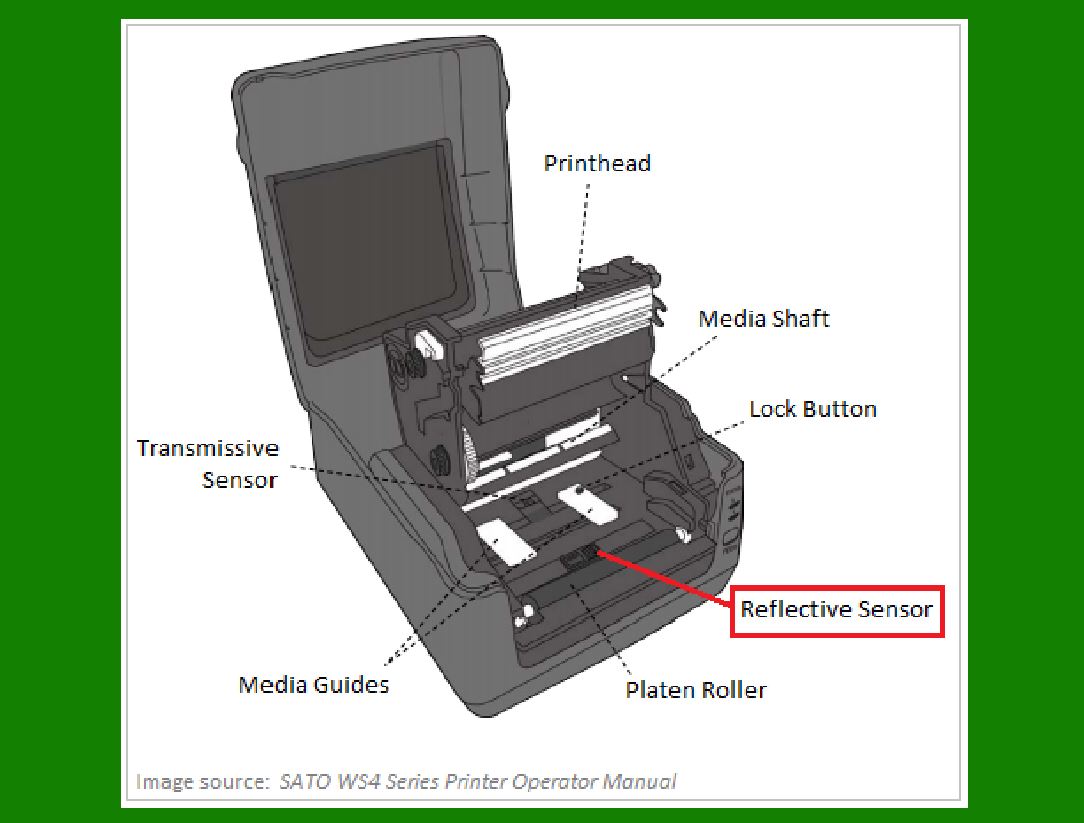
It may be because the printer's sensor does not sense the paper or ribbon. You can turn off the printer, press and hold the PAUSE button, then turn it on, and then release your hand after the printer ejects paper. If there is no retraction action, repeat this operation until there is retraction action. If that still doesn't work, try initializing the printer.

E. Paper skips during printing:

This may be because the machine does not detect the paper or the paper is not produced properly. Check whether the label paper is standardized. If there is no problem, retest the paper.

F. When printing, the paper feeds normally, but no content is printed:

This may be because the ribbon is installed upside down. Please check whether the ribbon is inner carbon or outer carbon, and install it correctly according to the instructions.

G. The printer never detects paper when printing:

it may be a sensor failure or a label paper problem. Try changing to a different label paper for printing. If the problem persists, clean the sensor or replace it.

2. Print Quality Issues:

A. Unclear Fonts or Barcodes:

Increase the barcode density or shorten the barcode content.

B. Printing Stops with LED Flash:

This may indicate overheating. Allow the printer to cool down.

C. Incorrect Label Size:

Ensure the labels are the correct size for the application.

D. Unclear printing:

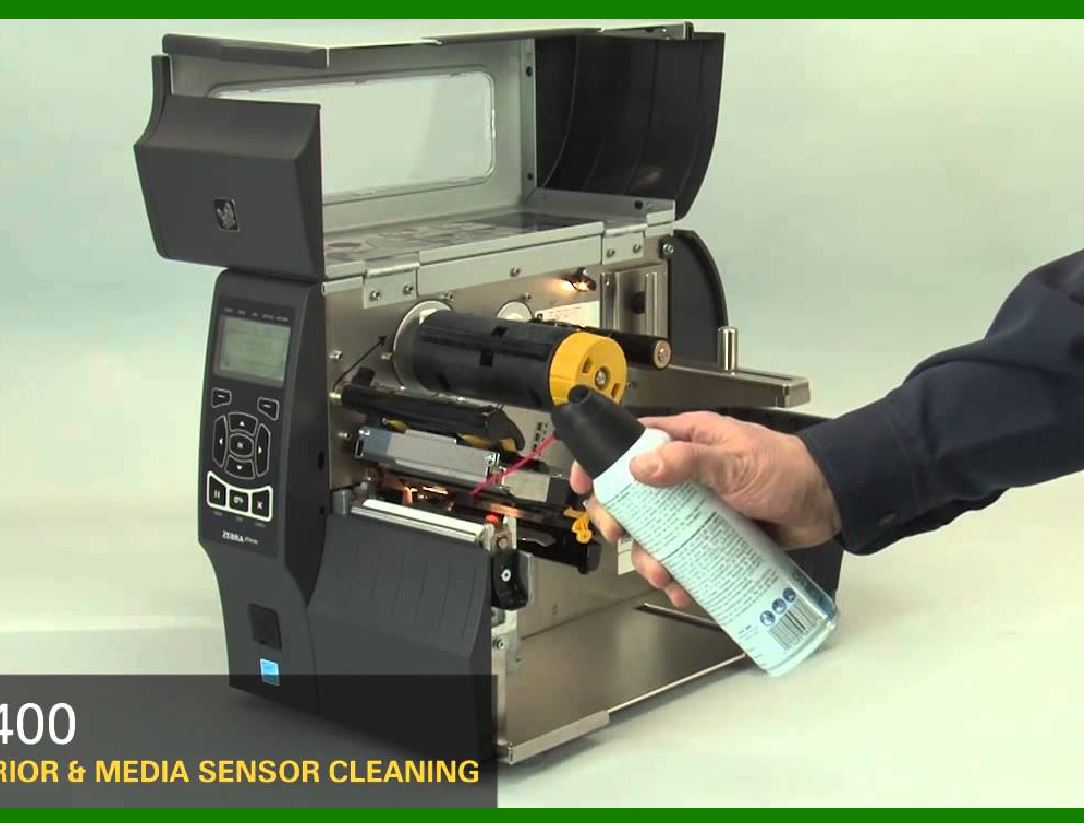
It may be because the print head is dirty or the print settings are incorrect. Clean the print head, adjust the printing temperature or replace the font.Cleaning the printhead and drive roller of a barcode printer, it is essential for maintaining print quality.

3. Error messages:

A. For specific error messages or issues, consult the printer’s manual or the manufacturer’s support resources.

B. Regular maintenance, such as cleaning the printhead and drive roller, can also prevent many problems.

C. If issues persist, consider contacting a professional technician for further assistance.


EasierSoft Barcode Label Design & Bulk Printing Software

---- Use Excel Data to Batch Print Barcodes on Label Sheets or Roll Labels  

---- How to use this barcode software

Download:  Free Barcode Software + Barcode Label Designer

Download Free Barcode Software at Softonic

     Download at CNET

Once you obtain a GS1/UPC/EAN barcode, or other barcode type and QR code, you can use our free software to batch print barcode labels onto Roll label paper using a professional label printer, or to batch print barcodes onto Avery 5160 label sheets using a regular laser or inkjet printer. Our software has free and paid versions.

The free version fully meets your needs for batch printing GS1/UPC/EAN barcodes. The paid version can import data from Excel and databases to batch print barcode labels with different values.

How to Start

Input Data

Import Excel Data

Print Barcode

Barcode Format

Label Designer

All Screen Shot

Export Barcode Image

Save Template

Output Word Excel

How to Use & FAQ:

Auto calculate barcode size (Std)

Make barcode by command line

Export barcode image files

Barcode text font setting

Generate ISBN barcode

Predefined label templates

Printing setup

Save settings

Serial number generator

The supported barcode types

Load Excel data (pro)

Manually copy data from Excel files

Filter some data for printing

Edit imported barcode data

Input data (Pro)

Label Designer

Edit data in Label designer

Label Designer - Add new label

Label Designer - Printing

Set the barcode label format to be printed

Other Barcode Label Format Settings

Barcode types supported by this program

Barcode Label Font Settings

Configuring the Barcode Print Rotation

Text Alignment for Barcode Labels

Automatically Adjusting Barcode Width

Text Beneath the Barcode

Configuring Barcode Size

Auto Calculate the Barcode Size

Export Barcode images

Export Barcode Image Format

File Names for Exported Barcode

Resolution of Exported Barcode Images

Fixed Folder for Exporting Barcode

Default Barcode Image Export Format

Print bulk barcodes quickly

Print barcodes to Avery 5160 label

How to bulk Barcode Printing

Sample - Avery 5162 (2x7) Label Sheet

Example: Print barcodes to 5*3cm roll

Example: Print barcodes to 5161 label

Example: Print barcodes to 5162 label

Example: Print barcodes to 5163 label

Example: Print barcodes to 5164 label

Example: Print portrait orientation 5164

Example: Print barcodes to 5167 label

Example: Print barcodes to 5168 label

Example: Print portrait orientation 5168

Example: Print barcodes to 5169 label

Example: Print barcodes to 5660 label

Highlights

Excel integration: Import data directly from Excel to generate and print barcodes in bulk.

Label designer: Create complex labels with multiple barcodes, text, logos, and shapes.

Batch printing: Print thousands of barcodes at once using standard inkjet/laser printers or professional barcode printers.


Flexible editions:

Standard Edition: Simple batch printing with Excel data.

Professional Edition: Adds command-line automation for workflow integration.

Label Designer Edition: Advanced design features for complex labels.


Why Choose Our Barcode Solutions?

Cost-effective: Free online generator and permanent free desktop version available.

Easy to use: No technical expertise required—just input data and print.

Versatile: Supports nearly all 1D and 2D barcode types, including QR codes.

Trusted: Recommended by CNET and widely downloaded by users worldwide.


Suitable Use Cases

Small businesses and startups needing quick barcode labels for products.

Retailers and online sellers managing inventory with batch barcode printing.

Manufacturers requiring sequential or custom barcode labels for packaging.

Educational and testing environments where barcodes are used for tracking.


CONTACT

cs@easiersoft.com

If you have any question, please feel free to email us.


https://free-barcode.com


<<< Back to Directory <<<     Barcode Generator     Barcode Freeware     Privacy Policy