Part 6: Desktop Barcode Printers (Compact Design, Use Cases, and Performance Trade-offs) |
1. Introduction to Desktop Barcode Printers |
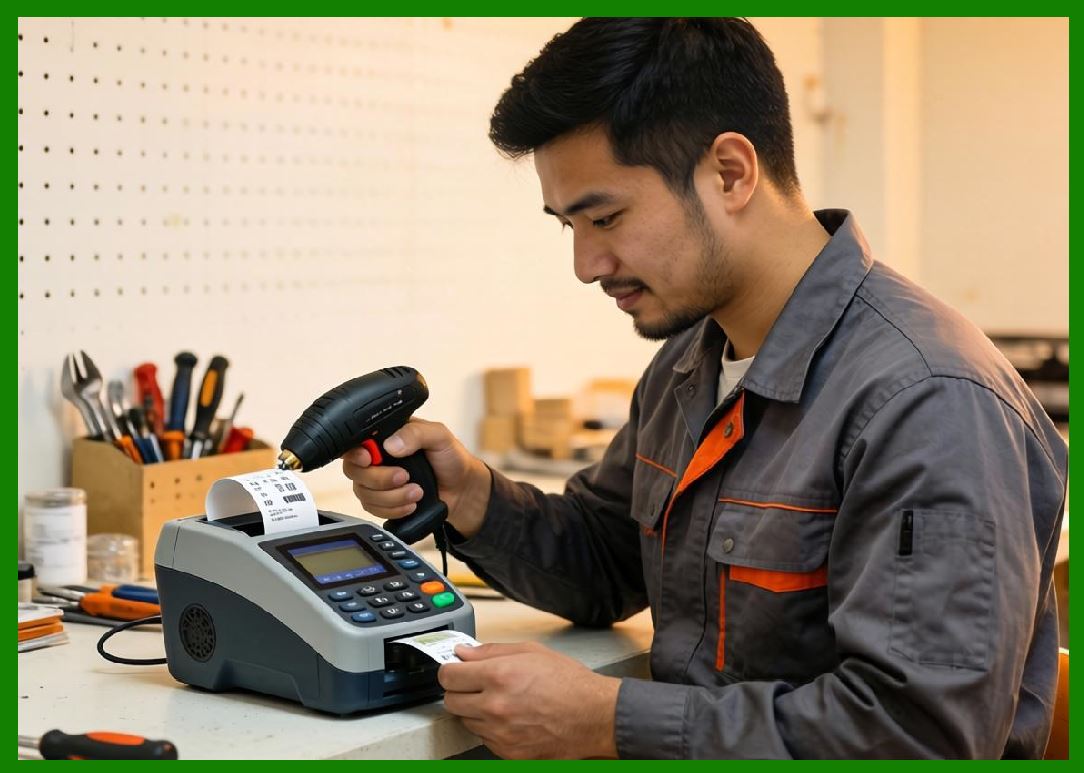
1.1 Desktop barcode printers are compact, cost-effective devices designed for low- to medium-volume printing in controlled environments such as offices, retail stores, clinics, and small warehouses. |
1.2 They represent one of the most widely deployed categories of barcode printers due to their accessibility, ease of use, and relatively low initial investment. |
1.3 These printers are typically placed on desks, counters, or workstations, and are intended for daily operational tasks such as printing product labels, shipping labels, receipts, and identification tags. |
1.4 Despite their small size, modern desktop barcode printers offer advanced features including network connectivity, high-resolution printing, and compatibility with various barcode symbologies. |

|
2. Design Philosophy and Engineering Goals |
2.1 The design of desktop barcode printers emphasizes: |
1. Compact form factor |
2. Ease of installation and operation |
3. Cost efficiency |
4. Adequate performance for moderate workloads |
2.2 Engineers prioritize user-friendly interfaces, minimal maintenance requirements, and compatibility with common business software systems. |
2.3 Unlike industrial printers, desktop models are not designed for continuous heavy-duty operation but rather for intermittent or batch printing. |
|
3. Structural Characteristics |
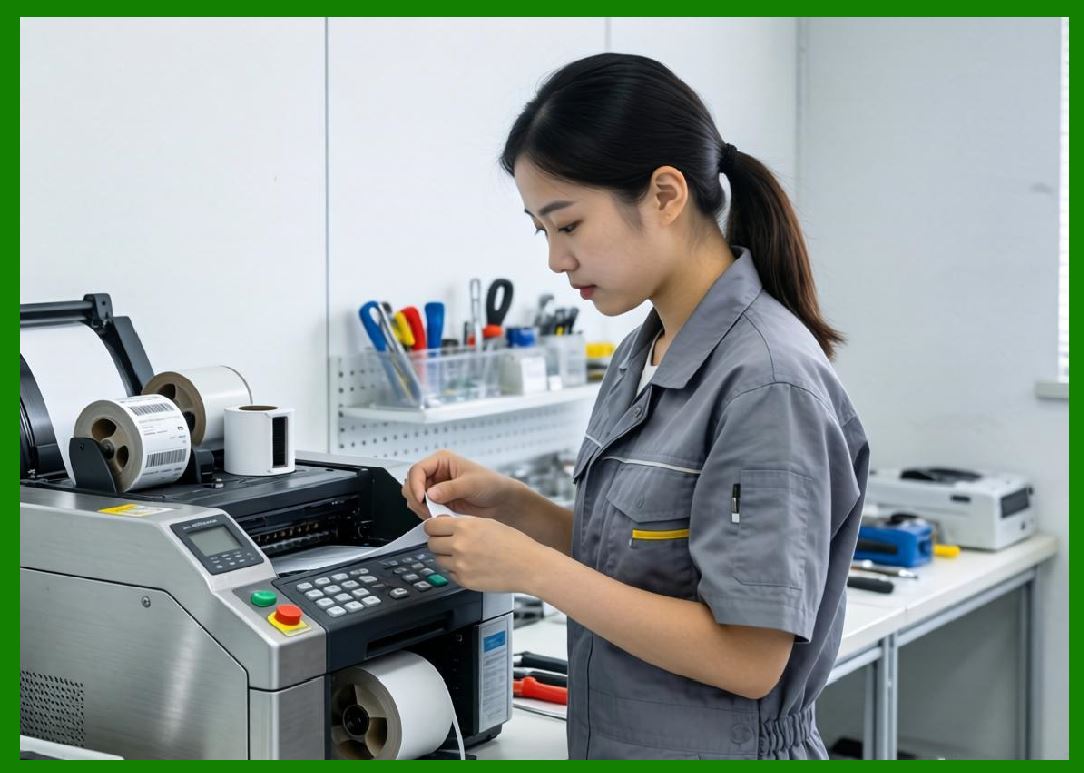
3.1 Desktop barcode printers typically feature: |
1. Plastic housing |
2. Lightweight internal components |
3. Simple media loading mechanisms |
4. Limited ribbon capacity (for thermal transfer models) |
3.2 The compact design reduces manufacturing cost but may limit durability. |
3.3 Most desktop printers use a clamshell or top-loading design for easy media replacement. |
|
4. Printing Technologies Used |
4.1 Desktop barcode printers commonly support: |
1. Direct thermal printing |
2. Thermal transfer printing |
4.2 Some advanced models may incorporate hybrid capabilities, allowing users to switch between modes. |
4.3 Inkjet and laser technologies are less common in this category for dedicated barcode labeling but may be used in general-purpose printers. |

|
5. Print Resolution and Quality |
5.1 Desktop printers typically offer: |
* 203 DPI (standard) |
* 300 DPI (higher precision) |
* 600 DPI (specialized applications) |
5.2 These resolutions are sufficient for most common barcode types, including: |
* Linear barcodes (e.g., Code 128, EAN-13) |
* 2D barcodes (e.g., QR Code, Data Matrix) |
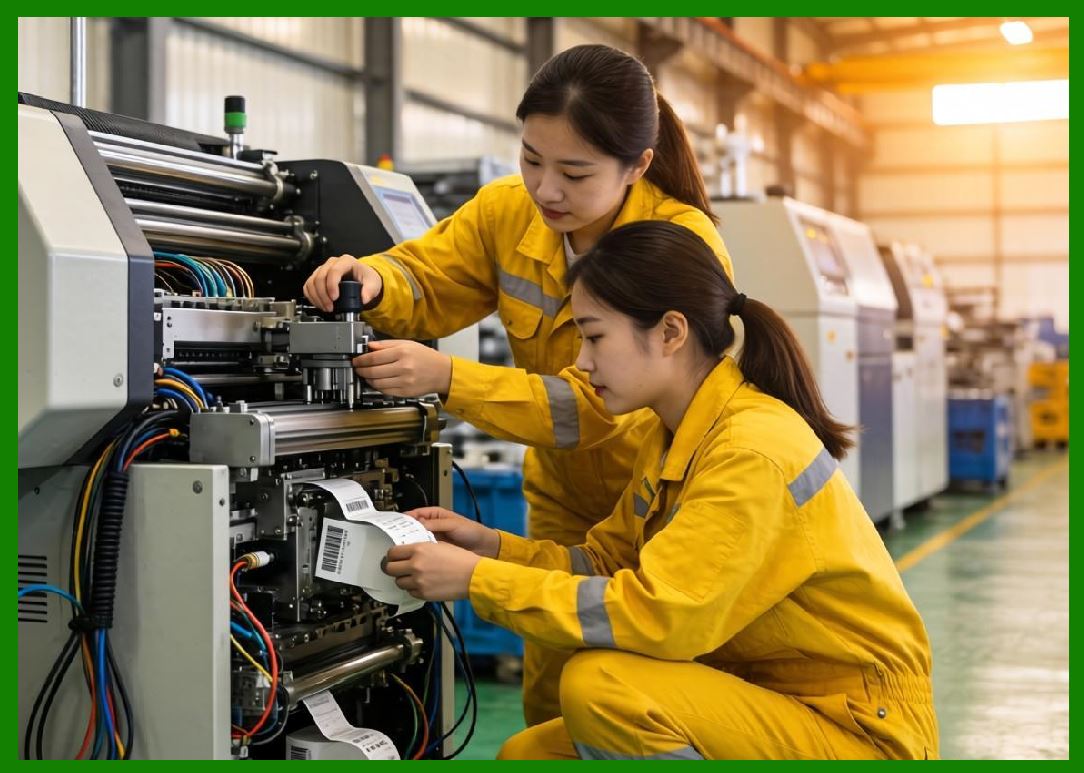
5.3 Print quality depends on: |
* Printhead condition |
* Media quality |
* Calibration settings |
|
6. Print Speed and Throughput |
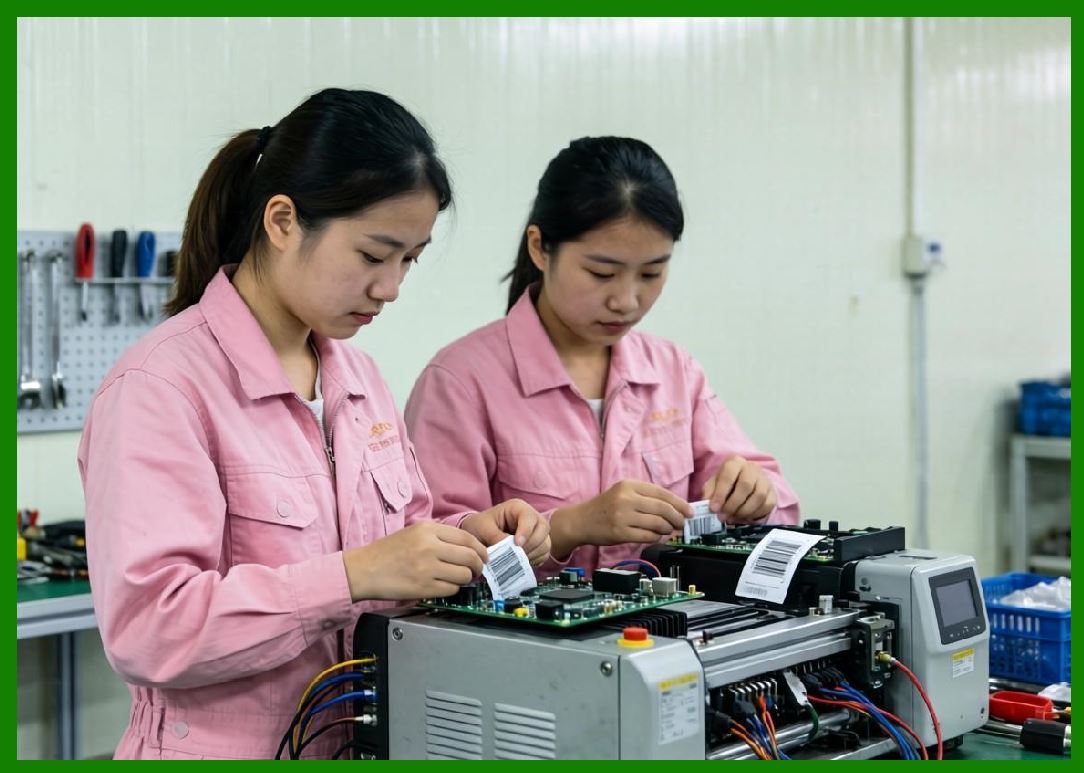
6.1 Desktop printers generally operate at speeds between 2 and 6 inches per second. |
6.2 They are optimized for: |
* Small batch printing |
* On-demand label generation |
6.3 High-speed continuous printing may lead to overheating or wear. |
|
7. Media Handling Capabilities |
7.1 Desktop barcode printers support various media types: |
1. Roll-fed labels |
2. Fan-fold labels |
3. Tags |
7.2 Media width is typically limited (e.g., up to 4 inches). |
7.3 Sensors detect: |
* Label gaps |
* Black marks |
* Media presence |
7.4 Media handling systems are simpler than those in industrial printers. |

|
8. Ribbon Handling (Thermal Transfer Models) |
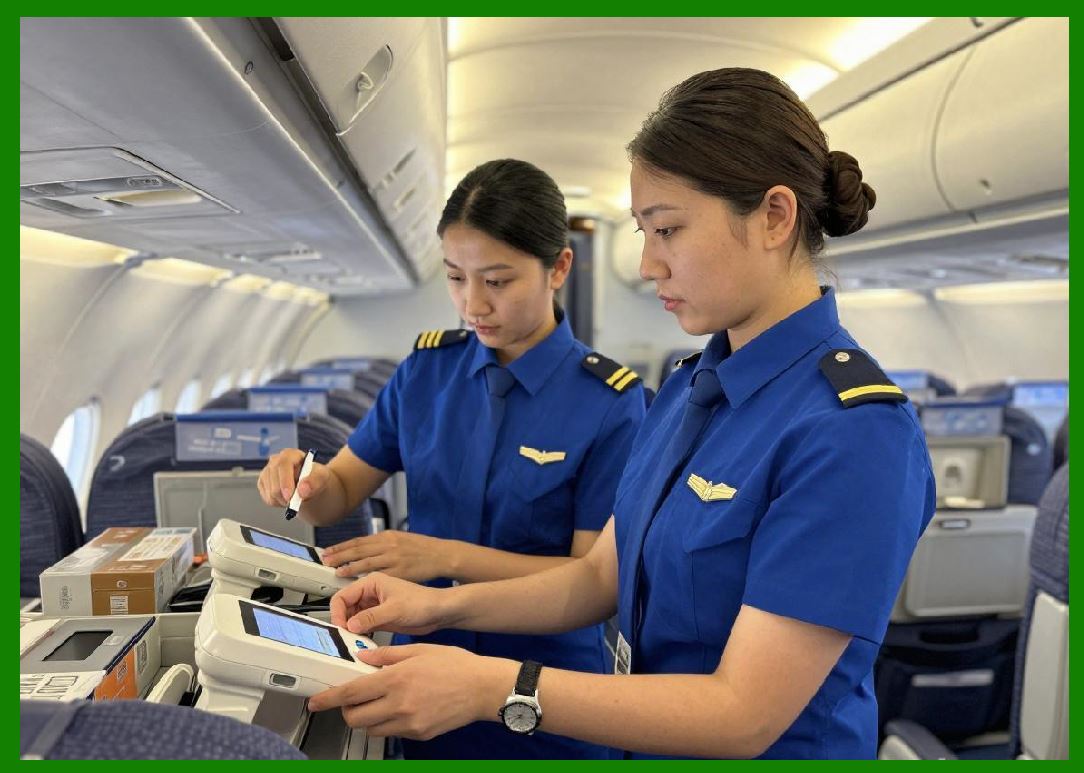
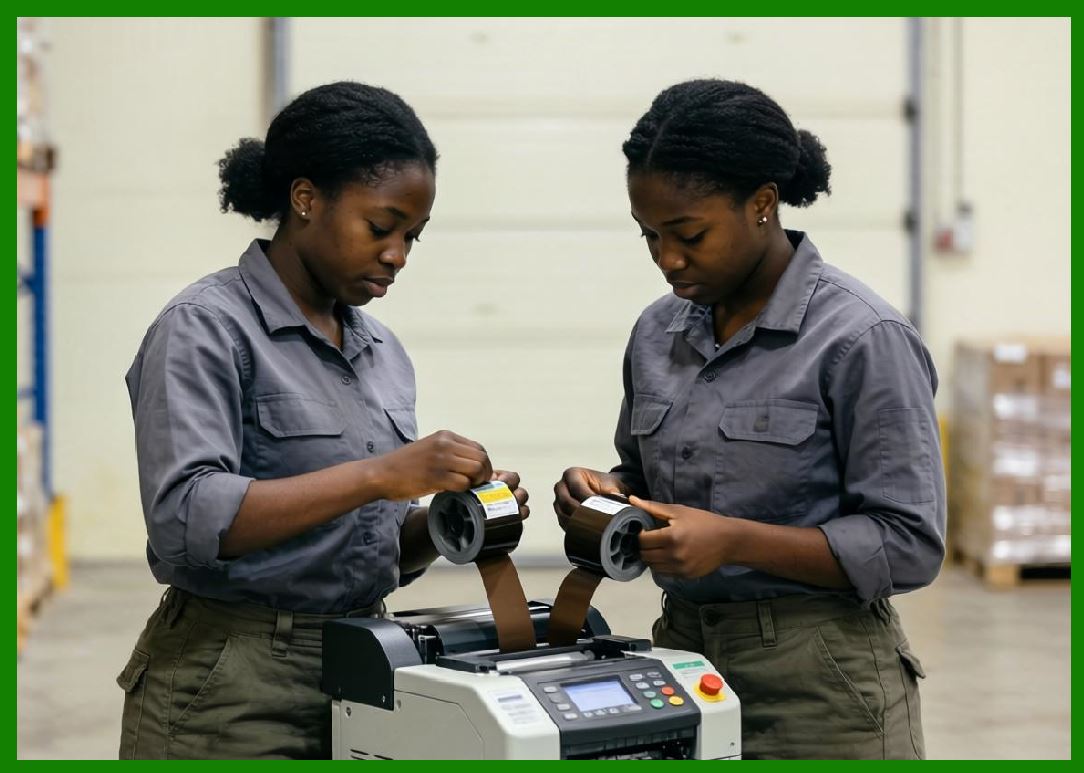
8.1 Desktop thermal transfer printers use smaller ribbon rolls compared to industrial models. |
8.2 Ribbon capacity limitations result in: |
* More frequent replacements |
* Reduced continuous operation time |
8.3 Ribbon loading is designed to be user-friendly. |
|
9. Connectivity and Integration |
9.1 Desktop printers support various connectivity options: |
1. USB |
2. Ethernet |
3. Wi-Fi |
4. Bluetooth |
9.2 They are compatible with: |
* Point-of-sale (POS) systems |
* Warehouse management systems (WMS) |
* Enterprise resource planning (ERP) systems |
9.3 Many models support printer command languages such as ZPL or EPL. |
|
10. User Interface and Control |
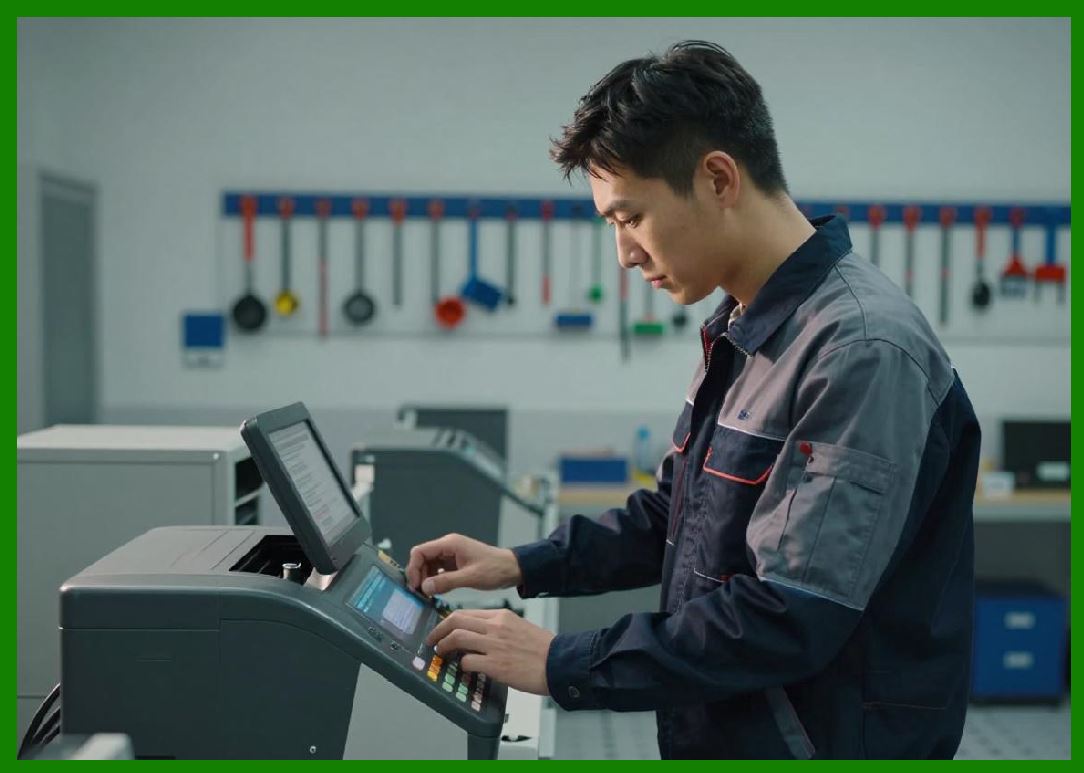
10.1 Desktop printers feature simple user interfaces: |
* Buttons for basic operations |
* LED indicators |
* Small LCD displays (in advanced models) |
10.2 Some models offer: |
* Web-based management interfaces |
* Mobile app control |
|
11. Durability and Reliability |
11.1 Desktop printers are designed for moderate use. |
11.2 Durability characteristics include: |
1. Limited resistance to dust and moisture |
2. Shorter printhead lifespan compared to industrial printers |
3. Plastic components prone to wear |
11.3 They are best suited for controlled indoor environments. |
|
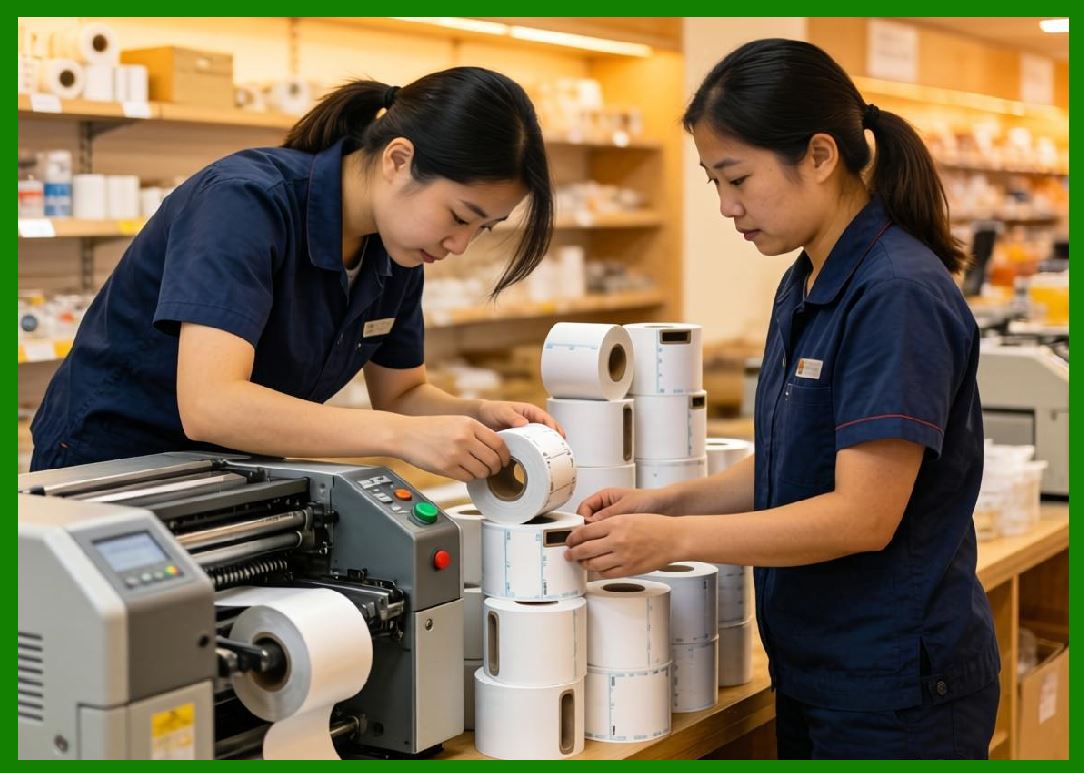
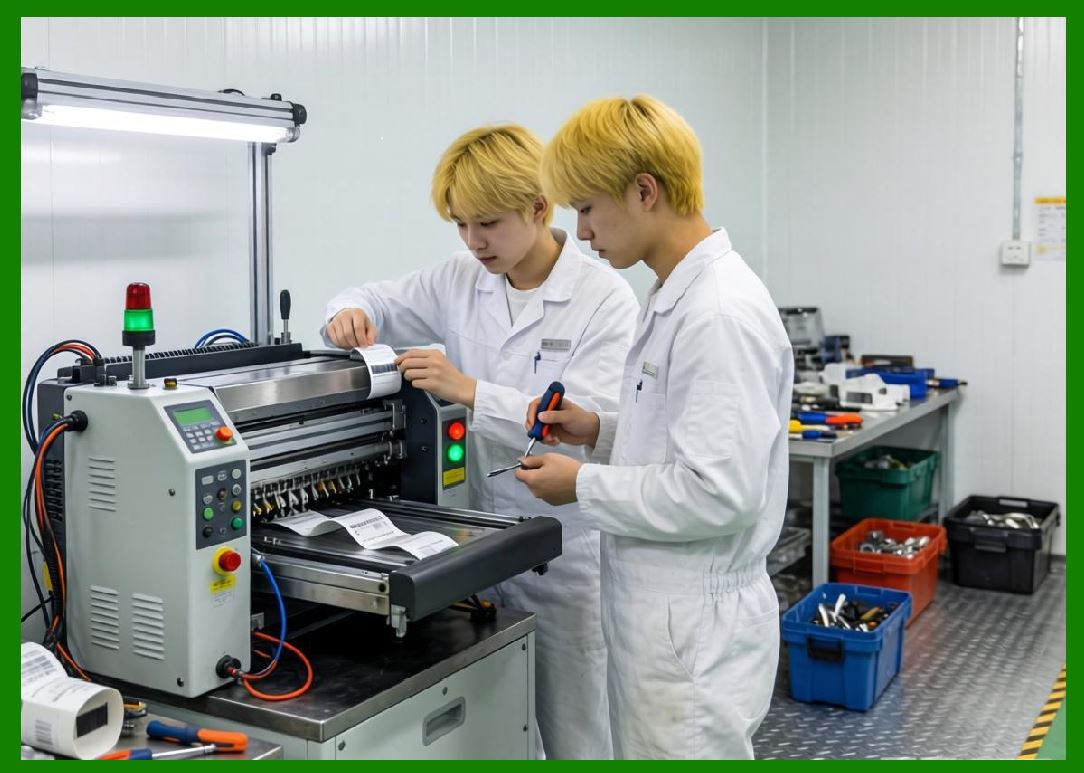
12. Maintenance Requirements |
12.1 Maintenance tasks include: |
1. Cleaning the printhead |
2. Replacing labels and ribbons |
3. Removing dust and debris |
12.2 Maintenance frequency depends on usage intensity. |
12.3 Proper care extends the lifespan of the printer. |
|
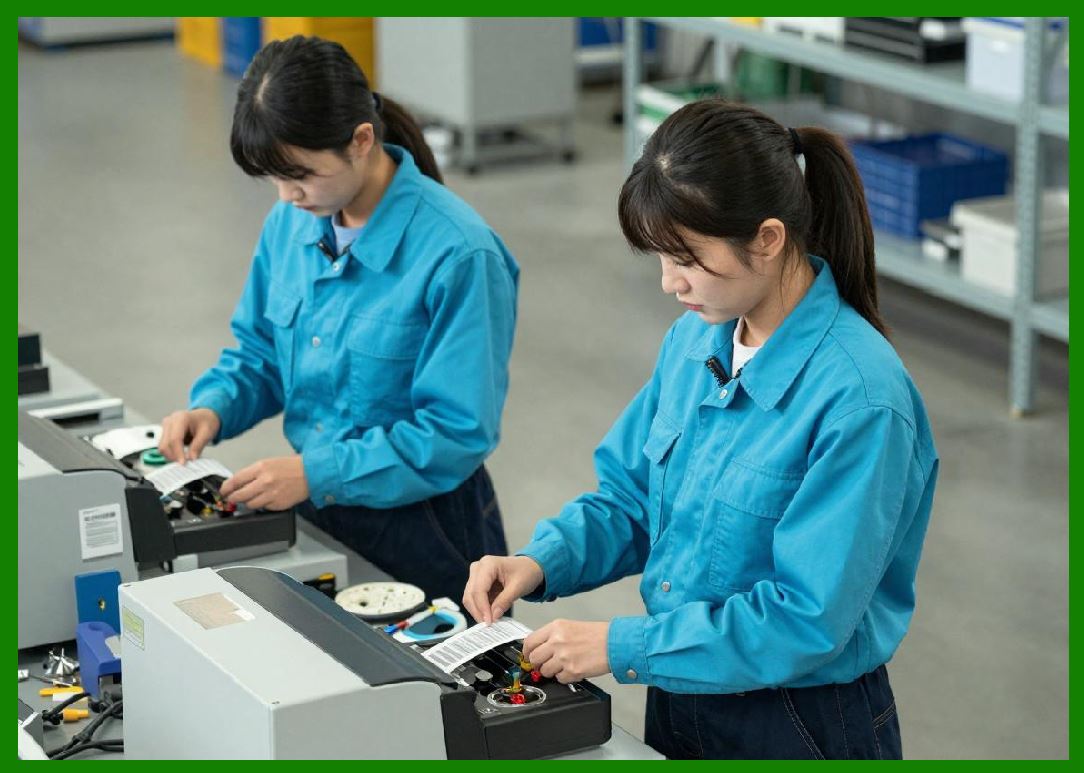
13. Energy Consumption |
13.1 Desktop printers are generally energy-efficient. |
13.2 They consume power primarily during printing operations. |
13.3 Idle power consumption is minimal. |
|
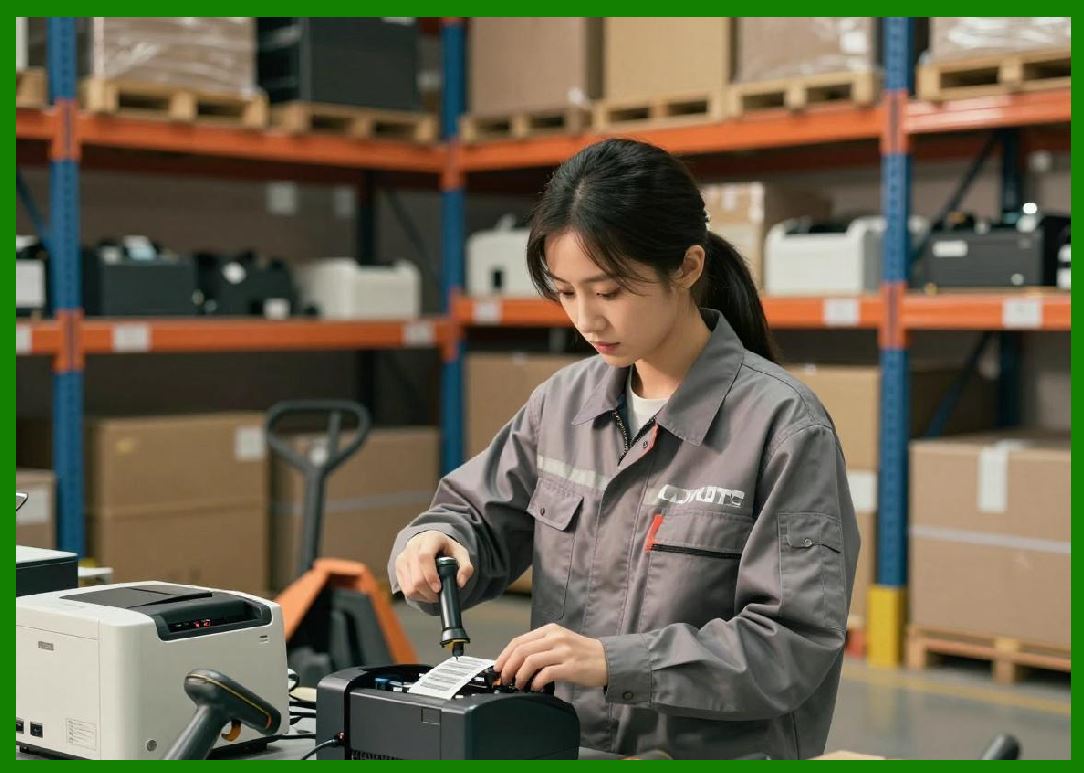
14. Cost Structure |
14.1 Cost considerations include: |
1. Low initial purchase price |
2. Moderate consumable costs |
3. Minimal maintenance expenses |
14.2 Desktop printers offer a low total cost of ownership for small-scale operations. |
|
15. Application Scenarios |
15.1 Common applications include: |
1. Retail labeling |
2. Shipping labels |
3. Office asset tagging |
4. Healthcare patient identification |
5. Small warehouse operations |
15.2 They are ideal for environments with moderate labeling needs. |

|
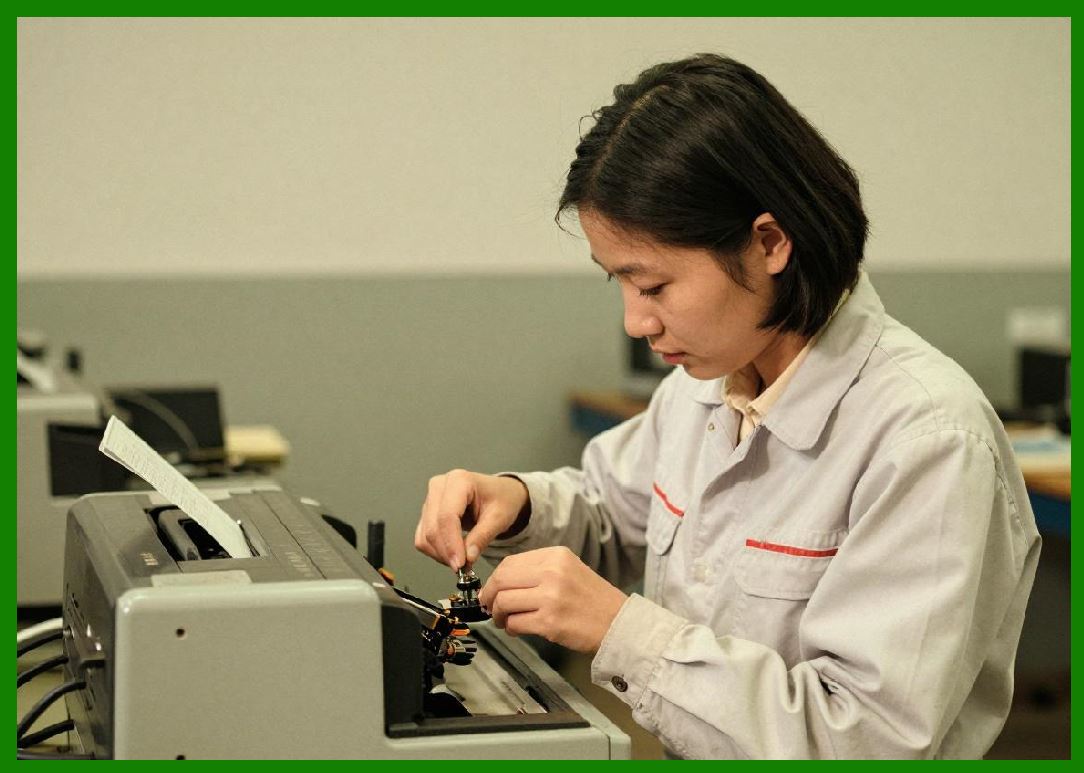
16. Advantages of Desktop Barcode Printers |
16.1 Key advantages include: |
1. Compact size |
2. Ease of use |
3. Affordable pricing |
4. Flexible connectivity |
5. Adequate performance for most business needs |
|
17. Limitations and Trade-offs |
17.1 Limitations include: |
1. Lower durability |
2. Limited printing speed |
3. Smaller media and ribbon capacity |
4. Not suitable for harsh environments |
17.2 These trade-offs are acceptable for low- to medium-volume applications. |

|
18. Comparison with Industrial Printers |
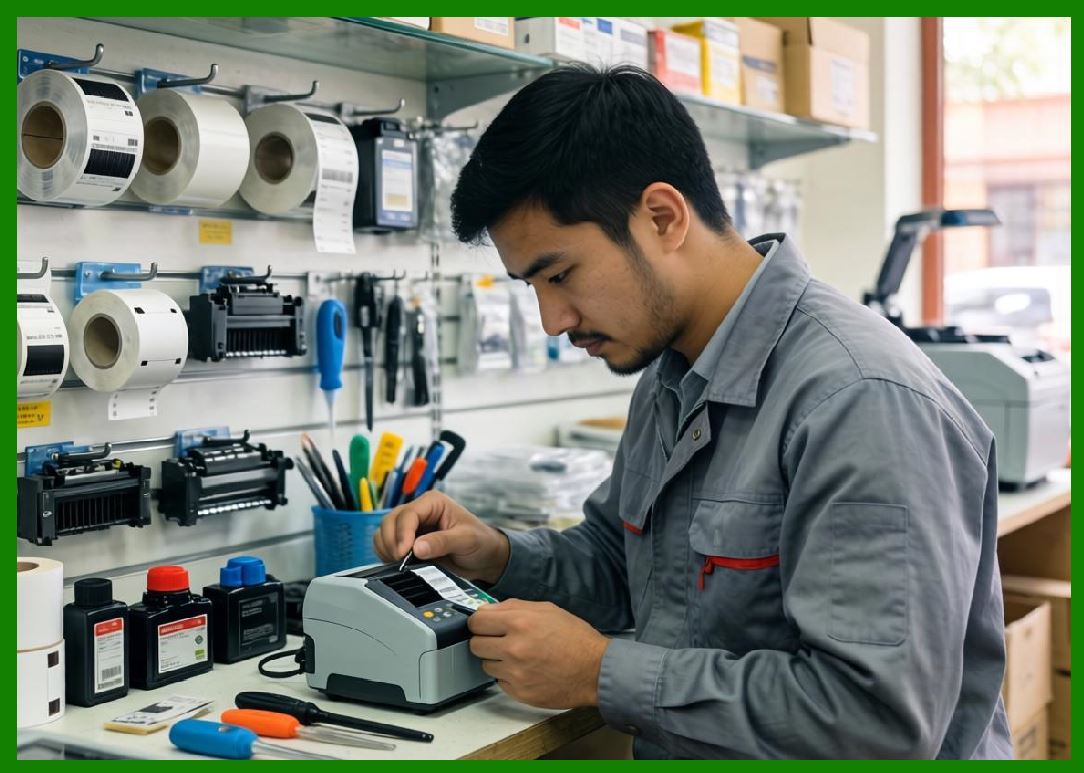
18.1 Compared to industrial printers: |
* Smaller and lighter |
* Less durable |
* Lower throughput |
* More affordable |
18.2 Selection depends on workload and environment. |
|
19. Technological Innovations |
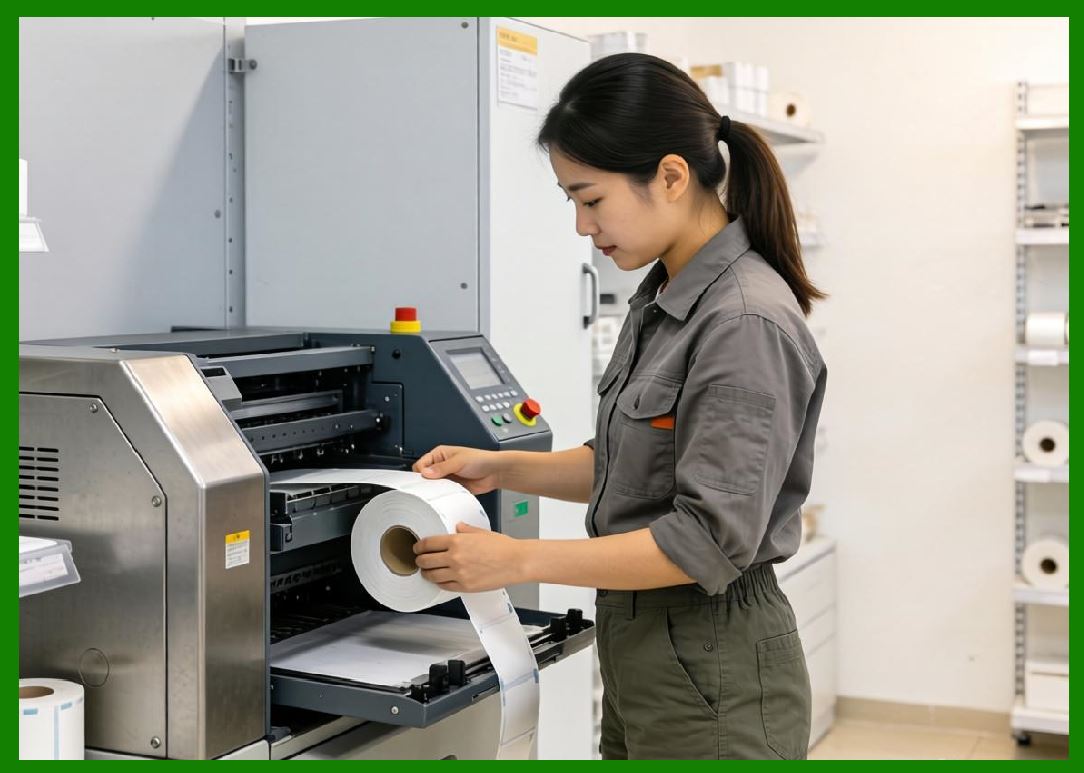
19.1 Recent developments include: |
1. Improved wireless connectivity |
2. Cloud-based printing |
3. Enhanced user interfaces |
4. Better energy efficiency |
19.2 These innovations enhance usability and integration. |
|
20. Future Trends |
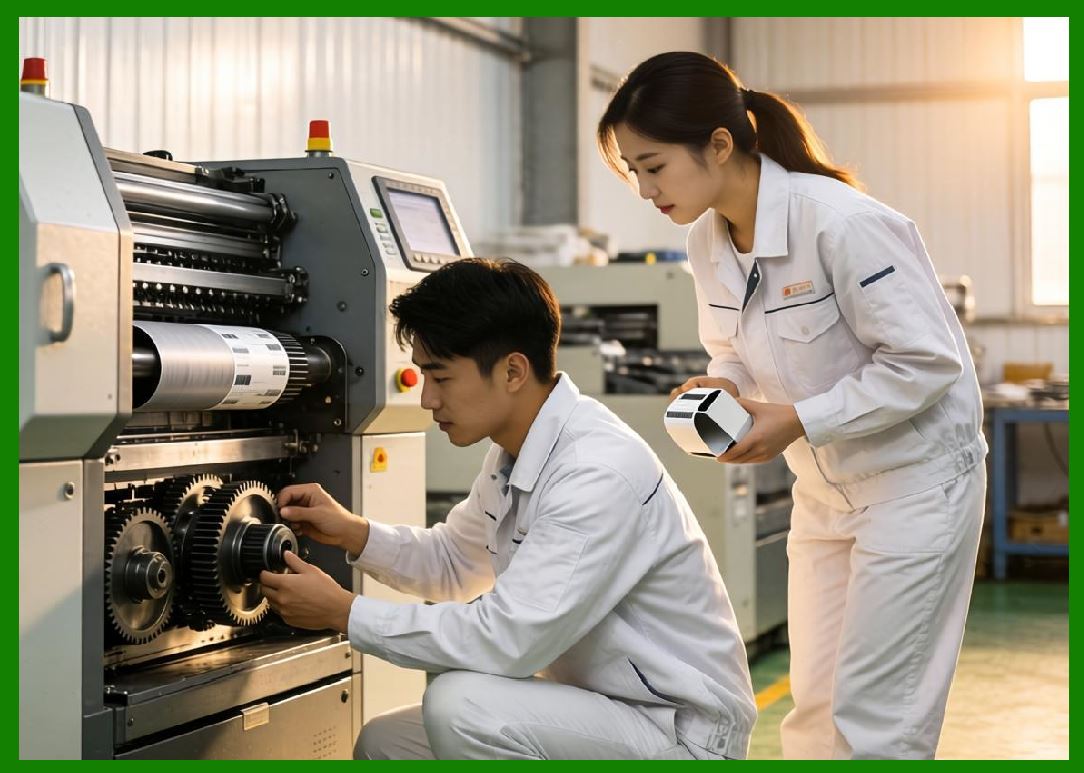
20.1 Future directions may include: |
1. IoT-enabled monitoring |
2. AI-based print optimization |
3. Enhanced mobile integration |
|
21. Selection Guidelines |
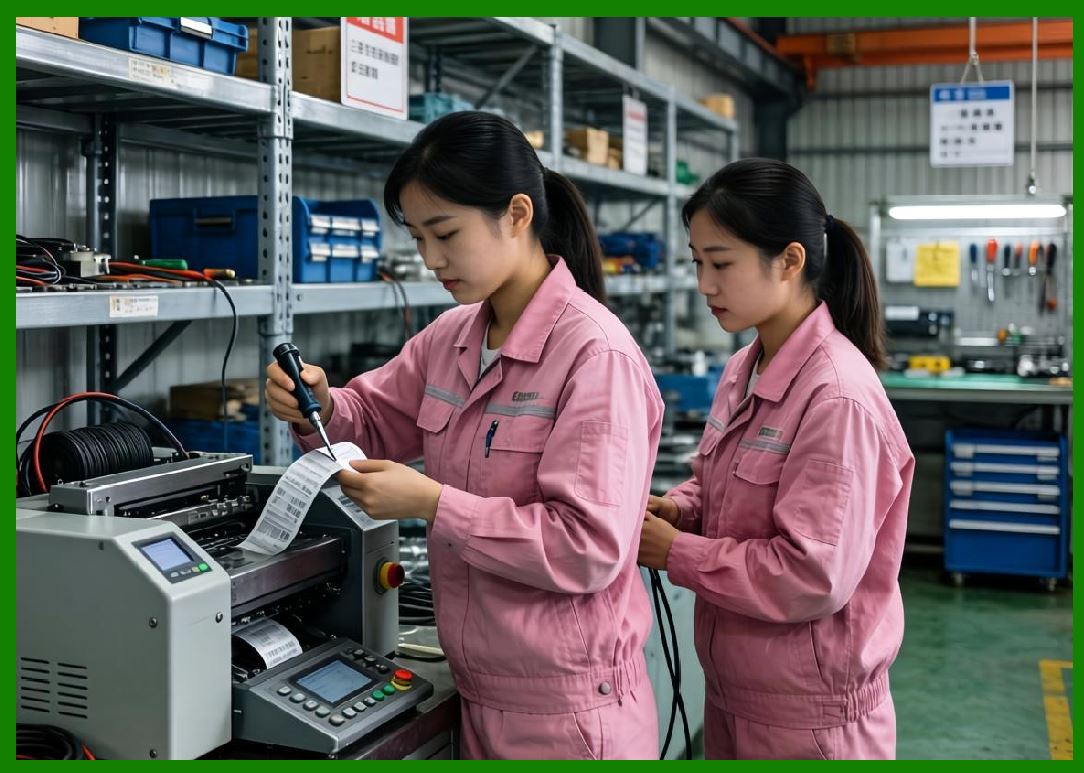
21.1 When choosing a desktop barcode printer, consider: |
1. Print volume |
2. Required resolution |
3. Media type |
4. Connectivity needs |
5. Budget |
21.2 Proper selection ensures optimal performance and cost efficiency. |
|
22. Summary of Part 6 |
22.1 Desktop barcode printers provide a practical and cost-effective solution for small to medium-scale labeling needs. |
22.2 Their compact design and ease of use make them ideal for office and retail environments. |
22.3 While they have limitations in durability and throughput, they remain a cornerstone of barcode printing systems. |
End of Part 6 |

|
Part 7: Industrial Barcode Printers (Heavy-Duty Design, High Throughput, and Harsh Environment Performance). |
 cs@easiersoft.com