1. Introduction to Barcode Printer Maintenance and Troubleshooting |
Barcode printers, like any other printing equipment, require consistent maintenance to ensure optimal performance and longevity. Whether you're using thermal, inkjet, or laser barcode printers, daily maintenance and quick troubleshooting can prevent costly downtime and ensure accurate, high-quality printing. This guide will walk through common issues, maintenance tips, and troubleshooting steps. |
|
2. Types of Barcode Printers |
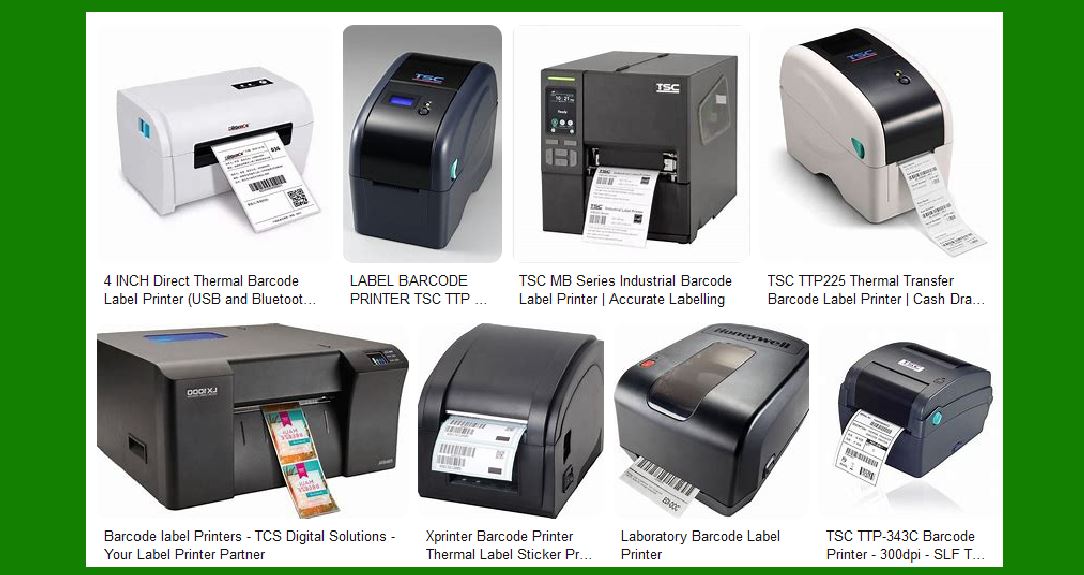
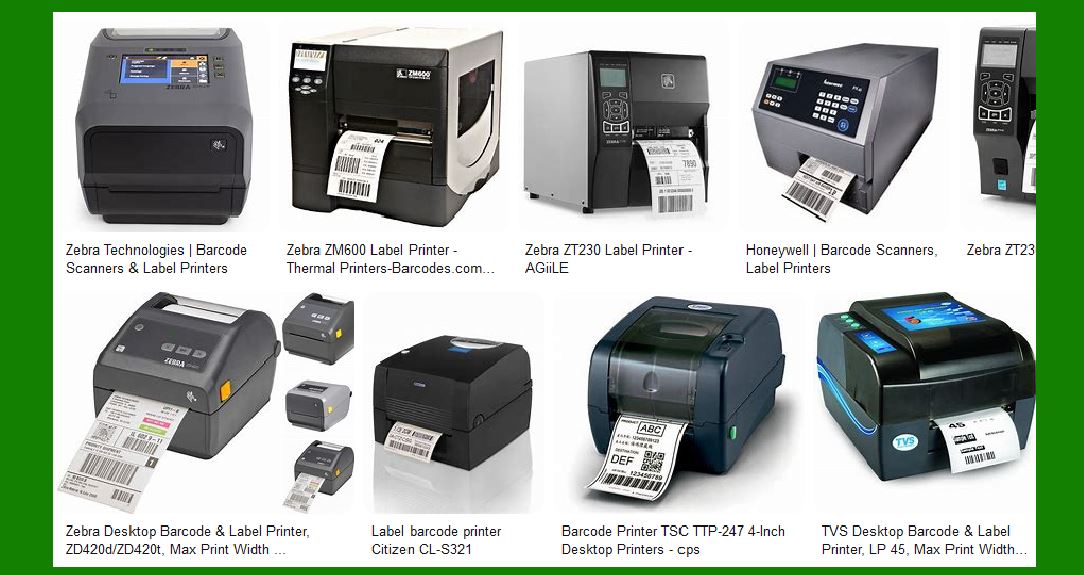
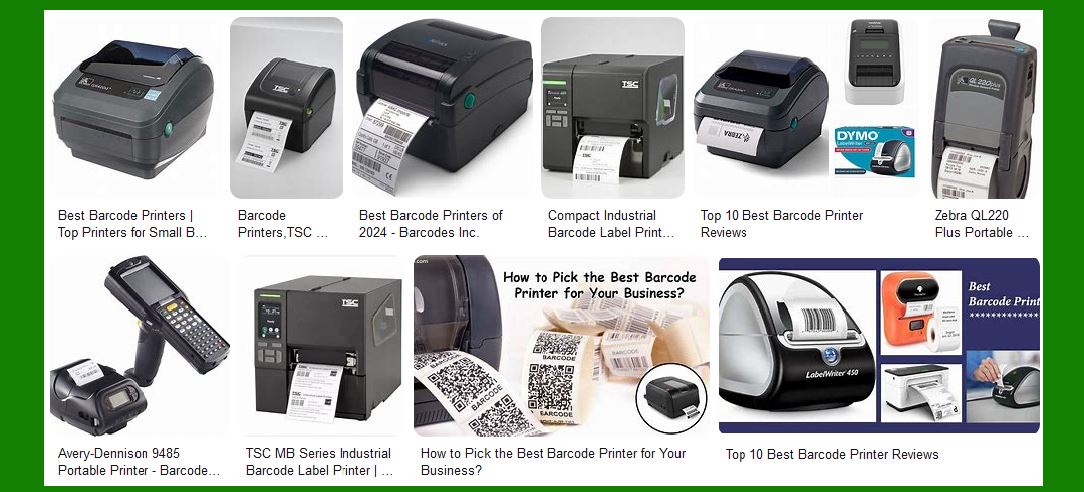
Understanding the type of barcode printer you're using is crucial for knowing what kind of maintenance and troubleshooting steps to take. The most common types of barcode printers are: |
Thermal Printers |
Inkjet Printers |
Laser Printers |
Each of these printers has specific maintenance needs, which will be outlined below. |
|
3. Daily Maintenance for Barcode Printers |
To keep a barcode printer in good working condition, daily maintenance is essential. This includes cleaning, inspecting parts, and ensuring that consumables like paper and ink/toner are properly loaded. |
3.1. Cleaning the Print Head |
The print head is one of the most critical components in a barcode printer. Over time, it can accumulate dust, ink residue, and other debris that can affect the print quality. |
Use a soft, lint-free cloth or a specific printhead cleaning pen to wipe the print head. |
Ensure the cleaning process is done gently to avoid damaging the printhead. |
3.2. Cleaning the Rollers |
Rollers ensure smooth feeding of the labels or paper through the printer. Dirt or ink buildup on the rollers can cause label misalignment or paper jams. |
Use a soft cloth dipped in water or isopropyl alcohol to clean the rollers. |
Clean the rollers weekly, or more often in high-use environments. |
3.3. Checking and Replacing Ink/Toner Cartridges |
Regularly check the ink or toner levels. Running a printer with low or empty ink can lead to print quality issues and even damage the print head. |
Replace cartridges as needed. |
Follow manufacturer instructions for proper installation. |
3.4. Paper Handling |
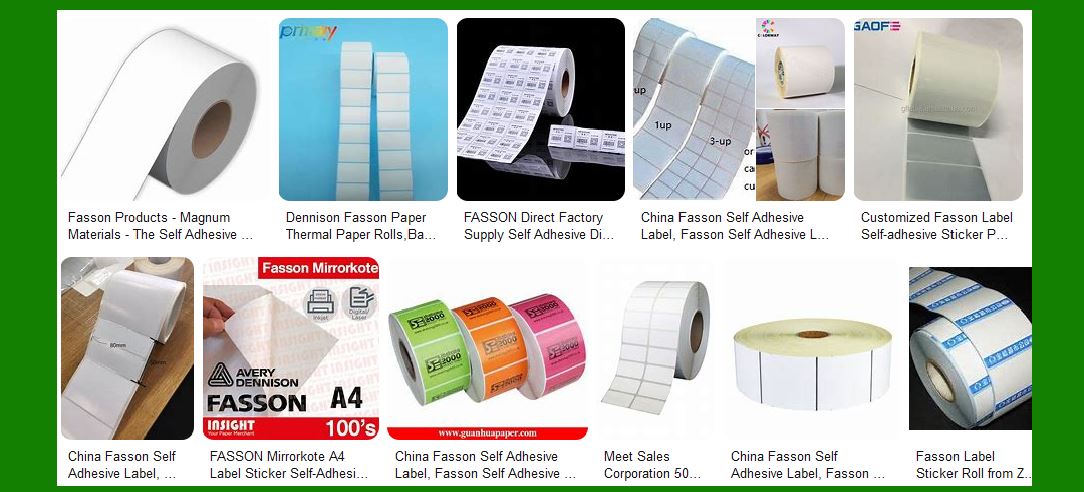
Ensure that the paper or labels are loaded properly in the printer. Misaligned paper can lead to paper jams and misprints. |
Check for any obstructions in the paper path. |
Ensure labels are not curled or damaged before loading. |
|
4. Preventive Maintenance for Barcode Printers |
4.1. Software Updates |
Ensure that the printer's firmware and drivers are up to date. Many printers have built-in diagnostic tools that work better with the latest updates. |
Check the manufacturer's website or the printer software for available updates. |
4.2. Regular Calibration |
Some barcode printers require calibration to ensure that they are printing accurate barcodes. This step should be performed regularly or whenever the print quality starts to degrade. |
Use the printer's calibration function. |
Follow manufacturer guidelines for calibration procedures. |
4.3. Inspecting Print Quality |
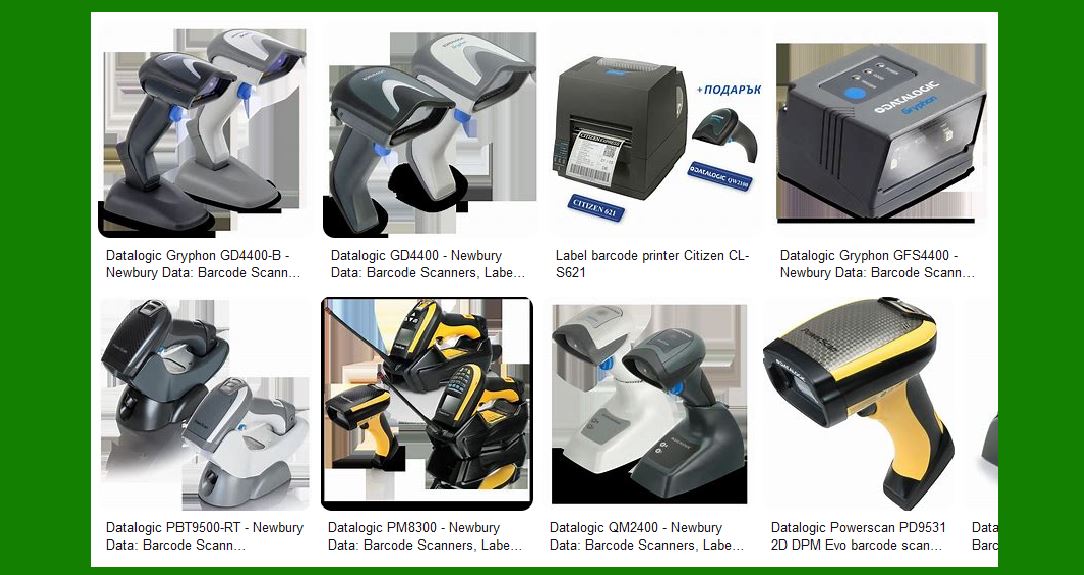
Regularly inspect printed barcodes for clarity and readability. A barcode scanner should be able to easily read the printed code. |
Check for smudging, fading, or incomplete prints. |
Run a test print every week or after any major adjustments. |
|
5. Common Barcode Printer Problems and Troubleshooting |
Despite regular maintenance, issues can still arise. Below are common problems and their corresponding solutions. |
5.1. Poor Print Quality |
If your printer produces faded, blurry, or incomplete prints, several factors could be at play. |
Causes: Dirty print head, low ink or toner, improper calibration. |
Solutions: |
Clean the print head and rollers. |
Replace the ink or toner cartridge if necessary. |
Run a printer calibration to ensure proper print alignment. |
5.2. Paper Jams |
Paper jams are a common issue and can happen for several reasons. |
Causes: Misaligned paper, dirty rollers, damaged or incorrect paper type. |
Solutions: |
Turn off the printer and gently remove any jammed paper. |
Clean the rollers and ensure that the paper is loaded correctly. |
Avoid using damaged or low-quality labels. |
5.3. Printer Not Responding |
When a barcode printer does not respond or show signs of printing, it could be a connectivity issue or a software problem. |
Causes: Connectivity issues (wired or wireless), corrupted printer drivers, power supply failure. |
Solutions: |
Check cables and wireless connection status. |
Reboot the printer and your computer. |
Reinstall or update the printer driver. |
5.4. Barcode Scanning Problems |
Sometimes, the problem isn't with the printer but with the barcode's readability. |
Causes: Low print quality, improper label alignment, incorrect barcode type. |
Solutions: |
Ensure the print quality is optimal. |
Recalibrate the printer. |
Use the correct barcode format for your application. |
5.5. Overheating or Excessive Noise |
If the printer is overheating or making unusual noises, it may require further inspection. |
Causes: Dirty or worn-out components, malfunctioning fan. |
Solutions: |
Clean internal components, such as the print head and rollers. |
Ensure the printer is placed in a well-ventilated area. |
Replace any malfunctioning parts (e.g., fans). |
|
6. Advanced Troubleshooting and Repairs |
6.1. Error Codes |
Most modern barcode printers display error codes to help troubleshoot specific issues. |
Steps: Refer to the printer manual or manufacturer's website for the error code's meaning and the recommended solution. |
6.2. Replacing Printer Parts |
Over time, parts like the printhead, rollers, and even sensors may need to be replaced. |
Printhead Replacement: Follow manufacturer guidelines and ensure that the replacement printhead is compatible with your printer model. |
Roller Replacement: Worn-out rollers can cause paper feed issues and may need replacing. |
6.3. Printer Alignment |
Ensuring that the print head is correctly aligned is crucial for quality prints. |
Steps: Consult the printer's manual for alignment instructions and calibration tools. |

|
7. Best Practices for Barcode Printer Longevity |
To ensure your barcode printer serves you well for many years, consider these best practices: |
7.1. Use Quality Consumables |
Always use high-quality paper, labels, and ink/toner compatible with your printer model. |
7.2. Regular Servicing |
Even with daily and preventive maintenance, it's advisable to have the printer professionally serviced at least once a year. |
|
8. Conclusion |
Regular maintenance and quick troubleshooting can significantly reduce downtime, improve print quality, and extend the lifespan of your barcode printer. By following the detailed steps outlined in this guide, you can ensure your barcode printer remains efficient and reliable in all business operations. |
|
3. Daily Maintenance for Barcode Printers (Continued) |
Daily maintenance is crucial for ensuring that your barcode printer operates smoothly and efficiently. It reduces the likelihood of problems that can cause delays and maintains high-quality output. Here are additional daily maintenance tasks that should be performed: |
3.5. Checking Printer Settings and Configuration |
Before you begin printing daily jobs, it's important to verify the printer settings and configuration to make sure they are optimized for the current tasks. |
Check Print Speed: Barcode printers often have adjustable print speeds. Depending on the type of label you are printing, you may need to adjust the speed to ensure optimal print quality. |
Lower print speeds usually produce better results but take longer. |
Higher speeds may cause print quality to degrade, especially for detailed barcodes. |
Verify Label Size and Type: Ensure the label size and type are properly configured. Misconfiguration can lead to printing errors such as cutting off barcodes or printing outside of the designated label area. |
For thermal printers, you might need to adjust the label length and width in the printer's settings to match the labels in use. |
Print Darkness: The darkness or contrast of the print affects the legibility of barcodes. If your barcodes appear too light, you may need to increase the darkness setting. However, be cautious not to make it too dark, as this can cause smudging. |
Many printers provide a print darkness adjustment in the settings menu. Test different levels to find the optimal setting. |
3.6. Inspecting and Maintaining the Power Supply |
Ensure that the printer's power supply is stable and uninterrupted. A fluctuating or inadequate power supply can lead to erratic printing behavior, especially in thermal printers that rely on precise temperature control. |
Check Power Cable and Connections: Ensure that the power cable is securely connected to both the printer and the power source. Look for any visible damage to the cable that might cause power issues. |
Uninterrupted Power Supply (UPS): If your printer is used in a location prone to power interruptions, consider using an Uninterruptible Power Supply (UPS). A UPS ensures the printer continues to operate during short-term power outages, preventing print jobs from being lost. |
3.7. Ensuring Proper Label Roll Storage |
One often overlooked aspect of daily maintenance is ensuring that label rolls are stored and handled properly. |
Store Labels in a Dry, Cool Area: Labels should be kept in a temperature-controlled environment to prevent them from becoming too brittle or sticky. Exposure to humidity, heat, or direct sunlight can affect the adhesive on the labels and the print quality. |
Use Label Rolls with the Correct Diameter: Always ensure that the diameter of the label roll matches the specifications of your barcode printer. Using rolls that are too large or too small can cause paper jams or misfeeds. |
3.8. Avoiding Label Contamination |
Contamination on labels is a frequent cause of print defects, such as streaks or smudging. The labels should be handled carefully to prevent dirt, oil, or moisture from interfering with the print quality. |
Handle Labels with Clean Hands: Always handle label rolls with clean hands to prevent oils, dirt, or moisture from transferring onto the label surface. |
Keep Labels Covered: If the printer is not in use for extended periods, cover the unused labels to protect them from dust and debris. |
|
4. Preventive Maintenance for Barcode Printers (Continued) |
Preventive maintenance is focused on long-term printer care, which helps avoid costly repairs and ensures maximum printer performance. Here, we expand on some of the key preventive measures. |
4.4. Software Optimization and Diagnostics |
Barcode printers typically come with diagnostic software that helps monitor the printer's performance and detect potential issues early. |
Run Printer Diagnostics: Use the printer's built-in diagnostics software to check for potential issues such as printhead malfunctions, low ink levels, or paper feed problems. |
Optimize Printer Settings: Many printer software packages allow you to optimize the print quality by adjusting parameters such as speed, darkness, and sensor sensitivity. Regularly running optimization routines helps ensure the printer is working at its best. |
4.5. Inspecting and Replacing the Ribbon (Thermal Transfer Printers) |
For thermal transfer printers, which use a ribbon to transfer ink onto labels, inspecting and replacing the ribbon is essential for maintaining print quality. |
Check Ribbon Condition: The ribbon should be checked for wear and tear. If the ribbon is torn, wrinkled, or showing signs of degradation, it should be replaced immediately. |
Proper Ribbon Alignment: Ensure that the ribbon is installed properly to avoid slippage or misalignment during the printing process. An incorrectly loaded ribbon can cause print quality issues and even damage the print head. |
4.6. Recalibrating the Printer Regularly |
Barcode printers can drift out of calibration over time, especially after changes in media or print settings. Recalibrating the printer ensures that it is printing accurately and maintaining the right alignment. |
Perform Calibration After Changing Labels: Each time you switch to a different size or type of label, it's important to recalibrate the printer. This ensures that the printer is correctly aligned with the new labels, preventing issues such as misaligned prints or label misfeeds. |
Use Automatic Calibration Tools: Many modern barcode printers come with automatic calibration tools that can detect the size and type of labels being used and adjust accordingly. Run this feature regularly to maintain accurate print settings. |
4.7. Checking Firmware and Driver Updates |
Barcode printers often have firmware and driver updates that improve performance or resolve bugs. Failing to keep these updated can lead to software conflicts or compatibility issues. |
Check for Firmware Updates: Printer manufacturers periodically release firmware updates that can improve printing performance, add new features, or fix existing bugs. Regularly check for updates and install them as needed. |
Update Printer Drivers: Outdated printer drivers can cause printing errors or slow down the printing process. Make sure that your printer drivers are up to date, particularly after system upgrades or software updates. |
|
5. Common Barcode Printer Problems and Troubleshooting (Continued) |
Here, we further expand on specific problems and provide additional troubleshooting steps. |
5.6. Ink Smearing or Smudging |
Ink smearing or smudging can happen in inkjet or thermal transfer printers if the print quality is too high or the media is not suitable. |
Causes: Excessive print darkness, low-quality media, improper print speed, or environmental factors such as humidity. |
Solutions: |
Adjust the print darkness or speed to match the media. |
Use high-quality labels that are specifically designed for your printer type. |
Ensure the printer is operating in a dry environment to prevent smearing due to moisture. |
5.7. Printer Making Unusual Noises |
If your barcode printer starts making strange noises, it could be an indication that something is wrong internally. |
Causes: Worn-out rollers, damaged gears, or a misaligned paper feed mechanism. |
Solutions: |
Turn off the printer and inspect the internal components for any visible damage or debris. |
Lubricate the moving parts with appropriate lubrication recommended by the manufacturer. |
Replace worn-out parts, such as rollers or gears, as needed. |
5.8. Label Feeder Issues |
Barcode printers rely on a precise mechanism to feed labels through the print path. Issues like misfeeds or incorrect label spacing can be a result of mechanical failure or improper configuration. |
Causes: Dirty sensors, worn-out rollers, misaligned paper guides, or incorrect label size settings. |
Solutions: |
Clean the label sensors and rollers regularly to prevent paper feed issues. |
Adjust the paper guides to match the label size. |
Verify that the correct label size is selected in the printer's software. |
|
5. Common Barcode Printer Problems and Troubleshooting (Continued) |
Understanding and troubleshooting common issues with barcode printers are critical for minimizing downtime and maintaining high productivity. Below are more problems and their solutions that can arise during the operation of barcode printers. |
5.9. Barcode Misalignment |
Misalignment is a frequent issue in barcode printing. It happens when barcodes print either too high, low, or off-center on the label. |
Causes: Incorrect printer settings, dirty sensors, or paper misfeeds. |
Solutions: |
Ensure the label size is correctly configured in the printer settings. |
Clean the label sensors and make sure the label is loaded straight into the printer. |
Align the labels correctly in the media tray to prevent them from feeding improperly. |
5.10. Printer Not Recognizing Labels or Media |
Sometimes, a barcode printer might fail to recognize labels or the media being used, causing print failures or error messages. |
Causes: Label sensors malfunction, incompatible media, or incorrect media configuration. |
Solutions: |
Check that the label type (thermal, inkjet, or laser) is compatible with the printer. |
Calibrate the printer to ensure that the sensors can detect the labels. |
Ensure that the media is loaded in the correct orientation and the printer is configured to recognize it. |
5.11. Label Sticking to Print Head or Rollers |
Label stock that is not correctly wound or has adhesive issues can stick to the printhead or rollers, causing print failures or jams. |
Causes: Poor quality labels, misalignment of the media, or excessive heat. |
Solutions: |
Always use high-quality labels that are designed for your specific printer model. |
Check for any adhesive residue on the print head or rollers and clean it off. |
Reduce the print speed and darkness settings if the adhesive is sensitive to heat. |
5.12. Ghosting or Repeated Printing of Previous Labels |
Ghosting occurs when a previous label impression is faintly visible on the next label. This can affect the quality of your barcodes and other printed information. |
Causes: Insufficient heat in thermal printers, worn-out print heads, or improper label types. |
Solutions: |
Check and replace the printhead if it's damaged or worn out. |
Adjust the print darkness and speed settings to reduce the amount of heat used. |
Ensure you are using the correct type of media, as some labels may absorb heat too quickly, causing ghosting. |
5.13. Unwanted Label Feeds (Blank Labels) |
If the printer feeds blank labels without printing anything on them, it's a clear indication of a problem. |
Causes: Calibration errors, dirty sensors, or incorrect label size settings. |
Solutions: |
Recalibrate the printer to ensure it is aligned with the label dimensions. |
Clean the sensor and printhead to ensure accurate detection of the labels. |
Double-check the label size and media settings in the printer configuration. |
|
6. Advanced Troubleshooting and Repairs |
For more complex issues, you may need to dive deeper into advanced troubleshooting techniques or replace faulty components. These tasks often require more technical expertise but are necessary for maintaining a functional and reliable barcode printer. |
6.1. Understanding Printer Error Codes |
Barcode printers typically use error codes to indicate specific problems. Familiarizing yourself with these error codes can speed up the troubleshooting process. |
Common Error Codes: |
Paper Jam: Indicates an obstruction in the paper path. |
Ribbon Error: In thermal transfer printers, this error occurs when there's an issue with the ribbon. |
Printhead Overheating: This error suggests that the printhead is either too hot or there's inadequate cooling. |
Steps for Resolving Error Codes: |
Refer to the printer's manual or the manufacturer's website to understand what each error code means. |
Follow the recommended steps for fixing the error, such as removing paper jams or checking ribbon settings. |
If the error persists, check for hardware issues such as faulty sensors or damaged cables. |
6.2. Replacing Printheads |
The printhead is one of the most vital components of a barcode printer. If it becomes worn out, damaged, or clogged, it can lead to poor print quality or complete failure. |
When to Replace: |
If you notice faded or blurry prints that cleaning cannot fix. |
If you see irregular patterns or partial prints. |
If the printhead produces excessive heat or becomes extremely hot to the touch. |
Replacement Process: |
Turn off the printer and unplug it. |
Open the printhead access panel and carefully remove the old printhead. |
Install the new printhead, ensuring it is properly aligned and seated. |
Recalibrate the printer after the new printhead is installed. |
6.3. Replacing Rollers |
Rollers are responsible for feeding the paper or labels through the printer. Over time, they can wear out or accumulate grime, which can lead to paper jams or misfeeds. |
Signs That Rollers Need Replacing: |
If paper feeds incorrectly or unevenly. |
If there's consistent jamming or label misalignment. |
If the rollers appear worn or damaged. |
Steps for Replacing Rollers: |
Turn off and unplug the printer. |
Open the printer access panel and locate the rollers. |
Remove the old rollers and clean any grime or debris before installing the new ones. |
Install the new rollers, ensuring they are positioned properly for smooth paper feed. |
6.4. Replacing the Power Supply Unit (PSU) |
A failing power supply can lead to erratic printer behavior, including loss of connection, random shutdowns, or no power at all. |
Signs of a Failing PSU: |
Printer frequently shuts down unexpectedly. |
Printer fails to power on or responds intermittently. |
Fluctuating or unstable power supply causing print errors. |
Replacement Process: |
Identify the specific power supply model compatible with your printer. |
Turn off the printer and unplug it. |
Open the printer's rear panel and carefully remove the faulty power supply. |
Install the new power supply, ensuring all connections are properly secured. |
6.5. Repairing or Replacing Sensors |
Barcode printers rely on a variety of sensors to detect the presence of labels, ensure proper alignment, and track the printing process. If a sensor malfunctions, it can cause numerous issues, including incorrect paper feeds, misprints, or failure to detect labels. |
Signs of Faulty Sensors: |
Printer fails to detect labels properly. |
Labels are misaligned or not fed properly. |
The printer is unresponsive to media changes. |
Repair/Replacement Process: |
Identify the type of sensor that is malfunctioning (e.g., gap sensor, reflective sensor, or barcode sensor). |
Turn off the printer and unplug it. |
Open the printer access panel and inspect the sensors for dirt, damage, or misalignment. |
Clean or replace the sensor as needed. |
If the sensor is damaged beyond cleaning, replace it with a compatible part. |
|
7. Best Practices for Barcode Printer Longevity (Continued) |
Continuing from our earlier section, here are additional best practices to ensure your barcode printer remains in peak condition over its lifespan. |
7.1. Proper Ventilation and Placement |
Barcode printers generate heat during operation, which is why it's essential to ensure the printer is placed in a well-ventilated area to avoid overheating. |
Avoid Direct Sunlight: Direct sunlight can cause thermal printers to overheat, potentially damaging sensitive components. |
Ensure Sufficient Space: Allow for proper airflow around the printer to help dissipate heat. |
7.2. Regular Firmware Backups |
As barcode printers often store important settings, firmware backups are critical to avoid losing configurations in the event of a malfunction. |
Perform Regular Backups: Schedule regular backups of printer configurations, especially if you're working in a production environment with multiple printers. |
Store Backup Files Safely: Save backups to a secure location, such as a network server or external hard drive, so that you can quickly restore settings if necessary. |
|
8. Conclusion (Expanded) |
Proper maintenance and timely troubleshooting are key to the long-term success of your barcode printing operations. By incorporating the best practices outlined in this guide and addressing common issues promptly, you'll ensure that your barcode printer operates efficiently, produces high-quality prints, and experiences minimal downtime. Whether you're managing a single printer or an entire fleet, these steps will help you maximize the lifespan and performance of your equipment. |
|
3. Daily Maintenance for Barcode Printers (Further Elaboration) |
Ensuring the smooth functioning of barcode printers involves more than just adjusting settings. Thorough daily maintenance can prevent unexpected downtimes, reduce the frequency of repairs, and ensure consistent quality of prints. Below is an in-depth look into the cleaning procedures and regular checks you should perform as part of your daily maintenance routine. |
3.9. Cleaning the Printhead |
The printhead is one of the most critical parts of your barcode printer. It is responsible for applying heat (in thermal printers) or ink (in inkjet printers) to the label media. Over time, dirt, ink residue, or dust can accumulate on the printhead, leading to poor print quality, ghosting, or fading. |
Cleaning Procedure: |
Turn off the Printer: Always ensure the printer is turned off and unplugged before cleaning. The printhead can become very hot during operation, and touching it immediately after use can cause burns. |
Use Isopropyl Alcohol (IPA): For thermal printers, use a lint-free cloth or cotton swab soaked in isopropyl alcohol (at least 90% concentration). Gently wipe the printhead from side to side, making sure to clean the entire surface. |
Avoid Abrasive Materials: Do not use abrasive materials, as they can scratch the printhead and cause permanent damage. |
Use Cleaning Cards (Optional): Some manufacturers provide cleaning cards, which are pre-soaked with a cleaning solution. Insert the cleaning card into the printer and feed it through the print path, as directed by the manufacturer. |
When to Clean: |
Clean the printhead daily if you're printing high volumes of labels. |
For lower volume usage, clean the printhead every few days or whenever you notice a decline in print quality. |
Regularly monitor for signs of poor print quality, such as faint or inconsistent barcodes, which could indicate the printhead needs cleaning. |

|
3.10. Cleaning the Rollers |
The rollers in your barcode printer are responsible for feeding the label stock through the print path. If they are dirty or worn, it can cause paper jams, misfeeds, or misalignment of labels. Cleaning the rollers regularly is crucial to avoid these issues. |
Cleaning Procedure: |
Turn off the Printer: As with the printhead, always turn off the printer and unplug it before attempting to clean the rollers. |
Use a Soft Cloth: Use a soft, lint-free cloth soaked in a small amount of water or isopropyl alcohol (again, a concentration of at least 90%). Gently wipe each roller, starting from one side and moving to the other, ensuring you clean the entire surface. |
Use a Roller Cleaning Kit: Some manufacturers sell specific cleaning kits designed for the rollers. These kits usually contain specialized wipes or materials that are safe to use on your printer's rollers. |
Check for Wear: After cleaning, visually inspect the rollers for any signs of damage, cracking, or excessive wear. If the rollers feel smooth to the touch, they should be in good condition. If you notice any deep grooves or rough textures, it may be time to replace the rollers. |
When to Clean: |
Clean the rollers daily if you're printing frequently or with adhesive labels. |
For infrequent printing, clean the rollers every few days or whenever you experience paper feed issues. |
|
3.11. Cleaning the Sensors |
Barcode printers use sensors to detect the presence of labels and ensure proper alignment during the printing process. These sensors can become dirty or misaligned, leading to misprints, blank labels, or inconsistent label positioning. |
Types of Sensors: |
Reflective Sensors: Used to detect black marks or gaps between labels. |
Gap Sensors: Detect the spaces or gaps between labels, ensuring proper spacing. |
Barcode Sensors: Specifically used to detect the barcode's position for accurate printing. |
Cleaning Procedure: |
Turn off the Printer: Always turn off the printer and unplug it before cleaning the sensors. |
Use a Soft Cloth or Compressed Air: Use a soft lint-free cloth or a can of compressed air to gently clean the sensors. Avoid touching the sensors with your fingers, as oils can transfer and affect their performance. |
Inspect Alignment: After cleaning, visually inspect the sensors to ensure they are properly aligned with the label path. If the sensors are misaligned, the printer may fail to detect labels or may misfeed them. |
When to Clean: |
Clean the sensors daily if you print high volumes of labels. |
For lower volumes, a weekly cleaning may suffice, unless you notice paper feed issues or printing irregularities. |
|
3.12. Replacing the Printhead and Rollers (If Necessary) |
While cleaning is essential, over time, printheads and rollers will wear out due to the constant friction and heat generated during printing. Regularly checking the condition of these components and replacing them when necessary will extend the lifespan of your printer and maintain the quality of your prints. |
Printhead Replacement: |
Signs That You Need a New Printhead: |
Faded or incomplete prints that cleaning cannot fix. |
Visible damage, such as chips or scratches on the printhead. |
Burnt or charred areas on the printhead surface. |
Steps for Replacing the Printhead: |
Power off and unplug the printer. |
Open the printhead access panel. |
Remove the faulty printhead by gently lifting it out of its slot. |
Insert the new printhead and secure it in place. |
After replacing the printhead, recalibrate the printer to ensure it's aligned properly for future prints. |
Roller Replacement: |
Signs That You Need New Rollers: |
Constant paper jams or misfeeds. |
Wear marks, grooves, or cracks on the rollers. |
Steps for Replacing the Rollers: |
Power off and unplug the printer. |
Remove the old rollers, paying attention to how they are positioned. |
Install the new rollers in the correct orientation, making sure they fit securely. |
After replacing the rollers, check for proper paper alignment and smooth feed. |
|
4. Preventive Maintenance for Barcode Printers (Continued) |
Let's expand further on Preventive Maintenance, specifically focusing on software and firmware updates as part of long-term printer care. |
4.8. Monitoring Printer Performance Through Software |
Many modern barcode printers come with diagnostic software that monitors printer performance, alerts users to potential issues, and helps prevent downtime by catching problems early. |
Use of Diagnostic Software: |
Real-Time Monitoring: Software can provide real-time feedback on print quality, printhead temperature, ribbon usage, and other key metrics. It helps track the printer's health and usage patterns over time. |
Error Detection: Diagnostic software can detect when the printer is encountering issues such as media misalignment, communication problems, or print quality degradation. This allows you to take action before the problem escalates. |
Scheduled Maintenance Alerts: Some diagnostic tools can be configured to send maintenance reminders or alerts when it's time to clean certain parts (like the printhead or rollers) or when the printer requires servicing. |
Software for Firmware Updates: |
Why Keep Firmware Updated: Firmware updates improve printer performance, add new features, and resolve known issues. Manufacturers release firmware updates regularly to address compatibility with new operating systems, fix bugs, or improve functionality. |
Steps for Updating Firmware: |
Check the manufacturer's website or use the printer's diagnostic software to see if a firmware update is available. |
Follow the instructions to download and install the update. Make sure not to interrupt the process to avoid corrupting the firmware. |
By diving deeper into daily maintenance, cleaning, and preventive checks, you'll not only reduce the frequency of printer malfunctions but also enhance print quality and prolong the printer's life. Regular care ensures your printer is ready to meet daily demands, keeping your business running smoothly without interruption. |
|
6. Troubleshooting Tips for Barcode Printers |
Barcode printers, like all electronic devices, are prone to occasional issues. Here are some troubleshooting tips for common problems you might encounter, which will help you quickly identify and resolve issues before they affect your operations. |
6.1. Poor Print Quality (Faded, Blurry, or Inconsistent Prints) |
Symptoms: Barcodes appear faint, blurry, or inconsistent. Prints may have vertical lines, missing parts, or be incomplete. |
Potential Causes: |
Worn-out printhead |
Incorrect print darkness or speed settings |
Dirty printhead or rollers |
Low-quality media or ribbon (if using thermal transfer) |
Troubleshooting Steps: |
Clean the Printhead: A dirty printhead is one of the most common causes of poor print quality. Refer to the cleaning instructions mentioned earlier using isopropyl alcohol. |
Adjust Print Settings: Reduce the print speed or increase the print darkness to improve the contrast between the barcode and the label. |
Check Media Quality: Ensure you are using high-quality, manufacturer-recommended labels and ribbons (if applicable). Low-quality media can result in poor print quality. |
Check for Wear: If cleaning and adjustments don't resolve the issue, inspect the printhead for signs of wear. A damaged printhead should be replaced immediately. |
6.2. Printer Not Recognizing Media (Labels or Ribbon) |
Symptoms: The printer fails to detect the media, resulting in an error or blank labels being printed. |
Potential Causes: |
Misaligned or improperly loaded media |
Faulty or dirty media sensors |
Incorrect media type settings in the printer |
Label sensor misalignment |
Troubleshooting Steps: |
Re-align Media: Ensure the labels and ribbon (if applicable) are loaded properly and aligned with the media sensors. Misalignment can prevent the printer from detecting the media correctly. |
Clean the Sensors: Dirty or blocked sensors can prevent the printer from detecting labels. Clean the sensors using a soft, lint-free cloth soaked with alcohol or compressed air. |
Check Media Settings: Verify that the media type (direct thermal or thermal transfer) and the size of the label are correctly set in the printer's configuration. |
Recalibrate the Printer: Recalibrate the printer to adjust to the media type and alignment. This step ensures the printer recognizes the media properly. |
6.3. Paper Jams |
Symptoms: The printer stops printing, and the paper is stuck in the print path. |
Potential Causes: |
Incorrect media size or type |
Dirty or worn rollers |
Improper loading of labels |
Misalignment of the paper path |
Troubleshooting Steps: |
Turn Off and Unplug the Printer: Always ensure the printer is powered off before attempting to clear a paper jam. |
Remove the Jammed Paper: Gently remove any jammed paper or labels, checking for any torn pieces that may be left inside. |
Clean the Rollers and Sensors: Dirty rollers or sensors can cause paper jams. Clean these components to ensure smooth paper feed. |
Check for Worn Rollers: Worn or damaged rollers may cause misfeeds. If the rollers are worn, replace them to prevent future jams. |
Recheck the Media Load: Ensure the labels are loaded straight and aligned properly. Incorrect loading can result in jams. |
6.4. Unresponsive Printer (Not Powering On) |
Symptoms: The printer does not turn on or is unresponsive, with no lights or indicators flashing. |
Potential Causes: |
Faulty power supply |
Loose or disconnected power cables |
Internal hardware malfunction |
Troubleshooting Steps: |
Check the Power Cable: Ensure the power cable is securely connected to both the printer and the power outlet. Inspect the cable for visible signs of wear or damage. |
Inspect the Power Supply Unit (PSU): If the printer still doesn't power on, the PSU might be faulty. In this case, the power supply should be replaced. |
Test with Another Power Outlet: Try plugging the printer into a different power outlet to rule out issues with the outlet. |
Inspect for Overheating: If the printer was recently in heavy use, it may have overheated. Turn it off, let it cool for a while, and then try to power it on again. |
6.5. Printer Producing Blank Labels |
Symptoms: The printer feeds labels but doesn't print anything on them, resulting in blank labels. |
Potential Causes: |
Incorrect media settings (e.g., thermal vs. thermal transfer) |
Incorrect label size settings |
Printhead not receiving proper heat or ribbon not installed properly (for thermal transfer printers) |
Troubleshooting Steps: |
Check Print Settings: Ensure the correct media type (e.g., direct thermal, thermal transfer) is selected in the printer settings. |
Replace or Check the Ribbon: For thermal transfer printers, make sure the ribbon is installed correctly and is not depleted. |
Inspect Printhead for Blockage: Clean the printhead to ensure it's not blocked or damaged. A printhead that isn't heating correctly can also cause blank labels. |
Verify Label Dimensions: Check that the label dimensions in the printer settings match the actual size of the labels being used. |
|
7. Preventive Care for Barcode Printers |
Regular preventive care not only extends the life of your printer but also improves its performance, print quality, and reliability. Below are some detailed practices to keep your barcode printer in optimal condition: |
7.1. Regular Calibration |
Calibrating your barcode printer ensures that it correctly detects label size, gaps, and barcodes. Calibration is particularly important if you're using different types of labels or media. |
How to Calibrate: |
Many printers allow you to perform calibration via the printer's control panel or software. The process typically involves feeding a label through the printer, allowing it to learn the correct size and alignment. |
Calibration should be performed when you change the media type, size, or if you notice feeding issues or misalignment in printed labels. |
7.2. Consistent Software and Firmware Updates |
To avoid compatibility issues and ensure that your printer has the latest features, it's crucial to perform regular software and firmware updates. |
Why Software/Firmware Updates Matter: |
Bug Fixes: Updates often address known bugs that could cause issues like misfeeds or print quality degradation. |
New Features: Some updates provide additional functionality, such as support for new label types or media. |
Enhanced Security: Printer firmware updates may include security patches to protect against vulnerabilities. |
How to Perform Updates: |
Check the manufacturer's website or use the printer's built-in diagnostic tool to see if an update is available. |
Follow the instructions carefully to install the update, ensuring the printer is not interrupted during the process. |
7.3. Preventative Component Replacement |
Over time, parts such as printheads, rollers, and sensors will wear out due to constant use. Planning for the replacement of these parts can help you avoid unexpected failures. |
Monitor Usage and Wear: |
Keep track of how frequently you use the printer and adjust your preventive maintenance schedule accordingly. |
If your printer has a print counter, use it to estimate when components like the printhead or rollers are due for replacement. |
Keep Spare Parts on Hand: |
For high-volume printing, it may be worthwhile to keep spare components (printheads, rollers, and ribbons) on hand to reduce downtime when maintenance or repairs are needed. |
7.4. Environmental Factors |
Environmental conditions play a significant role in the longevity of your printer. Extreme temperatures, humidity, or dust can all negatively impact performance. |
Temperature and Humidity: |
Avoid placing printers in direct sunlight or near heat sources (e.g., radiators). Extreme heat can damage electronic components and cause print quality issues. |
Keep the humidity levels within the recommended range (typically 40%-60%) to prevent issues like paper jams, ink smudging, or wear on printheads and rollers. |
Dust Control: |
Regularly clean the area around the printer to avoid dust buildup, which can affect the printer's internal components. Use air filters if necessary to reduce dust in the environment. |
 cs@easiersoft.com