Detailed Explanation of the Principles and Structure of Barcode Printer |
Part 18: Sensor Systems, Optical Detection, and Feedback Mechanisms in Barcode Printers |
1. Introduction to Sensor Systems in Barcode Printers |
1.1 Sensor systems are essential components in barcode printers that enable real-time detection, measurement, and feedback control. |
1.2 These sensors allow the printer to understand its internal state and the position of media, ribbon, and mechanical components during operation. |
1.3 Without sensors, a barcode printer would operate blindly, making precise synchronization impossible. |
1.4 In modern industrial printers, sensor systems form the foundation of automation and self-correction. |

|
2. Classification of Sensors in Barcode Printers |
2.1 Barcode printers use multiple types of sensors, including: |
* Optical sensors |
* Mechanical position sensors |
* Thermal sensors |
* Magnetic sensors (in some systems) |
* Pressure sensors (in advanced industrial models) |
2.2 Each sensor type serves a specific monitoring function within the printing process. |

|
3. Optical Sensors and Their Role |
3.1 Optical sensors are the most widely used sensors in barcode printers. |
3.2 They operate based on light emission and reflection principles. |
3.3 A typical optical sensor consists of: |
* LED light source |
* Photodiode or phototransistor receiver |
3.4 When light is reflected or blocked by media, the sensor generates a signal. |

|
4. Media Gap Detection Sensors |
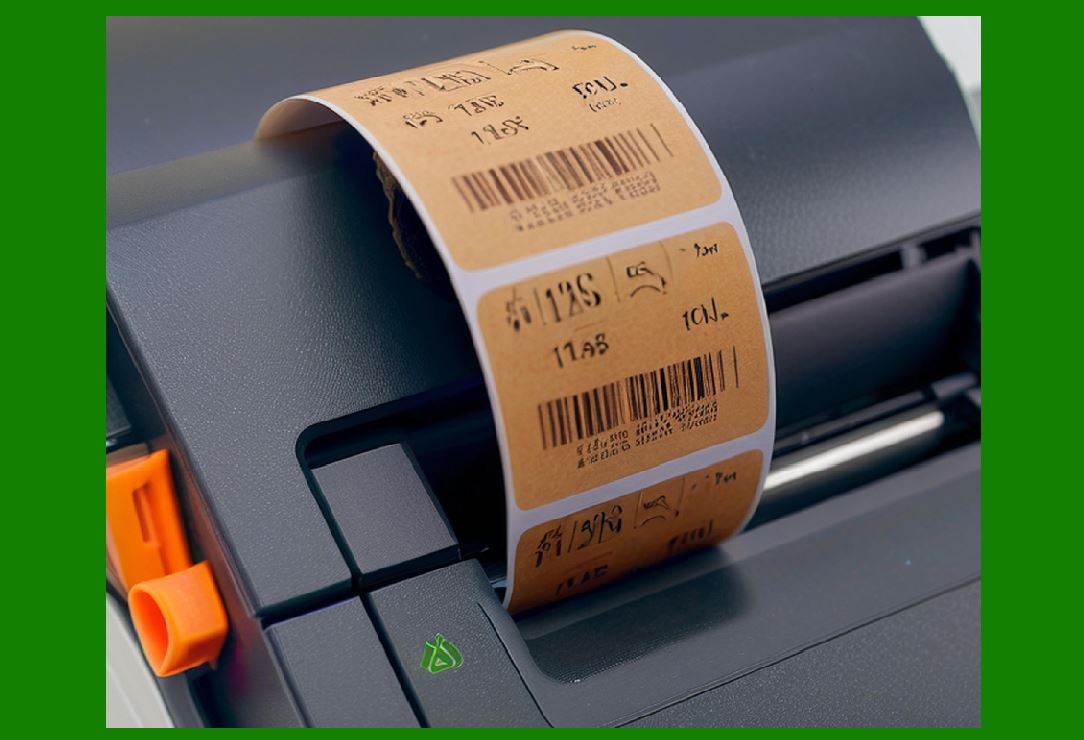
4.1 One of the most critical functions of optical sensors is detecting label gaps. |
4.2 Label rolls often contain: |
* Printed labels |
* Gaps between labels |
4.3 The sensor detects differences in reflectivity between: |
* Label material |
* Gap (backing paper) |
4.4 This allows the printer to determine: |
* Start position of each label |
* Accurate alignment for printing |

|
5. Black Mark Detection Sensors |
5.1 Some media use black marks instead of gaps for alignment. |
5.2 The sensor detects high-contrast marks printed on the underside of media. |
5.3 This method is commonly used in: |
* Continuous labels |
* Fanfold paper |
5.4 It ensures precise positioning even without physical gaps. |

|
6. Ribbon Detection Sensors |
6.1 In thermal transfer printers, ribbon sensors monitor ribbon movement and presence. |
6.2 These sensors detect: |
* Ribbon presence or absence |
* Ribbon tension changes |
* Ribbon end detection |
6.3 This prevents printing without ribbon, which would result in blank labels. |

|
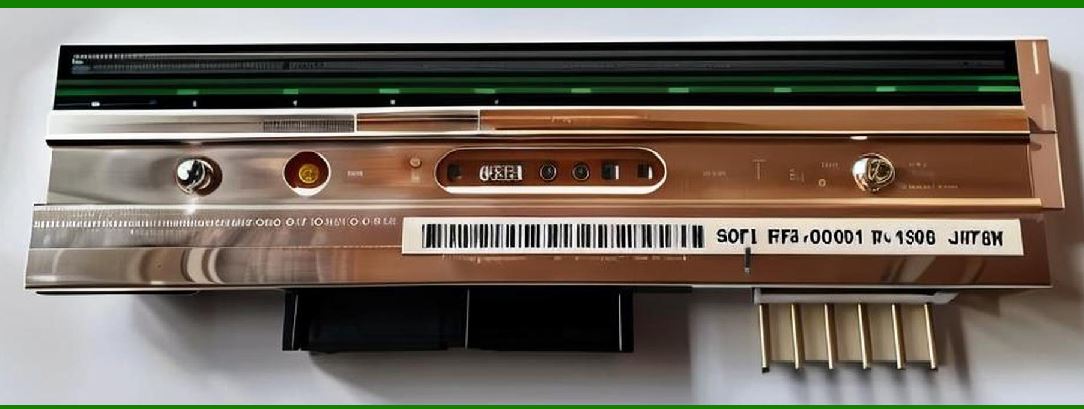
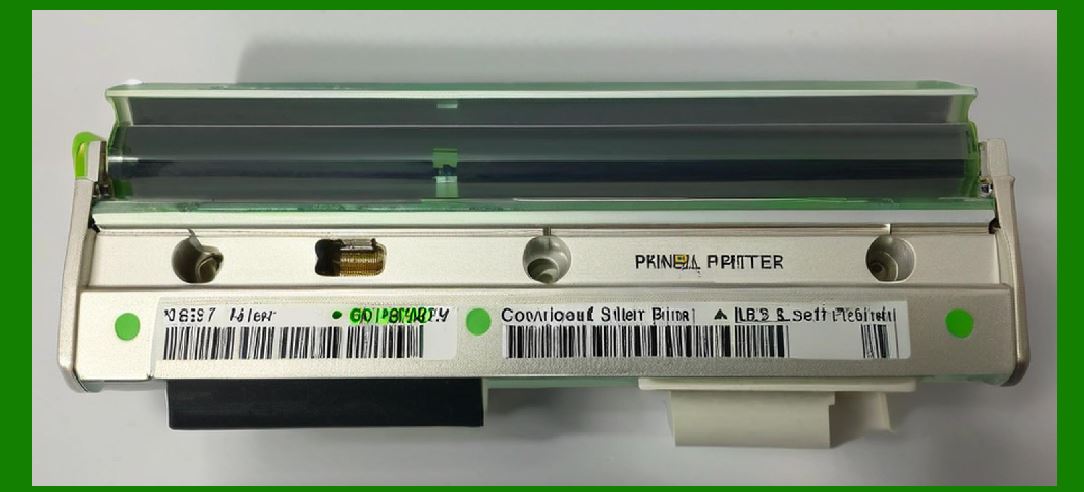
7. Print Head Temperature Sensors |
7.1 Thermal sensors embedded in the print head monitor temperature in real time. |
7.2 Their purpose is to prevent: |
* Overheating |
* Thermal degradation |
* Uneven print quality |
7.3 Temperature data is continuously fed back to firmware for adjustment. |
|
8. Mechanical Position Sensors |
8.1 Mechanical sensors detect physical positions of moving components. |
8.2 These include: |
* Platen roller position sensors |
* Cover open/close switches |
* Paper loading detection switches |
8.3 They ensure that the printer only operates under safe mechanical conditions. |

|
9. Encoder Feedback Systems |
9.1 Encoders are high-precision sensors used to measure movement of motors. |
9.2 They provide real-time feedback on: |
* Rotation angle |
* Linear displacement |
9.3 This ensures: |
* Accurate media feeding |
* No step loss in motors |
9.4 Encoders are critical in high-speed industrial printers. |

|
10. Sensor Signal Processing |
10.1 Raw sensor signals are weak and must be processed by firmware. |
10.2 Signal processing includes: |
* Amplification |
* Filtering |
* Digital conversion |
10.3 This ensures accurate and noise-free readings. |
|
11. Feedback Control Loop Mechanism |
11.1 Sensors are part of a closed-loop control system. |
11.2 The process works as follows: |
* Sensor detects condition |
* Firmware analyzes data |
* System adjusts parameters |
* New output is applied |
11.3 This loop runs continuously during printing. |

|
12. Real-Time Adjustment Based on Sensor Input |
12.1 Sensors enable real-time correction of: |
* Print alignment |
* Temperature variation |
* Media movement |
12.2 This ensures consistent print quality even under changing conditions. |

|
13. Error Detection via Sensors |
13.1 Sensors also function as error detection tools. |
13.2 Examples include: |
* Paper-out detection |
* Ribbon break detection |
* Cover open detection |
13.3 When triggered, the system halts or adjusts operation automatically. |
|
14. Optical Alignment and Registration Control |
14.1 Optical sensors ensure precise alignment between printed content and label boundaries. |
14.2 Misalignment detection allows: |
* Automatic correction |
* Print re-registration |
14.3 This is critical for high-resolution barcode accuracy. |

|
15. Multi-Sensor Coordination |
15.1 Multiple sensors must work together in synchronization. |
15.2 The firmware integrates data from: |
* Optical sensors |
* Thermal sensors |
* Motion sensors |
15.3 Combined data provides a complete operational picture. |

|
16. Noise Reduction in Sensor Signals |
16.1 Electrical noise can interfere with sensor accuracy. |
16.2 Techniques used include: |
* Signal shielding |
* Digital filtering algorithms |
* Differential signaling |
16.3 This ensures stable and reliable sensor output. |

|
17. Calibration of Sensor Systems |
17.1 Sensors require calibration to maintain accuracy. |
17.2 Calibration involves: |
* Setting detection thresholds |
* Adjusting sensitivity levels |
* Aligning optical paths |
17.3 Proper calibration is essential for different media types. |

|
18. Adaptive Sensor Systems |
18.1 Advanced printers use adaptive sensors that adjust automatically. |
18.2 These systems can: |
* Detect different media types |
* Adjust sensitivity dynamically |
18.3 This improves usability and reduces manual setup. |

|
19. Industrial Reliability of Sensor Systems |
19.1 Industrial environments demand highly durable sensor systems. |
19.2 Requirements include: |
* Dust resistance |
* Long operational life |
* High accuracy under vibration |
19.3 Sensors are often sealed and reinforced for durability. |

|
20. Future Trends in Sensor Technology |
20.1 Emerging innovations include: |
* AI-based sensor interpretation |
* Optical imaging sensors instead of simple photodiodes |
* Self-calibrating sensor networks |
20.2 These advancements will improve automation and intelligence. |

|
21. Conclusion of Sensor Systems and Feedback Mechanisms |
21.1 Sensor systems are fundamental to the intelligent operation of barcode printers. |
21.2 They provide real-time feedback that enables precision control, error prevention, and adaptive performance. |
21.3 Without sensors, modern high-speed and high-accuracy barcode printing would not be possible. |
 cs@easiersoft.com