Barcode Technology

Barcode History

Barcode Label Paper

Barcode Printer

Barcode Application

Inventory Management

AI Barcode QRCode

Barcode Scanner

Barcode Software

Barcode Software B

Barcode Software C

Barcode Software D

Barcode Software E

New Technology A

New Technology B

Robot Technology

Barcode Types

Barcode Types B

Barcode Types C

Barcode Types D

Barcode Types E

Barcode Types F

Electronic Technology

Psychology at Work

Barcode Technology and Barcode Software Related   <<< Back to Directory <<<

key features choosing barcode printer

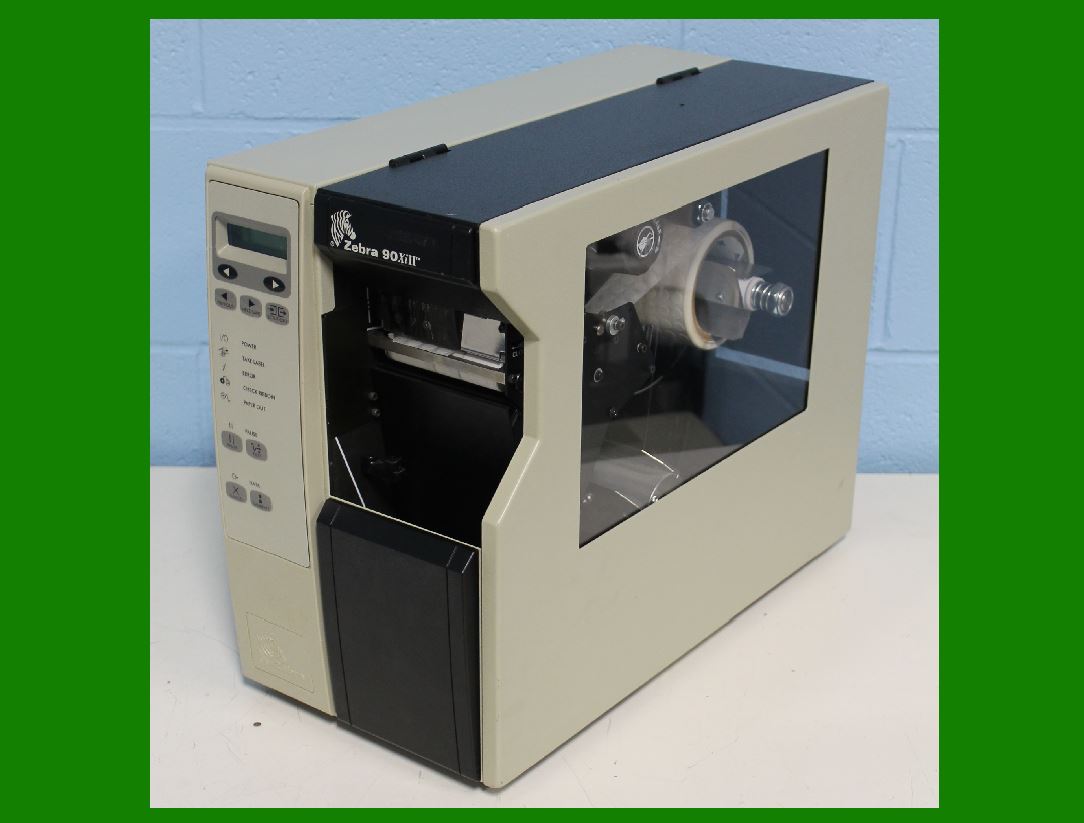
What are the key features to consider when choosing a barcode printer?

When selecting a barcode printer, there are several key features to consider:

1. Print Technology:

Direct Thermal: These printers use heat to create an image on thermal paper. They don't require ink or toner, making them cost-effective for short-term labeling needs. However, the labels may fade over time.

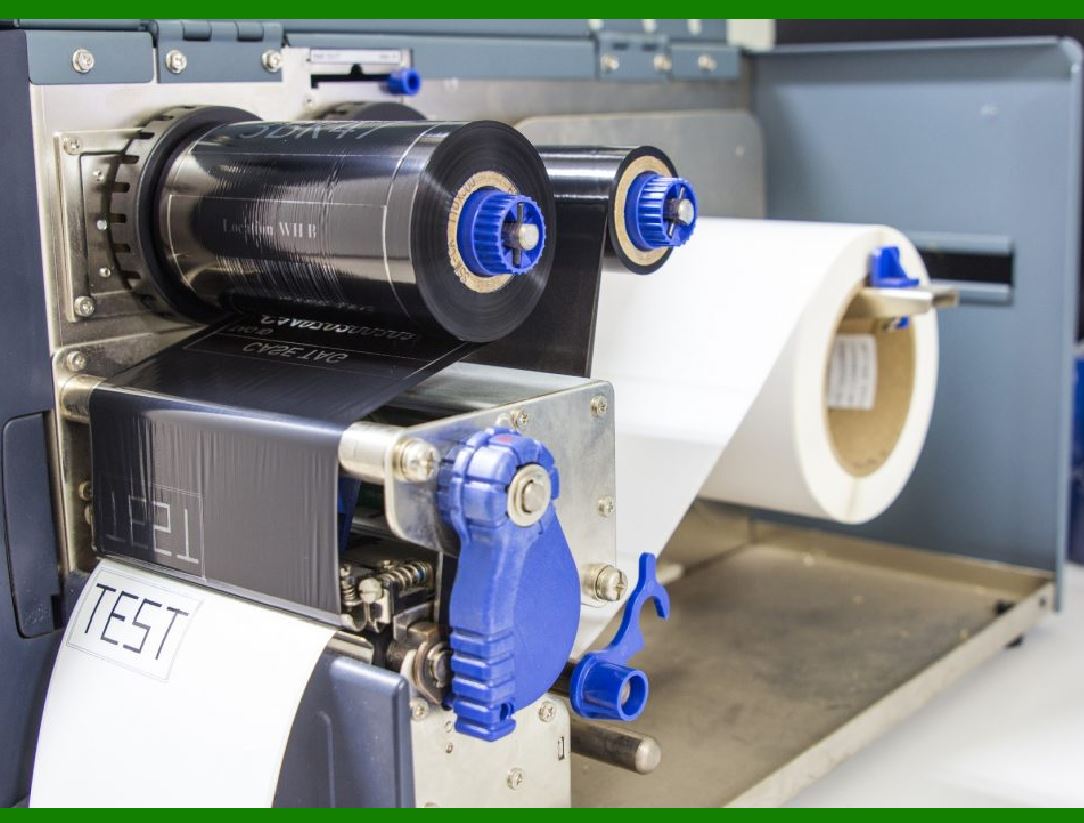
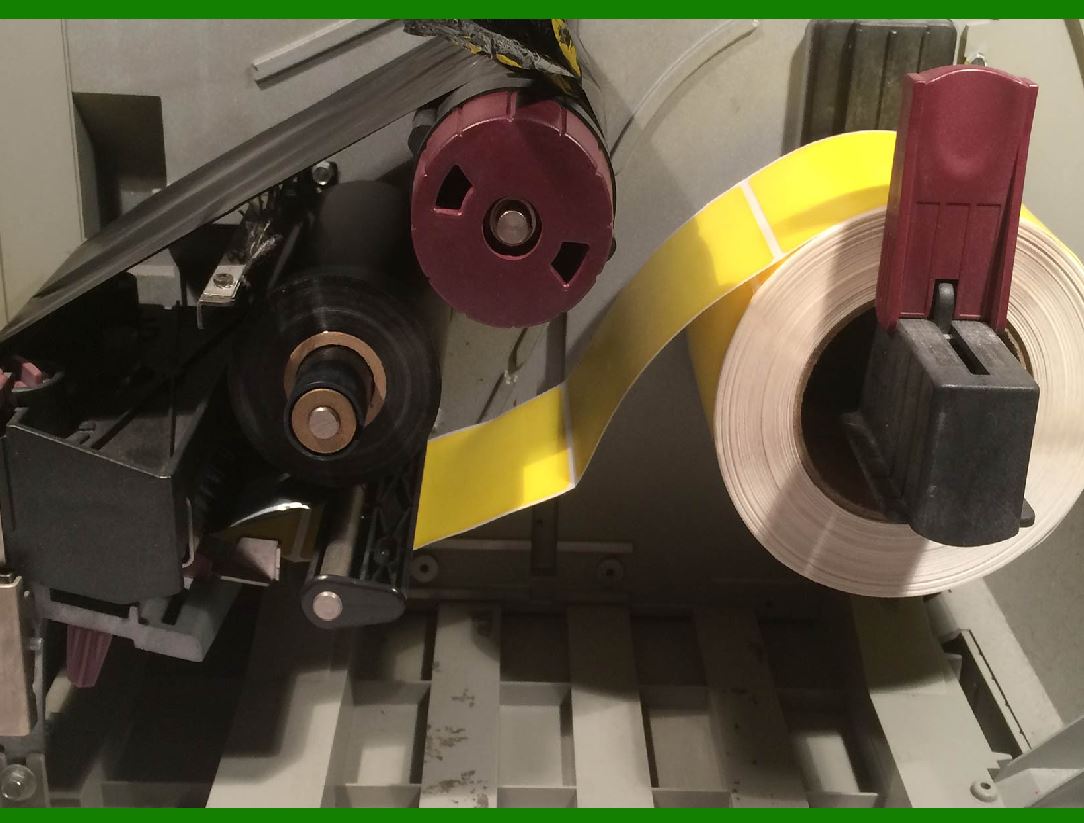
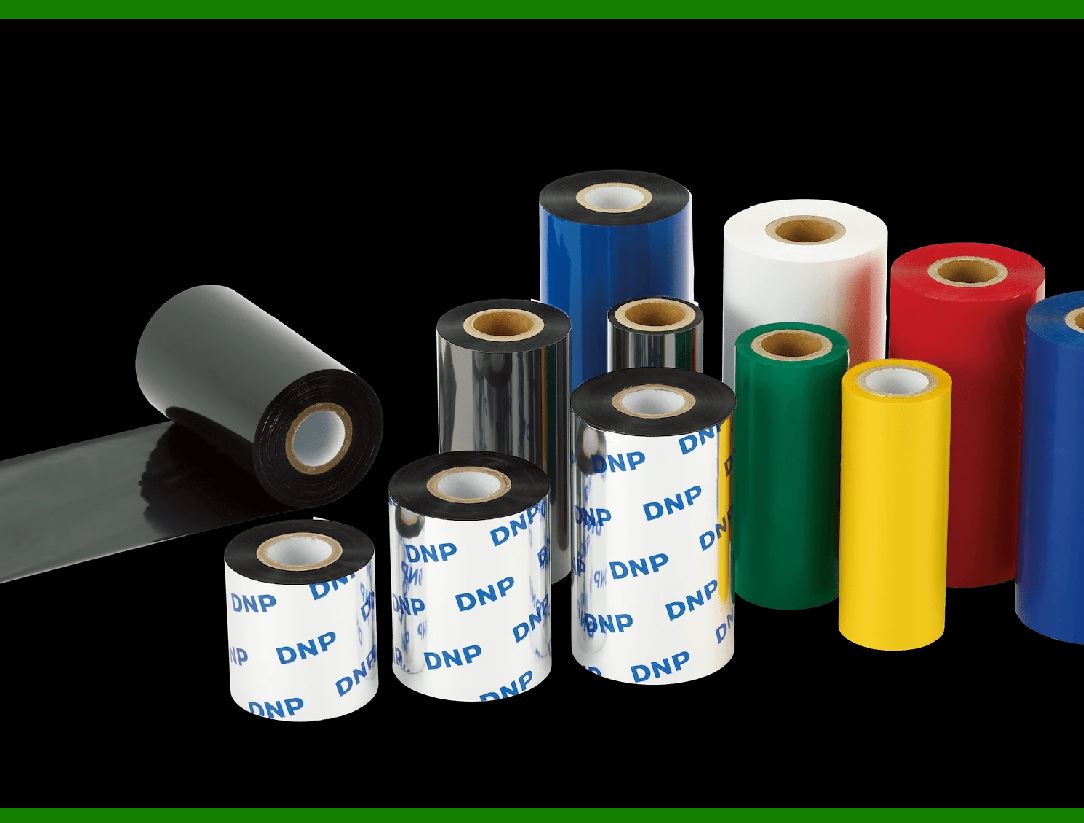
Thermal Transfer: These printers use a ribbon to transfer ink onto the label. They produce durable, long-lasting labels suitable for applications like shipping and inventory management.

2. Print Resolution:

Higher resolution (measured in dots per inch, or DPI) results in clearer and more detailed labels. Consider your specific requirements for label clarity.

3. Print Speed:

Faster printers are ideal for high-volume printing. However, balance speed with print quality to meet your business needs.

4. Connectivity Options:

USB: Common and reliable for connecting to computers.

Ethernet: Useful for networked environments.

Wi-Fi: Enables wireless printing.

Bluetooth: Suitable for mobile or handheld devices.

5. Label Size and Type:

Choose a printer that accommodates the label sizes you need (e.g., shipping labels, product labels, barcodes).

Consider whether you need continuous rolls, fan-folded sheets, or die-cut labels.

6. Software Compatibility:

Ensure the printer works seamlessly with your existing software (label design software, inventory management systems, etc.).

7. Durability and Environment:

Consider the printer's durability (especially for industrial or outdoor use).

Some printers are dustproof, waterproof, or resistant to extreme temperatures.

8. Maintenance and Support:

Check if the printer requires regular maintenance (e.g., cleaning printheads).

Look for reliable customer support and warranty options.

9. Cost of Consumables:

Factor in the cost of labels, ribbons (for thermal transfer printers), and printheads.

Some printers may have higher upfront costs but lower ongoing expenses.

10. Integration with Other Systems:

If you're using other hardware (e.g., barcode scanners, POS systems), ensure compatibility.

Remember to assess your specific needs, budget, and long-term goals when choosing a barcode printer. Each business has unique requirements, so prioritize features accordingly!


EasierSoft Barcode Label Design & Bulk Printing Software

---- Use Excel Data to Batch Print Barcodes on Label Sheets or Roll Labels  

---- How to use this barcode software

Download:  Free Barcode Software + Barcode Label Designer

Download Free Barcode Software at Softonic

     Download at CNET

Once you obtain a GS1/UPC/EAN barcode, or other barcode type and QR code, you can use our free software to batch print barcode labels onto Roll label paper using a professional label printer, or to batch print barcodes onto Avery 5160 label sheets using a regular laser or inkjet printer. Our software has free and paid versions.

The free version fully meets your needs for batch printing GS1/UPC/EAN barcodes. The paid version can import data from Excel and databases to batch print barcode labels with different values.

How to Start

Input Data

Import Excel Data

Print Barcode

Barcode Format

Label Designer

All Screen Shot

Export Barcode Image

Save Template

Output Word Excel

How to Use & FAQ:

Fixed Folder for Exporting Barcode

Default Barcode Image Export Format

Print bulk barcodes quickly

Print barcodes to Avery 5160 label

How to bulk Barcode Printing

Sample - Avery 5162 (2x7) Label Sheet

Example: Print barcodes to 5*3cm roll

Example: Print barcodes to 5161 label

Example: Print barcodes to 5162 label

Example: Print barcodes to 5163 label

Example: Print barcodes to 5164 label

Example: Print portrait orientation 5164

Example: Print barcodes to 5167 label

Example: Print barcodes to 5168 label

Example: Print portrait orientation 5168

Example: Print barcodes to 5169 label

Example: Print barcodes to 5660 label

Example: Print barcodes to 5661 label

Example: Print barcodes to 5662 label

Example: Print barcodes to 5663 label

Example: Print barcodes to 5664 label

Example: Print portrait orientation 5664

Example: Print barcodes to 5873 label

Example: Print barcodes to 5874 label

Two ways to import Excel data

Import Excel Data - Pro Edition

Import Excel Data - Std Edition

Import Data from Excel - Detail

Load Data From Excel File

Data Editing Table

Copy Data From Excel

Four ways to input barcode data

Add ASCII Key E

Input Multiple Lines of Text for Barcodes

Generates Sequential Serial Numbers

Import or copy data from Excel sheets

Special sequence number generation

Std Details: Simple Input Form

Std Details: Multiple Line Text Input

Details: Sequence Barcode Generator

Examples: Sequence Barcode Generator

Import Data From Excel Spreadsheet

Barcode Data Correspondence Diagram

Data Editor

Editing a Single Row Data in Form

Batch Editing Multiple Rows of Data

Batch Data Editing - Example 2

Design & print complex barcode labels

Configuring Text Elements on Label

Configuring Barcode Elements on Label

Highlights

Excel integration: Import data directly from Excel to generate and print barcodes in bulk.

Label designer: Create complex labels with multiple barcodes, text, logos, and shapes.

Batch printing: Print thousands of barcodes at once using standard inkjet/laser printers or professional barcode printers.


Flexible editions:

Standard Edition: Simple batch printing with Excel data.

Professional Edition: Adds command-line automation for workflow integration.

Label Designer Edition: Advanced design features for complex labels.


Why Choose Our Barcode Solutions?

Cost-effective: Free online generator and permanent free desktop version available.

Easy to use: No technical expertise required—just input data and print.

Versatile: Supports nearly all 1D and 2D barcode types, including QR codes.

Trusted: Recommended by CNET and widely downloaded by users worldwide.


Suitable Use Cases

Small businesses and startups needing quick barcode labels for products.

Retailers and online sellers managing inventory with batch barcode printing.

Manufacturers requiring sequential or custom barcode labels for packaging.

Educational and testing environments where barcodes are used for tracking.


CONTACT

cs@easiersoft.com

If you have any question, please feel free to email us.


https://free-barcode.com


<<< Back to Directory <<<     Barcode Generator     Barcode Freeware     Privacy Policy