Barcode Technology

Barcode History

Barcode Label Paper

Barcode Printer

Barcode Application

Inventory Management

AI Barcode QRCode

Barcode Scanner

Barcode Software

Barcode Software B

Barcode Software C

Barcode Software D

Barcode Software E

New Technology A

New Technology B

Robot Technology

Barcode Types

Barcode Types B

Barcode Types C

Barcode Types D

Barcode Types E

Barcode Types F

Electronic Technology

Psychology at Work

Barcode Technology and Barcode Software Related   <<< Back to Directory <<<

Routine maintenance of barcode printer

Routine maintenance of barcode printer

Proper routine maintenance is essential to keep your barcode printer in optimal condition, it can helps prolong the life of your barcode printer and ensures consistent print quality.

Some guidelines for maintaining your barcode printer:

1. Printhead Cleaning:

Regularly clean the printhead to prevent damage and maintain print quality.

.......Use a lint-free cloth to wipe dust and debris from the printhead.

.......Minimize printhead pressure and burn temperature settings to avoid abrasion.

.......If using Thermal Transfer mode, ensure the ribbon is wider than the media to protect the printhead elements.

A. Using a Cleaning Pen or Using a Cleaning Swab

*** Using a Cleaning Pen:

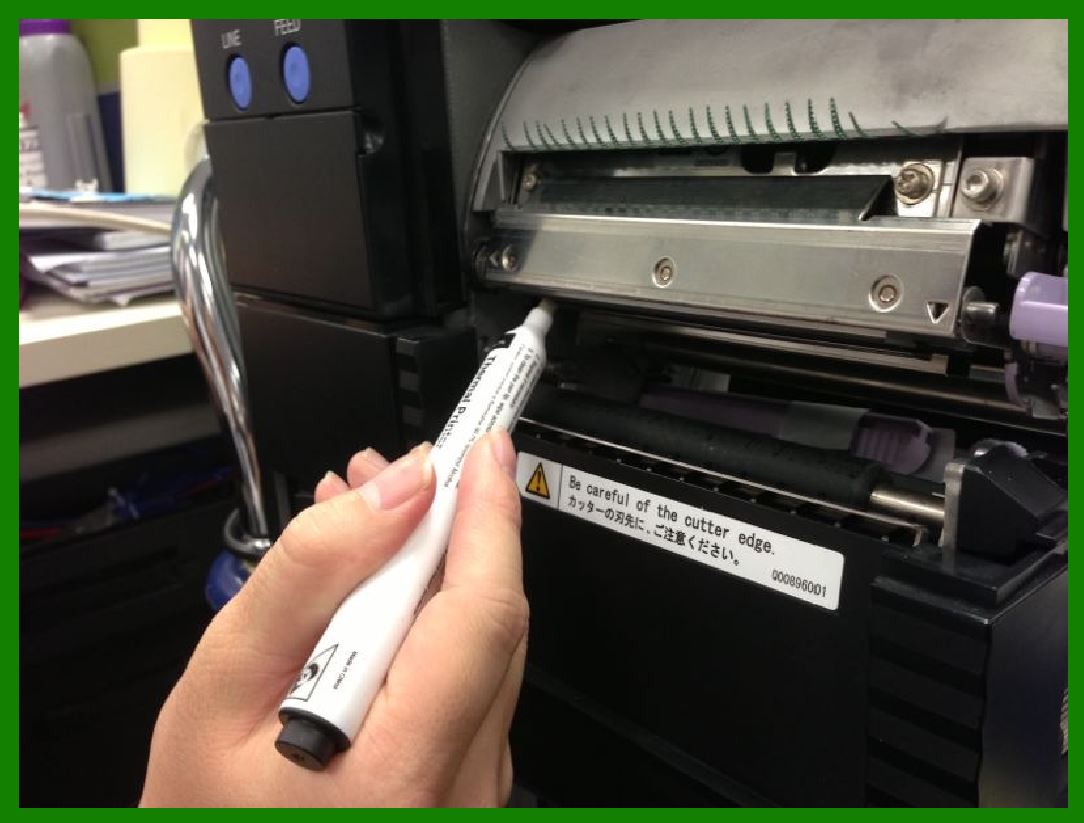
.......Always use a new cleaning pen on the printhead. An old pen may carry contaminants from previous uses that could damage the printhead.

.......Avoid touching the printhead directly to prevent damage and reduce the risk of personal injury.

.......When loading new media, you can also clean the printhead:

.......Rub the cleaning pen across the dark area of the printhead.

.......Clean from the middle to the outside, moving adhesive transferred from the edges of the media away from the printhead.

.......Wait for one minute before closing the printer.

*** Using a Cleaning Swab (99.7% Isopropyl Alcohol):

.......Open the printhead by moving the printhead lever to the OPEN position.

.......Remove the media and ribbon (if present).

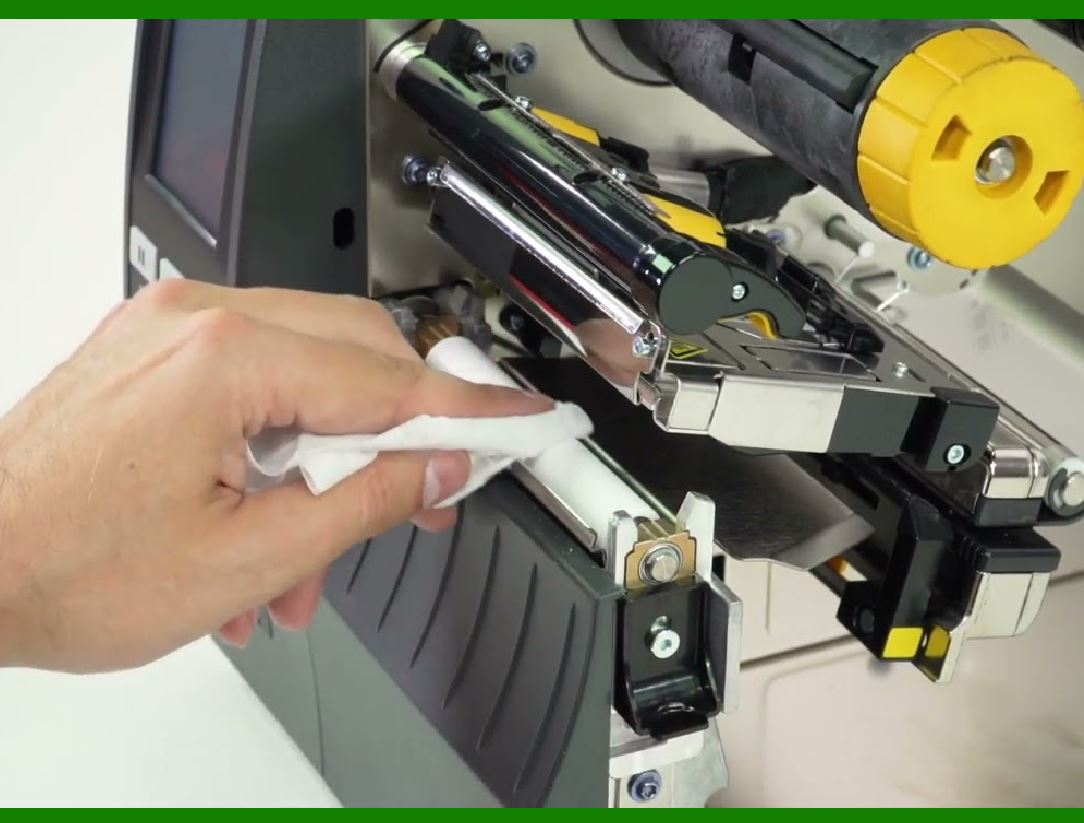
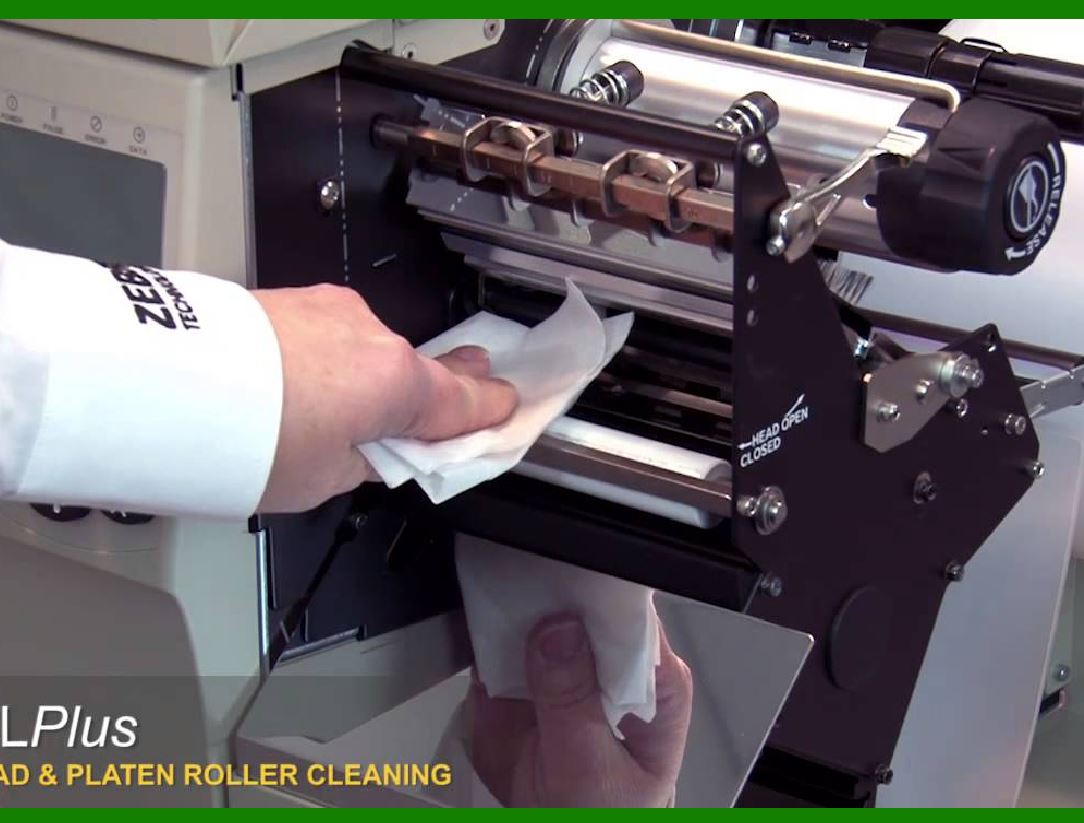
.......Wipe the print elements (grayish/black strip behind the chrome strip on the underside of the printhead) from end to end using a cleaning swab.

.......Optionally, rotate the platen roller and clean it thoroughly with a cleaning swab.

B. Clean the printhead every 5,000 cards or after printing 2 rolls (1 roll of media and ribbon or 1 million inches) to maintain print quality and prevent anomalies.

2. General Cleaning:

Dust and wipe down the printer both inside and outside with a no-lint towel and rubbing alcohol.

.......Turn off the printer when not in use for an extended period.

3. Prompt Cleaning:

Address any cleaning alerts promptly to prevent damage.

.......After cleaning, reset the cleaning alarm to ensure accuracy.

4. Precautions when installing label paper and ribbon

A. Choose the appropriate label paper ribbon:

.......The selection of ribbon should match the label paper.

.......For example:

.......Wax-based ribbon is suitable for coated paper and synthetic paper labels, and the printed content can be rubbed off.

.......Resin ribbons are suitable for labels such as PET paper that require scratch resistance, smear resistance, and corrosion resistance.

B. Pay attention to the installation of label paper and ribbon:

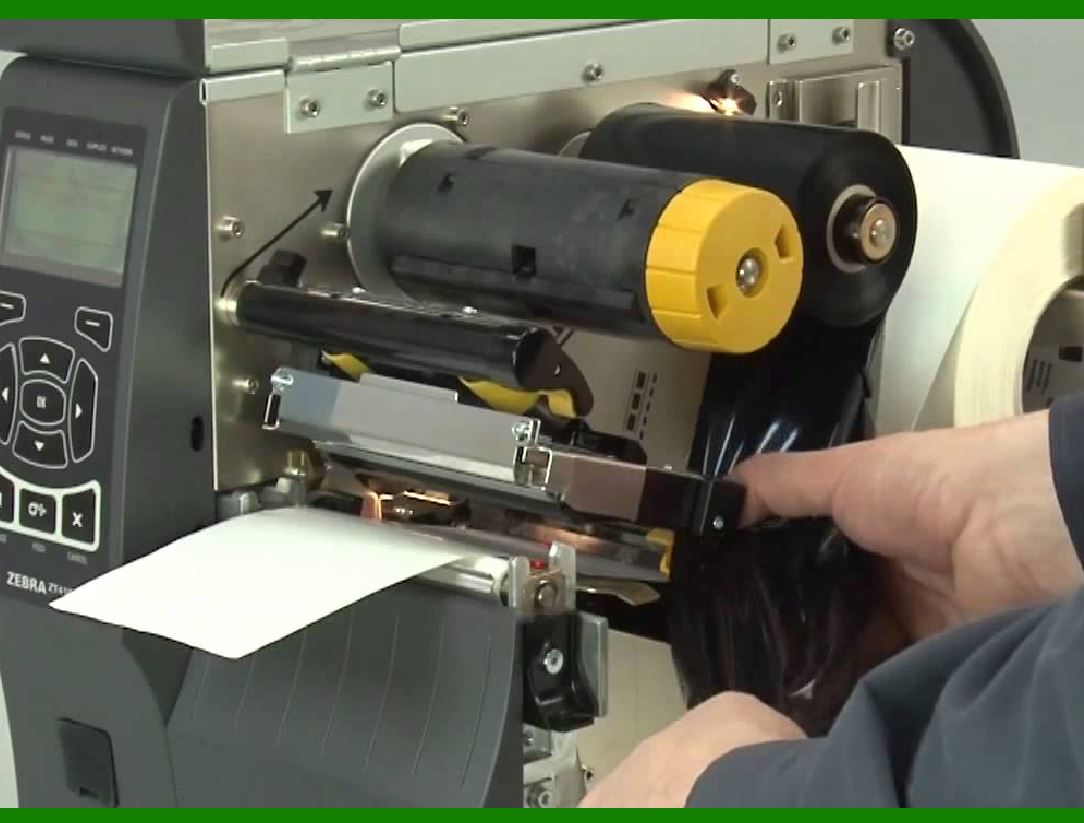
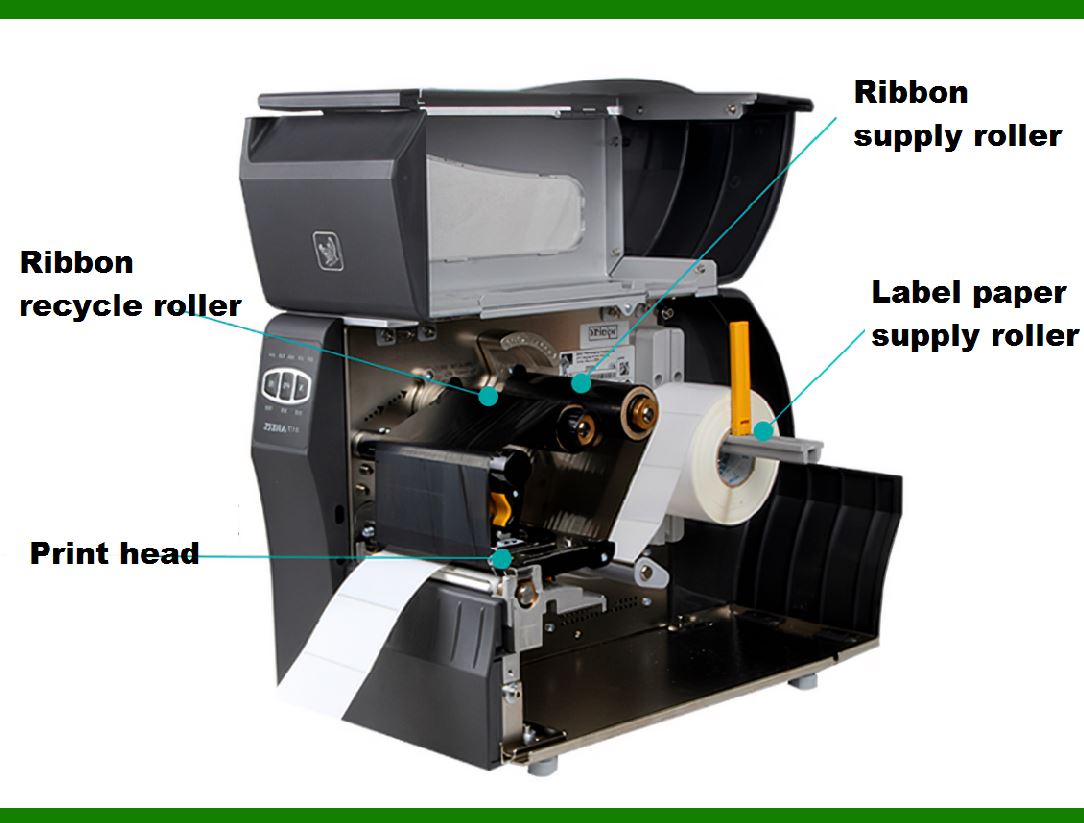
.......Make sure the label paper is facing up and correctly fed through the bottom of the printer.

.......The label paper should cooperate with the printer's paper press, and should not be jammed too tightly, leaving some room for movement.

.......When installing the ribbon, care must be taken to avoid ribbon jamming or ribbon breakage.


EasierSoft Barcode Label Design & Bulk Printing Software

---- Use Excel Data to Batch Print Barcodes on Label Sheets or Roll Labels  

---- How to use this barcode software

Download:  Free Barcode Software + Barcode Label Designer

Download Free Barcode Software at Softonic

     Download at CNET

Once you obtain a GS1/UPC/EAN barcode, or other barcode type and QR code, you can use our free software to batch print barcode labels onto Roll label paper using a professional label printer, or to batch print barcodes onto Avery 5160 label sheets using a regular laser or inkjet printer. Our software has free and paid versions.

The free version fully meets your needs for batch printing GS1/UPC/EAN barcodes. The paid version can import data from Excel and databases to batch print barcode labels with different values.

How to Start

Input Data

Import Excel Data

Print Barcode

Barcode Format

Label Designer

All Screen Shot

Export Barcode Image

Save Template

Output Word Excel

How to Use & FAQ:

Export barcode image files

Barcode text font setting

Generate ISBN barcode

Predefined label templates

Printing setup

Save settings

Serial number generator

The supported barcode types

Load Excel data (pro)

Manually copy data from Excel files

Filter some data for printing

Edit imported barcode data

Input data (Pro)

Label Designer

Edit data in Label designer

Label Designer - Add new label

Label Designer - Printing

Set the barcode label format to be printed

Other Barcode Label Format Settings

Barcode types supported by this program

Barcode Label Font Settings

Configuring the Barcode Print Rotation

Text Alignment for Barcode Labels

Automatically Adjusting Barcode Width

Text Beneath the Barcode

Configuring Barcode Size

Auto Calculate the Barcode Size

Export Barcode images

Export Barcode Image Format

File Names for Exported Barcode

Resolution of Exported Barcode Images

Fixed Folder for Exporting Barcode

Default Barcode Image Export Format

Print bulk barcodes quickly

Print barcodes to Avery 5160 label

How to bulk Barcode Printing

Sample - Avery 5162 (2x7) Label Sheet

Example: Print barcodes to 5*3cm roll

Example: Print barcodes to 5161 label

Example: Print barcodes to 5162 label

Example: Print barcodes to 5163 label

Example: Print barcodes to 5164 label

Example: Print portrait orientation 5164

Example: Print barcodes to 5167 label

Example: Print barcodes to 5168 label

Example: Print portrait orientation 5168

Example: Print barcodes to 5169 label

Example: Print barcodes to 5660 label

Example: Print barcodes to 5661 label

Example: Print barcodes to 5662 label

Highlights

Excel integration: Import data directly from Excel to generate and print barcodes in bulk.

Label designer: Create complex labels with multiple barcodes, text, logos, and shapes.

Batch printing: Print thousands of barcodes at once using standard inkjet/laser printers or professional barcode printers.


Flexible editions:

Standard Edition: Simple batch printing with Excel data.

Professional Edition: Adds command-line automation for workflow integration.

Label Designer Edition: Advanced design features for complex labels.


Why Choose Our Barcode Solutions?

Cost-effective: Free online generator and permanent free desktop version available.

Easy to use: No technical expertise required—just input data and print.

Versatile: Supports nearly all 1D and 2D barcode types, including QR codes.

Trusted: Recommended by CNET and widely downloaded by users worldwide.


Suitable Use Cases

Small businesses and startups needing quick barcode labels for products.

Retailers and online sellers managing inventory with batch barcode printing.

Manufacturers requiring sequential or custom barcode labels for packaging.

Educational and testing environments where barcodes are used for tracking.


CONTACT

cs@easiersoft.com

If you have any question, please feel free to email us.


https://free-barcode.com


<<< Back to Directory <<<     Barcode Generator     Barcode Freeware     Privacy Policy