Barcode Technology

Barcode History

Barcode Label Paper

Barcode Printer

Barcode Application

Inventory Management

AI Barcode QRCode

Barcode Scanner

Barcode Software

Barcode Software B

Barcode Software C

Barcode Software D

Barcode Software E

New Technology A

New Technology B

Robot Technology

Barcode Types

Barcode Types B

Barcode Types C

Barcode Types D

Barcode Types E

Barcode Types F

Electronic Technology

Psychology at Work

Barcode Technology and Barcode Software Related   <<< Back to Directory <<<

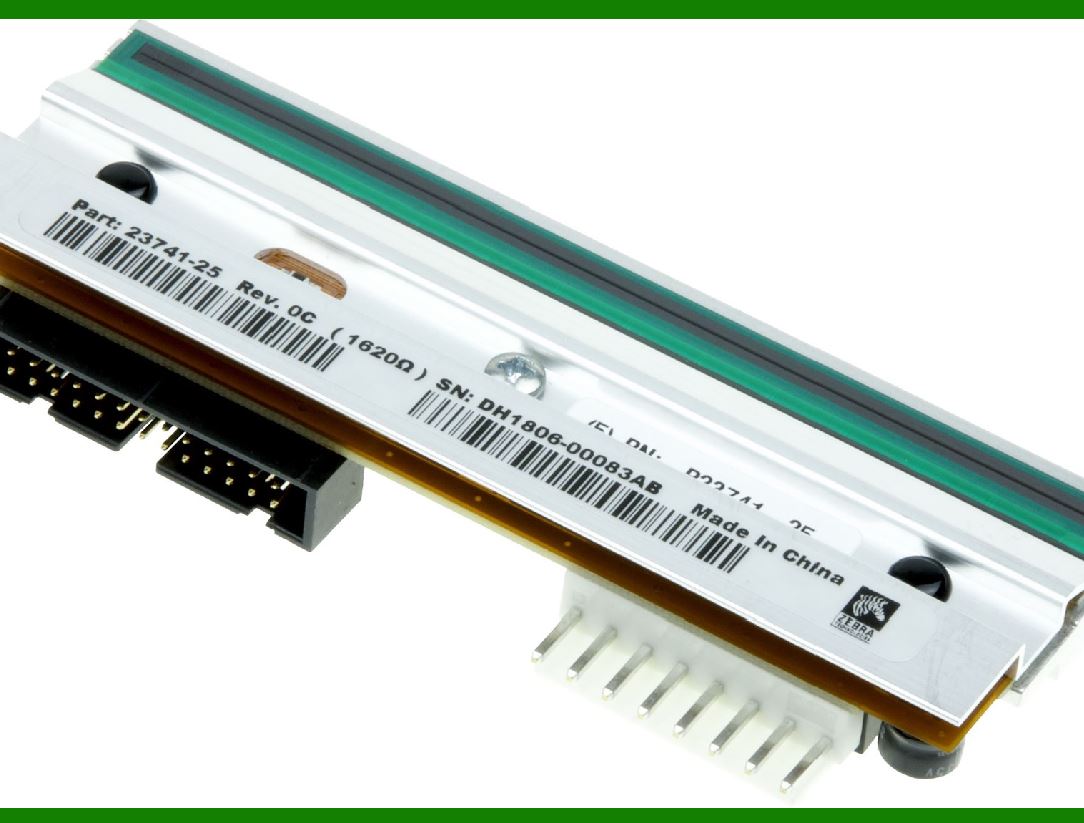
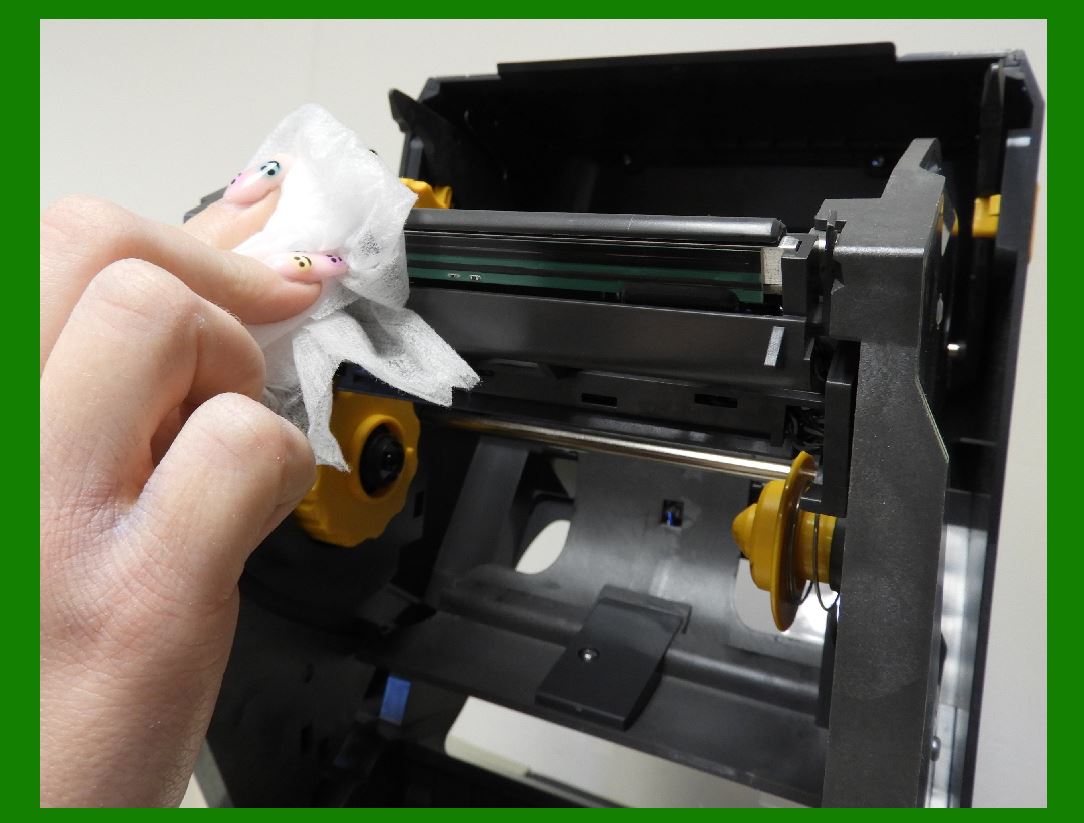
The print head of a barcode printer.

The print head of a barcode printer

In a barcode printer, the print head is the most precise component with a complex structure. It plays a key role in the printing process and requires regular cleaning and maintenance during use.

We need to understand its structure in order to better use and maintain it to ensure print quality and extend the service life of the printer.

1. Composition of print head:

.......There is a row of rectangular heating units on the print head.By controlling the heat generated by each unit, the print head can print out corresponding graphics, text or barcodes.

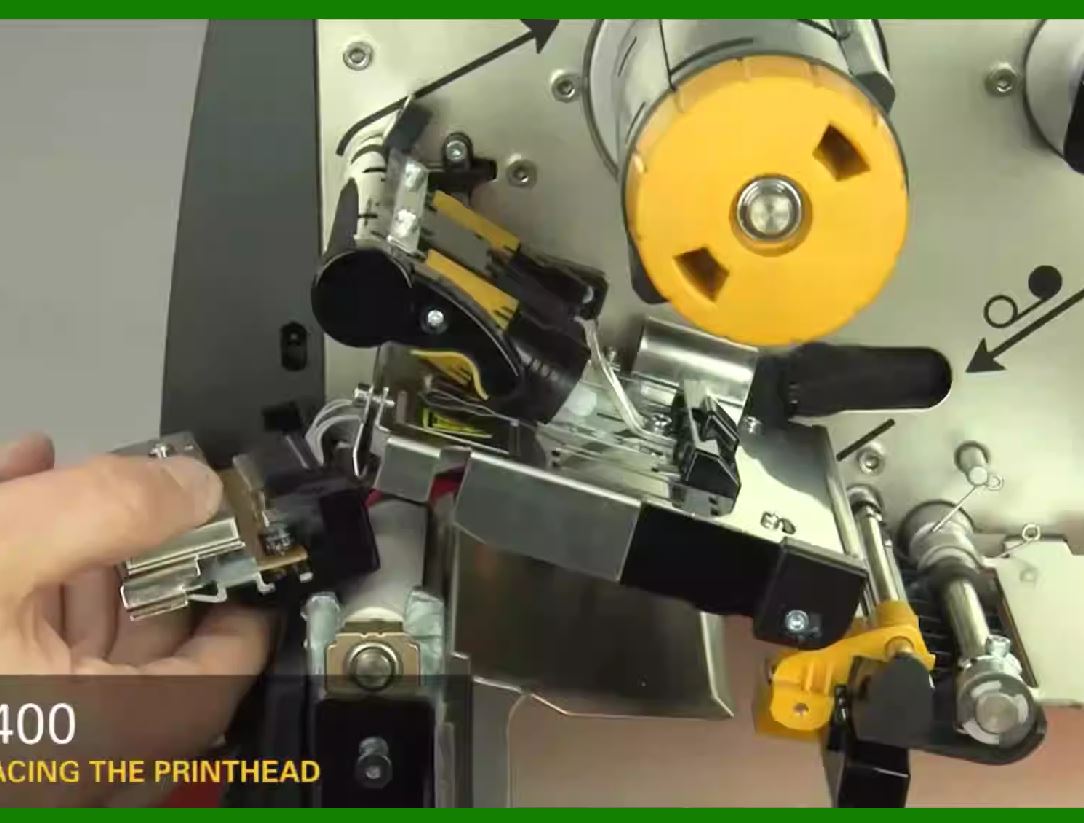
.......The print head is usually installed on the print head bracket and connected to the motherboard, which includes power cables and data cables.

.......The power cable and data cable of some print heads are combined into one and connected to the motherboard through the same connection cable.

2. Working principle of print head:

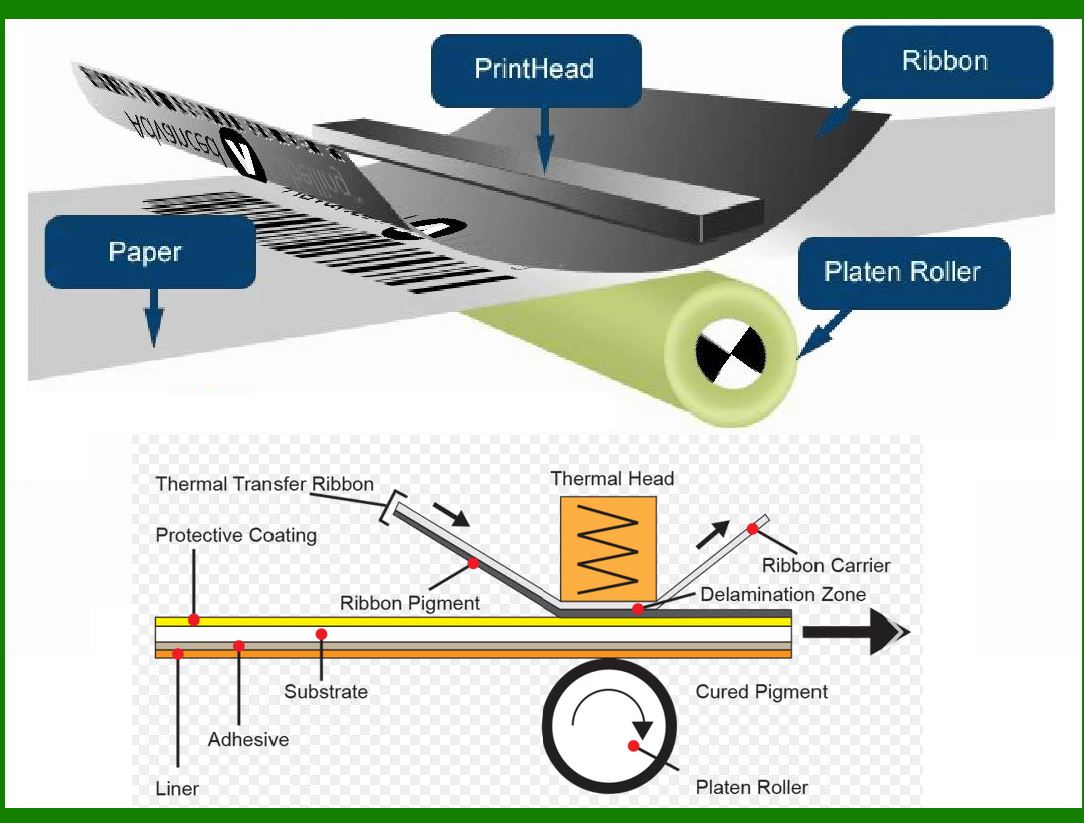
.......The print head prints text and content on the label through a physical reaction of heating to form a recognizable barcode image.

.......During the printing process, the heating degree of the heating unit is controlled to achieve precise printing results.

3. Print head maintenance:

.......Since most barcode printers use thermal printing and thermal transfer printing, the thermal printing method causes greater wear and pollution to the print head.

.......High-temperature environments may cause thermal paper (thermal printers) or ribbons (thermal transfer printers) to contaminate the print head, and high voltage or static electricity may cause cracks and deformation of the print head.

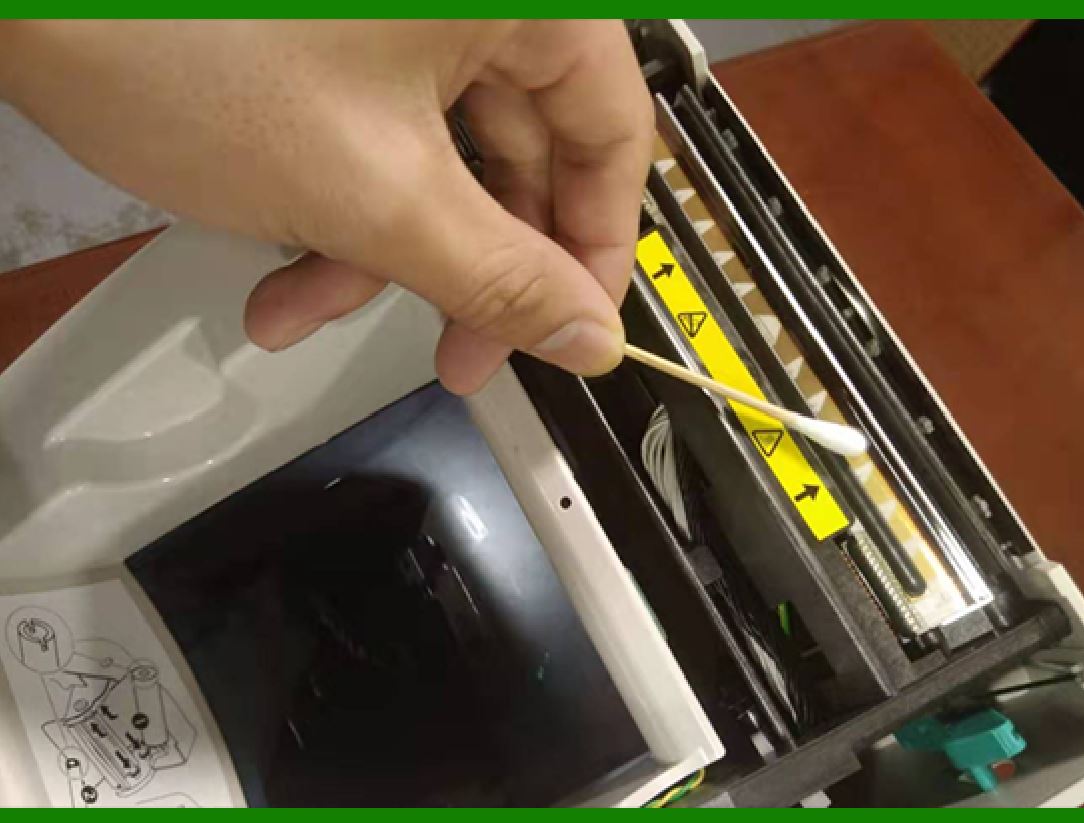
.......Wipe the print head regularly and use special print head cleaning fluid or 75% medical alcohol.

.......Wiping steps: Turn off the power of the barcode printer, turn up the print head, remove the ribbon and label paper, gently wipe the print head with a cotton swab soaked in a little cleaning fluid until it is clean, and then gently dry the print head with a clean cotton swab.

4. Good usage habits:

.......Avoid placing the printer in humid or direct sunlight locations and maintain a suitable temperature.

.......Using the printer continuously for a long time can easily accelerate the wear and tear of the print head. It is best to give the machine a break regularly.

.......Try to avoid touching the print head directly with your hands to prevent damage caused by static electricity.

5. How to extend the service life of the print head:

.......Usage environment: Avoid placing the printer in a place with moisture, direct sunlight, or excessive temperature. Maintaining appropriate temperature and humidity helps reduce printhead wear.

.......Printing frequency: Using the printer continuously for a long time can easily accelerate the wear and tear of the print head. It is best to give the machine a break regularly to reduce the load on the thermal print head.

.......Printing materials: Different printing materials cause different levels of wear on the print head. Use high-quality label paper and ribbon to reduce wear on the print head.

.......Maintenance and cleaning: Wipe the print head regularly and use special print head cleaning fluid or 75% medical alcohol. Avoid touching the print head directly with your hands to prevent damage caused by static electricity.

.......Type of printhead: Different types of printheads (such as thermal and thermal transfer) have different lifespans.

6. There are some key differences between thermal and thermal transfer printheads:

.......Thermal printing:

.......How it works: Thermal printing uses chemically treated thermal media. As the media passes under the thermal print head, it turns black, printing the desired pattern on the label.

.......No ink or ribbon required: Thermal label printers do not require the use of ink, toner or ribbon, so the cost of use is relatively low.

.......Applicability: Suitable for some short-life cycle applications such as labeling meat and dairy products, as well as patient wristbands and drug prescriptions.

.......Thermal transfer printing:

.......Working principle: Thermal transfer printing heats the ribbon to melt the ink on the label material to form a pattern.

.......Ribbon Cost: Although thermal transfer printers require the use of ribbons, they provide a more durable image. The cost of ribbons is relatively high.

.......Suitability: Suitable for barcode label applications requiring high quality, accurate images and good edge definition.

.......Other considerations:

.......Printhead life: Thermal printheads are in direct contact with labels, so their lifespan is usually shorter than thermal transfer printheads.

.......Label durability: Choose the appropriate label type based on the operating environment. Thermal transfer labels are more resistant to heat, light and abrasion and are suitable for long-term use. Thermal labels are typically used in short life cycle applications.


EasierSoft Barcode Label Design & Bulk Printing Software

---- Use Excel Data to Batch Print Barcodes on Label Sheets or Roll Labels  

---- How to use this barcode software

Download:  Free Barcode Software + Barcode Label Designer

Download Free Barcode Software at Softonic

     Download at CNET

Once you obtain a GS1/UPC/EAN barcode, or other barcode type and QR code, you can use our free software to batch print barcode labels onto Roll label paper using a professional label printer, or to batch print barcodes onto Avery 5160 label sheets using a regular laser or inkjet printer. Our software has free and paid versions.

The free version fully meets your needs for batch printing GS1/UPC/EAN barcodes. The paid version can import data from Excel and databases to batch print barcode labels with different values.

How to Start

Input Data

Import Excel Data

Print Barcode

Barcode Format

Label Designer

All Screen Shot

Export Barcode Image

Save Template

Output Word Excel

How to Use & FAQ:

Print bulk barcodes quickly

Print barcodes to Avery 5160 label

How to bulk Barcode Printing

Sample - Avery 5162 (2x7) Label Sheet

Example: Print barcodes to 5*3cm roll

Example: Print barcodes to 5161 label

Example: Print barcodes to 5162 label

Example: Print barcodes to 5163 label

Example: Print barcodes to 5164 label

Example: Print portrait orientation 5164

Example: Print barcodes to 5167 label

Example: Print barcodes to 5168 label

Example: Print portrait orientation 5168

Example: Print barcodes to 5169 label

Example: Print barcodes to 5660 label

Example: Print barcodes to 5661 label

Example: Print barcodes to 5662 label

Example: Print barcodes to 5663 label

Example: Print barcodes to 5664 label

Example: Print portrait orientation 5664

Example: Print barcodes to 5873 label

Example: Print barcodes to 5874 label

Two ways to import Excel data

Import Excel Data - Pro Edition

Import Excel Data - Std Edition

Import Data from Excel - Detail

Load Data From Excel File

Data Editing Table

Copy Data From Excel

Four ways to input barcode data

Add ASCII Key E

Input Multiple Lines of Text for Barcodes

Generates Sequential Serial Numbers

Import or copy data from Excel sheets

Special sequence number generation

Std Details: Simple Input Form

Std Details: Multiple Line Text Input

Details: Sequence Barcode Generator

Examples: Sequence Barcode Generator

Import Data From Excel Spreadsheet

Barcode Data Correspondence Diagram

Data Editor

Editing a Single Row Data in Form

Batch Editing Multiple Rows of Data

Batch Data Editing - Example 2

Design & print complex barcode labels

Configuring Text Elements on Label

Configuring Barcode Elements on Label

Configuring Image Elements on Label

Setting Line Elements on Label

Highlights

Excel integration: Import data directly from Excel to generate and print barcodes in bulk.

Label designer: Create complex labels with multiple barcodes, text, logos, and shapes.

Batch printing: Print thousands of barcodes at once using standard inkjet/laser printers or professional barcode printers.


Flexible editions:

Standard Edition: Simple batch printing with Excel data.

Professional Edition: Adds command-line automation for workflow integration.

Label Designer Edition: Advanced design features for complex labels.


Why Choose Our Barcode Solutions?

Cost-effective: Free online generator and permanent free desktop version available.

Easy to use: No technical expertise required—just input data and print.

Versatile: Supports nearly all 1D and 2D barcode types, including QR codes.

Trusted: Recommended by CNET and widely downloaded by users worldwide.


Suitable Use Cases

Small businesses and startups needing quick barcode labels for products.

Retailers and online sellers managing inventory with batch barcode printing.

Manufacturers requiring sequential or custom barcode labels for packaging.

Educational and testing environments where barcodes are used for tracking.


CONTACT

cs@easiersoft.com

If you have any question, please feel free to email us.


https://free-barcode.com


<<< Back to Directory <<<     Barcode Generator     Barcode Freeware     Privacy Policy