Barcode Technology

Barcode History

Barcode Label Paper

Barcode Printer

Barcode Application

Inventory Management

AI Barcode QRCode

Barcode Scanner

Barcode Software

Barcode Software B

Barcode Software C

Barcode Software D

Barcode Software E

New Technology A

New Technology B

Robot Technology

Barcode Types

Barcode Types B

Barcode Types C

Barcode Types D

Barcode Types E

Barcode Types F

Electronic Technology

Psychology at Work

Barcode Technology and Barcode Software Related   <<< Back to Directory <<<

Barcode scanner compatibility

Barcode scanner compatibility

Remember to prioritize compatibility, durability, and ease of integration when selecting a barcode scanner for your system. It's essential to choose one that seamlessly fits into your workflow and enhances operational efficiency.

Here are some steps to determine if a scanner will work seamlessly with your setup:

1. Software Compatibility:

.......Check if the scanner is compatible with the software you use. Look for scanners that work with all operating systems, including Android and iOS.

.......Verify that the scanner integrates well with your point-of-sale (POS) system or other relevant software.

2. Operating System Compatibility:

.......Ensure the scanner supports your specific operating system (e.g., Windows, macOS). Some scanners may have limitations based on the OS they are designed for.

.......If you're using a web-based POS, make sure the scanner works well with popular web browsers like Google Chrome or Mozilla Firefox.

.......Barcode scanners can be compatible with various operating systems.

.......For Windows tablets, you can use Windows 10 or Windows 11 as the operating system. However, Windows 8 and earlier versions are unfortunately incompatible with barcode scanner software.

.......Linux: Nearly all modern barcode scanners that plug in via USB or PS/2 (not serial) are compatible with Linux. When connected to a machine, they get detected as a standard keyboard.

.......Odoo (Inventory Management):If you’re using an USB barcode scanner with Odoo, ensure that it is configured to use the same keyboard layout as your operating system. This ensures correct character translation (e.g., replacing A with Q).

3. Connectivity Options:

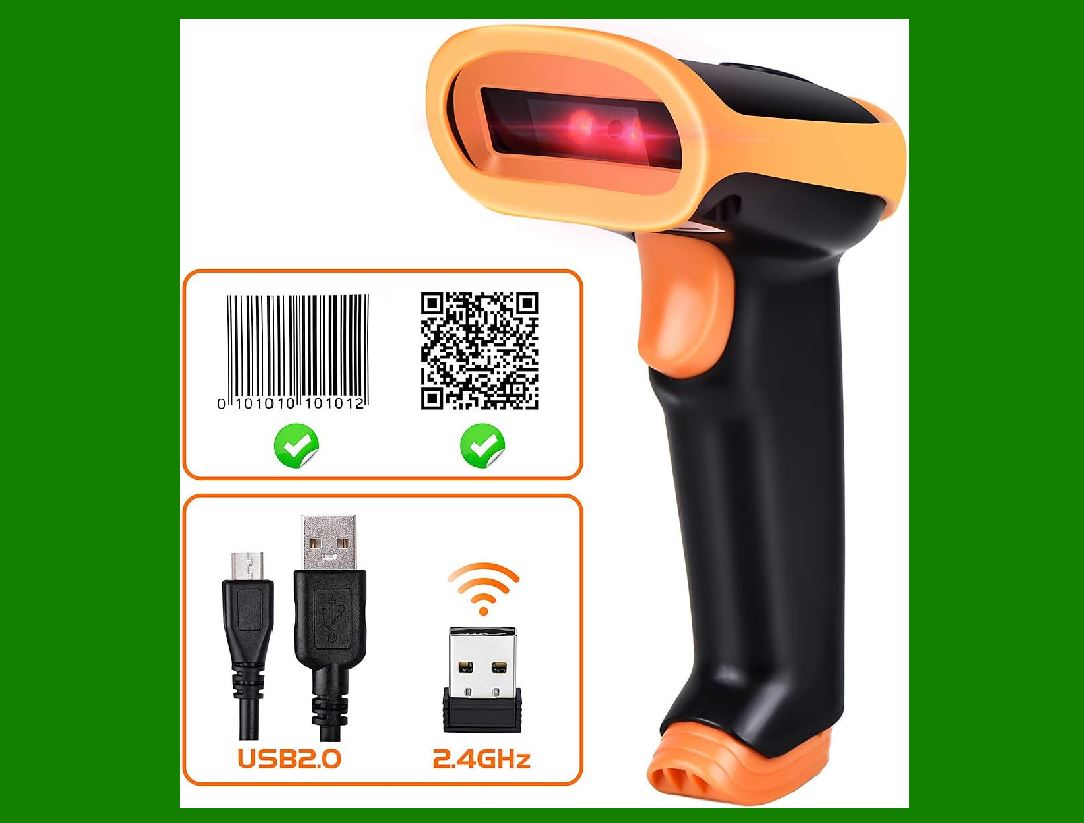
.......Consider the connectivity options provided by the scanner. Common choices include USB, Bluetooth, and Wi-Fi.

.......Opt for a scanner that aligns with your existing infrastructure. For example, if your system relies on Bluetooth connectivity, choose a scanner with Bluetooth capabilities.

4. Point-of-Sale Integration:

.......If you're using the scanner for retail or inventory management, ensure it integrates smoothly with your POS system.

.......Third-party scanners may not function correctly with certain POS systems, so refer to the supported hardware list provided by your POS provider.

5. Environmental Considerations:

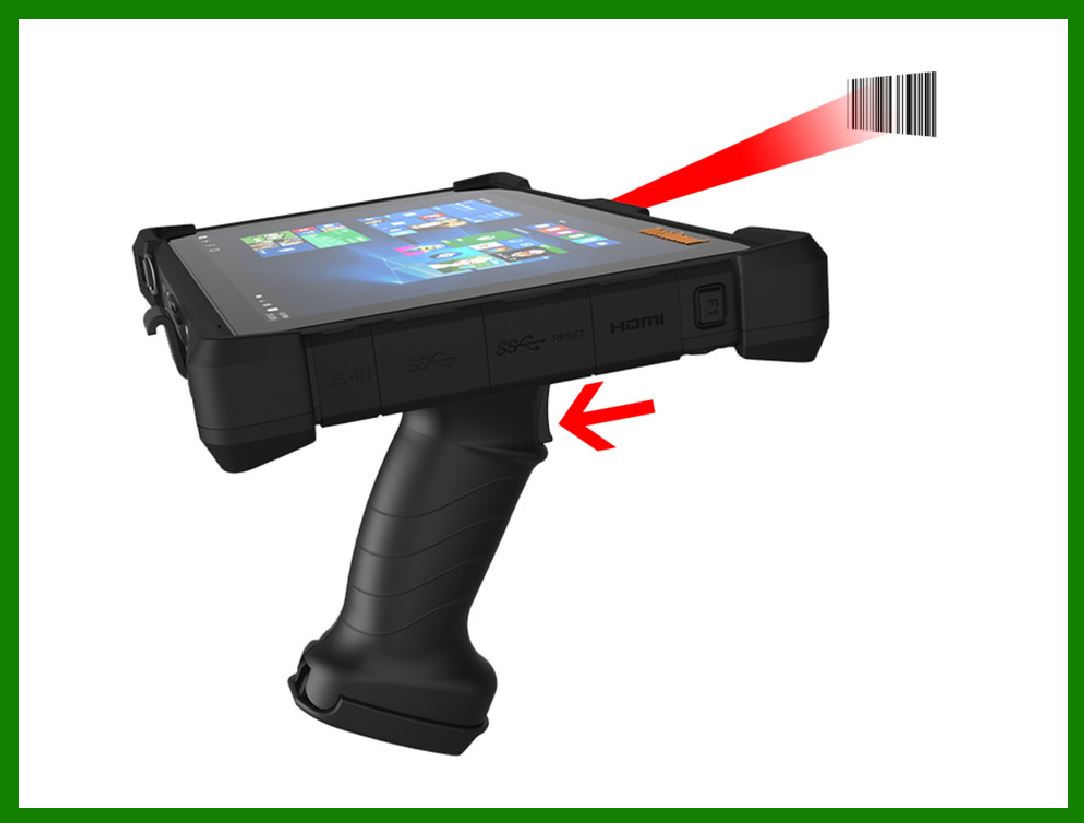
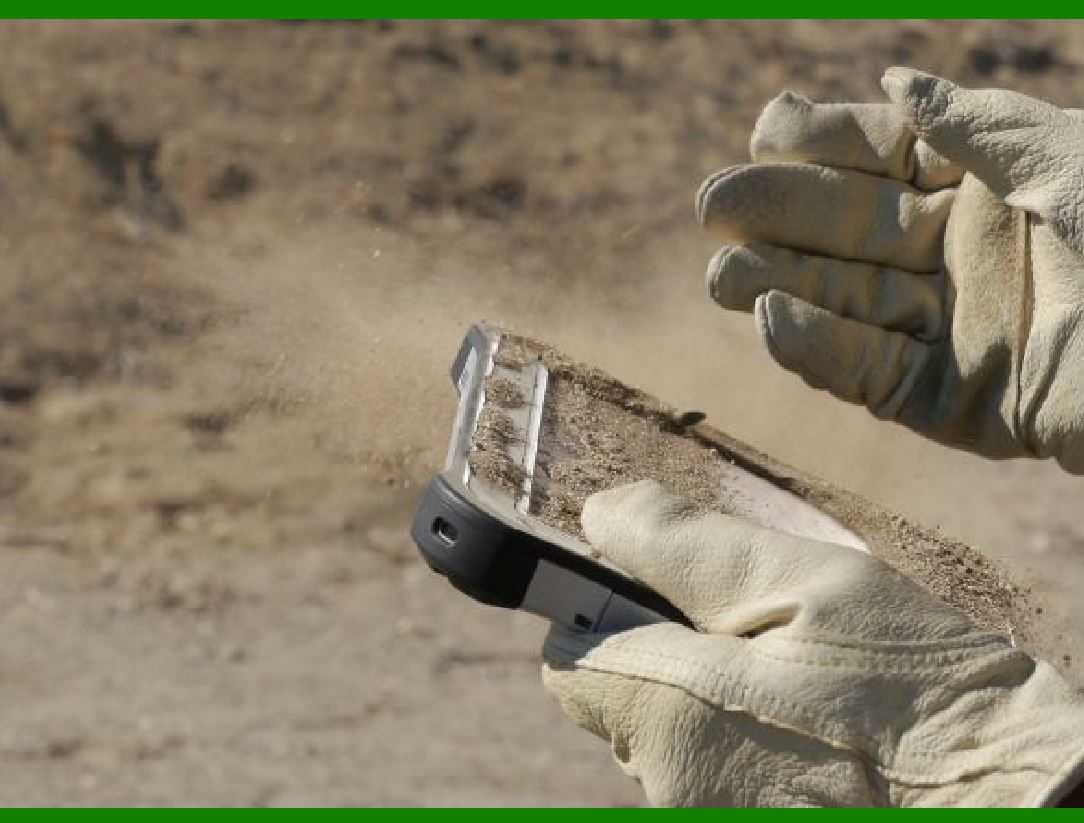
.......Assess the environment in which the scanner will operate. Is it a controlled setting or a rugged environment?

.......Rugged scanners with high Ingress Protection (IP) ratings are suitable for harsh conditions, while sleek designs are ideal for controlled settings.

6. Total Cost of Ownership (TCO):

.......Evaluate the long-term costs associated with the scanner. Consider maintenance, support, and any additional accessories required.

.......A scanner that fits your budget and offers efficient performance is a good choice.


EasierSoft Barcode Label Design & Bulk Printing Software

---- Use Excel Data to Batch Print Barcodes on Label Sheets or Roll Labels  

---- How to use this barcode software

Download:  Free Barcode Software + Barcode Label Designer

Download Free Barcode Software at Softonic

     Download at CNET

Once you obtain a GS1/UPC/EAN barcode, or other barcode type and QR code, you can use our free software to batch print barcode labels onto Roll label paper using a professional label printer, or to batch print barcodes onto Avery 5160 label sheets using a regular laser or inkjet printer. Our software has free and paid versions.

The free version fully meets your needs for batch printing GS1/UPC/EAN barcodes. The paid version can import data from Excel and databases to batch print barcode labels with different values.

How to Start

Input Data

Import Excel Data

Print Barcode

Barcode Format

Label Designer

All Screen Shot

Export Barcode Image

Save Template

Output Word Excel

How to Use & FAQ:

Fixed Folder for Exporting Barcode

Default Barcode Image Export Format

Print bulk barcodes quickly

Print barcodes to Avery 5160 label

How to bulk Barcode Printing

Sample - Avery 5162 (2x7) Label Sheet

Example: Print barcodes to 5*3cm roll

Example: Print barcodes to 5161 label

Example: Print barcodes to 5162 label

Example: Print barcodes to 5163 label

Example: Print barcodes to 5164 label

Example: Print portrait orientation 5164

Example: Print barcodes to 5167 label

Example: Print barcodes to 5168 label

Example: Print portrait orientation 5168

Example: Print barcodes to 5169 label

Example: Print barcodes to 5660 label

Example: Print barcodes to 5661 label

Example: Print barcodes to 5662 label

Example: Print barcodes to 5663 label

Example: Print barcodes to 5664 label

Example: Print portrait orientation 5664

Example: Print barcodes to 5873 label

Example: Print barcodes to 5874 label

Two ways to import Excel data

Import Excel Data - Pro Edition

Import Excel Data - Std Edition

Import Data from Excel - Detail

Load Data From Excel File

Data Editing Table

Copy Data From Excel

Four ways to input barcode data

Add ASCII Key E

Input Multiple Lines of Text for Barcodes

Generates Sequential Serial Numbers

Import or copy data from Excel sheets

Special sequence number generation

Std Details: Simple Input Form

Std Details: Multiple Line Text Input

Details: Sequence Barcode Generator

Examples: Sequence Barcode Generator

Import Data From Excel Spreadsheet

Barcode Data Correspondence Diagram

Data Editor

Editing a Single Row Data in Form

Batch Editing Multiple Rows of Data

Batch Data Editing - Example 2

Design & print complex barcode labels

Configuring Text Elements on Label

Configuring Barcode Elements on Label

Highlights

Excel integration: Import data directly from Excel to generate and print barcodes in bulk.

Label designer: Create complex labels with multiple barcodes, text, logos, and shapes.

Batch printing: Print thousands of barcodes at once using standard inkjet/laser printers or professional barcode printers.


Flexible editions:

Standard Edition: Simple batch printing with Excel data.

Professional Edition: Adds command-line automation for workflow integration.

Label Designer Edition: Advanced design features for complex labels.


Why Choose Our Barcode Solutions?

Cost-effective: Free online generator and permanent free desktop version available.

Easy to use: No technical expertise required—just input data and print.

Versatile: Supports nearly all 1D and 2D barcode types, including QR codes.

Trusted: Recommended by CNET and widely downloaded by users worldwide.


Suitable Use Cases

Small businesses and startups needing quick barcode labels for products.

Retailers and online sellers managing inventory with batch barcode printing.

Manufacturers requiring sequential or custom barcode labels for packaging.

Educational and testing environments where barcodes are used for tracking.


CONTACT

cs@easiersoft.com

If you have any question, please feel free to email us.


https://free-barcode.com


<<< Back to Directory <<<     Barcode Generator     Barcode Freeware     Privacy Policy