1. Introduction to Panasonic Barcode Scanners |
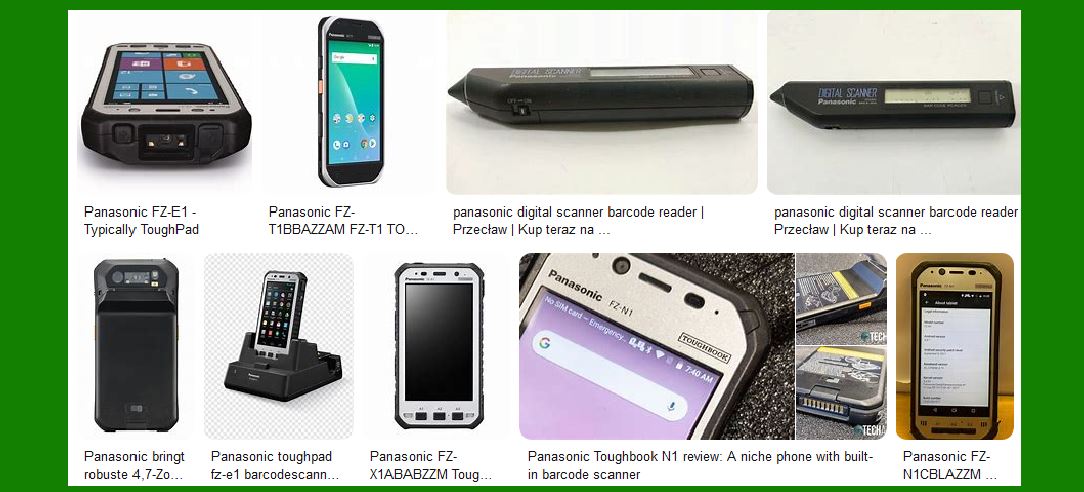
Panasonic is a well-known brand in the electronics industry, offering a range of barcode scanners designed for various applications. These scanners are known for their durability, reliability, and advanced features. Panasonic barcode scanners are used in industries such as retail, logistics, healthcare, and manufacturing. |
|
2. Types of Panasonic Barcode Scanners |
Panasonic offers several types of barcode scanners, each designed to meet specific needs: |
Handheld Scanners: These are portable devices that can be used to scan barcodes on products, documents, and other items. They are commonly used in retail and warehouse environments. Fixed-Mount Scanners: These scanners are mounted in a fixed position and are used to scan barcodes on items as they pass by. They are often used in manufacturing and logistics applications. Mobile Computers with Integrated Scanners: These devices combine the functionality of a mobile computer with a built-in barcode scanner. They are used in field service, inventory management, and other mobile applications. |

|
3. Key Features of Panasonic Barcode Scanners |
Panasonic barcode scanners come with a variety of features that enhance their performance and usability: |
High-Performance Scanning: Panasonic scanners are equipped with advanced scanning technology that allows them to read both 1D and 2D barcodes quickly and accurately. Durability: Many Panasonic barcode scanners are designed to withstand harsh environments. They are built with rugged materials and are often rated for resistance to dust, water, and drops. Connectivity Options: Panasonic barcode scanners offer various connectivity options, including USB, Bluetooth, and Wi-Fi, allowing them to be easily integrated into different systems. Ease of Use: These scanners are designed with user-friendly interfaces and ergonomic designs, making them easy to use for extended periods. Software Compatibility: Panasonic barcode scanners are compatible with a wide range of software applications, making them versatile tools for different industries. |

|
4. Panasonic FZ-X1 Rugged Barcode Kit |
One of the notable products in Panasonic’s lineup is the FZ-X1 Rugged Barcode Kit. This kit includes the Panasonic FZ-X1 ToughPad, a rugged mobile computer with an integrated barcode scanner. Key features of the FZ-X1 include: |
Rugged Design: The FZ-X1 is built to withstand extreme conditions, including drops, vibrations, and exposure to dust and water. Integrated Barcode Scanner: The device features a high-performance barcode scanner that can read both 1D and 2D barcodes. Mobile Connectivity: The FZ-X1 offers various connectivity options, including 4G LTE, Wi-Fi, and Bluetooth, making it suitable for field applications. Long Battery Life: The device is equipped with a long-lasting battery that supports extended use in the field. TracerPlus Software: The kit includes a TracerPlus Professional License, which provides advanced data collection and management capabilities. |

|
5. Panasonic FZ-T1 TOUGHBOOK Barcode Scanner |
Another popular model is the Panasonic FZ-T1 TOUGHBOOK, which is designed for high-volume scanning applications. Key features of the FZ-T1 include: |
1D/2D Barcode Scanner: The FZ-T1 is equipped with a built-in barcode scanner that can read both 1D and 2D barcodes. Pistol Grip Option: For high-volume scanning tasks, the FZ-T1 can be paired with an optional pistol grip, making it easier to handle. Warm Swap Batteries: The device supports warm swapping of batteries, allowing users to replace the battery without shutting down the device. Connectivity: The FZ-T1 offers 802.11a/b/g/n/d/h/i/r Wi-Fi and Bluetooth 4.2 connectivity, ensuring reliable communication with other devices and systems. Rugged Build: Like other Panasonic devices, the FZ-T1 is built to withstand harsh environments, making it suitable for industrial applications. |

|
6. Setting Up Panasonic Barcode Scanners |
Setting up a Panasonic barcode scanner involves several steps to ensure proper operation: |
Driver Installation: Install the necessary drivers for the barcode scanner. This may involve downloading drivers from the Panasonic website or using the installation CD provided with the device. Configuration: Configure the scanner settings according to your needs. This may include setting the scanning mode (e.g., continuous, trigger), adjusting the scanning angle, and selecting the appropriate connectivity options. Software Integration: Integrate the barcode scanner with your software applications. This may involve configuring the scanner to work with specific software or using middleware to facilitate communication between the scanner and your system. Testing: Test the scanner to ensure it is working correctly. This may involve scanning sample barcodes and verifying that the data is accurately captured and transmitted to your system. |

|
7. Using Panasonic Barcode Scanners |
Using a Panasonic barcode scanner involves the following steps: |
Aiming the Scanner: Aim the scanner at the barcode, ensuring that the entire barcode is within the scanning window. Triggering the Scan: Press the trigger button to initiate the scan. The scanner will emit a light beam that reads the barcode. Capturing the Data: The scanner captures the barcode data and transmits it to the connected device or software application. Verifying the Scan: Verify that the scanned data is accurate and complete. This may involve checking the data on the connected device or software application. |

|
8. Maintenance and Troubleshooting |
Proper maintenance and troubleshooting are essential to ensure the longevity and performance of Panasonic barcode scanners: |
Cleaning: Regularly clean the scanning window to remove dust and debris that may affect scanning performance. Use a soft, lint-free cloth and a mild cleaning solution. Firmware Updates: Keep the scanner’s firmware up to date by downloading and installing updates from the Panasonic website. Troubleshooting: If the scanner is not working correctly, refer to the user manual for troubleshooting tips. Common issues may include connectivity problems, scanning errors, and software compatibility issues. |

|
9. Applications of Panasonic Barcode Scanners |
Panasonic barcode scanners are used in a variety of applications across different industries: |
Retail: In retail environments, barcode scanners are used for point-of-sale transactions, inventory management, and price checking. Logistics: In logistics and warehousing, barcode scanners are used for tracking shipments, managing inventory, and verifying orders. Healthcare: In healthcare settings, barcode scanners are used for patient identification, medication administration, and inventory management. Manufacturing: In manufacturing, barcode scanners are used for tracking parts and materials, managing inventory, and ensuring quality control. |

|
10. Conclusion |
Panasonic barcode scanners are versatile and reliable tools that offer advanced features and rugged designs. Whether you need a handheld scanner for retail applications or a rugged mobile computer for field service, Panasonic has a solution to meet your needs. By understanding the features, setup, and usage of these scanners, you can maximize their benefits and improve your operational efficiency. |
 cs@easiersoft.com