How to choose a barcode scanner / barcode reader |
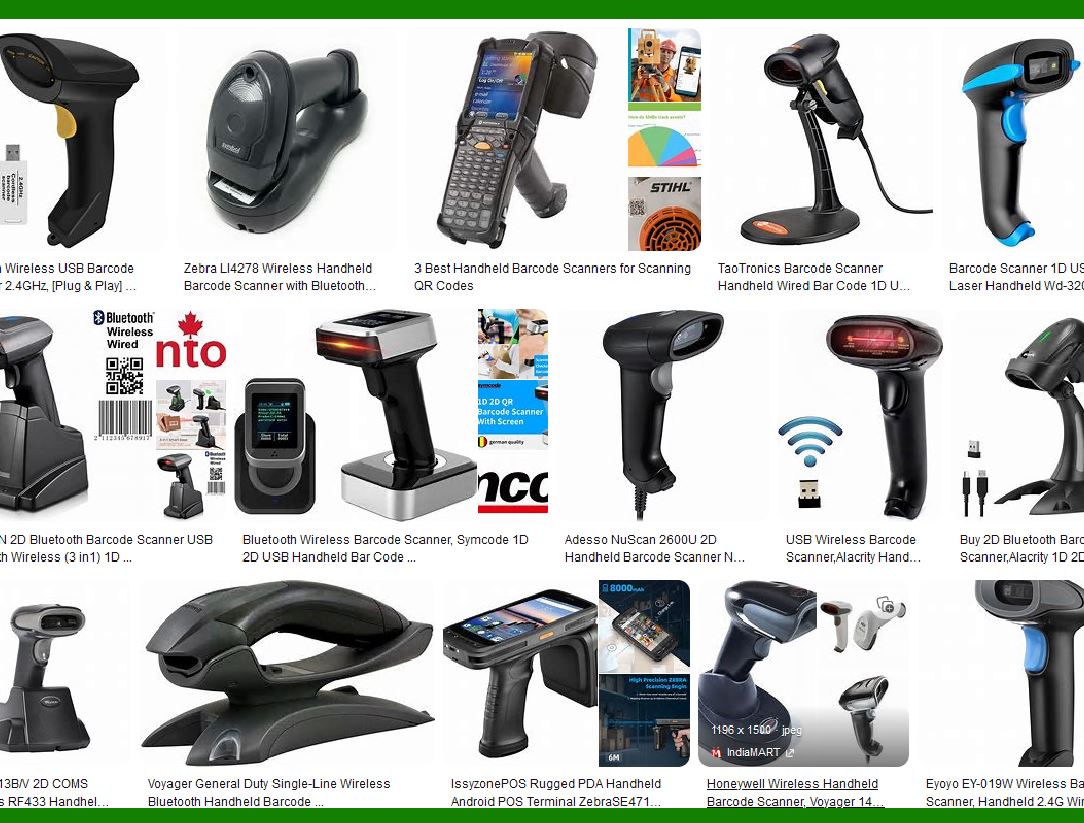
The right barcode scanner depends on your specific requirements. When selecting a barcode scanner, there are several factors to consider to ensure you choose the right one for your specific needs. |
|
1. Identify Your Use Case: |
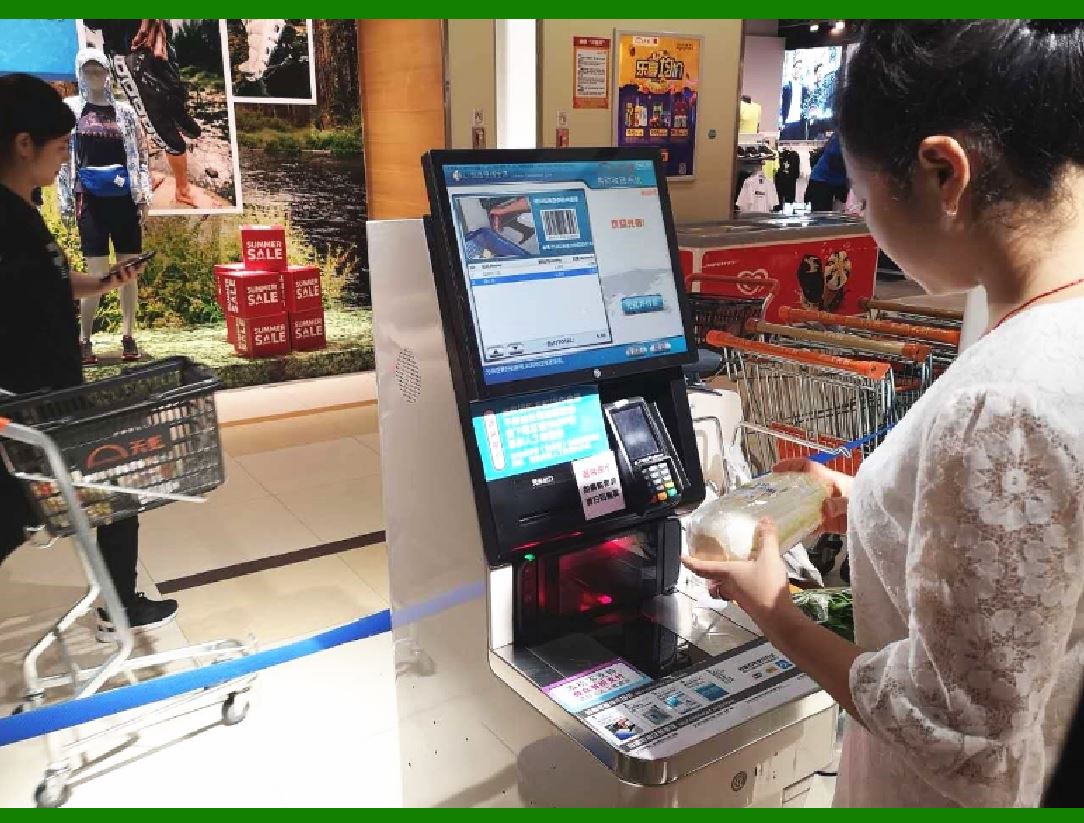
.......Determine how and where you'll be using the barcode scanner. Are you scanning items at a retail checkout, managing inventory in a warehouse, or tracking assets in a healthcare facility? ....... If you're using the scanner for retail or inventory management, ensure it integrates smoothly with your POS system. ....... Third-party scanners may not function correctly with certain POS systems, so refer to the supported hardware list provided by your POS provider. ....... What situations are desktop and handheld barcode scanners suitable for? ....... Desktop Scanners: These are commonly used at checkout counters in retail stores. Cashiers scan product barcodes to process sales quickly and accurately. ....... Handheld Scanners: These are versatile tools for inventory management. Staff can scan items on shelves, track stock levels, and update inventory databases. |
|
2. Consider Barcode Types: |
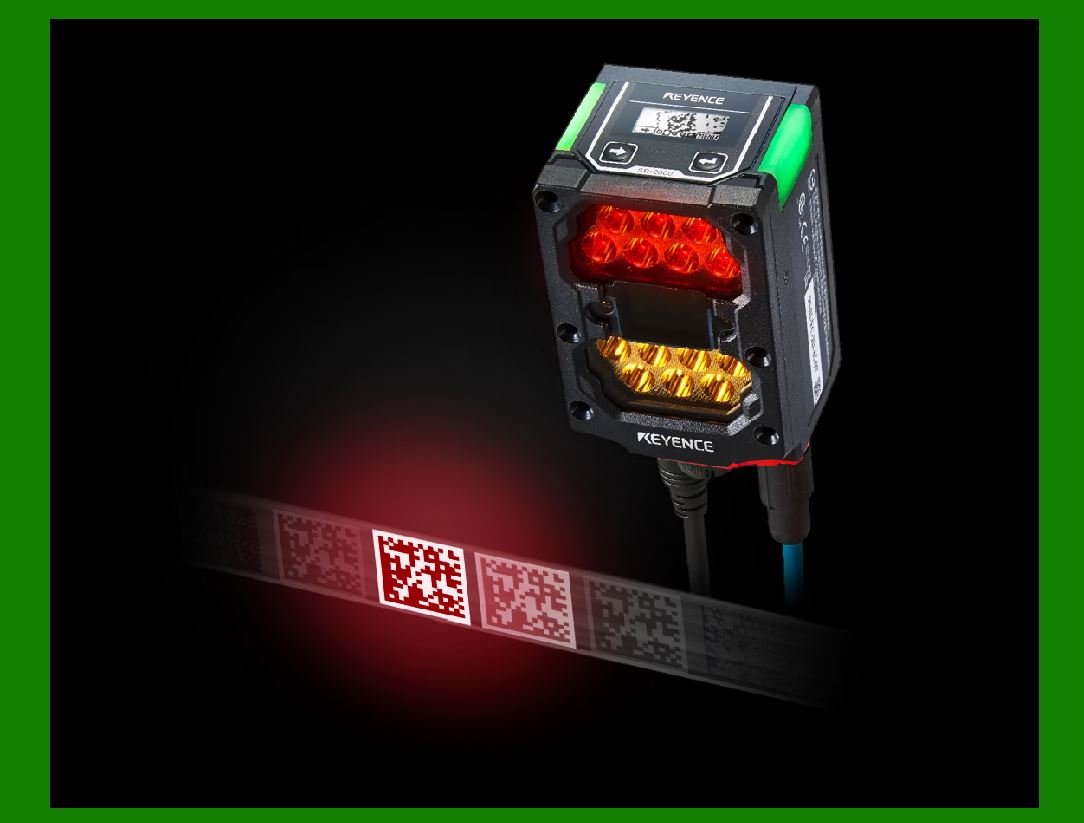
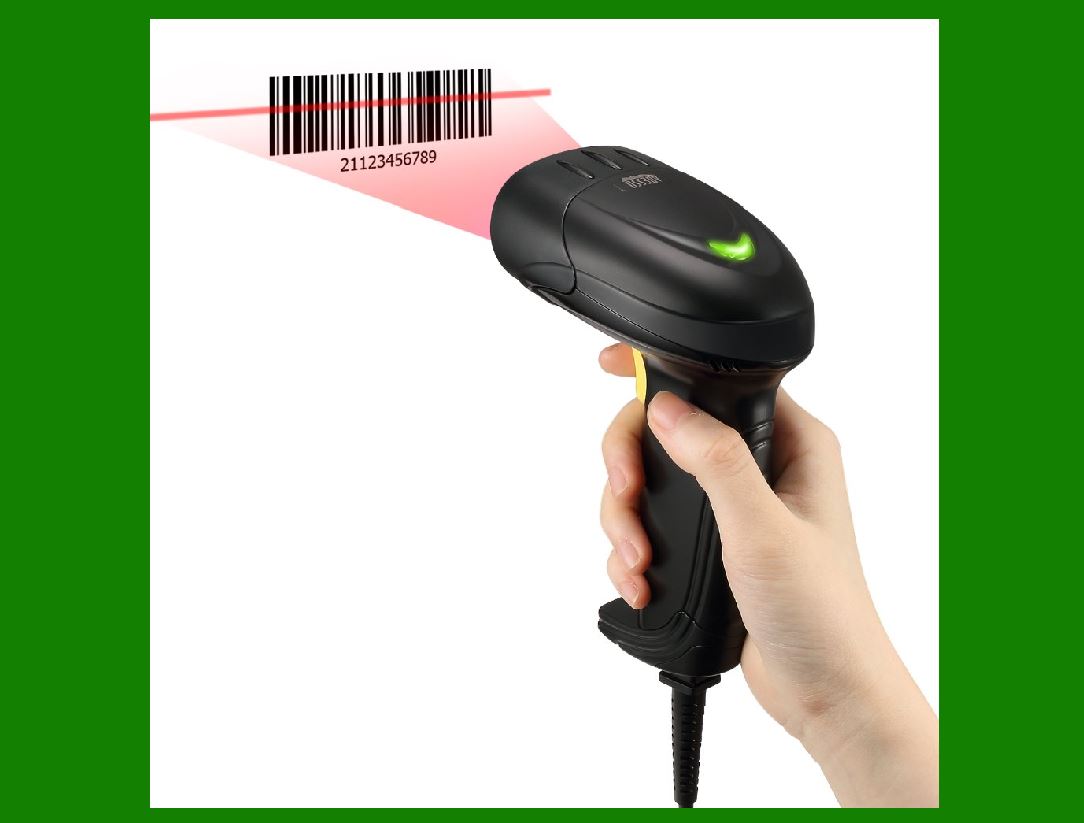
.......Take into account the types of barcodes you'll be scanning. Different scanners are optimized for specific barcode formats (e.g., 1D, 2D, stacked). .......For example, laser scanners are designed for linear 1D barcodes and can read from six inches to two feet away. They use lasers to reflect through mirrors or prisms to read the barcode. .......Image scanners, on the other hand, use tiny digital cameras to capture barcode images. They’re less prone to impact damage than laser scanners and can read 1D barcodes at close distances. .......2D area imagers can scan all barcode types (1D, 2D, and stacked) and allow more flexibility in scanning orientation. |
|
3. Evaluate Connectivity: |
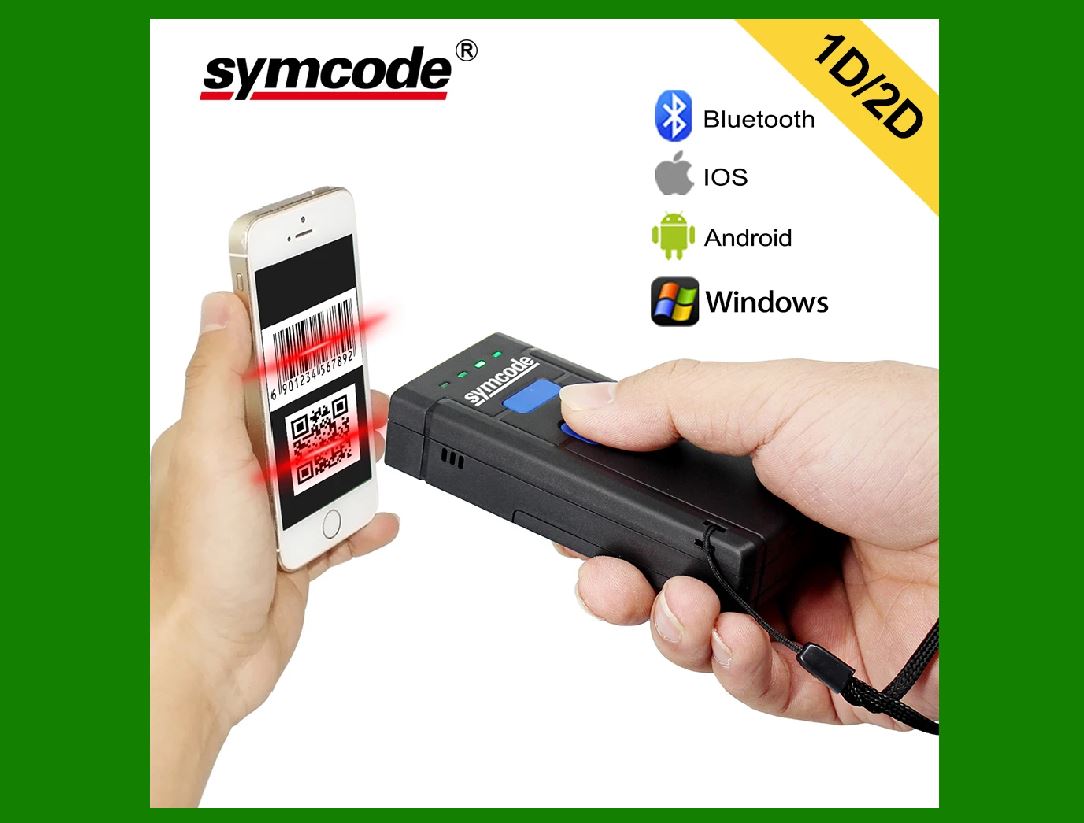
.......Ensure the scanner has the right connectivity options for your needs. Common options include USB, Bluetooth, and wireless connections. .......Consider compatibility with your existing systems and devices. .......Opt for a scanner that aligns with your existing infrastructure. For example, if your system relies on Bluetooth connectivity, choose a scanner with Bluetooth capabilities. |
|
4. Assess Durability: |
.......Barcode scanners can experience wear and tear, especially in busy environments. Choose a durable model that can withstand drops, spills, and daily use. .......Image scanners tend to be less fragile due to their simpler internal mechanisms. |
5. Think About Mobility: |
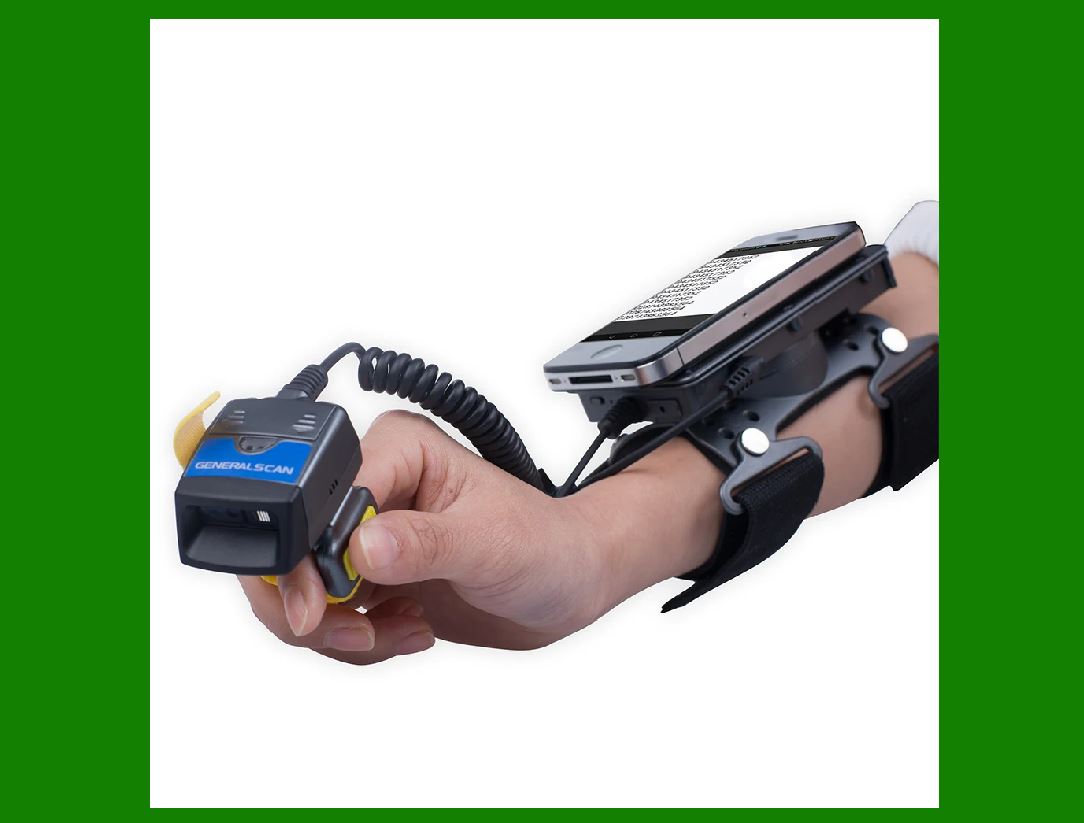
.......If you need to move around while scanning (e.g., inventory management in a large warehouse), consider handheld or wireless scanners. .......Stationary scanners are suitable for fixed checkout counters or workstations. .......Rugged scanners with high Ingress Protection (IP) ratings are suitable for harsh conditions, while sleek designs are ideal for controlled settings. |
|
6. Test Ergonomics: |
.......Comfort matters, especially if users will be handling the scanner for extended periods. Look for ergonomic designs that reduce strain on wrists and hands. |
7. Scanning Speed and Accuracy: |
.......Evaluate how quickly the scanner can read barcodes and how accurate it is. High-speed scanners are essential for busy retail environments. |
8. Budget: |
.......Set a budget and explore scanners within that range. Consider long-term costs, including maintenance and support. |
|
9. When selecting a barcode scanner with high Ingress Protection (IP) ratings, it’s essential to consider its durability and resistance to environmental factors. |
.......What is IP Rating? |
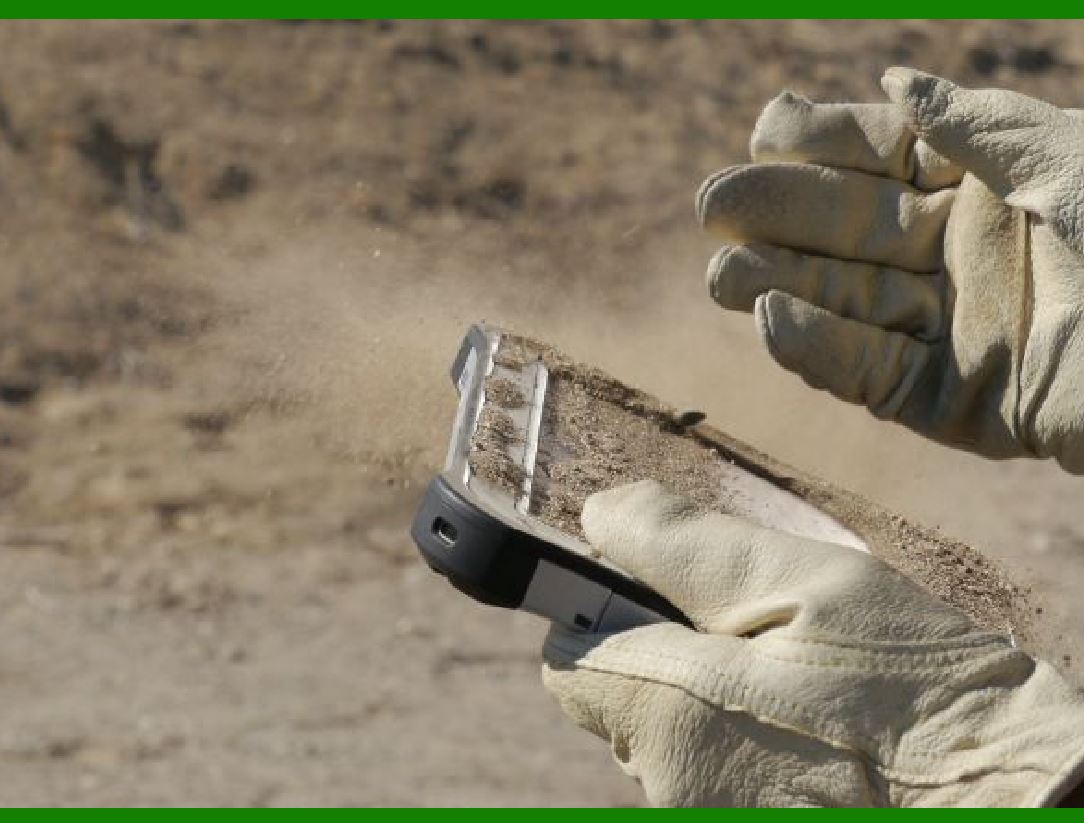
.......The IP rating (Ingress Protection rating) indicates how effectively a device can withstand the intrusion of particles, dust, and liquids. .......It’s expressed as a two-digit code, where the first digit represents resistance to solid intrusion, and the second digit represents resistance to liquid intrusion. .......For example, an IP67-rated device is highly resistant to both dust and water. .......Barcode scanners used in warehouses, industrial settings, or outdoor environments need robust protection. .......Higher IP ratings mean greater durability and less likelihood of failure due to environmental factors. .......Here’s what the digits in the IP rating signify: .......The first digit (X): Resistance to solid particles (e.g., dust). .......The second digit (Y): Resistance to liquids (e.g., water, oil). .......The higher the digit, the tougher the device. |
.......Recommended IP Ratings for Barcode Scanners: .......IP40: Commonly found in middle-range scanners. Offers basic protection against dust but not resistant to fine particles. .......IP54 or IP65: Suitable for harsher conditions. These scanners can resist dust and water, making them ideal for outdoor use. .......For rugged environments, consider scanners with even higher IP ratings. |
|
10. When choosing a barcode scanner, ensuring compatibility with your system is crucial. .......For details, please return to the table of contents to view other technical articles. |
 cs@easiersoft.com