Factors Affecting Barcode Scanning: Environmental Conditions |
1. Introduction |
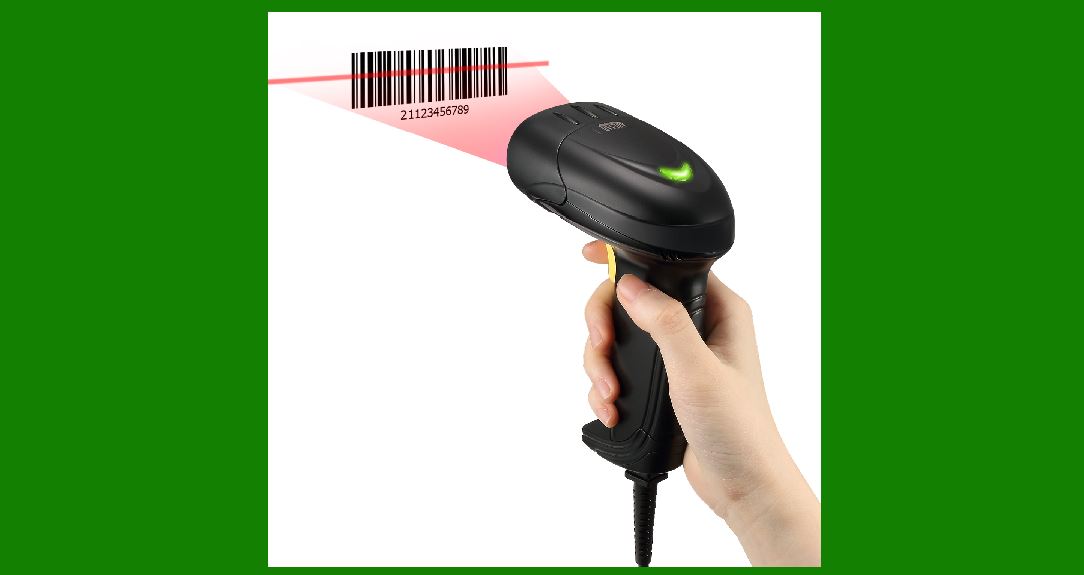
Barcode scanning technology is highly sensitive to environmental conditions, which can significantly impact the effectiveness of barcode reading. This detailed analysis explores the major environmental factors-lighting, reflections, and background noise-that influence scanning performance. Understanding these factors is crucial for ensuring reliable and accurate barcode scanning in various settings. |
|
2. Lighting Conditions |
2.1. Ambient Lighting |
Ambient lighting refers to the natural or artificial light present in the environment where barcode scanning occurs. The intensity and quality of ambient lighting can have a profound impact on barcode readability: |
Low Light Conditions: In low light settings, barcodes may be difficult to scan because there is insufficient contrast between the barcode and its background. Scanners may struggle to detect the faint reflections from the barcode, leading to errors or failures in reading. High Light Conditions: Excessive ambient light, such as direct sunlight or intense artificial lighting, can overwhelm the scanner's sensor. This can cause glare or wash out the barcode, making it hard for the scanner to differentiate the bars and spaces. |
2.2. Light Source Direction |
The direction of the light source relative to the barcode is crucial: |
Direct Lighting: When light is directly reflected off the surface of the barcode, it can create glare and reflections that obscure the barcode's data. This is particularly problematic with glossy or reflective barcode labels. Diffuse Lighting: Soft, diffuse lighting is generally more effective for scanning. It reduces harsh shadows and reflections, providing a more uniform illumination of the barcode, which aids in accurate reading. |
2.3. Light Color Temperature |
The color temperature of lighting can also affect scanning performance: |
Cool White Lighting: Cool white lights with a high color temperature (e.g., daylight bulbs) can provide better contrast for barcodes with certain color schemes, enhancing readability. Warm White Lighting: Warm white lights may introduce color casts that affect the contrast between the barcode and its background. This can make it challenging for scanners to accurately read the barcode. |

|
3. Reflections |
3.1. Glossy Surfaces |
Barcodes printed on glossy surfaces are prone to reflections that can interfere with scanning: |
Specular Reflections: Glossy labels can create specular reflections that mimic the barcode's lines and spaces, confusing the scanner's sensor. This is particularly problematic with high-gloss coatings or laminates. Mitigation Strategies: Using matte or non-reflective finishes for barcode labels can minimize reflections. Additionally, adjusting the scanner's angle or using polarized filters can help reduce the impact of reflections. |
3.2. Surface Texture |
The texture of the surface where the barcode is printed can influence scanning: |
Textured Surfaces: Textured or uneven surfaces can distort the barcode's appearance, affecting the scanner's ability to accurately read it. This is because the irregular surface can alter the barcode's dimensions and contrast. Smooth Surfaces: Smooth, flat surfaces are preferred for barcode printing as they ensure that the barcode is presented uniformly, facilitating better scanning performance. |

|
4. Background Noise |
4.1. Visual Distractions |
Background noise refers to visual elements surrounding the barcode that can interfere with scanning: |
Complex Backgrounds: Barcodes placed against busy or complex backgrounds can be difficult to scan because the scanner may have trouble distinguishing the barcode from the surrounding noise. For instance, a barcode on a patterned background may not provide enough contrast for the scanner to read it accurately. High Contrast Backgrounds: Conversely, barcodes with high contrast against simple backgrounds are easier for scanners to detect. Ensuring that the barcode stands out from its background can improve scanning efficiency. |
4.2. Color and Contrast |
The color and contrast between the barcode and its background are vital for successful scanning: |
Insufficient Contrast: Low contrast between the barcode and background can make it difficult for scanners to differentiate the bars and spaces. For example, light-colored barcodes on light backgrounds may not be easily detectable. Optimal Contrast: High contrast between the barcode and its background enhances readability. Typically, black barcodes on a white background provide the best contrast and are easiest for scanners to read. |

|
5. Barcode Orientation |
5.1. Alignment and Positioning |
The orientation and positioning of the barcode relative to the scanner are crucial: |
Straight Alignment: Barcodes should be aligned parallel to the scanning beam for optimal readability. Angled or skewed barcodes can lead to misreads or failed scans. Proper Distance: Maintaining the correct distance between the barcode and scanner is essential. Too close or too far can affect the scanner's ability to focus and read the barcode accurately. |
5.2. Angle of Scanning |
The angle at which the barcode is scanned can impact readability: |
Perpendicular Scanning: Scanning a barcode perpendicular to the surface usually results in better accuracy, as it ensures that the scanner's beam is aligned with the barcode's bars and spaces. Oblique Scanning: Scanning at an oblique angle can distort the barcode's image, leading to scanning errors. Adjusting the scanning angle to be as close to perpendicular as possible is beneficial. |

|
6. Temperature and Humidity |
6.1. Extreme Temperatures |
Temperature extremes can affect both the barcode and the scanner: |
High Temperatures: Excessive heat can cause labels to warp, peel, or degrade, which can affect readability. Additionally, high temperatures may impact the performance of the scanner itself. Low Temperatures: Cold conditions can make labels brittle, leading to potential cracking or peeling. This can hinder the scanner's ability to read the barcode accurately. |
6.2. Humidity Levels |
Humidity can also impact barcode scanning: |
High Humidity: Excess moisture can cause labels to become soggy or smudged, which may impair readability. Humid conditions can also affect the scanner's electronics, potentially leading to malfunctions. Low Humidity: Dry conditions may cause labels to become static-prone or generate dust, which can obscure the barcode and affect scanning performance. |

|
7. Scanner Type and Capabilities |
7.1. Scanner Sensitivity |
Different types of barcode scanners have varying levels of sensitivity: |
Laser Scanners: Laser scanners are generally sensitive to environmental conditions but may struggle with reflective surfaces or ambient light. Imager Scanners: Imager scanners use cameras to capture barcode images and are often better equipped to handle varied lighting conditions and complex backgrounds. |
7.2. Scanner Features |
Features such as auto-focus, illumination, and image processing can enhance scanning performance: |
Auto-Focus: Scanners with auto-focus capabilities can adjust to different distances and angles, improving accuracy in various conditions. Illumination: Built-in illumination, such as LED lights, helps in low light conditions and reduces the impact of external lighting. |

|
8. Practical Tips for Optimal Scanning |
8.1. Lighting Optimization |
Use Diffuse Lighting: Employ diffuse lighting to minimize reflections and glare. Avoid direct light sources that create harsh reflections. Adjust Lighting: Ensure that the barcode is well-lit but not exposed to excessive brightness. Use adjustable lighting setups where possible. |
8.2. Barcode Placement |
Select the Right Surface: Choose smooth, non-reflective surfaces for barcode printing. Ensure the background provides sufficient contrast. Maintain Proper Alignment: Align the barcode parallel to the scanner and maintain an appropriate scanning distance and angle. |
8.3. Regular Maintenance |
Keep Scanners Clean: Regularly clean the scanner's lens and components to prevent dust and dirt from affecting performance. Inspect Labels: Regularly inspect barcode labels for damage or degradation and replace them as needed to ensure optimal scanning. |

|
9. Conclusion |
Environmental conditions play a critical role in the performance of barcode scanning systems. Factors such as lighting, reflections, background noise, and temperature can significantly influence scanning accuracy. By understanding and managing these conditions, businesses can enhance barcode scanning efficiency and ensure reliable performance across different environments. |
 cs@easiersoft.com