Barcode Technology

Barcode History

Barcode Label Paper

Barcode Printer

Barcode Application

Inventory Management

AI Barcode QRCode

Barcode Scanner

Barcode Software

Barcode Software B

Barcode Software C

Barcode Software D

Barcode Software E

New Technology A

New Technology B

Robot Technology

Barcode Types

Barcode Types B

Barcode Types C

Barcode Types D

Barcode Types E

Barcode Types F

Electronic Technology

Psychology at Work

Barcode Technology and Barcode Software Related   <<< Back to Directory <<<

How barcode scanner works

How barcode scanner works

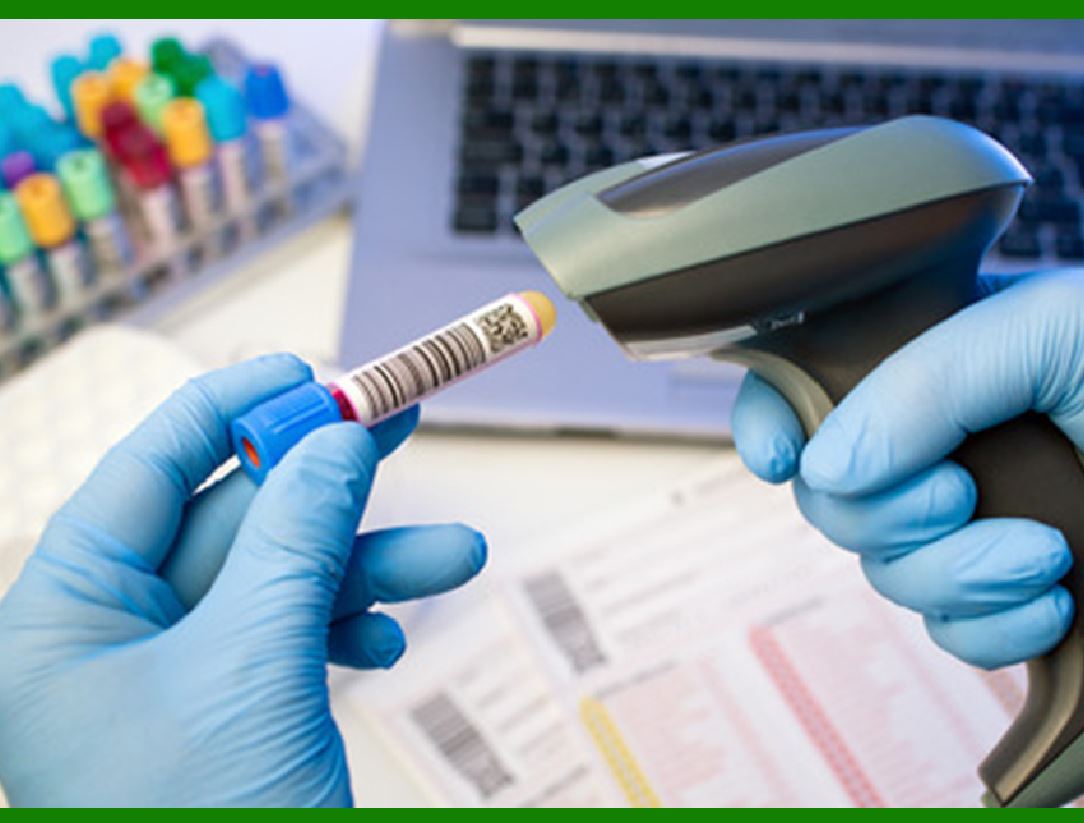
Barcode scanners are fascinating devices that simplify our shopping experience and inventory management.

Let's delve into how they work:

Barcodes:

These black-and-white zebra stripes represent a line of numbers printed underneath them.

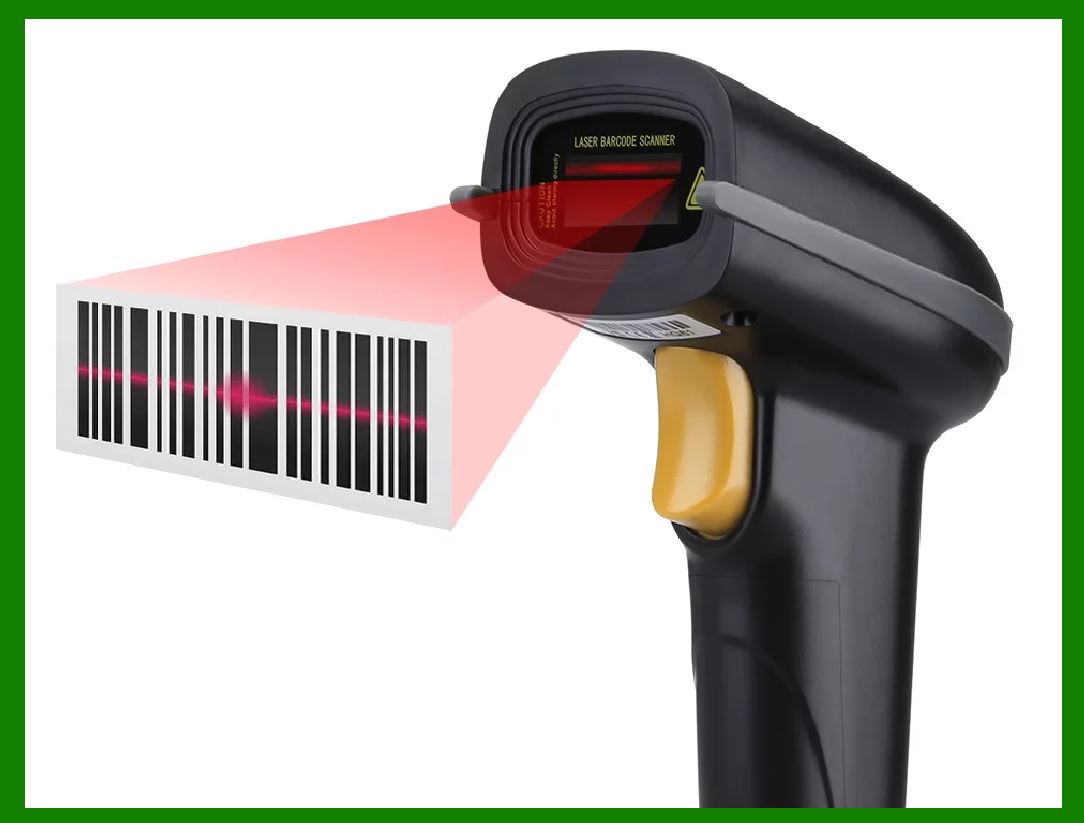
They're designed for computers to read quickly by scanning red LED or laser light across them.

You've probably seen them on everything from cereal boxes to library books.

How They Work:

Scanning Head:

The barcode scanner shines LED or laser light onto the barcode.

Reflection: Light reflects back off the barcode into a light-detecting electronic component called a photoelectric cell.

Pattern Generation: As the scanner moves past the barcode, the cell generates a pattern of on-off pulses that correspond to the black and white stripes.

Digital Data: The scanner sends this digital data to a computer program, which deciphers the final barcode.

Some scanners use a single photoelectric cell, detecting each part of the black-white barcode as you move the scanner head past the product or vice versa.

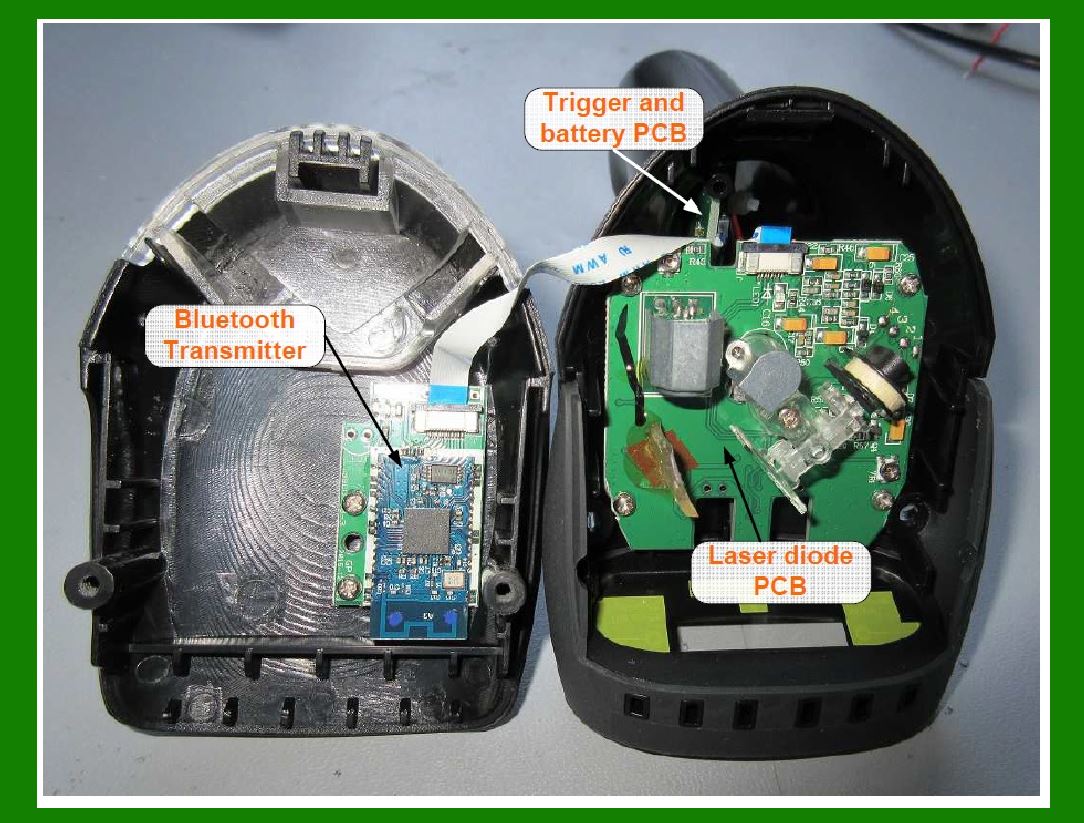
Barcode scanners come in various types, each based on different working principles.

1. Pen-Type Reader:

This type of scanner consists of a light source and a photodiode at the tip of a pen-like device.

When you move the pen across the barcode, it reads the black-and-white bars by detecting changes in light intensity.

Pen-type readers are simple and often used for basic applications.

2. Laser Scanner:

Similar to pen-type readers, laser scanners also use a handheld device.

However, instead of a simple light source, they employ a laser beam.

The laser scans across the barcode, and the reflected light provides information about the barcode pattern.

Laser scanners are commonly used in retail and industrial settings.

3. CCD (Charge Coupled Device) Scanner:

CCD scanners use a semiconductor device called a CCD to convert light signals into electric signals.

These scanners measure ambient light from the barcode without producing a beam of light.

CCD scanners are reliable and widely used for various applications.

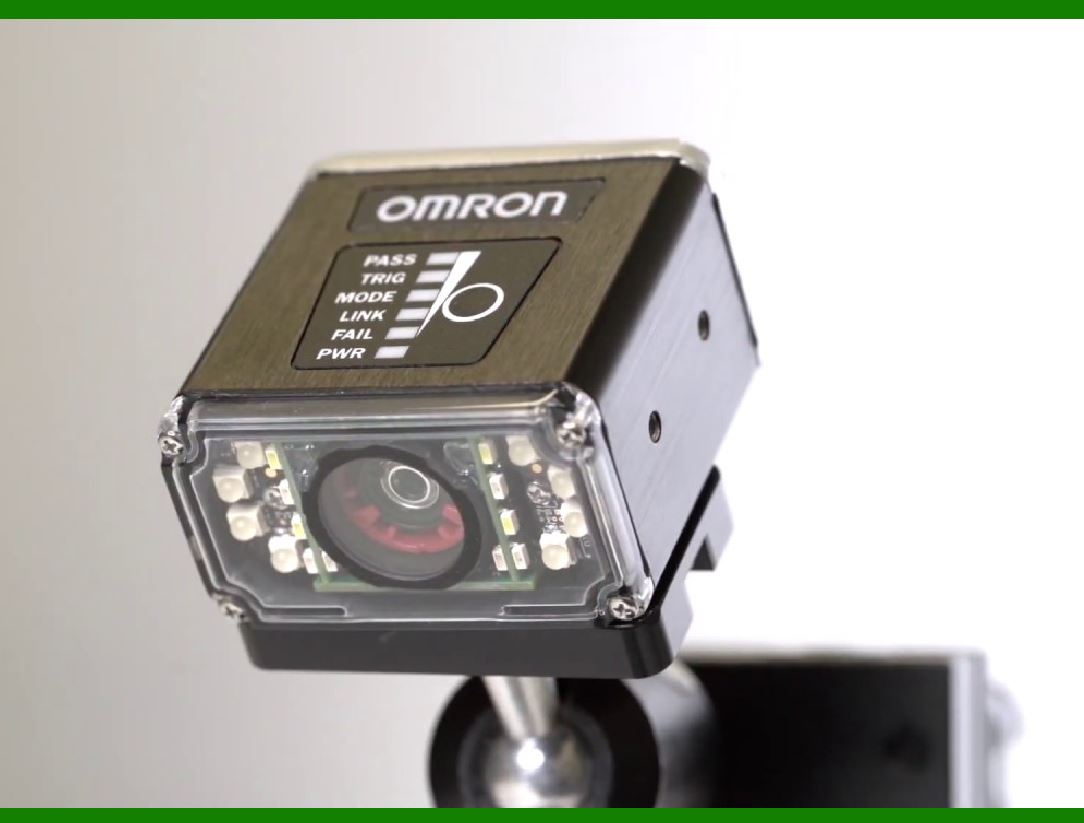
4. Camera-Based Reader (2D Imaging Scanner):

These scanners have a small video camera installed.

They capture an image of the entire barcode and then decode the information using digital imaging software.

Camera-based readers are versatile and can read both 1D and 2D barcodes.

The choice of barcode scanner depends on the specific application and requirements. Whether it's a grocery store checkout or an industrial warehouse, there's a suitable scanner for every purpose.


EasierSoft Barcode Label Design & Bulk Printing Software

---- Use Excel Data to Batch Print Barcodes on Label Sheets or Roll Labels  

---- How to use this barcode software

Download:  Free Barcode Software + Barcode Label Designer

Download Free Barcode Software at Softonic

     Download at CNET

Once you obtain a GS1/UPC/EAN barcode, or other barcode type and QR code, you can use our free software to batch print barcode labels onto Roll label paper using a professional label printer, or to batch print barcodes onto Avery 5160 label sheets using a regular laser or inkjet printer. Our software has free and paid versions.

The free version fully meets your needs for batch printing GS1/UPC/EAN barcodes. The paid version can import data from Excel and databases to batch print barcode labels with different values.

How to Start

Input Data

Import Excel Data

Print Barcode

Barcode Format

Label Designer

All Screen Shot

Export Barcode Image

Save Template

Output Word Excel

How to Use & FAQ:

Example: Print portrait orientation 5164

Example: Print barcodes to 5167 label

Example: Print barcodes to 5168 label

Example: Print portrait orientation 5168

Example: Print barcodes to 5169 label

Example: Print barcodes to 5660 label

Example: Print barcodes to 5661 label

Example: Print barcodes to 5662 label

Example: Print barcodes to 5663 label

Example: Print barcodes to 5664 label

Example: Print portrait orientation 5664

Example: Print barcodes to 5873 label

Example: Print barcodes to 5874 label

Two ways to import Excel data

Import Excel Data - Pro Edition

Import Excel Data - Std Edition

Import Data from Excel - Detail

Load Data From Excel File

Data Editing Table

Copy Data From Excel

Four ways to input barcode data

Add ASCII Key E

Input Multiple Lines of Text for Barcodes

Generates Sequential Serial Numbers

Import or copy data from Excel sheets

Special sequence number generation

Std Details: Simple Input Form

Std Details: Multiple Line Text Input

Details: Sequence Barcode Generator

Examples: Sequence Barcode Generator

Import Data From Excel Spreadsheet

Barcode Data Correspondence Diagram

Data Editor

Editing a Single Row Data in Form

Batch Editing Multiple Rows of Data

Batch Data Editing - Example 2

Design & print complex barcode labels

Configuring Text Elements on Label

Configuring Barcode Elements on Label

Configuring Image Elements on Label

Setting Line Elements on Label

Designing Labels for 5164 Sheet

Advanced Page Layout Settings

Add Barcode Elements to a Label

Configuring Parameters of a Barcode

Entering Multiple Values for a Barcode

Print barcode labels

Print bulk barcodes - How to start

Four sections of print bulk barcodes

Barcode Filter & Repeat Print Quantity

Highlights

Excel integration: Import data directly from Excel to generate and print barcodes in bulk.

Label designer: Create complex labels with multiple barcodes, text, logos, and shapes.

Batch printing: Print thousands of barcodes at once using standard inkjet/laser printers or professional barcode printers.


Flexible editions:

Standard Edition: Simple batch printing with Excel data.

Professional Edition: Adds command-line automation for workflow integration.

Label Designer Edition: Advanced design features for complex labels.


Why Choose Our Barcode Solutions?

Cost-effective: Free online generator and permanent free desktop version available.

Easy to use: No technical expertise required—just input data and print.

Versatile: Supports nearly all 1D and 2D barcode types, including QR codes.

Trusted: Recommended by CNET and widely downloaded by users worldwide.


Suitable Use Cases

Small businesses and startups needing quick barcode labels for products.

Retailers and online sellers managing inventory with batch barcode printing.

Manufacturers requiring sequential or custom barcode labels for packaging.

Educational and testing environments where barcodes are used for tracking.


CONTACT

cs@easiersoft.com

If you have any question, please feel free to email us.


https://free-barcode.com


<<< Back to Directory <<<     Barcode Generator     Barcode Freeware     Privacy Policy