1. Introduction: Overview of Barcode Scanners |
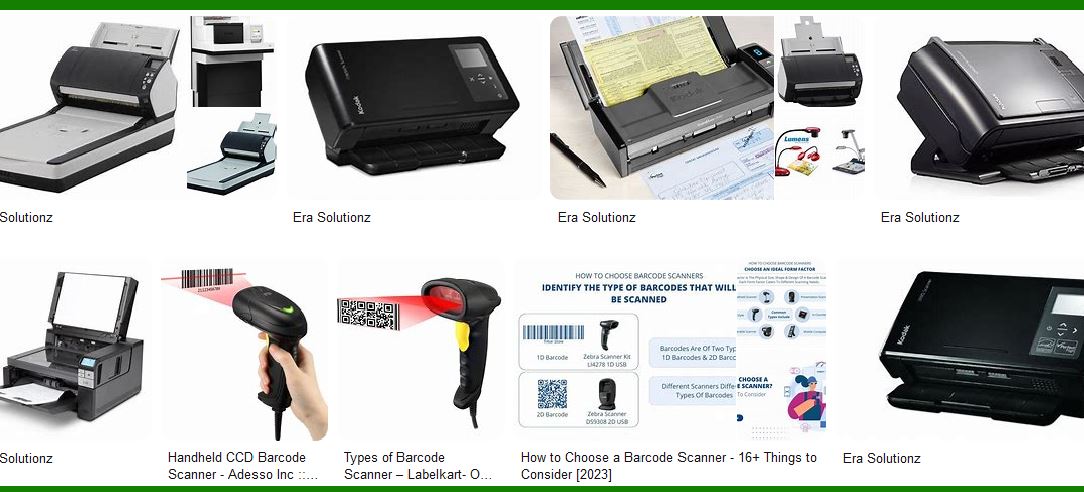
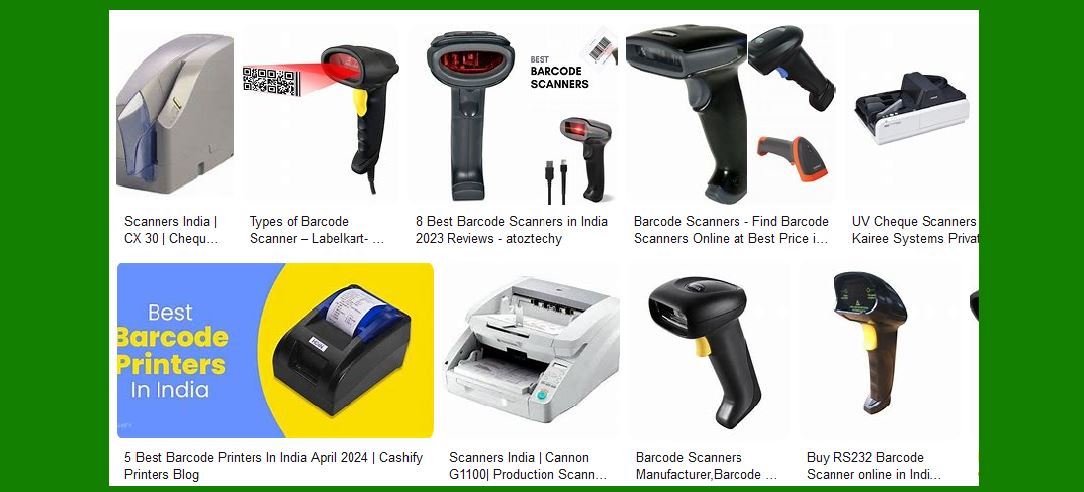
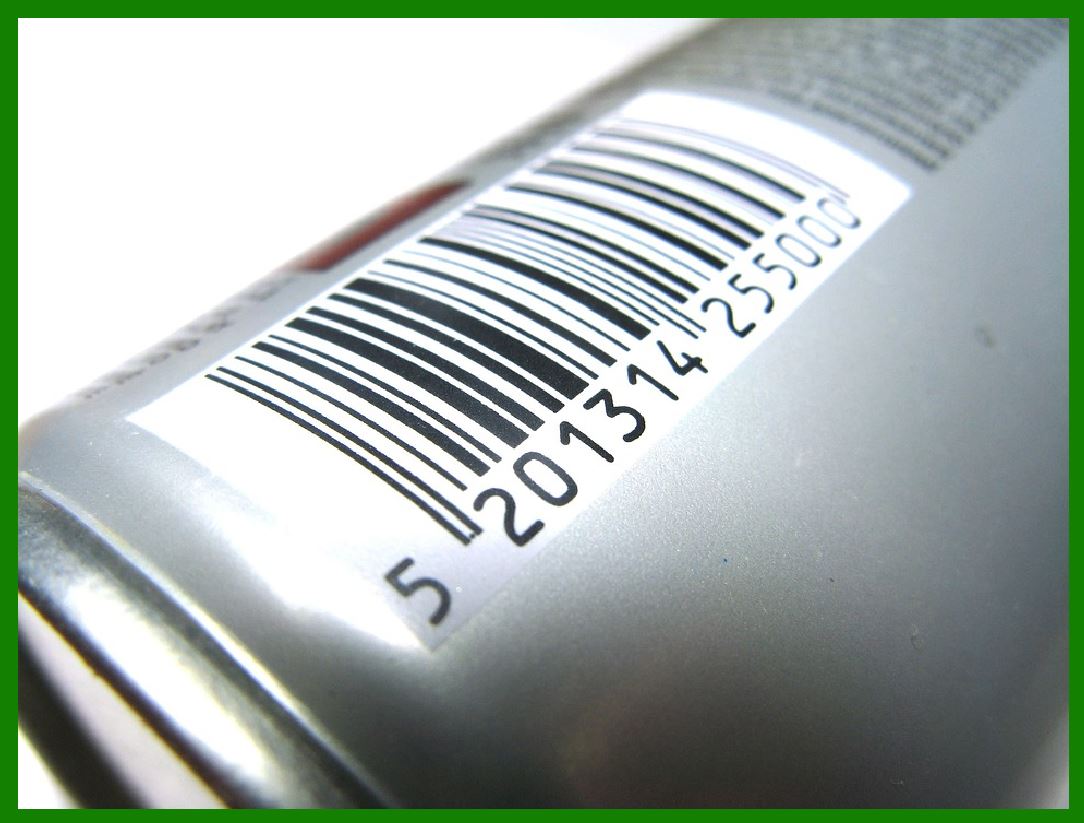
Barcode scanners are integral tools used for reading and interpreting barcodes, which contain encoded information such as product numbers, pricing, and inventory data. Different types of scanners use various technologies, each suitable for specific use cases. The main categories include laser scanners, CCD scanners, imaging scanners, and omnidirectional scanners. Understanding the use and maintenance costs associated with these technologies is critical for businesses aiming to optimize their operations and minimize total cost of ownership (TCO). |
|
2. Types of Barcode Scanners |
Barcode scanners can be broadly classified into four categories: |
Laser Scanners |
CCD Scanners |
Imaging (2D) Scanners |
Omnidirectional Scanners |
Each scanner type has its own benefits and trade-offs, which directly affect the use and maintenance costs. |

|
3. Laser Scanners: Use and Maintenance Costs |
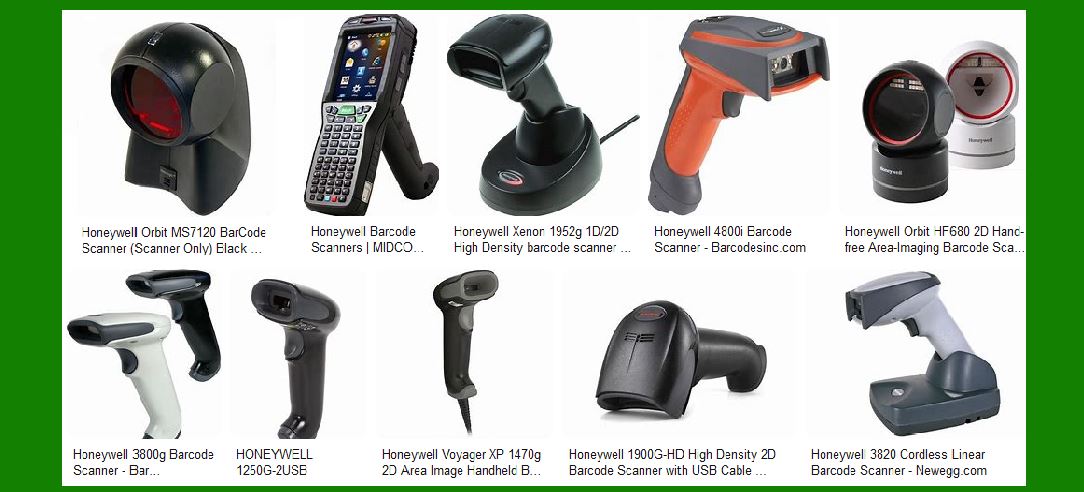
Laser barcode scanners use a laser beam to scan barcodes, usually in linear or single-line patterns. These scanners are widely used in retail, logistics, and inventory management due to their speed and precision. |
3.1 Use Costs |
Laser scanners are relatively inexpensive in terms of operational costs. Their primary cost is in the power consumption, but this is minimal compared to other types of scanners. The scanners typically require low maintenance and can be used for extended periods without needing significant attention. The costs associated with usage mainly include: |
Power Consumption: Laser scanners generally have low power consumption. For example, handheld laser scanners consume between 0.5W to 1W of power on average, making them economical to use over time. |
Replacement of Consumables: Laser scanners are typically durable and don't require frequent replacement of parts like bulbs. The only consumables might be batteries (in wireless models), but these generally last for months to years, depending on usage. |
3.2 Maintenance Costs |
The maintenance costs for laser scanners are generally low, especially when compared to more complex scanning technologies. |
Cleaning: Laser scanners need to be cleaned occasionally to maintain accuracy, especially the lens and mirrors. Cleaning kits or simple cloths can be used for this purpose, adding minimal costs (around $10 to $30 per cleaning kit). |
Repairs and Parts Replacement: The repair costs are relatively low since these scanners have fewer moving parts. However, if the laser diode or the internal optics are damaged, repairs can cost between $50 to $200, depending on the complexity and the manufacturer. Regular maintenance, such as calibration and checking alignment, may cost around $20 to $50 annually. |
3.3 Total Cost of Ownership (TCO) for Laser Scanners |
Initial Purchase Cost: Typically, laser scanners range from $100 to $1,000 for higher-end models. |
Maintenance Over 5 Years: Assuming low wear and tear, maintenance costs for a laser scanner could range from $100 to $300, including cleaning and occasional repairs. |
Total Annual Operating Cost: On average, the total annual operating cost, including power, maintenance, and consumables, is about $20 to $60. |
|
4. CCD Scanners: Use and Maintenance Costs |
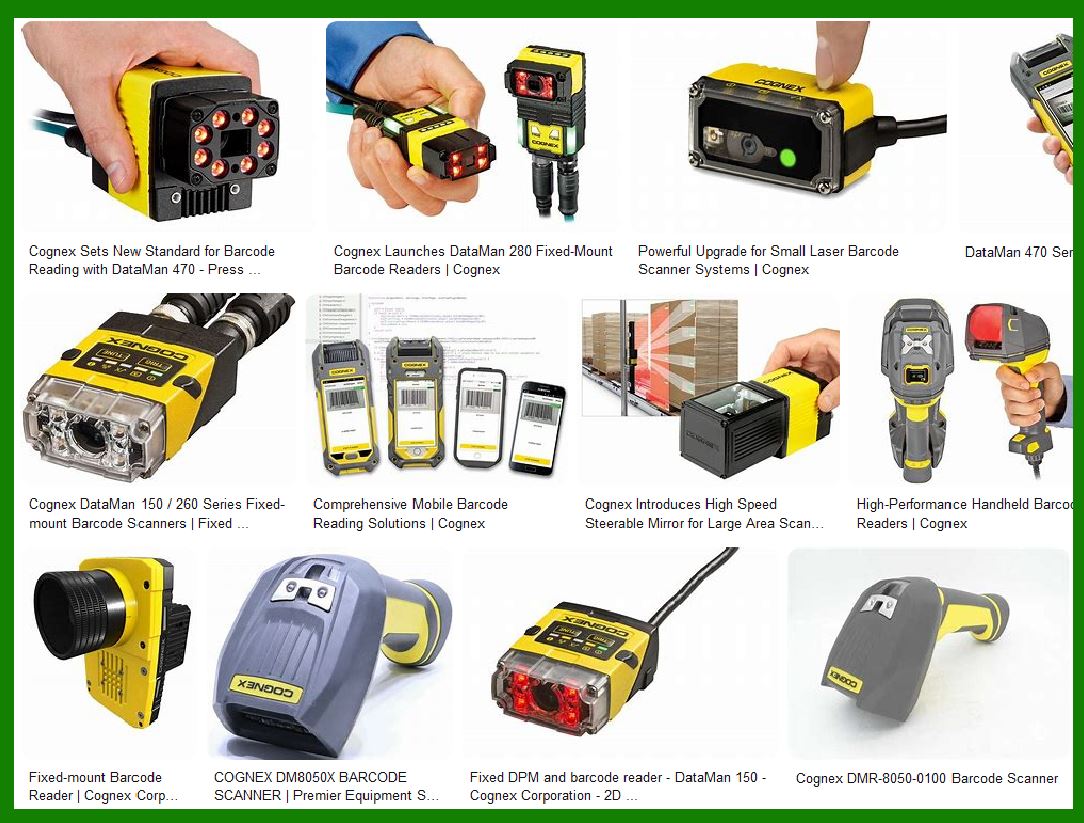
CCD barcode scanners use an array of tiny light sensors to capture and decode barcodes. These are common in environments where scanning precision is less critical, but cost-effectiveness and durability are valued. |
4.1 Use Costs |
CCD scanners tend to have lower operational costs compared to laser scanners because they do not use lasers, but rather LEDs and light sensors, which are energy-efficient. |
Power Consumption: Similar to laser scanners, CCD scanners consume around 0.5W to 1W. However, since there are no moving parts like laser diodes, the efficiency is often higher, leading to longer battery life in wireless models. |
Consumables: Since there are no moving parts such as lasers, CCD scanners usually don't have many consumables. Maintenance primarily involves cleaning, which does not incur significant costs. |
4.2 Maintenance Costs |
CCD scanners are designed to be durable and require minimal maintenance. |
Cleaning: Similar to laser scanners, CCD scanners require periodic cleaning of the sensors and the lens. Cleaning supplies typically cost $10 to $30. |
Parts Replacement and Repairs: Since CCD scanners have fewer parts that can fail, the cost of repairs is lower. However, if the light sensors or internal components malfunction, repairs can cost around $50 to $150. |
4.3 Total Cost of Ownership (TCO) for CCD Scanners |
Initial Purchase Cost: CCD scanners are often less expensive than laser scanners, with prices typically ranging from $50 to $500, depending on the model and additional features (such as wireless capabilities). |
Maintenance Over 5 Years: Given their durability, maintenance costs for CCD scanners over five years are minimal, often totaling between $50 to $200. |
Total Annual Operating Cost: The average operating cost for a CCD scanner is between $20 to $40 annually, factoring in power, cleaning, and occasional repairs. |
|
5. Imaging (2D) Scanners: Use and Maintenance Costs |
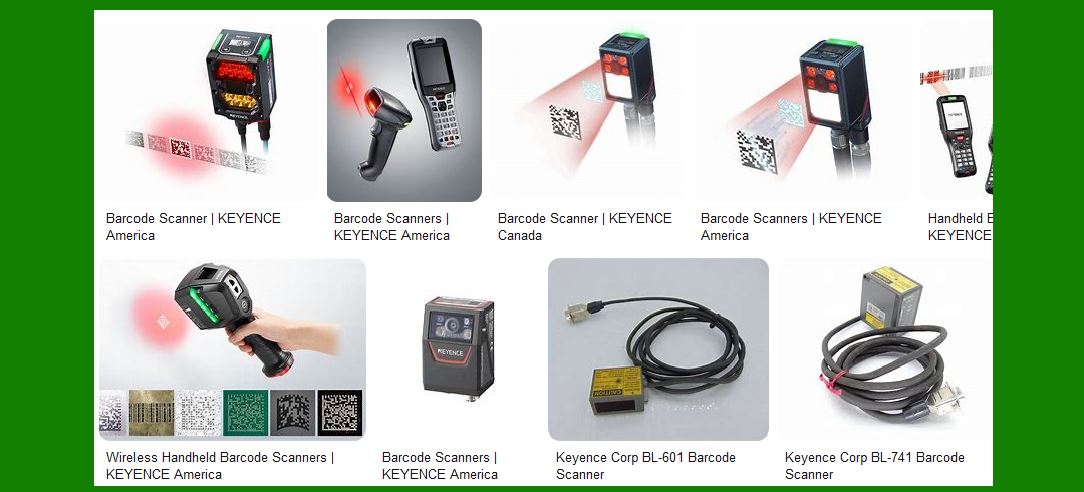
Imaging barcode scanners, also known as 2D scanners, use cameras to capture images of barcodes, which are then decoded by onboard software. These scanners are capable of reading both 1D and 2D barcodes and are often used in applications requiring high versatility. |
5.1 Use Costs |
Imaging scanners generally consume more power than laser and CCD scanners due to their use of cameras and processors for image capture and decoding. |
Power Consumption: Imaging scanners typically consume between 1W to 5W, depending on the complexity of the device and its features (such as wireless connectivity). |
Consumables: While imaging scanners do not require frequent replacement of consumables, their higher complexity means they may need battery replacements more often, especially in wireless models. Battery replacement can cost between $30 to $100, depending on the battery type and brand. |
5.2 Maintenance Costs |
Given the complexity of imaging scanners, their maintenance costs can be higher than those of laser and CCD scanners. |
Cleaning: The camera lenses and image sensors may need regular cleaning, particularly in dusty or humid environments. Cleaning kits and tools might cost between $15 and $50. |
Repairs and Parts Replacement: If the camera or other internal components fail, repair costs can be significant, often ranging from $100 to $300. Major component failures may require a full replacement of the scanner. |
5.3 Total Cost of Ownership (TCO) for Imaging Scanners |
Initial Purchase Cost: Imaging scanners are generally more expensive than laser or CCD scanners, with prices ranging from $150 to $2,500, depending on the features (e.g., Bluetooth connectivity, high-speed scanning). |
Maintenance Over 5 Years: With their advanced technology and higher maintenance requirements, imaging scanners may cost between $200 and $500 in maintenance over a five-year period. |
Total Annual Operating Cost: Considering power consumption, battery replacements, and maintenance, the annual operating cost can range from $50 to $150. |
|
6. Omnidirectional Scanners: Use and Maintenance Costs |
Omnidirectional scanners are advanced types of laser scanners that can scan barcodes in any orientation. They are commonly used in environments with high-volume scanning needs, such as retail and logistics. |
6.1 Use Costs |
The primary costs of omnidirectional scanners come from their power consumption and frequent usage. |
Power Consumption: Omnidirectional scanners typically consume more power than regular laser scanners due to their ability to capture multiple barcode orientations simultaneously. The average power consumption is around 2W to 3W. |
Consumables: Like laser scanners, omnidirectional scanners do not require frequent consumable replacements. However, their frequent use in high-volume settings may require periodic battery replacements (in wireless models), which can cost $30 to $100. |
6.2 Maintenance Costs |
Omnidirectional scanners generally have low maintenance requirements, similar to other laser scanners, but their higher complexity can sometimes lead to slightly higher repair costs. |
Cleaning: Periodic cleaning of the scanner lens is necessary, and cleaning kits generally cost $10 to $30. |
Repairs and Parts Replacement: If the scanner experiences internal issues such as laser misalignment or sensor failure, repairs can cost between $100 to $200. |
6.3 Total Cost of Ownership (TCO) for Omnidirectional Scanners |
Initial Purchase Cost: Omnidirectional scanners can cost anywhere from $150 to $2,000, depending on the brand and features. |
Maintenance Over 5 Years: Maintenance costs for omnidirectional scanners are typically between $100 and $400 over a five-year period. |
Total Annual Operating Cost: On average, the annual operating cost is between $40 to $100, factoring in power consumption, cleaning, and minimal repairs. |
|
7. Comparative Analysis: Use and Maintenance Costs |
When comparing barcode scanners in terms of use and maintenance costs, it is important to weigh the operational benefits against the costs. Here's a quick summary: |
Laser Scanners: Low initial purchase cost, low maintenance costs, and excellent for basic 1D barcode scanning. TCO is low, especially in less demanding environments. |
CCD Scanners: Slightly more expensive than laser scanners but generally have lower maintenance costs and are energy efficient. Suitable for low to medium-demand environments. |
Imaging Scanners: Higher initial and maintenance costs, but versatile in scanning both 1D and 2D barcodes. Best for environments requiring high flexibility and advanced features. |
Omnidirectional Scanners: Offer the convenience of multi-orientation scanning and are ideal for high-volume scanning environments. Their TCO is higher, but they are often essential for fast-paced retail and logistics applications. |
|
8. Conclusion: Selecting the Right Barcode Scanner Based on Cost Considerations |
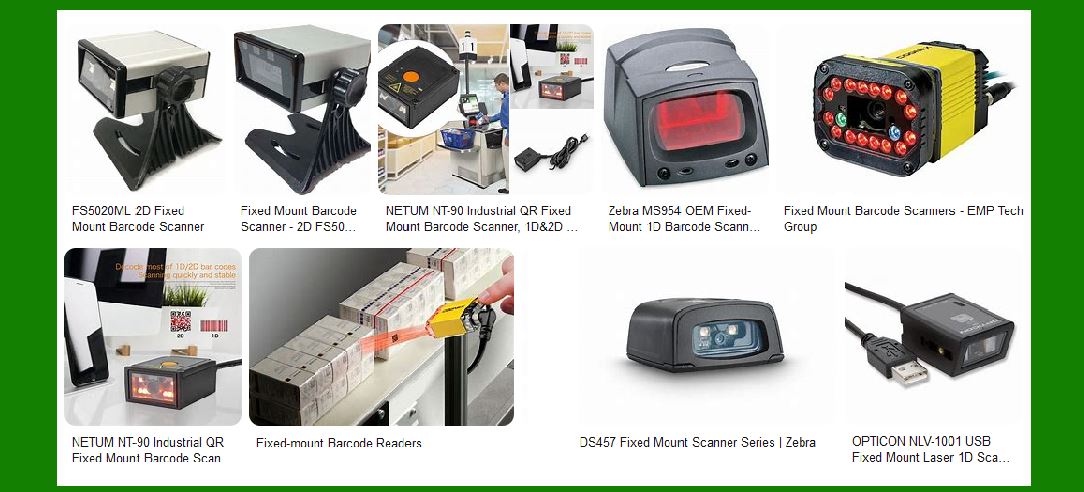
Choosing the right barcode scanner depends heavily on the specific needs of the business. For those requiring basic barcode reading with minimal maintenance costs, laser or CCD scanners are a good choice. However, for environments that demand versatility or high-speed scanning, imaging or omnidirectional scanners may be more cost-effective in the long run, despite their higher initial costs. |
|
Common Troubleshooting Methods for Laser Scanners |
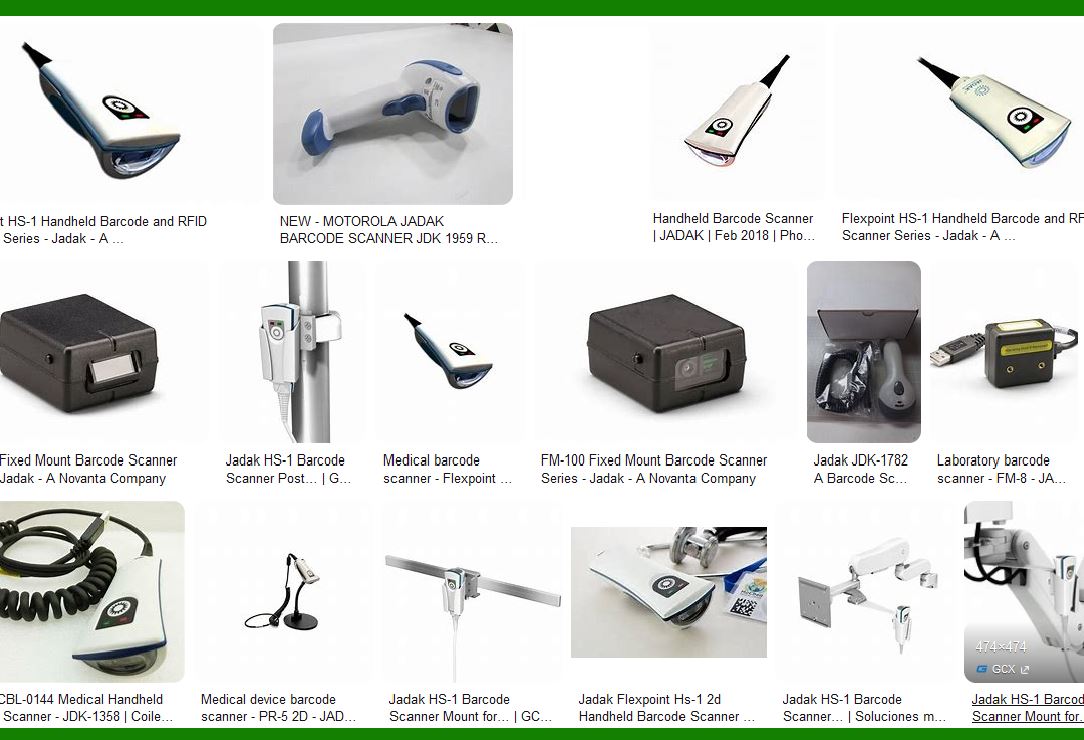
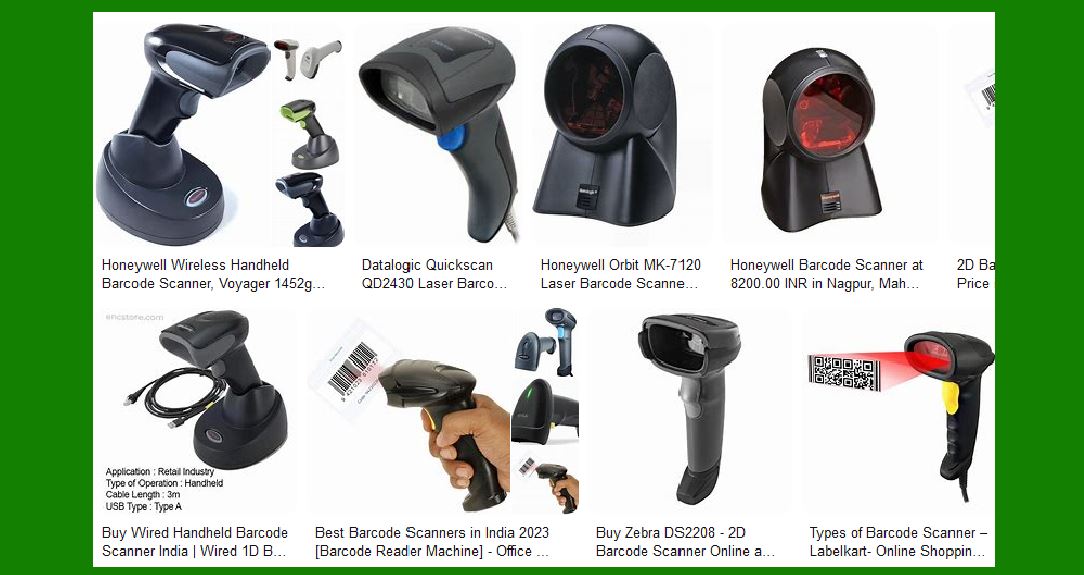
Laser barcode scanners are widely used due to their efficiency and precision in reading 1D barcodes. However, like any technology, they can encounter issues that prevent proper functionality. When troubleshooting laser scanners, it's essential to follow a systematic approach to diagnose and fix common problems. Below are the common troubleshooting methods for laser scanners, categorized based on specific issues that users may face. |
1. Scanner Not Turning On |
One of the most basic issues is the scanner not powering up or turning on. |
1.1 Check Power Source |
For Wired Scanners: Ensure that the scanner is properly connected to the power source, whether it's a USB port on a computer or a direct AC power supply. Try a different USB port or outlet. |
For Wireless Scanners: If using rechargeable batteries, ensure the batteries are fully charged. Use the charging dock or cable to verify that the battery is properly connected and charging. |
1.2 Inspect Power Cable and Connections |
For wired models, check the power cable for visible damage. If the cable is frayed or broken, it may need to be replaced. |
1.3 Check Battery Health (For Wireless Scanners) |
If your scanner uses batteries, ensure the batteries are not dead or corroded. Replace the batteries with new ones if necessary. |
1.4 Reset the Scanner |
Many laser scanners have a reset button or a reset procedure in the manual. Try resetting the scanner by following the manufacturer's instructions. This can resolve minor firmware or software glitches. |
|
2. Scanner Not Scanning or Reading Barcodes |
This is a common issue where the scanner fails to scan or recognize barcodes. |
2.1 Check Barcode Quality |
Ensure the barcode is not damaged or dirty. Smudges, scratches, or fading can make it unreadable by the laser scanner. |
Fix: Clean the barcode using a soft cloth, or if the barcode is damaged, reprint or replace it. |
2.2 Check Scanner Lens |
Dirt, dust, or smudges on the scanner's lens can obstruct the laser beam, making it unable to read barcodes. |
Fix: Clean the scanner lens with a soft, lint-free cloth. Use a cleaning solution specifically designed for optical lenses if necessary. |
2.3 Check Scanning Distance |
Laser scanners have an optimal scanning range. If the barcode is too far or too close, the scanner may not be able to detect it. |
Fix: Ensure the scanner is within the proper scanning range, as specified in the user manual. |
2.4 Check the Barcode Type |
Some laser scanners are configured to read specific barcode formats (e.g., UPC, EAN-13). If the scanner is set to read only one type, it might not scan other formats. |
Fix: Ensure that the scanner is configured to read the type of barcode you are using. Many modern scanners allow you to adjust the configuration through software or via scan settings. |
2.5 Inspect for Interference |
Fluorescent lighting, direct sunlight, or other high-intensity light sources can interfere with the scanner's laser. |
Fix: Move the scanner to an area with less ambient light or use it under conditions that minimize reflective light interference. |
|
3. Scanner Reads Incorrect Data |
This issue occurs when the scanner reads barcodes but produces incorrect or garbled data. |
3.1 Check Barcode Quality and Format |
Poorly printed or low-quality barcodes can lead to misreads. In addition, certain barcode formats may have specific error-correcting codes that allow for partial data retrieval, which could lead to inaccurate scans. |
Fix: Reprint the barcode at a higher resolution, ensuring that the barcode meets standard quality guidelines. |
3.2 Check for Software Configuration Issues |
If the scanner is connected to software that interprets the barcode data, incorrect configuration of the software could lead to wrong outputs. |
Fix: Verify the settings on the connected system (POS, inventory system, etc.). Ensure that the correct barcode type is selected and that there are no issues with the software configuration. |
3.3 Test with Known Good Barcodes |
If you're encountering consistent errors, try scanning several known-good barcodes to isolate the issue. If only one particular barcode is causing the issue, the problem likely lies with the barcode itself. |
|
4. Scanner Outputs Extra or Missing Characters |
If the scanner outputs more or fewer characters than expected, this can affect data accuracy. |
4.1 Check Scanner Settings |
Laser scanners typically have settings that control how data is sent to the connected system. If settings like 'Prefix' or 'Suffix' are incorrectly configured, extra or missing characters may appear. |
Fix: Access the scanner's settings menu and verify that no unnecessary prefixes, suffixes, or other customizations are enabled. |
4.2 Check for Interference with Other Devices |
If there are multiple scanners or electronic devices near the laser scanner, electromagnetic interference (EMI) could disrupt the scanner's signal, causing extra characters. |
Fix: Move the scanner away from other electronic devices or sources of EMI, and check if the issue persists. |
4.3 Check the Barcode Format |
The scanner might be interpreting a certain type of barcode format differently due to improper software configurations. |
Fix: Ensure that the scanner is configured to read the specific barcode type, and check if the issue persists with different barcodes. |
|
5. Scanner is Lagging or Slow to Respond |
If the scanner is lagging or taking longer than usual to read barcodes, this can be frustrating, especially in fast-paced environments. |
5.1 Check Scanner Power Source |
Inadequate power (low battery or unstable connection) can lead to slower scanning speeds, especially in wireless models. |
Fix: Ensure that the scanner is fully charged or connected to a stable power source. If necessary, replace or recharge the batteries. |
5.2 Check for Software Conflicts |
If the scanner is connected to a computer or POS system, software conflicts or outdated drivers can cause delays in the scanner's response time. |
Fix: Update the scanner's drivers and software. Ensure that the scanner's firmware is up to date. |
5.3 Clean the Scanner Lens |
Dirt or debris on the scanner lens can cause performance degradation, leading to slower scanning. |
Fix: Clean the scanner's lens with a microfiber cloth or appropriate lens cleaning solution to ensure that the laser is unobstructed. |
|
6. Scanner Keeps Disconnecting |
For wireless scanners, frequent disconnections can be a common problem. |
6.1 Check Wireless Connection |
Intermittent disconnections could be caused by weak or unstable wireless signals. This can happen if there's interference from other devices on the same frequency. |
Fix: Try changing the wireless channel or move the scanner closer to the receiver to improve the connection. Ensure that there are no physical barriers obstructing the signal. |
6.2 Check Battery Levels |
A low battery can cause the scanner to disconnect frequently. |
Fix: Ensure the scanner has a full charge and replace the batteries if necessary. |
6.3 Reset the Wireless Scanner |
Resetting the wireless scanner may resolve connectivity issues. |
Fix: Follow the manufacturer's instructions to reset the scanner and re-pair it with the receiver. |
|
7. Scanner Is Producing a Faint or Intermittent Laser Beam |
A faint or intermittent laser beam can prevent the scanner from reading barcodes effectively. |
7.1 Inspect the Laser Diode |
Over time, the laser diode may degrade, reducing the intensity of the laser beam. |
Fix: If the laser diode is damaged, it may need to be replaced. Contact the manufacturer or a repair technician for further assistance. |
7.2 Check for Obstructions |
Dust, dirt, or scratches on the scanner's lens or protective glass can cause the laser beam to be weak. |
Fix: Clean the lens or glass carefully with a soft cloth and try again. |
Conclusion: Effective Troubleshooting for Laser Scanners |
By following these common troubleshooting steps, most issues with laser barcode scanners can be resolved efficiently. Regular maintenance, such as cleaning the lens and checking the power source, is essential for ensuring that scanners perform optimally over time. If troubleshooting does not resolve the issue, seeking professional repair services or contacting the manufacturer may be necessary for more complex problems. |
|
Common Troubleshooting Methods for Imaging (2D) Barcode Scanners |
1.Introduction to Imaging (2D) Barcode Scanners |
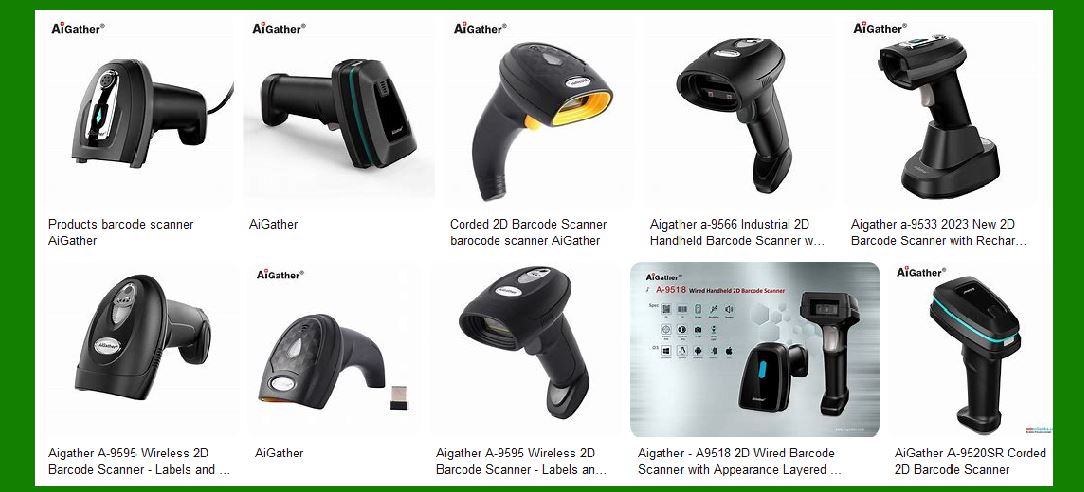
Imaging scanners (also known as 2D scanners) are used to capture barcodes in both 1D and 2D formats, such as QR codes, DataMatrix, and PDF417. These scanners use cameras and image processing software to decode barcodes, offering flexibility and a broader range of applications compared to traditional laser scanners. |
2.No Barcode Read / Scanner Not Responding |
Cause: The scanner may not be able to read a barcode, often due to poor quality, improper alignment, or malfunction. |
Troubleshooting Steps: |
Check Barcode Quality: Ensure the barcode is printed clearly without distortion, smudging, or fading. Low-quality prints or poor scans from damaged or wrinkled barcodes may not be readable. |
Ensure Proper Alignment: The scanner's camera should be aligned with the barcode. If scanning vertically or at an angle, the scanner may fail to capture the image. |
Reboot the Scanner: Power cycle the scanner (turn off and on) to reset the internal software, which may resolve any temporary software glitches. |
Adjust Scanning Settings: Some imaging scanners require a specific distance or angle for optimal scanning. Check the scanner's manual for the recommended scanning range. |
|
3.Scanner Reading Unintended Codes |
Cause: The scanner may accidentally read an adjacent barcode or scan part of a barcode when it's too close. |
Troubleshooting Steps: |
Increase Distance from Barcodes: Move the scanner further away from the barcode to prevent it from reading codes that are too close together. |
Enable Single Scan Mode: Some scanners allow you to limit reading to one barcode at a time by adjusting the settings or activating a 'single scan' mode to avoid multiple scans. |
4.Scanner Not Recognizing 2D Barcodes |
Cause: Imaging scanners are designed to read both 1D and 2D barcodes, but sometimes they fail to read 2D barcodes due to settings, hardware malfunctions, or environmental factors. |
Troubleshooting Steps: |
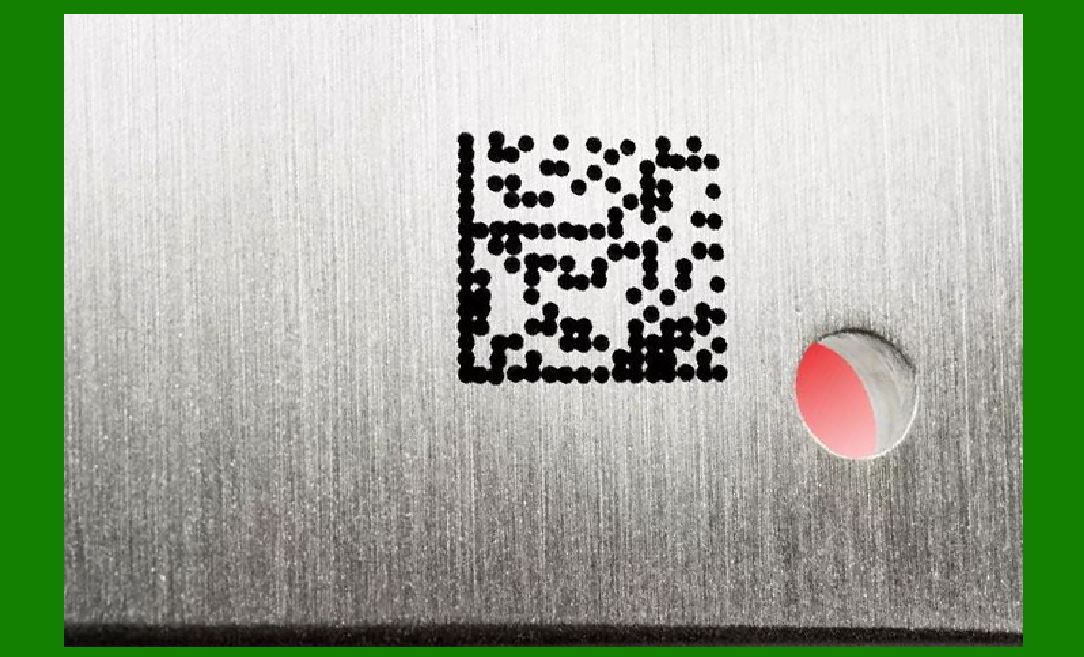
Check 2D Barcode Compatibility: Ensure that the scanner supports the specific 2D barcode type you are trying to scan (e.g., QR Code, PDF417, or DataMatrix). |
Update Firmware: Outdated firmware may lack support for certain types of 2D barcodes. Check for updates and upgrade the scanner's firmware if necessary. |
Test the Camera: Ensure the scanner's camera is clean and unobstructed. Dirt or smudges on the camera lens can significantly degrade scanning performance. |
|
5.Poor Scanning Performance in Low Light |
Cause: Imaging scanners rely on light to capture images of barcodes. Poor lighting conditions can reduce the scanner's ability to detect and read barcodes properly. |
Troubleshooting Steps: |
Increase Ambient Lighting: Ensure there is adequate light on the barcode to assist the scanner in reading it. Bright and evenly distributed lighting is ideal for most imaging scanners. |
Use Scanner's Built-in Light: Some scanners have built-in LEDs that provide additional lighting. Ensure that these lights are functioning properly or activate them if available. |
6.Scanner Giving Error Messages or Alerts |
Cause: Some scanners display error messages when they encounter problems, such as unreadable barcodes, misconfigurations, or software issues. |
Troubleshooting Steps: |
Check for Software Conflicts: If the scanner is connected to a computer or a POS system, make sure the software is configured to work with the scanner. |
Consult Error Code Documentation: Most scanners come with documentation outlining common error codes and their meanings. Check the manual or online support for specific error code solutions. |
Perform a Reset: Perform a factory reset to return the scanner to its default settings if you suspect a configuration issue. |
|
7.Slow Scanning Speed or Lag |
Cause: Slow or lagging scans can be due to hardware limitations, poor barcode quality, or environmental factors. |
Troubleshooting Steps: |
Reduce Barcode Complexity: If scanning high-density barcodes (such as QR codes with many data points), consider using lower-density codes to speed up processing time. |
Check Processing Power: Ensure that the scanner is not overwhelmed by too many simultaneous requests. Some older models may struggle with faster scanning speeds or complex barcodes. |
Clean the Scanner: Dust or dirt buildup inside the scanner can impede its ability to capture barcodes quickly. Clean the lens and any accessible parts. |
8.Connectivity Issues (For Wireless or Bluetooth Scanners) |
Cause: Wireless imaging scanners that use Bluetooth or Wi-Fi may experience connectivity issues, which can disrupt data transmission to the connected device. |
Troubleshooting Steps: |
Check Battery Level: Low battery levels can cause connectivity issues or poor performance in wireless scanners. Charge or replace the battery as needed. |
Reconnect to Network: Ensure the scanner is properly paired or connected to the device it is supposed to send data to. For Bluetooth scanners, re-pairing the device may resolve connectivity issues. |
Check Signal Strength: For Wi-Fi-enabled scanners, verify that the scanner is within range of the network. Weak signals or network congestion may interfere with scanning. |
|
9.Scanning Misalignments or Skewed Scans |
Cause: Some imaging scanners may read barcodes incorrectly if the barcode is misaligned, tilted, or skewed. |
Troubleshooting Steps: |
Check the Barcode Position: Ensure the barcode is positioned straight and level relative to the scanner. Slight misalignment can cause misreads or errors. |
Enable Auto-Correction Features: Many 2D scanners have features that help auto-correct misaligned or skewed barcodes. Enable these settings in the scanner configuration, if available. |
10.General Maintenance and Cleaning |
Cause: Over time, dirt, dust, or ink residues can accumulate on the scanner lens and cause issues. |
Troubleshooting Steps: |
Clean the Scanner Lens: Regularly clean the scanner's lens with a soft, lint-free cloth and lens cleaning solution. Do not use harsh chemicals or abrasive materials that could damage the lens. |
Check for Firmware Updates: Ensure the scanner is running the latest firmware, as this can resolve many performance-related issues. |
|
Common Troubleshooting Methods for Omnidirectional Scanners |
1.Introduction to Omnidirectional Scanners |
Omnidirectional barcode scanners use multiple scanning beams to read barcodes from any direction, making them more versatile and faster than traditional single-line scanners. They are widely used in environments where high-speed scanning is needed, such as retail, logistics, and healthcare. |
2.Scanner Not Reading Barcodes |
Cause: Omnidirectional scanners might fail to read barcodes due to issues such as poor quality, incorrect configuration, or scanner malfunction. |
Troubleshooting Steps: |
Check Barcode Quality: Ensure the barcode is printed clearly. Faded, damaged, or poorly printed barcodes may be unreadable. |
Proper Alignment: Although omnidirectional scanners can read barcodes from any angle, positioning the barcode within the scanner's field of view helps. Make sure the scanner's aiming pattern is visible and aligned with the barcode. |
Clean the Scanner: Dirt, dust, or smudges on the lens can interfere with scanning. Clean the scanner lens and surrounding areas with a soft cloth and appropriate cleaning solution. |
|
3.Scanner Reads Wrong or Multiple Barcodes |
Cause: Omnidirectional scanners can sometimes read multiple barcodes or the wrong barcode if they are too close to each other or there is overlap. |
Troubleshooting Steps: |
Increase Barcode Separation: Ensure that barcodes are spaced far enough apart to avoid overlap or confusion. |
Enable Single Scan Mode: If the scanner is reading multiple barcodes, enable single scan mode through the scanner settings. This limits the scanner's functionality to reading one barcode at a time. |
Adjust Scanning Range: Move the barcode further away from the scanner to ensure only one barcode is within its scanning field. |
4.Scanner Not Connecting to Computer/Host System |
Cause: Omnidirectional scanners often connect to systems via USB, Bluetooth, or other interfaces. If the connection is faulty, the scanner won't transmit data correctly. |
Troubleshooting Steps: |
Check Cables and Connections: For wired scanners, inspect the USB or serial cables and ensure they are securely connected to both the scanner and the host system. |
Ensure Bluetooth Pairing: For wireless scanners, confirm that Bluetooth pairing is correctly established. Try re-pairing the scanner with the device if necessary. |
Test with Another Computer: Test the scanner with a different computer or device to check if the issue lies with the original host system. |
Reinstall Drivers: If the scanner connects via USB and is not recognized, try reinstalling the necessary drivers or checking for updates from the manufacturer's website. |
|
5.Scanner Displaying Error Messages |
Cause: Most omnidirectional scanners have diagnostic features that display error codes when an issue arises, such as poor reading conditions or internal malfunctions. |
Troubleshooting Steps: |
Check for Error Codes: Consult the user manual or manufacturer's website for error codes that might indicate issues. Common errors include connection problems or misconfigurations. |
Reset the Scanner: Some scanners allow you to reset settings to factory defaults, which can resolve unexpected behavior or error codes. Look for a reset button or a configuration barcode in the manual that can reset the device. |
Consult the Diagnostic Tool: Many scanners offer built-in diagnostic tools that can help pinpoint specific issues. Refer to the scanner's manual to learn how to access these tools. |
6.Scanner Reading Barcodes Too Slowly |
Cause: Slow scanning can occur due to issues with the barcode quality, environmental factors, or internal scanner settings. |
Troubleshooting Steps: |
Ensure Proper Lighting: Omnidirectional scanners rely on proper lighting to capture barcodes. Ensure the scanning area is well-lit and free from glare. Poor lighting can cause slower scans. |
Use Higher-Quality Barcodes: Low-resolution or poorly printed barcodes take longer to read. Ensure the barcodes are clear and printed to a good standard. |
Check the Scanner's Settings: Some scanners may have settings that control the speed of scanning. Check for any speed settings in the scanner's software or manual and adjust accordingly. |
|
7.Scanner Not Powering On |
Cause: A scanner may fail to turn on if there is a power issue or a malfunction in the internal components. |
Troubleshooting Steps: |
Check the Power Source: For wired scanners, ensure that the USB or power cable is securely plugged into both the scanner and the power source. For wireless scanners, check the battery level or try replacing the battery if necessary. |
Test with Another Power Source: Try plugging the scanner into a different USB port or power outlet to rule out faulty connections. |
Inspect the Power Switch: If the scanner has a power switch, ensure it is turned on. Some models may have an internal switch or setting that could disable the power. |
8.Intermittent Scanning or Unreliable Performance |
Cause: Omnidirectional scanners may show intermittent performance if there are connectivity issues, interference, or hardware malfunctions. |
Troubleshooting Steps: |
Reduce Interference: Wireless scanners, especially those using Bluetooth or Wi-Fi, can experience interference from other electronic devices. Try moving the scanner and device away from sources of interference, such as microwaves or large metal objects. |
Check for Firmware Updates: Update the scanner's firmware if it's outdated. New firmware versions can fix bugs or performance issues. |
Perform a Reset: Resetting the scanner to its factory settings can often resolve performance problems caused by misconfigurations. |
|
9.Poor Scan Angle or Field of View |
Cause: Omnidirectional scanners are designed to read barcodes from multiple angles, but certain models may have a limited field of view or may not capture barcodes properly if they are angled incorrectly. |
Troubleshooting Steps: |
Ensure Proper Barcode Positioning: Hold the barcode within the scanner's optimal scanning area. If the barcode is outside of this range, it may not be detected or may read poorly. |
Test Scanner in Different Positions: Experiment with different angles or orientations of the scanner to ensure optimal performance. |
10.Scanner Overheating |
Cause: Omnidirectional scanners, like any electronic device, may overheat if they are used for long periods or if ventilation is blocked. |
Troubleshooting Steps: |
Allow the Scanner to Cool Down: If the scanner becomes hot, power it off and allow it to cool for a few minutes before resuming use. |
Improve Ventilation: Ensure the scanner is used in a well-ventilated area. Avoid placing it near heat sources or using it continuously without breaks. |
|
These troubleshooting methods should help resolve most common issues with omnidirectional barcode scanners. Regular maintenance, cleaning, and updates are crucial for ensuring long-term reliability. If the issue persists, consider contacting the manufacturer for further support or exploring repair services. |
 cs@easiersoft.com