Zebra ZPL SDK |
A Comprehensive Technical Analysis of Zebra Printer Programming and Barcode Printing Technology |
Part 14 Printer Memory Management and Resource Optimization |
1. Introduction to Printer Memory Management |
Efficient memory management is crucial for high-speed, high-volume printing with Zebra printers. Printers have RAM (volatile memory) for temporary data storage and flash memory (non-volatile storage) for fonts, templates, and graphics. Mismanagement can lead to: |
* Print job failures |
* Incomplete labels |
* Printer crashes or slowdowns |
The Zebra ZPL SDK provides tools to monitor, allocate, and optimize memory usage, ensuring reliable operation in industrial settings. |

|
2. Memory Architecture in Zebra Printers |
Zebra printers typically use a two-tier memory system: |
1. RAM (volatile memory) |
* Stores active print jobs, temporary ZPL data, and runtime buffers |
* Cleared when the printer is powered off |
* High-speed access ensures rapid printing |
2. Flash memory (non-volatile memory) |
* Stores fonts, templates, logos, graphics, and permanent configurations |
* Retains resources between power cycles |
* Slower access compared to RAM |
Understanding this architecture allows developers to optimize both job speed and resource availability. |

|
3. RAM Management for High-Volume Printing |
RAM is used primarily during active print jobs: |
* ZPL commands are processed and buffered in RAM |
* Large batch jobs or complex graphics can exhaust RAM |
* SDK allows monitoring RAM usage through diagnostic commands (e.g., `~HS` and `~HQ`) |
Best practices include: |
1. Preload static resources into flash memory to reduce RAM usage |
2. Split large jobs into smaller segments |
3. Avoid excessive inline graphics or high-resolution bitmaps in single jobs |
Proper RAM management prevents job failures and slow print performance. |

|
4. Flash Memory Utilization |
Flash memory stores persistent resources: |
* Fonts (`.FNT` files) |
* Templates (`^DF` format) |
* Graphics (`^DG` format) |
Efficient flash usage requires: |
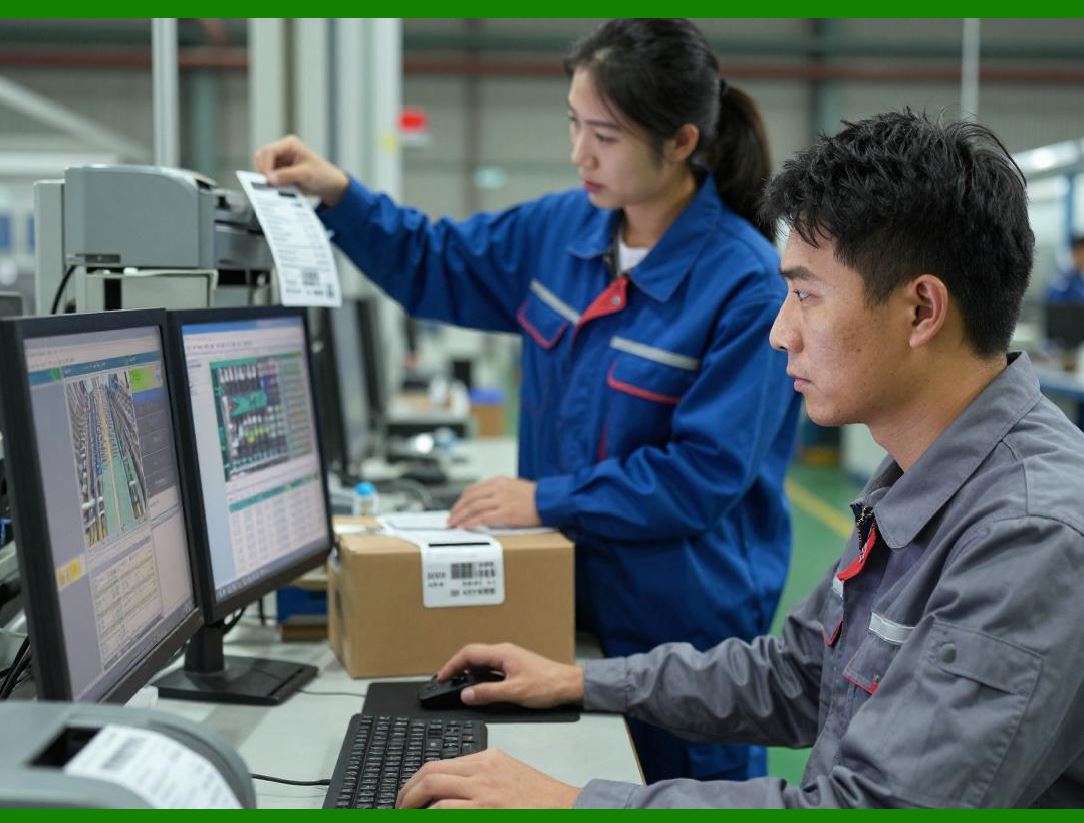
1. Uploading resources once and referencing them via ZPL commands |
2. Deleting obsolete or redundant files (`^ID` command) |
3. Organizing files with consistent naming for easy retrieval |
This strategy reduces network load and accelerates job processing. |
|
5. Templates and Stored Graphics |
Templates and graphics improve speed and consistency: |
* Templates define static layout with variable placeholders |
* Stored graphics (logos, hazard symbols) reduce inline data transmission |
* ZPL commands `^DF` and `^DG` handle storing and retrieving resources |
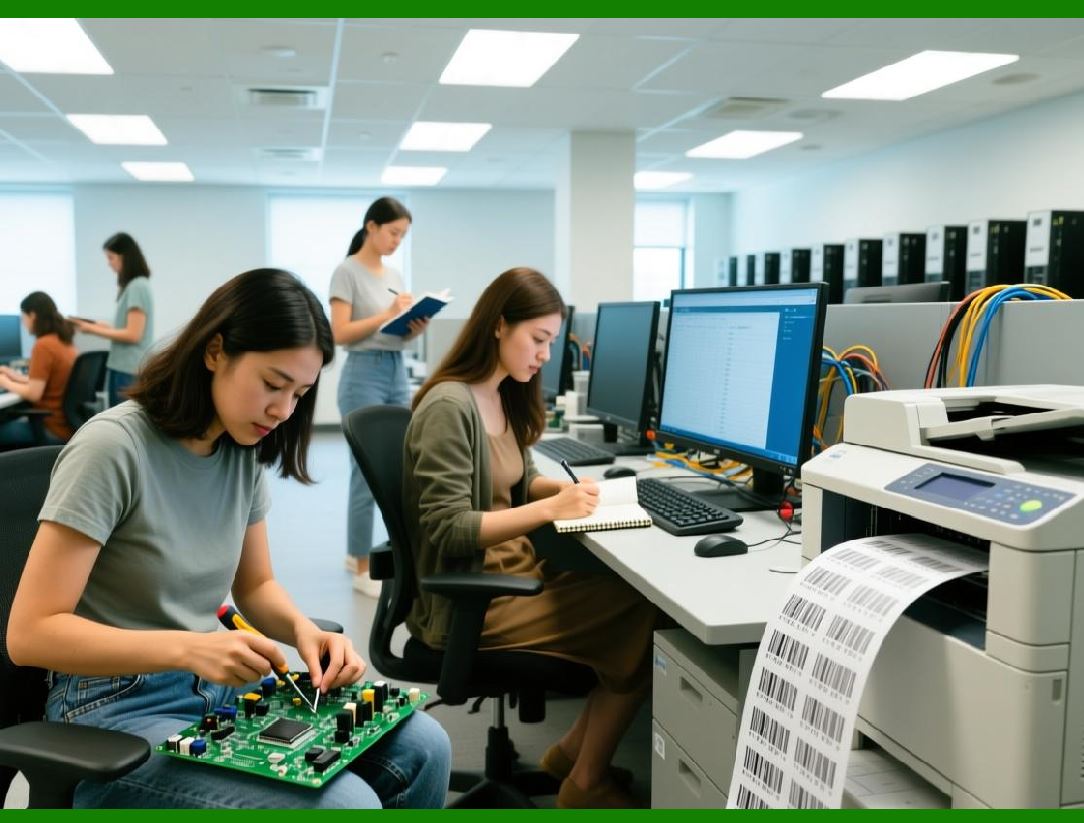
The SDK can automate resource management by: |
* Uploading or updating templates |
* Checking for missing resources before printing |
* Removing unused files to free memory |
This ensures efficient memory usage without sacrificing flexibility. |
|
6. Dynamic Resource Allocation |
Dynamic labels often require on-the-fly memory allocation: |
* Variable-length text fields |
* Conditional graphics selection |
* Multiple barcode types with varying densities |
SDK-enabled applications can: |
1. Calculate required memory for each label |
2. Pre-allocate buffers in RAM |
3. Clean up resources immediately after printing |
This prevents memory overflow and supports continuous high-volume printing. |

|
7. Memory Cleanup and Maintenance |
Regular memory maintenance prevents resource exhaustion: |
* Delete temporary or outdated graphics using `^ID` |
* Clear cached templates after batch jobs |
* Periodically verify memory usage using `~HS` |
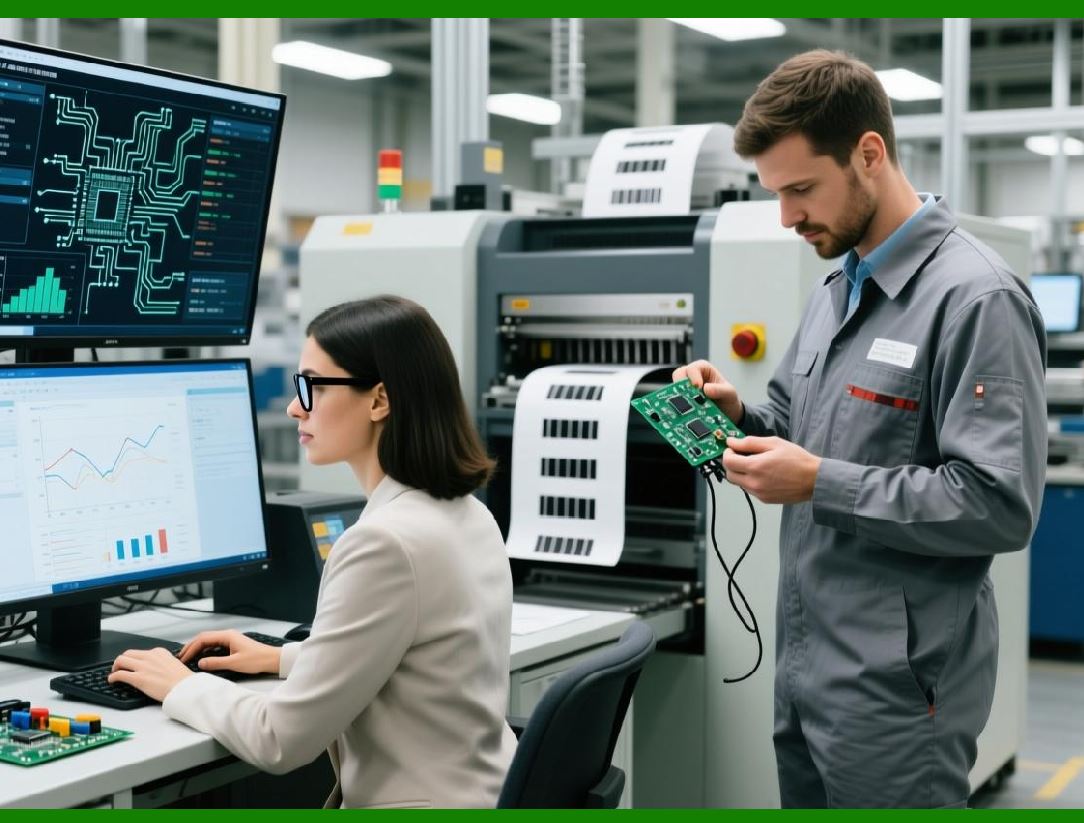
The SDK can automate these tasks, scheduling cleanup routines during low-traffic periods. |
|
8. Optimizing Graphics for Memory Efficiency |
Graphics consume significant memory: |
1. Use compressed bitmap formats (`^GF`) |
2. Reduce resolution to minimum required for scan or visual quality |
3. Convert graphics to monochrome when possible |
4. Reuse graphics instead of embedding them inline repeatedly |
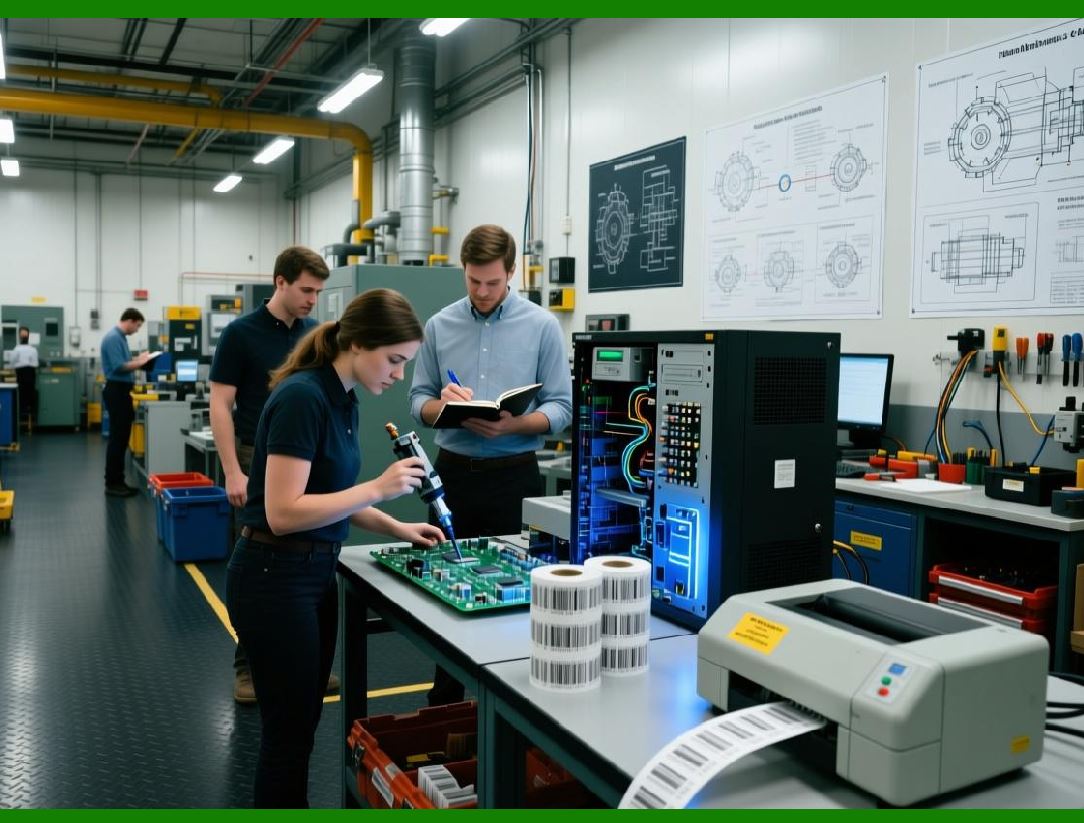
These practices minimize RAM and flash usage, improving throughput and reducing print failures. |
|
9. Font Management |
Fonts occupy both RAM and flash: |
* System fonts are built into the printer |
* Downloaded fonts can be stored permanently or temporarily |
* SDK can check if the required font is present and upload it if needed |
Dynamic font handling ensures text rendering is consistent across labels and printers. |

|
10. Memory Monitoring via SDK |
The ZPL SDK provides diagnostic functions to monitor memory: |
* Query RAM and flash usage (`~HQ`) |
* Detect insufficient memory for large jobs |
* Warn the host application to defer or split print jobs |
Monitoring enables proactive memory management, avoiding unexpected failures. |

|
11. High-Volume Job Optimization |
Strategies for printing large batches efficiently: |
1. Preload templates and graphics to flash memory |
2. Send variable data only, minimizing ZPL transmission |
3. Batch jobs in manageable segments to avoid RAM exhaustion |
4. Schedule print jobs to avoid simultaneous large prints |
SDK functions allow automation of these optimizations, ensuring continuous, high-speed operations. |

|
12. Multi-Printer Memory Considerations |
In facilities with multiple printers: |
* Each device has independent RAM and flash constraints |
* Centralized host applications should track available resources per printer |
* Jobs may need redistribution to printers with sufficient memory |
The SDK allows per-printer resource queries and dynamic job allocation, enhancing throughput and reducing bottlenecks. |

|
13. Firmware and Resource Management |
Printer firmware affects memory management: |
* Certain firmware versions provide better memory handling and caching |
* Firmware updates can introduce new commands or expand flash capacity |
* SDK can detect firmware version and adjust resource allocation accordingly |
Maintaining updated firmware ensures optimized memory utilization. |
|
14. Error Handling Related to Memory |
Memory-related errors include: |
* Insufficient RAM for large graphics or templates |
* Flash full when storing new fonts or logos |
* Job failure due to overflow |
SDK-enabled applications can: |
* Detect and alert operators |
* Split jobs or reuse existing resources |
* Automatically clean memory when thresholds are reached |
This reduces downtime and prevents wasted labels. |

|
15. Dynamic Cleanup During Printing |
For continuous printing: |
* Temporary graphics and fonts can be uploaded just-in-time |
* Deleted immediately after job completion |
* SDK can schedule cleanup during batch processing to avoid memory spikes |
Dynamic cleanup ensures consistent print speed without manual intervention. |

|
16. Best Practices for Memory Optimization |
1. Use stored templates and graphics whenever possible |
2. Preload frequently used fonts and symbols |
3. Avoid large inline bitmaps; compress graphics |
4. Monitor RAM and flash via SDK commands |
5. Automate cleanup routines to free memory periodically |
6. Batch large jobs intelligently to avoid RAM exhaustion |
7. Maintain firmware for improved resource handling |
Following these practices ensures stable, high-volume printing with minimal errors. |

|
17. Summary |
Effective memory management and resource optimization in Zebra printers are essential for: |
* High-speed and high-volume printing |
* Minimizing print failures due to memory overflow |
* Ensuring consistent label quality |
* Efficiently managing templates, fonts, and graphics |
* Automated cleanup and resource allocation |
The ZPL SDK provides developers with programmatic control over memory, enabling dynamic, reliable, and optimized label printing for industrial environments. |
End of Part 14. |

|
The next section will continue with: |
Part 15 Networked Printing, Security, and Remote Management |
This upcoming section will cover: |
* Network protocols and configuration |
* Remote printer discovery and control |
* Secure print job transmission |
* Managing multiple printers across facilities |
* SDK-enabled remote monitoring and alerts. |
 cs@easiersoft.com