Part 4: Printer Integration, Driver Management, Network Printing, and Fault Tolerance |
1. Introduction to Printer Integration |
After designing the template engine and rendering pipeline in Part 3, the next critical step is connecting the system to physical and virtual printing devices. |
Printer integration is where digital label data becomes a tangible output. This stage must be: |
1. Reliable |
2. Fast |
3. Scalable |
4. Compatible with diverse hardware |
A poorly designed printer integration layer can negate all upstream optimizations. |

|
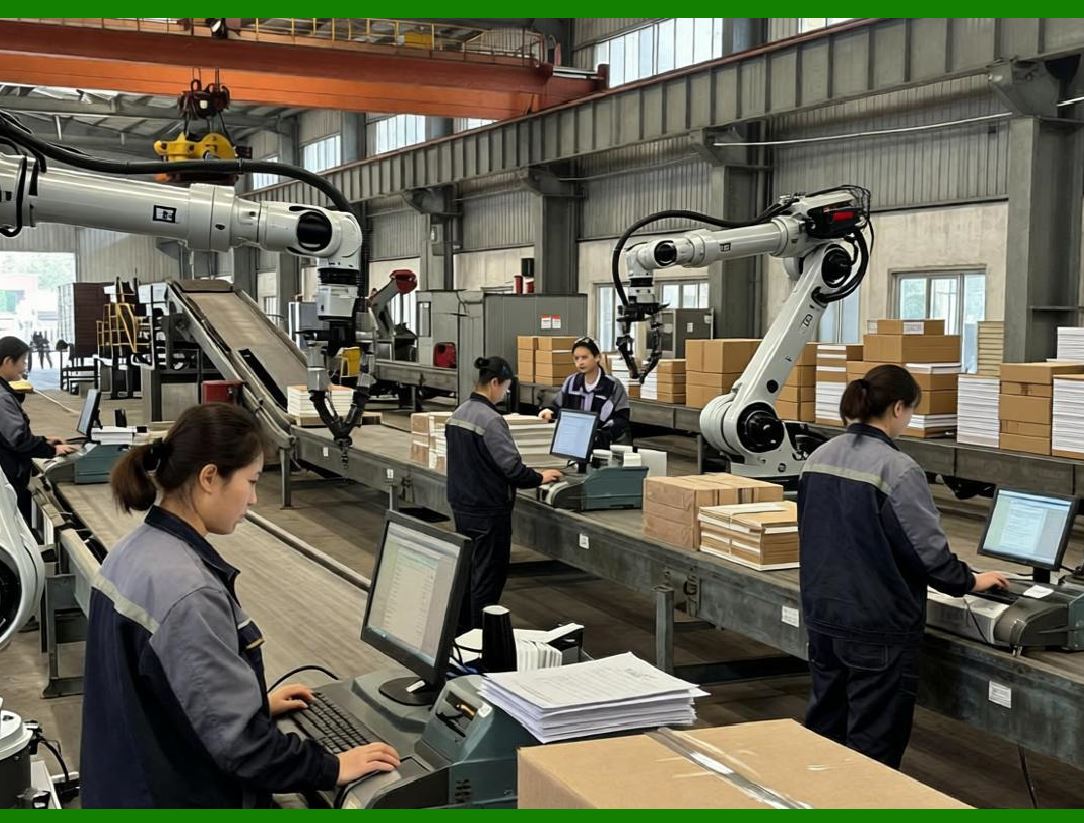
2. Types of Barcode Label Printers |
Understanding printer types is essential for proper integration. |
2.1 Industrial Printers |
Characteristics: |
1. High-volume printing |
2. Durable hardware |
3. Continuous operation |
Used in: |
* Manufacturing |
* Warehousing |
2.2 Desktop Printers |
Characteristics: |
1. Lower volume |
2. Compact size |
3. Cost-effective |
Used in: |
* Retail |
* Offices |
2.3 Mobile Printers |
Characteristics: |
1. Portable |
2. Wireless connectivity |
3. Battery-powered |
Used in: |
* Field operations |
* Delivery services |
|
3. Printer Communication Methods |
3.1 Direct USB Connection |
1. Simple setup |
2. Limited scalability |
3. OS-dependent drivers |
3.2 Network Printing (TCP/IP) |
1. Printers assigned IP addresses |
2. Communication via sockets |
3. Highly scalable |
3.3 Print Servers |
1. Centralized print management |
2. Queue handling |
3. Load distribution |
3.4 Cloud Printing |
1. Remote printing over the internet |
2. Integration with cloud ERP systems |
3. Supports distributed environments |

|
4. Printer Driver Management |
4.1 Role of Printer Drivers |
Drivers act as translators between: |
* ERP-generated output |
* Printer hardware commands |
4.2 Driver Types |
1. Native Drivers |
* Provided by manufacturers |
* Optimized for specific printers |
2. Generic Drivers |
* Work across multiple devices |
* Limited feature support |
3. Command-Based Drivers |
* Bypass OS drivers |
* Send raw commands (e.g., ZPL) |
4.3 Driver Selection Strategy |
Consider: |
1. Printer model compatibility |
2. Required features |
3. Performance needs |

|
5. Direct Printing vs Driver-Based Printing |
5.1 Driver-Based Printing |
Workflow: |
1. Generate image/PDF |
2. Send to OS print spooler |
3. Driver converts to printer format |
Advantages: |
1. Simpler implementation |
2. Broad compatibility |
Disadvantages: |
1. Slower performance |
2. Less control |
5.2 Direct (Raw) Printing |
Workflow: |
1. Generate printer commands (e.g., ZPL) |
2. Send directly to printer |
Advantages: |
1. High performance |
2. Precise control |
Disadvantages: |
1. Requires printer-specific logic |
|
6. Network Printing Architecture |
6.1 TCP/IP Socket Communication |
Steps: |
1. Open socket connection to printer IP |
2. Send raw data stream |
3. Close connection |
6.2 Port Configuration |
Common ports: |
1. Port 9100 (raw printing) |
2. LPR/LPD ports |
6.3 Connection Handling |
1. Persistent connections for high volume |
2. Short-lived connections for simplicity |

|
7. Print Server Architecture |
7.1 Role of Print Server |
Acts as an intermediary between ERP and printers. |
Functions: |
1. Queue management |
2. Load balancing |
3. Error handling |
7.2 Print Server Deployment Models |
1. On-premise server |
2. Cloud-based service |
3. Hybrid approach |
|
8. Print Queue Management in Depth |
8.1 Queue Lifecycle |
1. Job creation |
2. Queued state |
3. Processing |
4. Completed or failed |
8.2 Queue Prioritization |
1. High-priority jobs (e.g., shipping labels) |
2. Normal jobs |
3. Low-priority batch jobs |
8.3 Queue Persistence |
Store jobs in database to: |
1. Prevent data loss |
2. Enable recovery |
|
9. Load Balancing Across Printers |
9.1 Strategies |
1. Round-robin |
2. Least busy printer |
3. Location-based routing |
9.2 Failover Handling |
If a printer fails: |
1. Redirect job to backup printer |
2. Notify user |

|
10. Fault Tolerance Mechanisms |
10.1 Types of Failures |
1. Printer offline |
2. Paper jam |
3. Network failure |
4. Data corruption |
10.2 Detection Mechanisms |
1. Heartbeat checks |
2. Status polling |
3. Error codes |
10.3 Recovery Strategies |
1. Automatic retry |
2. Job re-queuing |
3. Manual intervention |

|
11. Error Handling and Logging |
11.1 Logging Levels |
1. Info |
2. Warning |
3. Error |
11.2 Log Content |
1. Job ID |
2. Printer ID |
3. Error details |
4. Timestamp |
11.3 Monitoring Tools |
1. Dashboard views |
2. Alerts and notifications |

|
12. Security in Printer Integration |
12.1 Network Security |
1. Firewall rules |
2. Secure ports |
12.2 Authentication |
1. Printer access control |
2. API authentication |
12.3 Data Protection |
1. Encrypt sensitive data |
2. Avoid exposing raw commands |

|
13. Cloud Printing Architecture |
13.1 Key Components |
1. Cloud ERP |
2. Print service API |
3. Local print agents |
13.2 Workflow |
1. ERP sends job to cloud |
2. Cloud routes job to local agent |
3. Agent sends job to printer |
13.3 Benefits |
1. Remote management |
2. Scalability |
3. Centralized control |
|
14. Local Print Agent Design |
14.1 Responsibilities |
1. Poll cloud service |
2. Receive print jobs |
3. Send to local printers |
14.2 Features |
1. Offline mode |
2. Job caching |
3. Auto-retry |

|
15. Performance Optimization in Printing |
15.1 Batch Printing |
Group multiple labels into one job. |
15.2 Compression |
Reduce data size for transmission. |
15.3 Parallel Printing |
Use multiple printers simultaneously. |
|
16. Printer Configuration Management |
16.1 Configuration Parameters |
1. Label size |
2. DPI |
3. Print speed |
4. Darkness |
16.2 Centralized Management |
Store configurations in ERP database. |

|
17. Cross-Platform Compatibility |
17.1 Operating Systems |
1. Windows |
2. Linux |
3. macOS |
17.2 Browser-Based Printing |
Use web technologies for: |
1. Label preview |
2. Print triggering |

|
18. Integration with IoT and Smart Devices |
Modern printers can be part of IoT ecosystems. |
18.1 Features |
1. Remote monitoring |
2. Predictive maintenance |
18.2 Benefits |
1. Reduced downtime |
2. Improved efficiency |

|
19. Testing Printer Integration |
19.1 Functional Testing |
1. Print accuracy |
2. Data correctness |
19.2 Stress Testing |
Simulate high-volume printing. |
19.3 Failure Testing |
Test: |
1. Network outages |
2. Printer failures |

|
20. Maintenance and Support |
20.1 Routine Maintenance |
1. Firmware updates |
2. Driver updates |
20.2 Troubleshooting |
1. Diagnose errors |
2. Replace faulty components |
|
21. Best Practices for Reliable Printing |
1. Use raw printing when possible |
2. Implement robust retry logic |
3. Monitor printer status continuously |
4. Maintain backup printers |
5. Standardize printer models |

|
22. Summary of Part 4 |
In this section, we have: |
1. Explored printer types and communication methods |
2. Compared driver-based vs direct printing |
3. Designed network and cloud printing architectures |
4. Built robust queue and load balancing systems |
5. Implemented fault tolerance and error handling |
6. Addressed security, performance, and maintenance |
7. Provided best practices for reliable operation |

|
Next Section |
In Part 5, we will cover: |
* User interface design for label printing |
* Label designer tools |
* User workflows and usability optimization |
* Role-based access and permissions |
 cs@easiersoft.com