Part 6 Printing Workflows, PDF Export, and Output Fidelity |
1. Importance of Output Fidelity in Barcode Labeling |
In barcode labeling systems, output fidelity is not a cosmetic concern but a functional requirement. A label that looks correct on screen but prints inaccurately can cause scanning failures, operational delays, or regulatory noncompliance. |
BarCodeWiz OnLabel is designed with the understanding that the ultimate test of a labeling system is not the design interface, but the printed or exported result. Consequently, significant attention is given to how labels are rendered, transmitted to printers, and exported as documents. |

|
2. Printing as a Core Operational Workflow |
Printing is one of the primary workflows supported by OnLabel. The software is intended to produce labels that can be printed immediately after design or data binding without requiring intermediate steps or external tools. |
OnLabel integrates directly with the operating system printing infrastructure, allowing users to select installed printers and configure print jobs using familiar system dialogs. This approach leverages existing printer drivers and ensures compatibility with a wide range of hardware. |

|
3. Direct Printing Versus File-Based Output |
OnLabel supports both direct printing and file-based output, particularly PDF export. These two approaches serve different operational needs. |
Direct printing is suited to environments where labels are produced on demand at the point of use. PDF export, by contrast, supports distributed workflows, external printing, archiving, and quality assurance processes. |
By supporting both modes, OnLabel accommodates a variety of organizational structures and operational constraints. |

|
4. Printer Compatibility and Device Classes |
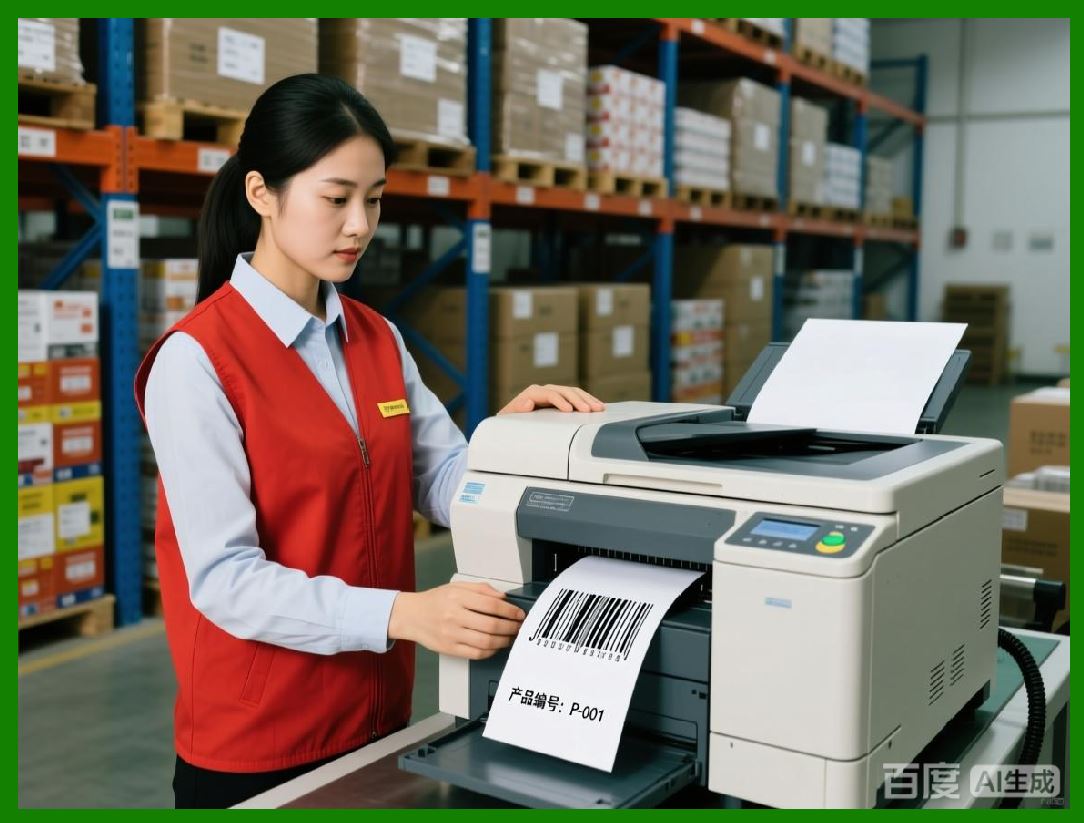
OnLabel is designed to work with multiple classes of printers commonly used for labeling, including thermal label printers, laser printers, and inkjet printers. |
Rather than implementing device-specific logic, OnLabel relies on the printer driver to manage hardware characteristics such as resolution, media handling, and print speed. The software focuses on generating accurate layout and barcode geometry that the driver can reproduce faithfully. |
This separation of responsibilities simplifies compatibility and reduces maintenance overhead. |
|
5. Resolution Management and DPI Awareness |
Different printers operate at different resolutions, typically expressed in dots per inch. OnLabel is DPI-aware and adjusts rendering accordingly to ensure that barcode modules and text elements maintain correct proportions. |
For barcode objects, resolution awareness is particularly critical. Bar widths and module sizes must align with printer resolution to avoid rounding errors that could distort the barcode pattern. |
OnLabel calculates output dimensions dynamically based on the target device, preserving scannability across printers. |

|
6. Media Size and Label Stock Handling |
Accurate handling of media size is essential for label printing. OnLabel allows users to define label dimensions explicitly, ensuring alignment with physical label stock. |
The software maps the label canvas directly to the printable area, minimizing the risk of clipping or misalignment. This mapping is especially important for small labels where margins are minimal and tolerances are tight. |
Users can adjust offsets and margins as needed to compensate for printer-specific behavior. |

|
7. Batch Printing Behavior |
When generating labels from imported data sources, OnLabel supports batch printing. Each data record corresponds to a label instance, and the software processes these sequentially. |
Batch printing behavior is deterministic, meaning that labels are printed in a defined order corresponding to the data source. This predictability simplifies reconciliation and auditing. |
The batch process can be monitored, and errors encountered during printing are reported to the user. |

|
8. Print Preview as a Validation Tool |
Before committing to printing, OnLabel provides a print preview that reflects the final output as closely as possible. This preview includes actual data values and barcode rendering. |
The preview serves as a critical validation step, allowing users to identify layout issues, truncation, or data mismatches before consuming physical media. |
This capability reduces waste and improves confidence in the output. |

|
9. Handling of Printer-Specific Variations |
Printers vary in how they handle margins, scaling, and media feeding. OnLabel anticipates these variations by allowing users to adjust layout parameters and test output iteratively. |
Rather than attempting to abstract away all printer-specific behavior, the software provides tools to accommodate it pragmatically. This approach acknowledges the diversity of printing environments and empowers users to fine-tune output as needed. |

|
10. Thermal Printing Considerations |
Thermal printers are widely used for barcode labeling due to their speed and durability. OnLabel output model is compatible with thermal printing, provided that the printer driver accurately translates vector graphics into thermal dots. |
Barcode rendering is optimized to avoid excessively thin lines or dense patterns that could cause thermal bleed or fading. Quiet zones and spacing are preserved to maintain scan reliability. |

|
11. Laser and Inkjet Printing Considerations |
Laser and inkjet printers are often used for sheet-based labels or mixed-content printing. OnLabel ensures that barcode elements remain sharp and high-contrast when printed on these devices. |
The use of vector rendering prevents pixelation and allows labels to be printed at different scales without loss of quality. |

|
12. PDF Export as a First-Class Output Option |
PDF export is treated as a first-class output option in OnLabel rather than an afterthought. The software generates PDF files directly from the label design, bypassing the printer driver pipeline. |
This direct generation ensures consistent output regardless of the system installed printers and avoids driver-related inconsistencies. |

|
13. Structure and Content of Exported PDFs |
Exported PDF files contain the complete label layout, including barcode graphics, text, and images. The content is resolution-independent, allowing the PDF to be viewed and printed at different scales without distortion. |
Each label instance generated from batch data is represented accurately, maintaining the one-record-per-label relationship. |

|
14. PDF Fidelity and Barcode Integrity |
Barcode integrity in exported PDFs is a critical concern. OnLabel ensures that barcode modules are rendered with precise dimensions and that quiet zones are preserved. |
This attention to detail allows PDFs generated by OnLabel to be printed later without compromising scannability, even when printed on different devices. |

|
15. Use Cases for PDF Export |
PDF export supports several important use cases, including centralized printing, remote production, and compliance archiving. |
Organizations may generate labels in one location and print them elsewhere, or retain PDF copies as records for audit or regulatory review. |
The portability of PDF files enhances workflow flexibility. |

|
16. Multi-Label Output and Pagination |
When exporting multiple labels to PDF, OnLabel manages pagination and layout to ensure that each label appears in the correct position. |
Pagination logic respects label dimensions and page size, preventing overlap or misalignment. This is especially important when exporting sheet-based labels. |

|
17. Consistency Between Printed and Exported Output |
One of OnLabel strengths is the consistency between printed output and exported PDFs. Because both workflows use the same underlying rendering logic, users can expect minimal differences between on-screen design, printed labels, and PDF files. |
This consistency reduces uncertainty and simplifies validation processes. |

|
18. Error Reporting During Output Operations |
OnLabel provides feedback when errors occur during printing or export. These errors may include missing printers, inaccessible file paths, or invalid data. |
Clear error reporting allows users to resolve issues quickly without disrupting production workflows. |

|
19. Performance Considerations During Output |
Output operations are optimized to balance performance and reliability. While OnLabel is not designed for continuous high-speed printing, it performs efficiently for typical batch sizes. |
The software prioritizes accuracy and completeness over raw throughput, reflecting its focus on dependable operational labeling. |
|
20. Summary of Part 6 |
Part 6 has examined how BarCodeWiz OnLabel handles printing and PDF export, emphasizing output fidelity and operational reliability. By combining resolution-aware rendering, printer compatibility, and high-quality PDF generation, OnLabel ensures that labels remain accurate and scannable from design to final output. |
These capabilities make OnLabel a dependable tool in environments where labeling accuracy is critical and output consistency cannot be compromised. |
 cs@easiersoft.com