LibreOffice + Barcode Extensions |
A Comprehensive Technical and Practical Analysis |
Part 2: Installation, Extension Management, and Environment Preparation |
16. Understanding LibreOffice Extension Management Fundamentals |
LibreOffice extensions are modular add-ons that extend the functionality of the core office suite without modifying its base code. Barcode extensions rely heavily on this mechanism, making it essential to understand how LibreOffice handles extension discovery, loading, activation, and version compatibility. |
LibreOffice supports extensions at two primary levels: |
1. User-level extensions, installed for a single user profile. |
2. Shared extensions, installed system-wide for all users. |
Barcode extensions are most commonly installed at the user level, allowing individual designers or departments to manage their own barcode capabilities without requiring administrative privileges. This flexibility is particularly valuable in corporate, educational, and government environments where software installation rights may be restricted. |

|
17. The OXT Packaging Format Explained |
All LibreOffice extensions, including barcode extensions, are distributed as OXT packages. An OXT file is essentially a ZIP archive with a defined internal structure. |
Key components commonly found in barcode-related OXT packages include: |
1. A manifest file describing the extension metadata. |
2. UNO component definitions that expose barcode services. |
3. Program code responsible for encoding and rendering barcodes. |
4. Dialog definitions for user interaction. |
5. Configuration schemas and default settings. |
6. Localization files for multilingual user interfaces. |
The modular nature of OXT packages allows barcode extensions to be updated independently of LibreOffice itself, as long as compatibility constraints are respected. |

|
18. LibreOffice Version Compatibility Considerations |
Barcode extension compatibility is closely tied to the LibreOffice version in use. LibreOffice evolves rapidly, with frequent updates to its core APIs, user interface, and internal services. |
Key compatibility factors include: |
1. UNO API stability and deprecations. |
2. Changes in the Draw document model. |
3. Java runtime requirements for Java-based extensions. |
4. Python version alignment for Python-based extensions. |
Some barcode extensions specify minimum or maximum supported LibreOffice versions. Installing an incompatible extension may result in missing menu items, runtime errors, or complete failure to load. |
For production environments, it is generally recommended to standardize on a specific LibreOffice version and test barcode extensions thoroughly before rolling out updates. |

|
19. Java-Based Barcode Extensions and Runtime Requirements |
Many mature LibreOffice barcode extensions are implemented in Java due to Java strong library ecosystem and cross-platform consistency. |
Using Java-based barcode extensions requires: |
1. A compatible Java Runtime Environment installed on the system. |
2. LibreOffice configured to recognize the Java runtime. |
3. Sufficient permissions for Java execution within LibreOffice. |
If Java is not properly configured, barcode extensions may install successfully but fail silently when invoked. This can be confusing for users unfamiliar with LibreOffice Java dependency. |
In enterprise settings, ensuring a consistent Java environment across all workstations is a critical preparatory step. |

|
20. Python-Based Barcode Extensions and Scripting Support |
An alternative to Java-based extensions is the use of Python. LibreOffice includes a bundled Python interpreter that extensions can leverage. |
Advantages of Python-based barcode extensions include: |
1. Fewer external runtime dependencies. |
2. Easier debugging and customization. |
3. Better alignment with LibreOffice macros and scripting. |
However, Python-based extensions may face performance limitations for complex barcode generation tasks or high-volume operations. Additionally, differences between bundled Python versions across LibreOffice releases can affect compatibility. |

|
21. Installation Workflow for Barcode Extensions |
Installing a barcode extension in LibreOffice typically follows a standardized workflow: |
1. Download the extension package. |
2. Open LibreOffice and access the extension manager. |
3. Add the extension package to the system. |
4. Accept license terms if required. |
5. Restart LibreOffice to activate the extension. |
After installation, barcode extensions usually integrate into LibreOffice Draw by adding new menu entries, toolbar buttons, or context menu options. |
The need to restart LibreOffice is not merely cosmetic; many extensions register UNO services that are only discovered during application startup. |

|
22. Verifying Successful Installation |
Once installed, verification is essential before beginning label design work. |
Common verification steps include: |
1. Checking for new menu items related to barcode insertion. |
2. Opening LibreOffice Draw and attempting to insert a test barcode. |
3. Confirming that configuration dialogs appear correctly. |
4. Inspecting generated barcode objects for proper rendering. |
If verification fails, troubleshooting often involves checking Java or Python configuration, extension compatibility, and LibreOffice error logs. |

|
23. Extension Manager Capabilities and Limitations |
LibreOffice extension manager provides basic functionality for enabling, disabling, updating, and removing extensions. |
Capabilities include: |
1. Viewing installed extensions and versions. |
2. Enabling or disabling extensions without uninstalling. |
3. Removing extensions entirely. |
4. Installing updates manually. |
However, the extension manager has limitations: |
1. No automatic dependency resolution. |
2. No built-in extension update notifications for third-party sources. |
3. Limited diagnostic information when extensions fail. |
As a result, managing barcode extensions at scale often requires additional documentation and user training. |

|
24. Security Considerations When Installing Barcode Extensions |
Because barcode extensions execute code within LibreOffice, security is an important consideration. |
Potential risks include: |
1. Malicious code execution. |
2. Unauthorized data access. |
3. Macro-like behaviors that bypass document security settings. |
Best practices include: |
1. Installing extensions only from trusted sources. |
2. Reviewing extension documentation and source code when available. |
3. Restricting extension installation rights in managed environments. |
4. Testing extensions in isolated environments before deployment. |
Open-source barcode extensions offer an advantage in this regard, as their code can be audited. |

|
25. Preparing LibreOffice Draw for Barcode Design Work |
Before designing barcodes and labels, LibreOffice Draw should be configured for precision layout. |
Key preparatory steps include: |
1. Setting measurement units to millimeters or inches. |
2. Enabling grid and snap-to-grid features. |
3. Adjusting page size to match label dimensions. |
4. Defining margins consistent with printing requirements. |
These settings ensure that barcode dimensions are accurate and consistent across documents and print runs. |

|
26. Page Templates and Reusable Label Layouts |
LibreOffice Draw supports the creation of reusable templates, which is particularly valuable for barcode label workflows. |
Templates can include: |
1. Predefined page sizes. |
2. Placeholder barcode objects. |
3. Text fields for variable data. |
4. Company branding elements. |
Using templates reduces errors and increases efficiency, especially when multiple users are involved in label creation. |

|
27. Managing Multiple Barcode Extensions |
Some users install multiple barcode extensions to access a broader range of symbologies or features. |
This approach introduces potential challenges: |
1. Menu clutter and user confusion. |
2. Conflicting UNO service names. |
3. Overlapping functionality with different behaviors. |
Careful documentation and user training are required when multiple extensions coexist. In many cases, standardizing on a single well-supported barcode extension is preferable. |

|
28. Localization and Language Support |
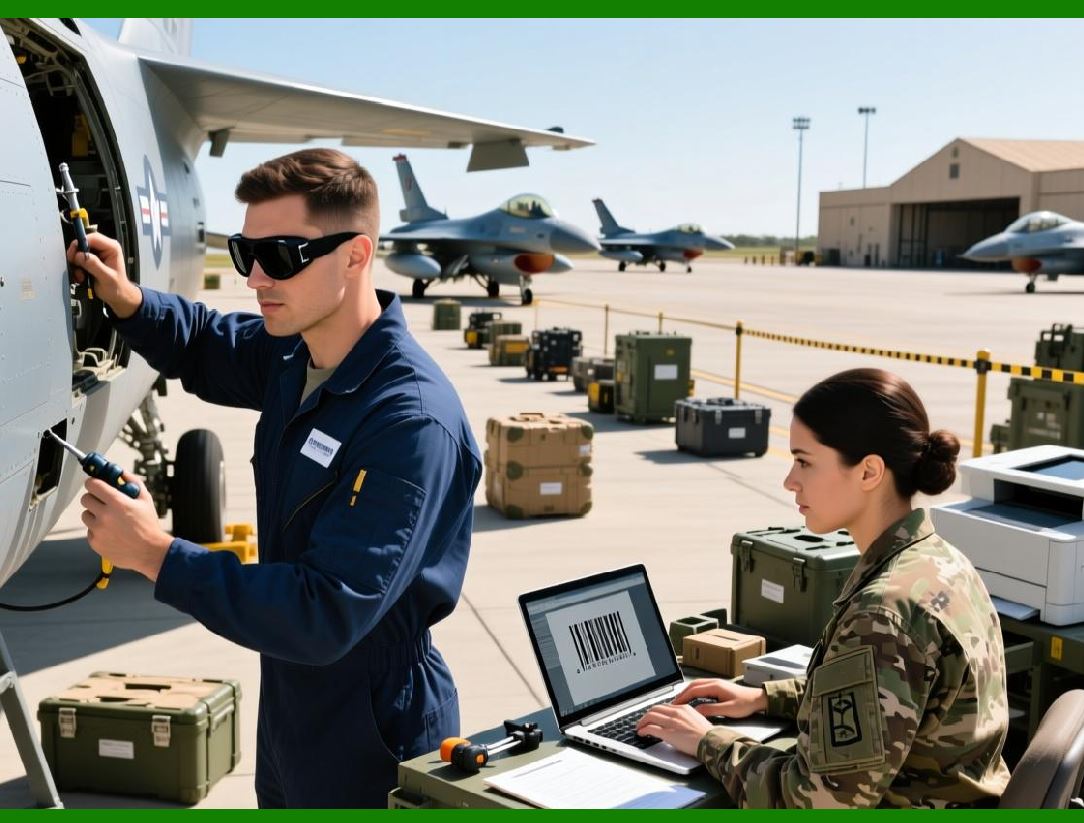
LibreOffice is widely used in multilingual environments, and barcode extensions often provide localized user interfaces. |
Localization considerations include: |
1. Dialog translations. |
2. Numeric and measurement formats. |
3. Text encoding for barcode data. |
Extensions that lack proper localization may still function technically but can be difficult for non-English-speaking users to configure correctly. |
|
29. Accessibility and User Interface Design |
Accessibility is an increasingly important factor in software adoption. Barcode extensions integrate into LibreOffice UI, which supports accessibility features such as keyboard navigation and screen readers. |
However, extension dialogs may not always fully comply with accessibility guidelines. Users with accessibility needs may encounter challenges when configuring complex barcode options. |
Improving accessibility often depends on extension developers following LibreOffice UI design best practices. |

|
30. Configuration Persistence and Document Portability |
Barcode extensions typically store configuration data either within the document or as extension-level settings. |
Document-level storage ensures that: |
1. Barcodes remain editable when documents are shared. |
2. Barcode data travels with the file. |
3. Layout integrity is preserved across systems. |
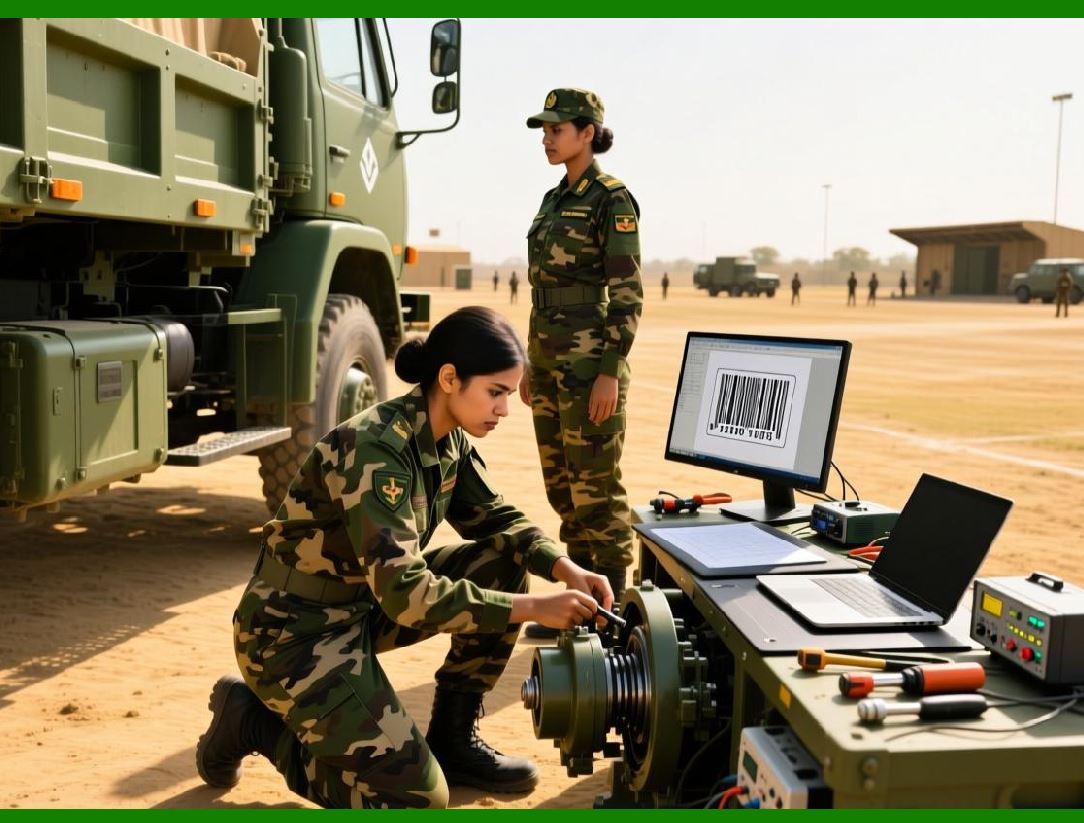
However, if the receiving system lacks the same barcode extension, editable barcode objects may degrade into static shapes. |
Understanding this trade-off is essential when sharing barcode-enabled documents externally. |
|
31. Handling Extension Updates and Backward Compatibility |
Updating a barcode extension can introduce new features, bug fixes, or changes in rendering behavior. |
Potential issues include: |
1. Changes in default sizing or quiet zone handling. |
2. Modified encoding rules. |
3. Deprecation of older symbologies. |
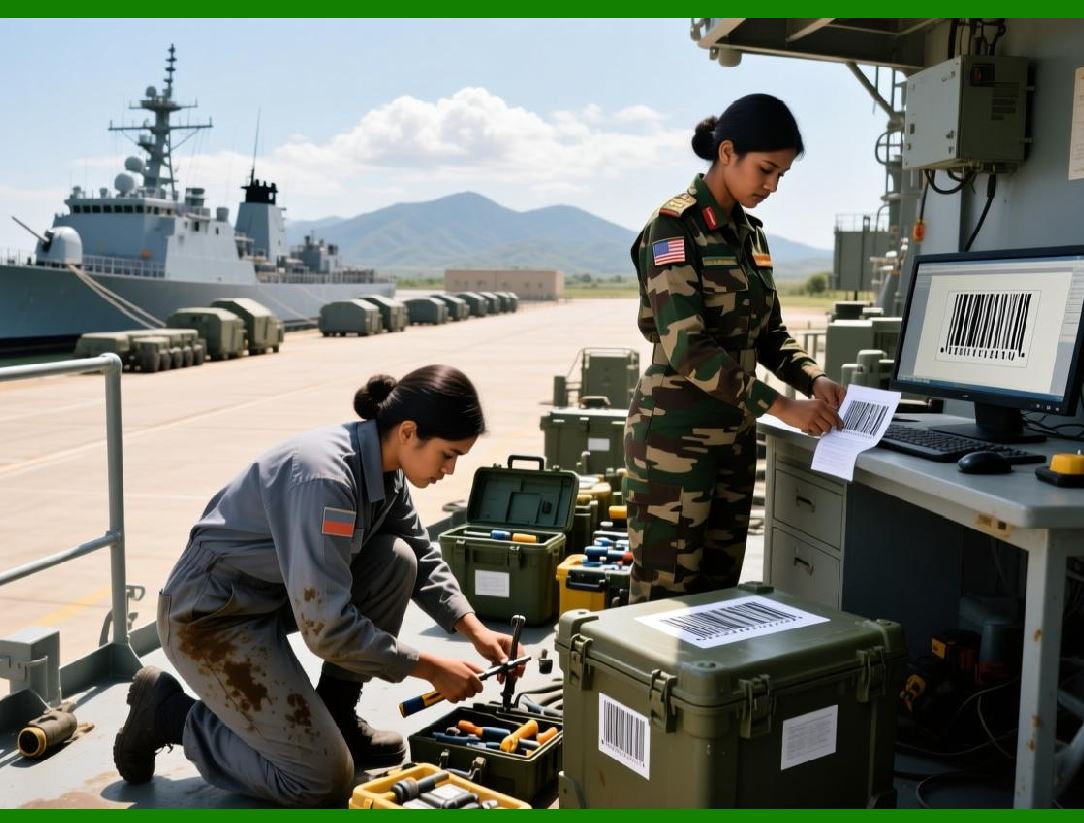
For critical labeling workflows, extension updates should be tested on existing documents to ensure backward compatibility before adoption. |
|
32. Offline Operation and Air-Gapped Environments |
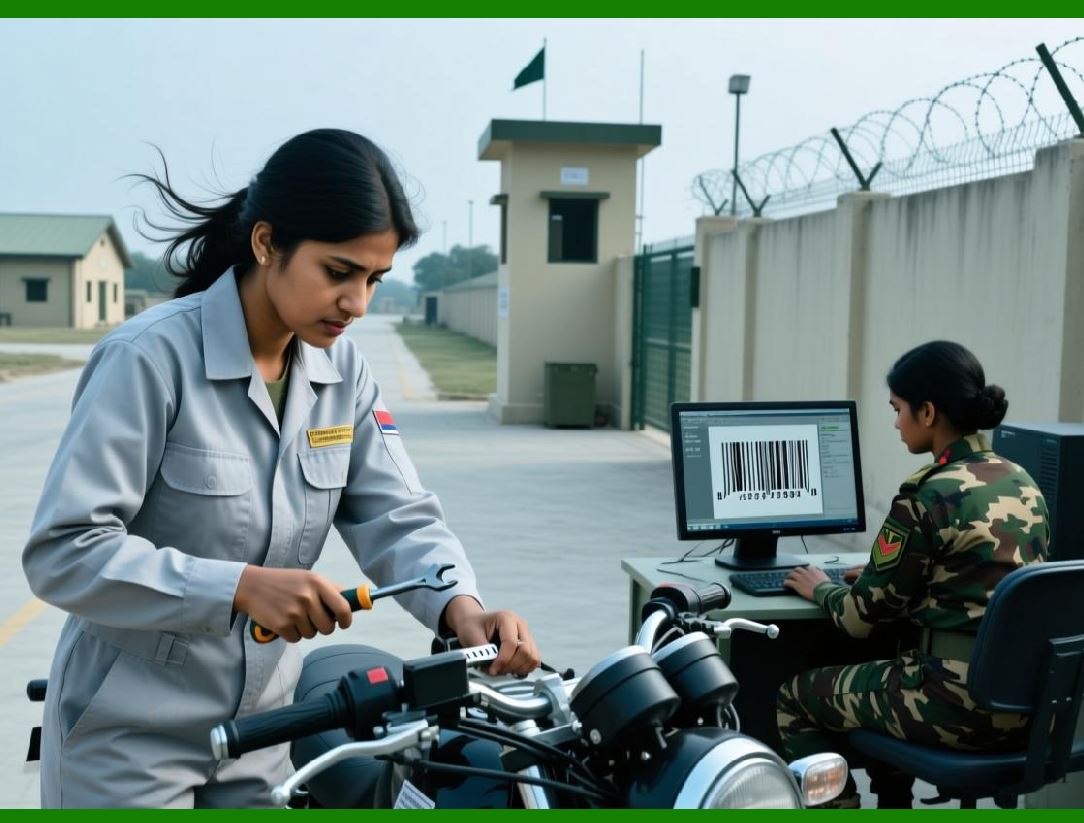
One of the strengths of LibreOffice + barcode extensions is their ability to operate entirely offline. |
This makes them suitable for: |
1. Secure facilities. |
2. Manufacturing environments. |
3. Government and defense applications. |
4. Remote or low-connectivity locations. |
Once installed, barcode generation and label design do not require internet access, provided all dependencies are satisfied. |
|
33. Cross-Platform Consistency |
LibreOffice is available on Windows, macOS, and Linux, and barcode extensions are generally designed to be cross-platform. |
Nevertheless, subtle differences can arise due to: |
1. Font rendering variations. |
2. Printer driver behavior. |
3. Java runtime differences. |
4. File system conventions. |
Testing barcode output on each target platform is recommended when consistency is critical. |

|
34. Preparing for Advanced Barcode Workflows |
Installation and environment preparation form the foundation for more advanced workflows that will be discussed in later parts. |
These include: |
1. Variable data printing. |
2. Mail merge integration. |
3. High-density 2D barcode generation. |
4. Automated document generation. |
A properly prepared LibreOffice environment minimizes friction when scaling up from simple label designs to more complex barcode-driven documents. |
|
35. Summary of Installation and Preparation Phase |
The installation and management of barcode extensions in LibreOffice is not merely a technical prerequisite but a strategic decision that affects usability, security, and long-term maintainability. |
Key takeaways include: |
1. Extension compatibility must be carefully managed. |
2. Runtime dependencies such as Java or Python are critical. |
3. Proper Draw configuration ensures barcode accuracy. |
4. Templates and standardization improve efficiency. |
 cs@easiersoft.com