Part 5: Printing Architecture, Printer Integration, and Output Reliability |
45. Central Role of Printing in LABELVIEW Workflows |
45.1 Printing is the final and most critical stage in the labeling process, where digital designs and data are transformed into physical identifiers. |
45.2 TEKLYNX LABELVIEW is engineered to ensure that what is designed on screen is reproduced accurately and consistently on printed media. |
45.3 In medium-sized operations, printing reliability directly affects productivity, compliance, and customer satisfaction. |
45.4 LABELVIEW printing architecture is designed to bridge the gap between software-level design precision and hardware-level variability. |
45.5 This architecture minimizes print errors, reduces wasted media, and ensures repeatable output across different printers and environments. |

|
46. Printer Driver Architecture and Compatibility |
46.1 LABELVIEW relies on a dedicated printer driver framework optimized for barcode and label printing. |
46.2 This framework provides a standardized interface between the software and a wide range of industrial and desktop label printers. |
46.3 Supported printer types typically include: |
* Thermal transfer printers |
* Direct thermal printers |
* Inkjet label printers |
* Laser printers for sheet labels |
46.4 By using specialized drivers rather than generic system drivers, LABELVIEW ensures accurate control over print resolution, speed, and media handling. |
46.5 This approach is essential for maintaining barcode quality and alignment across different printer models. |

|
47. Printer Configuration and Media Setup |
47.1 Proper printer configuration is a prerequisite for reliable label output. |
47.2 LABELVIEW allows users to define printer-specific settings such as: |
* Label size and orientation |
* Media type and gap detection |
* Print density and speed |
* Tear-off and cutter options |
47.3 These settings can be saved and associated with specific label templates. |
47.4 This association ensures that labels are always printed with the correct configuration, even when multiple printers are used. |
47.5 Consistent media setup reduces misalignment, partial prints, and wasted labels. |

|
48. Printer Resolution and Barcode Fidelity |
48.1 Printer resolution, measured in dots per inch, has a direct impact on barcode readability. |
48.2 LABELVIEW takes printer resolution into account when rendering barcodes and graphical elements. |
48.3 Barcode modules are aligned to printer dots to prevent rounding errors that could degrade scan performance. |
48.4 The software prevents configurations that would result in bar widths outside acceptable tolerances. |
48.5 This resolution-aware rendering is critical for small labels and high-density barcodes. |

|
49. Print Speed, Throughput, and Performance Considerations |
49.1 In operational environments, print speed and throughput are important performance metrics. |
49.2 LABELVIEW optimizes print jobs by: |
* Leveraging printer-resident fonts and barcode generation |
* Minimizing data transfer volume |
* Avoiding unnecessary graphical complexity |
49.3 These optimizations reduce print latency and improve throughput, especially in batch printing scenarios. |
49.4 Performance considerations are particularly important when printing variable data labels with frequent data changes. |

|
50. Print Job Management and Control |
50.1 LABELVIEW provides users with control over how print jobs are executed and managed. |
50.2 Users can specify: |
* Number of copies |
* Print order |
* Record selection |
* Reprint behavior |
50.3 Print jobs can be previewed, paused, or canceled before completion. |
50.4 This level of control reduces the risk of large-scale printing errors and supports operational flexibility. |

|
51. Multi-Printer Environments |
51.1 Medium-sized operations often rely on multiple printers across different departments or locations. |
51.2 LABELVIEW supports multi-printer environments by allowing label templates to be associated with specific printers. |
51.3 Users can switch printers without redesigning labels, provided media and resolution compatibility are maintained. |
51.4 This flexibility supports load balancing, redundancy, and departmental autonomy. |
51.5 Multi-printer support is essential for organizations with distributed labeling needs. |

|
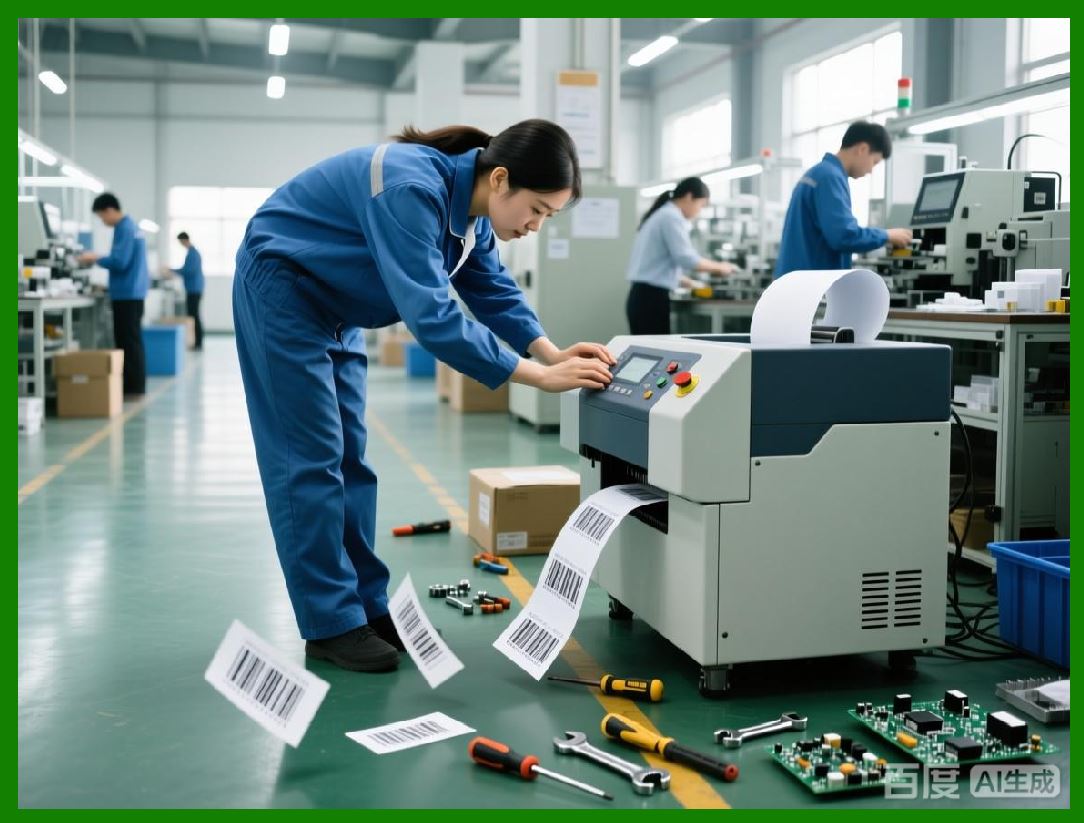
52. Print Preview and Output Verification |
52.1 Before printing, users can preview labels as they will appear on the selected printer. |
52.2 Preview functionality accounts for: |
* Printer resolution |
* Orientation |
* Margins and offsets |
52.3 This verification step helps detect misalignment or formatting issues early. |
52.4 Preview-based verification reduces trial-and-error during live printing. |
|
53. Error Detection and Printer Feedback |
53.1 Printing errors can arise from hardware issues, media problems, or configuration mismatches. |
53.2 LABELVIEW monitors printer status and responds to common error conditions, such as: |
* Out-of-media |
* Printer offline |
* Configuration conflicts |
53.3 Error messages are presented clearly, allowing operators to take corrective action. |
53.4 Effective error handling minimizes downtime and prevents incomplete or incorrect prints. |

|
54. Consistency Across Print Runs |
54.1 Consistency is a key requirement in professional labeling, particularly for compliance and customer-facing labels. |
54.2 LABELVIEW ensures that repeated print runs produce identical output when using the same template and data. |
54.3 This consistency supports auditability and traceability. |
54.4 Long-term consistency is especially important in regulated industries where label changes must be controlled and documented. |

|
55. Environmental Factors and Print Quality |
55.1 Label printing is influenced by environmental factors such as temperature, humidity, and media quality. |
55.2 While LABELVIEW cannot control these factors directly, it provides tools to adjust print settings to compensate for environmental variability. |
55.3 Operators can fine-tune print density and speed to maintain barcode clarity. |
55.4 These adjustments help ensure reliable scanning under diverse conditions. |

|
56. Integration with Automated Label Applicators |
56.1 In some medium-sized operations, label printers are integrated with automated applicators. |
56.2 LABELVIEW precise control over print timing and output alignment supports such integrations. |
56.3 Consistent label positioning is critical for successful application. |
56.4 While full automation is more commonly associated with enterprise solutions, LABELVIEW provides a solid foundation for semi-automated setups. |
|
57. Summary of Part 5 |
57.1 TEKLYNX LABELVIEW printing architecture is designed to deliver reliable, high-quality output across a wide range of printers and environments. |
57.2 Its resolution-aware rendering, printer-specific configuration, and robust error handling ensure consistent results. |
57.3 These capabilities make LABELVIEW a dependable choice for medium-sized operations where printing accuracy and efficiency are essential. |
 cs@easiersoft.com