qZ Tray: Bridging Web Applications to Label Printers |
Part 3 API Integration, JavaScript Usage, and Advanced Printing Commands |
3.1 Overview of qZ Tray API |
The qZ Tray API is the primary mechanism through which web applications communicate with the local printing service. It is built on modern web technologies including JavaScript and WebSockets, allowing real-time, secure communication between the browser and qZ Tray. Unlike traditional printing methods, which rely on OS-level print dialogs, the qZ Tray API enables direct interaction with printer hardware, supporting raw commands, dynamic label generation, and precise control over printing parameters. |
The API is designed to be intuitive for developers, providing high-level functions for common tasks such as printing text, images, and barcodes, while also exposing low-level capabilities for sending raw printer instructions. It is compatible with all modern browsers, making it suitable for cross-platform web applications. |

|
3.2 Including qZ Tray in Web Applications |
To use qZ Tray, developers must include the qZ Tray JavaScript library in their web application. This is typically done by adding a ` |
``` |
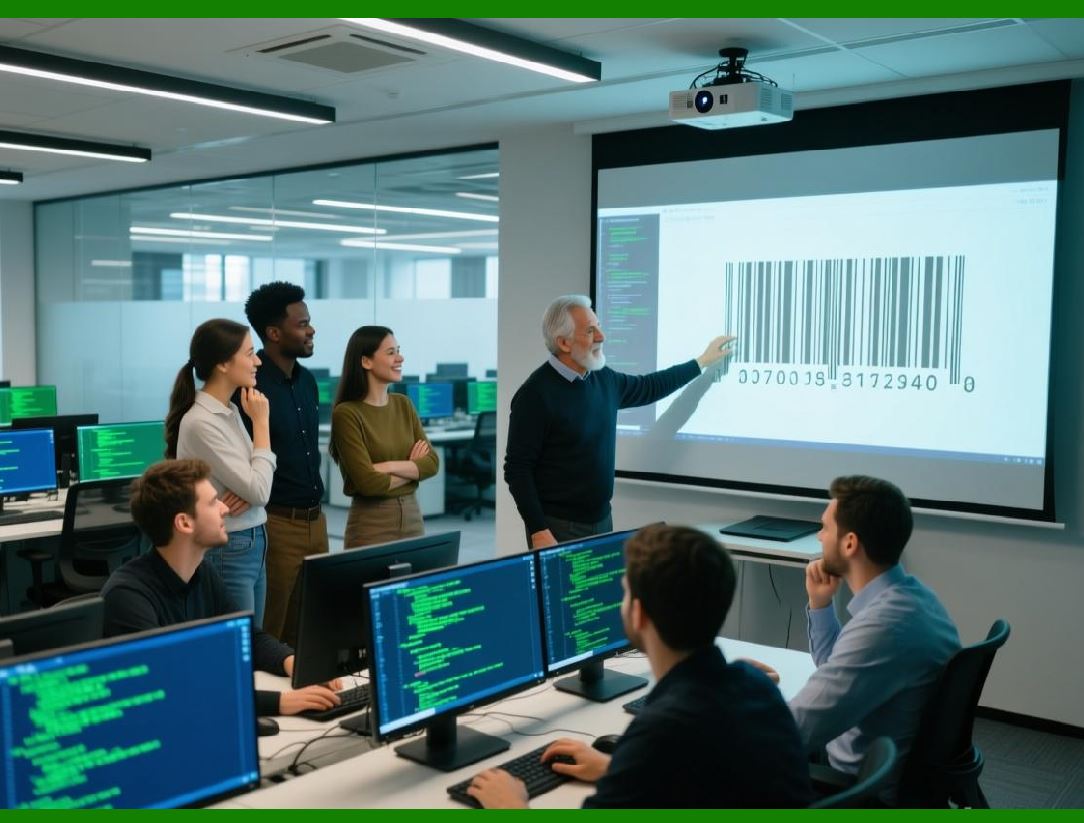
After including the library, developers must initialize qZ Tray and ensure it is connected before sending print commands. This involves checking the status of the service, detecting available printers, and optionally establishing security certificates for trusted origins. |
|
3.3 Connecting to the qZ Tray Service |
The first step in API integration is establishing a connection with the running qZ Tray service. This is done asynchronously to prevent blocking the web application main thread. The connection process can include certificate verification to ensure secure communication. |
Example JavaScript snippet: |
```javascript |
qz.websocket.connect().then(() => { |
console.log('Connected to qZ Tray service'); |
}).catch((err) => { |
console.error('Connection failed: ', err); |
}); |
``` |
This code establishes a WebSocket connection with the local qZ Tray service. If the connection fails, the error object provides diagnostic information, which developers can use to prompt the user or retry the connection. |
|
3.4 Detecting and Selecting Printers |
Once connected, the application can query the qZ Tray service for available printers. This allows users to select from installed devices or predefined printer profiles. |
Example: |
```javascript |
qz.printers.find().then((printers) => { |
console.log('Available printers: ', printers); |
}).catch((err) => { |
console.error('Failed to retrieve printers: ', err); |
}); |
``` |
The `find()` function returns an array of printer names. Developers can then programmatically select a printer for the print job: |
```javascript |
qz.printers.find('Zebra').then((printer) => { |
console.log('Selected printer: ', printer); |
}); |
``` |
This ensures that the correct device is targeted, which is critical for environments with multiple printers handling different label types. |

|
3.5 Creating Print Jobs |
qZ Tray uses the concept of a Print job to encapsulate all information required for a single printing operation. A print job includes the target printer, the content to print, and configuration settings such as label size, orientation, and media type. Print jobs can consist of simple text, graphics, barcodes, or raw commands in printer-specific languages like ZPL or EPL. |
Example of a basic text print job: |
```javascript |
var config = qz.configs.create('Zebra'); // Printer configuration |
var data = ['Hello, qZ Tray!']; // Print content |
qz.print(config, data).then(() => { |
console.log('Print job sent successfully'); |
}).catch((err) => { |
console.error('Print job failed: ', err); |
}); |
``` |
The `qz.print()` function takes a printer configuration and an array of print data. Data can be simple strings, images encoded in base64, or low-level printer commands. |
|
3.6 Printing Images and Graphics |
In addition to text, qZ Tray supports printing images, logos, and complex graphics. Images must be converted to a compatible format, typically base64-encoded PNG or JPEG. Developers can dynamically generate images using HTML5 canvas or server-side rendering, then pass them directly to the printer. |
Example: |
```javascript |
var imageData = 'data:image/png;base64,iVBORw0KGgoAAAANSUhEUgAAA...'; // Base64 image |
var data = [{ type: 'raw', format: 'image', data: imageData }]; |
qz.print(config, data); |
``` |
This approach is commonly used for labels that include branding, QR codes, or product images. |

|
3.7 Barcode and QR Code Printing |
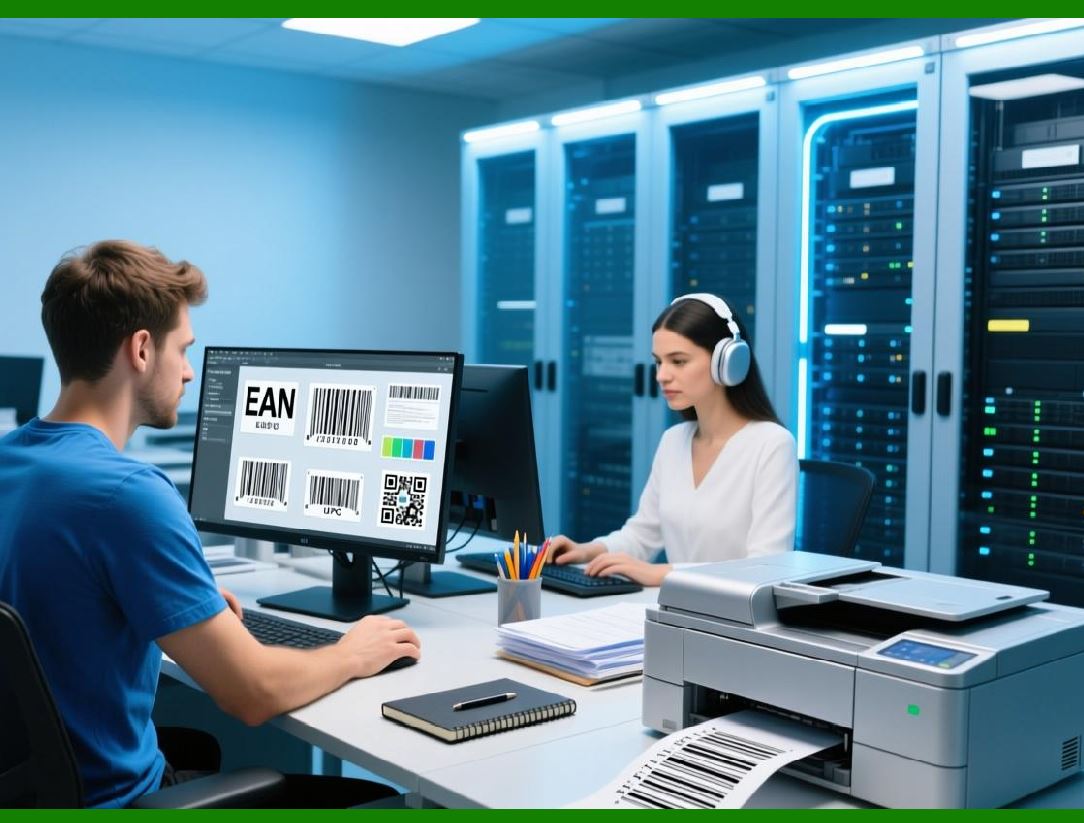
A core feature of qZ Tray is its ability to print barcodes and QR codes accurately. Zebra printers, in particular, support native barcode commands through ZPL. Developers can embed barcode commands directly in the print job or generate barcode images for printing on other printers. |
Example using ZPL commands: |
```javascript |
var zplData = '^XA^FO50,50^BY3^BCN,100,Y,N,N^FD1234567890^FS^XZ'; |
qz.print(config, [zplData]); |
``` |
This command prints a Code 128 barcode with the value `1234567890`. By using raw commands, developers maintain full control over barcode placement, size, and symbology. |
|
3.8 Advanced Printing Features |
qZ Tray supports a range of advanced printing features that enhance the label printing workflow: |
* Multiple Label Formats: Developers can dynamically adjust label width, height, and orientation for different products. |
* Batch Printing: Multiple print jobs can be queued and executed sequentially, which is useful in warehouse or manufacturing settings. |
* Cut and Feed Commands: For printers with automatic cutters or peel-and-present functionality, commands can be included to control label feeding and cutting. |
* Partial Label Printing: Certain printers allow printing on sections of the label stock, reducing waste. qZ Tray exposes these capabilities through its API. |

|
3.9 Handling Print Job Responses |
qZ Tray provides feedback for each print job, allowing applications to handle success or failure programmatically. Developers can implement retry logic, logging, or user notifications based on the response: |
```javascript |
qz.print(config, data).then((response) => { |
console.log('Printed successfully: ', response); |
}).catch((err) => { |
console.error('Error printing: ', err); |
}); |
``` |
The `response` object may include printer status, error messages, and job identifiers. This detailed feedback is crucial in high-volume printing environments to ensure accuracy and reduce downtime. |

|
3.10 Error Handling and Debugging |
Developers should anticipate common errors such as disconnected printers, invalid commands, or formatting issues. qZ Tray includes robust debugging tools and logging capabilities. Logs can be accessed through the system tray icon or exported for analysis. Common best practices include: |
* Verifying printer connectivity before sending jobs. |
* Validating ZPL/EPL commands or other raw printer data. |
* Implementing retries for network printers to account for temporary disconnections. |
* Checking for updates to both qZ Tray and printer firmware to maintain compatibility. |

|
3.11 Security and Trusted Origins in API Use |
Security is a critical concern when using qZ Tray with web applications. Developers must register trusted origins, which ensures that only authorized websites can send print jobs. This prevents malicious sites from exploiting the printing service. Certificates can be managed through the qZ Tray interface or programmatically during initialization. Proper security setup is particularly important in enterprise or healthcare environments, where sensitive data is printed. |

|
3.12 Summary of Part 3 |
Part 3 focused on developer integration with qZ Tray, providing an in-depth look at the API, JavaScript usage, printer detection, job creation, and advanced printing capabilities. Key features covered include text, graphics, barcode printing, batch jobs, printer control commands, and error handling. By following these practices, developers can build web applications that interact seamlessly with local printers, enabling fully automated and precise label printing workflows. |
 cs@easiersoft.com