qZ Tray: Bridging Web Applications to Label Printers |
Part 4 Workflow Automation, Print Job Management, and Enterprise Deployment |
4.1 Overview of Workflow Automation with qZ Tray |
In modern business environments, efficiency and speed are critical, especially when printing labels, shipping documents, or receipts. qZ Tray enables workflow automation, allowing repetitive print tasks to be executed without manual intervention. By leveraging the API and scripting capabilities, businesses can automate printing directly from web applications based on events, data inputs, or triggers. |
For example, in an e-commerce warehouse, a new order placed in the system can automatically trigger the generation of shipping labels and packing slips. qZ Tray receives the print job, determines the correct printer and label format, and prints the label immediately without human involvement. This reduces errors, speeds up operations, and minimizes labor costs. |

|
4.2 Print Job Queues and Prioritization |
qZ Tray supports print job queuing, which allows multiple jobs to be managed and processed sequentially or in parallel, depending on the environment. Print queues can be configured per printer, per label type, or per department. Jobs can also be prioritized based on urgency or order type. |
Example scenario: |
1. Priority orders are sent to a dedicated printer for immediate processing. |
2. Standard orders are queued in a secondary printer to avoid congestion. |
3. Bulk shipments can be scheduled during off-peak hours to optimize printer usage. |
Programmatically, developers can define queues using JavaScript logic in the web application, integrating with qZ Tray print functions: |
```javascript |
const jobs = [ |
{ printer: 'Shipping_Printer', data: order1Label }, |
{ printer: 'Shipping_Printer', data: order2Label } |
]; |
async function processQueue() { |
for (const job of jobs) { |
try { |
const config = qz.configs.create(job.printer); |
await qz.print(config, job.data); |
console.log('Printed job for', job.printer); |
} catch (err) { |
console.error('Failed to print job:', err); |
} |
} |
} |
processQueue(); |
``` |
This approach ensures that multiple labels can be printed efficiently while maintaining error handling and logging. |

|
4.3 Multi-Printer Setups |
In enterprise environments, it is common to have multiple printers handling different tasks: shipping labels, product labels, inventory tags, or receipts. qZ Tray simplifies managing such setups by allowing developers to programmatically detect and route print jobs to the appropriate printer. |
For instance, a warehouse management system may need: |
* Zebra printers for thermal shipping labels. |
* DYMO printers for small barcode labels. |
* Laser printers for invoices or documentation. |
qZ Tray API allows assigning printer roles and using conditional logic in web applications to select the correct printer automatically. This reduces manual printer selection and ensures consistent label output. |

|
4.4 Integration with Enterprise Resource Planning (ERP) Systems |
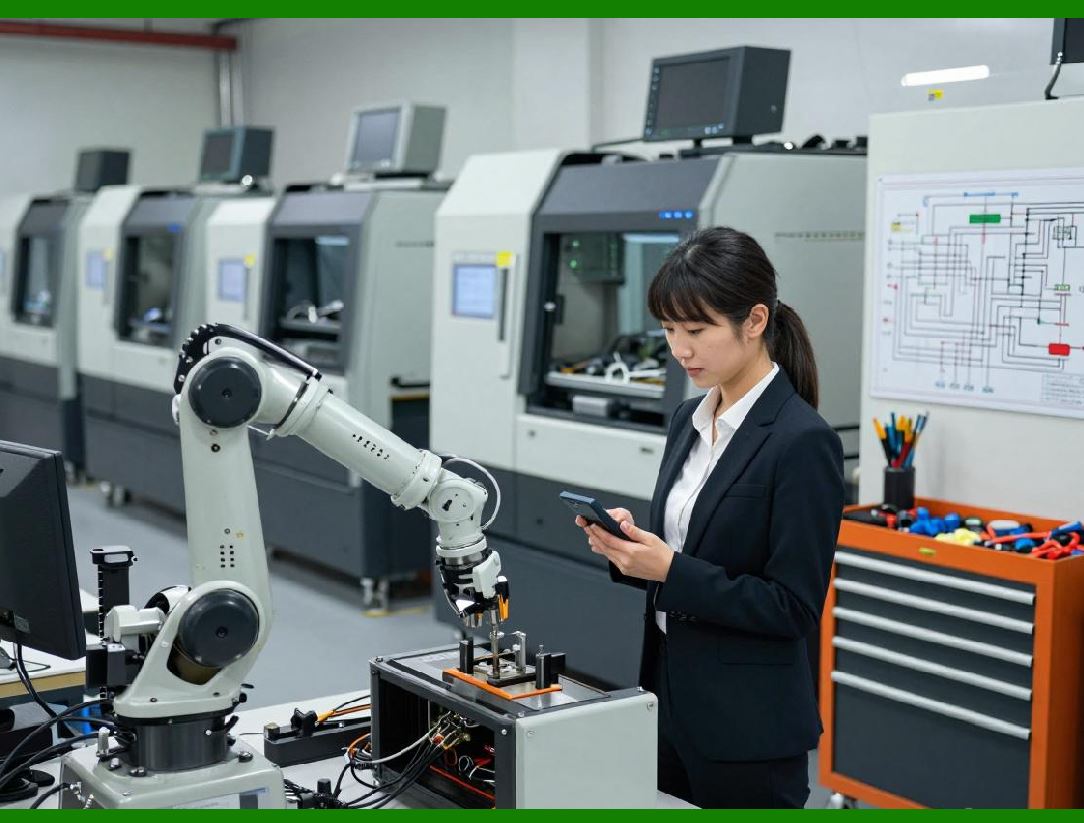
qZ Tray can integrate with ERP systems, warehouse management software (WMS), and point-of-sale (POS) systems to streamline printing workflows. By embedding the qZ Tray API into the ERP interface, print commands can be triggered by database events, such as: |
* New purchase orders or shipments. |
* Inventory updates requiring new labels. |
* Barcode verification and product tracking processes. |
This integration eliminates the need for separate desktop printing applications and centralizes printing within the enterprise workflow, improving consistency and traceability. |
|
4.5 Scheduling and Automation Strategies |
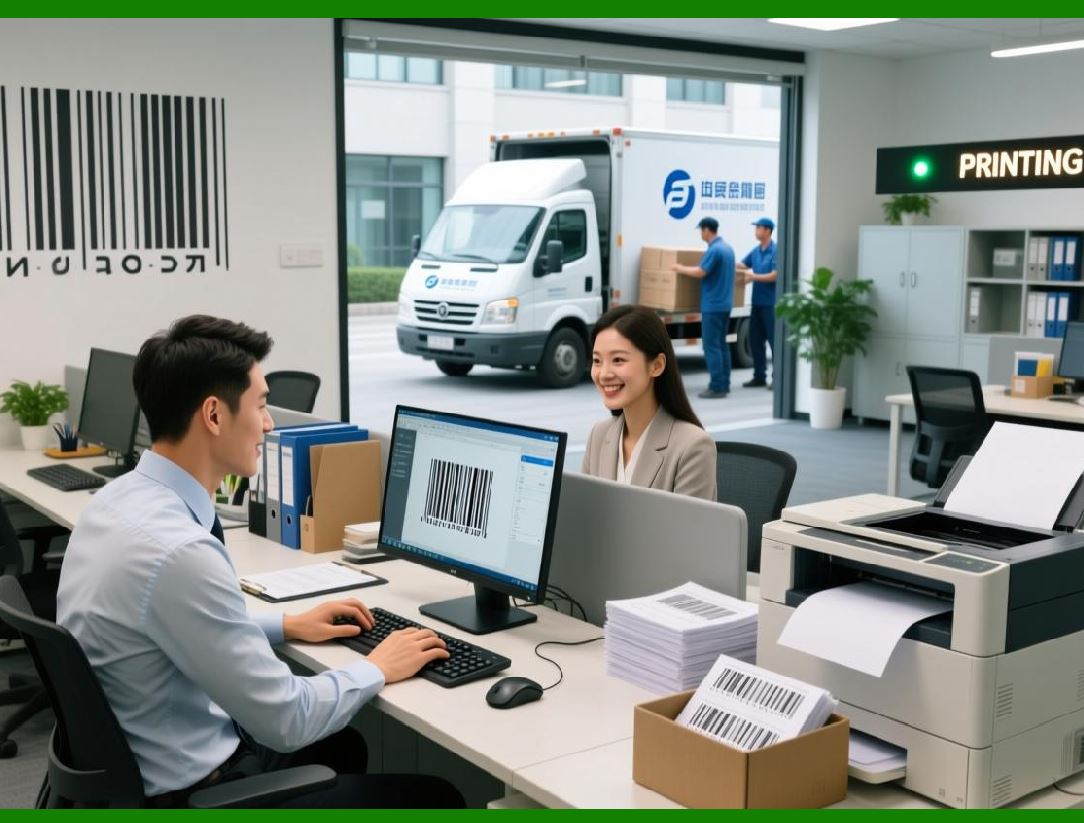
Beyond real-time printing, qZ Tray can be used for scheduled or batch printing, which is essential in operations that process large volumes of labels at specific times. For example, a fulfillment center may generate all shipping labels for next-day delivery every evening. Developers can implement scheduling via the web application backend using cron jobs, server-side scripts, or workflow automation tools. |
Key automation strategies include: |
* Batch generation of labels from a CSV or database file. |
* Conditional printing based on order type, shipping method, or destination. |
* Error recovery to automatically retry failed print jobs and log exceptions. |
|
4.6 Centralized Print Management |
Large organizations often have multiple departments or sites, each with its own printers. qZ Tray supports centralized management, enabling IT administrators to monitor printer status, deploy updates, and manage trusted origins across the network. Centralized control reduces the risk of misconfigured printers, ensures consistent driver versions, and simplifies security compliance. |
Administrators can: |
* View all printers connected to a network. |
* Verify connectivity and operational status remotely. |
* Deploy configuration profiles for new printers without user intervention. |
This is particularly useful for chain retail stores, distributed warehouses, or corporate offices where consistent label printing is critical. |

|
4.7 Security Considerations in Enterprise Deployments |
Security is paramount when deploying qZ Tray in enterprise environments. Enterprises often handle sensitive data, such as customer information, shipping addresses, and financial data. Key security measures include: |
* TLS/SSL certificates for secure communication between the browser and qZ Tray. |
* Trusted origin management to restrict printing to approved web applications. |
* Access control to prevent unauthorized users from sending print jobs. |
* Audit logging for compliance with industry regulations, especially in healthcare, logistics, and finance. |
By enforcing these security measures, organizations maintain compliance with data protection regulations while leveraging automated printing workflows. |

|
4.8 Redundancy and Failover Strategies |
High-volume printing environments require redundancy to prevent downtime due to printer failures. qZ Tray supports multiple printers and queue management, allowing applications to automatically reroute print jobs to an available printer in case of a failure. |
Example strategy: |
1. Primary printer fails or is offline. |
2. The web application detects the failure through qZ Tray API feedback. |
3. The print job is redirected to a secondary printer with identical configuration. |
This approach minimizes workflow disruption and ensures that critical labels, such as shipping or inventory tags, are never delayed. |

|
4.9 Monitoring and Reporting |
qZ Tray provides logging and monitoring tools that allow administrators and developers to track print activity. Logs can capture: |
* Printer connection status. |
* Job execution success or failure. |
* Detailed error messages and print job metadata. |
By analyzing these logs, organizations can optimize printer placement, workload distribution, and detect recurring issues before they escalate. Some enterprises integrate these logs with business intelligence tools for real-time operational reporting. |

|
4.10 Case Study: Warehouse Label Automation |
A mid-sized e-commerce warehouse implemented qZ Tray to automate shipping label printing. Before qZ Tray, employees manually printed labels, which led to delays and errors. The solution involved: |
* Installing qZ Tray on all workstation PCs. |
* Integrating qZ Tray API with the warehouse management system. |
* Creating automated queues for priority and standard orders. |
* Configuring printers for thermal labels (Zebra) and small item labels (DYMO). |
Result: |
* Printing errors reduced by 95%. |
* Average label generation time dropped from 2 minutes per order to 15 seconds. |
* Employees were redeployed to packing tasks instead of manual printing. |
This demonstrates how workflow automation, combined with multi-printer management, enhances efficiency and accuracy. |

|
4.11 Summary of Part 4 |
Part 4 explored workflow automation, print job management, multi-printer setups, and enterprise deployment strategies. qZ Tray allows organizations to: |
* Automate label printing directly from web applications. |
* Manage multiple printers and queues for high-volume environments. |
* Integrate with ERP, WMS, and POS systems for seamless operations. |
* Enforce security, redundancy, and monitoring for enterprise-grade reliability. |
By leveraging these features, organizations can streamline printing workflows, reduce errors, and scale printing operations effectively across multiple departments or locations. |
 cs@easiersoft.com