qZ Tray: Bridging Web Applications to Label Printers |
Part 5 Troubleshooting, Performance Optimization, and Best Practices |
5.1 Overview of Troubleshooting in qZ Tray |
Even in well-configured environments, issues may arise when using qZ Tray. Troubleshooting requires understanding both the software architecture and printer hardware. Problems can stem from connectivity issues, configuration mismatches, printer-specific limitations, or API integration errors. A systematic approach involves checking system prerequisites, verifying printer connectivity, inspecting print job logs, and reviewing browser integration. |
Common categories of issues include: |
* Service connection failures between the browser and qZ Tray. |
* Printer detection errors or missing drivers. |
* Print job formatting or alignment problems. |
* Security certificate rejections. |
By categorizing problems, developers and IT staff can quickly identify root causes and apply targeted solutions. |

|
5.2 Verifying qZ Tray Service Status |
The first step in troubleshooting is ensuring that the qZ Tray service is running. On different operating systems, this can be verified as follows: |
* Windows: Check the system tray for the qZ Tray icon. A green icon indicates an active service. Alternatively, open Task Manager and look for `qz-tray.exe`. |
* macOS: Look for the qZ Tray icon in the menu bar. Use Activity Monitor to confirm the process is active. |
* Linux: Use terminal commands such as `ps aux | grep qz-tray` to check if the process is running. |
If the service is not active, starting it manually or configuring it to launch at startup often resolves the issue. |

|
5.3 Connectivity and Web Browser Issues |
qZ Tray relies on WebSockets to communicate with the browser. Common connectivity problems include blocked ports, firewall restrictions, or antivirus software interference. |
Best practices: |
* Ensure that WebSocket port `6443` (default) is open and not blocked by firewall rules. |
* Verify that the browser is allowed to communicate with the local qZ Tray service. |
* Test connectivity using `qz.websocket.connect()` in the browser console to confirm that the service is reachable. |
Cross-browser testing is recommended, as certain extensions or browser security settings can interfere with communication. |

|
5.4 Printer Detection and Driver Problems |
If qZ Tray cannot detect a printer, the following steps help resolve the issue: |
* Confirm that the printer is powered on and connected properly (USB, network, or Bluetooth). |
* Verify that the correct drivers are installed and updated. For Zebra printers, ZDesigner drivers are recommended. |
* For network printers, ensure the printer has a static IP address and is on the same subnet as the workstation. |
* Use the qZ Tray interface to refresh the printer list and verify recognition. |
Some printers, particularly older models, may require firmware updates to fully support qZ Tray commands. |

|
5.5 Print Job Formatting Issues |
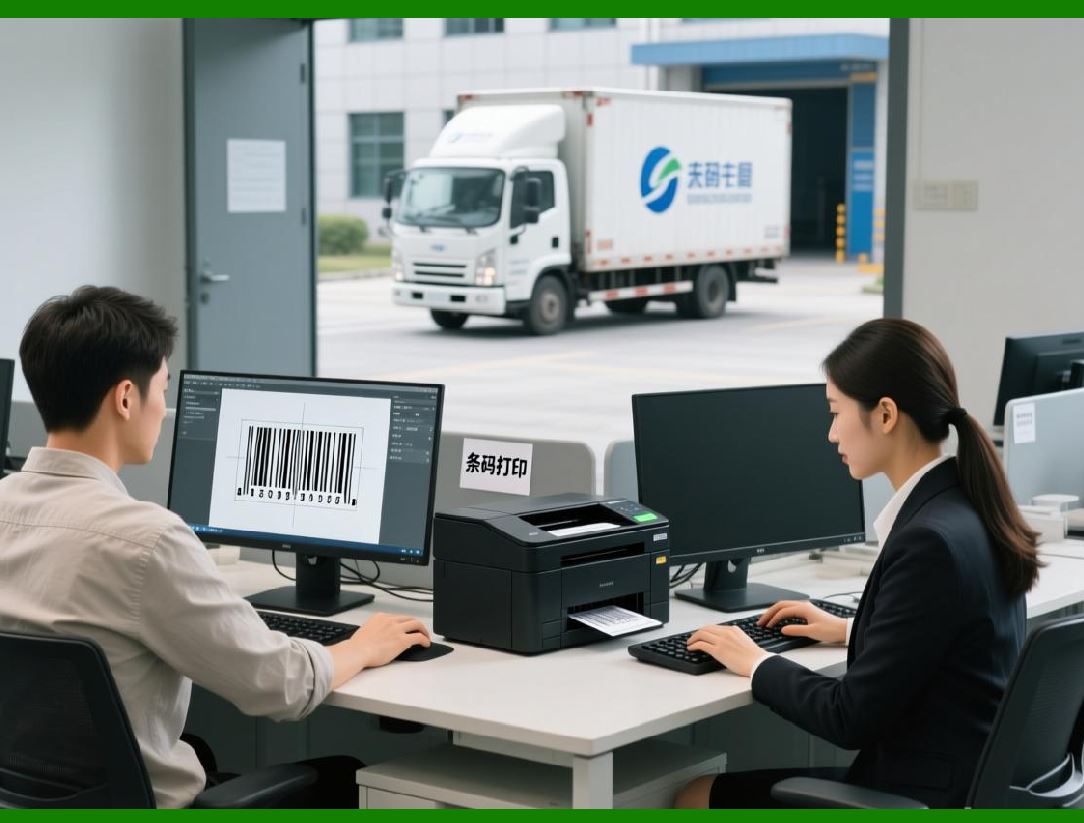
Labels may sometimes print incorrectly, with misaligned text, truncated barcodes, or incomplete images. Causes typically include: |
* Incorrect media size or orientation in printer settings. |
* Incompatible label templates or raw commands. |
* Printer-specific limitations in handling images or high-density barcodes. |
Solutions: |
* Verify printer configuration in qZ Tray, specifying exact media width, height, and orientation. |
* Test print with simple text or sample barcodes to isolate formatting errors. |
* For raw printer commands (ZPL/EPL), validate syntax and escape sequences. |
* Use base64-encoded images for graphics to ensure compatibility across printer models. |
|
5.6 Handling Batch and High-Volume Printing Errors |
High-volume printing can occasionally result in skipped or failed labels. Common causes include network latency, printer memory limitations, or excessive simultaneous jobs. |
Optimization strategies: |
* Break large print jobs into smaller batches. |
* Introduce brief delays between jobs to prevent buffer overflow on thermal printers. |
* Monitor printer memory and reduce image resolution if necessary. |
* Use multiple printers in parallel for large workflows, with qZ Tray routing jobs efficiently. |

|
5.7 Security and Certificate Troubleshooting |
Security errors often occur when the web application is not registered as a trusted origin. Symptoms include certificate rejection or blocked print jobs. |
Steps to resolve: |
* Approve the website in the qZ Tray trusted origins dialog. |
* Use self-signed or enterprise-issued certificates consistently across all devices. |
* Ensure the date and time on the client machine are correct, as TLS certificates are time-sensitive. |
* Clear browser cache if certificate updates are not reflected immediately. |

|
5.8 Performance Optimization |
Optimizing qZ Tray performance ensures reliable and fast printing, especially in enterprise or high-volume environments. Key techniques include: |
* Reduce print job size: Avoid unnecessary graphics or excessive resolution that increases data transfer and processing time. |
* Pre-generate labels: For recurring tasks, generate print content ahead of time and store as reusable templates. |
* Batch print intelligently: Use queues and staggered job execution to prevent printer buffer overload. |
* Monitor network performance: For network printers, stable connectivity reduces errors and delays. |
* Update software: Keep both qZ Tray and printer firmware updated to leverage performance improvements and bug fixes. |

|
5.9 Printer-Specific Optimization Tips |
Different printers have unique characteristics that influence performance: |
* Zebra Printers: |
* Use ZPL commands for maximum speed and precision. |
* Enable auto-calibration to ensure consistent label alignment. |
* Minimize image size; convert graphics to monochrome when possible. |
* DYMO Printers: |
* Use DYMO-specific label APIs or image-based printing. |
* Ensure label templates match actual media size. |
* Network Thermal Printers: |
* Assign static IPs to reduce discovery delays. |
* Verify proper DHCP lease times to avoid network conflicts. |

|
5.10 Developer Best Practices |
Developers integrating qZ Tray should follow best practices to ensure robust and maintainable implementations: |
* Error Handling: Always implement catch blocks and retry logic for failed print jobs. |
* Logging: Maintain detailed logs for debugging and auditing purposes. |
* Template Management: Use consistent label templates to avoid formatting issues. |
* Dynamic Configuration: Allow printers and settings to be configurable from the web application rather than hard-coded. |
* Testing: Test across different OS, browsers, and printer models to ensure compatibility. |
* Security: Enforce trusted origins and certificate validation to prevent unauthorized printing. |
* Documentation: Document API usage and printer setup instructions to assist IT and operational staff. |

|
5.11 Real-World Example: High-Volume Retail Labels |
A retail company integrated qZ Tray with its inventory system to print product labels across multiple stores. Challenges included: |
* Different store printers with varying media sizes. |
* High-volume print jobs during restocking. |
* Occasional network printer disconnections. |
Solutions: |
* Implemented printer detection and configuration per store. |
* Used job queues to batch printing and manage load. |
* Added automatic retries and fallback printers to handle network interruptions. |
Results: |
* Label errors reduced by 98%. |
* Printing time decreased from several minutes per batch to under 30 seconds. |
* Staff efficiency increased, as labels were printed automatically without manual intervention. |

|
5.12 Summary of Part 5 |
Part 5 focused on troubleshooting, performance optimization, printer-specific tips, and developer best practices. Key takeaways include: |
* Always verify qZ Tray service and printer connectivity. |
* Address formatting and batch printing issues with proper configuration and queue management. |
* Maintain security by managing certificates and trusted origins. |
* Optimize performance through template management, batching, and printer-specific settings. |
* Follow developer best practices for robust, scalable, and maintainable implementations. |
By applying these strategies, organizations can ensure smooth, efficient, and error-free printing workflows using qZ Tray. |
 cs@easiersoft.com