1. Fundamental Conceptual Differences Between Sheet Labels and Continuous Roll Labels in Barcode Software |
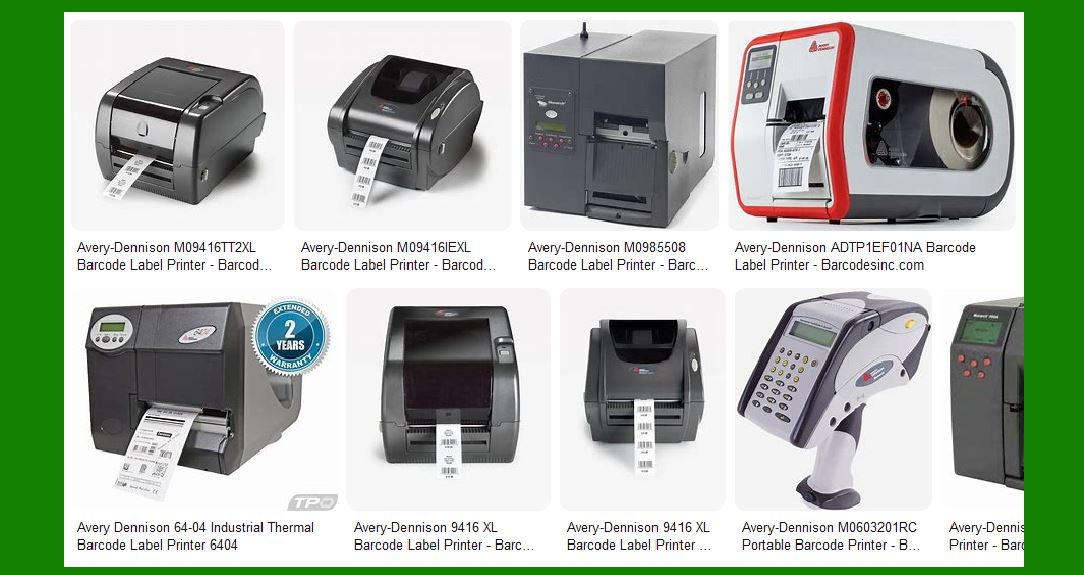
Barcode software does not simply print barcodes.At its core, it acts as a layout engine, a data mapping engine, and a print control system. The way these internal systems operate changes significantly depending on whether the software is configured for multiple labels per page (commonly used with sheet-fed printers such as laser or inkjet printers) or continuous roll labels (typically used with thermal label printers). |
When using multiple labels per page, the software treats the entire page as a fixed, pre-defined physical canvas. The page has immutable dimensions defined by the printer driver and paper size. The barcode software must divide that page into multiple identical label regions, each with its own position, margins, and printable area. |
By contrast, when using continuous roll labels, the software treats the print job as a stream of repeated label units, rather than as a fixed page. The label height may be fixed, variable, or auto-detected, but there is no concept of a pagein the traditional sense. This fundamental difference affects nearly every internal operation of the software, from layout calculation to data sequencing and print command generation. |
|
2. Page-Based Logic Versus Label-Based Logic |
2.1 Page-Oriented Processing for Multiple Labels Per Page |
When barcode software is configured for multiple labels per page, its internal logic is page-centric. Every print operation is calculated relative to the page boundaries. The software must know: |
* The total page width and height |
* Page margins imposed by the printer driver |
* The number of label rows and columns |
* Horizontal and vertical spacing between labels |
* Printable versus non-printable areas |
The software processes each page as a single unit. Within that unit, it generates multiple label instances, each with a calculated X and Y position. Even though the user may think they are printing “labels,the software internally prints a page image that contains many labels placed at precise coordinates. |
2.2 Label-Oriented Processing for Continuous Roll Labels |
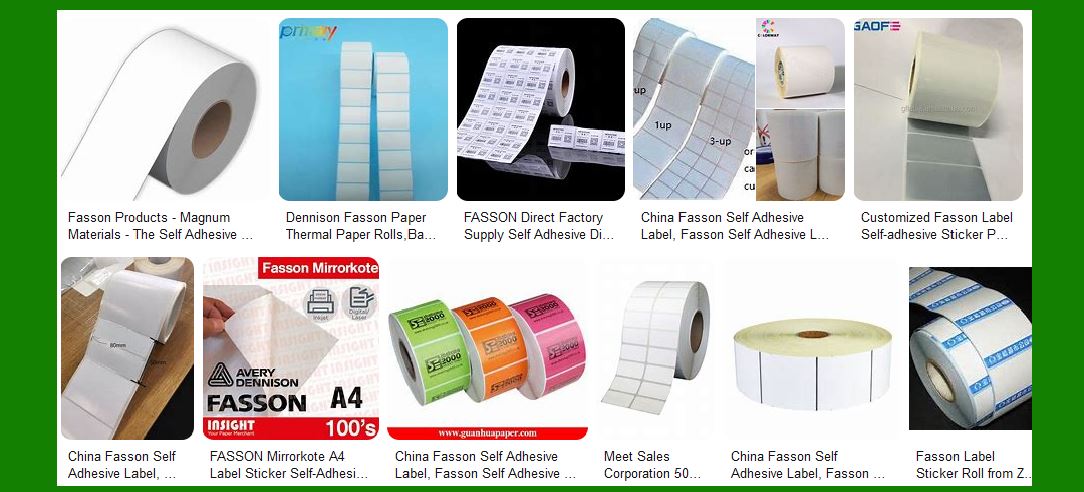
For continuous roll labels, the software is label-centric rather than page-centric. Each label is an independent unit, printed sequentially along the roll. The software does not need to calculate rows and columns. Instead, it calculates: |
* Label width |
* Label height |
* Gap size or black mark location |
* Print direction and feed length |
Each label is treated as a single print object. The printer firmware, rather than the software, handles most of the physical movement and spacing. The software role is to send one label content at a time, followed by commands that instruct the printer how much media to advance. |
|
3. Differences in Label Layout Calculation |
3.1 Layout Calculation for Sheet Labels |
In multi-label-per-page mode, the barcode software must perform complex layout calculations before any printing occurs. These calculations include: |
* Determining the exact pixel or dot position of each label on the page |
* Ensuring that labels do not overlap |
* Adjusting for printer margins that cannot be printed on |
* Scaling label contents to fit within each label cell |
The layout engine must also replicate the same label design multiple times on the page. This replication is spatial, not temporal. All labels on the page exist simultaneously in the layout model. |
3.2 Layout Calculation for Roll Labels |
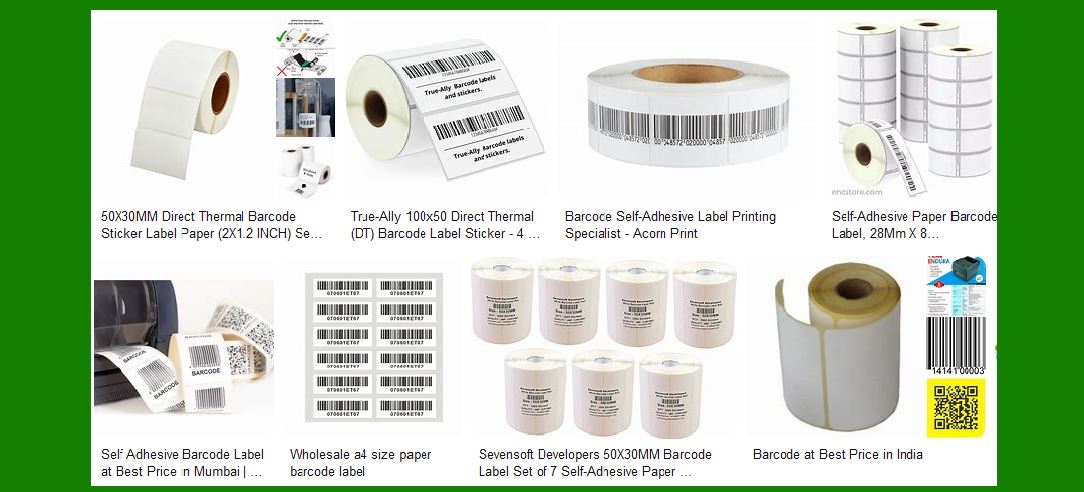
For continuous labels, layout calculation is simpler in one sense but stricter in another. The software calculates layout for one label only. There is no replication across a page. Instead, replication occurs over time as labels are printed sequentially. |
However, accuracy is critical because any mismatch between software-defined label height and the printer media settings can cause misalignment, skipped labels, or wasted material. The software must precisely match the printer label length configuration. |
|
4. Differences in Coordinate Systems |
4.1 Absolute Page Coordinates for Sheet Labels |
Sheet label printing uses an absolute coordinate system tied to the page. Every label element barcode, text, image as coordinates relative to the page origin, usually the top-left corner of the printable area. |
For example, label number 1 might start at X=10 mm, Y=15 mm, while label number 2 starts at X=75 mm, Y=15 mm. These positions are static and must be recalculated for each label position on the page. |
4.2 Relative Label Coordinates for Roll Labels |
With roll labels, the coordinate system is relative to the label itself. The origin is typically the top-left corner of the label. All elements are positioned within that single label coordinate space. |
The software does not need to track multiple origins or offsets. Every label uses the same coordinate system, repeated identically for each print cycle. |
|
5. Differences in Data-to-Label Mapping |
5.1 Data Mapping for Multi-Label Pages |
When printing multiple labels per page, barcode software must map data records to specific label positions on a page. This involves: |
* Assigning record 1 to label position 1 |
* Assigning record 2 to label position 2 |
* Continuing until the page is full |
If the number of records does not evenly divide by the number of labels per page, the software must decide how to handle partially filled pages. Common strategies include leaving blank labels or repeating data. |
This mapping is spatial and page-aware. |
5.2 Data Mapping for Continuous Labels |
For roll labels, data mapping is sequential and linear. Record 1 prints on label 1, record 2 prints on label 2, and so on. |
There is no concept of partially filled pages. The software simply prints labels until the data source is exhausted or the user stops the job. |

|
6. Differences in Print Job Structure |
6.1 Print Job Structure for Sheet Labels |
In sheet mode, a print job typically consists of one or more complete pages. Each page is rendered fully before being sent to the printer. The printer driver receives a rasterized page image that already includes all labels. |
The software may buffer entire pages in memory before printing, which can affect performance and memory usage for large jobs. |
6.2 Print Job Structure for Roll Labels |
In roll mode, print jobs are often streamed label by label. The software may send commands for each label individually or in small batches. |
This streaming model allows for: |
* Real-time printing |
* On-the-fly data changes |
* Integration with scanners, databases, or production systems |
|
7. Differences in Printer Driver Interaction |
7.1 Standard Office Printer Drivers for Sheet Labels |
Sheet labels rely on standard printer drivers designed for office printers. These drivers assume fixed page sizes and are optimized for documents, not individual labels. |
Barcode software must work within the constraints of these drivers, including: |
* Fixed margins |
* Page scaling behavior |
* Print resolution assumptions |
7.2 Specialized Thermal Printer Drivers for Roll Labels |
Roll labels usually use specialized thermal printer drivers that expose label-specific settings such as: |
* Label gap detection |
* Black mark sensing |
* Tear-off and cutter control |
* Print speed and darkness |
Barcode software often communicates more directly with these drivers, sometimes even bypassing parts of the standard printing pipeline. |
|
8. Differences in Media Handling Logic |
8.1 Media Handling for Sheets |
Sheet labels require careful alignment because the printer feeds an entire sheet at once. The software assumes that the sheet is loaded correctly and that labels are positioned precisely on the paper. |
Any slight misalignment can cause all labels on the page to shift. |
8.2 Media Handling for Rolls |
Roll label printers actively manage media feeding using sensors. The software must cooperate with this mechanism by sending accurate feed commands. |
The printer, rather than the software, ensures that each label starts and ends correctly. |

|
9. Differences in Error Handling and Recovery |
9.1 Error Handling with Sheet Labels |
If an error occurs during sheet label printing, the entire page may be wasted. The software may need to reprint a whole page even if only one label failed. |
The software often provides options to reprint specific pages but not individual labels on a page. |
9.2 Error Handling with Roll Labels |
With roll labels, errors can be isolated to individual labels. The software can often resume printing from a specific record without wasting large amounts of media. |
This makes roll labels more suitable for high-volume or mission-critical applications. |

|
10. Differences in User Interface Configuration |
10.1 UI Configuration for Sheet Labels |
Barcode software designed for sheet labels usually provides interfaces for: |
* Selecting label templates (such as common office label formats) |
* Defining rows and columns |
* Adjusting page margins and spacing |
The UI reflects the page-centric nature of the operation. |
10.2 UI Configuration for Roll Labels |
For roll labels, the UI focuses on: |
* Label size |
* Gap or mark settings |
* Print speed and darkness |
* Sensor calibration |
The UI is simpler in layout design but more technical in printer settings. |

|
11. Differences in Preview and Visualization |
11.1 Preview for Multi-Label Pages |
In sheet mode, preview shows an entire page with multiple labels visible at once. The user can see exactly how labels are arranged on the sheet. |
This helps prevent misalignment but requires more rendering resources. |
11.2 Preview for Roll Labels |
In roll mode, preview usually shows a single label. The concept of a |
|
page previewdoes not apply. |
Some software simulates multiple labels vertically, but this is only for visualization, not actual page layout. |

|
12. Differences in Memory Usage and Performance |
12.1 Memory Usage for Sheet Labels |
Rendering full pages with multiple labels can consume significant memory, especially at high resolutions. |
Large print jobs may require careful batching to avoid performance issues. |
12.2 Memory Usage for Roll Labels |
Roll label printing is typically more memory-efficient because only one label needs to be rendered at a time. |
This makes roll printing well-suited for continuous, long-running jobs. |

|
13. Differences in Automation and Integration |
13.1 Automation with Sheet Labels |
Automation is more limited because printing is page-based. Dynamic data updates during printing are harder to implement. |
13.2 Automation with Roll Labels |
Roll labels excel in automation scenarios. Barcode software can respond to external triggers, database updates, or scanner input in real time. |

|
14. Differences in Scaling and Growth |
14.1 Scalability of Sheet Label Printing |
Sheet labels are ideal for small to medium batches. As volume increases, inefficiencies become more noticeable. |
14.2 Scalability of Roll Label Printing |
Roll labels scale easily to millions of labels with minimal changes to software configuration. |

|
15. Differences in Use Case Suitability |
Sheet labels are best suited for office environments, mailing, documentation, and low-volume needs. Roll labels are better for logistics, manufacturing, retail, and industrial environments. |
16. Differences in Precision Requirements |
Sheet labels tolerate slight variations because users can manually adjust or discard sheets. Roll labels require high precision to avoid cumulative errors. |
17. Differences in Print Speed Control |
Sheet label speed is largely controlled by the printer driver. Roll label speed can be adjusted dynamically through software commands. |

|
18. Differences in Cutter and Tear-Off Control |
Sheet printers have no cutters. Roll printers often include cutters or tear bars, which must be controlled by software. |
19. Differences in Calibration Procedures |
Sheet labels rely on physical alignment. Roll labels rely on sensor calibration. |

|
20. Summary of Core Operational Differences |
In essence, barcode software behaves very differently depending on whether it operates in a page-based paradigm or a label-stream paradigm. Multi-label-per-page printing emphasizes layout precision across a fixed canvas, while continuous roll printing emphasizes sequential accuracy and real-time control. |
Understanding these operational differences is critical when designing barcode software, selecting printers, or training users—especially in professional and industrial environments. |
 cs@easiersoft.com