1. Fundamental Concepts: How Barcode Software and Printers Work Together |
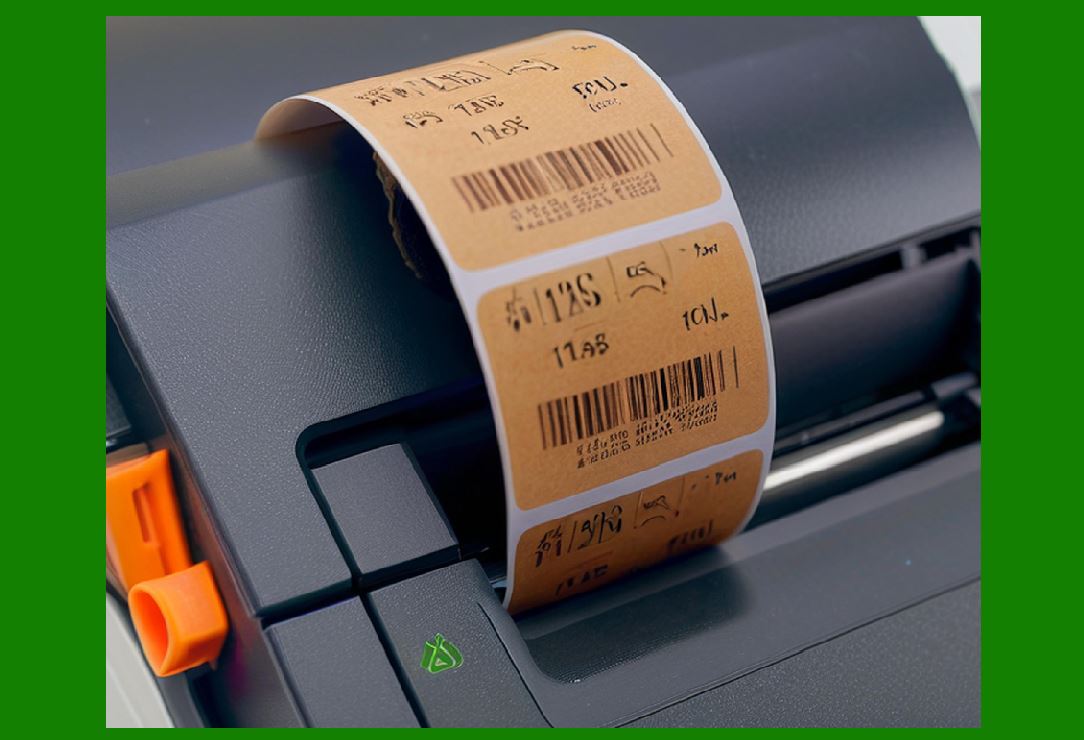
Before discussing installation steps or configuration details, it is critical to understand the fundamental relationship between barcode software, printer drivers, and physical printers. Barcode software itself does not print directly to hardware. Instead, it generates graphical or command-based output, which is then passed to a printer driver. The printer driver acts as a translator, converting the software output into instructions that the printer hardware can physically understand and execute. |
In most modern operating systems, printing follows a layered architecture. At the top layer is the application, such as barcode label design software. Below that is the operating system print subsystem, which manages print jobs, queues, and device communication. At the bottom is the printer driver, which converts abstract print data into printer-specific commands. Finally, the printer firmware interprets those commands and controls motors, sensors, heating elements, and print heads. |
Understanding this layered structure is essential because many printing problems are caused not by barcode software itself, but by misconfiguration or incompatibility at one of the lower layers. |
|
2. Types of Barcode Printers and Their Driver Characteristics |
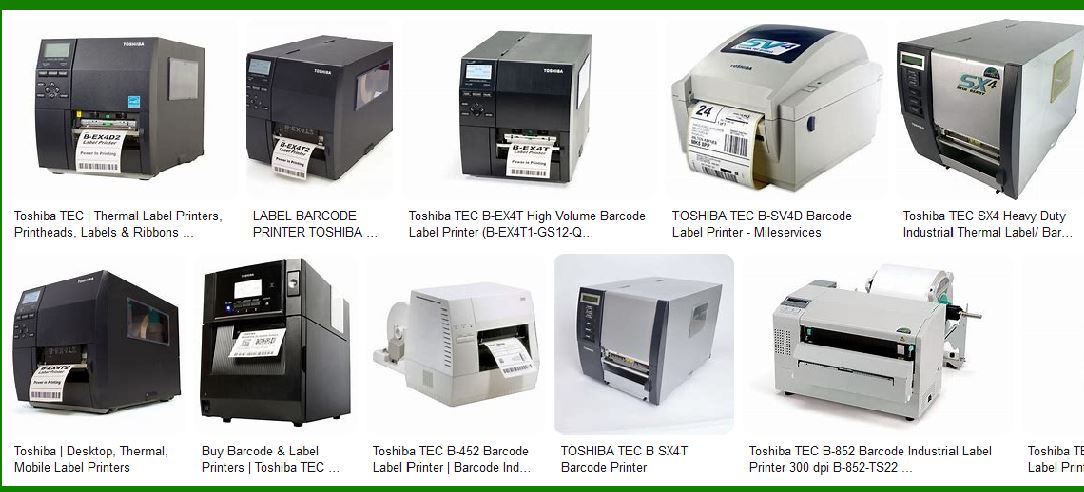
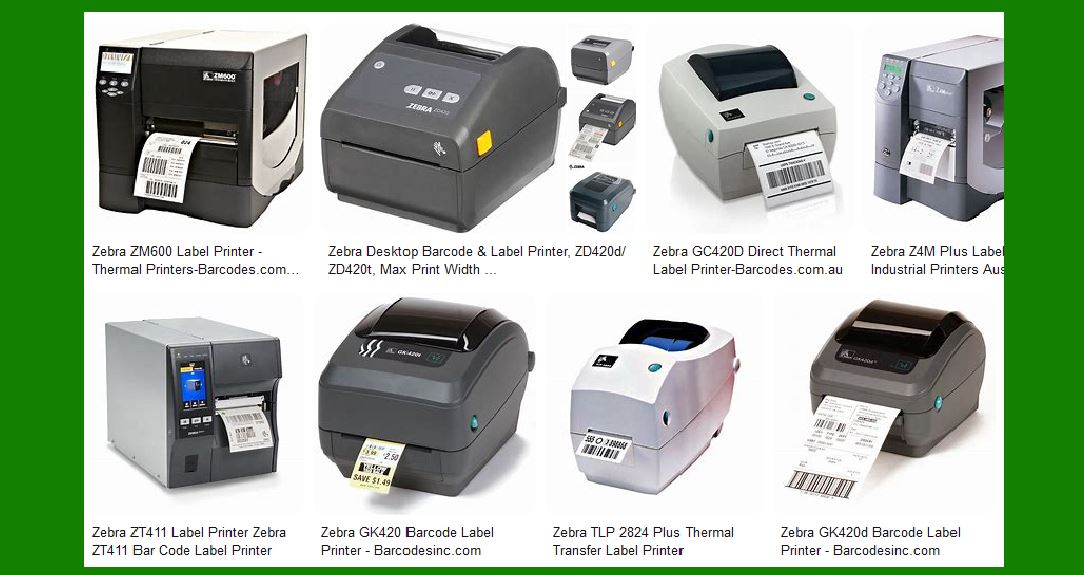
Barcode printers are not all the same, and the type of printer strongly influences how drivers are installed and used. |
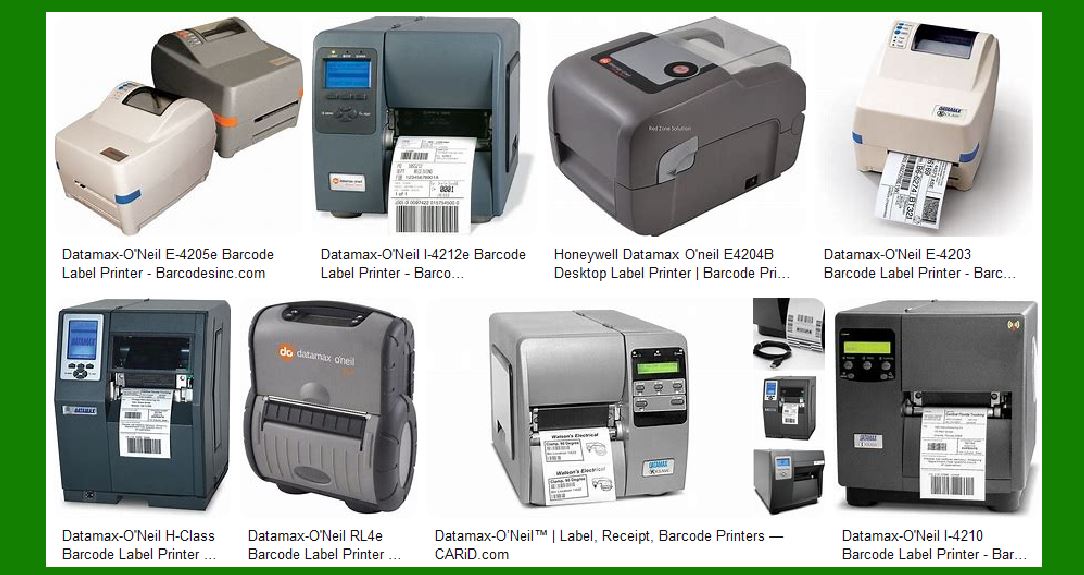
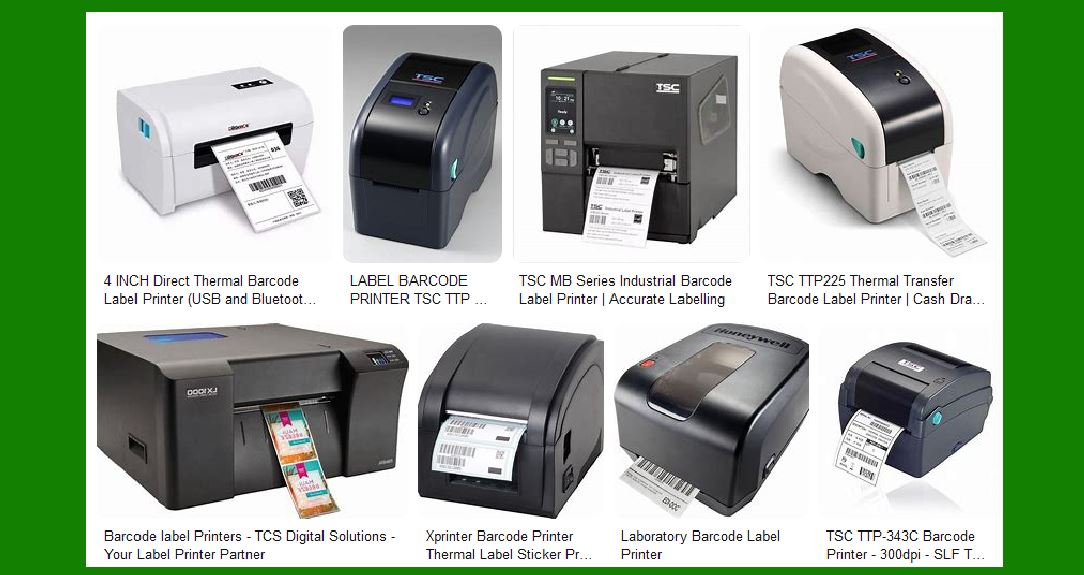
Desktop thermal barcode printers are the most common type for small offices and warehouses. These printers typically use direct thermal or thermal transfer technology. They rely heavily on correct driver settings for label size, gap detection, print speed, and darkness. |
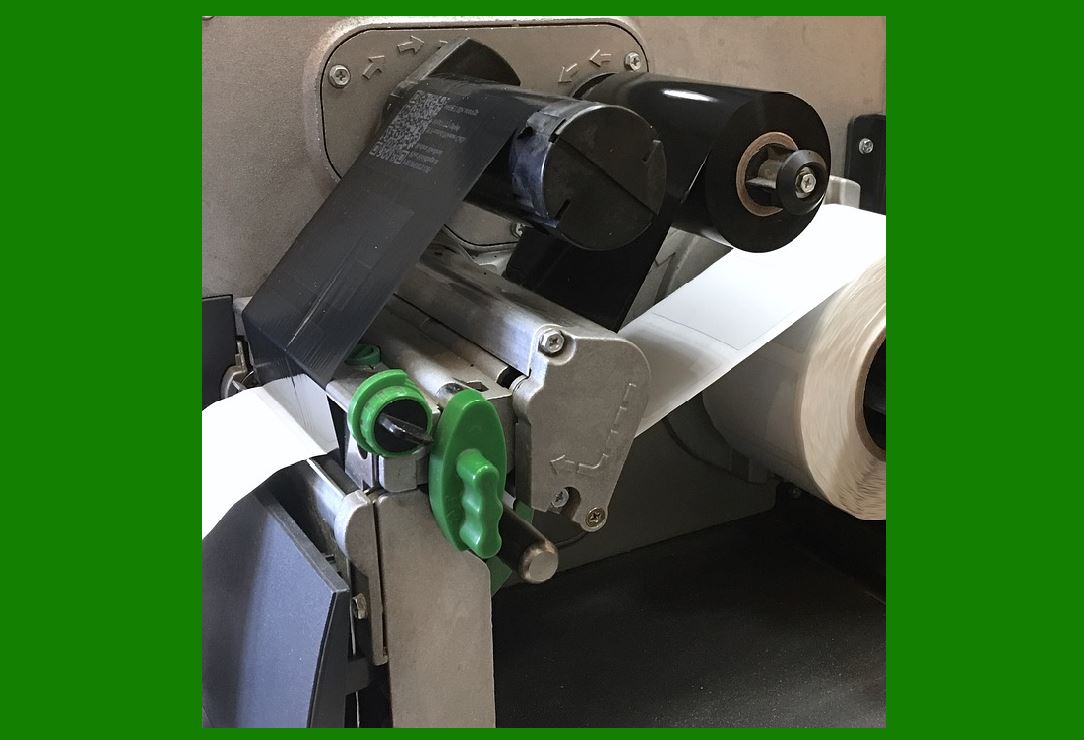
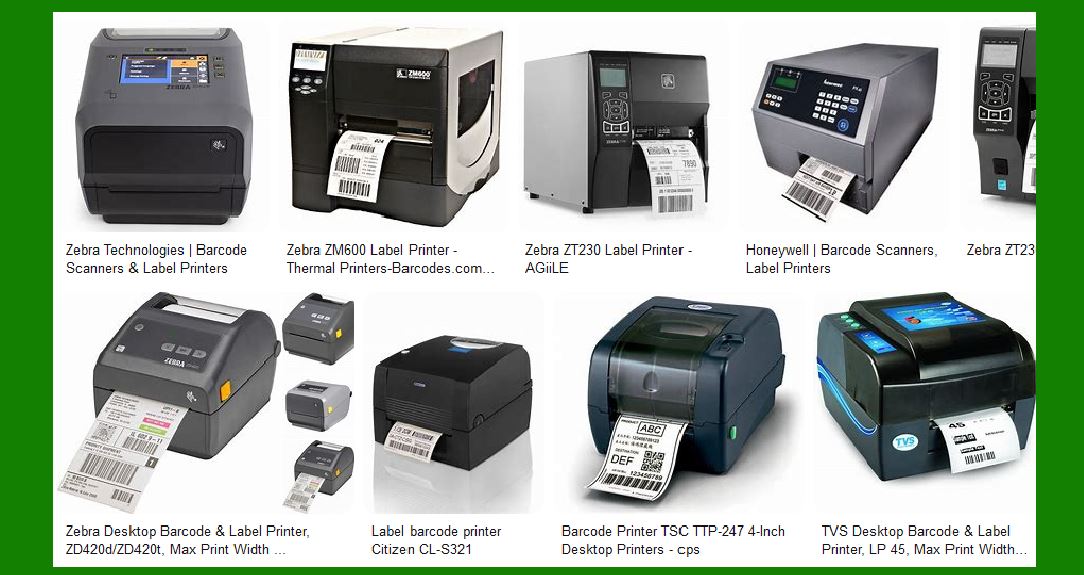
Industrial barcode printers are larger, faster, and designed for continuous high-volume printing. Their drivers often expose more advanced parameters, such as tear-off position, rewind options, cutter settings, and sensor calibration. |
Mobile barcode printers are compact and battery-powered. Their drivers often focus on Bluetooth or Wi-Fi connectivity and may offer fewer configuration options. |
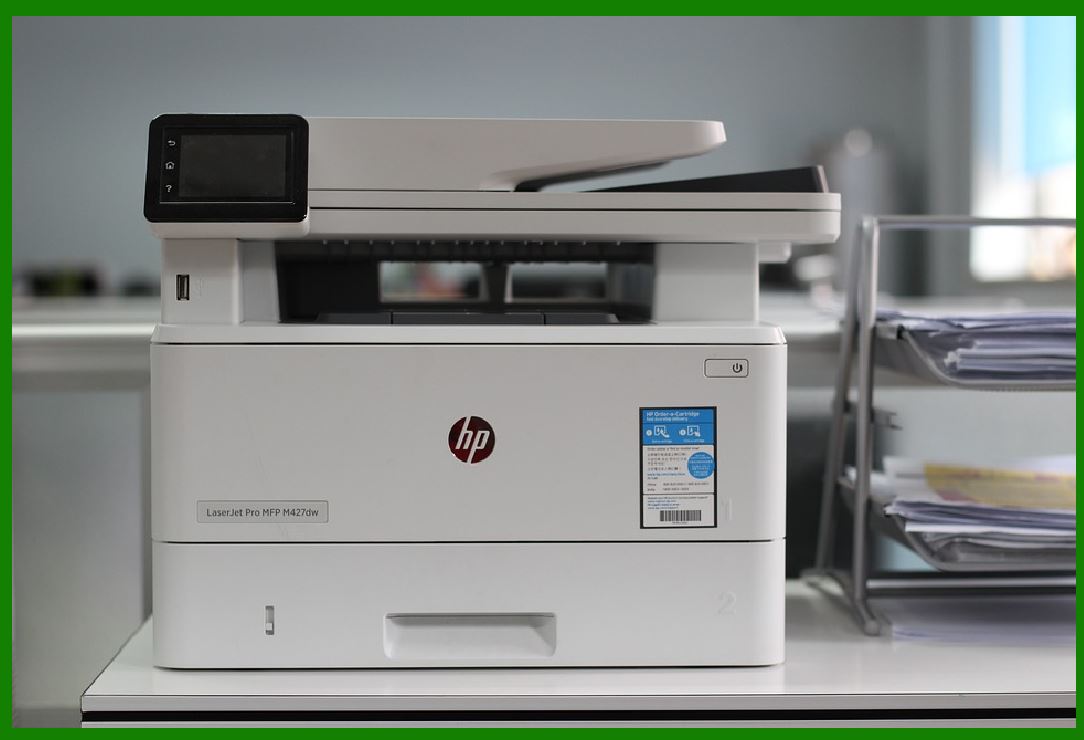
Laser and inkjet printers can also print barcode labels, especially when using sheet labels. In these cases, standard printer drivers are used, and barcode accuracy depends largely on resolution, scaling, and application-level rendering rather than printer command languages. |
Each printer category interacts differently with barcode software, and understanding these differences helps avoid common mistakes during installation. |
|
3. Printer Driver Fundamentals: What a Driver Actually Does |
A printer driver is a software component that enables communication between the operating system and the printer. It defines how print data is formatted, how page dimensions are interpreted, and how device-specific features are accessed. |
Barcode printers often support two broad driver modes. The first is graphical mode, where the driver receives bitmap or vector graphics from the application and rasterizes them into dots. The second is command mode, where the driver passes text-based printer commands directly to the printer. |
Graphical drivers are easier for beginners because they behave similarly to standard office printers. Command-based drivers are preferred in industrial environments because they offer faster printing, smaller data sizes, and more precise control. |
Installing the correct driver type is one of the most important decisions when setting up barcode printing. |
|
4. Preparing the System Before Installing a Barcode Printer Driver |
Before installing any printer driver, several preparatory steps should be completed to prevent conflicts and ensure a smooth installation process. |
First, the operating system should be fully updated. Missing system components or outdated print subsystems can cause driver installation failures. |
Second, existing drivers for the same printer model should be removed if they were previously installed incorrectly. Residual driver files can interfere with new installations. |
Third, the connection method should be determined in advance. Barcode printers can connect via USB, Ethernet, Wi-Fi, serial port, or parallel port. The chosen connection method affects driver selection and configuration. |
Fourth, administrative privileges are required for driver installation on most systems. Attempting installation without sufficient permissions often results in incomplete or silent failures. |
|
5. Installing a Barcode Printer Driver on Windows: Core Principles |
On Windows systems, printer drivers integrate with the Windows Print Spooler. The spooler manages print jobs, queues, and communication with physical devices. |
When installing a barcode printer driver on Windows, the installer typically registers the driver files, creates a printer object, and links it to a specific port. The port defines how data is transmitted, such as USB, TCP/IP, or virtual ports. |
During installation, users may be prompted to choose between different driver variants. These may include different resolutions, different command languages, or different rendering modes. Selecting the wrong variant can lead to printing issues that are difficult to diagnose later. |
After installation, the printer appears in the system printer list, where properties and preferences can be adjusted. |
|
6. USB Barcode Printer Driver Installation on Windows |
USB is the most common connection method for desktop barcode printers. When a barcode printer is connected via USB, Windows typically detects it as a new device. |
In some cases, Windows attempts to install a generic driver automatically. While this may allow basic printing, it often lacks barcode-specific features and should be replaced with the manufacturer driver. |
The correct installation sequence usually involves installing the driver software first, then connecting the printer when prompted. This ensures that Windows associates the device with the correct driver. |
After installation, a USB virtual port is created. This port remains consistent as long as the printer is connected to the same USB socket. Changing USB ports may create a new virtual port, which can disrupt existing configurations. |

|
7. Network Barcode Printer Driver Installation |
Network-connected barcode printers communicate using IP addresses. In this scenario, the printer driver sends data over a TCP/IP port. |
Installing a network printer driver requires knowing the printer IP address. This address can be assigned manually or obtained automatically via DHCP. |
During driver installation, a standard TCP/IP port is created and linked to the printer IP address. If the IP address changes, printing will fail until the port configuration is updated. |
Network printing offers advantages such as shared access and centralized management, but it also introduces potential issues related to firewalls, network latency, and IP conflicts. |

|
8. Serial and Legacy Port Printer Installation |
Some industrial barcode printers still support serial or parallel connections. These require careful configuration of communication parameters such as baud rate, data bits, parity, and flow control. |
The printer driver must match the printer communication settings exactly. Any mismatch can result in garbled output or no output at all. |
Modern operating systems may require additional adapters or drivers to support legacy ports, and these should be installed before the barcode printer driver. |

|
9. Installing Barcode Printer Drivers on macOS |
macOS uses a printing architecture based on CUPS, which differs significantly from Windows. |
On macOS, printer drivers are typically installed as printer description files combined with filter components. These files define how print jobs are processed and sent to the printer. |
When installing a barcode printer driver on macOS, the printer is added through the system printer management interface. The correct driver must be selected manually if the system does not detect it automatically. |
macOS often treats barcode printers as generic printers unless explicitly configured, which can limit access to advanced features. |

|
10. Barcode Printer Driver Installation on Linux Systems |
Linux printing is also based on CUPS, but driver availability varies widely by distribution. |
Some barcode printers are supported by open-source drivers, while others require proprietary drivers. Installation may involve compiling drivers or manually configuring printer description files. |
Linux users must often manually define label sizes, margins, and print density, as defaults are rarely optimized for barcode labels. |

|
11. Understanding Barcode Software Printing Architectures |
Barcode software can print in several ways. Some applications rely entirely on the operating system printing system. Others bypass it and communicate directly with the printer. |
In OS-managed printing, the barcode software generates a print job using standard APIs. The operating system and driver handle the rest. |
In direct printing, the barcode software generates printer commands directly and sends them to the printer port. This method is faster and more reliable for high-volume printing but requires deeper technical knowledge. |
Understanding which architecture your barcode software uses is essential for correct configuration. |

|
12. Connecting Barcode Software to an Installed Printer |
Once a printer driver is installed, barcode software must be configured to use it. |
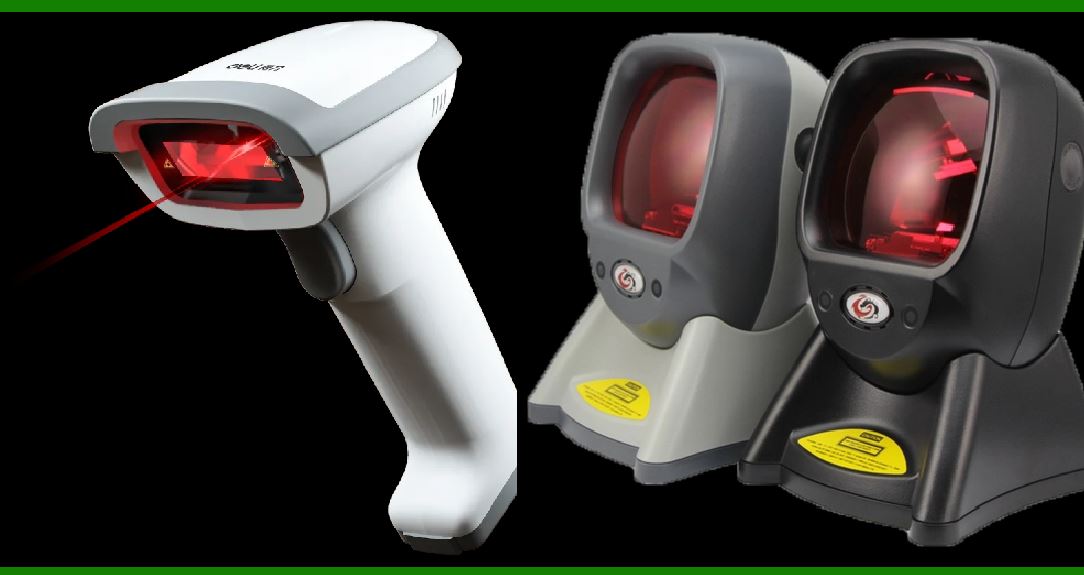
Typically, this involves selecting the printer from a list of installed printers. The software may also allow selection of specific printer properties such as resolution, orientation, and media type. |
In some barcode software, printer settings are stored per label template. In others, they are global settings. Misunderstanding this distinction can lead to inconsistent printing behavior. |
|
13. Label Size, Media Settings, and Their Importance |
Barcode printers do not automatically know the size of the labels loaded. The driver must be configured with correct label width, height, and gap or mark type. |
Incorrect label size settings are one of the most common causes of printing errors. Symptoms include truncated barcodes, misaligned prints, and wasted labels. |
Media settings must match physical labels exactly. Even small discrepancies can cause cumulative alignment errors over long print runs. |

|
14. Sensor Calibration and Media Detection |
Most barcode printers use sensors to detect label gaps, black marks, or continuous media. |
After installing a driver or changing label stock, sensor calibration is often required. Calibration allows the printer to learn the exact characteristics of the media. |
Failure to calibrate can result in skipped labels, double-feeding, or printing in incorrect positions. |

|
15. Resolution, DPI, and Barcode Quality |
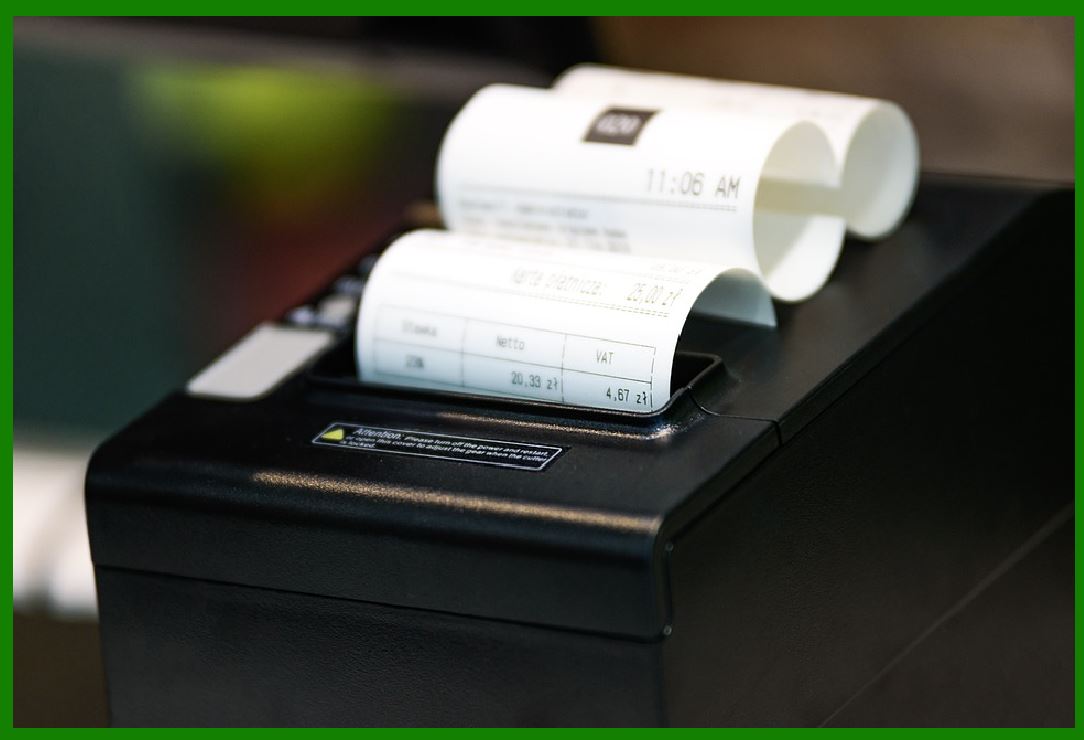
Barcode printers operate at fixed resolutions, commonly 203 DPI, 300 DPI, or 600 DPI. |
The driver must be configured to match the printer physical resolution. Mismatched settings can cause scaling errors or blurred barcodes. |
Barcode software must also generate barcodes at appropriate module sizes to ensure scannability. This requires coordination between software settings and driver resolution. |
|
16. Printer Command Languages and Their Role |
Many barcode printers support proprietary or standardized command languages. |
When using command-based printing, the driver may act as a pass-through, sending commands directly to the printer. |
This approach offers maximum control but requires precise configuration. Incorrect commands can cause printer errors or unpredictable behavior. |
|
17. Using Generic Versus Manufacturer-Specific Drivers |
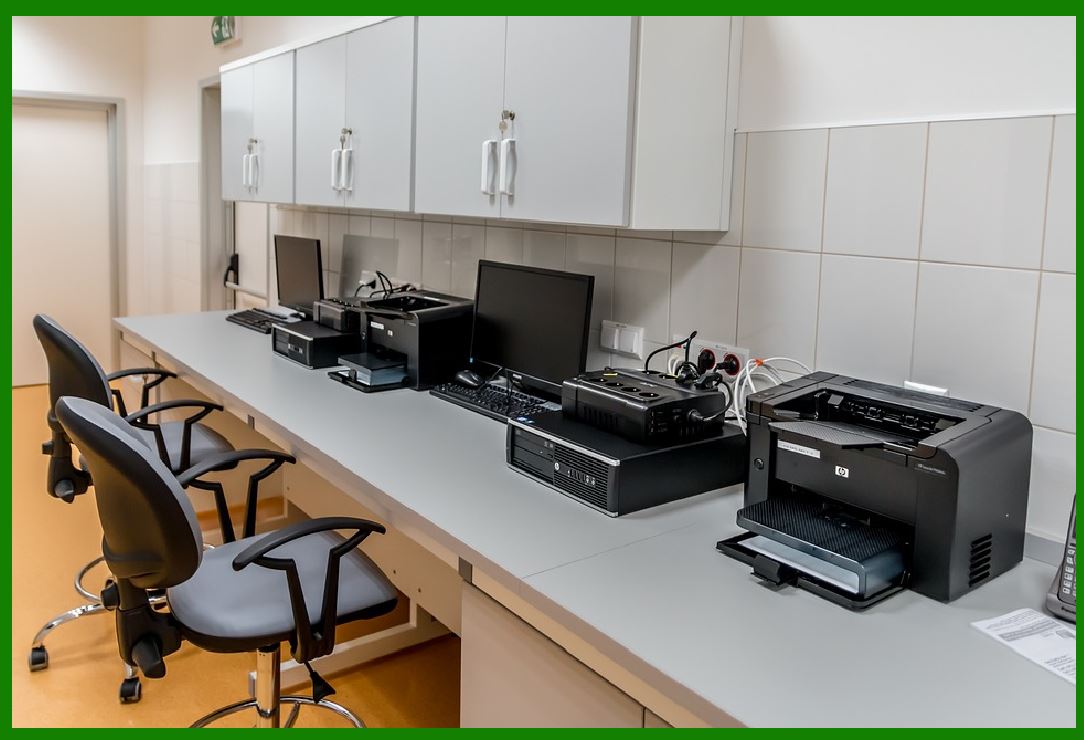
Generic drivers offer basic functionality and broad compatibility. Manufacturer-specific drivers offer deeper integration and access to advanced features. |
Choosing between them depends on the application. For simple barcode printing, generic drivers may be sufficient. For industrial or compliance-critical applications, manufacturer-specific drivers are usually preferred. |
|
18. Shared Printers and Multi-User Environments |
In shared environments, a barcode printer may be installed on one system and shared over the network. |
In such cases, driver compatibility between client and host systems is critical. Mismatched drivers can result in distorted output. |
Best practice is to install the same driver version on all systems accessing the printer. |
|
19. Virtual Printers and PDF Output |
Some barcode workflows involve printing to virtual printers that generate PDF or image files. |
While useful for previews and electronic distribution, virtual printing must be carefully configured to preserve barcode integrity. |
Scaling, compression, and resolution settings can affect barcode scannability. |
|
20. Common Problems and Their Root Causes |
Many barcode printing problems appear complex but have simple underlying causes. |
Blank labels often indicate incorrect media detection or darkness settings. |
Misaligned prints usually result from incorrect label size or gap configuration. |
Unreadable barcodes are often caused by low resolution, incorrect scaling, or excessive print speed. |
Understanding the printing pipeline helps isolate and resolve these issues efficiently. |
|
21. Driver Conflicts and How to Resolve Them |
Installing multiple drivers for similar printers can cause conflicts. Windows may associate a printer with the wrong driver. |
Removing unused drivers and restarting the print spooler often resolves such issues. |
In persistent cases, complete driver removal followed by clean reinstallation may be required. |

|
22. Advanced Configuration: Print Speed and Darkness |
Barcode printers allow adjustment of print speed and darkness. These settings directly affect print quality and durability. |
Higher speed reduces print quality. Higher darkness increases contrast but may cause smudging or shorten print head life. |
Optimal settings depend on label material, ribbon type, and barcode density. |
|
23. Automation and Batch Printing |
Many barcode applications support batch printing, where large numbers of labels are generated from databases or files. |
In such scenarios, printer stability and driver performance are critical. Even minor misconfigurations can cause large-scale failures. |
Testing with small batches before full production is a best practice. |

|
24. Security and Permissions in Printing Environments |
In corporate environments, printer access may be restricted by user permissions. |
Barcode software must run with sufficient privileges to access printer drivers and ports. |
Network printers may also require authentication, which must be configured correctly. |
|
25. Maintenance, Updates, and Long-Term Stability |
Printer drivers should be updated carefully. New versions may introduce changes that affect existing workflows. |
Before updating drivers, it is advisable to back up current configurations. |
Regular maintenance, including calibration and cleaning, ensures consistent performance. |

|
26. Best Practices for Beginners |
Beginners should start with graphical drivers, USB connections, and default settings. |
Testing should be performed incrementally, changing one parameter at a time. |
Documentation of settings helps reproduce successful configurations later. |
|
27. Best Practices for Professional and Industrial Use |
Professional environments benefit from standardized drivers, fixed IP addresses, and documented procedures. |
Direct command printing offers performance advantages but requires expertise. |
Monitoring printer status and logs helps detect problems early. |
|
28. Troubleshooting Methodology |
Effective troubleshooting follows a structured approach. |
First, verify physical connections and media loading. |
Second, confirm driver settings and printer properties. |
Third, test printing from a simple application before using barcode software. |
Fourth, isolate whether the issue originates in the software, driver, or hardware. |
|
29. Testing and Validation of Barcode Output |
Printed barcodes should always be validated using scanners. |
Verification ensures compliance with standards and prevents downstream errors. |
Regular validation is especially important in regulated industries. |
|
30. Summary and Final Recommendations |
Connecting barcode software to a printer and installing barcode printer drivers is a multi-layered process that combines hardware, software, and configuration knowledge. |
Success depends on understanding how applications, drivers, and printers interact. |
By following structured installation procedures, configuring drivers correctly, and applying best practices, users can achieve reliable, high-quality barcode printing in both small and large-scale environments. |
If you want, I can rewrite this as a printable PDF-style manual, expand any specific section, or adapt it specifically to Windows-only barcode label software, including examples aligned with professional label design applications. |
 cs@easiersoft.com