How Do I Use a Smartphone to Scan a Barcode |
1. Introduction: Why Barcode Scanning with a Smartphone Matters |
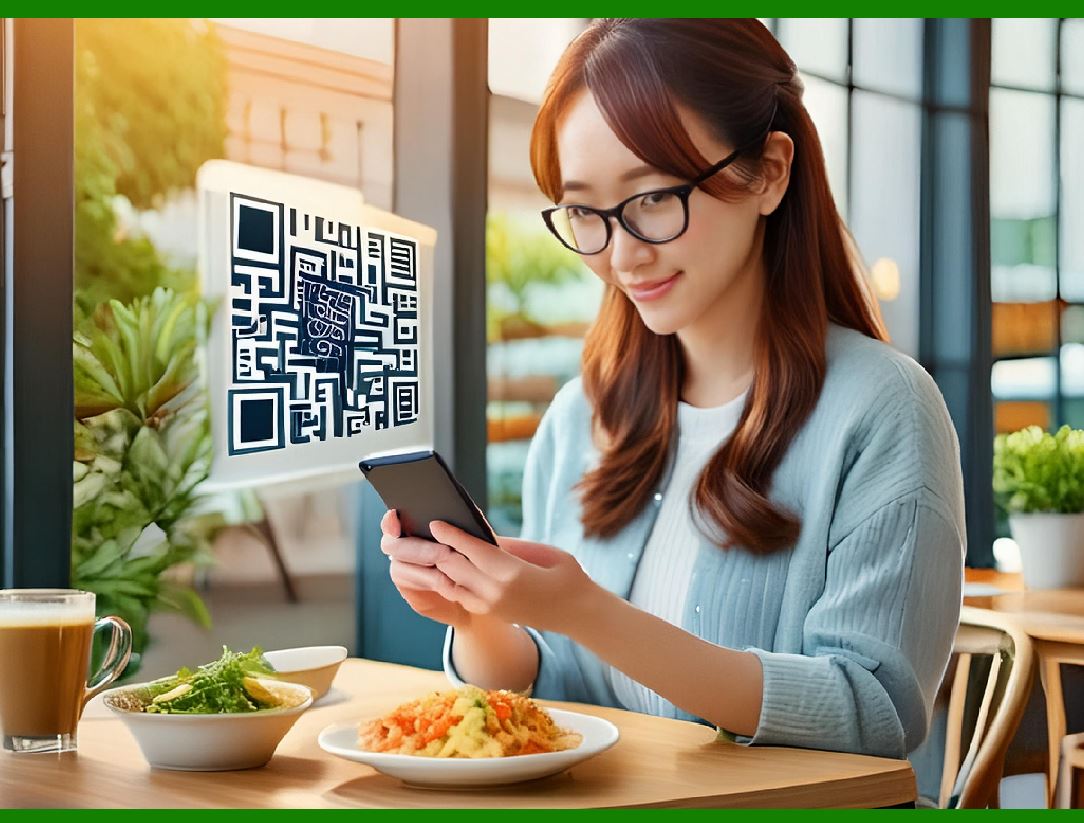
Using a smartphone to scan a barcode has become a common daily activity for people around the world. Whether you are scanning a QR code at a restaurant to view a menu, checking a product price in a store, tracking a package, logging inventory at work, or accessing a website from printed materials, barcode scanning has evolved into an essential skill. |
In the past, barcode scanning required dedicated hardware devices that were expensive, bulky, and limited to professional environments such as warehouses and retail checkout counters. Today, modern smartphones have high-resolution cameras, powerful processors, and advanced image recognition software that allow them to scan almost any barcode quickly and accurately. |
This guide is written for everyday users, not engineers or developers. It explains barcode scanning in simple, practical terms, starting from the basics and gradually moving into advanced usage scenarios. By the end of this guide, you will understand not only how to scan a barcode, but also how to troubleshoot problems, improve scanning accuracy, understand different barcode types, and use barcode scanning effectively in real-world situations. |
|
2. What Is a Barcode and Why It Can Be Scanned |
A barcode is a visual representation of data that can be read by machines. It stores information using patterns such as lines, squares, dots, or shapes arranged in a specific format. |
When you scan a barcode with your smartphone, the phone camera captures an image. Software inside the phone analyzes the image, recognizes the barcode pattern, decodes it, and converts it into usable information such as text, numbers, or a web address. |
Barcodes are designed to be easy for machines to read while remaining printable on paper, labels, screens, packaging, and signs. This makes them ideal for connecting physical objects with digital information. |

|
3. Types of Barcodes You Can Scan with a Smartphone |
Before learning how to scan, it helps to understand that not all barcodes look the same. Smartphones can scan many barcode types, but they fall into two main categories. |
3.1 One-Dimensional Barcodes |
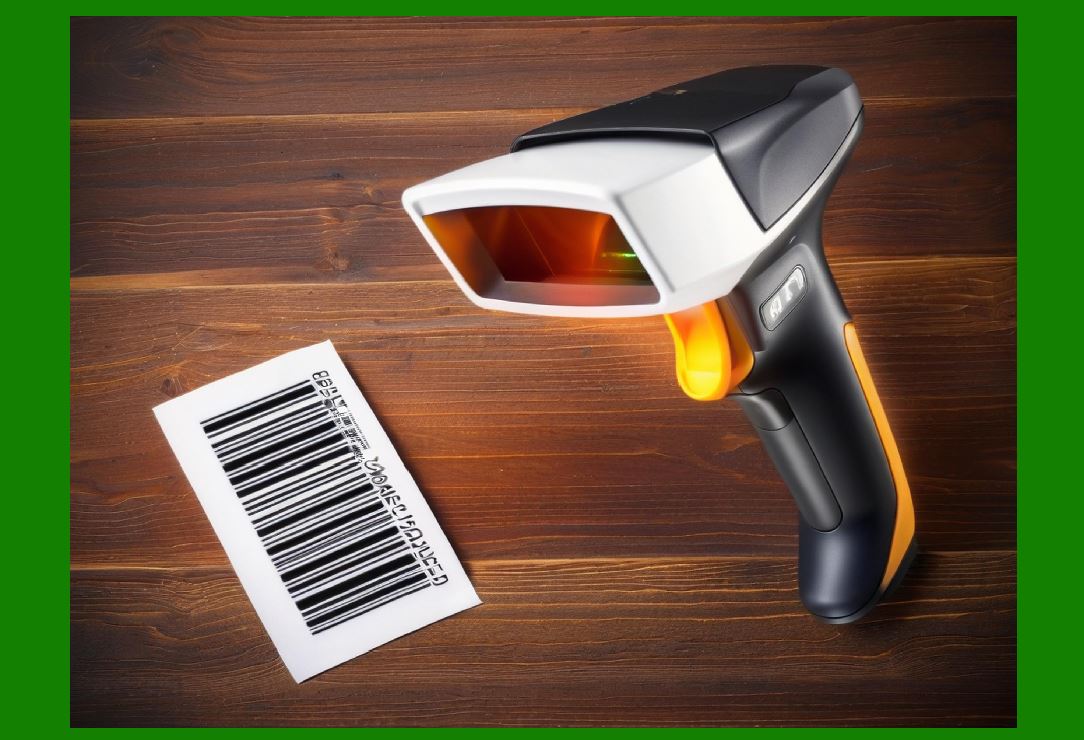
One-dimensional barcodes are the traditional barcodes made of vertical lines of varying widths. They are commonly used on retail products and shipping labels. |
Examples include UPC, EAN, Code 128, Code 39, and ITF. These barcodes usually encode numbers or short text strings. |
3.2 Two-Dimensional Barcodes |
Two-dimensional barcodes store information in both horizontal and vertical directions. They look like squares or rectangles made of small blocks or dots. |
The most well-known example is the QR code. Other examples include Data Matrix, PDF417, and Aztec codes. These can store much more information than one-dimensional barcodes and are widely used for websites, payments, tickets, and authentication. |
Most modern smartphones can scan both one-dimensional and two-dimensional barcodes. |

|
4. What You Need Before You Start Scanning |
Before scanning a barcode with your smartphone, make sure the following basic requirements are met. |
4.1 A Smartphone with a Camera |
Almost all modern smartphones have cameras capable of scanning barcodes. The better the camera quality, the faster and more reliable the scanning experience. |
4.2 Sufficient Lighting |
Good lighting is essential. Barcodes rely on contrast between dark and light areas. Poor lighting, glare, or shadows can make scanning difficult. |
4.3 A Supported Scanning Method |
Your phone needs a way to scan barcodes. This can be: |
* The built-in camera app |
* A system-level scanning feature |
* A third-party barcode scanning app |
|
5. Using the Built-In Camera App to Scan a Barcode |
Many smartphones today allow barcode scanning directly through the default camera app, without installing anything extra. |
5.1 How Built-In Camera Scanning Works |
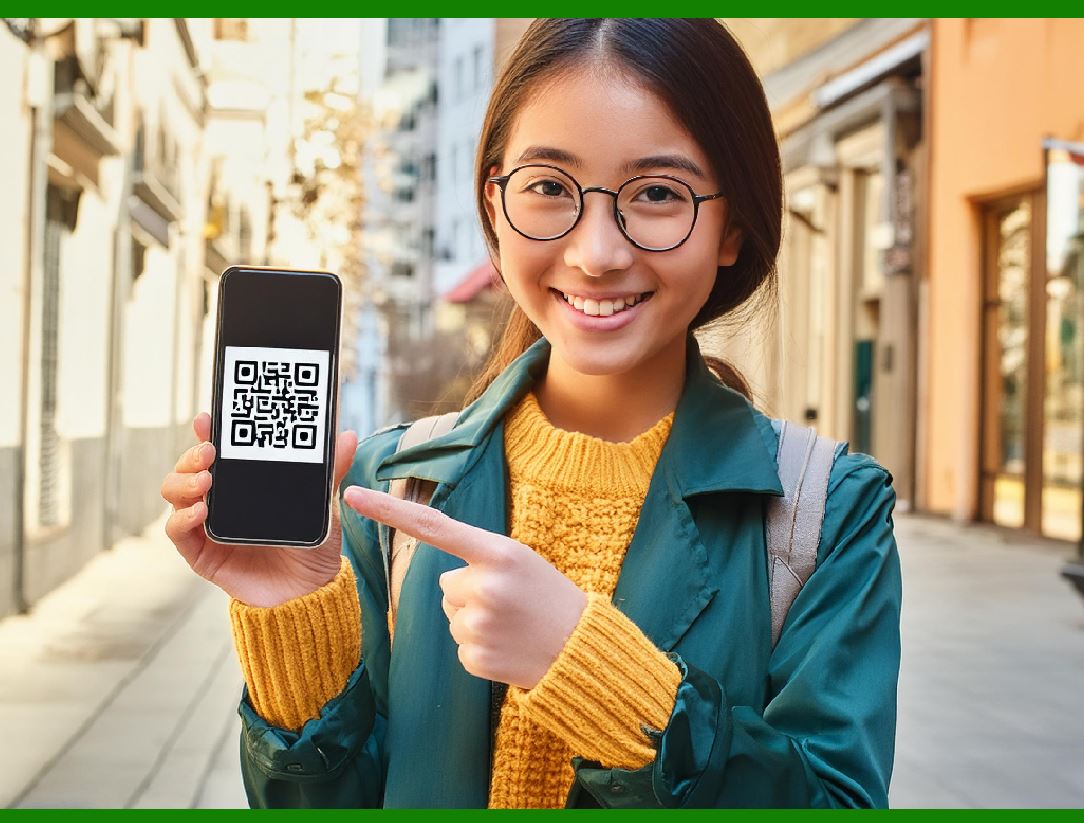
When you point your camera at a barcode, the camera software automatically detects the barcode pattern. Once detected, it decodes the barcode and shows a notification or pop-up with the decoded information. |
This method is simple and fast, making it ideal for casual users. |
5.2 Steps to Scan Using the Camera App |
1. Unlock your smartphone. |
2. Open the camera app. |
3. Switch to the standard photo or camera mode. |
4. Point the camera at the barcode. |
5. Hold the phone steady and make sure the barcode fits inside the camera frame. |
6. Wait for the phone to recognize the barcode. |
7. Tap the notification or on-screen prompt to view the result. |
5.3 Common Results You May See |
Depending on the barcode content, you may see: |
* A web address |
* Plain text |
* A phone number |
* Contact information |
* Wi-Fi connection details |
* App download prompts |
|
6. Using a Dedicated Barcode Scanning App |
If your camera app does not support scanning, or if you need more advanced features, you can use a dedicated barcode scanning app. |
6.1 Why Use a Barcode Scanning App |
Barcode scanning apps often provide: |
* Support for more barcode types |
* Faster recognition |
* Scan history |
* Batch scanning |
* Export options |
* Offline scanning |
6.2 Basic Steps Using a Scanning App |
1. Open the barcode scanning app. |
2. Grant camera permissions if prompted. |
3. Position the barcode within the scanning frame. |
4. Hold the phone steady. |
5. Wait for the app to detect and decode the barcode. |
6. View or act on the decoded information. |
6.3 Understanding the Scanning Interface |
Most scanning apps display: |
* A rectangular scanning area |
* A guide line or frame |
* A flashlight icon for low light |
* Scan results at the bottom or in a new screen |

|
7. How to Hold Your Phone for Best Scanning Results |
Proper phone positioning plays a major role in scanning success. |
7.1 Distance from the Barcode |
Hold your phone far enough away so the entire barcode is visible, but close enough that the camera can focus clearly. |
7.2 Angle and Alignment |
Keep the phone parallel to the barcode surface. Avoid tilting the phone too much, as distortion can confuse the scanner. |
7.3 Stability |
Hold the phone steady. Shaky movement can blur the image and prevent detection. |
|
8. Lighting Tips for Successful Barcode Scanning |
Lighting conditions significantly affect scanning accuracy. |
8.1 Avoid Glare and Reflections |
Shiny surfaces can reflect light into the camera. Slightly change the angle to reduce glare. |
8.2 Use Natural Light When Possible |
Soft, even lighting works best. Bright sunlight can sometimes cause harsh shadows. |
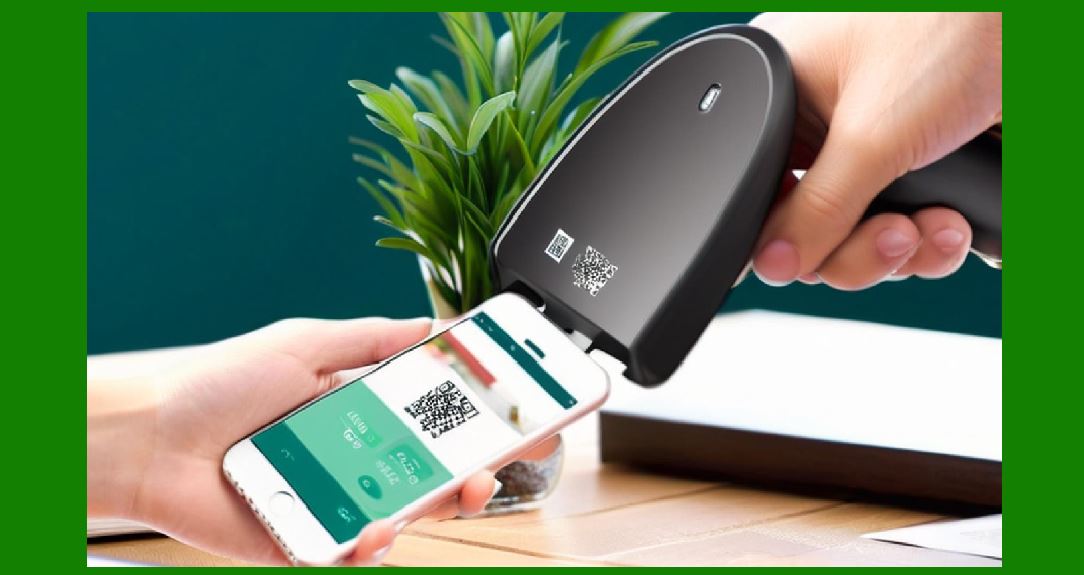
8.3 Use the Phone Flashlight |
Many scanning apps allow you to turn on the flashlight. This helps in dark environments. |
|
9. Scanning Barcodes from Screens Versus Printed Materials |
Barcodes can appear on screens or physical surfaces. |
9.1 Scanning from Printed Paper |
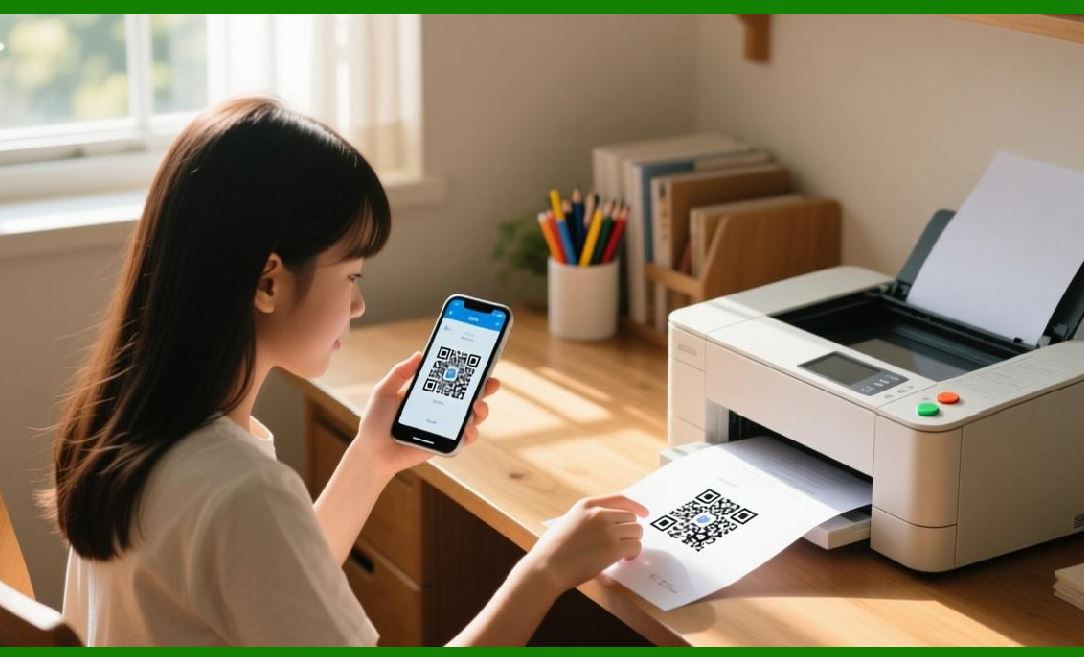
Printed barcodes are generally easy to scan if they are not damaged, wrinkled, or faded. |
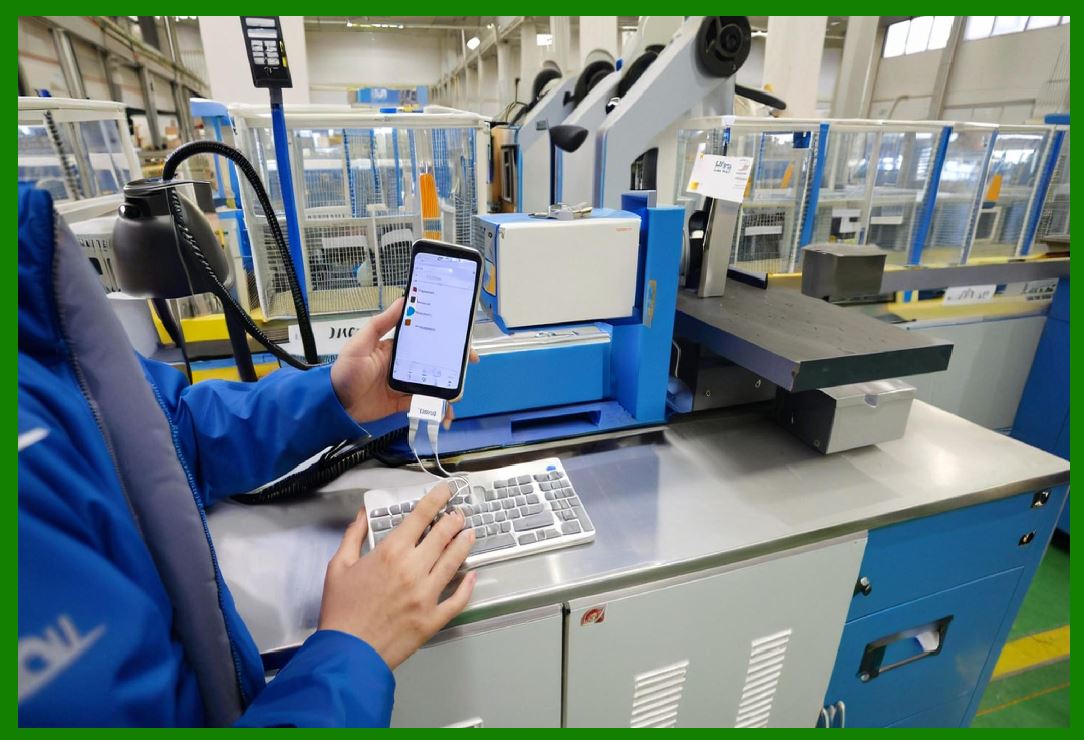
9.2 Scanning from Another Screen |
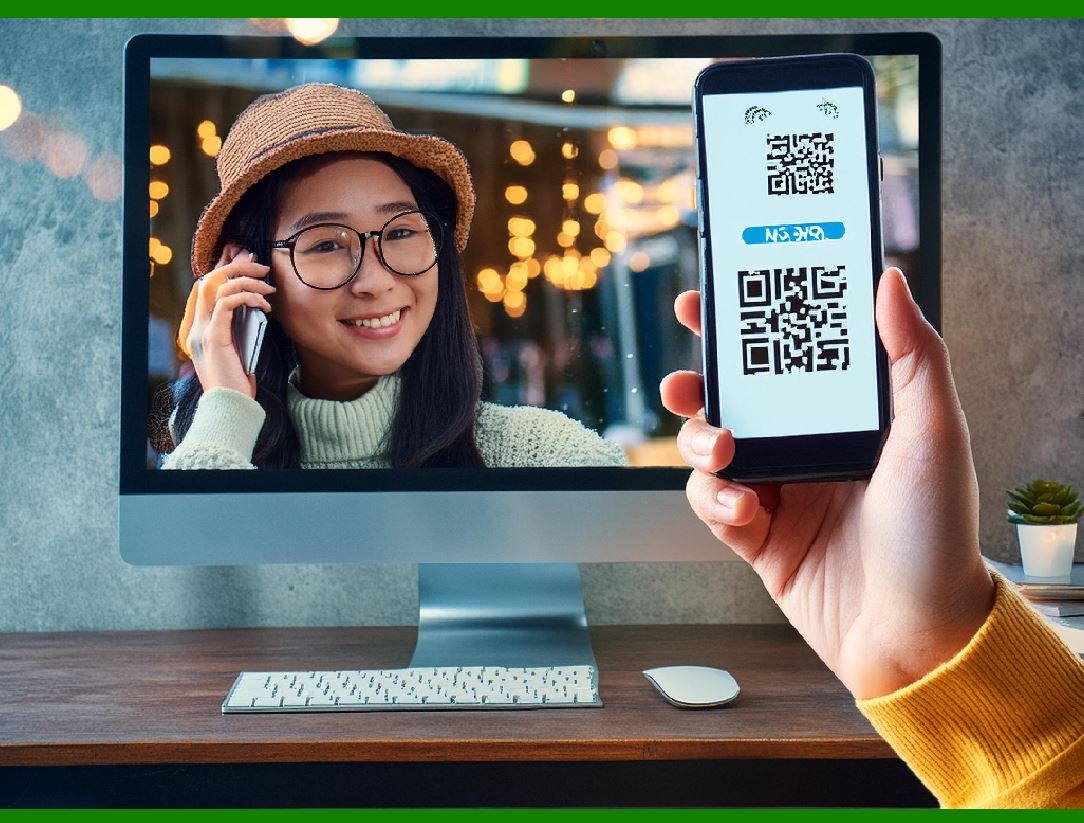
Scanning a barcode displayed on another phone, tablet, or monitor works well, but screen brightness may need adjustment. |
|
10. Understanding the Scan Result |
After scanning, your phone shows the decoded information. |
10.1 Website Links |
If the barcode contains a website address, tapping it opens the site in your browser. |
10.2 Text and Numbers |
Some barcodes contain plain text or numeric codes, which can be copied or shared. |
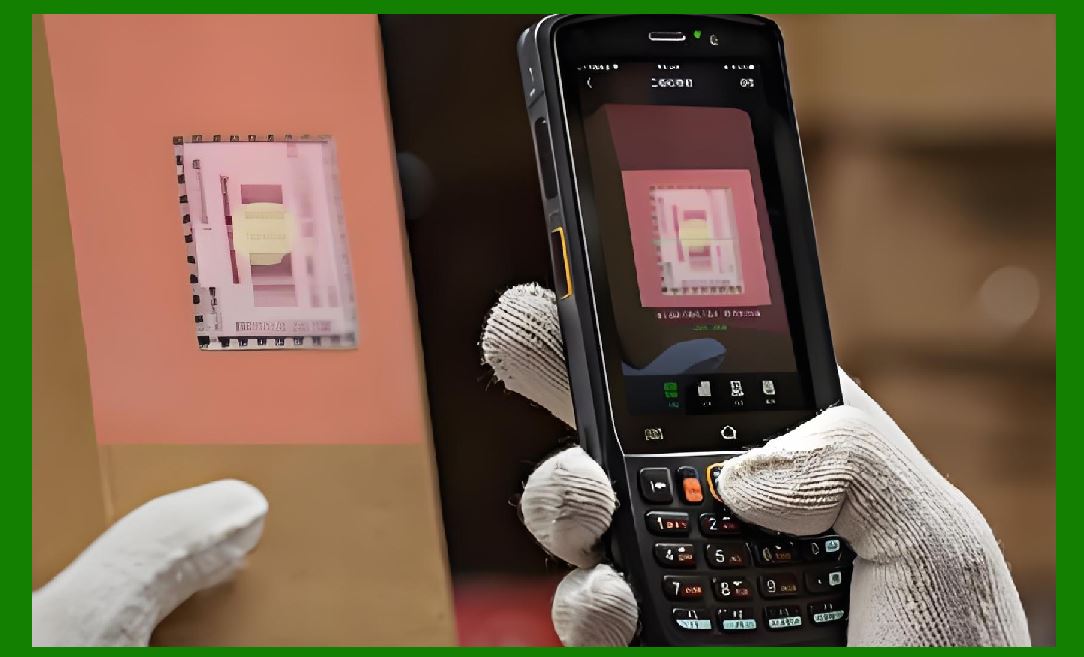
10.3 Actions and Shortcuts |
Certain barcodes trigger actions such as connecting to Wi-Fi, adding a contact, or opening an app. |
|
11. Common Problems and How to Fix Them |
Even with modern smartphones, scanning may sometimes fail. |
11.1 Blurry Image |
Move slightly farther away or clean the camera lens. |
11.2 Poor Contrast |
Ensure the barcode is clearly printed and well lit. |
11.3 Damaged Barcode |
If part of the barcode is missing or torn, scanning may not work. |

|
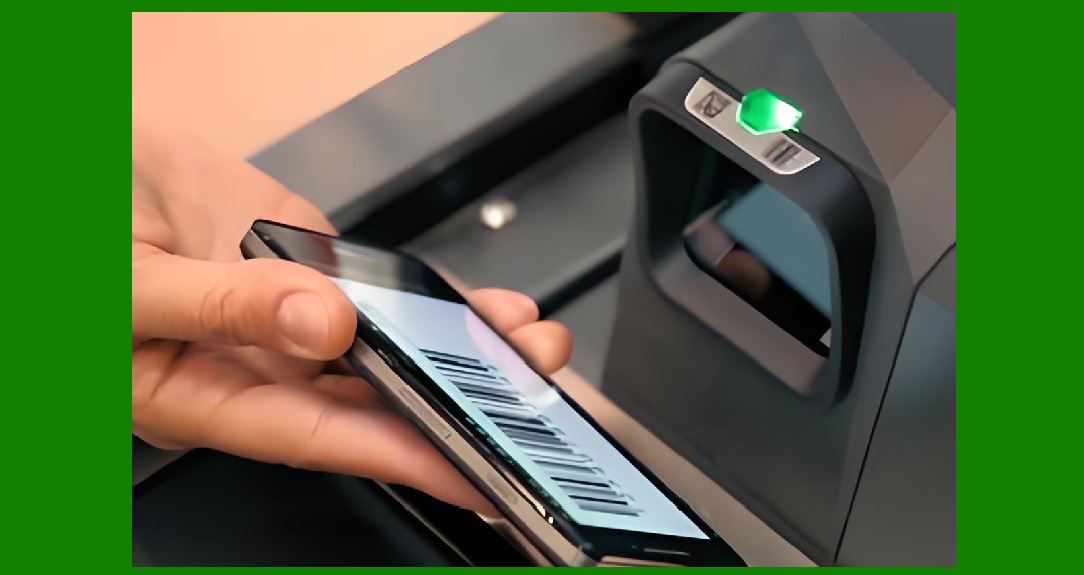
12. Scanning One-Dimensional Barcodes with a Smartphone |
One-dimensional barcodes require horizontal clarity. |
12.1 Best Practices |
Make sure the entire barcode width is visible and straight. |
12.2 When Scanning Fails |
Some camera apps focus mainly on QR codes. A dedicated scanning app may work better. |
|
13. Scanning QR Codes in Everyday Situations |
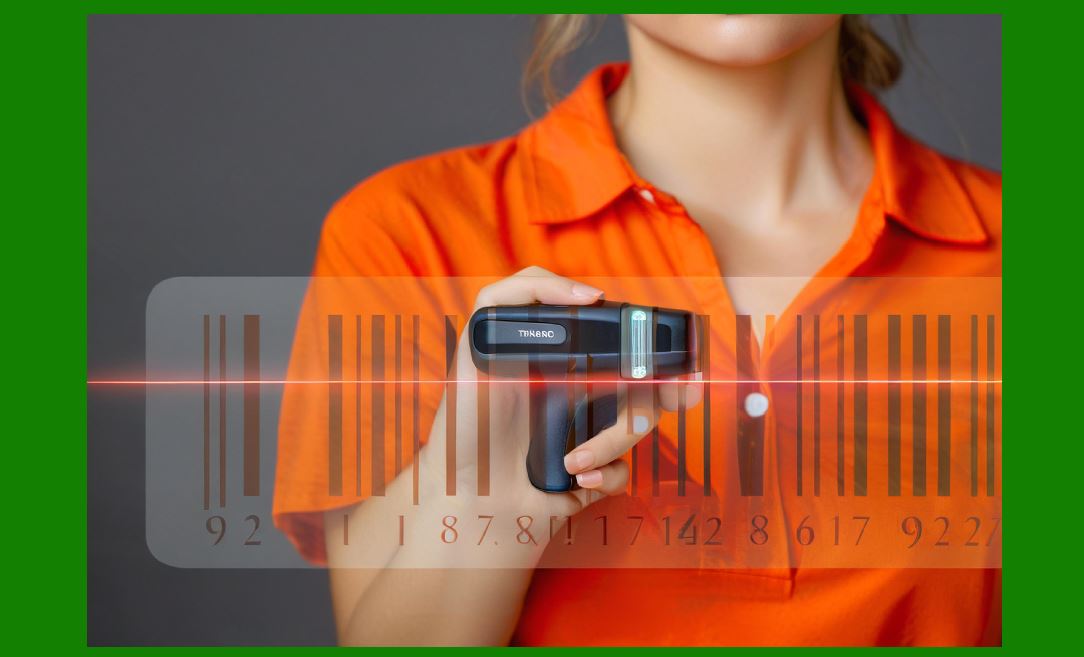
QR codes are everywhere. |
13.1 Restaurants and Cafes |
Menus, ordering systems, and feedback forms often use QR codes. |
13.2 Payments |
Mobile payment systems rely heavily on QR code scanning. |
13.3 Marketing and Advertising |
Posters, flyers, and packaging frequently include QR codes linking to promotions. |
|
14. Safety and Privacy Considerations |
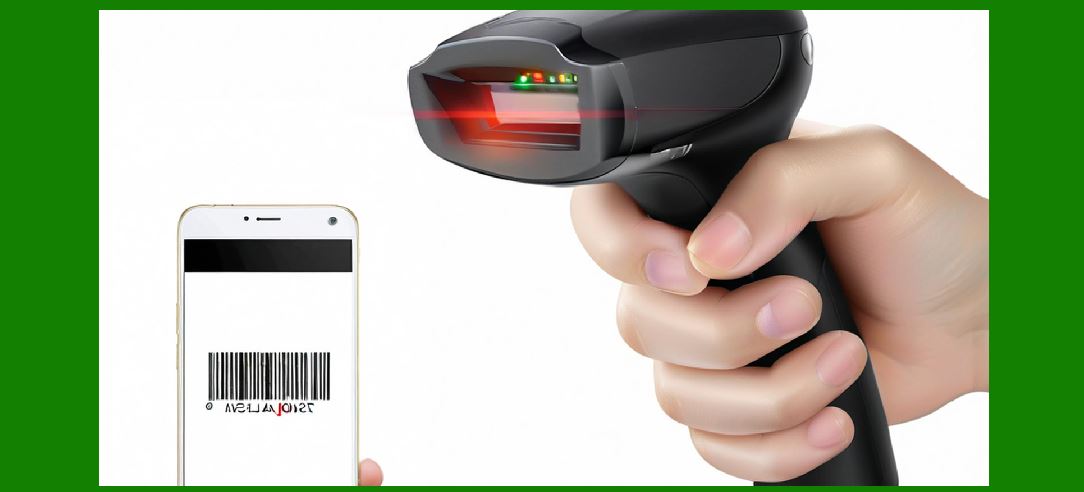
Scanning barcodes can expose you to digital risks. |
14.1 Verify Before Opening Links |
Avoid opening suspicious or unknown links. |
14.2 Be Cautious with Permissions |
Only grant necessary permissions to scanning apps. |
|
15. Using Barcode Scanning for Work and Productivity |
Barcode scanning is not limited to casual use. |
15.1 Inventory Management |
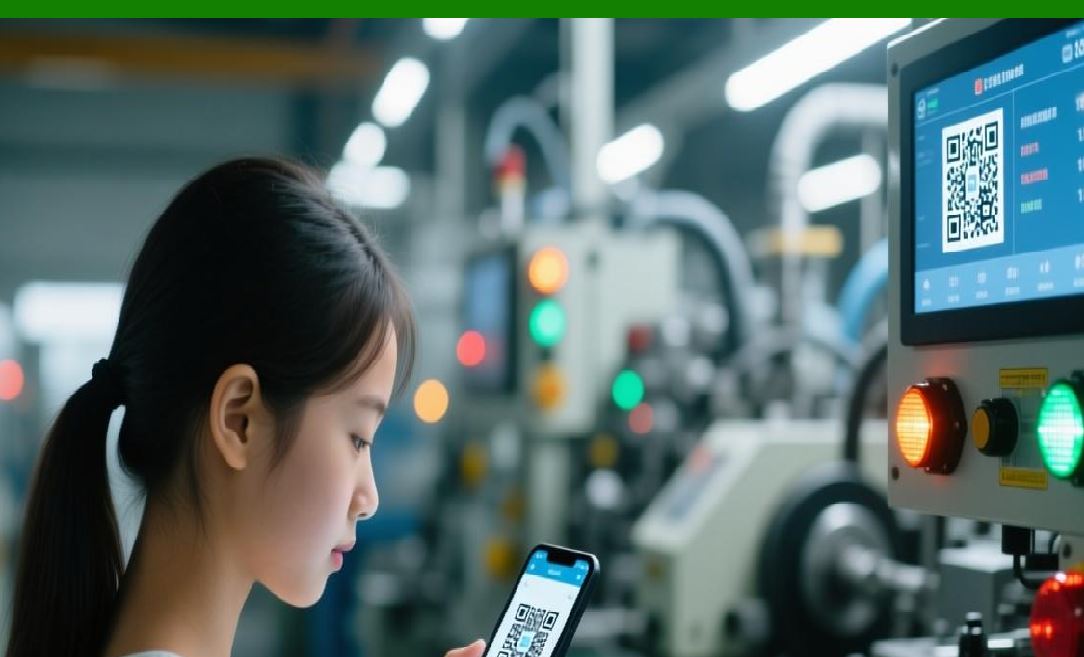
Employees can scan items to track stock. |
15.2 Asset Tracking |
Barcodes help identify and manage equipment. |
15.3 Document Management |
Barcodes on documents speed up filing and retrieval. |

|
16. Advanced Tips for Better Scanning Performance |
Experienced users can improve scanning efficiency. |
16.1 Clean the Camera Lens Regularly |
Dust and fingerprints reduce image clarity. |
16.2 Use Autofocus Properly |
Tap the screen to focus if needed. |
16.3 Avoid Digital Zoom |
Physically move closer instead of zooming. |

|
17. Accessibility Features for Barcode Scanning |
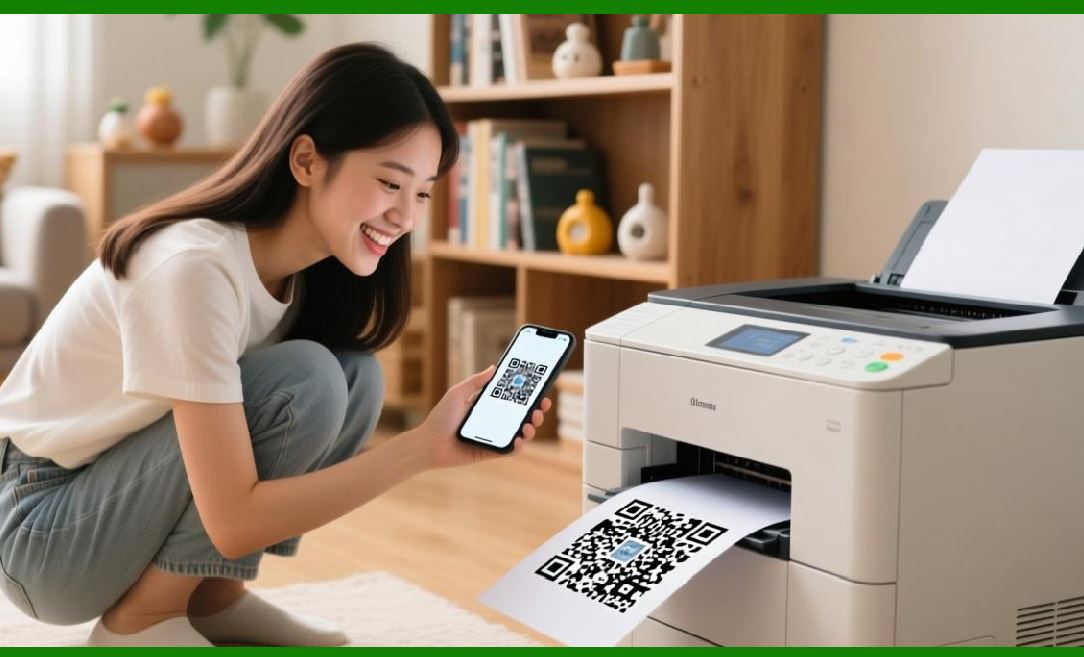
Smartphones offer accessibility tools. |
17.1 Voice Feedback |
Some apps announce scan results aloud. |
17.2 Large Text Display |
Results can be displayed in large fonts. |
|
18. Offline Barcode Scanning |
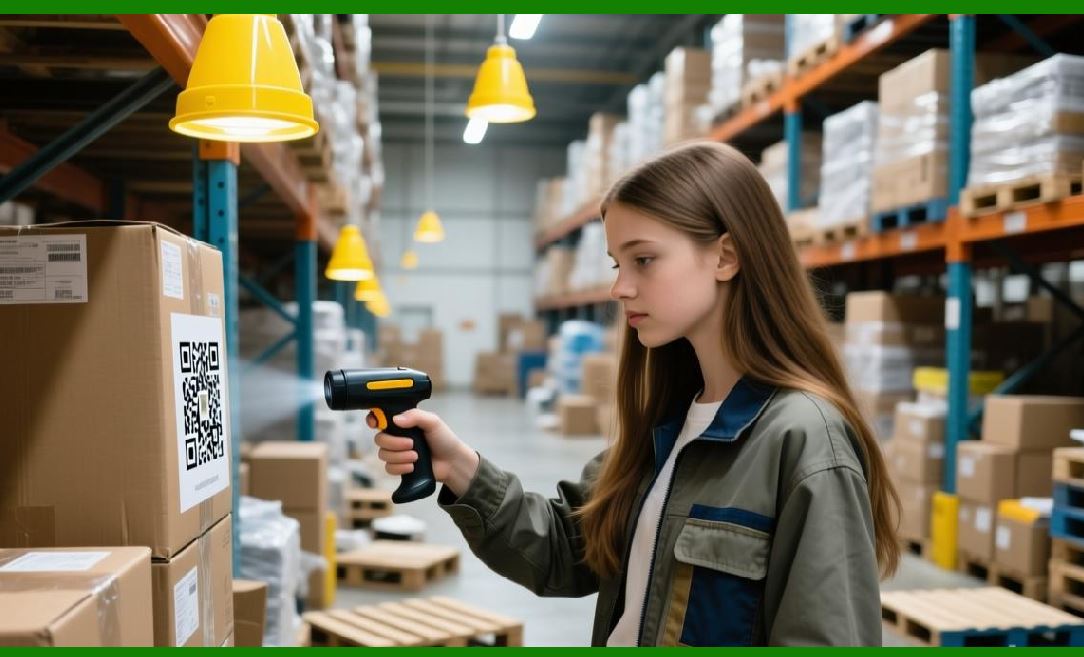
Some scanning apps work without internet access. |
18.1 When Offline Scanning Is Useful |
Warehouses, travel, and remote areas. |
18.2 Syncing Results Later |
Data can be uploaded when internet access is restored. |
|
19. Scanning Barcodes in Low-Quality Conditions |
Real-world barcodes are not always perfect. |
19.1 Wrinkled or Curved Surfaces |
Adjust the angle and distance. |
19.2 Small Barcodes |
Move closer and ensure focus. |
|
20. Future of Smartphone Barcode Scanning |
Barcode scanning continues to evolve. |
20.1 Improved AI Recognition |
Smarter algorithms improve accuracy. |
20.2 Integration with Augmented Reality |
Future apps may overlay information in real time. |
|
21. Summary: Mastering Barcode Scanning with Your Smartphone |
Using a smartphone to scan a barcode is a practical skill that combines simple actions with powerful technology. By understanding how barcodes work, choosing the right scanning method, positioning your phone correctly, and following best practices, you can scan barcodes quickly, accurately, and safely in almost any situation. |
Whether you are a casual user scanning a menu or a professional managing inventory, smartphone barcode scanning is a reliable, efficient, and accessible tool that connects the physical and digital worlds seamlessly. |
 cs@easiersoft.com