Barcode Technology

Barcode History

Barcode Label Paper

Barcode Printer

Barcode Application

Inventory Management

AI Barcode QRCode

Barcode Scanner

Barcode Software

Barcode Software B

Barcode Software C

Barcode Software D

Barcode Software E

New Technology A

New Technology B

Robot Technology

Barcode Types

Barcode Types B

Barcode Types C

Barcode Types D

Barcode Types E

Barcode Types F

Electronic Technology

Psychology at Work

Barcode Technology and Barcode Software Related   <<< Back to Directory <<<

Detail about GTIN-14 barcode

GTIN-14 (Global Trade Item Number 14) is a specific type of barcode used for product identification and labeling.

Structure:

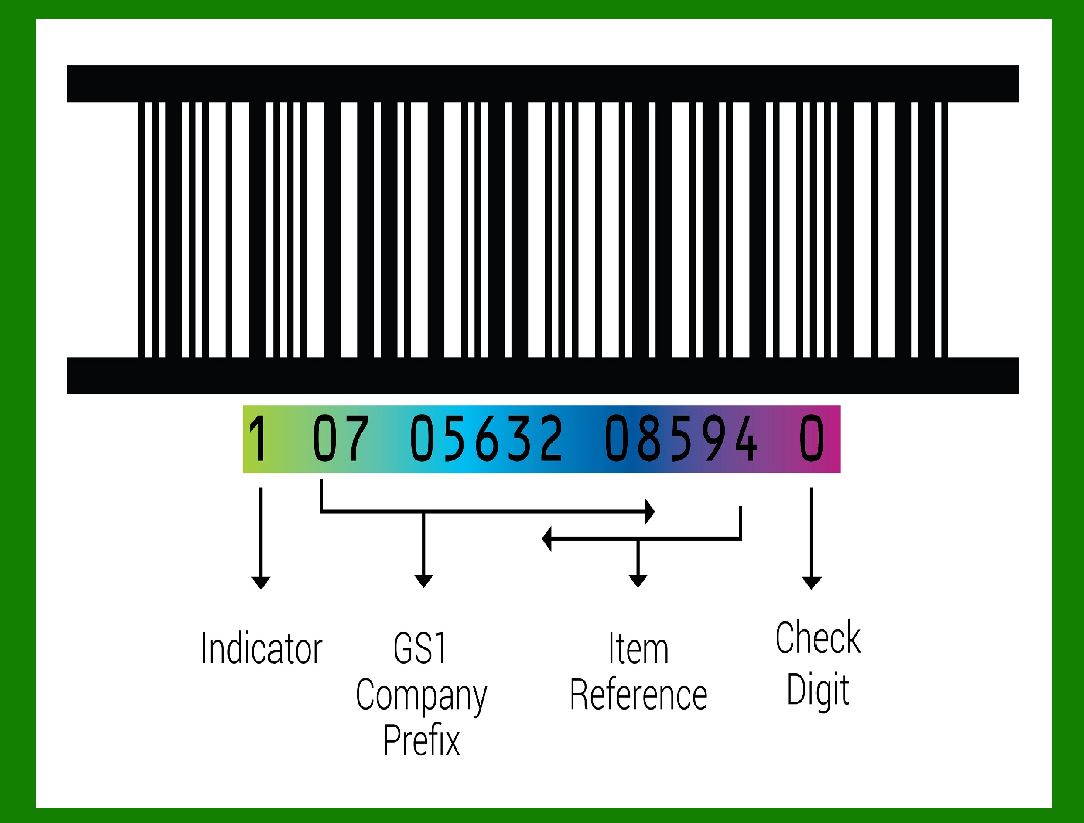
GTIN-14 consists of 14 digits.

These digits are divided into two parts:

13 data digits: These encode relevant information about the product.

1 checksum digit: Used for error detection.

Purpose:

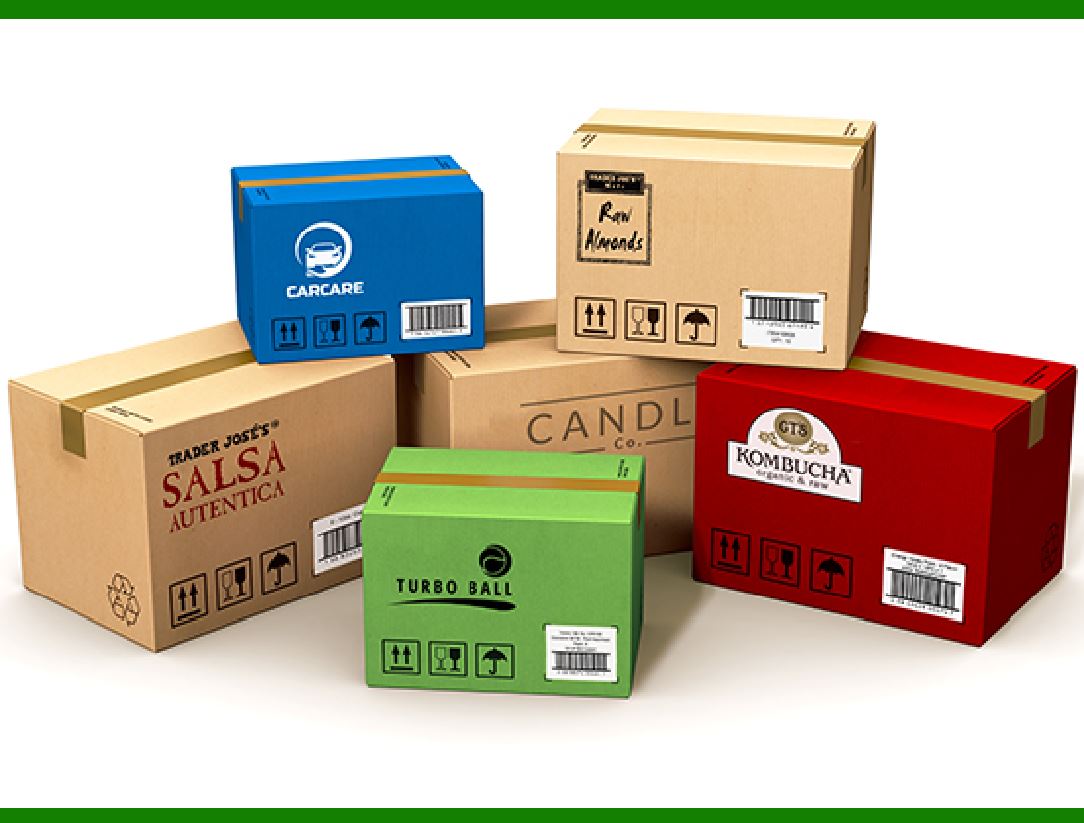
GTIN-14 is primarily used to identify trade item groupings. Examples include:

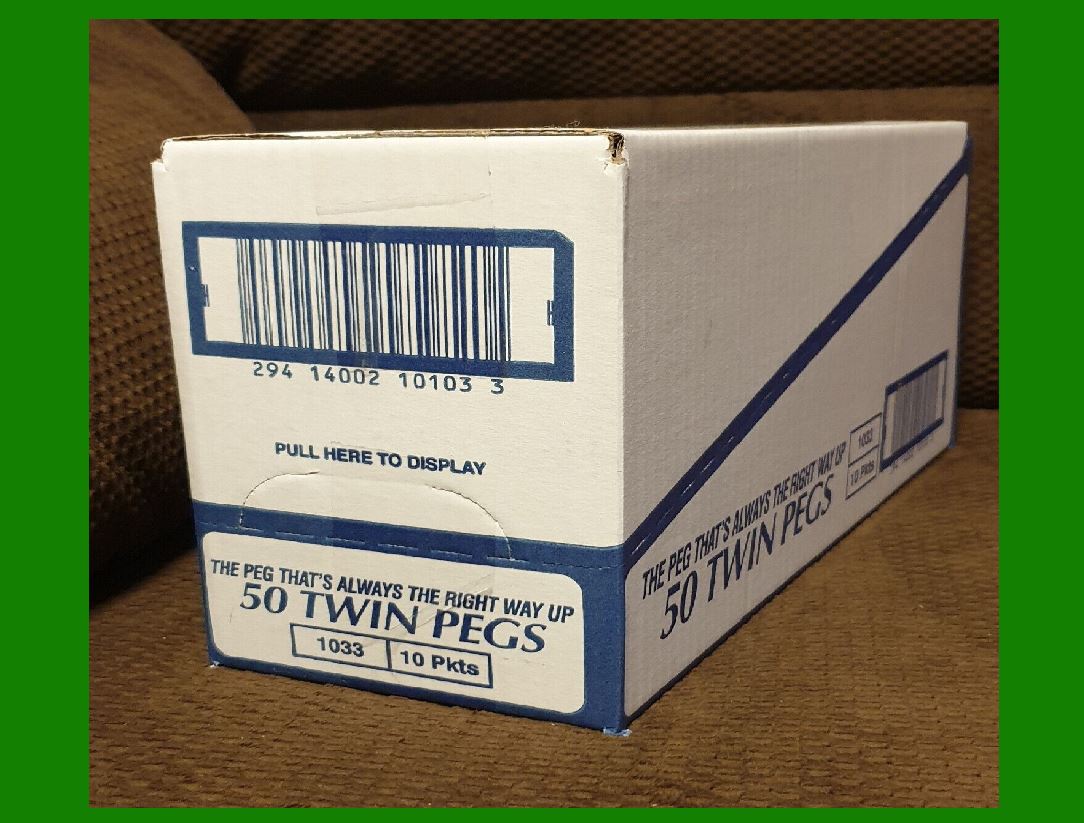
A case of a product (multiple individual items packaged together).

An inner pack (a smaller quantity within a larger package).

Encoding:

GTIN-14 can be encoded in different barcode symbologies:

GS1-128: This symbology uses the Application Identifier (AI) 01 to represent GTIN-14.

ITF-14: Another option, which does not use an Application Identifier.

Conversion:

GTIN numbers can have varying lengths (8, 12, 13, or 14 digits).

To convert other GTIN formats to GTIN-14, add leading zeros:

GTIN-8 to GTIN-14: Add 6 zeros at the front.

GTIN-12 to GTIN-14: Add 2 zeros at the front.

GTIN-13 to GTIN-14: Add 1 zero at the front.

Examples:

GTIN-8 (23456785) becomes EAN-14 (UCC-14) by adding 6 zeros: 00000023456785.

GTIN-12 (123456789012) becomes EAN-14 (UCC-14) by adding 2 zeros: 00123456789012.

GTIN-13 (1234567890128) becomes EAN-14 (UCC-14) by adding 1 zero: 01234567890128.

Contact GS1:

For valid and unique GTIN numbers, reach out to your local GS1 organization.

Notes: GTIN-14 is not intended for point-of-sale use; it serves as a crucial identifier for product groupings in supply chains and logistics.

The GTIN-14 (Global Trade Item Number) serves several essential purposes in supply chain management and product identification:

Grouping Products:

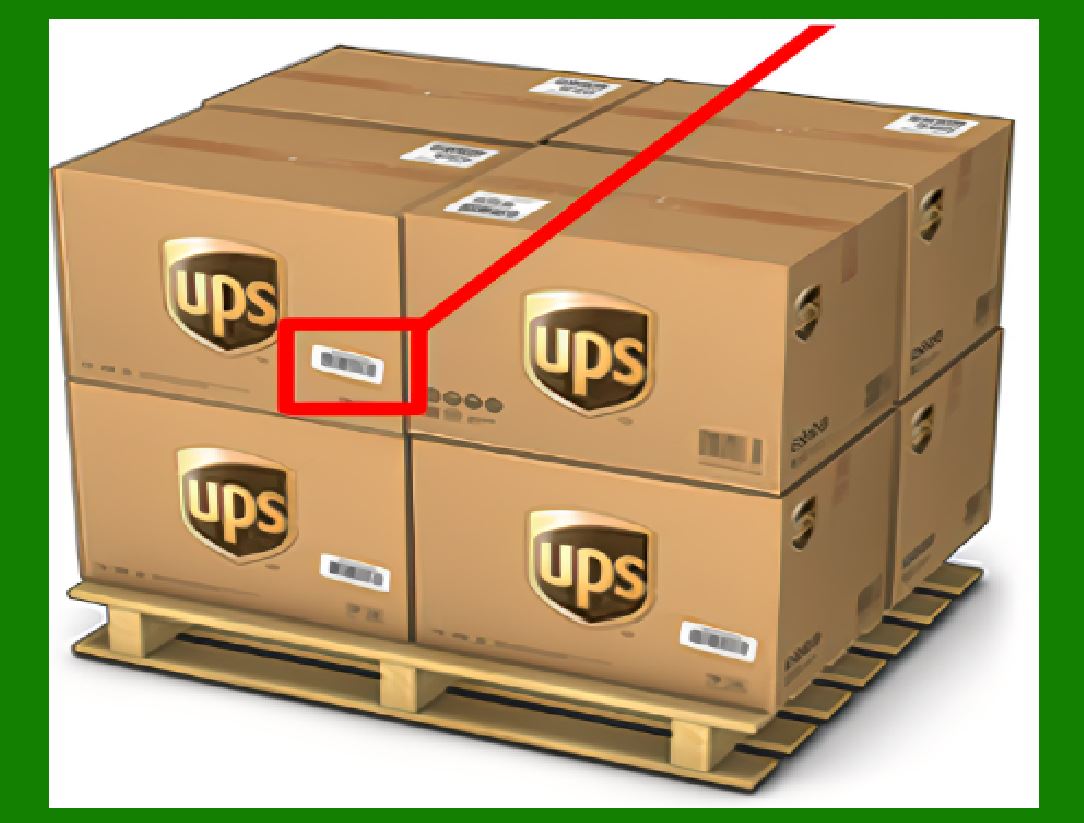
GTIN-14 is used to identify trade item groupings, such as cases of products, inner packs, or pallets. It allows efficient tracking and handling of bulk quantities during transportation and storage.

Logistics and Inventory Management:

By encoding information about product packaging levels (e.g., cartons, cases), GTIN-14 helps streamline logistics processes. It ensures accurate inventory management, stock replenishment, and order fulfillment.

Barcode Labeling:

GTIN-14 is part of the GS1-128 barcode symbology. When printed as a barcode on packaging, it enables automated scanning and data capture at various points along the supply chain.

Supply Chain Traceability:

Each GTIN-14 is unique to a specific product grouping. It facilitates traceability, allowing businesses to track the movement of goods from manufacturer to retailer and beyond.

Cross-Referencing:

GTIN-14 can be cross-referenced with other GTINs (such as GTIN-12 for individual items) to establish relationships between different packaging levels. For example, it connects individual products to their cases or cartons.

Compliance and Standardization:

GTIN-14 adheres to global standards set by GS1. Consistent use of GTINs ensures accurate data exchange, reduces errors, and enhances interoperability across trading partners.

GTIN-14 plays a crucial role in maintaining supply chain efficiency, product visibility, and accurate inventory control.


EasierSoft Barcode Label Design & Bulk Printing Software

---- Use Excel Data to Batch Print Barcodes on Label Sheets or Roll Labels  

---- How to use this barcode software

Download:  Free Barcode Software + Barcode Label Designer

Download Free Barcode Software at Softonic

     Download at CNET

Once you obtain a GS1/UPC/EAN barcode, or other barcode type and QR code, you can use our free software to batch print barcode labels onto Roll label paper using a professional label printer, or to batch print barcodes onto Avery 5160 label sheets using a regular laser or inkjet printer. Our software has free and paid versions.

The free version fully meets your needs for batch printing GS1/UPC/EAN barcodes. The paid version can import data from Excel and databases to batch print barcode labels with different values.

How to Start

Input Data

Import Excel Data

Print Barcode

Barcode Format

Label Designer

All Screen Shot

Export Barcode Image

Save Template

Output Word Excel

How to Use & FAQ:

Example: Print barcodes to 5167 label

Example: Print barcodes to 5168 label

Example: Print portrait orientation 5168

Example: Print barcodes to 5169 label

Example: Print barcodes to 5660 label

Example: Print barcodes to 5661 label

Example: Print barcodes to 5662 label

Example: Print barcodes to 5663 label

Example: Print barcodes to 5664 label

Example: Print portrait orientation 5664

Example: Print barcodes to 5873 label

Example: Print barcodes to 5874 label

Two ways to import Excel data

Import Excel Data - Pro Edition

Import Excel Data - Std Edition

Import Data from Excel - Detail

Load Data From Excel File

Data Editing Table

Copy Data From Excel

Four ways to input barcode data

Add ASCII Key E

Input Multiple Lines of Text for Barcodes

Generates Sequential Serial Numbers

Import or copy data from Excel sheets

Special sequence number generation

Std Details: Simple Input Form

Std Details: Multiple Line Text Input

Details: Sequence Barcode Generator

Examples: Sequence Barcode Generator

Import Data From Excel Spreadsheet

Barcode Data Correspondence Diagram

Data Editor

Editing a Single Row Data in Form

Batch Editing Multiple Rows of Data

Batch Data Editing - Example 2

Design & print complex barcode labels

Configuring Text Elements on Label

Configuring Barcode Elements on Label

Configuring Image Elements on Label

Setting Line Elements on Label

Designing Labels for 5164 Sheet

Advanced Page Layout Settings

Add Barcode Elements to a Label

Configuring Parameters of a Barcode

Entering Multiple Values for a Barcode

Print barcode labels

Print bulk barcodes - How to start

Four sections of print bulk barcodes

Barcode Filter & Repeat Print Quantity

Print on part of the page

Highlights

Excel integration: Import data directly from Excel to generate and print barcodes in bulk.

Label designer: Create complex labels with multiple barcodes, text, logos, and shapes.

Batch printing: Print thousands of barcodes at once using standard inkjet/laser printers or professional barcode printers.


Flexible editions:

Standard Edition: Simple batch printing with Excel data.

Professional Edition: Adds command-line automation for workflow integration.

Label Designer Edition: Advanced design features for complex labels.


Why Choose Our Barcode Solutions?

Cost-effective: Free online generator and permanent free desktop version available.

Easy to use: No technical expertise required—just input data and print.

Versatile: Supports nearly all 1D and 2D barcode types, including QR codes.

Trusted: Recommended by CNET and widely downloaded by users worldwide.


Suitable Use Cases

Small businesses and startups needing quick barcode labels for products.

Retailers and online sellers managing inventory with batch barcode printing.

Manufacturers requiring sequential or custom barcode labels for packaging.

Educational and testing environments where barcodes are used for tracking.


CONTACT

cs@easiersoft.com

If you have any question, please feel free to email us.


https://free-barcode.com


<<< Back to Directory <<<     Barcode Generator     Barcode Freeware     Privacy Policy