Barcode Technology

Barcode History

Barcode Label Paper

Barcode Printer

Barcode Application

Inventory Management

AI Barcode QRCode

Barcode Scanner

Barcode Software

Barcode Software B

Barcode Software C

Barcode Software D

Barcode Software E

New Technology A

New Technology B

Robot Technology

Barcode Types

Barcode Types B

Barcode Types C

Barcode Types D

Barcode Types E

Barcode Types F

Electronic Technology

Psychology at Work

Barcode Technology and Barcode Software Related   <<< Back to Directory <<<

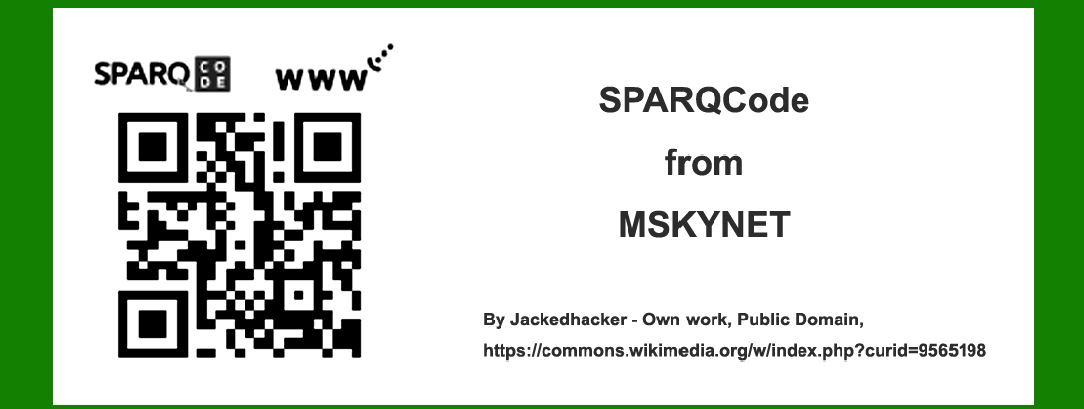
Encoding of the SPARQCode from MSKYNET

To delve into the encoding of SPARQCode from MSKYNET, we must first understand its structure and encoding methodology. SPARQCode is a relatively new entrant in the realm of 2D barcodes, designed to be versatile and efficient across various applications. Let's explore its encoding process in detail.

Overview of SPARQCode

SPARQCode is a type of 2D barcode that utilizes a unique encoding scheme optimized for data storage and retrieval. It is characterized by its square shape, which contains modules arranged in a grid pattern. Each module can either be black or white, representing binary data encoded within the barcode.

Encoding Methodology

1. Data Segmentation

SPARQCode utilizes various encoding modes to efficiently store different types of data. These modes include:

Numeric mode: Suitable for encoding numerical data (0-9).

Alphanumeric mode: Supports alphanumeric characters (0-9, A-Z, space, $, %, *, +, -, ., /, :).

Byte mode: Capable of encoding binary data such as ASCII text, bytes, or UTF-8 characters.

Kanji mode: Designed specifically for encoding Kanji characters in accordance with the Shift JIS character set.

The selection of encoding mode depends on the type of data being encoded, with the goal of minimizing the barcode size while maximizing data storage capacity.

2. Error Correction

To enhance reliability, SPARQCode incorporates error correction mechanisms. These mechanisms enable the barcode to withstand damage or distortion during printing or scanning. Error correction levels are defined, typically ranging from L (lowest) to H (highest), with higher levels offering increased redundancy at the cost of reduced data capacity.

3. Structure and Format

SPARQCode's structure consists of several key elements:

Quiet Zone: A clear area surrounding the barcode to prevent interference from surrounding elements.

Finder Patterns: Special patterns located at three corners of the barcode to aid in locating and orienting the barcode during scanning.

Alignment Patterns: Additional patterns within the barcode grid to facilitate accurate scanning at different distances and angles.

Timing Patterns: Horizontal and vertical alternating patterns used for timing synchronization during scanning.

Format Information: Encoded data specifying the barcode's error correction level and mask pattern.

4. Encoding Examples

Let's illustrate the encoding process with a few examples across different modes:

Example 1: Numeric Mode

Suppose we want to encode the numeric string '12345' in SPARQCode:

Convert each digit into its corresponding binary representation.

Select the numeric encoding mode.

Apply error correction based on the chosen level (e.g., Level H for maximum error correction).

Encoded data (simplified):

Start pattern: 101

Data bits: Numeric mode indicator (0001), '12345' in binary representation.

Error correction bits.

Stop pattern.

Example 2: Alphanumeric Mode

Encode the alphanumeric string 'HELLO123' in SPARQCode:

Convert alphanumeric characters into their binary equivalents using a predefined table.

Select the alphanumeric encoding mode.

Apply appropriate error correction for robustness.

Encoded data (simplified):

Start pattern: 101

Data bits: Alphanumeric mode indicator (0010), binary representations of 'HELLO123'.

Error correction bits.

Stop pattern.

Example 3: Byte Mode

Encode a binary file or UTF-8 encoded text into SPARQCode:

Convert each byte into binary format.

Select the byte encoding mode.

Adjust error correction level as needed.

Encoded data (simplified):

Start pattern: 101

Data bits: Byte mode indicator (0100), binary representation of the file or text.

Error correction bits.

Stop pattern.

Example 4: Kanji Mode

Encode a Kanji character string '日本語' (Japanese language) into SPARQCode:

Convert Kanji characters into their Shift JIS binary equivalents.

Select the Kanji encoding mode.

Implement error correction to ensure readability.

Encoded data (simplified):

Start pattern: 101

Data bits: Kanji mode indicator (1000), Shift JIS binary representation of '日本語'.

Error correction bits.

Stop pattern.

Conclusion

SPARQCode's encoding methodology revolves around efficient data segmentation, error correction, and structured formatting to ensure reliable storage and retrieval of information. By employing different encoding modes and error correction levels, SPARQCode optimizes data density while maintaining scan reliability across various applications. This approach makes SPARQCode an ultimate choice for scenarios requiring robust 2D barcode solutions.


EasierSoft Barcode Label Design & Bulk Printing Software

---- Use Excel Data to Batch Print Barcodes on Label Sheets or Roll Labels  

---- How to use this barcode software

Download:  Free Barcode Software + Barcode Label Designer

Download Free Barcode Software at Softonic

     Download at CNET

Once you obtain a GS1/UPC/EAN barcode, or other barcode type and QR code, you can use our free software to batch print barcode labels onto Roll label paper using a professional label printer, or to batch print barcodes onto Avery 5160 label sheets using a regular laser or inkjet printer. Our software has free and paid versions.

The free version fully meets your needs for batch printing GS1/UPC/EAN barcodes. The paid version can import data from Excel and databases to batch print barcode labels with different values.

How to Start

Input Data

Import Excel Data

Print Barcode

Barcode Format

Label Designer

All Screen Shot

Export Barcode Image

Save Template

Output Word Excel

How to Use & FAQ:

Label Designer - Add new label

Label Designer - Printing

Set the barcode label format to be printed

Other Barcode Label Format Settings

Barcode types supported by this program

Barcode Label Font Settings

Configuring the Barcode Print Rotation

Text Alignment for Barcode Labels

Automatically Adjusting Barcode Width

Text Beneath the Barcode

Configuring Barcode Size

Auto Calculate the Barcode Size

Export Barcode images

Export Barcode Image Format

File Names for Exported Barcode

Resolution of Exported Barcode Images

Fixed Folder for Exporting Barcode

Default Barcode Image Export Format

Print bulk barcodes quickly

Print barcodes to Avery 5160 label

How to bulk Barcode Printing

Sample - Avery 5162 (2x7) Label Sheet

Example: Print barcodes to 5*3cm roll

Example: Print barcodes to 5161 label

Example: Print barcodes to 5162 label

Example: Print barcodes to 5163 label

Example: Print barcodes to 5164 label

Example: Print portrait orientation 5164

Example: Print barcodes to 5167 label

Example: Print barcodes to 5168 label

Example: Print portrait orientation 5168

Example: Print barcodes to 5169 label

Example: Print barcodes to 5660 label

Example: Print barcodes to 5661 label

Example: Print barcodes to 5662 label

Example: Print barcodes to 5663 label

Example: Print barcodes to 5664 label

Example: Print portrait orientation 5664

Example: Print barcodes to 5873 label

Example: Print barcodes to 5874 label

Two ways to import Excel data

Import Excel Data - Pro Edition

Import Excel Data - Std Edition

Import Data from Excel - Detail

Load Data From Excel File

Data Editing Table

Copy Data From Excel

Four ways to input barcode data

Add ASCII Key E

Input Multiple Lines of Text for Barcodes

Highlights

Excel integration: Import data directly from Excel to generate and print barcodes in bulk.

Label designer: Create complex labels with multiple barcodes, text, logos, and shapes.

Batch printing: Print thousands of barcodes at once using standard inkjet/laser printers or professional barcode printers.


Flexible editions:

Standard Edition: Simple batch printing with Excel data.

Professional Edition: Adds command-line automation for workflow integration.

Label Designer Edition: Advanced design features for complex labels.


Why Choose Our Barcode Solutions?

Cost-effective: Free online generator and permanent free desktop version available.

Easy to use: No technical expertise required—just input data and print.

Versatile: Supports nearly all 1D and 2D barcode types, including QR codes.

Trusted: Recommended by CNET and widely downloaded by users worldwide.


Suitable Use Cases

Small businesses and startups needing quick barcode labels for products.

Retailers and online sellers managing inventory with batch barcode printing.

Manufacturers requiring sequential or custom barcode labels for packaging.

Educational and testing environments where barcodes are used for tracking.


CONTACT

cs@easiersoft.com

If you have any question, please feel free to email us.


https://free-barcode.com


<<< Back to Directory <<<     Barcode Generator     Barcode Freeware     Privacy Policy