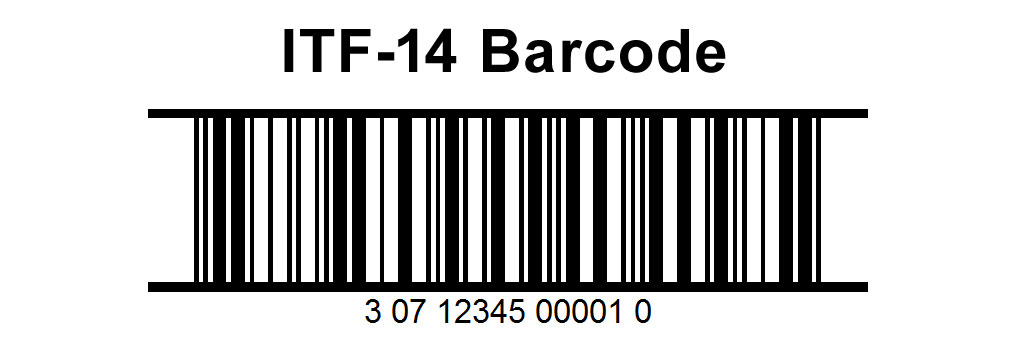
Encoding of the ITF-14 barcode involves several key elements that define how data is represented and structured within the barcode. Here's a detailed explanation of how ITF-14 barcodes are encoded, including examples to illustrate the process. |
|
ITF-14 Barcode Overview |
ITF-14 (Interleaved 2 of 5) is a linear barcode symbology used primarily for marking cartons, cases, and pallets in the supply chain. It is based on the Interleaved 2 of 5 barcode format, which encodes numeric data pairs interleaved together. |
|
Structure of ITF-14 Barcode |
1.Start Code: The ITF-14 barcode starts with a quiet zone, followed by a start pattern that marks the beginning of the barcode. 2.Number System Character: This single-digit character indicates the numbering system used. It ranges from 0 to 9 and typically identifies the type of product. 3.Manufacturer Code: This section contains a variable number of digits (up to six) assigned by GS1 to identify the manufacturer or company that owns the product identification number. 4.Product Code: This portion contains a variable number of digits (up to five) assigned by the manufacturer to identify a specific product or package. 5.Check Digit: The last digit in the barcode is a calculated checksum digit used to ensure data accuracy. 6.Stop Code: The ITF-14 barcode ends with a stop pattern, followed by a quiet zone to complete the barcode. |

|
Encoding Process |
Step 1: Data Preparation |
Before encoding, the data must be structured according to the rules of ITF-14 encoding: |
Number System Character: Determine the appropriate number system based on the type of product being identified. For example, number system 0 is used for items sold in the US and Canada. Manufacturer Code: Obtain the GS1-assigned manufacturer code, ensuring it is correctly formatted and includes leading zeros if necessary. Product Code: Obtain the product code assigned by the manufacturer, ensuring it is correctly formatted and includes leading zeros if necessary. |

|
Step 2: Calculation of Check Digit |
The check digit is a calculated value based on a specific algorithm applied to the preceding digits (number system, manufacturer code, and product code). It is computed to ensure that the barcode can be read accurately even if it is slightly damaged or distorted. |
The check digit calculation follows these steps: |
Addition of Digits: Add the digits in odd positions (1st, 3rd, 5th, etc.) of the data. Multiply and Add: Multiply the sum obtained in the previous step by 3, and then add the sum of the digits in even positions (2nd, 4th, 6th, etc.). Modulo 10: Calculate the modulo 10 of the result obtained in the previous step. The check digit is the remainder when the sum is divided by 10. If the remainder is 0, the check digit is 0. |
Example: Consider the number system character is 0, manufacturer code is 12345, and product code is 67890. |
Sum of odd positions: 0 (number system) + 1 + 3 + 5 = 9 Sum of even positions: 2 + 4 + 6 + 8 + 0 = 20 Multiply sum of odd positions by 3: 9 * 3 = 27 Add sum of even positions: 27 + 20 = 47 Modulo 10: 47 mod 10 = 7 |
Therefore, the check digit in this example would be 7. |

|
Step 3: Encoding the Barcode |
Once the data and check digit are determined, the barcode can be encoded. ITF-14 uses sets of narrow and wide bars to represent each pair of digits. Each digit pair (one from number system, one from manufacturer code, and one from product code) is encoded interleaved together. |
Interleaving: Each digit is represented by a combination of bars (black) and spaces (white). The first digit is encoded using bars, and the second digit is encoded using spaces, with the widths of the bars and spaces representing the specific digit. Start Code: Begins with a specific pattern of bars and spaces that indicate the start of the barcode. Data Bars: Each digit pair (interleaved) is represented by a specific sequence of bars and spaces, according to a predefined encoding table. Check Digit: The calculated check digit is encoded as the final digit in the barcode. Stop Code: Ends with a specific pattern that indicates the end of the barcode. |
|
Example of ITF-14 Encoding |
Let's encode the ITF-14 barcode for a hypothetical product: |
Number System Character: 0 Manufacturer Code: 12345 Product Code: 67890 |
1.Data Preparation: Number System Character: 0 Manufacturer Code: 12345 Product Code: 67890 |
2.Calculation of Check Digit: Sum of odd positions: 0 + 1 + 3 + 5 = 9 Sum of even positions: 2 + 4 + 6 + 8 + 0 = 20 Multiply sum of odd positions by 3: 9 * 3 = 27 Add sum of even positions: 27 + 20 = 47 Modulo 10: 47 mod 10 = 7 Check digit is 7. |
3.Encoding the Barcode: Start Code: A specific pattern indicating the start of the barcode. Data Bars: Each digit pair (interleaved) is encoded according to the ITF-14 encoding rules. Check Digit: The calculated check digit (7) is included in the barcode. Stop Code: A specific pattern indicating the end of the barcode. |

|
Example of encoded bars and spaces (simplified representation): |
Start Code | Data Bars | Check Digit | Stop Code ------------------------------------------------ Bar | Space | Bar (7) | Bar Space | Bar | Bar | Space Bar | Space | Bar | Bar |
|
Conclusion |
ITF-14 barcode encoding involves structuring the data (number system, manufacturer code, product code), calculating a check digit for data integrity, and encoding the data using a specific pattern of bars and spaces. Understanding these steps is essential for generating and decoding ITF-14 barcodes accurately in various supply chain applications. |
 cs@easiersoft.com