Barcode Technology

Barcode History

Barcode Label Paper

Barcode Printer

Barcode Application

Inventory Management

AI Barcode QRCode

Barcode Scanner

Barcode Software

Barcode Software B

Barcode Software C

Barcode Software D

Barcode Software E

New Technology A

New Technology B

Robot Technology

Barcode Types

Barcode Types B

Barcode Types C

Barcode Types D

Barcode Types E

Barcode Types F

Electronic Technology

Psychology at Work

Barcode Technology and Barcode Software Related   <<< Back to Directory <<<

About EAN-8 barcode

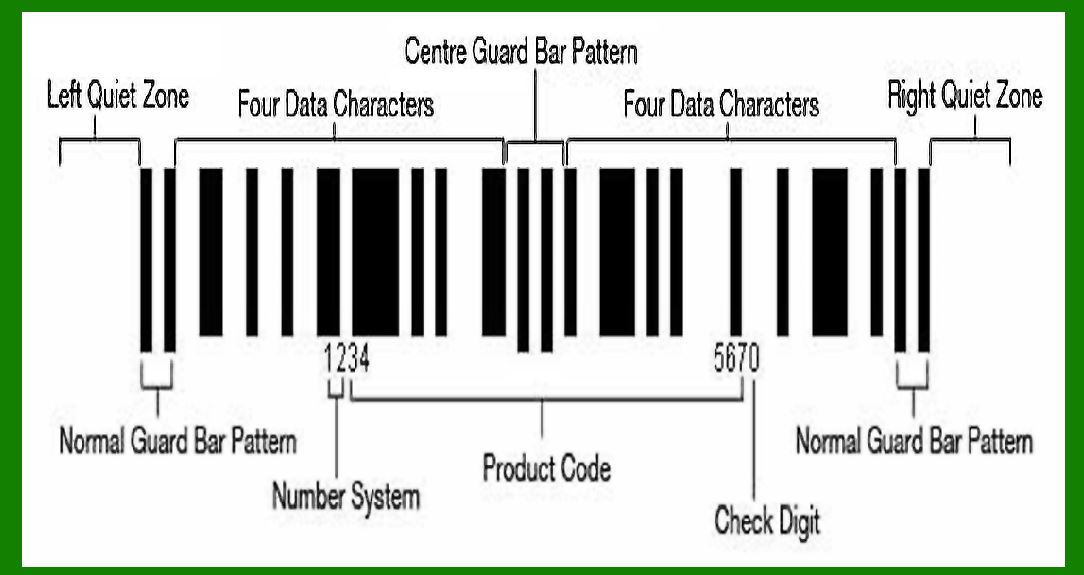
EAN-8 (European Article Number-8) is a barcode standard that encodes a unique identifier for small products. It is a compressed version of the more common EAN-13 barcode, designed for smaller packages where a full EAN-13 barcode would not fit. For example on cigarettes, pencils, and chewing gum packets. It is encoded identically to the 12 digits of the UPC-A barcode, except that it has 4 (rather than 6) digits in each of the left and right halves.

EAN-8 barcodes may be used to encode GTIN-8 (8-digit Global Trade Identification Numbers) which are product identifiers from the GS1 System. A GTIN-8 begins with a 2- or 3-digit GS1 prefix (which is assigned to each national GS1 authority) followed by a 5- or 4-digit item reference element depending on the length of the GS1 prefix), and a checksum digit.

EAN-8 codes are common throughout the world, and companies may also use them to encode RCN-8 (8-digit Restricted Circulation Numbers), and use them to identify own-brand products sold only in their stores. RCN-8 are a subset of GTIN-8 which begin with a first digit of 0 or 2.

Here are the detailed features and structure of the EAN-8 barcode:

Structure and Composition

1.Total Digits:

EAN-8 contains a total of 8 digits.

2.Components:

Prefix: The first three digits usually represent a country code or a system number assigned by GS1, an international organization that manages barcode standards.

Data Digits: The next four digits are the unique product code assigned by the manufacturer.

Check Digit: The last digit is a check digit used for error detection, calculated using a modulo 10 algorithm.

Visual Layout

1.Quiet Zones:

These are blank spaces on either side of the barcode, which help scanners detect the beginning and end of the barcode. The quiet zone should be at least 7 times the width of the narrowest bar element.

2.Guard Bars:

These are special bars at the start, middle, and end of the barcode. They help the scanner identify the position and orientation of the barcode.

Start Guard Bars: Represented by the pattern 101.

Center Guard Bars: Represented by the pattern 01010.

End Guard Bars: Represented by the pattern 101.

3.Data Bars:

The actual bars representing the digits. Each digit is encoded using a series of bars and spaces of varying widths.

EAN-8 uses the Left-Hand and Right-Hand encoding scheme, similar to EAN-13 but without splitting the code into left and right parts. Instead, all digits are encoded uniformly.

Encoding Scheme

1.Left-Hand Digits:

The first four digits are encoded using the Left-Hand scheme. Each digit is represented by a unique combination of bars and spaces.

2.Right-Hand Digits:

The last four digits are encoded using the Right-Hand scheme, which has a different pattern from the Left-Hand encoding.

Check Digit Calculation

The check digit ensures the barcode is correctly composed. The steps to calculate the check digit are as follows:

1.Sum the digits in the odd positions (first, third, fifth, and seventh) and multiply by 3.

2.Sum the digits in the even positions (second, fourth, and sixth).

3.Add the results of step 1 and step 2.

4.The check digit is the number that, when added to the sum from step 3, results in a multiple of 10.

Example

Consider the EAN-8 code 1234567.

1.Prefix: 123

2.Product Code: 4567

3.Calculating the check digit:

Odd positions: 1 + 3 + 5 + 7 = 16

Multiply by 3: 16 * 3 = 48

Even positions: 2 + 4 + 6 = 12

Sum: 48 + 12 = 60

Check digit: 60 is already a multiple of 10, so the check digit is 0.

Therefore, the complete EAN-8 code is 12345670.

Usage

EAN-8 barcodes are commonly used for small items like:

Confectionery products

Small electronics

Cosmetics

Small packages where space is limited

They are particularly popular in retail settings to ensure all products, regardless of size, can be easily scanned and tracked.

Advantages

Compact Size: Ideal for small products.

Global Standard: Accepted worldwide, ensuring consistency across different regions and markets.

Error Detection: Built-in check digit ensures data integrity and reduces scanning errors.

Limitations

Limited Data Capacity: Can only encode up to 8 digits, which may not be sufficient for all products.

Requires GS1 Allocation: Manufacturers must obtain a prefix from GS1, which might involve additional costs and administration.

In summary, EAN-8 barcodes are a compact and efficient solution for labeling small products, ensuring they can be easily identified and scanned in retail environments while maintaining global standardization.


EasierSoft Barcode Label Design & Bulk Printing Software

---- Use Excel Data to Batch Print Barcodes on Label Sheets or Roll Labels  

---- How to use this barcode software

Download:  Free Barcode Software + Barcode Label Designer

Download Free Barcode Software at Softonic

     Download at CNET

Once you obtain a GS1/UPC/EAN barcode, or other barcode type and QR code, you can use our free software to batch print barcode labels onto Roll label paper using a professional label printer, or to batch print barcodes onto Avery 5160 label sheets using a regular laser or inkjet printer. Our software has free and paid versions.

The free version fully meets your needs for batch printing GS1/UPC/EAN barcodes. The paid version can import data from Excel and databases to batch print barcode labels with different values.

How to Start

Input Data

Import Excel Data

Print Barcode

Barcode Format

Label Designer

All Screen Shot

Export Barcode Image

Save Template

Output Word Excel

How to Use & FAQ:

Label Designer - Printing

Set the barcode label format to be printed

Other Barcode Label Format Settings

Barcode types supported by this program

Barcode Label Font Settings

Configuring the Barcode Print Rotation

Text Alignment for Barcode Labels

Automatically Adjusting Barcode Width

Text Beneath the Barcode

Configuring Barcode Size

Auto Calculate the Barcode Size

Export Barcode images

Export Barcode Image Format

File Names for Exported Barcode

Resolution of Exported Barcode Images

Fixed Folder for Exporting Barcode

Default Barcode Image Export Format

Print bulk barcodes quickly

Print barcodes to Avery 5160 label

How to bulk Barcode Printing

Sample - Avery 5162 (2x7) Label Sheet

Example: Print barcodes to 5*3cm roll

Example: Print barcodes to 5161 label

Example: Print barcodes to 5162 label

Example: Print barcodes to 5163 label

Example: Print barcodes to 5164 label

Example: Print portrait orientation 5164

Example: Print barcodes to 5167 label

Example: Print barcodes to 5168 label

Example: Print portrait orientation 5168

Example: Print barcodes to 5169 label

Example: Print barcodes to 5660 label

Example: Print barcodes to 5661 label

Example: Print barcodes to 5662 label

Example: Print barcodes to 5663 label

Example: Print barcodes to 5664 label

Example: Print portrait orientation 5664

Example: Print barcodes to 5873 label

Example: Print barcodes to 5874 label

Two ways to import Excel data

Import Excel Data - Pro Edition

Import Excel Data - Std Edition

Import Data from Excel - Detail

Load Data From Excel File

Data Editing Table

Copy Data From Excel

Four ways to input barcode data

Add ASCII Key E

Input Multiple Lines of Text for Barcodes

Generates Sequential Serial Numbers

Highlights

Excel integration: Import data directly from Excel to generate and print barcodes in bulk.

Label designer: Create complex labels with multiple barcodes, text, logos, and shapes.

Batch printing: Print thousands of barcodes at once using standard inkjet/laser printers or professional barcode printers.


Flexible editions:

Standard Edition: Simple batch printing with Excel data.

Professional Edition: Adds command-line automation for workflow integration.

Label Designer Edition: Advanced design features for complex labels.


Why Choose Our Barcode Solutions?

Cost-effective: Free online generator and permanent free desktop version available.

Easy to use: No technical expertise required—just input data and print.

Versatile: Supports nearly all 1D and 2D barcode types, including QR codes.

Trusted: Recommended by CNET and widely downloaded by users worldwide.


Suitable Use Cases

Small businesses and startups needing quick barcode labels for products.

Retailers and online sellers managing inventory with batch barcode printing.

Manufacturers requiring sequential or custom barcode labels for packaging.

Educational and testing environments where barcodes are used for tracking.


CONTACT

cs@easiersoft.com

If you have any question, please feel free to email us.


https://free-barcode.com


<<< Back to Directory <<<     Barcode Generator     Barcode Freeware     Privacy Policy