Barcode Technology

Barcode History

Barcode Label Paper

Barcode Printer

Barcode Application

Inventory Management

AI Barcode QRCode

Barcode Scanner

Barcode Software

Barcode Software B

Barcode Software C

Barcode Software D

Barcode Software E

New Technology A

New Technology B

Robot Technology

Barcode Types

Barcode Types B

Barcode Types C

Barcode Types D

Barcode Types E

Barcode Types F

Electronic Technology

Psychology at Work

Barcode Technology and Barcode Software Related   <<< Back to Directory <<<

Barcode length optimization by Code 128-C

Barcode length optimization by Code 128 Type-C

Code set C uses one code symbol to represent two digits. Thus it may create shorter barcodes if the content consists of numbers only or if there are longer sequences of digits within the code.

However, when the string contains only a few digits or it's mixed with non-digit character, it does not always produce a more compact code than code sets A or B. Using code set C saves one symbol per two digits, but costs a mode-shift symbol to enter and exit the set. Thus, it is only worth using if there are enough consecutive digits. For example, encoding the string 'X00Y' with code set A or B requires 7 code symbols ([Start B] 56 16 16 57 [checksum] [Stop]), while using code set C for the 'X00Y' would result in a code 8 symbols long ([Start B] 56 [Code C] 00 [Code B] 57 [checksum] [Stop]).

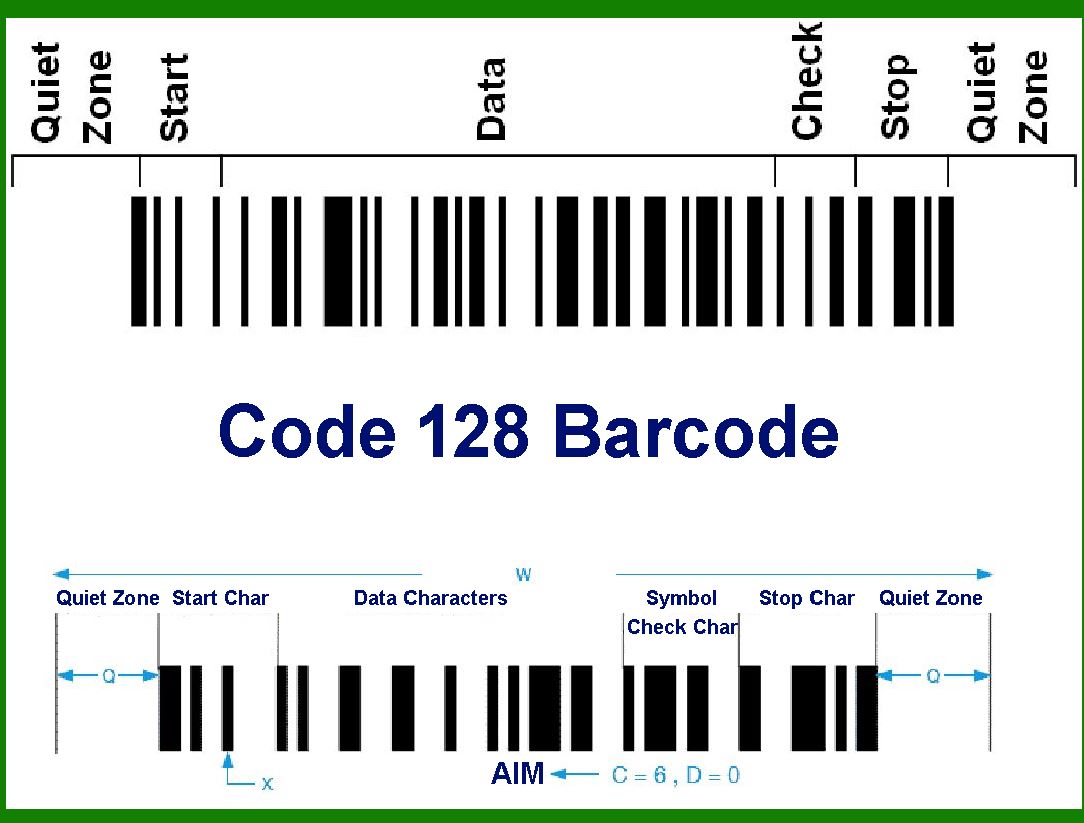
Optimizing barcode length using Code 128 Type-C involves understanding the structure and advantages of the Code 128 symbology, particularly Type-C, and applying these to minimize the barcode length for efficient and accurate scanning.

Here's a detailed explanation:

1. Understanding Code 128 Barcode Symbology

Code 128 is a high-density linear barcode symbology that supports alphanumeric characters, punctuation, and control characters. It is widely used in logistics, inventory management, and other applications where a compact and flexible encoding is necessary.

2. Types of Code 128:

Code 128 has three subsets:

Code 128 A: Includes uppercase letters, numbers, and control characters.

Code 128 B: Includes uppercase and lowercase letters, numbers, and special characters.

Code 128 C: Specializes in encoding numeric data.

3. Code 128 Type-C:

Type-C is particularly optimized for numeric data and encodes pairs of digits. Each pair of digits is represented by a single code value, making it highly efficient for numeric data.

4. Advantages of Code 128 Type-C:

High Data Density: By encoding two digits per symbol, Type-C nearly doubles the data density compared to other Code 128 subsets.

Reduced Barcode Length: For numeric strings, the barcode length can be significantly shorter compared to encoding the same string in alphanumeric mode.

Improved Scanning Accuracy: A shorter barcode reduces the likelihood of scanning errors and increases the reliability of the scanning process.

5. Optimization Process:

To optimize barcode length using Code 128 Type-C, follow these steps:

a. Analyze the Data:

Determine the nature of the data to be encoded. Code 128 Type-C is ideal for numeric data. If the data is purely numeric, proceed with Type-C.

b. Format the Data:

Arrange the numeric data in pairs. Code 128 Type-C encodes pairs of digits efficiently, so ensure the data can be split into even pairs. For an odd number of digits, consider adding a leading zero if possible to make it even.

c. Encode the Data:

Convert each pair of digits into the corresponding Code 128 Type-C value. This is done using a predefined table that maps each digit pair (00-99) to a specific code value.

d. Start, Stop, and Check Characters:

Start Character: Use the Code 128 Type-C start character to signal the beginning of the barcode.

Stop Character: Use the standard stop character to signal the end of the barcode.

Check Character: Calculate the check character by taking the modulo 103 of the weighted sum of all characters (including the start character but excluding the stop character).

6. Example:

Let's encode the numeric string '12345678' using Code 128 Type-C.

Step 1: Analyze Data: The string is purely numeric.

Step 2: Format Data: Split into pairs: 12, 34, 56, 78.

Step 3: Encode Data: Convert each pair to its corresponding Code 128 Type-C value.

'12' → Value for '12' in Code 128 Type-C

'34' → Value for '34' in Code 128 Type-C

'56' → Value for '56' in Code 128 Type-C

'78' → Value for '78' in Code 128 Type-C

Step 4: Add Start, Stop, and Check Characters:

Start Character (Code C)

Encoded Pairs

Check Character

Stop Character

7. Final Barcode:

The resulting barcode will be much shorter than if the same data were encoded using Code 128 A or B, due to the efficient pairing mechanism of Type-C.

8. Practical Considerations:

Scanner Compatibility: Ensure that the scanners used are compatible with Code 128 Type-C.

Data Formatting: Pre-process the data to ensure it's in a suitable format for Type-C encoding.

Check Character Calculation: Implement or use reliable libraries to correctly calculate the check character to avoid errors.

Conclusion:

By using Code 128 Type-C for numeric data, you can significantly reduce barcode length, which enhances both the efficiency and reliability of barcode scanning systems. This optimization is particularly beneficial in environments where space is limited or high-density data encoding is required.


EasierSoft Barcode Label Design & Bulk Printing Software

---- Use Excel Data to Batch Print Barcodes on Label Sheets or Roll Labels  

---- How to use this barcode software

Download:  Free Barcode Software + Barcode Label Designer

Download Free Barcode Software at Softonic

     Download at CNET

Once you obtain a GS1/UPC/EAN barcode, or other barcode type and QR code, you can use our free software to batch print barcode labels onto Roll label paper using a professional label printer, or to batch print barcodes onto Avery 5160 label sheets using a regular laser or inkjet printer. Our software has free and paid versions.

The free version fully meets your needs for batch printing GS1/UPC/EAN barcodes. The paid version can import data from Excel and databases to batch print barcode labels with different values.

How to Start

Input Data

Import Excel Data

Print Barcode

Barcode Format

Label Designer

All Screen Shot

Export Barcode Image

Save Template

Output Word Excel

How to Use & FAQ:

Example: Print barcodes to 5167 label

Example: Print barcodes to 5168 label

Example: Print portrait orientation 5168

Example: Print barcodes to 5169 label

Example: Print barcodes to 5660 label

Example: Print barcodes to 5661 label

Example: Print barcodes to 5662 label

Example: Print barcodes to 5663 label

Example: Print barcodes to 5664 label

Example: Print portrait orientation 5664

Example: Print barcodes to 5873 label

Example: Print barcodes to 5874 label

Two ways to import Excel data

Import Excel Data - Pro Edition

Import Excel Data - Std Edition

Import Data from Excel - Detail

Load Data From Excel File

Data Editing Table

Copy Data From Excel

Four ways to input barcode data

Add ASCII Key E

Input Multiple Lines of Text for Barcodes

Generates Sequential Serial Numbers

Import or copy data from Excel sheets

Special sequence number generation

Std Details: Simple Input Form

Std Details: Multiple Line Text Input

Details: Sequence Barcode Generator

Examples: Sequence Barcode Generator

Import Data From Excel Spreadsheet

Barcode Data Correspondence Diagram

Data Editor

Editing a Single Row Data in Form

Batch Editing Multiple Rows of Data

Batch Data Editing - Example 2

Design & print complex barcode labels

Configuring Text Elements on Label

Configuring Barcode Elements on Label

Configuring Image Elements on Label

Setting Line Elements on Label

Designing Labels for 5164 Sheet

Advanced Page Layout Settings

Add Barcode Elements to a Label

Configuring Parameters of a Barcode

Entering Multiple Values for a Barcode

Print barcode labels

Print bulk barcodes - How to start

Four sections of print bulk barcodes

Barcode Filter & Repeat Print Quantity

Print on part of the page

Highlights

Excel integration: Import data directly from Excel to generate and print barcodes in bulk.

Label designer: Create complex labels with multiple barcodes, text, logos, and shapes.

Batch printing: Print thousands of barcodes at once using standard inkjet/laser printers or professional barcode printers.


Flexible editions:

Standard Edition: Simple batch printing with Excel data.

Professional Edition: Adds command-line automation for workflow integration.

Label Designer Edition: Advanced design features for complex labels.


Why Choose Our Barcode Solutions?

Cost-effective: Free online generator and permanent free desktop version available.

Easy to use: No technical expertise required—just input data and print.

Versatile: Supports nearly all 1D and 2D barcode types, including QR codes.

Trusted: Recommended by CNET and widely downloaded by users worldwide.


Suitable Use Cases

Small businesses and startups needing quick barcode labels for products.

Retailers and online sellers managing inventory with batch barcode printing.

Manufacturers requiring sequential or custom barcode labels for packaging.

Educational and testing environments where barcodes are used for tracking.


CONTACT

cs@easiersoft.com

If you have any question, please feel free to email us.


https://free-barcode.com


<<< Back to Directory <<<     Barcode Generator     Barcode Freeware     Privacy Policy