Code 39 Check Digit Calculation |
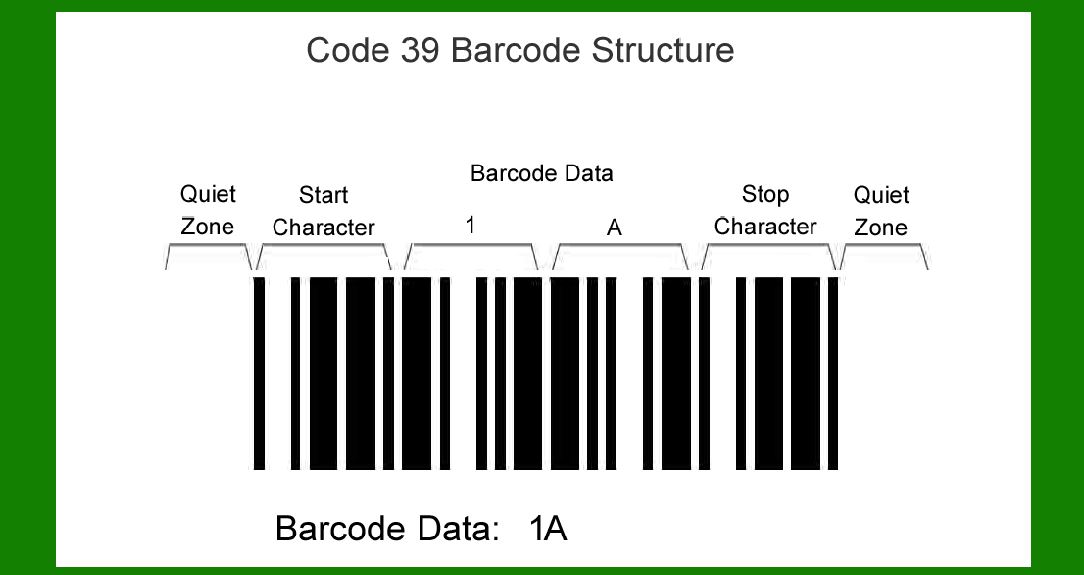
Code 39 is a popular barcode symbology used in various industries for encoding alphanumeric data. It is capable of encoding uppercase letters (A-Z), digits (0-9), and a few special characters (-, ., $, /, +, %, and space). |
The standard Code 39 barcode does not include a check digit by default, but variants like Code 39 mod 10 and Code 39 mod 43 incorporate a checksum to enhance reliability and error detection. |
|
Understanding Code 39 Characters and Values |
In Code 39, each character is represented by patterns of bars and spaces. These characters are assigned values from 0 to 42 based on their position in the encoding table. Notably, the start and stop characters in Code 39 (represented by an asterisk '*') do not contribute to the checksum calculation. |
Here's how the characters are assigned values in Code 39: |
Numeric characters '0' to '9' are assigned values 0 to 9 respectively. Alphabetic characters 'A' to 'Z' are assigned values 10 to 35 respectively. Special characters like '-', '.', ' ', '$', '/', '+', and '%' are assigned values 36 to 42 respectively. |

|
Calculation of Code 39 Check Digits |
Code 39 Mod 10 Check Digit Calculation |
Code 39 mod 10, also known as Code 39 checksum modulo 10, is used to detect errors in the barcode scanning process. To compute the mod 10 check digit: |
1.Exclude Start and Stop Characters: Start and stop characters ('*') are not included in the checksum calculation. 2.Calculate Sum of Values: Assign numerical values to each character based on the Code 39 table and sum these values. 3.Compute Checksum Character: Divide the total sum by 10 and use the remainder as the check digit. If the remainder is 0, the check digit is 0. |
Let's illustrate this with an example: |
Consider a Code 39 barcode without the start and stop characters, containing the data 'ABC123'. |
A = 10 B = 11 C = 12 1 = 1 2 = 2 3 = 3 |
Sum of values = 10 + 11 + 12 + 1 + 2 + 3 = 39 |
Now, calculate the mod 10 checksum: 39 divided by 10 gives a remainder of 9. |
Therefore, the Code 39 mod 10 barcode for 'ABC123' would have a check digit of 9 appended to it. |

|
Code 39 Mod 43 Check Digit Calculation |
Code 39 mod 43, or Code 39 checksum modulo 43, provides a higher level of error detection compared to mod 10. The calculation steps are similar: |
1.Exclude Start and Stop Characters: As before, exclude the start and stop characters ('*') from the checksum calculation. 2.Sum of Values: Sum the assigned values of the characters in the barcode data. 3.Compute Checksum Character: Divide the total sum by 43 and use the remainder as the check digit. If the remainder is 0, the check digit is 0. |
Here's an example calculation for Code 39 mod 43: |
Consider a Code 39 barcode without start and stop characters, with the data 'DEF456'. |
D = 13 E = 14 F = 15 4 = 4 5 = 5 6 = 6 |
Sum of values = 13 + 14 + 15 + 4 + 5 + 6 = 57 |
Now, calculate the mod 43 checksum: 57 divided by 43 gives a remainder of 14. |
Therefore, the Code 39 mod 43 barcode for 'DEF456' would have a check digit of 14 appended to it. |

|
Implementing Code 39 Check Digit in Barcode Generation |
When generating a Code 39 barcode with a check digit, the process involves: |
Data Preparation: Exclude the start and stop characters ('*') from the data string. Checksum Calculation: Compute either the mod 10 or mod 43 checksum based on the required level of error detection. Appending Check Digit: Append the calculated check digit to the end of the data string. Encoding: Encode the entire string (data + check digit) into the Code 39 barcode format using the appropriate barcode generation software. |

|
Importance of Code 39 Check Digits |
The inclusion of check digits in Code 39 barcodes significantly improves accuracy and reliability in scanning operations: |
Error Detection: Mod 10 and mod 43 check digits help identify scanning errors caused by issues such as barcode damage or printing defects. Data Integrity: Ensures that the data encoded in the barcode is correctly interpreted by the barcode reader, reducing the likelihood of misreads. |

|
Limitations and Considerations |
While check digits enhance reliability, they do not provide complete error correction. They primarily detect errors but may not always correct them. Barcode quality, scanner settings, and environmental conditions can also affect scanning accuracy. |

|
Conclusion |
Code 39 mod 10 and mod 43 check digits are valuable additions to the standard Code 39 barcode, enhancing its error detection capabilities. By calculating and appending these check digits according to established algorithms, organizations can ensure more reliable data capture and processing through barcode scanning technologies. Understanding how these check digits are computed and implementing them correctly is crucial for maximizing the effectiveness of Code 39 barcodes in various applications across industries. |
 cs@easiersoft.com