Encoding in the context described involves the transformation of data into a specific format using a set of predefined rules and code words. The system utilizes 929 code words, with 900 dedicated to data encoding and 29 reserved for special functions that facilitate shifting between major modes. These modes-Byte, Numeric, and Text-each serve distinct purposes and employ different encoding techniques suited to their data types. | 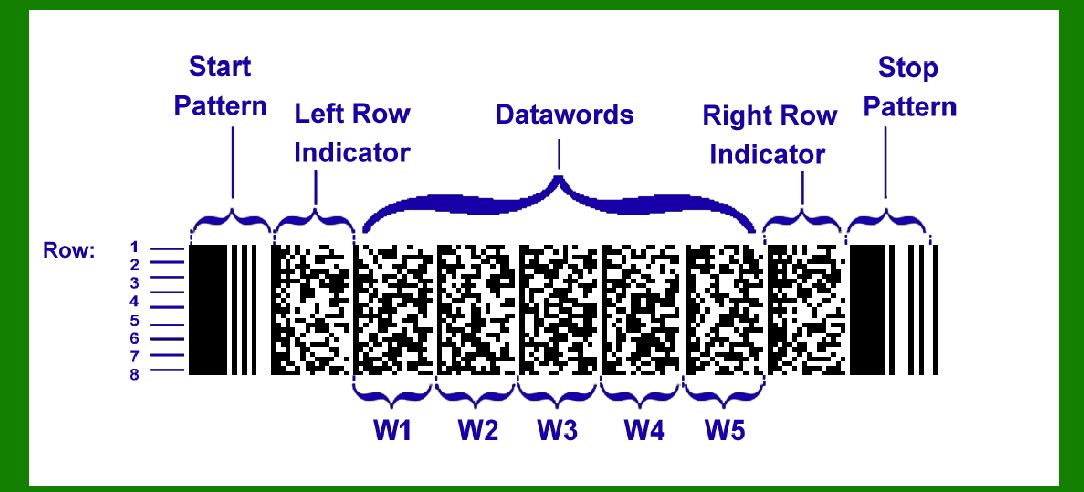
| Byte Mode | In the Byte mode, data is encoded such that each group of 5 code words represents 6 bytes of information. This mode is efficient for encoding binary data where each byte consists of 8 bits (256 possible values), ensuring that the 900 available code words are sufficient to represent all possible byte combinations. When encoding data that exceeds the capacity of complete groups of 5 code words, additional bytes are encoded one per code word. This flexibility allows Byte mode to handle variable-length data efficiently within the constraints of the code word set. | 
| Numeric Mode | Numeric mode is designed for encoding sequences of digits. The number of code words required is calculated based on the formula n/3+1, where n is the number of digits to be encoded. This formula ensures that numeric data is encoded efficiently, using up to a maximum of 44 digits in 15 code words. This mode is particularly useful for applications where numeric data such as account numbers, IDs, or quantities need to be represented compactly and accurately. | 
| Text Mode | Text mode is the most versatile of the three major encoding modes, as it supports encoding a wide range of printable ASCII characters, including control characters like CR (Carriage Return), LF (Line Feed), and HT (Horizontal Tab). The mode operates through a system of four submodes: Uppercase, Lowercase, Mixed, and Punctuation. Each submode defines how code words represent different sets of characters and control commands: | Uppercase Submode: Represents uppercase letters (A-Z), space (SP), and includes commands to switch to lowercase, mixed, or interpret the next digit as punctuation. Lowercase Submode: Represents lowercase letters (a-z), space (SP), and includes commands to switch to uppercase, mixed, or interpret the next digit as punctuation. Mixed Submode: Represents digits (0-9), special characters (&, CR, HT, comma, :, #, etc.), and includes commands to switch to punctuation, lowercase, or uppercase, as well as interpret the next digit as punctuation. Punctuation Submode: Represents various punctuation and special characters (;, <, >, @, [, , ], etc.), and includes commands to switch to uppercase or interpret the next digit as punctuation. | These submodes allow Text mode to flexibly encode textual data by dynamically switching between representations of letters, digits, and special characters based on context. This capability is essential for encoding structured text data such as names, addresses, and messages in a barcode format efficiently. | 
| Interplay of Modes | One of the strengths of the encoding system described is its ability to mix modes within a single barcode. This means that different parts of the data within a barcode can be encoded using the mode that best suits their nature. For example, a barcode representing a product might use Byte mode for encoding product specifications, Numeric mode for encoding the quantity, and Text mode for encoding the product name and additional textual information. | 
| Practical Application | In practical terms, encoding data using this system involves mapping each element of the data (byte, digit, character) to the corresponding code word or sequence of code words based on the selected mode and submode. The encoding process ensures that the resulting barcode is compact yet capable of accurately representing the original data when decoded using a compatible reader or scanner. | 
| Decoding Process | The decoding process involves reversing the encoding steps: interpreting sequences of code words according to the selected mode and submode to reconstruct the original data elements (bytes, digits, characters). Modern barcode scanners and software are designed to handle these complexities automatically, providing seamless translation from barcode back to readable data. | 
| Conclusion | The described encoding system leverages a finite set of code words to efficiently represent a wide range of data types and formats through specialized modes tailored to different data characteristics. By allowing flexibility in mode selection and supporting mixed-mode encoding within a single barcode, the system ensures adaptability to diverse application requirements-from numeric data in inventory systems to text descriptions in retail environments. This versatility, combined with efficient use of code words and robust error correction mechanisms inherent in barcode technologies, makes it a powerful tool for data representation and communication across various industries. |
|
 cs@easiersoft.com