Barcode Technology

Barcode History

Barcode Label Paper

Barcode Printer

Barcode Application

Inventory Management

AI Barcode QRCode

Barcode Scanner

Barcode Software

Barcode Software B

Barcode Software C

Barcode Software D

Barcode Software E

New Technology A

New Technology B

Robot Technology

Barcode Types

Barcode Types B

Barcode Types C

Barcode Types D

Barcode Types E

Barcode Types F

Electronic Technology

Psychology at Work

Barcode Technology and Barcode Software Related   <<< Back to Directory <<<

QR Code Decoding

QR code decoding is the process of extracting and interpreting the data encoded within a QR (Quick Response) code.

Here's a detailed breakdown of how this process typically works:

1. QR Code Structure

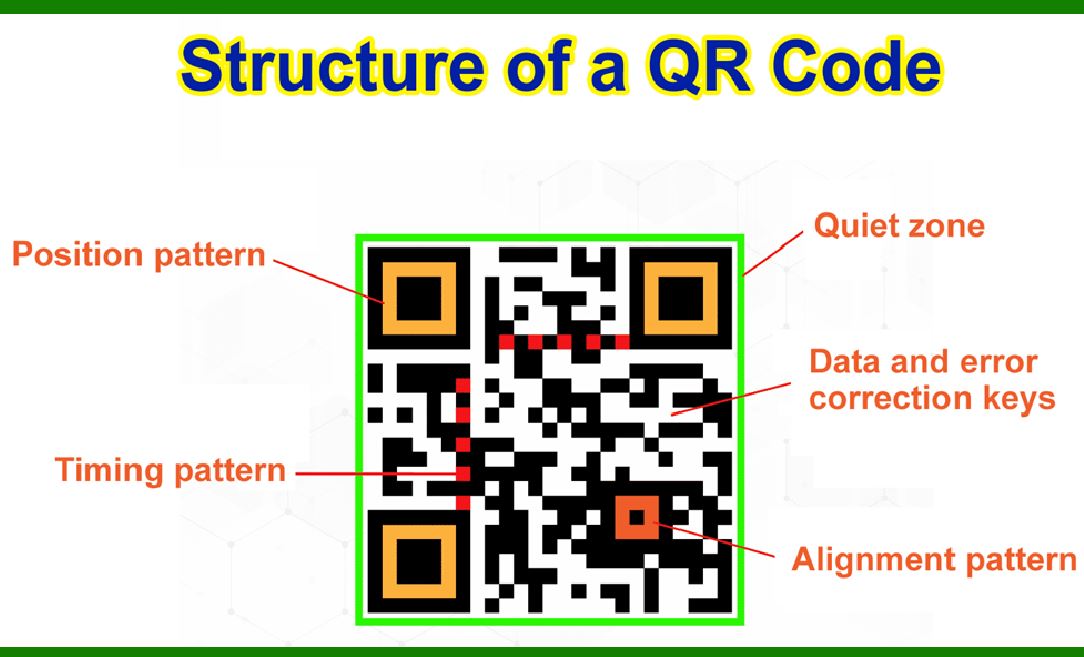
A QR code consists of black squares arranged on a white grid, which can be read by an imaging device such as a camera. The structure of a QR code includes several key components:

Finder Patterns: Located at three corners of the QR code, these patterns help the scanner locate the QR code and determine its orientation.

Alignment Patterns: These are used for correcting the distortion that can occur when the QR code is scanned from an angle.

Timing Patterns: These alternate black and white modules located between the finder patterns are used to determine the central coordinate system of the QR code.

Version Information: This indicates the QR code version (size), which can range from version 1 (21x21 modules) to version 40 (177x177 modules).

Format Information: Contains error correction level and the mask pattern used for the QR code.

Data and Error Correction Blocks: This is where the actual data and error correction codewords are stored.

2. Scanning the QR Code

The decoding process begins by capturing an image of the QR code using a camera. The image can come from various sources such as a smartphone camera, webcam, or any other image capture device.

3. Preprocessing the Image

Grayscale Conversion: The captured image is converted to grayscale to simplify the processing since color information is not needed for QR code decoding.

Binarization: The grayscale image is then binarized, converting it into a binary image with only black and white pixels. This is often done using thresholding techniques.

Noise Reduction: Techniques such as median filtering may be applied to remove noise from the image and improve the clarity of the QR code.

4. Locating the QR Code

Detection of Finder Patterns: The decoder searches for the distinctive finder patterns in the image to locate the QR code. These patterns help determine the position, size, and orientation of the QR code.

Orientation: By identifying the three finder patterns, the orientation of the QR code can be determined.

5. Perspective Transformation

Once the QR code is located, a perspective transformation (or homography) is applied to rectify the image. This step ensures that the QR code is viewed as a perfect square regardless of the angle or tilt at which it was captured.

6. Decoding the Data

Grid Sampling: The rectified image is sampled according to the grid defined by the QR code version. Each sampled point corresponds to a module in the QR code.

Error Correction: The QR code includes error correction codewords (Reed-Solomon error correction). The decoder uses these codewords to correct any errors that occurred during scanning.

Data Extraction: The data is extracted from the modules according to the QR code specification. This involves interpreting the binary data to retrieve the encoded information.

7. Interpreting the Data

The final step is interpreting the extracted data. QR codes can encode various types of information, such as URLs, text, contact information, or other types of data. The interpretation depends on the data format:

URL: The data might be a URL that can be opened in a web browser.

Text: The data might be plain text that can be displayed or stored.

vCard: The data might be contact information that can be added to an address book.

Implementation in Software

The process described above can be implemented in software using various libraries and tools. Commonly used libraries include:

Zxing (Zebra Crossing): An open-source, multi-format 1D/2D barcode image processing library.

OpenCV: An open-source computer vision library that provides tools for image processing and can be used in conjunction with other libraries for QR code decoding.

ZBar: A software suite for reading barcodes from various sources, including QR codes.

Example Workflow Using Python and OpenCV

Here's a basic example of how QR code decoding can be done using Python and OpenCV:

# Load the image

image = cv2.imread('qrcode.png')

# Initialize the QRCode detector

detector = cv2.QRCodeDetector()

# Detect and decode the QR code

data, vertices_array, binary_qrcode = detector.detectAndDecode(image)

# Check if there is a QR code

if vertices_array is not None:

print('QR Code data:')

print(data)

else:

print('QR Code not detected')

This example demonstrates how to use OpenCV's QRCodeDetector class to detect and decode a QR code from an image.

By following these steps, a QR code can be successfully decoded, allowing the encoded information to be retrieved and used as needed.


EasierSoft Barcode Label Design & Bulk Printing Software

---- Use Excel Data to Batch Print Barcodes on Label Sheets or Roll Labels  

---- How to use this barcode software

Download:  Free Barcode Software + Barcode Label Designer

Download Free Barcode Software at Softonic

     Download at CNET

Once you obtain a GS1/UPC/EAN barcode, or other barcode type and QR code, you can use our free software to batch print barcode labels onto Roll label paper using a professional label printer, or to batch print barcodes onto Avery 5160 label sheets using a regular laser or inkjet printer. Our software has free and paid versions.

The free version fully meets your needs for batch printing GS1/UPC/EAN barcodes. The paid version can import data from Excel and databases to batch print barcode labels with different values.

How to Start

Input Data

Import Excel Data

Print Barcode

Barcode Format

Label Designer

All Screen Shot

Export Barcode Image

Save Template

Output Word Excel

How to Use & FAQ:

Make barcode by command line

Export barcode image files

Barcode text font setting

Generate ISBN barcode

Predefined label templates

Printing setup

Save settings

Serial number generator

The supported barcode types

Load Excel data (pro)

Manually copy data from Excel files

Filter some data for printing

Edit imported barcode data

Input data (Pro)

Label Designer

Edit data in Label designer

Label Designer - Add new label

Label Designer - Printing

Set the barcode label format to be printed

Other Barcode Label Format Settings

Barcode types supported by this program

Barcode Label Font Settings

Configuring the Barcode Print Rotation

Text Alignment for Barcode Labels

Automatically Adjusting Barcode Width

Text Beneath the Barcode

Configuring Barcode Size

Auto Calculate the Barcode Size

Export Barcode images

Export Barcode Image Format

File Names for Exported Barcode

Resolution of Exported Barcode Images

Fixed Folder for Exporting Barcode

Default Barcode Image Export Format

Print bulk barcodes quickly

Print barcodes to Avery 5160 label

How to bulk Barcode Printing

Sample - Avery 5162 (2x7) Label Sheet

Example: Print barcodes to 5*3cm roll

Example: Print barcodes to 5161 label

Example: Print barcodes to 5162 label

Example: Print barcodes to 5163 label

Example: Print barcodes to 5164 label

Example: Print portrait orientation 5164

Example: Print barcodes to 5167 label

Example: Print barcodes to 5168 label

Example: Print portrait orientation 5168

Example: Print barcodes to 5169 label

Example: Print barcodes to 5660 label

Example: Print barcodes to 5661 label

Highlights

Excel integration: Import data directly from Excel to generate and print barcodes in bulk.

Label designer: Create complex labels with multiple barcodes, text, logos, and shapes.

Batch printing: Print thousands of barcodes at once using standard inkjet/laser printers or professional barcode printers.


Flexible editions:

Standard Edition: Simple batch printing with Excel data.

Professional Edition: Adds command-line automation for workflow integration.

Label Designer Edition: Advanced design features for complex labels.


Why Choose Our Barcode Solutions?

Cost-effective: Free online generator and permanent free desktop version available.

Easy to use: No technical expertise required—just input data and print.

Versatile: Supports nearly all 1D and 2D barcode types, including QR codes.

Trusted: Recommended by CNET and widely downloaded by users worldwide.


Suitable Use Cases

Small businesses and startups needing quick barcode labels for products.

Retailers and online sellers managing inventory with batch barcode printing.

Manufacturers requiring sequential or custom barcode labels for packaging.

Educational and testing environments where barcodes are used for tracking.


CONTACT

cs@easiersoft.com

If you have any question, please feel free to email us.


https://free-barcode.com


<<< Back to Directory <<<     Barcode Generator     Barcode Freeware     Privacy Policy