Barcode Technology

Barcode History

Barcode Label Paper

Barcode Printer

Barcode Application

Inventory Management

AI Barcode QRCode

Barcode Scanner

Barcode Software

Barcode Software B

Barcode Software C

Barcode Software D

Barcode Software E

New Technology A

New Technology B

Robot Technology

Barcode Types

Barcode Types B

Barcode Types C

Barcode Types D

Barcode Types E

Barcode Types F

Electronic Technology

Psychology at Work

Barcode Technology and Barcode Software Related   <<< Back to Directory <<<

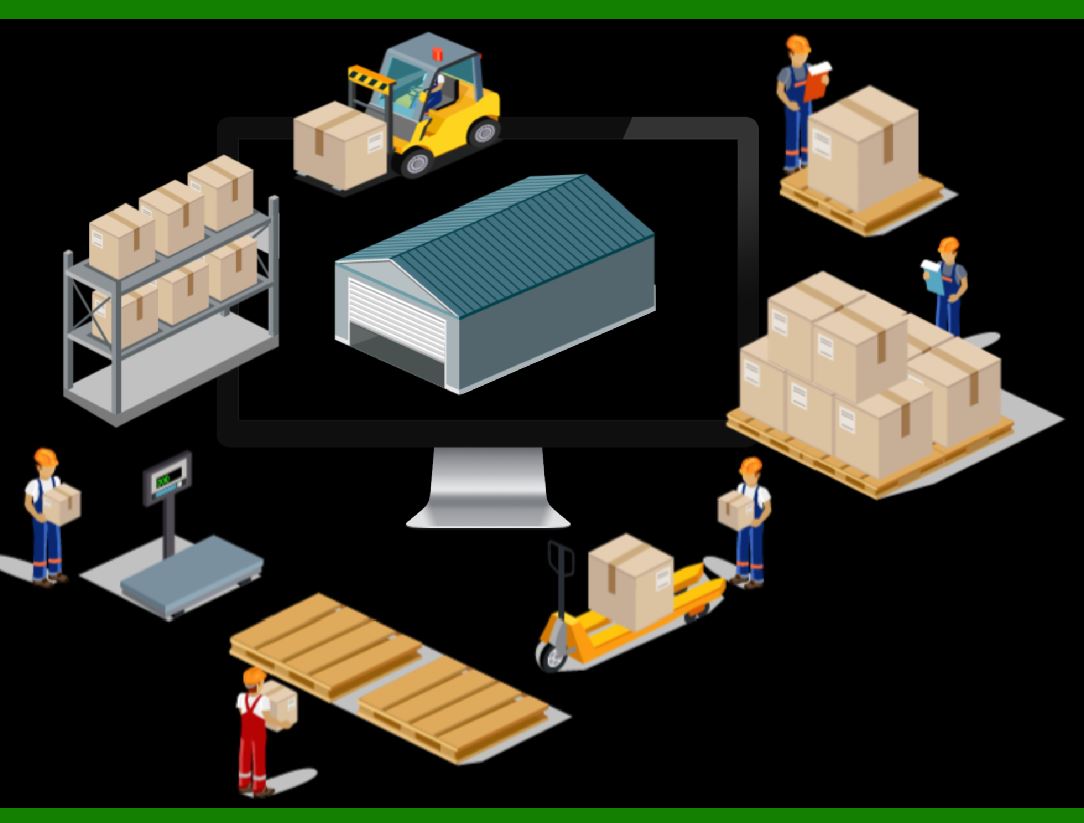
Barcode in a warehouse management

Barcode in a warehouse management

Implementing barcodes in a warehouse can significantly enhance efficiency, accuracy, and overall management.

Step-by-step guide on how to do it:

1. Create an Initial Barcode Plan:

Start by planning the implementation. Consider the following:

Which items or locations need barcodes (racks, containers, items)?

What information should each barcode encode (product ID, location, etc.)?

How will you physically attach the barcodes (floor labels, hanging labels, etc.)?

2. Configure the Centralized Software Platform:

Choose a centralized software system to manage your barcodes.

Ensure compatibility with existing systems (inventory management, order processing, etc.).

Configure the software to handle barcode data efficiently.

3. Select Barcode Symbologies:

Decide on the type of barcode symbology to use (e.g., Code 128, QR code, UPC).

Consider factors like readability, data capacity, and compatibility with your scanning equipment.

4. Design Barcode Labels:

Create visually clear and scannable barcode labels.

Include essential information such as product name, SKU, and location.

Test the readability of your labels using scanners.

5. Establish Barcode Inventory Processes:

Train warehouse staff on how to use barcodes effectively.

Set up procedures for:

Scanning items during receiving, picking, and shipping.

Performing cycle counts and inventory adjustments.

Transferring goods between locations.

Handling exceptions (missing or damaged barcodes).

6. Scanning Barcodes for Material Entry:

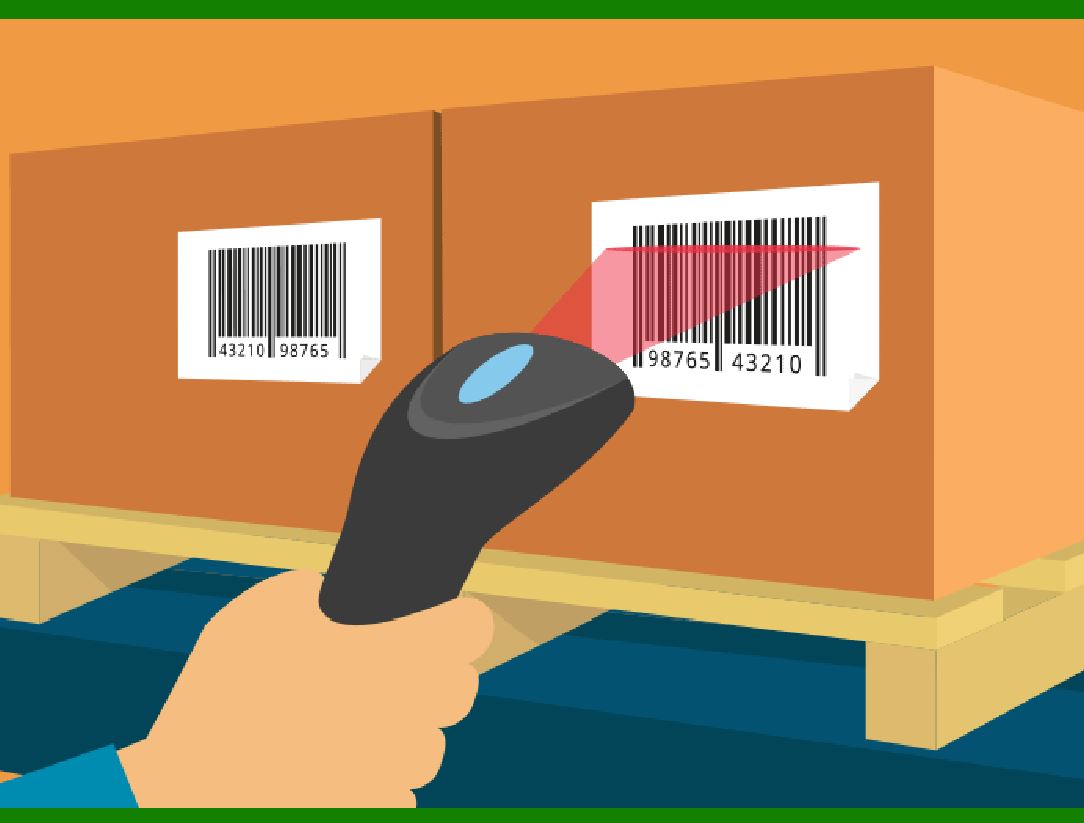
When a product arrives at the warehouse or stockroom, a worker scans both the product's barcode and the location's barcode.

The inventory management system records this data, associating the product with its location.

Think of it like scanning a license plate on a car: The barcode doesn't reveal details about the car itself but links to relevant information stored in a database.

7. Material Exit Information:

When a product is removed from inventory (e.g., for shipping or internal use), the barcode is scanned again.

The system updates the inventory count, ensuring accurate tracking.

Larger businesses can track inventory across multiple locations, with real-time updates accessible worldwide.

Why Use Barcodes in a Warehouse?

Efficiency: Barcodes streamline processes, allowing smooth movement of goods.

Speed: Faster order processing due to automated scanning.

Accuracy: Fewer errors in inventory management.

Scalability: Easily expandable for future growth.

Organization: Creates a professional and organized warehouse layout.

Real-Time Updates: Barcodes provide immediate information on stock levels, aiding decision-making for reordering.

Cost Reduction: Reduced clerical and operating costs. Efficient inventory management lowers costs associated with overstocking or stockouts.

A well-implemented warehouse barcoding system can lead to better inventory control and real-time data monitoring. It's a powerful tool for modern warehouse management!


EasierSoft Barcode Label Design & Bulk Printing Software

---- Use Excel Data to Batch Print Barcodes on Label Sheets or Roll Labels  

---- How to use this barcode software

Download:  Free Barcode Software + Barcode Label Designer

Download Free Barcode Software at Softonic

     Download at CNET

Once you obtain a GS1/UPC/EAN barcode, or other barcode type and QR code, you can use our free software to batch print barcode labels onto Roll label paper using a professional label printer, or to batch print barcodes onto Avery 5160 label sheets using a regular laser or inkjet printer. Our software has free and paid versions.

The free version fully meets your needs for batch printing GS1/UPC/EAN barcodes. The paid version can import data from Excel and databases to batch print barcode labels with different values.

How to Start

Input Data

Import Excel Data

Print Barcode

Barcode Format

Label Designer

All Screen Shot

Export Barcode Image

Save Template

Output Word Excel

How to Use & FAQ:

Sample - Avery 5162 (2x7) Label Sheet

Example: Print barcodes to 5*3cm roll

Example: Print barcodes to 5161 label

Example: Print barcodes to 5162 label

Example: Print barcodes to 5163 label

Example: Print barcodes to 5164 label

Example: Print portrait orientation 5164

Example: Print barcodes to 5167 label

Example: Print barcodes to 5168 label

Example: Print portrait orientation 5168

Example: Print barcodes to 5169 label

Example: Print barcodes to 5660 label

Example: Print barcodes to 5661 label

Example: Print barcodes to 5662 label

Example: Print barcodes to 5663 label

Example: Print barcodes to 5664 label

Example: Print portrait orientation 5664

Example: Print barcodes to 5873 label

Example: Print barcodes to 5874 label

Two ways to import Excel data

Import Excel Data - Pro Edition

Import Excel Data - Std Edition

Import Data from Excel - Detail

Load Data From Excel File

Data Editing Table

Copy Data From Excel

Four ways to input barcode data

Add ASCII Key E

Input Multiple Lines of Text for Barcodes

Generates Sequential Serial Numbers

Import or copy data from Excel sheets

Special sequence number generation

Std Details: Simple Input Form

Std Details: Multiple Line Text Input

Details: Sequence Barcode Generator

Examples: Sequence Barcode Generator

Import Data From Excel Spreadsheet

Barcode Data Correspondence Diagram

Data Editor

Editing a Single Row Data in Form

Batch Editing Multiple Rows of Data

Batch Data Editing - Example 2

Design & print complex barcode labels

Configuring Text Elements on Label

Configuring Barcode Elements on Label

Configuring Image Elements on Label

Setting Line Elements on Label

Designing Labels for 5164 Sheet

Advanced Page Layout Settings

Add Barcode Elements to a Label

Highlights

Excel integration: Import data directly from Excel to generate and print barcodes in bulk.

Label designer: Create complex labels with multiple barcodes, text, logos, and shapes.

Batch printing: Print thousands of barcodes at once using standard inkjet/laser printers or professional barcode printers.


Flexible editions:

Standard Edition: Simple batch printing with Excel data.

Professional Edition: Adds command-line automation for workflow integration.

Label Designer Edition: Advanced design features for complex labels.


Why Choose Our Barcode Solutions?

Cost-effective: Free online generator and permanent free desktop version available.

Easy to use: No technical expertise required—just input data and print.

Versatile: Supports nearly all 1D and 2D barcode types, including QR codes.

Trusted: Recommended by CNET and widely downloaded by users worldwide.


Suitable Use Cases

Small businesses and startups needing quick barcode labels for products.

Retailers and online sellers managing inventory with batch barcode printing.

Manufacturers requiring sequential or custom barcode labels for packaging.

Educational and testing environments where barcodes are used for tracking.


CONTACT

cs@easiersoft.com

If you have any question, please feel free to email us.


https://free-barcode.com


<<< Back to Directory <<<     Barcode Generator     Barcode Freeware     Privacy Policy