Inventory Management Using Excel and VBA |
Part 11: Multi-Warehouse, Batch Tracking, Serial Numbers, and Expiry Date Control |
1. Introduction to Advanced Inventory Scenarios |
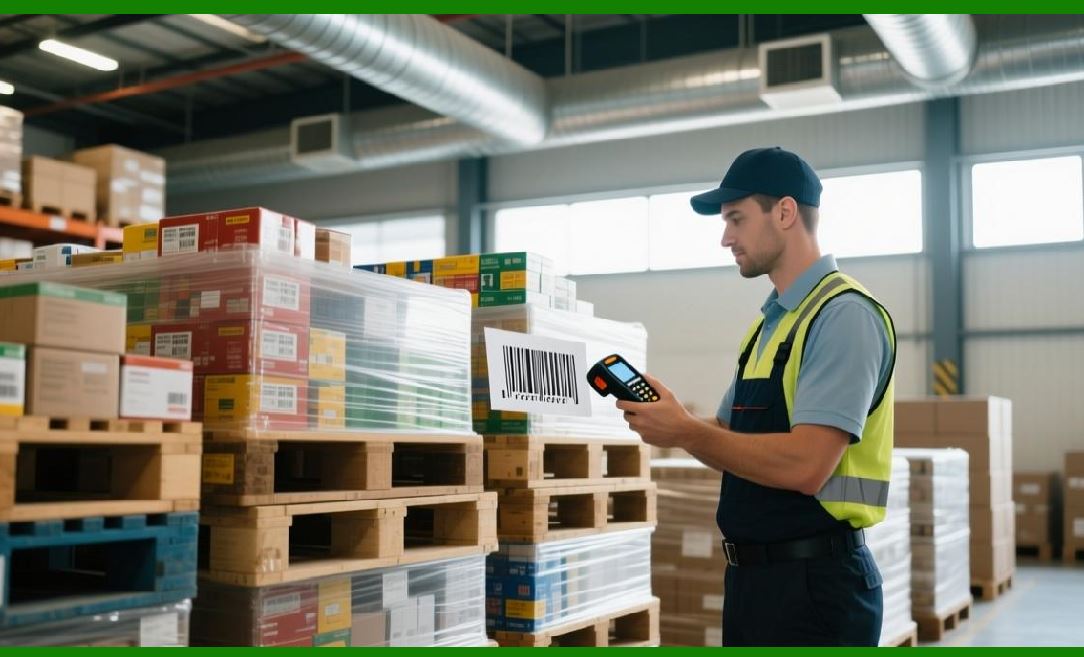
Up to this point, the system has focused on a single-location inventory model. However, real-world logistics systems are significantly more complex. Businesses often manage: |
1. Multiple warehouses |
2. Batch-based products |
3. Serialized items |
4. Expiry-sensitive goods |
This part extends the system into a more enterprise-realistic structure capable of handling these complexities. |
|
2. Multi-Warehouse Inventory Management |
2.1 Concept Overview |
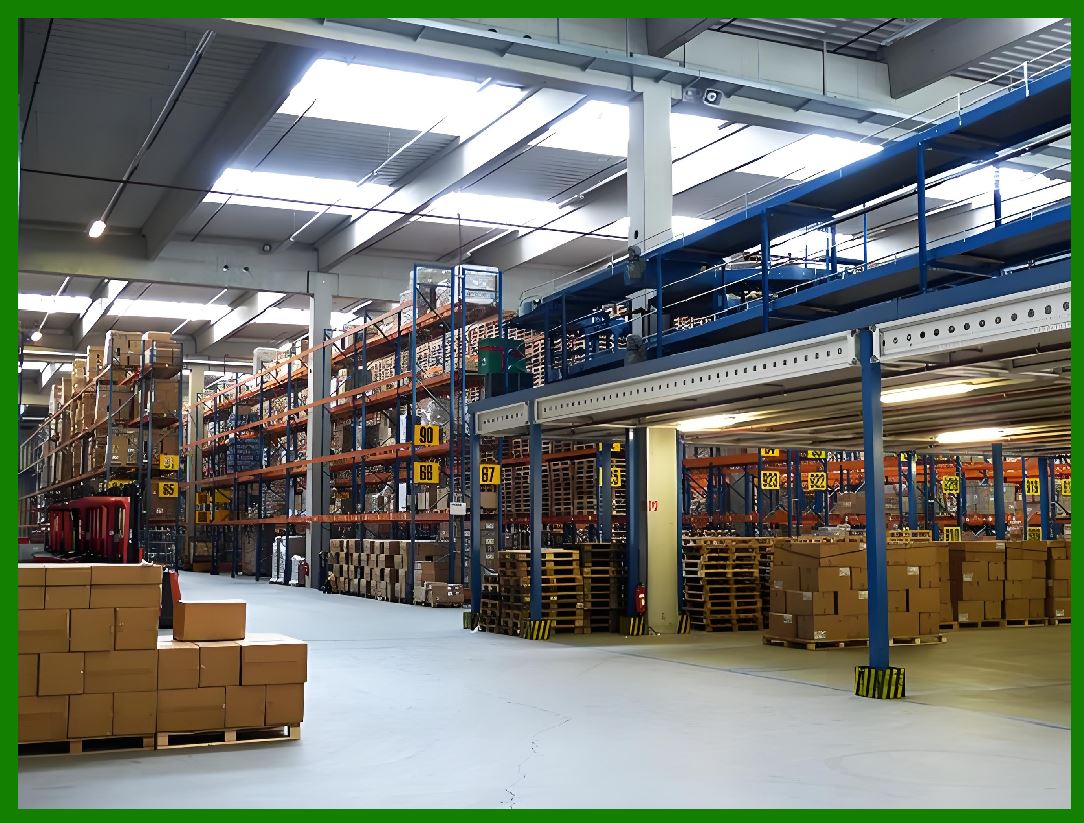
Multi-warehouse inventory means the same product can exist in different physical locations, each with independent stock levels. |
Example: |
1. Warehouse A 120 units |
2. Warehouse B 80 units |
3. Warehouse C 50 units |
Total stock is the sum across warehouses, but operational decisions depend on location-level stock. |

|
3. Designing Warehouse Structure in Excel |
3.1 Creating Warehouse Table |
A dedicated sheet should be created: |
Warehouses |
Fields include: |
1. WarehouseID |
2. WarehouseName |
3. Location |
4. Manager |
3.2 Extending Transactions Table |
Add a new column: |
1. WarehouseID |
Each transaction must now include: |
1. ProductID |
2. WarehouseID |
3. Quantity |
4. TransactionType |

|
4. Warehouse-Based Stock Calculation |
4.1 Logic Definition |
Stock is now calculated per warehouse: |
Stock(Product, Warehouse) = In - Out |
4.2 Excel Conceptual Formula |
For a specific warehouse: |
1. Filter transactions by ProductID |
2. Filter by WarehouseID |
3. Apply SUMIF logic |

|
5. VBA Implementation for Multi-Warehouse Stock |
5.1 Warehouse-Aware Stock Calculation |
```vba id='wh001' |
Function GetWarehouseStock(productID As String, warehouseID As String) As Double |
Dim ws As Worksheet |
Set ws = Sheets('Transactions') |
Dim i As Long |
Dim stock As Double |
For i = 2 To ws.Cells(ws.Rows.Count, 1).End(xlUp).Row |
If ws.Cells(i, 3).Value = productID And ws.Cells(i, 10).Value = warehouseID Then |
If ws.Cells(i, 4).Value = 'Purchase' Then |
stock = stock + ws.Cells(i, 5).Value |
ElseIf ws.Cells(i, 4).Value = 'Sale' Then |
stock = stock - ws.Cells(i, 5).Value |
End If |
End If |
Next i |
GetWarehouseStock = stock |
End Function |
``` |

|
6. Inter-Warehouse Transfer System |
6.1 Purpose |
Products can be moved between warehouses without affecting total stock. |
6.2 Transfer Transaction Type |
Add: |
1. Transfer Out |
2. Transfer In |
6.3 Transfer Logic |
1. Deduct from source warehouse |
2. Add to destination warehouse |
6.4 VBA Transfer Example |
```vba id='tr002' |
Sub TransferStock(productID As String, fromWH As String, toWH As String, qty As Double) |
Call AddTransaction(productID, fromWH, qty, 'Transfer Out') |
Call AddTransaction(productID, toWH, qty, 'Transfer In') |
End Sub |
``` |
|
7. Batch Tracking System |
7.1 What is Batch Tracking |
Batch tracking assigns a group identifier to products manufactured or received together. |
Example: |
1. Batch B001 500 units |
2. Batch B002 300 units |

|
8. Designing Batch Structure |
Add a column in Transactions: |
1. BatchNumber |
8.1 Batch Table Structure (Optional) |
1. BatchID |
2. ProductID |
3. ProductionDate |
4. ExpiryDate |
5. Quantity |

|
9. Batch-Level Stock Calculation |
Stock is now filtered by: |
1. ProductID |
2. BatchNumber |
3. WarehouseID |
10. Serial Number Tracking System |
10.1 Concept |
Each item has a unique serial number (not grouped like batches). |
Example: |
1. SN10001 |
2. SN10002 |
3. SN10003 |
|
11. Serial Number Data Structure |
Create a sheet: |
SerialNumbers |
Fields: |
1. SerialNumber |
2. ProductID |
3. Status (Sold / In Stock / Returned) |
4. WarehouseID |

|
12. VBA Serial Number Validation |
```vba id='sn001' |
Function IsSerialAvailable(serialNo As String) As Boolean |
Dim ws As Worksheet |
Set ws = Sheets('SerialNumbers') |
Dim found As Range |
Set found = ws.Columns(1).Find(serialNo) |
IsSerialAvailable = Not found Is Nothing |
End Function |
``` |

|
13. Expiry Date Management |
13.1 Importance |
Critical for: |
1. Food |
2. Pharmaceuticals |
3. Chemicals |

|
14. Adding Expiry Fields |
In Product or Batch table: |
1. ExpiryDate |
2. ManufacturingDate |

|
15. Expiry Alert System |
15.1 Logic |
If ExpiryDate is near alert user |
15.2 VBA Expiry Check |
```vba id='exp001' |
Sub CheckExpiryAlerts() |
Dim ws As Worksheet |
Set ws = Sheets('Batch') |
Dim i As Long |
For i = 2 To ws.Cells(ws.Rows.Count, 1).End(xlUp).Row |
If ws.Cells(i, 5).Value <= Date + 30 Then |
MsgBox 'Expiry warning: Batch ' & ws.Cells(i, 1).Value |
End If |
Next i |
End Sub |
``` |

|
16. First-Expired-First-Out (FEFO) System |
16.1 Concept |
FEFO ensures: |
1. Items with earliest expiry are used first |
16.2 Implementation Logic |
1. Sort batches by expiry date |
2. Allocate stock accordingly |

|
17. FIFO vs FEFO Comparison |
17.1 FIFO |
1. First In First Out |
2. Based on arrival time |
17.2 FEFO |
1. First Expired First Out |
2. Based on expiry date |
18. Stock Allocation Logic with Batches |
When selling: |
1. Check earliest batch |
2. Deduct from that batch first |
3. Move to next batch if needed |

|
19. Performance Considerations for Complex Tracking |
Multi-layer tracking increases system load. |
19.1 Optimization Techniques |
1. Use dictionaries for batch lookup |
2. Avoid repeated worksheet scanning |
3. Cache warehouse data in memory |
20. Summary of Part 11 |
In this part, we: |
1. Introduced multi-warehouse inventory management |
2. Built warehouse-based stock logic |
3. Implemented stock transfers |
4. Added batch tracking systems |
5. Developed serial number tracking |
6. Introduced expiry and FEFO control |

|
Next: Part 12 Preview |
In Part 12, we will explore: |
1. Integration with external hardware (RFID, scanners, IoT) |
2. Advanced automation workflows |
3. Real-time syncing concepts |
4. Cloud-based hybrid inventory systems |
5. Enterprise deployment architecture refinement |
 cs@easiersoft.com