Inventory Management Using Excel and VBA |
Part 8: Database Integration, Scalability, and Enterprise-Level Architecture |
1. Introduction to System Scalability and Integration |
As inventory systems grow in size and complexity, Excel alone may become insufficient for handling large datasets, multiple users, and real-time operations. At this stage, integrating Excel with external databases becomes essential. |
This part focuses on: |
1. Extending Excel with database backends |
2. Managing large-scale inventory data |
3. Improving performance and scalability |
4. Designing hybrid system architectures |
5. Preparing for enterprise-level deployment |

|
2. Limitations of Excel at Scale |
Before integrating databases, it is important to understand Excel constraints. |
2.1 Data Volume Limitations |
Excel struggles with: |
1. Hundreds of thousands of rows |
2. Complex formulas across large datasets |
3. Frequent recalculations |
2.2 Multi-User Constraints |
1. File locking issues |
2. Version conflicts |
3. Lack of real-time synchronization |
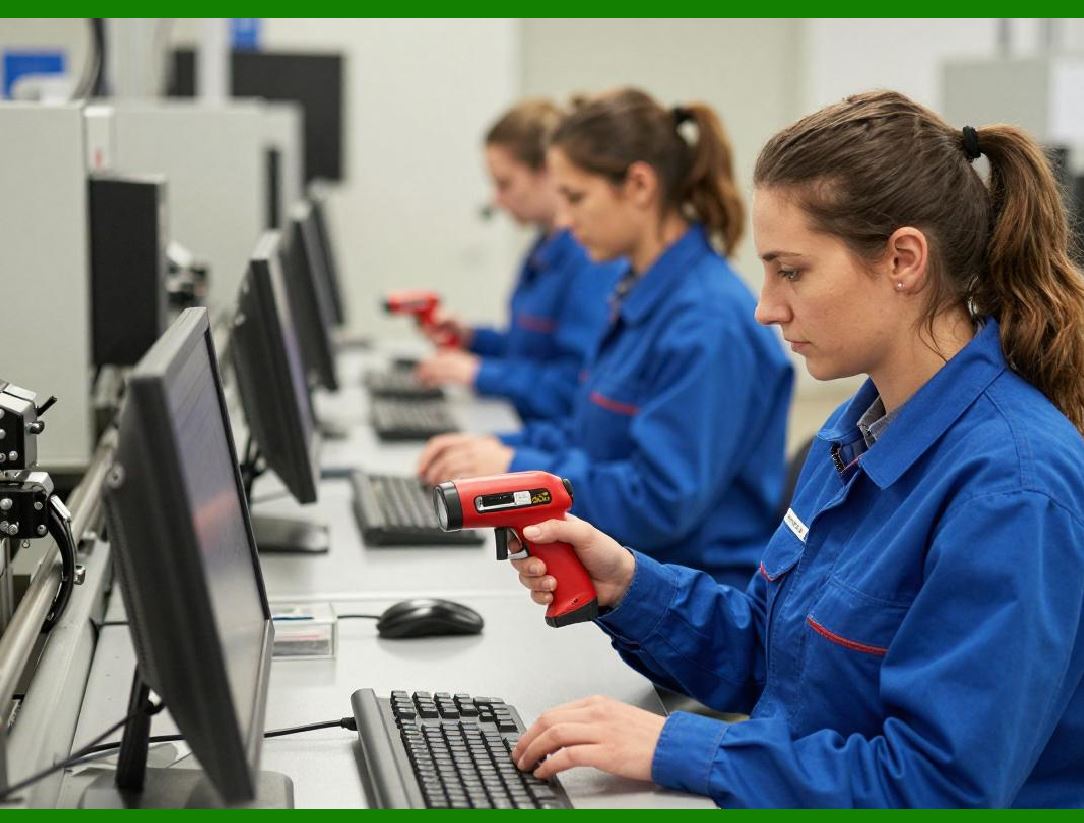
2.3 Performance Bottlenecks |
1. Slow VBA execution |
2. Memory limitations |
3. Increased file size |
|
3. Benefits of Database Integration |
Using a database backend resolves many of these issues. |
3.1 Advantages |
1. Efficient data storage |
2. Faster querying |
3. Multi-user support |
4. Improved data integrity |
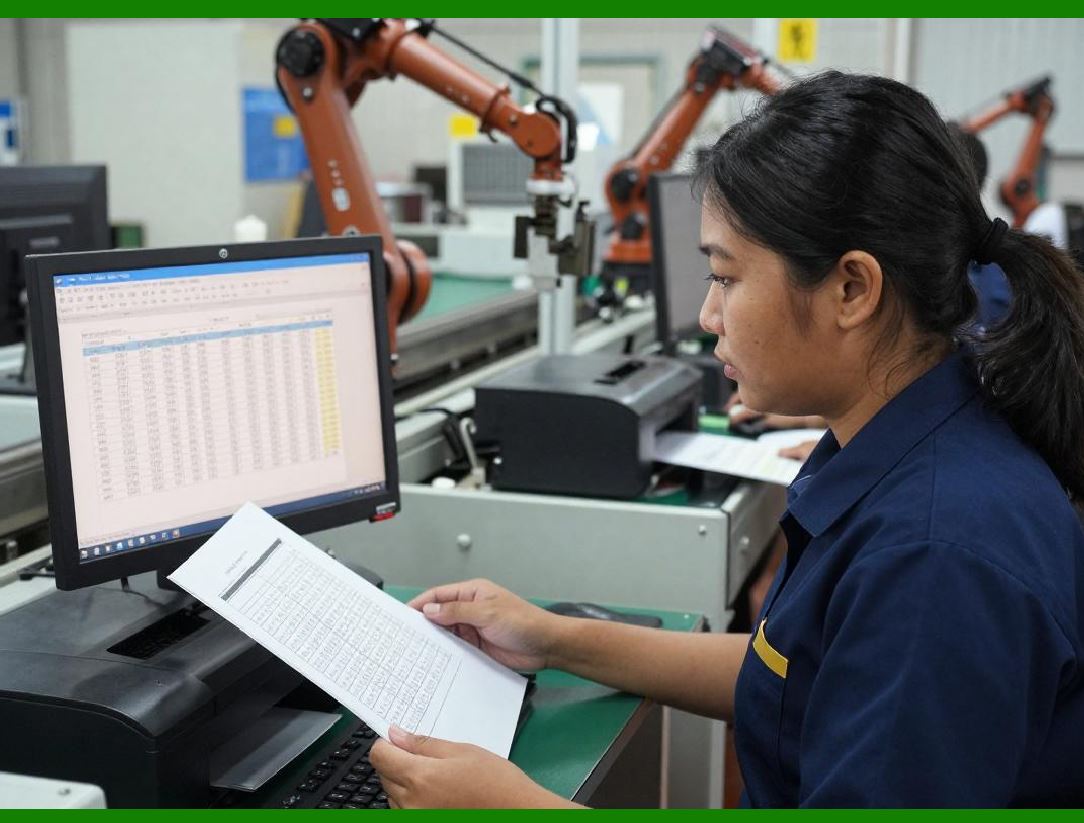
3.2 Role of Excel in a Hybrid System |
Excel becomes: |
1. Front-end interface |
2. Reporting tool |
3. Data visualization platform |
The database becomes: |
1. Data storage layer |
2. Transaction engine |
|
4. Choosing a Database System |
Several database options are suitable for integration. |
4.1 Microsoft Access |
1. Easy to use |
2. Good for small-to-medium systems |
3. Native compatibility with Excel |
4.2 SQL Server |
1. High performance |
2. Enterprise-grade scalability |
3. Supports large datasets |
4.3 Other Options |
1. MySQL |
2. PostgreSQL |
3. Cloud databases |

|
5. Database Design for Inventory Systems |
5.1 Core Tables |
A database-based inventory system includes: |
1. Products table |
2. Transactions table |
3. Suppliers table |
4. Users table |
5.2 Relationships |
1. Products linked to Transactions |
2. Suppliers linked to Products |
3. Users linked to actions |
5.3 Primary and Foreign Keys |
1. ProductID Primary key |
2. TransactionID Primary key |
3. ProductID in Transactions Foreign key |

|
6. Connecting Excel to a Database |
6.1 Using ODBC Connection |
Steps: |
1. Configure data source |
2. Connect via VBA |
3. Execute queries |
6.2 Example Connection Code |
```vba id='h2r8p4' |
Dim conn As Object |
Set conn = CreateObject('ADODB.Connection') |
conn.Open 'Provider=SQLOLEDB;Data Source=SERVERNAME;Initial Catalog=InventoryDB;Integrated Security=SSPI;' |
``` |

|
7. Retrieving Data from Database |
7.1 Using SQL Queries |
```vba id='z7k5m1' |
Dim rs As Object |
Set rs = conn.Execute('SELECT * FROM Products') |
``` |
7.2 Loading Data into Excel |
1. Loop through recordset |
2. Write to worksheet |
3. Display results |

|
8. Writing Data to Database |
8.1 Insert Data Example |
```vba id='w4n6q2' |
conn.Execute 'INSERT INTO Products (ProductID, ProductName) VALUES ('P0001', 'USB Cable')' |
``` |
8.2 Updating Data |
```vba id='x9c2v7' |
conn.Execute 'UPDATE Products SET SellingPrice = 6 WHERE ProductID = 'P0001'' |
``` |

|
9. Replacing Excel Tables with Database Queries |
Instead of storing all data in Excel: |
1. Store in database |
2. Retrieve on demand |
3. Display in Excel |
9.1 Benefits |
1. Reduced file size |
2. Faster performance |
3. Centralized data |

|
10. Implementing Transaction Processing in Database |
10.1 Database-Driven Logic |
1. Insert transaction record |
2. Update stock table |
3. Maintain history |
10.2 Advantages |
1. Better consistency |
2. Faster operations |
3. Reduced VBA complexity |

|
11. Handling Large Datasets Efficiently |
11.1 Pagination |
Load data in chunks instead of all at once. |
11.2 Filtering at Source |
Use SQL filters: |
1. Load only required data |
2. Reduce memory usage |

|
12. Improving Performance with SQL |
SQL queries are optimized for: |
1. Aggregation |
2. Filtering |
3. Sorting |
12.1 Example |
Instead of Excel formulas: |
Use SQL: |
SELECT SUM(Quantity) FROM Transactions WHERE ProductID = 'P0001' |

|
13. Multi-User System Architecture |
13.1 Centralized Database |
All users connect to: |
1. One database |
2. Shared data source |
13.2 Excel Front-End for Each User |
Each user has: |
1. Local Excel interface |
2. Shared backend data |

|
14. Data Security in Database Systems |
14.1 Authentication |
1. Username and password |
2. Role-based access |
14.2 Authorization |
Restrict: |
1. Read access |
2. Write access |
3. Administrative functions |

|
15. Backup and Recovery in Database Systems |
15.1 Backup Strategies |
1. Full backups |
2. Incremental backups |
3. Scheduled backups |
15.2 Recovery |
1. Restore database |
2. Recover lost data |
3. Minimize downtime |

|
16. Migrating from Excel to Database |
16.1 Migration Steps |
1. Export Excel data |
2. Create database tables |
3. Import data |
4. Update VBA connections |
16.2 Testing After Migration |
1. Verify data accuracy |
2. Test transactions |
3. Validate reports |
|
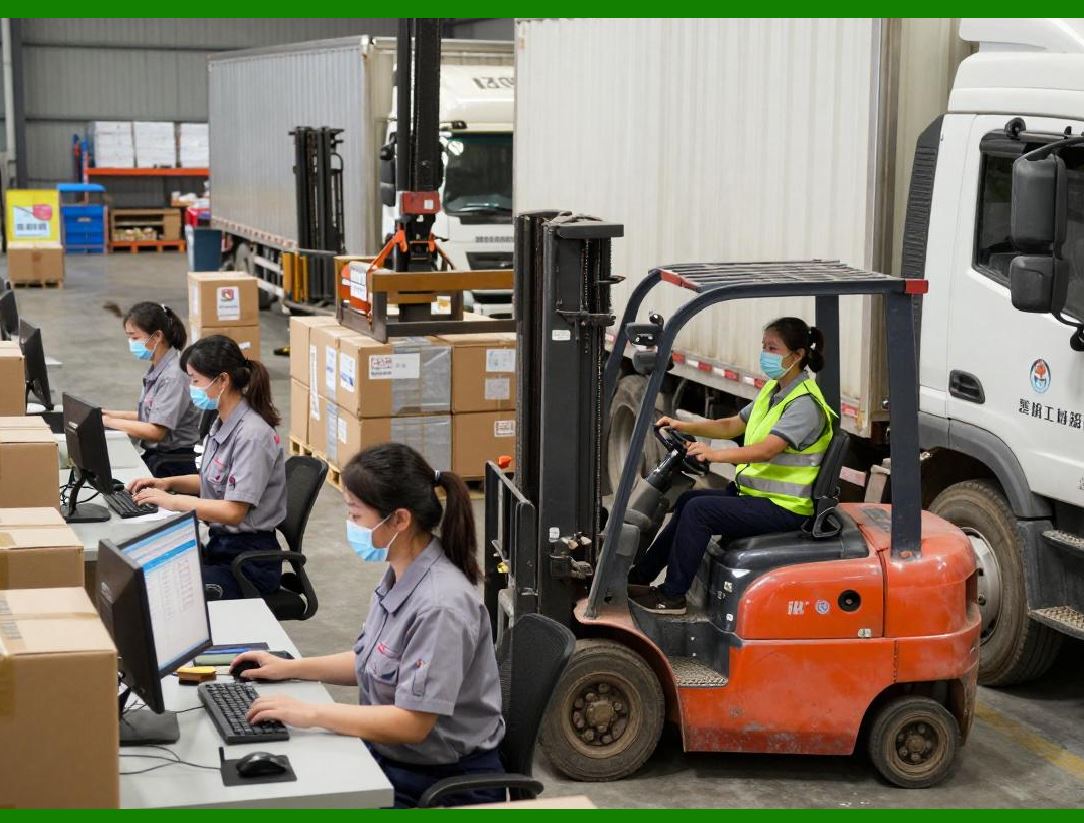
17. Hybrid System Architecture |
17.1 Components |
1. Excel (UI + Reports) |
2. VBA (logic + automation) |
3. Database (storage) |
17.2 Data Flow |
1. User input Excel |
2. VBA Database |
3. Database Excel reports |

|
18. Cloud Integration Possibilities |
18.1 Cloud Databases |
1. Azure SQL |
2. AWS RDS |
3. Google Cloud SQL |
18.2 Benefits |
1. Remote access |
2. Scalability |
3. High availability |

|
19. Preparing for Enterprise Systems |
19.1 When to Upgrade |
Upgrade when: |
1. Data exceeds Excel limits |
2. Multi-user demand increases |
3. Performance declines |
19.2 Transition Options |
1. Full ERP system |
2. Custom software |
3. Web-based solutions |

|
20. Summary of Part 8 |
In this part, we: |
1. Explored database integration with Excel |
2. Built scalable inventory architectures |
3. Implemented SQL-based data handling |
4. Designed multi-user systems |
5. Prepared for enterprise-level deployment |

|
Next: Part 9 Preview |
In Part 9, we will explore: |
1. Advanced UI/UX design in Excel |
2. Creating professional dashboards |
3. Enhancing user interaction |
4. Custom navigation systems |
5. Building a polished, software-like experience |
 cs@easiersoft.com