Barcode Printer: Media Handling System |
Barcode printers are widely used in industries for creating labels or tags that contain essential product or inventory information. One of the key features that determine the printer's efficiency and output quality is the media handling system. The media handling system in a barcode printer refers to the mechanisms, components, and processes that manage the feeding of labels or tags through the printer. It ensures that labels are accurately positioned, aligned, and delivered to the printhead for consistent and error-free printing. A well-designed media handling system significantly impacts the overall performance of the barcode printer, influencing factors like throughput, accuracy, and print quality. |
1. Introduction to Media Handling in Barcode Printers |
The media handling system in a barcode printer is responsible for managing the movement of the media, typically rolls of labels or tags, into and through the printer. This system ensures that the labels are fed smoothly and accurately, preventing issues like misfeeds, skewing, or jamming that could hinder the printer's performance. |
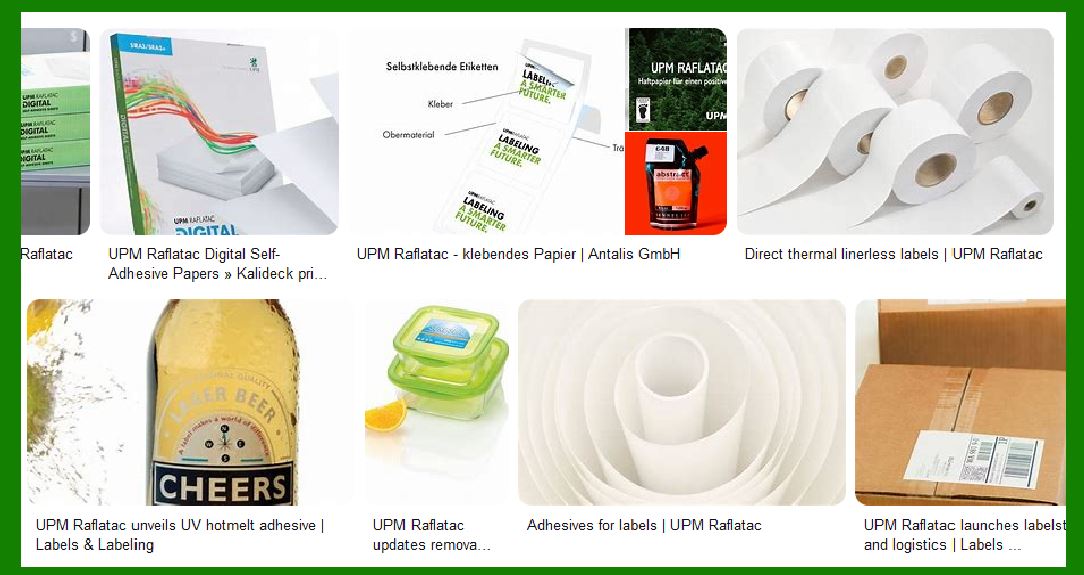
Barcode printers usually work with a variety of media types, including paper, synthetic materials (e.g., polyester), and fabric, as well as different formats (rolls, fan-folds, and sheets). Each type of media may have its own set of requirements for feeding, handling, and tension control. A robust media handling system accounts for these variables and optimizes performance accordingly. |
|
2. Core Components of the Media Handling System |
The media handling system in a barcode printer typically consists of several key components that collectively manage the feeding, tensioning, alignment, and movement of labels or tags. These components include: |
2.1 Media Roll Holder (Spindle) |
The media roll holder is the starting point for most media handling systems in barcode printers. It holds the roll of labels or tags in place and allows the roll to be unwound smoothly as the media is fed into the printer. |
The spindle usually has adjustable arms to accommodate different roll sizes. |
It is often designed with a locking mechanism to keep the media in place, preventing any unwanted movement during the feeding process. |
2.2 Media Feed Mechanism |
The media feed mechanism controls the movement of the media from the roll to the printhead. This system includes various parts that work together to push or pull the media into the printer. |
Drive Rollers: Drive rollers are essential components in the media feed system. These rubberized rollers are responsible for gripping the edge of the media and pulling it through the printer. The drive rollers are powered by a motor, ensuring precise and consistent movement. |
Pressure Rollers: These rollers apply pressure to the media against the drive rollers, ensuring smooth and controlled feeding. Pressure rollers help prevent media slippage and ensure that the media feeds properly. |
2.3 Sensor Systems for Media Detection |
The sensor systems in the media handling system are critical for accurately detecting the position and alignment of the media, as well as identifying the type of media being used. These sensors ensure that the printer operates correctly, preventing misfeeds or jams. |
Gap Sensors: Gap sensors are used to detect the space between labels or tags. The gap between labels provides the printer with crucial feedback, allowing it to adjust its feeding mechanism and print with the correct positioning. The sensors can detect whether the labels are spaced correctly and ensure that the printing process occurs at the right intervals. |
Reflective Sensors: These sensors detect the presence of gaps or black marks on the back of the media. They are particularly useful for identifying media types that have black marks or gaps between labels for synchronization. |
Transmissive Sensors: Transmissive sensors detect the passage of light through the media. These sensors are used to determine the presence of media, its orientation, and even to detect the edges of labels. |
2.4 Tension Control System |
Maintaining proper tension is essential for ensuring that labels are fed accurately without becoming loose or getting stuck. The tension control system regulates the amount of tension applied to the media as it moves through the printer. |
Tension Arm: The tension arm adjusts the tension applied to the media by controlling the position of the media roll. As the roll unwinds, the tension arm moves to maintain consistent pressure on the media to avoid slack or over-tightening. |
Tension Roller: The tension roller works in conjunction with the tension arm to provide resistance to the media as it is fed into the printer, helping to regulate the speed and force of the media feed. |
2.5 Media Pathways and Guides |
Media pathways and guides help to ensure that the media travels in a straight line from the media roll to the printhead. These components prevent the media from misaligning or skewing during the feeding process, ensuring that labels are printed in the correct position. |
Media Guides: These adjustable guides direct the media through the printer, keeping it centered along the media path. The guides can be adjusted to accommodate different media sizes and thicknesses. |
Curved Media Paths: Some barcode printers incorporate curved media paths, allowing the media to move smoothly through the printer without sharp turns. This design minimizes the chances of jamming and improves print quality by ensuring that the media remains aligned. |
2.6 Media Rewind or Dispenser |
Once the label has been printed, the media needs to be either dispensed or rewound, depending on the printer's configuration. |
Rewinders: In printers where labels are printed on rolls, the media handling system may include a rewinder to roll up the printed labels into a new roll. |
Label Dispensers: In systems where labels are applied directly after printing (e.g., in packaging), a label dispenser may be used to peel off and apply each label as it is printed. |
2.7 Peel-Off Mechanism |
The peel-off mechanism is an important feature in barcode printers designed for applications where labels are required to be separated from the backing immediately after printing. This is common in industries such as logistics, where labels are applied to packages right after they are printed. |
The peel-off system typically includes a rubber roller that presses against the label backing paper, lifting the printed label off the liner. |
The media handling system uses a combination of friction and tension to peel the label from the liner without damaging it. |
2.8 Cutter Mechanism |
In certain applications, barcode printers may include a cutter mechanism that automatically cuts the media into individual labels or tags. This is useful when a printer needs to print several tags in a batch and cut them automatically for use. |
The cutter is typically located near the exit of the media path. |
It uses a sharp blade to cut the label material at precise points, ensuring clean edges and minimal waste. |
|
3. Types of Media Handling Systems |
There are various types of media handling systems that barcode printers can use, depending on the printer's design and the type of labels required. These systems are typically categorized based on how the media is fed and handled during the printing process. |
3.1 Direct Thermal Media Handling |
Direct thermal printers use a heat-sensitive material that changes color when exposed to heat from the printhead. In this system, the media handling system is designed to manage the media's exposure to heat without damaging it. |
Media Roll Handling: The media roll for direct thermal printing is typically smaller than those used in thermal transfer printing, as the printhead generates heat directly onto the labels. |
Simplicity of Feed Mechanism: Direct thermal printers often have simpler media handling systems because there is no need for ink ribbons. The media is fed directly from the roll to the printhead with minimal complexity. |
3.2 Thermal Transfer Media Handling |
Thermal transfer printing requires an ink ribbon that is melted onto the media using heat. This means that the media handling system in thermal transfer printers needs to accommodate both the media and the ink ribbon, requiring a more complex mechanism. |
Ribbon Supply: In thermal transfer printers, the ink ribbon is fed from a separate roll or spool alongside the media. The media handling system must ensure that both the ribbon and the media are aligned and fed at the correct rate. |
Tension Control: Because the ribbon is a delicate material, the media handling system in thermal transfer printers must maintain a specific level of tension to ensure that the ribbon feeds smoothly and does not tear. |
|
4. Advanced Features in Media Handling Systems |
Modern barcode printers are often equipped with advanced features that enhance their media handling capabilities. These features contribute to better media efficiency, less downtime, and improved print quality. |
4.1 Automatic Media Calibration |
Automatic media calibration systems allow the printer to detect and adjust its settings based on the type of media loaded. By measuring parameters like the thickness and width of the media, the printer can automatically optimize the feeding process, ensuring that the labels are printed accurately. |
4.2 Media Tracking and Monitoring |
Some advanced media handling systems include sensors and software that track the amount of media used. This feature is particularly useful in high-volume printing environments, as it allows operators to monitor media usage in real time and reorder supplies before they run out. |
4.3 Multi-Media Capability |
High-end barcode printers often feature the ability to handle multiple types of media, allowing for flexible printing of different sizes, colors, and materials. These printers can automatically adjust their media handling settings based on the detected media type. |
|
5. Conclusion |
In conclusion, the media handling system in a barcode printer is a crucial part of the printer's overall design and functionality. It plays a vital role in ensuring that labels or tags are fed smoothly and accurately, optimizing the printing process. A well-designed media handling system enhances the printer's performance, improving efficiency, reducing downtime, and ensuring high-quality print output. |
By understanding the key components and features of media handling systems, businesses can make informed decisions when selecting barcode printers for their operations. A printer with an advanced and reliable media handling system will contribute to a more efficient and effective labeling process, supporting the smooth operation of industries that rely on barcode-based systems. |
|
Common Failures of Barcode Printer's Media Handling System and How to Prevent Them |
Barcode printers are critical tools in industries such as logistics, retail, and manufacturing. The media handling system within these printers ensures the accurate and efficient feeding of labels or tags. However, like any mechanical or electronic system, the media handling system can experience failures that disrupt printer operations, affecting both the quality and speed of label printing. Recognizing common failures and understanding how to prevent them is essential for maintaining consistent, reliable printer performance. |
Here's a detailed look at common failures in the media handling system of barcode printers and preventive measures to avoid them: |
1. Media Jamming |
Media jamming occurs when labels or tags get stuck at some point in the media path, blocking the printer's ability to feed media smoothly. This can lead to production delays, wasted labels, and even printer damage. |
Causes of Media Jamming: |
Incorrect Media Loading: If the media is improperly loaded, it may not feed correctly, causing it to bunch up or get stuck. |
Dirty or Worn Feed Rollers: Dust, ink, or adhesive residue can build up on the rollers, causing them to slip or fail to grip the media. |
Misalignment of Media Guides: If media guides are not adjusted correctly, they can cause the labels to skew, leading to jams. |
Damaged Media: Media with wrinkles, creases, or tears can easily get caught during the printing process. |
How to Prevent Media Jamming: |
Correct Loading: Always follow the manufacturer's guidelines for loading media, ensuring that the media is wound correctly on the roll and aligned properly with the feed path. |
Regular Maintenance and Cleaning: Clean the feed rollers, media guides, and sensors regularly to ensure smooth operation. Use appropriate cleaning solutions to remove adhesive buildup or dust. |
Check for Worn Rollers: Inspect the rollers periodically for wear and tear. Replace worn or damaged rollers to maintain proper media grip. |
Use Quality Media: Ensure that the media you use is of high quality and free from defects. If you notice damaged labels, discard the roll and replace it with a new one. |
|
2. Label Skewing or Misalignment |
Label skewing refers to the misalignment of labels as they pass through the media path, which can cause misprints or uneven label positioning. |
Causes of Label Skewing: |
Incorrect Media Path Alignment: If the media path or guides are not adjusted to the correct width, the media may not travel straight through the printer. |
Faulty Sensors: If the sensors that detect the position of the labels are not calibrated correctly or are dirty, they may fail to detect the correct label alignment. |
Inconsistent Tension: If the tension in the media roll or tension rollers is too high or too low, the media may pull unevenly through the printer, causing skewing. |
How to Prevent Label Skewing: |
Proper Media Guide Adjustment: Ensure that the media guides are set to the correct width for the type of media being used. Adjust the guides so that the media travels straight through the printer. |
Regular Sensor Calibration: Periodically calibrate the sensors to ensure they detect the label's position correctly. Make sure the sensors are clean and free from debris. |
Monitor Media Tension: Regularly check the tension on the media roll. Ensure that the media tension is neither too tight nor too loose, and adjust the tension control mechanisms as needed. |
|
3. Media Feed Speed Inconsistencies |
Inconsistent feed speed can lead to gaps between labels, skewed prints, or incomplete label prints. |
Causes of Inconsistent Feed Speed: |
Faulty Drive Motors or Rollers: The drive motor or feed rollers may malfunction, causing uneven movement of the media. |
Incorrect Printer Settings: In some cases, the printer may be set to the wrong print speed, which can affect the media feed rate. |
Media Thickness or Type: Using media that is too thick, too thin, or incompatible with the printer can cause the printer to misfeed at varying speeds. |
How to Prevent Inconsistent Feed Speed: |
Maintain Drive Rollers: Ensure that the drive rollers are clean, undamaged, and in good condition. Replace any worn-out rollers that might affect media movement. |
Set Correct Printer Settings: Make sure the printer settings, such as print speed, are adjusted according to the type of media being used. Always refer to the manufacturer's recommendations for optimal settings. |
Use Compatible Media: Choose media that is specifically recommended for your printer model. This will help ensure proper interaction between the media and the printer's feed mechanisms. |
|
4. Media Not Detecting Properly (Sensor Failures) |
Barcode printers often rely on sensors to detect label position, gaps, or marks. If the sensors fail to detect the media correctly, it can cause misprints, skipping labels, or even complete printer failure. |
Causes of Sensor Failures: |
Dirty or Obstructed Sensors: Dust, adhesive buildup, or other contaminants can block the sensors, making them unable to detect the media correctly. |
Incorrect Calibration: If the sensor calibration is off, the printer may not be able to accurately detect label gaps, black marks, or media edges. |
Sensor Misalignment: If the sensors are misaligned due to improper installation or wear, they may fail to detect the media as it moves through the printer. |
How to Prevent Sensor Failures: |
Regular Cleaning: Clean the sensors regularly using a soft, lint-free cloth to remove dust and residue. Be gentle to avoid damaging the sensor surface. |
Proper Calibration: Periodically recalibrate the sensors according to the manufacturer's instructions. Calibration ensures the sensors detect the media position accurately. |
Check Sensor Alignment: Ensure that the sensors are aligned correctly. If the printer has been disassembled for maintenance, confirm that all sensors are positioned as per the manufacturer's guidelines. |
|
5. Incorrect Media Feeding (Ribbon Issues) |
For thermal transfer printers, the ribbon is a critical component. Incorrect ribbon feeding can cause uneven prints, printhead damage, or failure to apply ink to the media. |
Causes of Ribbon Feeding Issues: |
Incorrect Ribbon Loading: If the ribbon is not loaded correctly on the ribbon spindle or is installed improperly, it can result in feeding issues. |
Worn Ribbon Rollers: Over time, ribbon rollers can wear out or get coated with ink residue, which can prevent the ribbon from feeding smoothly. |
Incorrect Ribbon Type: Using an incompatible ribbon with the media type can cause the ribbon to feed improperly or not transfer the ink correctly. |
How to Prevent Ribbon Feeding Issues: |
Proper Ribbon Loading: Always ensure the ribbon is loaded in the correct direction and securely attached to the ribbon spindle. |
Clean Ribbon Rollers: Regularly clean the ribbon rollers to prevent adhesive or ink buildup that could cause feeding issues. |
Use Compatible Ribbons: Always use ribbons that are compatible with both the printer and the media type. Check the manufacturer's recommendations for ribbon specifications. |
|
6. Media Roll Slippage |
Media roll slippage occurs when the media roll does not unwind properly, causing the labels to move unevenly or become misaligned. |
Causes of Media Roll Slippage: |
Improper Roll Tension: If the media roll is too loose or too tight, it can result in slippage. This is especially true when the roll is mounted on an improperly adjusted spindle. |
Worn or Dirty Rollers: If the rollers that grip the media roll become worn or dirty, they may fail to apply sufficient friction, leading to slippage. |
Inconsistent Media Diameter: Media rolls that are not wound evenly or have an inconsistent diameter may cause the printer's feed mechanism to struggle with pulling the labels smoothly. |
How to Prevent Media Roll Slippage: |
Adjust Roll Tension: Ensure that the media roll is mounted with appropriate tension. Most barcode printers have adjustable spindles or tension mechanisms that allow you to set the correct tension. |
Clean Rollers Regularly: Clean the rollers that grip the media to ensure they are free from dirt or adhesive buildup. Replace any rollers that are visibly worn or damaged. |
Use Uniform Media Rolls: Always use media rolls with consistent dimensions and quality. Avoid using media that appears poorly wound or irregular in shape. |
|
7. Tear and Cut Issues |
In some barcode printers, the ability to tear or cut labels automatically is a key feature. Failure of the tear or cutter mechanism can cause delays and impact label dispensing. |
Causes of Tear and Cut Failures: |
Dull or Damaged Blades: The cutting mechanism can wear out over time, causing it to tear or cut unevenly, or fail to cut at all. |
Incorrect Calibration: Incorrect cutter or tear-bar position can result in labels not being properly separated. |
Media Material: Some media types may be too thick or stiff for the cutter to handle, causing jamming or ineffective cutting. |
How to Prevent Tear and Cut Failures: |
Replace Dull Blades: Periodically inspect the cutting blades and replace them if they are dull or damaged. |
Proper Cutter Calibration: Ensure the cutter is correctly aligned and calibrated to avoid incorrect cuts. |
Use Appropriate Media Types: Use media that is compatible with the printer's cutting mechanism. Avoid using excessively thick or stiff materials unless the printer is designed for them. |
|
Conclusion |
Maintaining the media handling system of a barcode printer is crucial for ensuring its reliable performance. Regular maintenance, correct media loading, and proper calibration of sensors and rollers are key practices for preventing common failures such as media jamming, label misalignment, and sensor malfunctions. By addressing these potential issues proactively, you can minimize downtime, enhance print quality, and extend the lifespan of the barcode printer, ensuring a smooth and efficient labeling process in your operations. |
|
Practical Examples of Common Failures in Barcode Printer's Media Handling System |
Here are some practical, real-world examples of how common failures in a barcode printer's media handling system can affect operations. These examples are based on situations encountered in various industries such as retail, logistics, and manufacturing. |
1. Media Jamming |
Scenario: A logistics company relies on barcode printers to print shipping labels for packages. The printer is positioned near the warehouse's high-traffic area, where dust and debris are common. The printer consistently jams after printing several labels, especially when it reaches a certain part of the media roll. |
Cause: |
The feed rollers and sensors are covered in dust and adhesive residue from the labels. |
The media roll is not loaded correctly, causing excessive tension on the media. |
Result: |
Frequent stoppages in printing, causing delays in labeling packages. |
Waste of labels as they are often torn or damaged during the jamming process. |
How to Prevent: |
Regular cleaning of the feed rollers and sensors using lint-free cloths and appropriate cleaning solutions. |
Ensuring that the media is loaded according to manufacturer specifications, avoiding over-tightening of the roll to reduce tension. |
|
2. Label Skewing or Misalignment |
Scenario: In a retail environment, barcode printers are used to generate price tags for products. The labels are consistently printed at an angle, resulting in slanted barcodes that are difficult for scanners to read. |
Cause: |
The media guides are not adjusted correctly for the label size. As a result, the media is fed through the printer at a slight angle. |
The tension applied to the media is uneven, which leads to the labels moving in a skewed manner as they pass through the printer. |
Result: |
Misprints and unreadable barcodes, causing issues with inventory management and checkout processes. |
The time spent manually aligning labels or reprinting faulty tags, which affects productivity. |
How to Prevent: |
Regularly check and adjust the media guides to ensure they are set to the correct width for the media being used. |
Calibrate the printer's sensors and ensure that the tension is balanced across the media roll to avoid uneven feeding. |
|
3. Media Feed Speed Inconsistencies |
Scenario: A manufacturing plant uses barcode printers to print product labels at the end of the assembly line. The printer occasionally prints labels with large gaps between them, while at other times, it prints the labels too close together. This inconsistency slows down the production process and results in wasted labels. |
Cause: |
The drive rollers are worn out and no longer provide consistent grip on the media, leading to fluctuating feed speeds. |
The print speed set in the printer's settings is incompatible with the media type or size being used. |
Result: |
Wasted media due to inconsistent label spacing. |
Delays in production and potential disruptions in the workflow as workers manually adjust or reprint labels. |
How to Prevent: |
Perform regular checks of the drive rollers and replace them if worn or damaged. |
Adjust the printer settings to match the print speed with the media type, and ensure that the printer is configured to handle the specific media size and thickness. |
|
4. Media Not Detecting Properly (Sensor Failures) |
Scenario: A retail company uses barcode printers to print shelf labels, but the printer intermittently stops printing after several labels have been printed. It either prints a blank label or skips a label altogether. |
Cause: |
The sensor that detects the gap between labels or the black mark on the back of the media is dirty or misaligned. |
The media being used has become slightly misshaped or is of a non-standard size, confusing the sensor. |
Result: |
Inconsistent label printing, leading to skipped labels or unprinted labels in the batch. |
Increased manual labor required to check and correct printing errors, delaying the labeling process. |
How to Prevent: |
Clean the sensors regularly to remove dust, adhesive, or paper fibers that may interfere with their detection abilities. |
Recalibrate the sensors periodically to ensure that they correctly detect the label gaps or marks. |
Use high-quality media that conforms to the printer's specifications and is less likely to cause issues with sensors. |
|
5. Ribbon Feeding Issues (Thermal Transfer Printers) |
Scenario: A warehouse prints barcode labels for inventory tracking using a thermal transfer printer. After a few hours of continuous printing, the printer begins to produce faded or incomplete prints on the labels, especially at the edges. |
Cause: |
The ribbon is not feeding smoothly, likely due to incorrect loading of the ribbon or a misaligned ribbon spindle. |
The ribbon rollers are worn out or clogged with ink residue, causing the ribbon to drag or misfeed during the printing process. |
Result: |
Low-quality prints with faded or incomplete barcodes, leading to scanning errors and inaccurate inventory tracking. |
Increased waste as multiple labels need to be reprinted due to poor print quality. |
How to Prevent: |
Ensure that the ribbon is loaded correctly on the spindle and that it is aligned with the printhead. |
Regularly inspect and clean the ribbon rollers to prevent buildup and ensure smooth ribbon feeding. |
Use ribbons that are compatible with both the media and the printer to reduce issues related to uneven ink distribution. |
|
6. Media Roll Slippage |
Scenario: In a busy distribution center, a barcode printer is used to print shipment labels in bulk. After several hours of printing, the media roll starts slipping during the print job, causing uneven label alignment and gaps between printed labels. |
Cause: |
The media roll is too loose on the spindle, resulting in insufficient grip and causing the roll to slip as it unrolls. |
The tension control on the printer is not properly adjusted, allowing the media roll to move too freely or too tightly. |
Result: |
Unevenly spaced labels, leading to printing errors and wasted media. |
Printer downtime as the roll needs to be reloaded or adjusted, causing delays in processing shipments. |
How to Prevent: |
Properly adjust the media roll tension by ensuring it is neither too tight nor too loose on the spindle. |
Periodically inspect the media roll and spindle for wear and tear. Ensure the roll is mounted securely to prevent slippage. |
Use media rolls of uniform diameter and quality to avoid issues with feeding. |
|
7. Tear and Cut Issues |
Scenario: A barcode printer in a packaging facility is set to automatically cut printed labels from the roll. However, after several hours of printing, the printer starts failing to cut the labels cleanly, leaving them attached to the roll with jagged edges. |
Cause: |
The cutter mechanism's blade has become dull due to prolonged use, causing it to fail in cutting the labels properly. |
The media used is too thick or not suited for the printer's cutter mechanism, leading to ineffective cuts. |
Result: |
Incomplete or improperly cut labels, requiring manual intervention to separate the labels from the roll. |
Printer downtime as the cutter mechanism needs to be replaced or cleaned, disrupting the labeling process. |
How to Prevent: |
Inspect the cutter blade regularly and replace it when it starts to show signs of wear. |
Adjust the media type to ensure it is compatible with the cutter mechanism, especially when switching to thicker or more rigid labels. |
Calibrate the cutter mechanism and ensure it is properly aligned to ensure clean, accurate cuts. |
|
Conclusion: |
Each of these practical examples shows how small issues with a barcode printer's media handling system can snowball into significant operational disruptions. By identifying common causes of failures-such as media jamming, label skewing, and sensor malfunctions-and implementing regular maintenance, calibration, and proper media handling practices, you can prevent many of these issues from arising. Proactive care not only minimizes downtime and label waste but also improves the overall efficiency of barcode printing operations, ensuring smoother workflows in fast-paced industries. |
|
What new technologies will improve the function of the barcode printer's Media Handling System and reduce the failure rate in the future? |
As barcode printing technology continues to evolve, new advancements and innovations are being integrated into media handling systems to enhance their efficiency, reliability, and longevity. These technologies aim to reduce failure rates, improve the accuracy of media feeding, and streamline maintenance processes. Below are some emerging technologies that are likely to improve the function of barcode printer media handling systems in the future: |
1. Artificial Intelligence (AI) and Machine Learning (ML) |
Overview: AI and machine learning are being integrated into barcode printer systems to enhance their ability to detect, diagnose, and prevent media handling failures in real time. These technologies analyze data from sensors and provide predictive maintenance alerts to prevent issues before they happen. |
How It Improves Media Handling: |
Predictive Maintenance: AI systems can analyze historical data to predict when a printer's rollers, sensors, or other media handling components are likely to wear out. This proactive approach helps to prevent failures caused by component degradation. |
Self-Adjustment of Settings: Machine learning algorithms can learn the best settings for different types of media, adjusting feed speeds, sensor calibrations, and tension levels based on the media's characteristics, reducing misfeeds and jams. |
Fault Detection: AI-powered diagnostics can continuously monitor the media handling system and provide alerts when there is a deviation from the expected performance, allowing technicians to address minor issues before they become major problems. |
Benefits: |
Reduced downtime and maintenance costs due to predictive maintenance and early detection. |
Increased media handling precision with minimal human intervention. |
Improved operational efficiency by reducing media feed errors. |
2. Smart Sensors and Vision-Based Systems |
Overview: The integration of advanced optical sensors and vision-based systems can greatly enhance the media handling capabilities of barcode printers. These sensors provide real-time feedback on the alignment, positioning, and condition of the media. |
How It Improves Media Handling: |
Enhanced Label Detection: Vision systems can precisely detect the edges, gaps, and orientation of labels. This allows for more accurate media feeding and alignment, reducing issues like label skewing and misalignment. |
Automatic Adjustment: Sensors can automatically detect when labels are misaligned or the media is about to jam, triggering corrective actions like adjusting media guides or slowing down the print speed to accommodate irregularities. |
Improved Sensor Calibration: Smart sensors with self-calibration capabilities can adjust their sensitivity based on the media type, ensuring better accuracy in label positioning and gap detection. |
Benefits: |
Greater accuracy in detecting and aligning media, leading to fewer misfeeds and skewed prints. |
Real-time automatic adjustments reduce the need for manual intervention. |
Enhanced reliability in various environments, including those with varying media types and conditions. |
|
3. Advanced Media Feeding Mechanisms (Servo Motors and Dynamic Tension Control) |
Overview: Servo motors and dynamic tension control systems are advancing the way barcode printers manage media feeding. These systems provide more precise and responsive control over the movement of media through the printer, reducing issues related to slippage and uneven tension. |
How It Improves Media Handling: |
Servo Motors: These motors offer precise control over media movement, allowing the printer to handle varying media types and sizes with minimal speed fluctuations or slippage. This ensures consistent media feeding even during high-speed operations. |
Dynamic Tension Control: Modern printers equipped with dynamic tension control systems can automatically adjust the pressure applied to the media as it passes through the printer, ensuring consistent feeding and reducing the risk of jams or skewing. |
Adaptive Media Handling: These systems can adapt to different media types in real time, adjusting the force applied to each roll to prevent issues such as slipping, over-tightening, or uneven feeding. |
Benefits: |
Increased print consistency and reduced media-related errors, such as skewing or misalignment. |
Enhanced adaptability to various media types, reducing the chances of media-related failures. |
Less wear on mechanical components due to smoother, more controlled media handling. |
4. Automated Calibration and Alignment Systems |
Overview: Automated calibration and alignment systems are being developed to ensure that printers are always in optimal condition for media handling. These systems can self-adjust and calibrate various components, including printheads, sensors, and media guides, to ensure that media feeding is accurate and efficient. |
How It Improves Media Handling: |
Auto Media Sensor Calibration: Printers will automatically calibrate the sensors responsible for detecting label positions, gaps, and marks, ensuring that they are accurately set every time the media is loaded. This minimizes the chances of errors due to incorrect sensor configurations. |
Automatic Guide Adjustment: The media guides can be automatically adjusted to fit the media roll size and configuration, ensuring that labels travel through the printer straight and aligned. |
Printhead and Sensor Alignment: Automated systems will also check the alignment of the printhead and sensors to ensure that there are no issues with the printing process, improving overall media handling. |
Benefits: |
Reduced need for manual calibration, saving time and labor. |
Improved accuracy and consistency in print jobs, with fewer misalignments and label feed issues. |
Enhanced reliability and uptime as the printer maintains its optimal settings automatically. |
|
5. Nanotechnology in Rollers and Feed Components |
Overview: Nanotechnology is being explored to enhance the durability and functionality of the mechanical components involved in media handling, such as rollers and feed mechanisms. Nanocoatings and materials designed at the molecular level can significantly reduce friction, wear, and debris buildup. |
How It Improves Media Handling: |
Self-Cleaning Components: Nanotechnology can be used to create self-cleaning surfaces on rollers, which will help prevent the buildup of adhesive residue, ink, or dirt that can cause media handling issues like jams or misfeeds. |
Enhanced Durability: Nanocoatings can make rollers and other components more resistant to wear, reducing the frequency of part replacements and maintenance requirements. |
Friction Reduction: Nanomaterials can reduce friction between the media and rollers, making the feeding process smoother and more efficient, especially for thicker or more rigid media. |
Benefits: |
Longer lifespan for mechanical components, reducing the need for replacement parts and downtime. |
Reduced occurrence of media-related issues such as jamming or slippage, leading to more efficient printing operations. |
Lower maintenance costs and improved overall reliability. |
6. Internet of Things (IoT) Integration |
Overview: IoT technology is increasingly being integrated into barcode printers to provide real-time monitoring and remote diagnostics of the media handling system. IoT-enabled printers can communicate with other devices and systems, allowing for better fleet management and troubleshooting. |
How It Improves Media Handling: |
Remote Monitoring and Alerts: IoT sensors can monitor the media handling system in real time, alerting operators to potential issues like paper jams, worn rollers, or misfeeds before they cause significant downtime. |
Data-Driven Insights: IoT devices can collect and analyze data about printer performance, providing actionable insights that can be used to fine-tune the media handling process and reduce failure rates. |
Remote Troubleshooting: Technicians can access real-time data and diagnostic information remotely, enabling faster identification and resolution of media handling issues, often without the need for on-site visits. |
Benefits: |
Real-time, remote monitoring increases operational efficiency and reduces downtime by allowing for quick intervention when issues arise. |
Better visibility into the performance of printers across multiple locations, improving maintenance scheduling and decision-making. |
Enhanced ability to detect patterns in media-related failures, leading to more effective preventive measures. |
|
7. Flexible and Adaptive Media Types |
Overview: Future barcode printers may support more flexible media types, such as RFID tags, multi-layered labels, or unusual materials, with minimal setup changes. These printers will automatically adjust their settings to accommodate different media without the need for manual intervention. |
How It Improves Media Handling: |
Dynamic Media Sensing: Advanced sensors will automatically detect the type and thickness of the media being used, adjusting the printer's settings accordingly for optimal feeding. |
Flexible Print Mechanisms: Printers will adapt to handle a wider variety of materials without requiring manual configuration changes, such as for labels with varying adhesive levels or different substrates. |
More Versatile Media Compatibility: As printers are able to handle more complex media types, the risk of media-related failures due to incompatibility will be reduced. |
Benefits: |
Greater versatility in the types of media that can be used without requiring additional printer modifications. |
Reduction in operational disruptions caused by media type incompatibilities. |
Increased efficiency in industries that use a wide range of label formats and materials. |
|
Conclusion: |
As technology continues to advance, barcode printer media handling systems are becoming more intelligent, efficient, and reliable. The integration of AI, smart sensors, automated systems, and advanced materials is helping to reduce failure rates and improve operational efficiency. These innovations will not only enhance the performance of media handling systems but also streamline maintenance and troubleshooting processes, ensuring a more seamless and effective labeling experience across industries. |
 cs@easiersoft.com