1. Introduction to Barcode Printer User Interface |
Barcode printers have become essential tools in various industries, including retail, logistics, healthcare, and manufacturing, where accurate labeling, tracking, and data management are critical. The user interface (UI) of a barcode printer plays a pivotal role in how operators interact with the machine to ensure that barcode labels are generated and printed accurately and efficiently. |
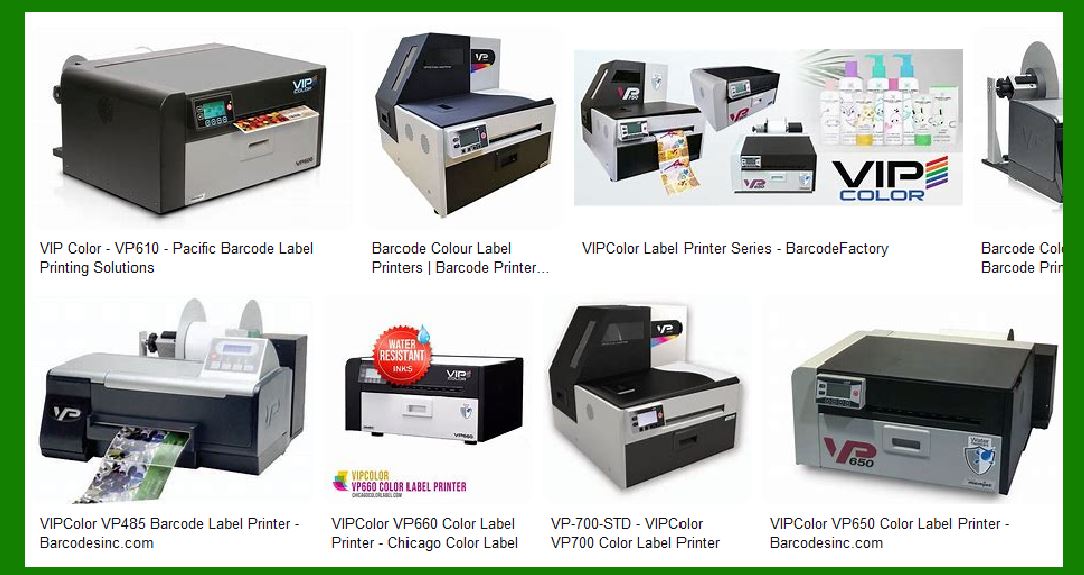
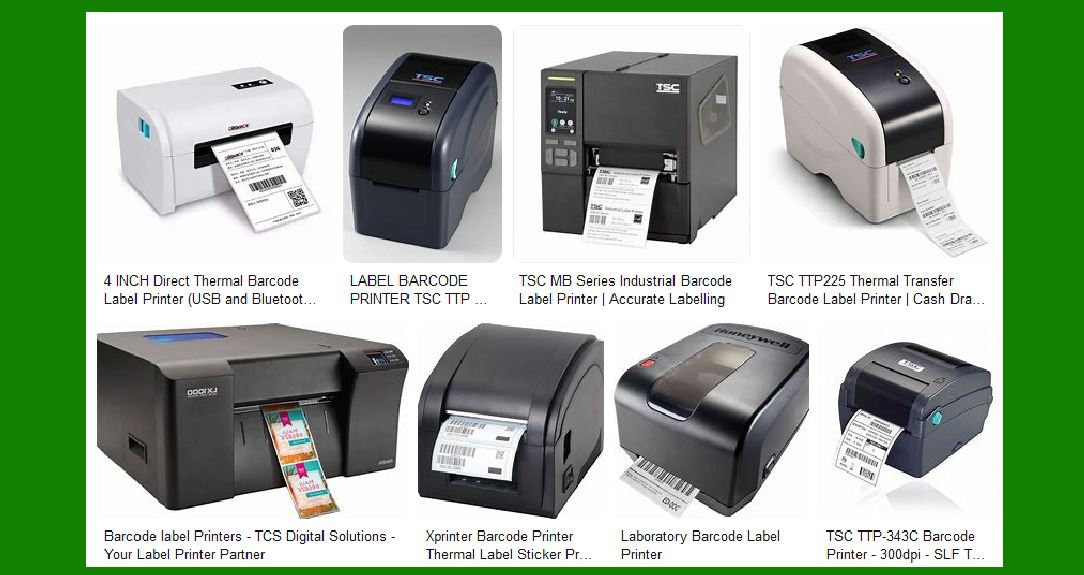
A barcode printer typically consists of various components that facilitate user interaction, including buttons, displays, and, in some cases, touch screens. These elements enable users to configure the printer, manage print jobs, troubleshoot errors, and ensure smooth operation. This detailed exploration will focus on the UI features commonly found in barcode printers, covering the design, functionality, and the user experience aspects of these components. |
|
2. Overview of Key Components in Barcode Printer UI |
Before delving into the specifics of buttons, displays, and touch screens, it is important to understand the key components that make up the user interface of a barcode printer: |
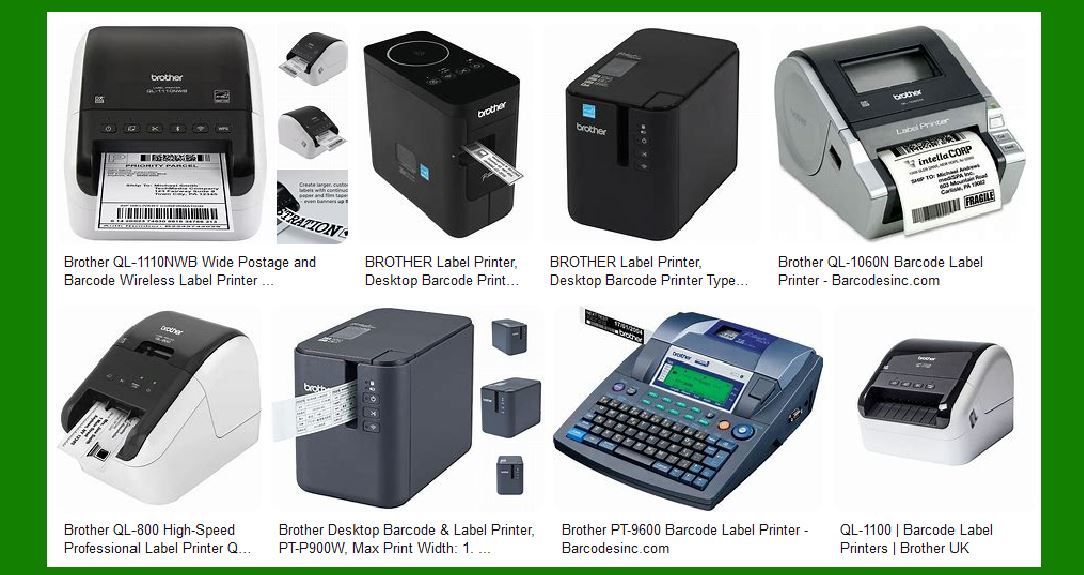
Buttons: Physical buttons are traditionally used for basic printer operations like power on/off, navigating menus, starting and stopping print jobs, and configuring settings. |
Displays: Barcode printers often include an LCD or LED display that communicates information about the printer's status, errors, and settings. |
Touch Screens: Some high-end or industrial barcode printers come with integrated touch screens that allow users to interact with the printer's interface through touch gestures, making it easier to configure settings and access detailed menus. |
Each of these components contributes to creating an intuitive interface that allows users to operate the printer effectively. |
|
3. Buttons in Barcode Printer UI |
Buttons are the simplest form of user interface in barcode printers. They are designed to allow users to perform basic actions without needing a sophisticated screen or touch interface. Despite their simplicity, the configuration and placement of buttons are critical for usability. |
3.1. Power Button |
This button is typically the most prominent on the printer's front panel. It is used to turn the printer on and off. In some models, the power button may also have additional functionalities, such as restarting the printer or toggling between different operational modes (e.g., standby or sleep mode). |
3.2. Feed Button |
The feed button is often used to advance the paper or labels through the printer's mechanism, typically without printing. This button is useful for loading labels, clearing paper jams, or ensuring that the printer is aligned and ready to print. |
3.3. Pause Button |
Many barcode printers feature a pause button that temporarily halts a print job. This feature is useful when there is a need to stop printing for any reason-whether to troubleshoot, load additional labels, or correct a mistake in the print setup. |
3.4. Cancel Button |
The cancel button is used to terminate a print job that is either in progress or queued up. Pressing this button may also be necessary if a printer encounter an error or if a job needs to be aborted due to incorrect settings or label stock. |
3.5. Menu/Settings Buttons |
Barcode printers often come with buttons that navigate through menus or settings. These buttons allow the user to adjust parameters like print density, print speed, label size, or font type. The menu button typically leads the user into an on-screen menu that allows further interaction with the printer's configuration. |
3.6. Error Indicator Buttons |
Some barcode printers feature dedicated buttons or indicators that light up when there's an error, such as a paper jam, low ink, or an issue with the printhead. These buttons might flash or change color to indicate different error states, allowing the user to address the issue. |
|
4. Displays in Barcode Printer UI |
Displays are essential in providing real-time feedback to the user. The type of display and the information it provides varies depending on the model and complexity of the barcode printer. Generally, displays can be classified into two main types: LED displays and LCD displays. |
4.1. LED Displays |
LED displays are typically smaller and less detailed than LCD screens. They usually consist of a series of lights that indicate the status of the printer, such as whether it is ready, busy, or in an error state. LED displays might also show simple symbols (e.g., a paper jam icon or ink level icon) to communicate the printer's condition. |
4.2. LCD Displays |
LCD displays are more common in modern barcode printers because they can show more detailed information. These displays can range in size from small monochrome screens to larger full-color touch screens. LCD displays often serve as the primary means of communication between the printer and the user, displaying messages, status updates, and error codes. |
4.3. Information Displayed on the Screen |
Regardless of the type of display, the following information is typically shown: |
Printer Status: Whether the printer is online, paused, or out of paper. |
Error Codes and Messages: Descriptions of problems such as paper jams, low ink or toner levels, or connectivity issues. |
Settings Information: Display of current settings like print speed, label dimensions, or the type of material being used for printing. |
Job Queue: The number of print jobs in the queue and their statuses (whether waiting, in progress, or completed). |
These details help users understand how the printer is functioning and provide insight into potential issues that need to be addressed. |
|
5. Touch Screen in Barcode Printer UI |
While many barcode printers still rely on traditional button-based navigation, more advanced models come equipped with touch screens to provide a more intuitive and interactive user interface. These touch screens combine the benefits of visual feedback and tactile interaction, allowing users to quickly adjust settings, monitor printer status, and even troubleshoot problems. |
5.1. Touch Screen Navigation |
Touch screen navigation is designed to be intuitive, often relying on icons and simple on-screen buttons. For example, a user might tap an icon that represents print settings, which then opens a submenu of options such as print speed, density, and label size. |
Menus are often organized hierarchically to minimize clutter and present only relevant options at each step. For example, after selecting a print settings menu, the next screen might show more specific options related to print quality or calibration. |
5.2. Multi-Touch Capabilities |
Some high-end barcode printers come with multi-touch touch screens that allow users to zoom in on settings or swipe through menus with ease. This feature enhances usability, particularly for those who are familiar with modern smart devices and prefer an efficient, responsive interface. |
5.3. Dynamic Feedback |
With touch screen UIs, dynamic feedback becomes an essential part of the experience. For instance, if the user selects an option or adjusts a setting, the screen may immediately update to reflect the new configuration or display a confirmation message, such as 'Settings Applied.' |
Additionally, touch screen printers may show graphical representations of print jobs, such as a progress bar or a live preview of the label design, enabling users to see how the label will look once printed. |
5.4. Error Notifications and Troubleshooting |
Touch screens often provide advanced troubleshooting capabilities. Instead of relying solely on a series of flashing LED lights or cryptic error codes, touch screen interfaces can present detailed error messages that guide users through the process of resolving issues. For example, if there's a paper jam, the touch screen might not only show an error message but also provide step-by-step instructions on how to clear the jam. |
5.5. Customization and User Profiles |
Higher-end barcode printers may allow users to create custom settings or profiles that cater to specific needs. These profiles can be saved and accessed via the touch screen, allowing users to quickly switch between different configurations, such as different label types or print resolutions. This feature is especially useful in environments where the printer is used for multiple purposes and needs to be reconfigured frequently. |
|
6. User Interface Design Considerations |
Effective UI design is crucial for ensuring that users can operate barcode printers with ease and minimal frustration. Several factors come into play when designing a user-friendly barcode printer interface: |
6.1. Simplicity and Clarity |
The UI should be straightforward, avoiding unnecessary complexity. Buttons, icons, and menu options should be clearly labeled and organized logically. For example, basic functions like powering on, printing, and feeding paper should be easy to access from the main screen or interface. |
6.2. Feedback and Responsiveness |
An effective user interface provides immediate feedback for actions. For instance, when a user presses a button or makes an adjustment, the UI should promptly show a response, such as a visual confirmation or a change in the printer status. |
6.3. Error Management |
Errors should be communicated in a clear, understandable manner. The UI should explain what went wrong and, if possible, suggest corrective actions. This helps users quickly address issues and get the printer back to working condition. |
6.4. Ergonomics |
The placement of buttons and the layout of displays should take into account the ergonomics of the user. Controls should be placed at convenient locations and be easy to use without excessive bending or stretching. In the case of touch screens, the screen should be positioned at an angle that minimizes strain for the user. |
6.5. Visual Design |
A visually appealing interface can make a big difference in user experience. The layout should be aesthetically pleasing, with clear fonts, well-organized menus, and icons that are easy to understand. Good visual design can reduce cognitive load, allowing users to perform tasks with minimal effort. |
|
7. Conclusion |
The user interface of a barcode printer plays a fundamental role in how efficiently and effectively users can operate the device. Buttons, displays, and touch screens each contribute to making the interaction as seamless as possible. The design of the user interface must consider user needs, device functionality, and the context in which the printer is used to ensure optimal performance. Whether through physical buttons or sophisticated touch screen interfaces, the UI must provide clear information, intuitive navigation, and responsive feedback to make the process of printing barcode labels as efficient as possible. |
|
What are its common failures of the Barcode Printer's User Interface? How to prevent them? |
1. Introduction |
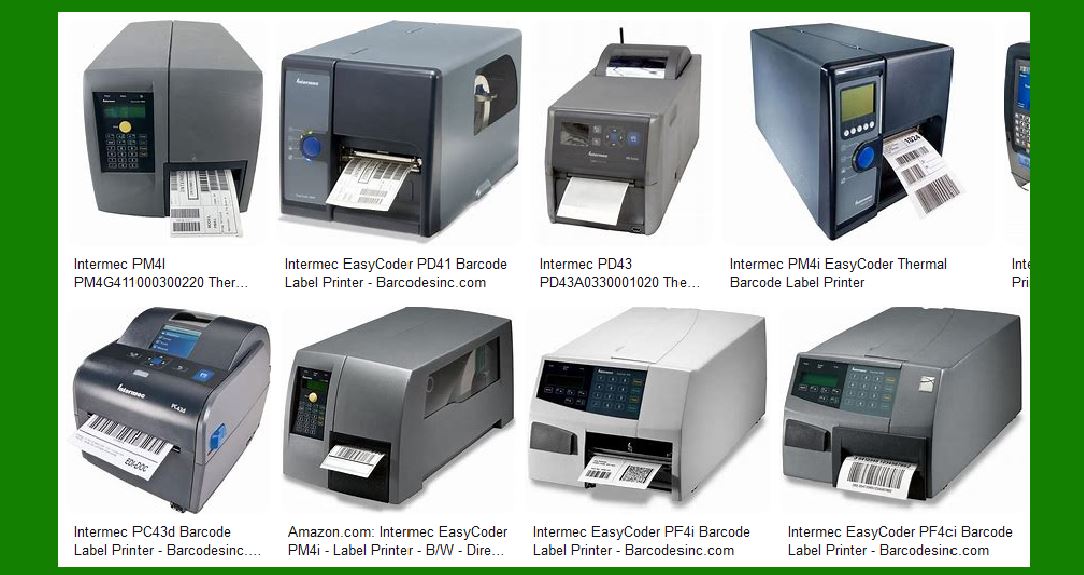
Barcode printers are sophisticated devices that facilitate the creation of accurate and efficient barcode labels used in various industries. While the hardware and technology behind these printers continue to evolve, their user interfaces (UIs) are prone to certain common failures. These failures can affect the overall usability of the device, leading to operational inefficiencies, downtime, or errors in label printing. Understanding the typical UI-related failures and implementing preventive measures can significantly enhance the user experience and ensure smoother operation. |
This section explores common UI failures in barcode printers and provides strategies for preventing these issues. |
|
2. Common Failures of Barcode Printer's User Interface |
Barcode printer UI failures can manifest in several ways, from difficulty in navigation to unresponsive buttons or displays. Below are some of the most common issues that users may encounter: |
2.1. Unresponsive Buttons or Controls |
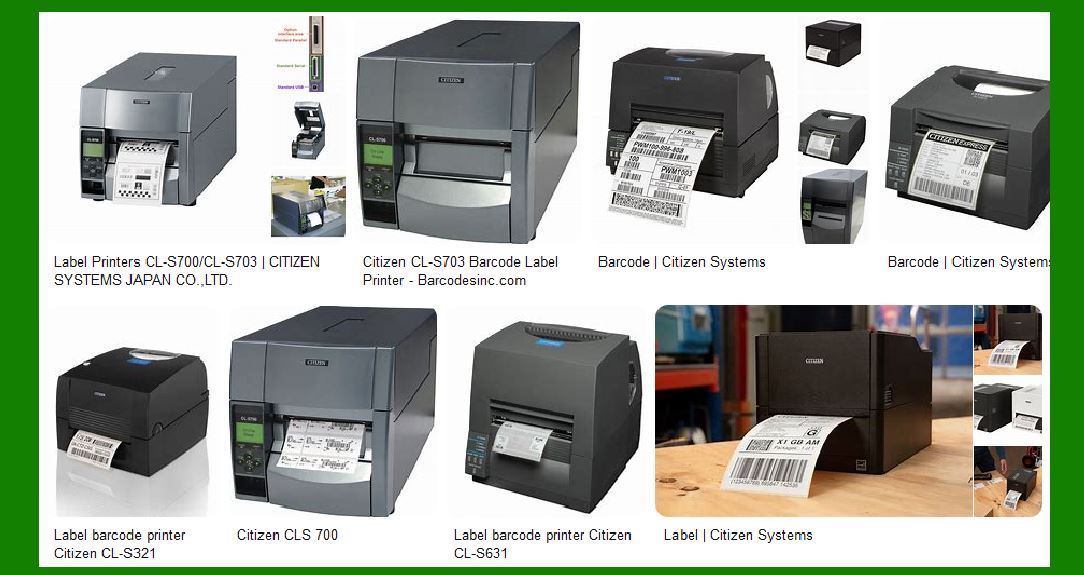
One of the most frustrating UI-related issues is unresponsive buttons or controls. This could occur with physical buttons on lower-end models or with touch-screen interfaces on more advanced printers. When a button press or touch gesture does not produce the expected action, it disrupts the user's ability to configure the printer or initiate tasks. |
Potential Causes: |
Physical Wear and Tear: Over time, physical buttons may degrade, especially in high-use environments. Similarly, touch screens can become unresponsive due to screen damage, dirt, or wear. |
Software Bugs: In some cases, unresponsiveness may be due to software glitches, causing the UI to freeze or become slow to respond. |
Connectivity Issues: Wireless or Bluetooth connectivity problems might interfere with the printer's communication with the user interface, particularly when using mobile apps or remote configuration options. |
Prevention Measures: |
Regular Cleaning: Regularly clean the printer's buttons and touch screens to remove dust, dirt, or grime that could impair functionality. |
Software Updates: Ensure that the printer's firmware and software are up-to-date. Manufacturers frequently release updates to address known bugs or improve UI responsiveness. |
Quality Control in Manufacturing: Choose printers from reputable brands that provide durable, high-quality buttons and touch screens. This can prevent issues stemming from poor hardware design or build quality. |
Diagnostic Tools: Use built-in diagnostic tools or printer maintenance apps to check the printer's operational health. Many printers provide self-diagnostic capabilities for detecting UI or hardware malfunctions. |
|
2.2. Poor Navigation and Menu Structure |
A poorly designed navigation system can make it difficult for users to locate essential features and settings within the printer's interface. If menus are confusing, overly complex, or not logically structured, users may struggle to adjust configurations or troubleshoot problems efficiently. |
Potential Causes: |
Overcrowded Menus: An excessive number of options or settings in one menu can overwhelm the user, making navigation difficult. |
Inconsistent Layout: Buttons, icons, and settings placed inconsistently across different screens may confuse users about where to find specific features. |
Limited Instructional Support: The lack of helpful tooltips, clear labels, or prompts in the UI can leave users guessing about the purpose of certain functions. |
Prevention Measures: |
Clear Menu Hierarchy: Design the UI with a clear, organized hierarchy of menus. Place the most frequently used settings or functions on the home screen, and group related features logically in submenus. |
Icon and Label Clarity: Ensure that all icons are clearly labeled with text or have universally understood symbols, reducing the likelihood of misinterpretation. |
User Testing: Before deploying a new barcode printer model, conduct user testing to ensure that the UI is intuitive and easy to navigate. This testing can identify areas where users are likely to get stuck. |
Provide User Guides and Support: Comprehensive user manuals, FAQs, and online support materials can help users better understand how to navigate complex menus. |
|
2.3. Inadequate Error Messaging |
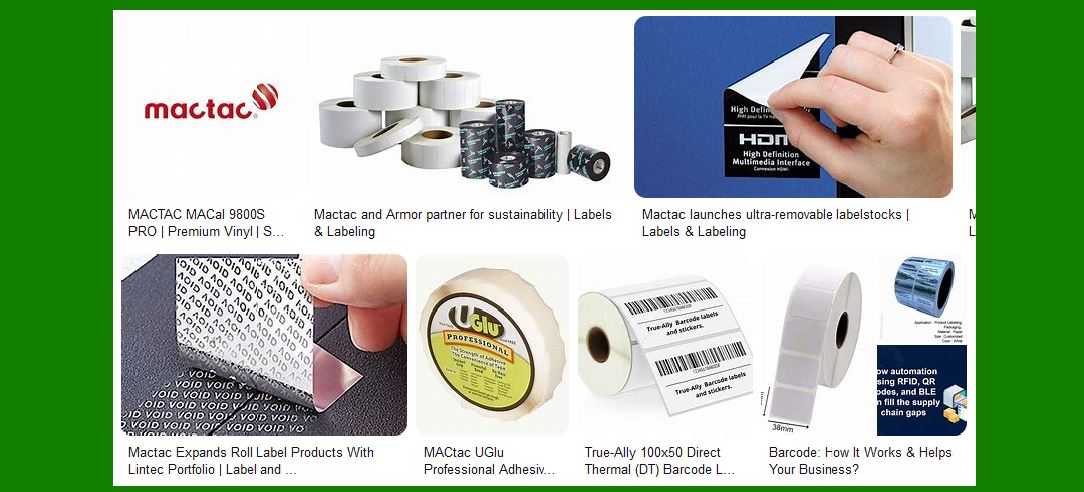
Barcode printers often encounter errors such as paper jams, low ink or toner, or connectivity issues. If the UI fails to provide clear and actionable error messages, users may struggle to diagnose the problem and may not know how to fix it. Vague or cryptic error codes can lead to unnecessary downtime and frustration. |
Potential Causes: |
Generic Error Messages: Some barcode printers may show only generic error messages like 'Error 01' or 'Paper Jam' without offering specific guidance on how to resolve the issue. |
No Contextual Support: Some error messages may not provide enough context, such as indicating whether the issue is a hardware failure, a software issue, or an operational mistake. |
Lack of Troubleshooting Guidance: If the printer doesn't provide suggestions or steps for troubleshooting, the user may need to rely on external resources or guesswork. |
Prevention Measures: |
Specific Error Codes: Ensure that the printer's error messages are specific and provide detailed descriptions of the problem. For example, instead of just displaying 'Paper Jam,' it could state 'Paper Jam at the Input Tray' or 'Paper Jam in the Print Path.' |
Troubleshooting Prompts: Include step-by-step troubleshooting instructions within the error message or on the UI screen. For example, 'Open the front panel and remove the jammed paper.' |
Contextual Help: Add context-sensitive help or a 'Help' button that provides further information or directs the user to resources like manuals, troubleshooting guides, or videos. |
|
2.4. Display or Touch Screen Issues |
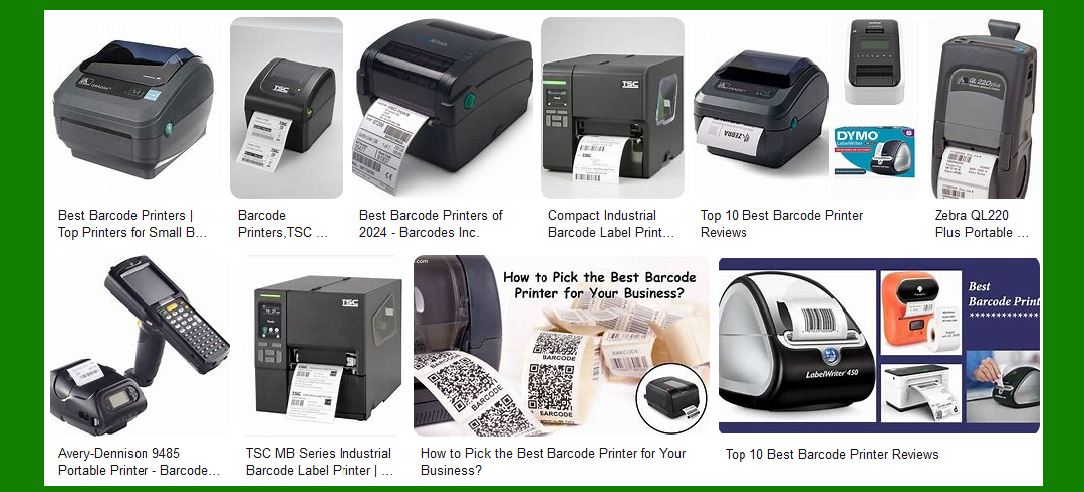
For printers with display screens, issues such as screen freezing, flickering, or failure to display information correctly can impair the user's ability to operate the printer. These issues could also arise with touch screens if they become unresponsive, leading to difficulties navigating the interface. |
Potential Causes: |
Hardware Failure: Touch-screen displays are susceptible to damage, which could render them unresponsive or cause them to malfunction. |
Software Bugs: A software error or glitch might cause the screen to freeze, display incorrectly, or fail to refresh properly. |
Environmental Factors: Harsh environmental conditions, such as high temperatures or humidity, can affect the functionality of touch screens and displays. |
Prevention Measures: |
Quality Display Hardware: Select barcode printers that use high-quality displays and touch screens, ensuring that the screen can withstand wear and tear and is durable enough for the working environment. |
Screen Calibration: Regularly calibrate touch screens to ensure accurate touch response. This process can prevent the UI from becoming unresponsive due to misaligned touch sensors. |
Environmental Protection: Install the barcode printer in environments with controlled temperature and humidity levels. Avoid placing the printer near heat sources or in extremely moist areas. |
Monitor for Software Updates: Ensure that the firmware or software that controls the display is regularly updated to address any potential bugs or glitches that could affect display performance. |
|
2.5. Printer Configuration Problems |
Barcode printers often require initial configuration, such as adjusting print speed, label size, and resolution. If the user interface allows for incorrect configurations, the printer may produce faulty prints or fail to print altogether. |
Potential Causes: |
Complex Setup Process: If the configuration process is overly complicated or lacks clarity, users may accidentally set incorrect parameters. |
Inaccurate Calibration: Some printers may not properly calibrate for label size, material, or type, leading to inaccurate prints. |
No Feedback on Configuration Changes: Without visual confirmation or feedback, users may not be aware that a setting change has not been applied. |
Prevention Measures: |
User-Friendly Setup Wizards: Provide a clear and straightforward setup wizard or guided process that walks users through the configuration, step by step, and ensures that all essential settings are correctly selected. |
Feedback on Configuration Changes: Ensure that any changes made during setup or adjustments provide immediate on-screen feedback, confirming the new setting and showing how it will affect the print process. |
Calibration Assistance: Offer automatic or semi-automatic calibration features for tasks like label size or print density, which can help prevent errors related to manual configuration. |
|
3. Conclusion |
UI-related failures in barcode printers can significantly impact productivity, causing delays, frustration, and operational inefficiencies. Common failures include unresponsive buttons, poor navigation, inadequate error messaging, display issues, and configuration problems. However, by adopting preventive measures-such as regular cleaning, clear menu structures, specific error codes, and high-quality hardware-these issues can be minimized or avoided altogether. Additionally, ensuring that the UI is intuitive and user-friendly, with sufficient guidance and troubleshooting support, can improve the overall experience and reduce the likelihood of user errors. By addressing these potential failures proactively, manufacturers and users can ensure that barcode printers continue to perform optimally, resulting in greater efficiency and fewer disruptions. |
|
Here are some practical examples of common failures of a barcode printer's user interface (UI), along with scenarios that users might encounter in real-world situations. These failures can significantly disrupt workflow and cause delays, but understanding these examples can help in identifying and preventing such issues. |
1. Unresponsive Buttons or Touchscreen |
Example Scenario: A user is attempting to print a batch of barcode labels for a shipment but presses the 'Start' button multiple times without the printer initiating the print job. The button lights up but does not trigger any response. This issue could be caused by a malfunctioning physical button or a touch screen that fails to register the user's touch. |
Common Causes: |
Wear and tear on the buttons due to constant use. |
Physical obstruction (dust, dirt, or grime) covering the buttons or touchscreen. |
Software freeze, causing the UI to become unresponsive to user input. |
Impact: |
Delays in starting the printing process. |
User frustration, especially in high-demand environments like warehouses or retail. |
Solution/Prevention: |
Regularly clean the buttons and touch screen with appropriate cleaners to avoid buildup that may interfere with functionality. |
Update the printer's firmware to fix software bugs that may cause touch-screen unresponsiveness. |
For touchscreens, ensure proper calibration and conduct a reset if the touchscreen becomes unresponsive. |
|
2. Poor Navigation and Confusing Menu Structure |
Example Scenario: A warehouse employee needs to change the label size in the printer settings to match a new product label. However, after several minutes of navigating through different screens, they can't locate the label size setting. The menu structure is overly complicated, and the labels or icons for settings are unclear, causing the user to become frustrated and waste valuable time. |
Common Causes: |
Too many settings grouped in one menu, causing confusion. |
Icons and text not clearly indicating their function or relevance. |
Inconsistent UI layout, where related functions are spread across different screens or sections. |
Impact: |
Time wasted navigating through confusing menus, leading to inefficiency and potential errors. |
Increased likelihood of incorrect settings due to misunderstanding or mislocating menu options. |
Solution/Prevention: |
Simplify menu structure and group related functions logically. |
Use clear and consistent labeling for buttons and icons. |
Implement a visual guide or setup wizard to walk users through initial setup and major adjustments. |
Ensure regular UI testing with real users to catch usability issues. |
|
3. Inadequate or Vague Error Messaging |
Example Scenario: A printer shows an error message 'Error 300' with no additional explanation. The user does not know whether this indicates a paper jam, a problem with the printer head, or a network issue. After trying to troubleshoot using the vague error message, the user spends extra time trying to fix the problem without success. |
Common Causes: |
Generic error codes that do not provide meaningful feedback to the user. |
Lack of contextual troubleshooting advice in the error message. |
Error messages that only appear as numbers or symbols without descriptive text. |
Impact: |
Increased downtime while users struggle to interpret the error. |
Frustration due to lack of clarity, leading to operational delays and a higher likelihood of incorrect attempts to resolve the issue. |
Solution/Prevention: |
Provide descriptive, specific error messages. For example, instead of just 'Error 300,' display 'Paper Jam in the input tray.' If the issue requires more detail, offer a step-by-step troubleshooting guide. |
Incorporate visual or audio cues (like blinking lights or sounds) to reinforce the error message. |
Include direct links to troubleshooting videos or guides on the display. |
|
4. Screen Flickering or Freezing |
Example Scenario: A user is configuring the print job on a touchscreen-equipped barcode printer when the screen starts flickering intermittently, making it difficult to see the settings. In some cases, the touchscreen completely freezes, forcing the user to power cycle the printer to regain control. This issue happens often during intense use when there are multiple print jobs queued. |
Common Causes: |
Overheating of the printer, especially in environments with high temperatures. |
Software bugs causing the screen to freeze or become unresponsive. |
Hardware issues, such as a faulty screen or loose connections. |
Impact: |
Inability to operate the printer efficiently, especially in fast-paced environments. |
Wasted time waiting for the screen to become responsive again, which could affect production schedules. |
Potential for misprints if users are unable to adjust settings while the screen is unresponsive. |
Solution/Prevention: |
Ensure the printer is placed in a temperature-controlled environment to prevent overheating. |
Check for software updates or patches that fix bugs causing screen issues. |
If the problem persists, consider upgrading the printer to a model with a more robust touchscreen or hardware that can withstand heavy use. |
|
5. Failure to Recognize or Misinterpret Label Sizes |
Example Scenario: An operator is trying to print labels for a new product, but despite correctly selecting the desired label size from the menu, the printer produces labels that are too small or too large. The UI does not display a confirmation message that the setting has been applied, and the operator only realizes the error after printing several labels. |
Common Causes: |
A failure in the printer's automatic calibration process. |
Miscommunication between the user interface and the printer's hardware, such as an incorrect label feed or improper sensor calibration. |
The UI fails to provide a visual preview of the label configuration, leaving the user uncertain if the settings are correct. |
Impact: |
Wasted materials, such as labels, if the wrong size is printed. |
Increased downtime as the user reconfigures the printer settings and runs additional test prints. |
Potential confusion if users cannot trust the settings and labels they are printing. |
Solution/Prevention: |
Include a label size preview feature that shows how the label will look before printing. |
Allow automatic calibration of label sizes based on sensor readings and paper type. |
Provide clear, visual confirmation of settings before the print job starts, such as showing a preview or confirming with a pop-up dialog. |
|
6. Difficulties with Connecting to Wireless Networks |
Example Scenario: A user tries to connect the barcode printer to the company's wireless network to print labels from a remote location. The printer's UI shows a vague message, like 'Connection Failed,' without explaining whether the issue is related to network settings, password entry, or signal strength. The user is unable to figure out the cause of the failure. |
Common Causes: |
Weak or intermittent wireless signals, particularly in environments with high interference. |
Incorrect Wi-Fi network settings or passwords entered in the UI, without proper feedback. |
The printer UI does not clearly differentiate between different connection errors (e.g., incorrect password vs. weak signal). |
Impact: |
Inability to print remotely, which can be critical in industries like warehousing or retail. |
Wasted time troubleshooting without clear direction, leading to delays in label printing and shipment processing. |
Frustration when there's no clear feedback about what went wrong. |
Solution/Prevention: |
Improve the error message to include more specific details, such as 'Network Timeout' or 'Incorrect Password,' to guide the user in fixing the issue. |
Ensure that the wireless connection setup screen is intuitive, with a progress indicator for network scanning and detailed feedback for each step. |
Provide an easy way to reconnect or reset the network settings if problems persist, and ensure that the printer has sufficient Wi-Fi range or an Ethernet fallback. |
|
7. Inconsistent Print Quality Settings |
Example Scenario: An employee prints a batch of barcode labels, but they notice that some barcodes are blurry or not readable. Upon investigation, they realize that the print quality setting has been inadvertently adjusted, causing variations in print density or resolution. The UI doesn't provide an easy way to check or adjust print quality settings in real-time. |
Common Causes: |
Accidental changes to print resolution or speed settings, especially if the interface is too sensitive or lacks clear visual feedback. |
Lack of real-time previews of how quality settings will affect the output. |
Printer settings that default to incorrect values when powered off or restarted. |
Impact: |
Poor label quality, which can lead to scanning errors or delays in processing. |
Increased time spent reprinting labels, wasting materials and labor. |
Potential disruptions in shipping or inventory management if labels are unreadable. |
Solution/Prevention: |
Add a print quality preview option to the UI so that users can check the output before printing a full batch. |
Implement safeguards that confirm or ask for confirmation when changing key print settings, such as resolution or speed. |
Allow users to save and quickly revert to preferred print profiles to avoid misconfigurations. |
|
8. Failure to Handle Multiple Print Jobs Simultaneously |
Example Scenario: A barcode printer is set up to handle a series of print jobs, but after the first job completes, the printer gets stuck on the second job. The UI doesn't show any indication of the issue, leaving the user unsure whether the second job is still processing or if the printer has encountered a problem. |
Common Causes: |
Printer queue management issues, where the UI does not clearly indicate whether the second job is queued or stalled. |
Inconsistent communication between the printer and the computer or software managing the print jobs. |
Lack of real-time updates on job status, leading to confusion about whether the print job is in progress or stuck. |
Impact: |
Delays in printing multiple batches of labels, impacting production timelines. |
Wasted time re-queuing print jobs or troubleshooting without clear information. |
Frustration due to lack of visibility into the print queue or job status. |
Solution/Prevention: |
Improve print job management by clearly displaying the queue and the current job's status on the UI, with clear indicators of when jobs are in progress or delayed. |
Provide alerts or notifications when print jobs are completed or stalled. |
Allow users to easily cancel or reorder jobs from the UI if needed. |
|
Conclusion |
These practical examples highlight how UI failures can disrupt the efficiency and effectiveness of barcode printers. Understanding the causes of these issues and implementing preventive measures can help ensure smoother operation, reduce downtime, and improve user experience. Whether it's ensuring more responsive buttons, offering clearer error messages, or providing better print job management, addressing these failures proactively will result in a more reliable and user-friendly barcode printing system. |
 cs@easiersoft.com