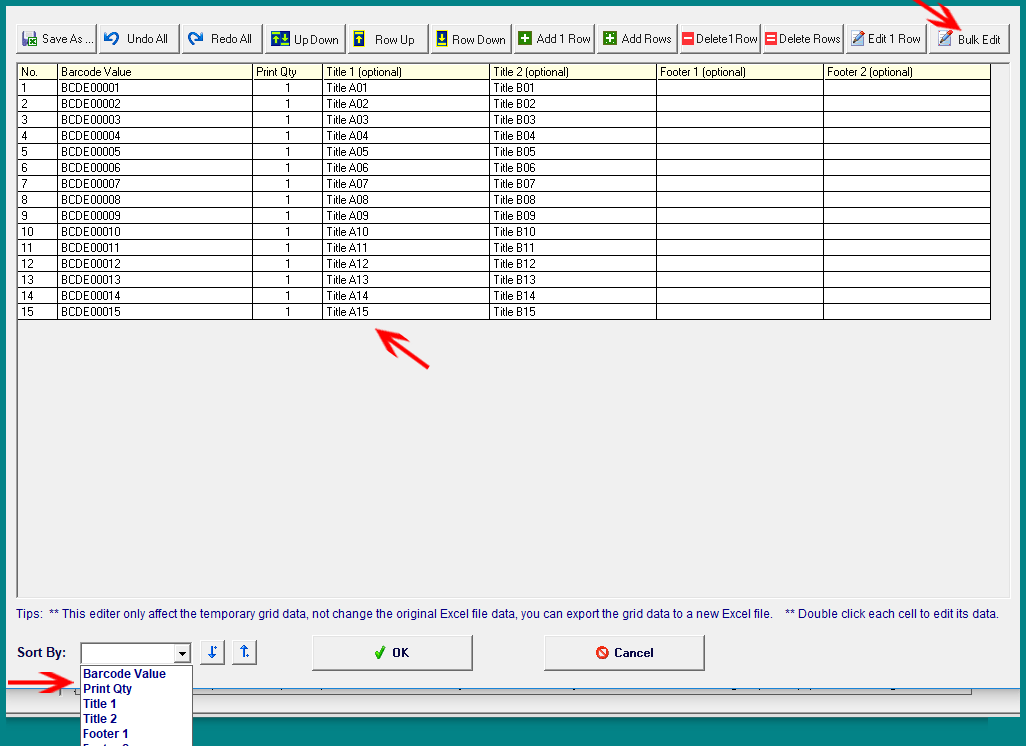
Once you import data from Excel into this program, you can make further edits if necessary to tailor the data to your specific needs. Click the 'Data Editor' button on the program's main interface to open the data editing interface. |
|
As shown in the image below, this program provides a data editing interface that includes various features, such as batch editing. |
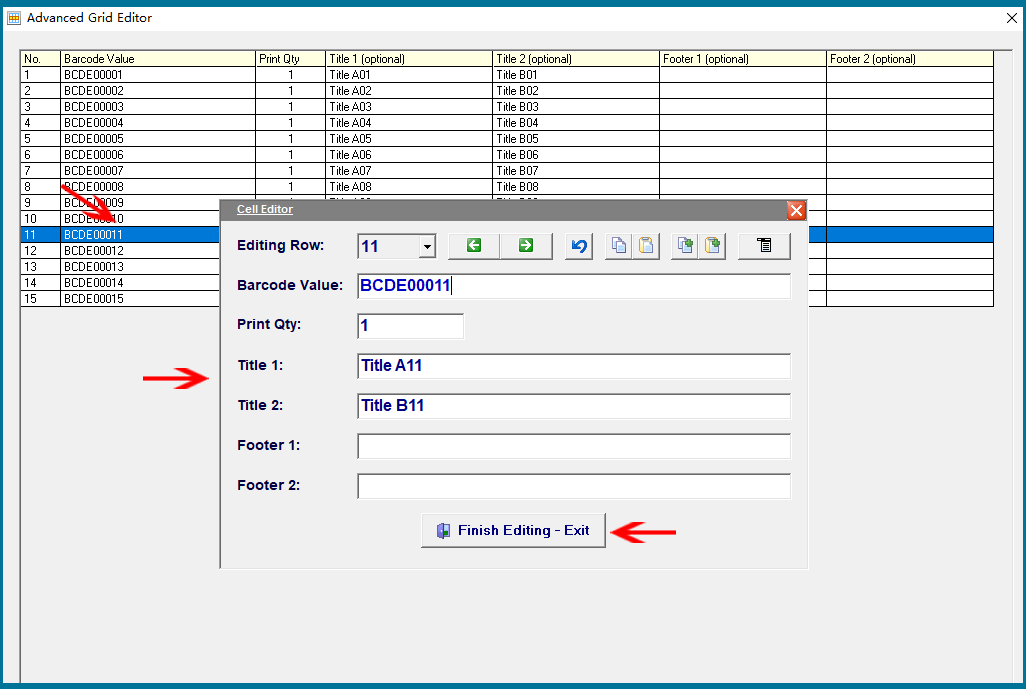
When you double-click a column in the table, an editing form will pop up, allowing you to easily modify the data in that row. The green arrow buttons at the top and a dropdown list displaying row numbers allow you to navigate between rows and display the corresponding data in the form for editing. The button on the far right allows you to move the editing form to the most convenient position. |
There are two sets of copy-paste buttons: the button with the '+' sign allows you to copy all the data in the form and paste it into a new row. The process is as follows: Click the 'Copy+' button to copy the entire form's data, then exit the editing form. After that, click the 'Add 1 Row' or 'Add Rows' button, double-click an empty row to enter the editing form again, and click the 'Paste+' button to paste the previously copied data into the new row. Alternatively, you can first add new empty rows using the 'Add Rows' button and then enter the form to copy and paste data into the new rows without exiting the editing form. |
|
This editing form also provides a batch editing function that allows you to edit multiple rows of data simultaneously. Additionally, it can automatically generate complex serial numbers. |
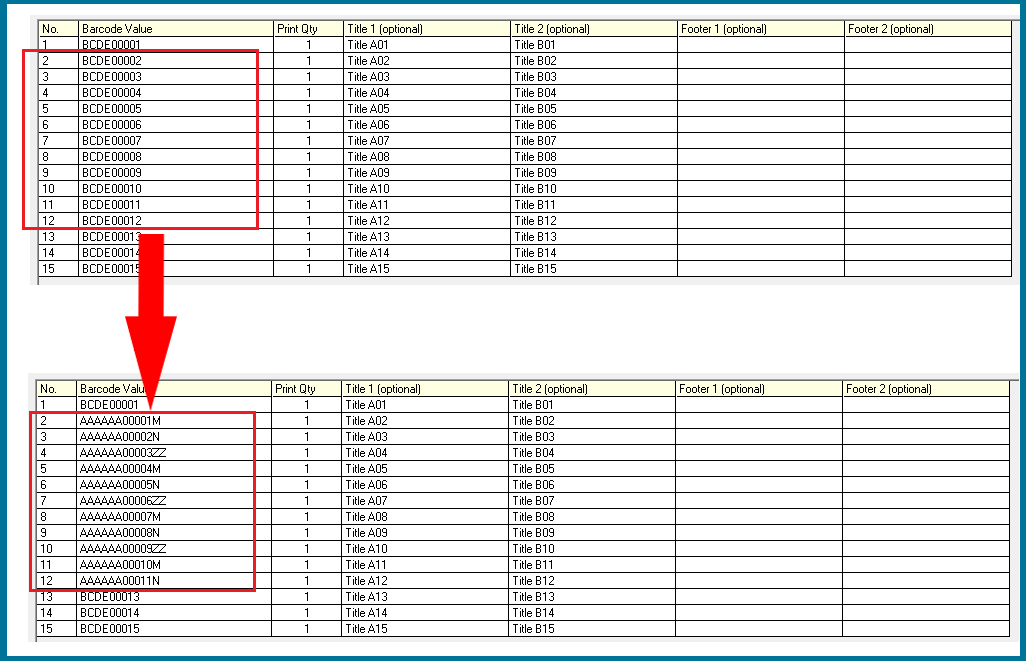
To illustrate, as shown in the image below, we want to modify the 'Barcode Value' from rows 2 to 12 and replace them with a series of serial numbers ranging from 'AAAA00001' to 'AAAA00011', along with three cyclically displayed enumerated values as suffixes: 'M', 'N', and 'ZZ'. |
|
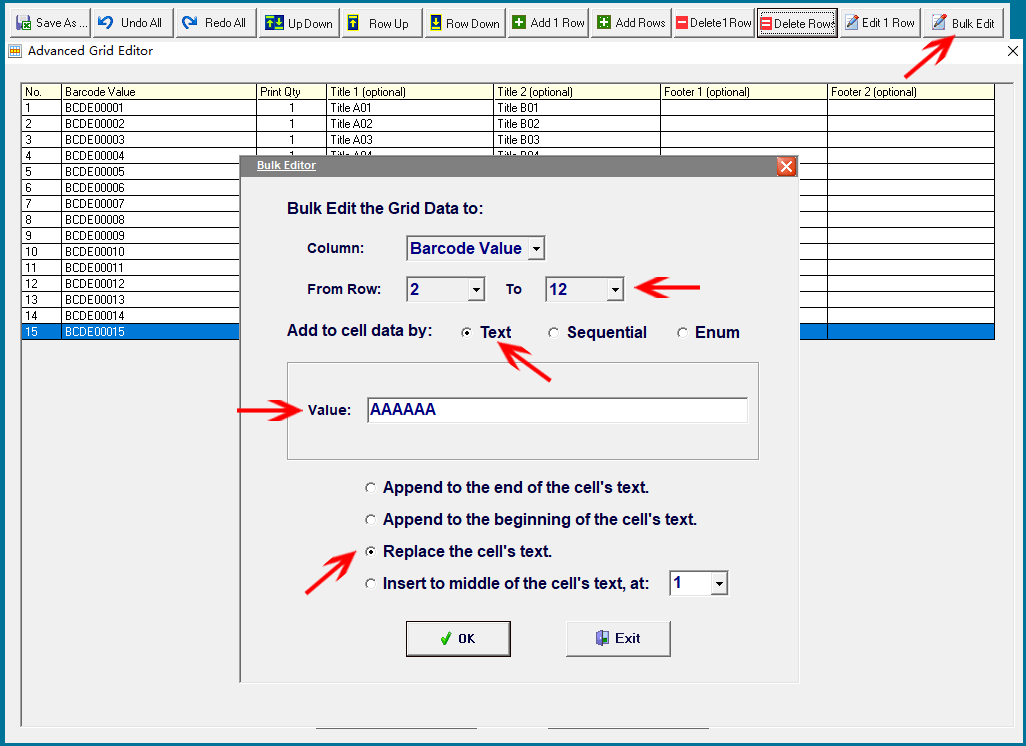
Step 1: First, fill the cells in rows 2 to 12 with the same text value, 'AAAAAA', as shown in the image below. Select 'Replace the cell text' for this operation. |
|
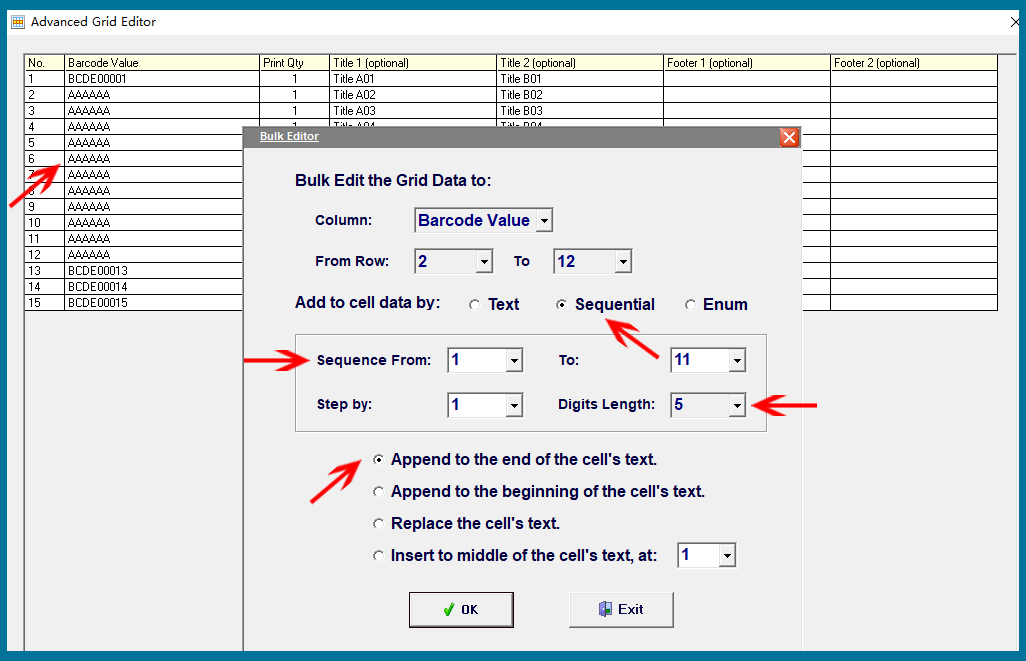
Step 2: Next, automatically generate serial numbers ranging from '00001' to '00011' and append them to the 'AAAAAA' text. As shown in the image below, choose 'Append to the end of the cell text' and set 'Digits = 5'. |
|
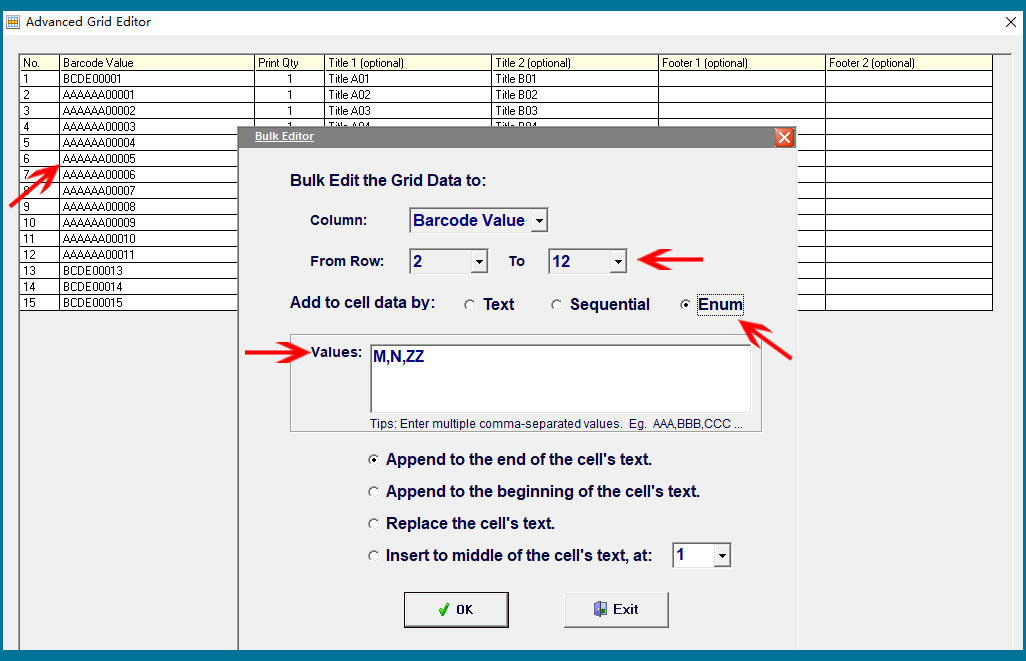
Step 3: Finally, add the three cyclically displayed enumerated values ('M', 'N', 'ZZ') as suffixes. As shown in the image below, you can specify where to add these values: at the beginning, end, or middle of the text. |
|
Once the data has been edited, the table can be exported as a CSV or text file for future use, or for integration with Excel and other programs. |
 cs@easiersoft.com