There are four methods for inputting barcode data: |
1.Simple Input Form 2.Multiple Line Text 3.Automatic Sequence Number Generation 4.Load or Copy Data from Excel |
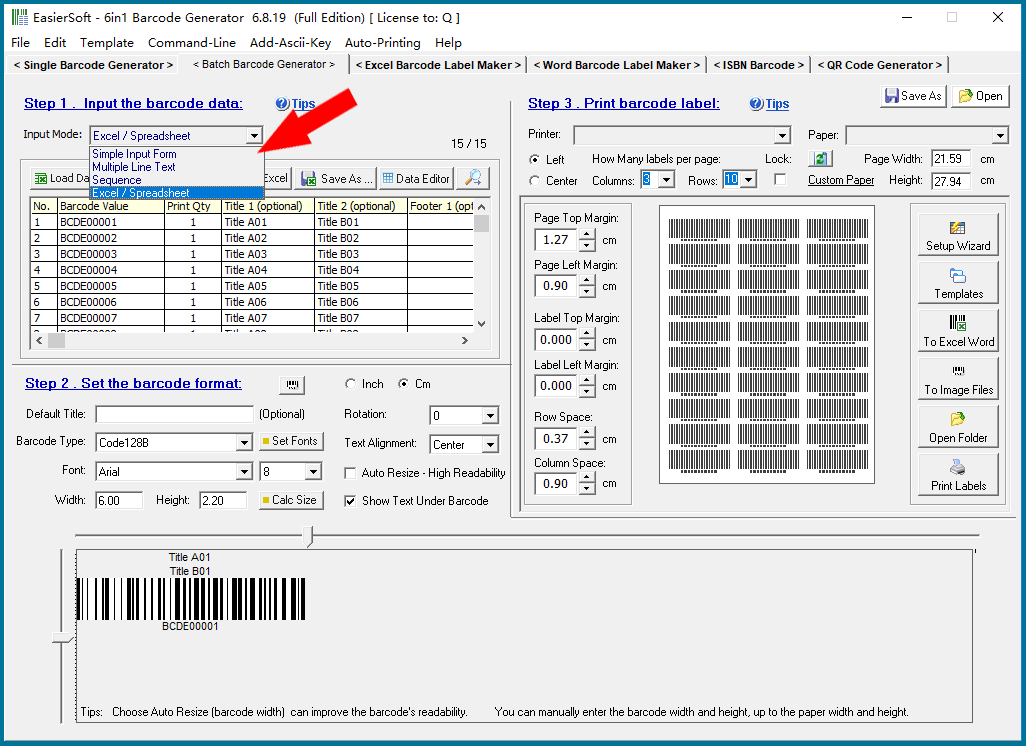
In this section, we will explain how to load or copy data from Excel to print bulk barcodes. |
|
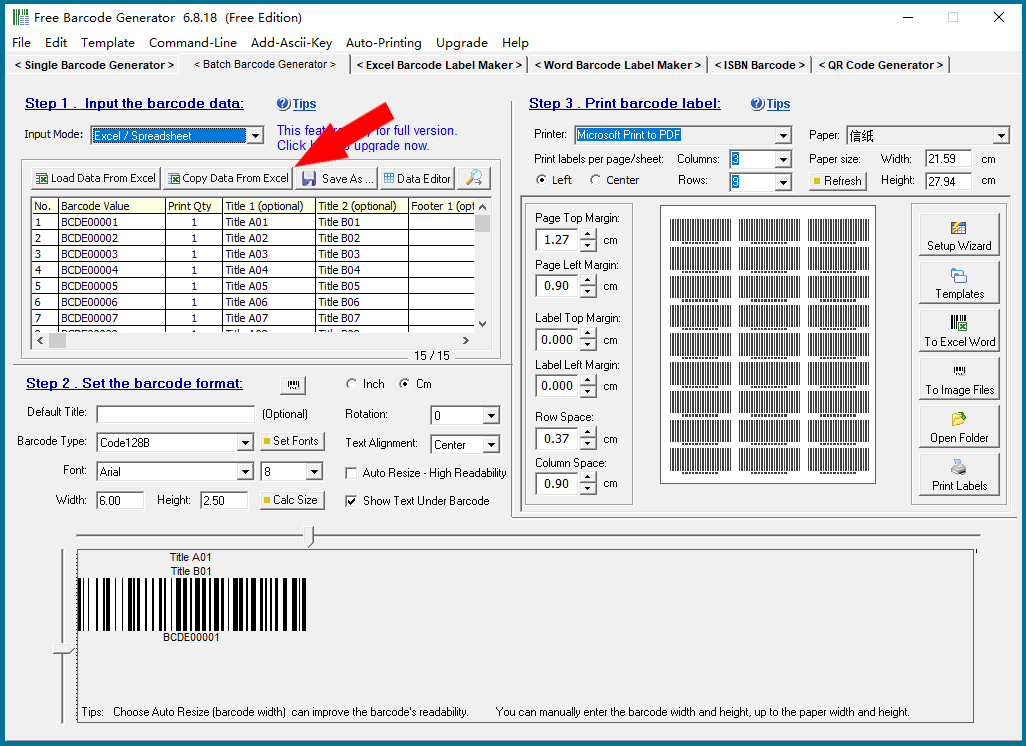
As shown in the image below, there are five buttons: |
'Load Data From Excel': This button loads data from a predefined Excel format. The Excel sheet must include the following columns: 'Barcode Value', 'Print Quantity', 'Title1', 'Title2', 'Footer1', and 'Footer2'. This program can generate a predefined blank Excel sheet for data input. |
'Copy Data From Excel': If your Excel sheet does not follow the predefined format, this option allows you to copy and paste the data for generating bulk barcodes. You can copy the data from each column in the Excel sheet and paste it into this program. |
'Save As ...': This option allows you to export the current data to a CSV or TXT file. |
'Data Editor': Opens a data grid for editing the current dataset. The editor offers various batch input and editing functions for barcode generation, such as bulk entering serial numbers or enumerated data. After importing data from Excel, you can perform additional edits to ensure the data meets your requirements for generating barcodes. |
The five button opens a menu for searching and filtering the data for barcode generation. |
|
 cs@easiersoft.com