With our barcode generator software, you can input data in Excel, then print bulk QR Code or barcode labels. |
For a QR Code can contain up to 4296 characters, a QR Code can contain all the contents of the multiple barcodes of traditional label, so you only need to scan one time to collect multiple sets of information to the computer, this will greatly improve work efficiency. |
Steps for input the barcode data: |
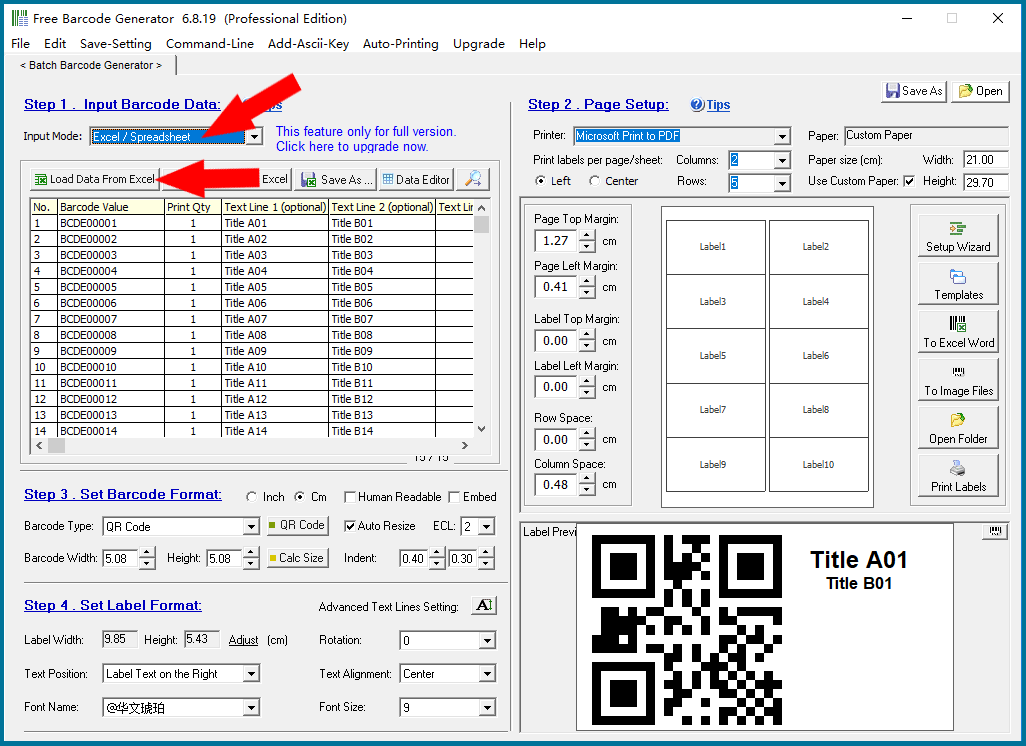
Load data from Excel file, then use for print bulk barcode labels. Import large batches of data from a standard Excel data template (this program can generate Excel data templates) for printing bulk barcode labels. |
|
1.Input the barcode data in Excel / Spreadsheet, then import the this barcode generator software to make bulk barcodes. 2.Auto generate a serial barcode or QR Code with sequence number, the barcode title can also generate sequence numbers. 3.Support multiple lines text input, so you can copy & paste texts from Excel / Word and other software to print barcode labels. 4.This barcode software has a built-in spreadsheet editor, you can edit the data directly in here, it can automatically generate a series of sequence number data, or a series of enumerated data, it can also export the spreadsheet data to CSV / Excel document. It can copy & paste data directly from Excel to this spreadsheet, and edit again. |
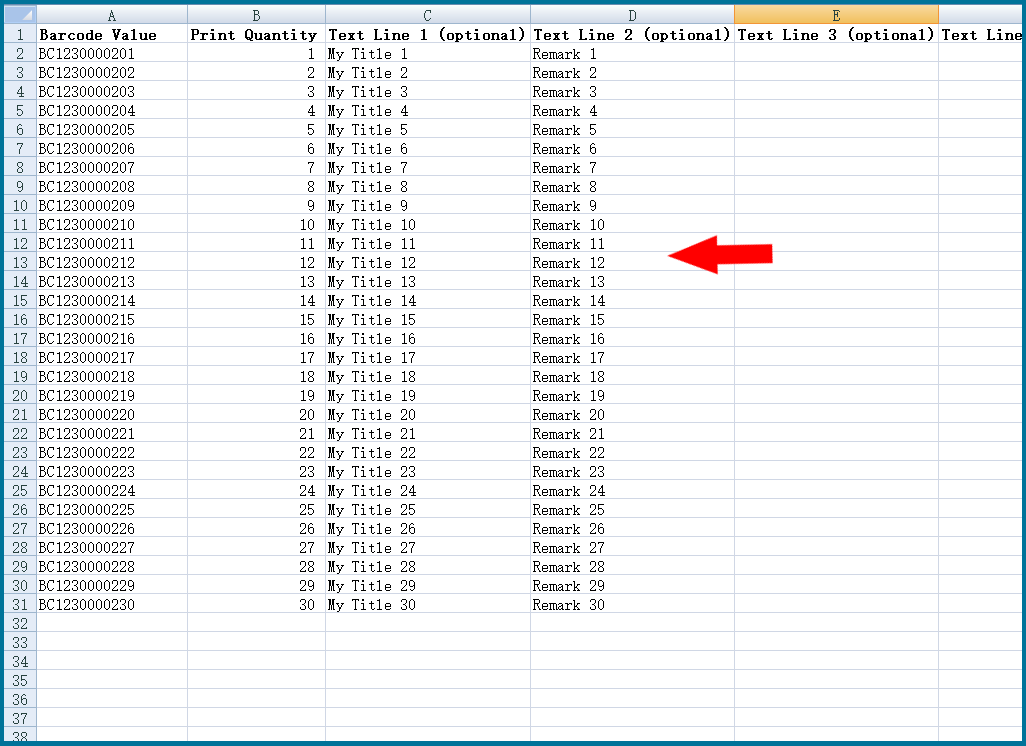
This program can only support it's predefined format Excel sheet. If you have Excel file with different format, we suggest to copy and paste data to this program's predefined format data file. Or you can also choose to: Copy data column by column from the Excel file. ----- Please click on the links "Back to Directory" to view other articles. This program can generate blank predefined format Excel files for input data. . This program's predefined format Excel sheet is like above image. |
|
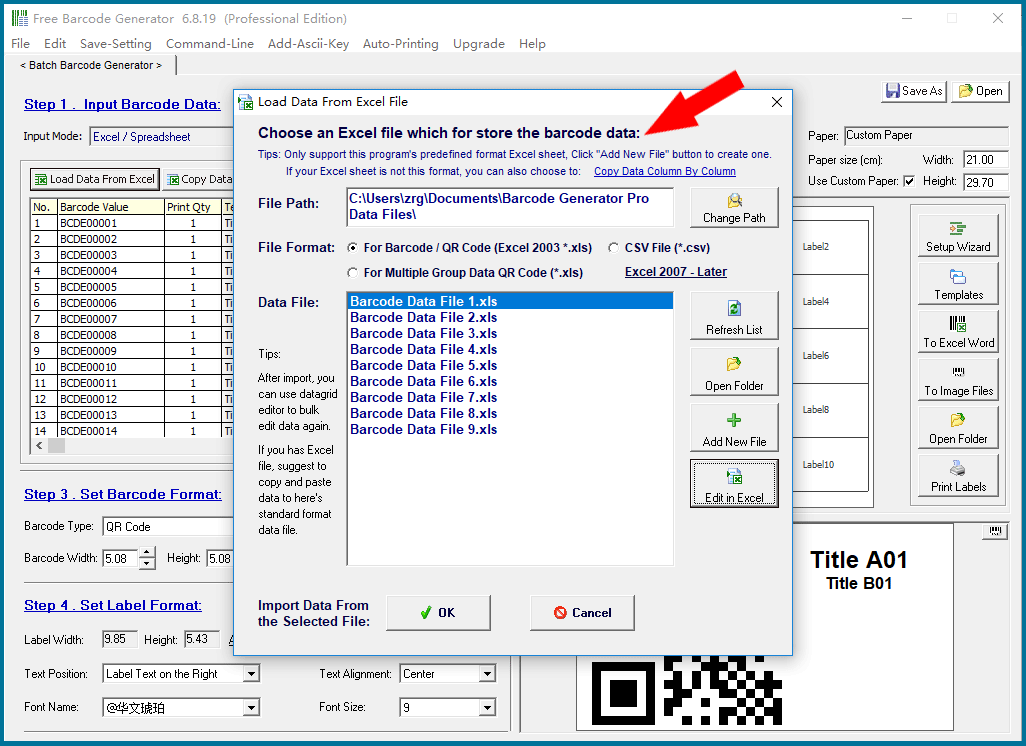
Choose an Excel file which for store the barcode data, then click OK button. |
|
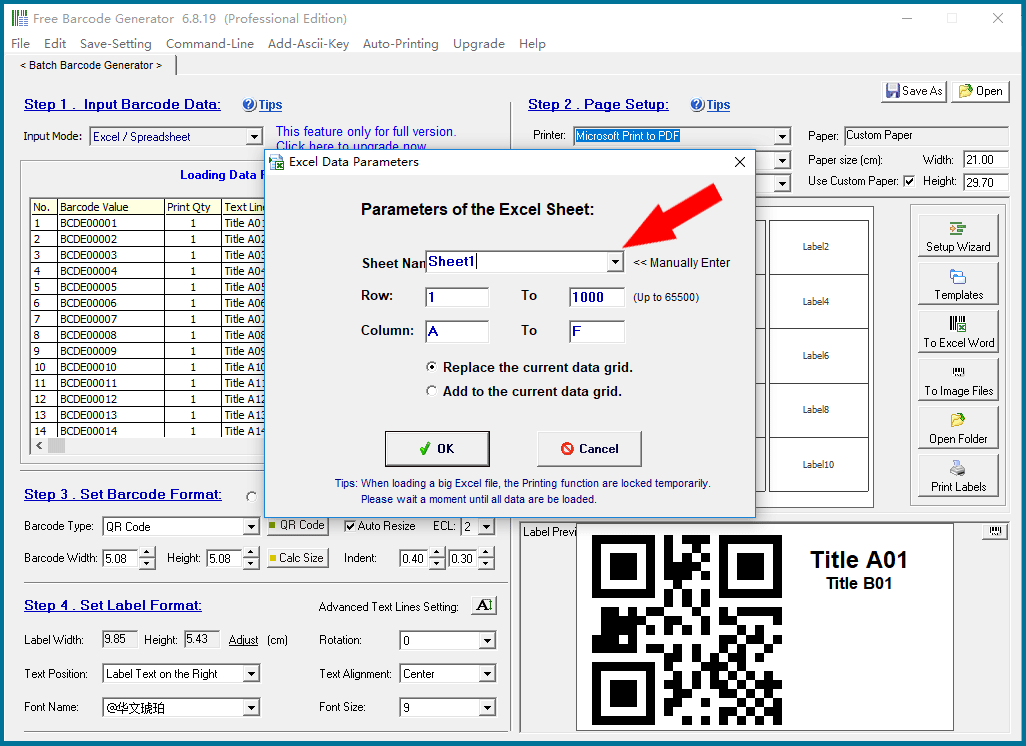
Parameters of the Excel Sheet. If you need to import data from multiple Excel file, choose the option "Add to the current data grid." |
|
Tips: When loading a big Excel sheet, the Print function are locked temporarily. Please wait a moment until all data are be loaded. |
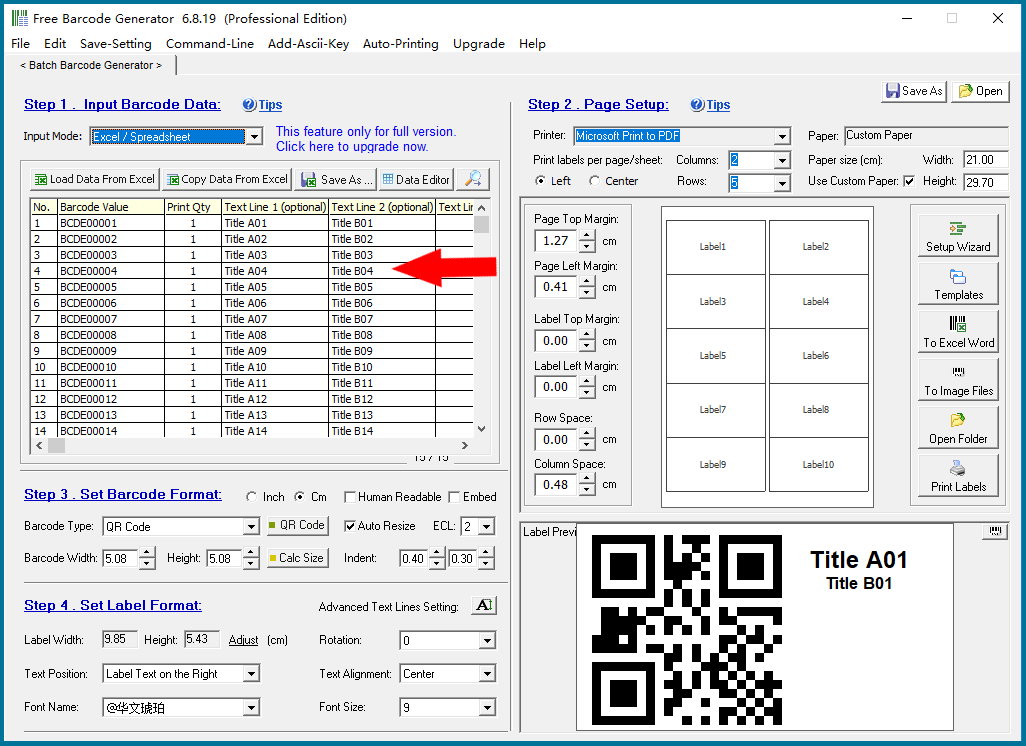
|
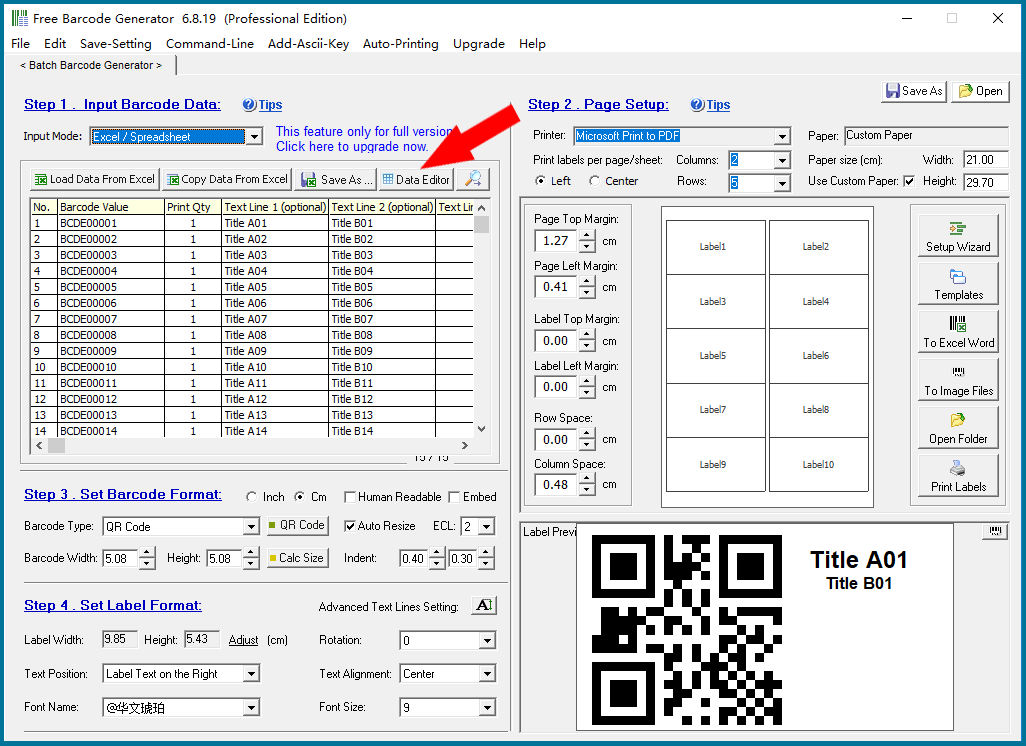
After the data are be loaded, you can click the Data Editor button the edit the data in a datagrid. |
|
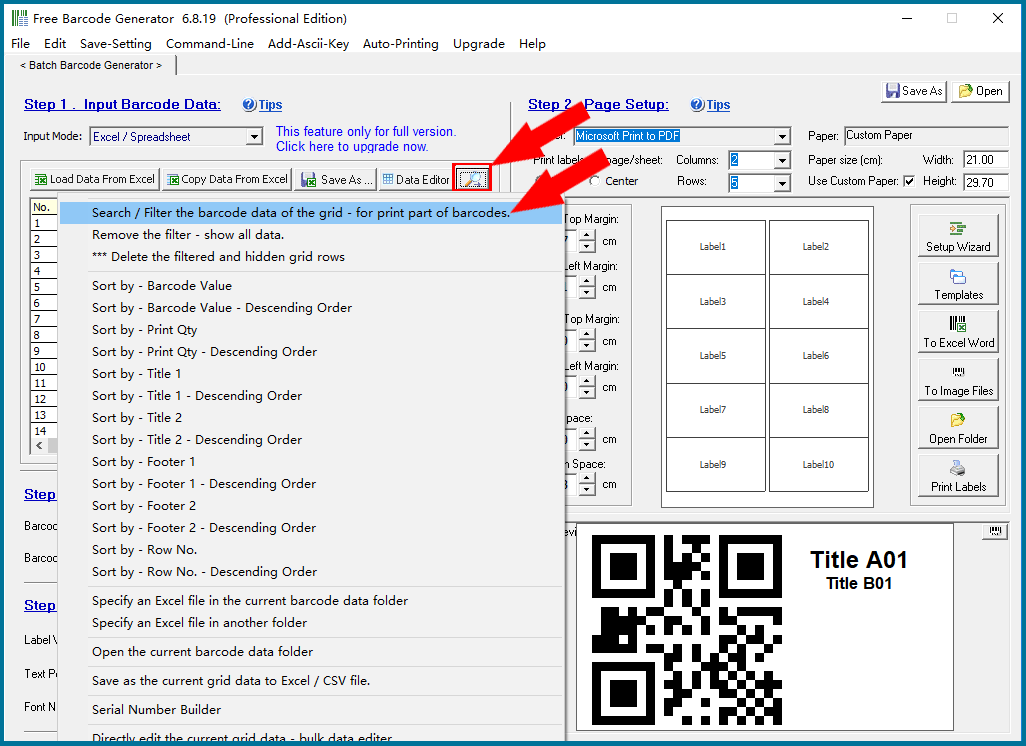
When printing barcode labels, you can choose to use all the data for printing barcodes, or you can use the filter function of this program to select only a part of the data you need to print barcode labels. This program has a unique "multiple filter" function. ----- Please click on the links "Back to Directory" to view other articles. |
|
 cs@easiersoft.com