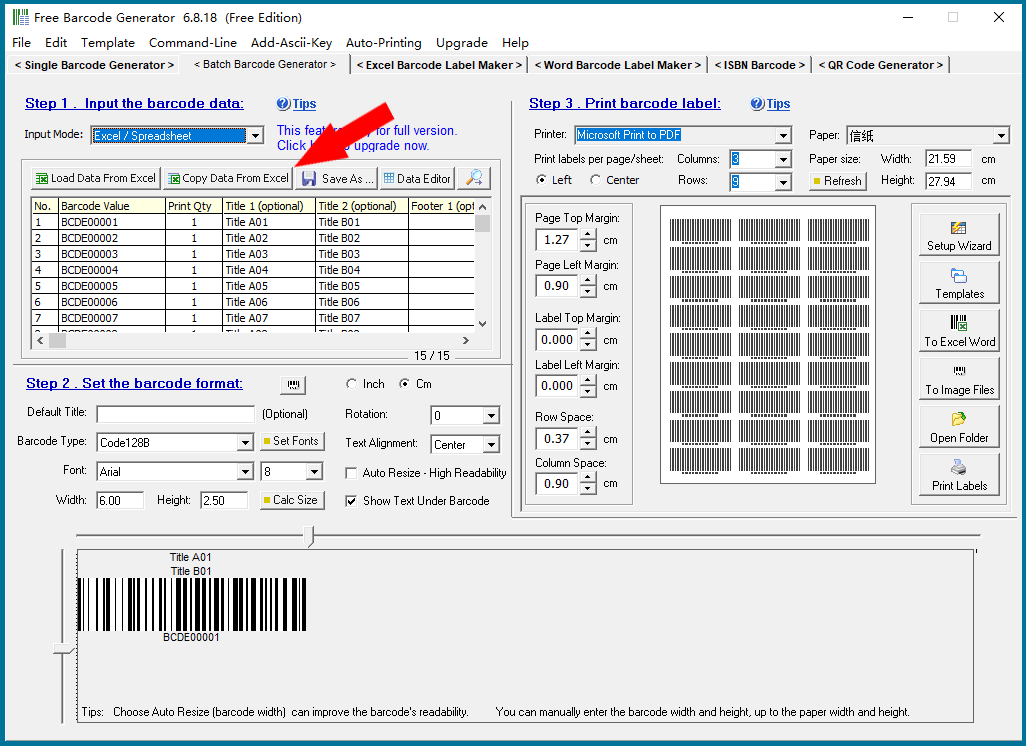
There are two options for using Excel data to generate bulk barcodes: 'Load Data From Excel' and 'Copy Data From Excel.' |
Now, let's walk through how to use them: |
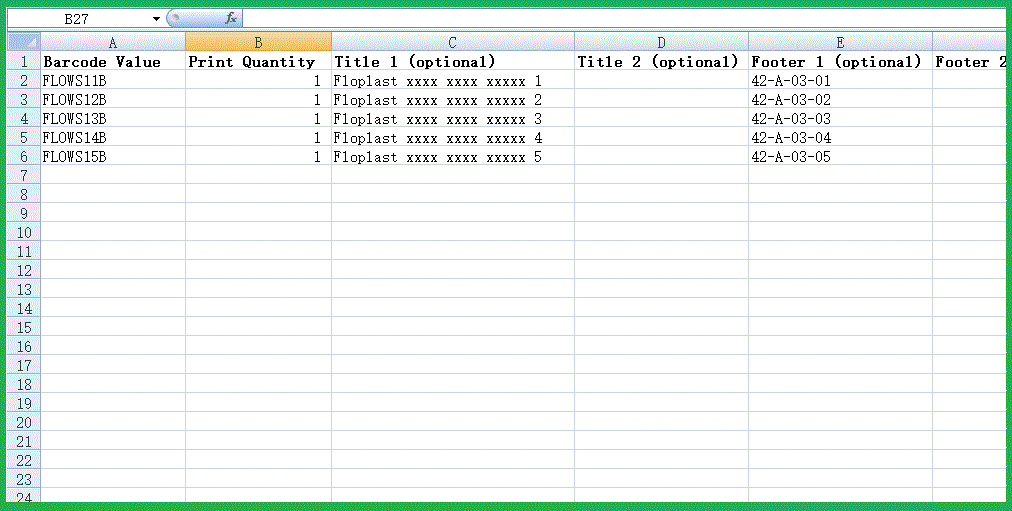
'Load Data From Excel': This option loads data from a predefined Excel template. The Excel file must include the following columns: 'Barcode Value', 'Print Quantity', 'Title1', 'Title2', 'Footer1', and 'Footer2'. The program can generate a blank Excel template for data entry. |
|
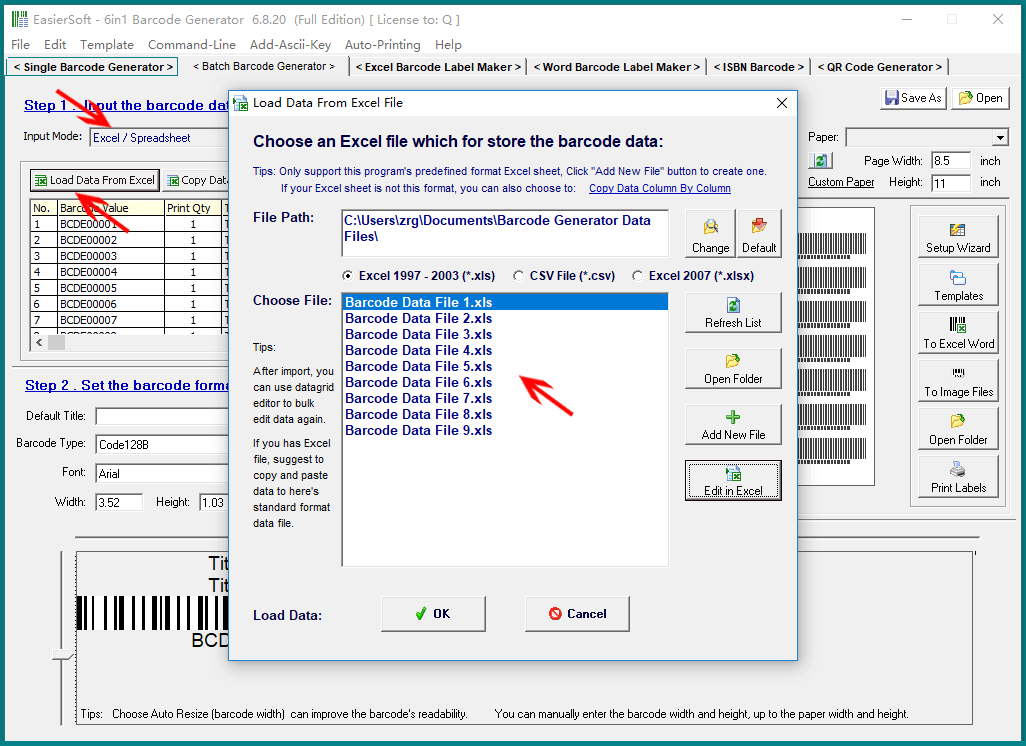
Click 'Load Data From Excel'. In the pop-up window, the first step is to select the file you want to import data from by specifying its file path and choosing the file. Supported file formats include Excel 2003, Excel 2007, and CSV. |
If you're using a newer version of Excel, please first convert the file to either Excel 2003 or 2007 format using Excel抯 built-in conversion tool. To do this, open the Excel file, click on 'File' in the menu, select 'Save As', and choose the Excel 2003 or 2007 format. |
When using this program for the first time, the file list box will display a set of predefined blank Excel Sheet templates. The program can only import data from Excel files in this predefined format. If your Excel Sheet is not in this format, you'll need to manually copy and paste your data column by column into the predefined blank template before importing it. Alternatively, you can use the 'Copy Data From Excel' option to directly copy data into the program. |
|
The 'Add New File' button shown above allows you to create a new blank predefined template. Below is an example of the predefined template format. In this Excel sheet, you can enter the 'Barcode Value', two lines of 'Title', two lines of 'Footer', and define the 'Print Quantity', which determines the number of times each barcode is printed. |
|
Step 2: |
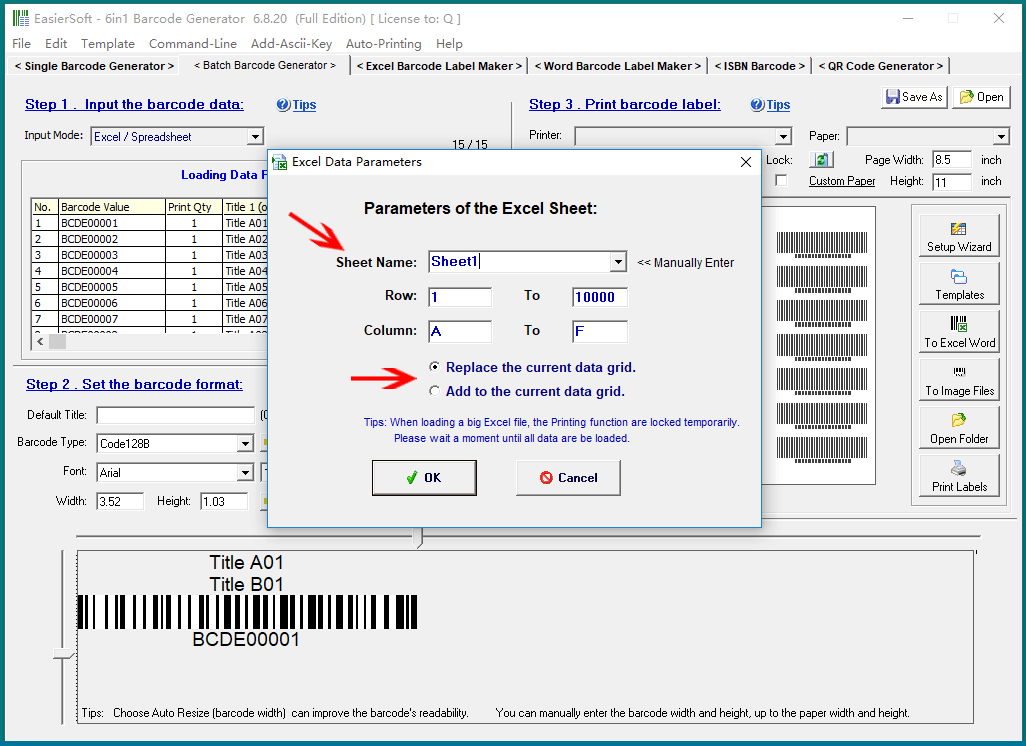
An Excel document can contain multiple sheets. You'll need to select which sheet to import data from by specifying the Sheet Name. If the Sheet Name has been modified, manually input the name. Next, define the row and column ranges from which to import data. If you抮e using the program's predefined template, the default settings will work here. |
There are also two options: 'Replace the current data grid' and 'Add to the current data grid.' These options determine whether the imported data will replace the existing data in the table or be appended to it. This feature allows you to merge data from multiple Excel files into a single batch for barcode generation. |
|
When importing data from a large Excel file, the process may take a few minutes. During this time, the program抯 printing function will be locked until the data import is complete, so please be patient. |
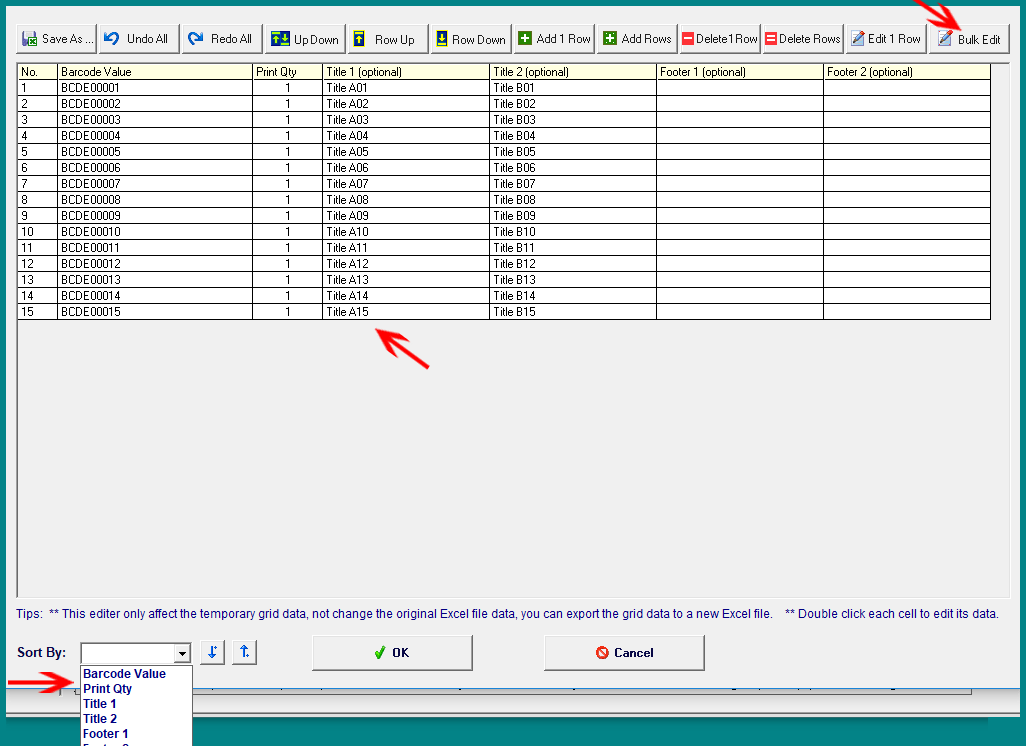
After the data is imported, you can further edit the table to meet your specific needs. The program includes various bulk editing functions, such as generating complex serial numbers, which can significantly improve your workflow efficiency. Additionally, you can export the edited data back into an Excel document for future use or for use in other programs. |
|
A detailed explanation of the data editing table will be provided in a separate article. Click 'Back to Directory' to explore other articles. |
 cs@easiersoft.com