EasierSoft Bulk Barcode Generator and Label Printing Software |
Data Editor - Batch Editing Multiple Rows of Data |
This software includes a built-in Data Editor that works much like an Excel worksheet. In addition to standard data entry, it provides powerful batch input and batch editing features, allowing you to quickly generate a series of serial numbers or enumerated values. These features are especially useful when printing a large number of barcode labels, each containing different data. |
|
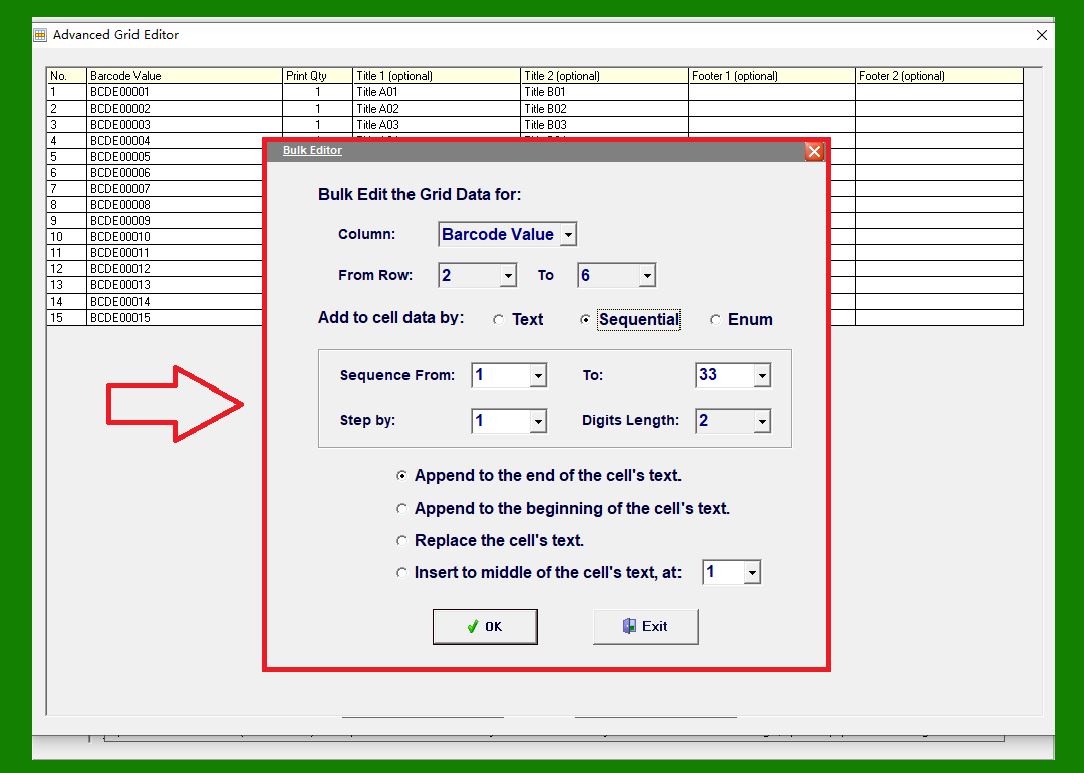
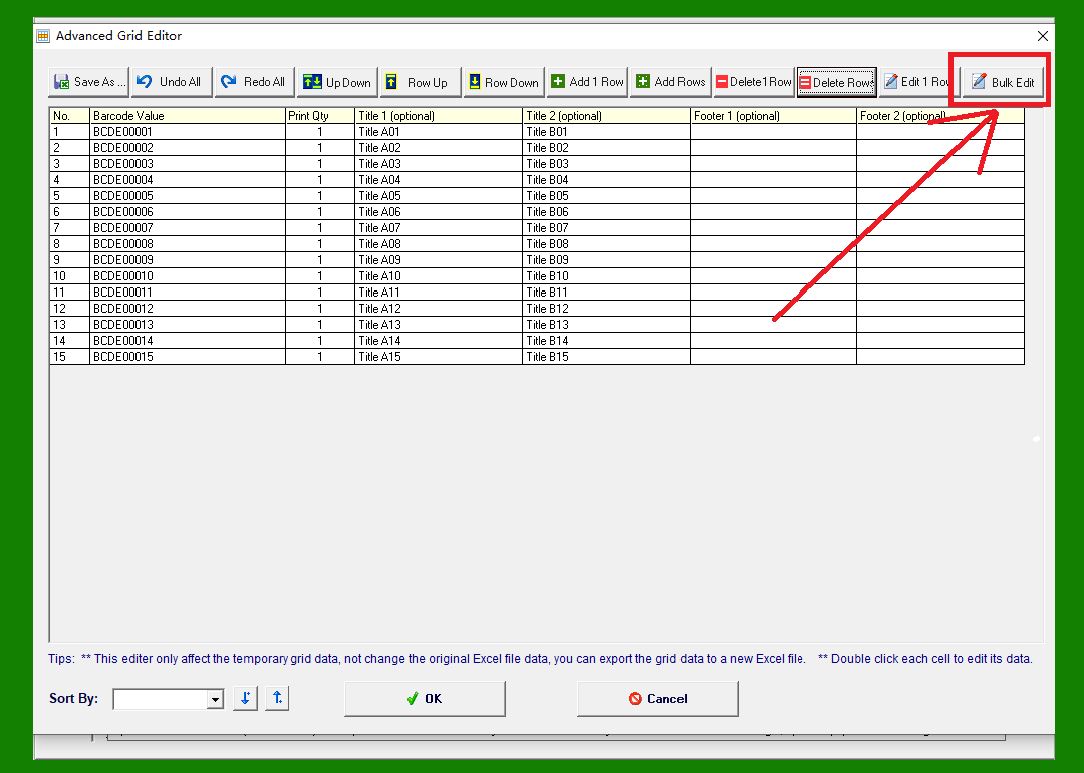
Click this button to open the Batch Data Editing dialog. |
|
Example |
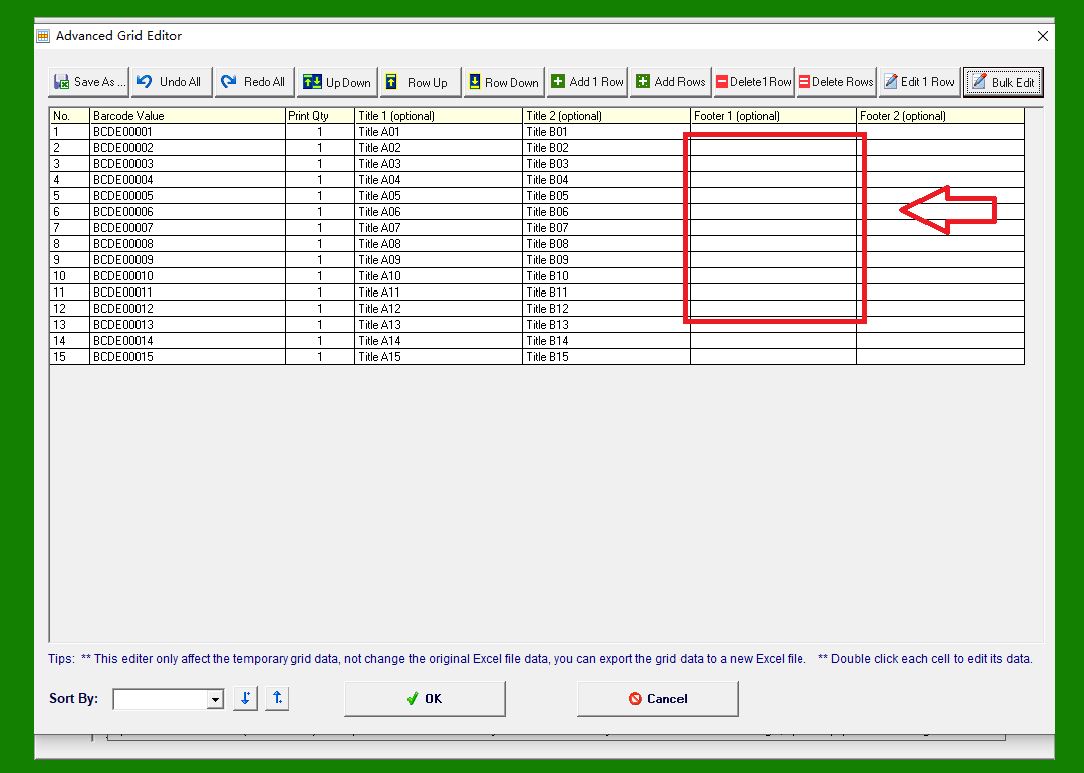
As shown in the illustration below, we want to batch-enter 11 values into the 'Footer 1' column, from row 2 to 12. The target values are: |
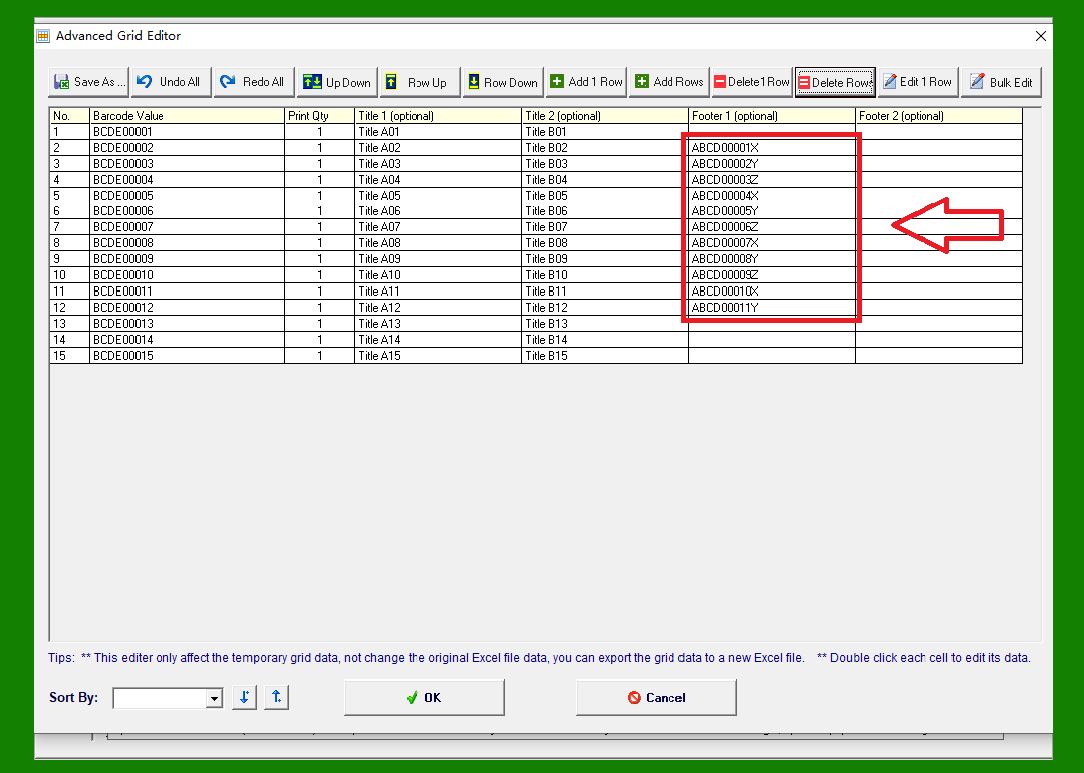
ABCD00001X, ABCD00002Y, ABCD00003Z, ABCD00004X, ABCD00005Y, ABCD00006Z, ABCD00007X, ABCD00008Y, ABCD00009Z, ABCD00010X, ABCD00011Y |
These values follow a clear pattern: |
A fixed prefix: 'ABCD' |
A sequential number from 00001 to 00011 |
A suffix where the letters X, Y, and Z repeat in a cycle |
|
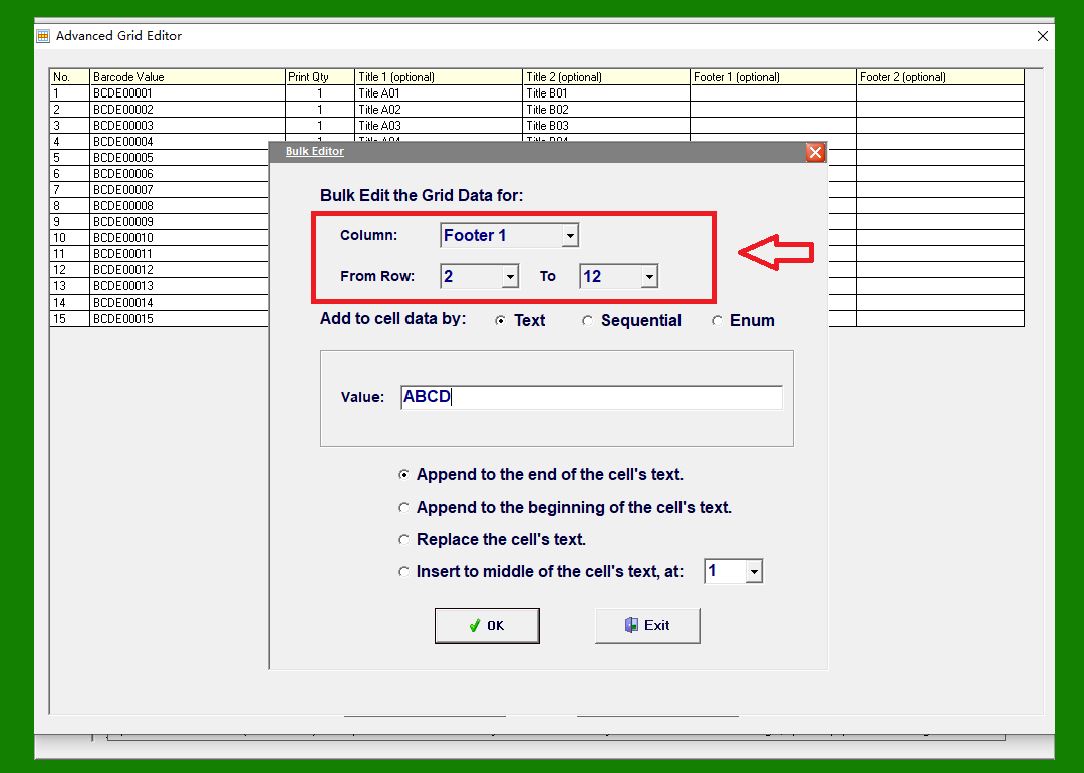
Step 1: Select the Target Column and Rows |
First, specify which column and which rows you want to insert data into. In this example, we select the 'Footer 1' column and 11 rows. |
|
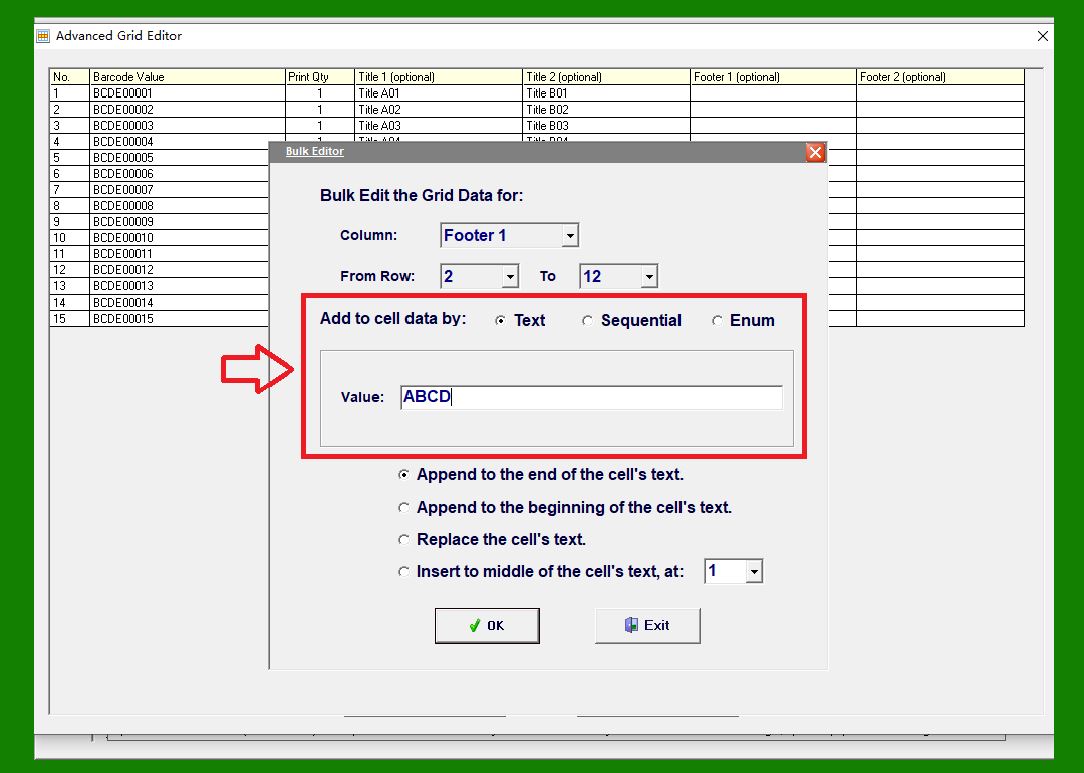
Step 2: Insert a Fixed Prefix |
Next, define the type and value of the data to be inserted. |
In this step, we insert a fixed prefix: 'ABCD', as shown in the illustration. |
|
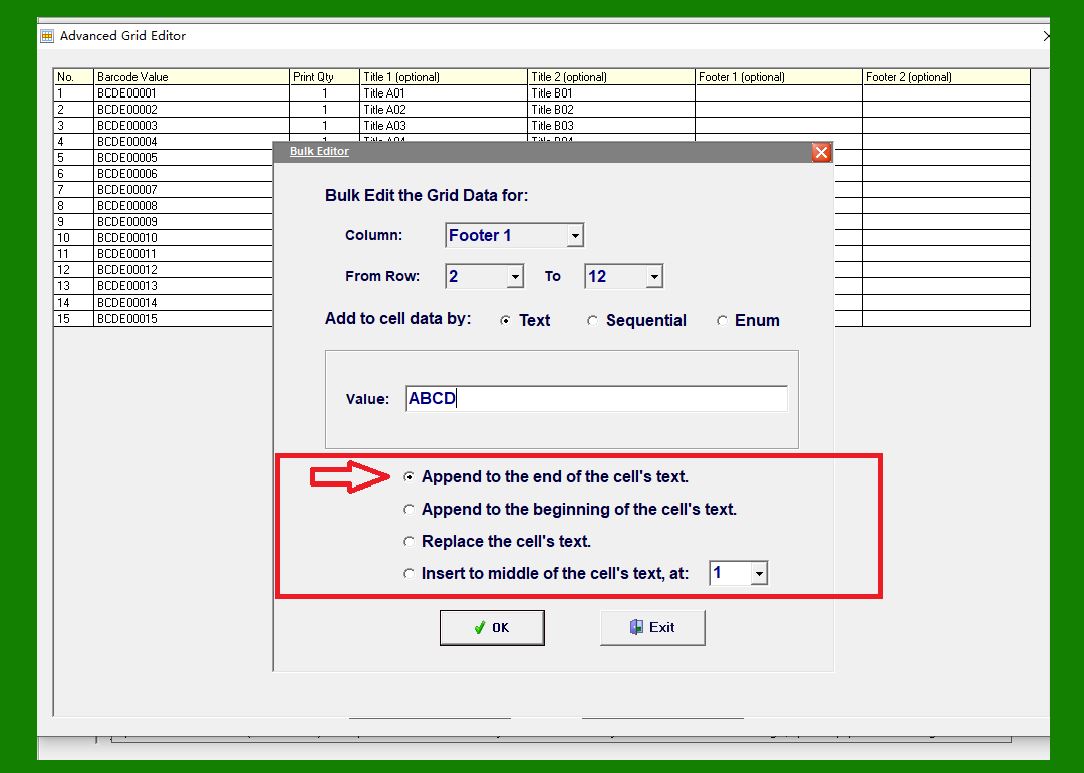
Step 3: Specify the Insertion Position |
Now choose where the new data should be placed relative to the existing cell content. You can insert the value: |
At the beginning of the existing content |
At the end of the existing content |
In the middle of the existing content |
Or replace the entire cell content |
In this example, the cells are initially empty, so we simply select 'Append to the end'. |
|
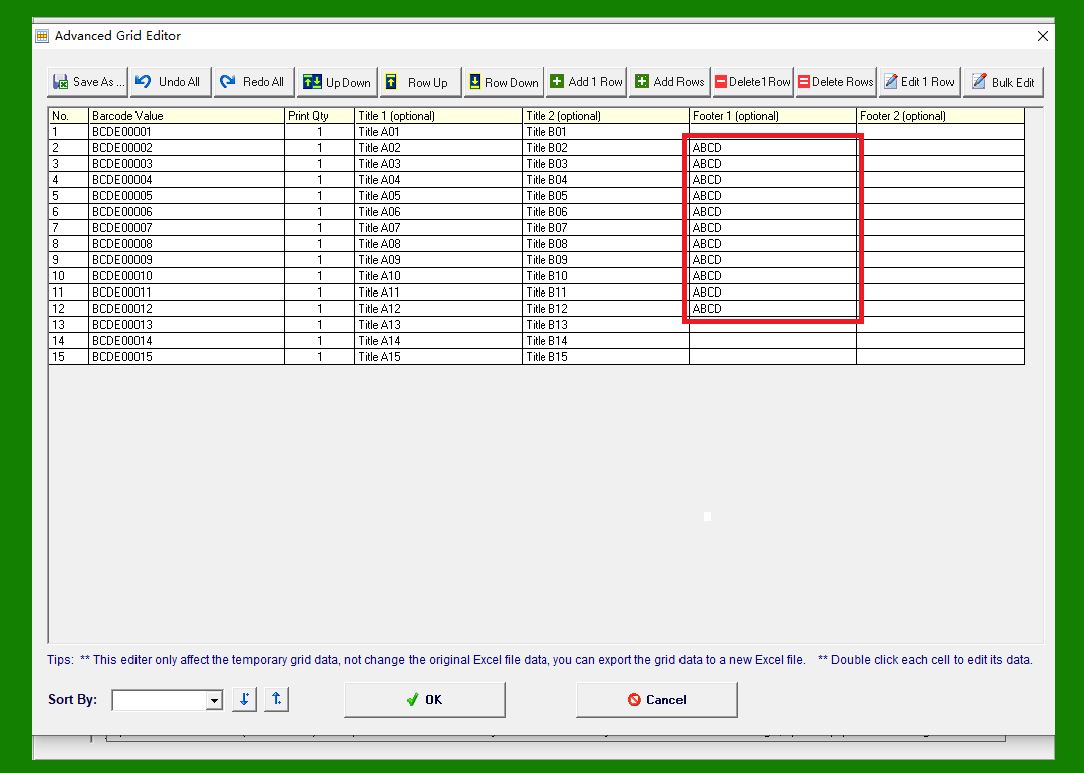
Click OK, and the program inserts the fixed value 'ABCD' into all 11 selected rows. |
|
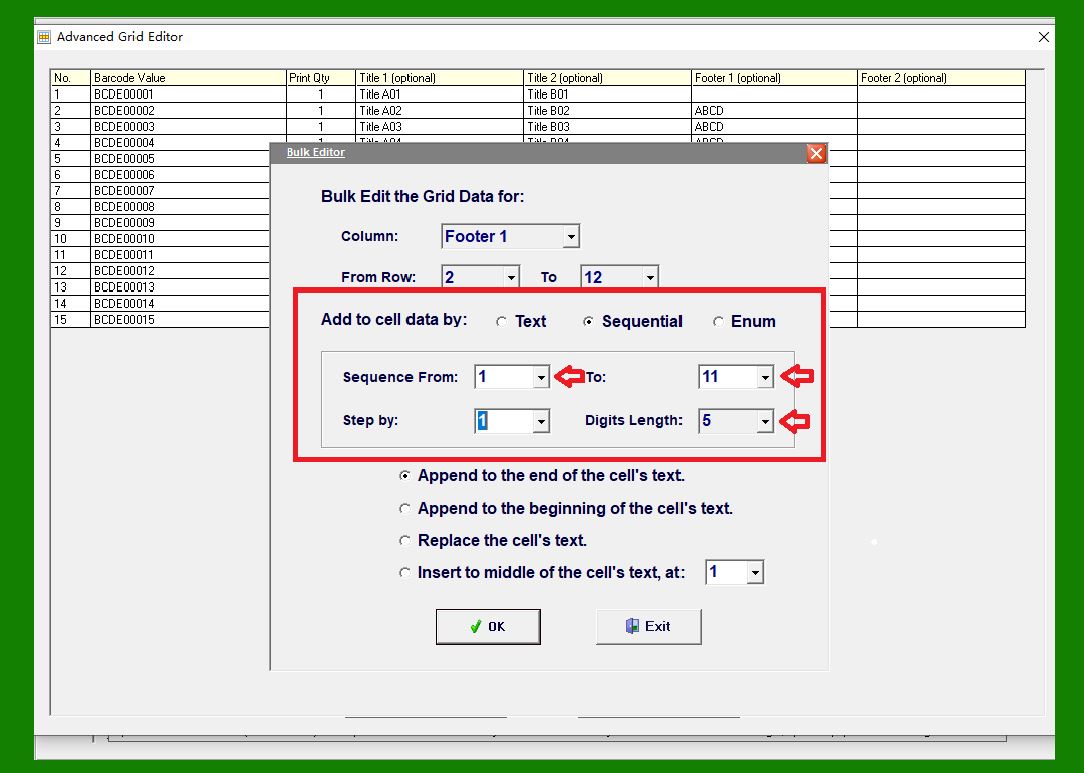
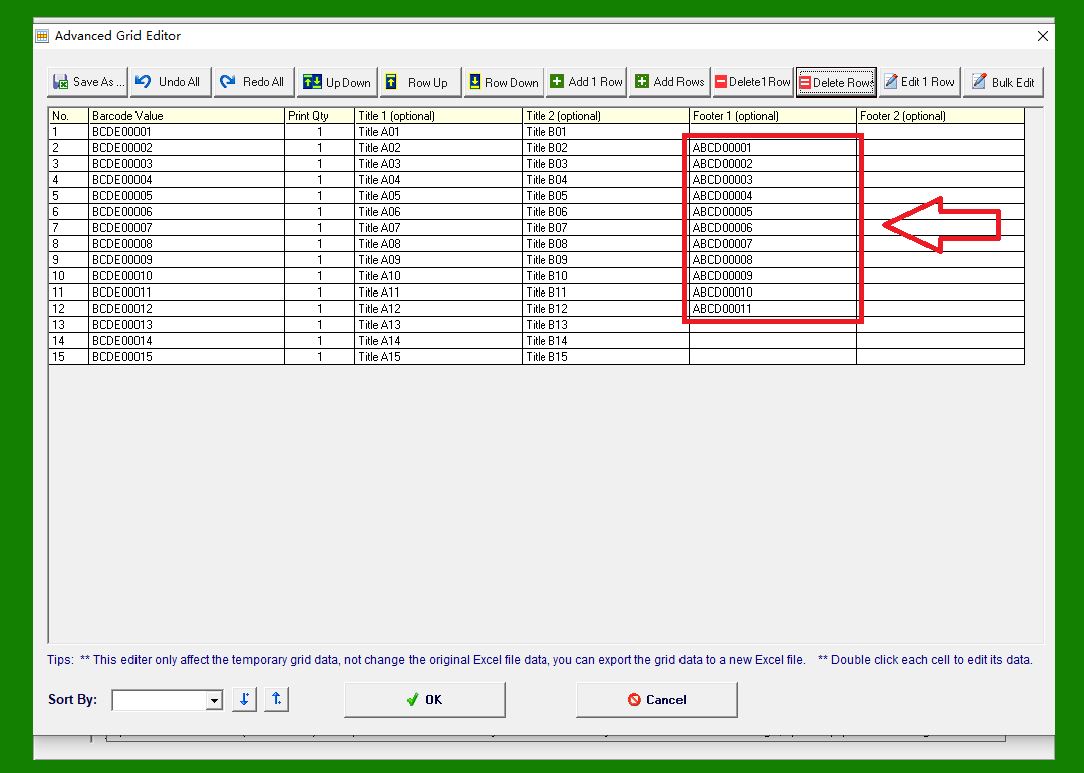
Step 4: Insert a Sequential Number |
Next, insert the serial numbers from 00001 to 00011, as shown in the illustration: Set the data type to 'Sequence'. Set the range from 1 to 11 Set the character length to 5 |
With a length of 5, the software automatically pads numbers with leading zeros, generating values from 00001 through 00011. |
|
Click OK, and the sequence numbers are appended to the previously inserted prefix 'ABCD' in each of the 11 rows. |
|
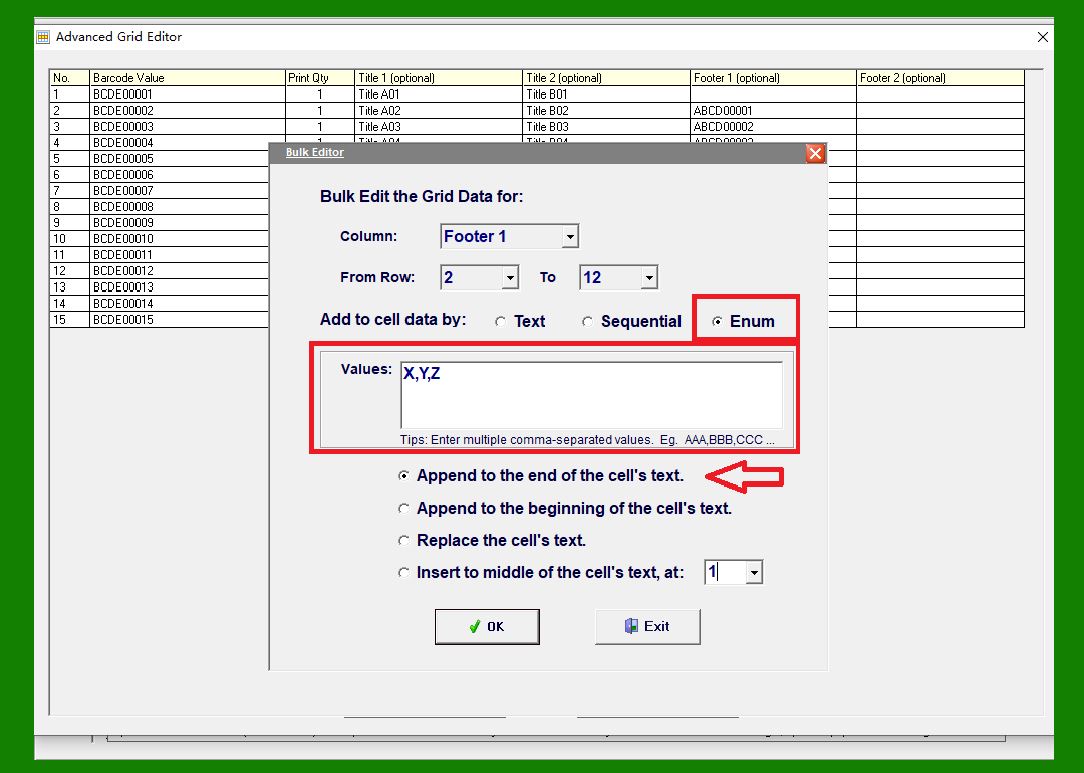
Step 5: Insert Enumerated Suffix Values |
Finally, insert the enumerated suffix values X, Y, and Z, cycling through them repeatedly. Set the data type to 'Enum' Enter the values 'X,Y,Z', separated by commas |
The software will loop through these values and append them to the end of each cell¡¯s existing content. |
|
Click OK, and the enumerated values are added to all 11 rows. The final result appears as shown in the illustration. |
|
This batch data editing workflow allows you to efficiently generate complex, structured barcode data with minimal manual input, making it ideal for high-volume label printing tasks. |
Data entered in batches can also be exported as TXT or CSV files and then used in Excel or other software. Please refer to other articles for details. |
 cs@easiersoft.com