EasierSoft Bulk Barcode Generator and Label Printing Software |
Data Editor |
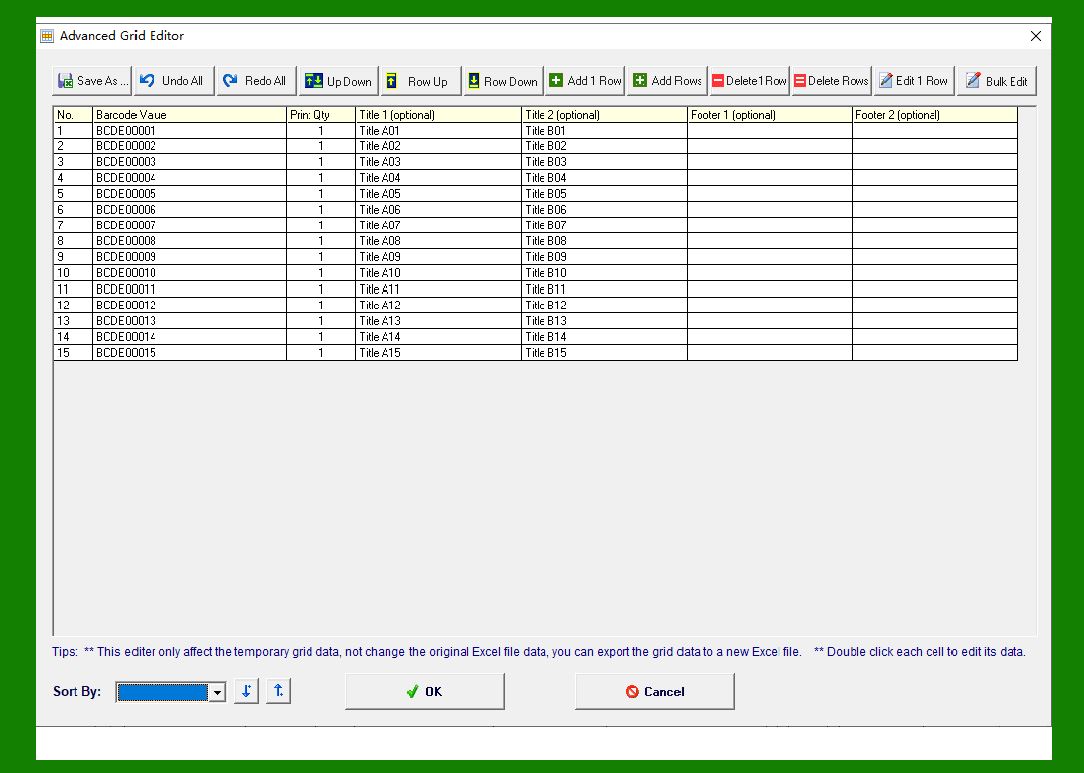
This software includes a built-in Data Editor, which functions similarly to an Excel worksheet. You can use this editor to enter large quantities of data in batches, making it easy to generate and print a high volume of barcode labels. |
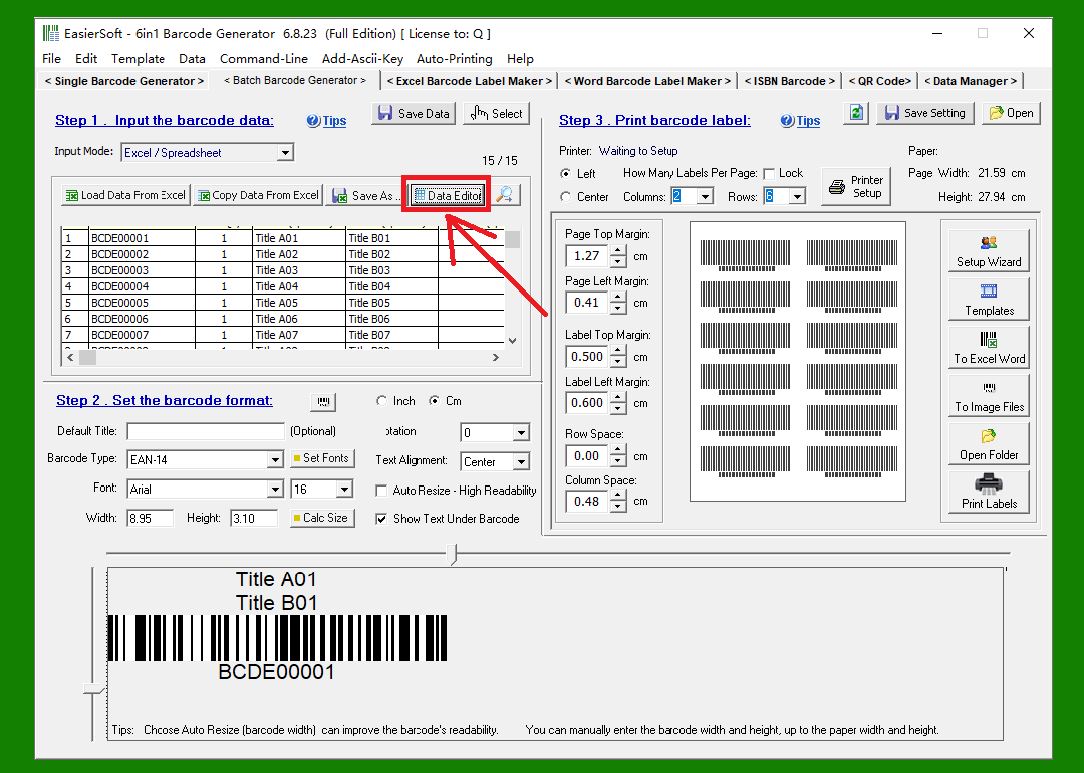
Click this button to open the Data Editor. |
|
Below is the main interface of the Data Editor. |
|
The following section explains the purpose of each button in detail: |
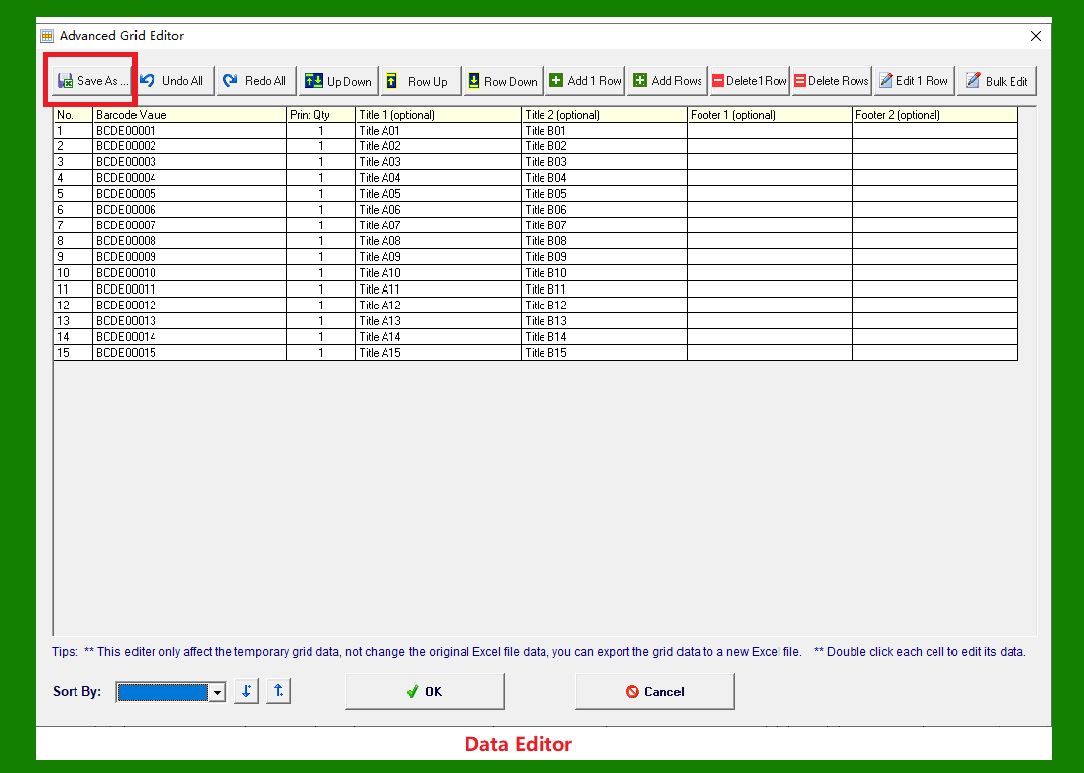
Save As |
Use Save As to export the current table's data to a TXT or CSV file. |
These exported files can be imported back into the software later, or opened by other applications - such as Microsoft Excel - to share or reuse your data seamlessly across different programs. |
|
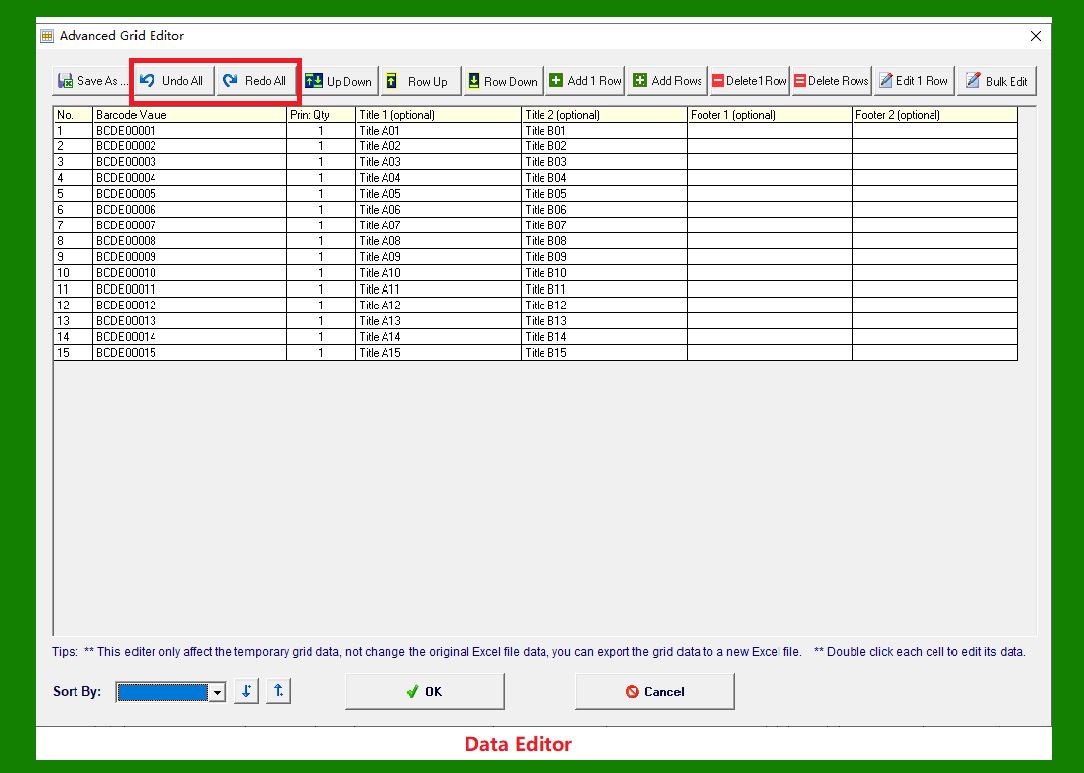
Undo All / Redo All |
Undo All: Reverts all recent edits you have made. |
Redo All: Restores the changes you have undone. |
These tools help you recover from mistakes quickly and work more efficiently. |
|
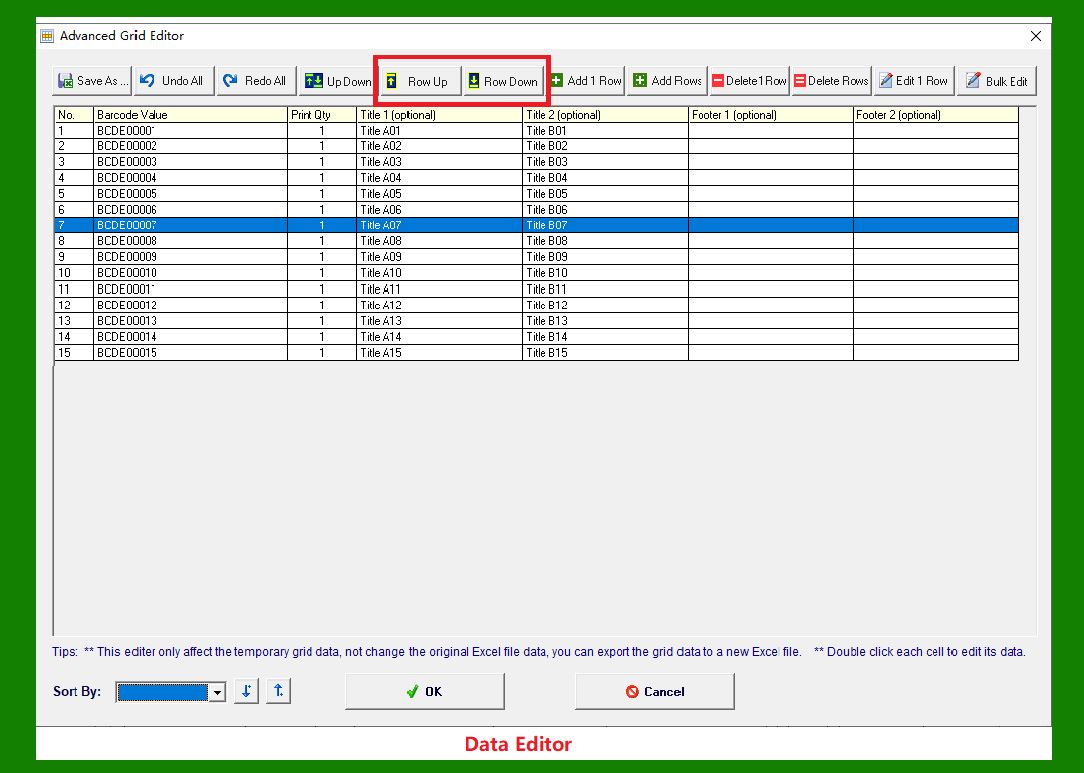
Row Up / Row Down |
Moves the currently selected row up or down by one position. |
For example: |
Clicking Row Up moves Row 7 to Row 6. |
Clicking Row Down moves Row 7 to Row 8. |
This makes it easy to rearrange your data in the order you prefer. |
|
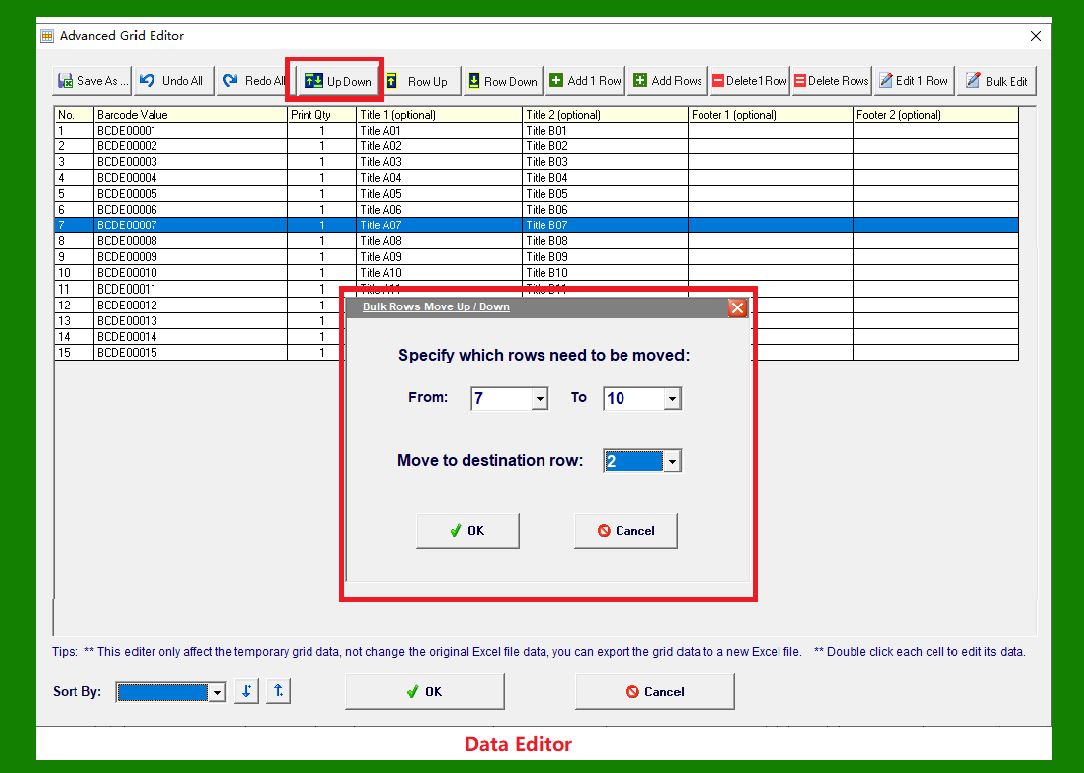
Up Down |
Moves one or more selected rows to a new position within the table. |
For example: |
If you select Rows 7, 8, 9, and 10 and confirm the operation, the software will reposition them to become Rows 2, 3, 4, and 5. |
This feature is especially useful when reorganizing large datasets. |
|
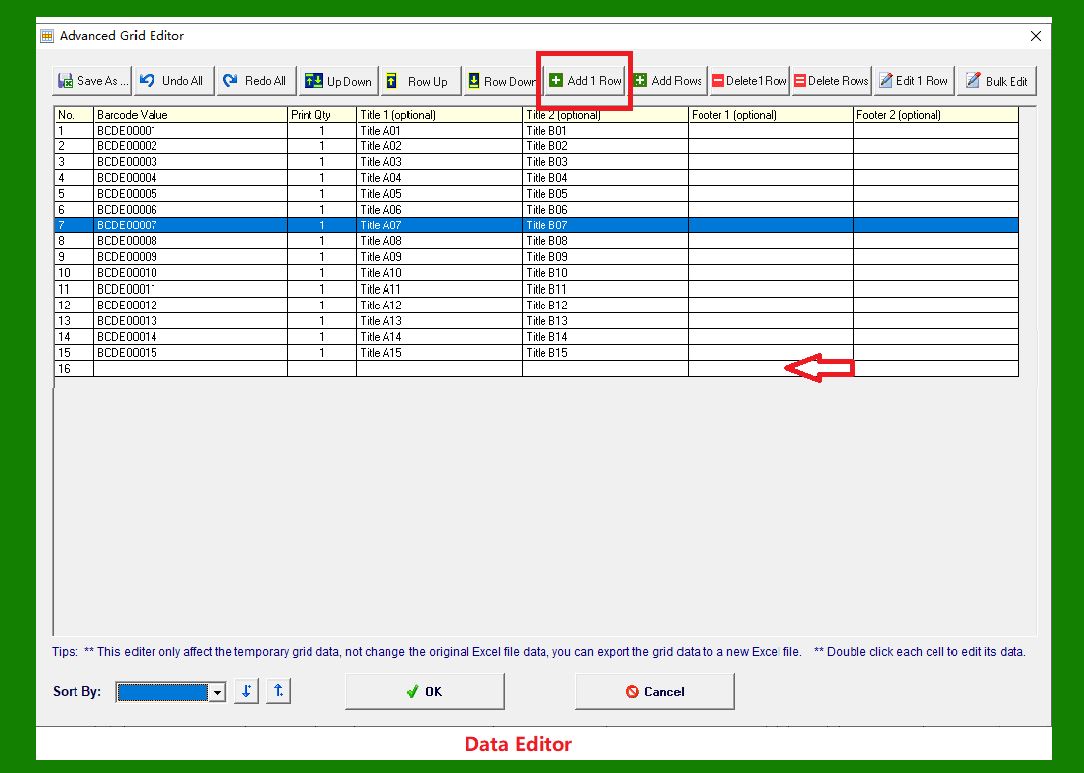
Add 1 Row |
Adds a single blank row to the bottom of the table each time you click the button. |
Click multiple times to insert several new rows. |
|
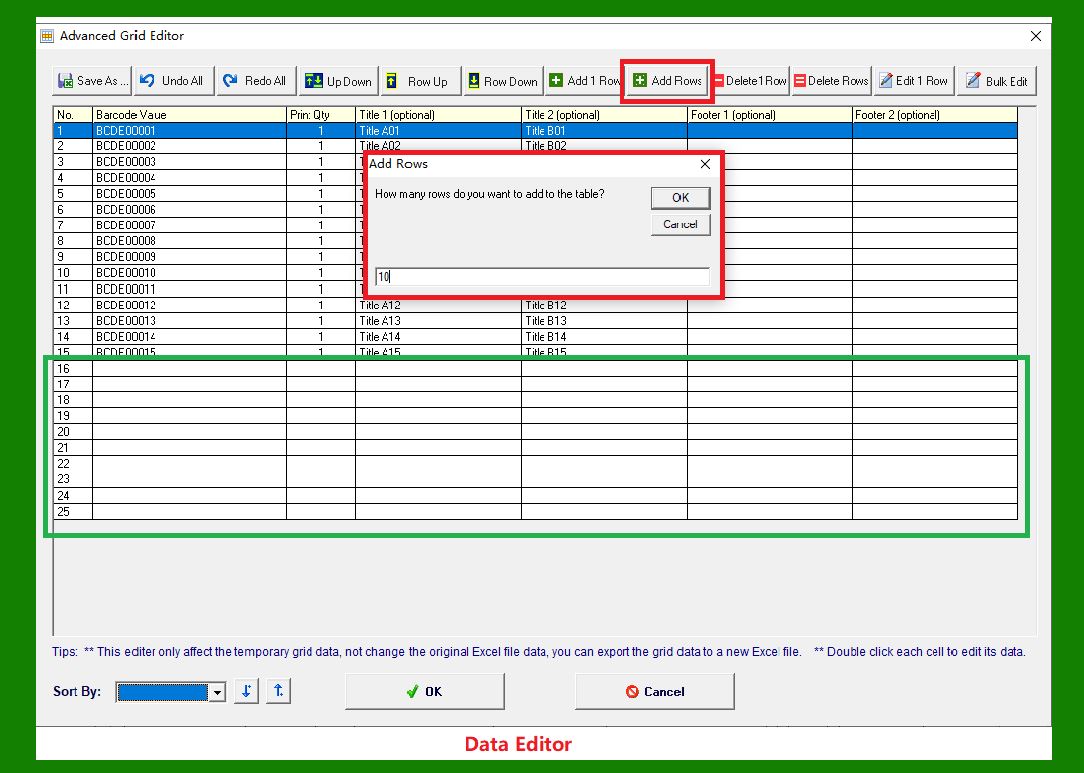
Add Rows |
Adds multiple blank rows at once. |
For example: |
If you enter 10, the program will automatically insert 10 new blank rows at the end of the table. |
This is helpful when preparing a large dataset from scratch. |
|
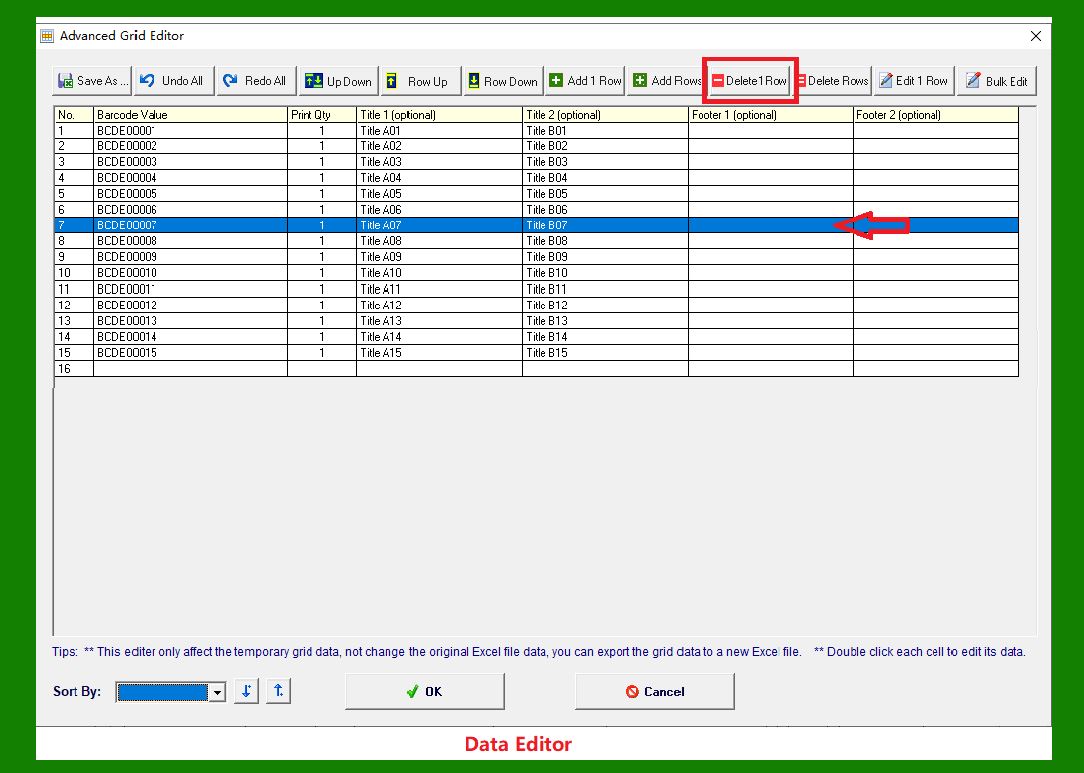
Delete 1 Row |
Deletes the currently selected row from the table. |
|
Delete Rows |
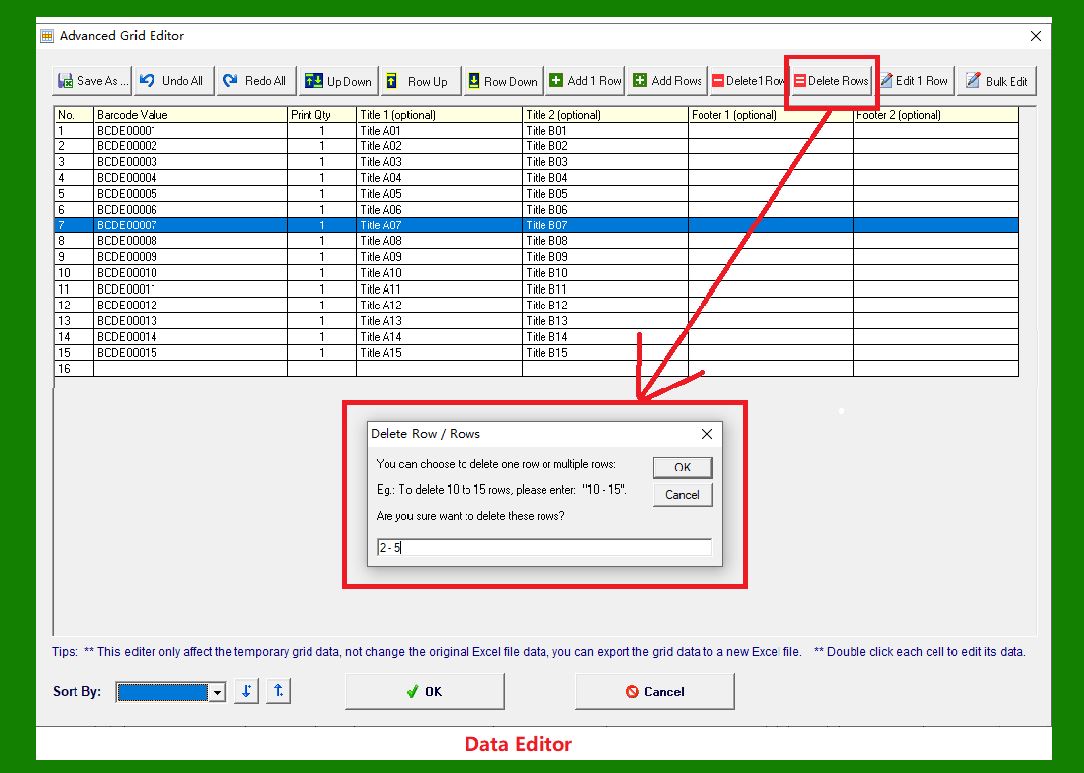
Deletes multiple rows in a single action. |
For example: |
If you enter '2 - 5', the software will delete Rows 2 through 5 - removing a total of 4 rows. |
This feature helps you clean up your data quickly. |
|
Edit 1 Row |
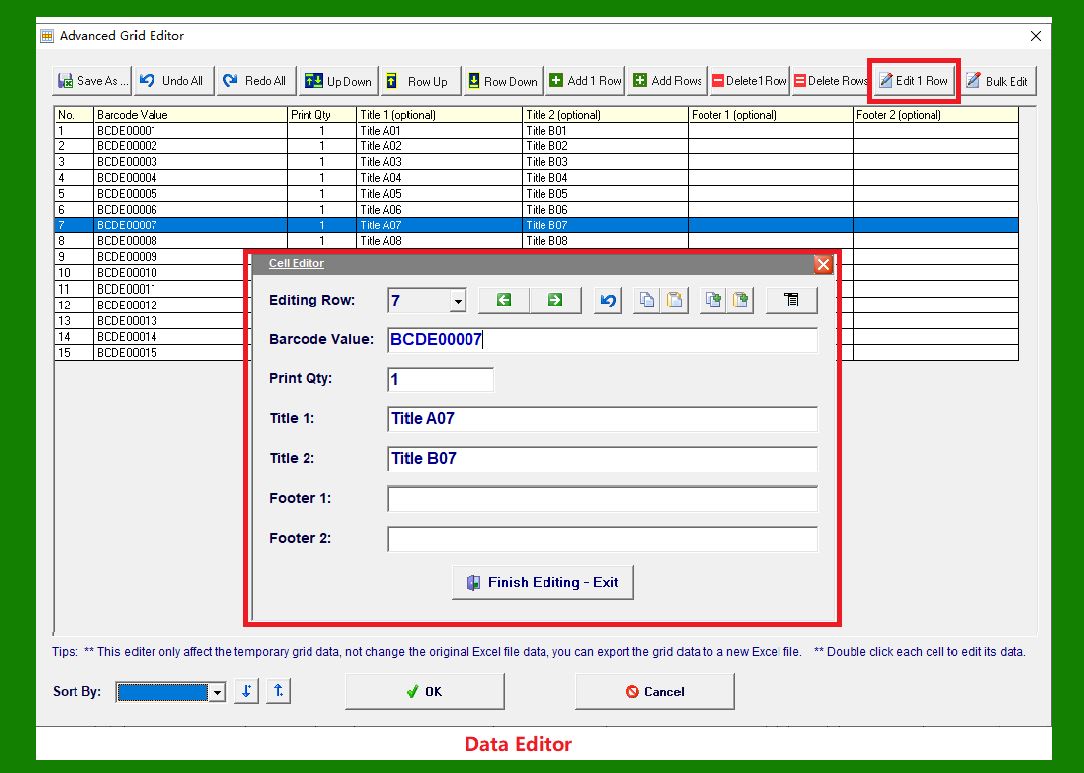
Allows you to edit the data of a single row using a dedicated editing window. |
For instance: |
If you select Row 7 and click Edit 1 Row, an editing dialog will appear, allowing you to modify that row more conveniently. |
A detailed explanation of this editing window will be provided in the next article. |
|
Bulk Edit |
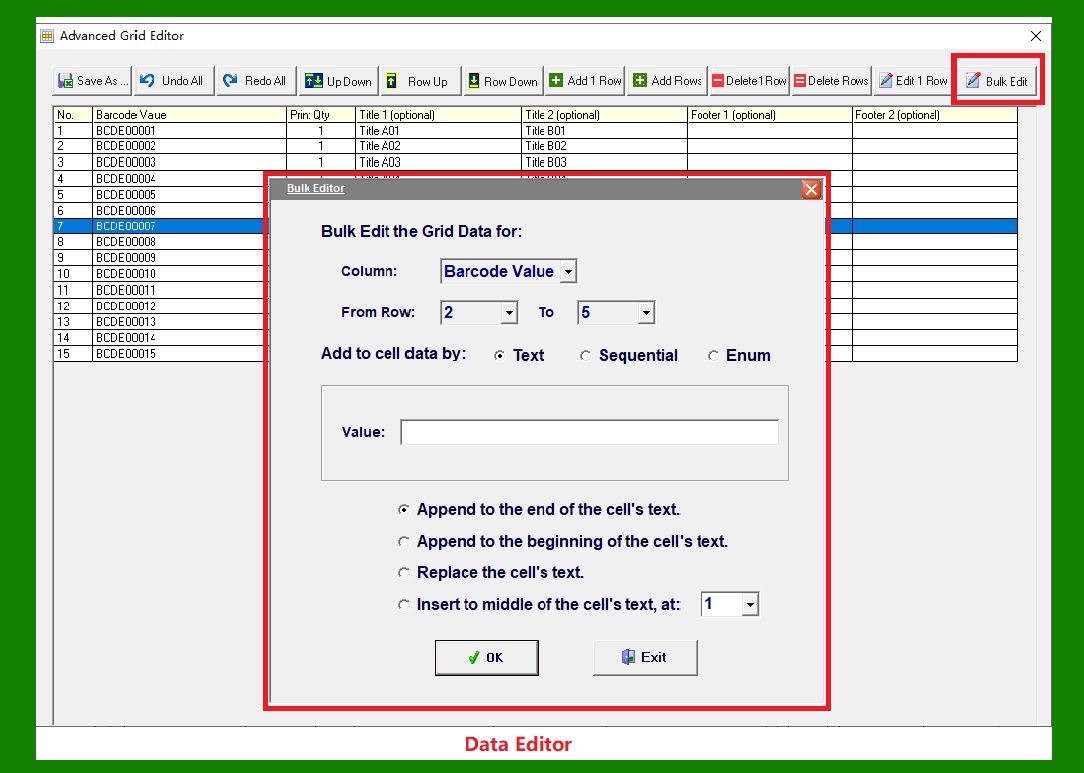
Enables batch editing of multiple rows at once. |
You can use this feature to input a sequence of serial numbers or a list of enumerated values across several rows automatically. |
A comprehensive guide to this function will also be covered in the next article. |
|
 cs@easiersoft.com