EasierSoft Barcode Label Designer |
Barcode Label Design & Bulk Label Printing Software |
Configuring the Parameters of a Barcode Element |
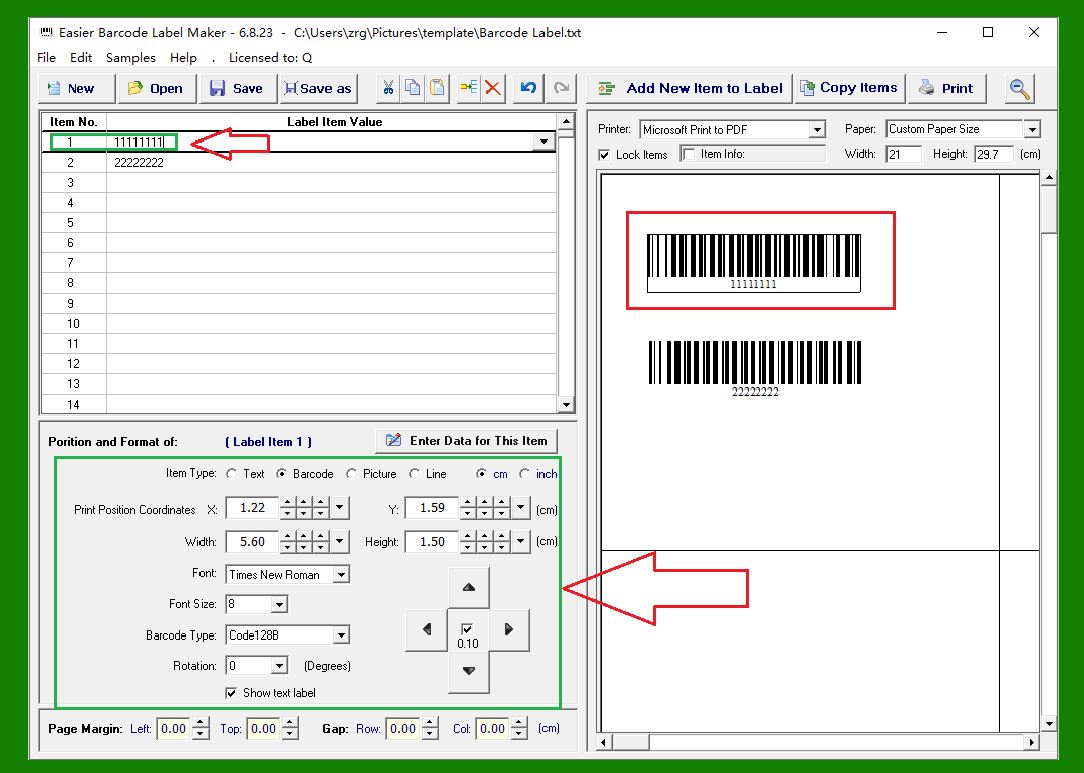
1. As shown in the image, when you click a barcode element in the Label Designer panel on the right side of the application window, the corresponding data row in the Data Editor (upper-left area) is automatically selected. At the same time, the Parameter Panel in the lower-left corner displays all editable properties for that specific barcode element. This synchronized interaction helps you easily locate and adjust the correct element. |
|
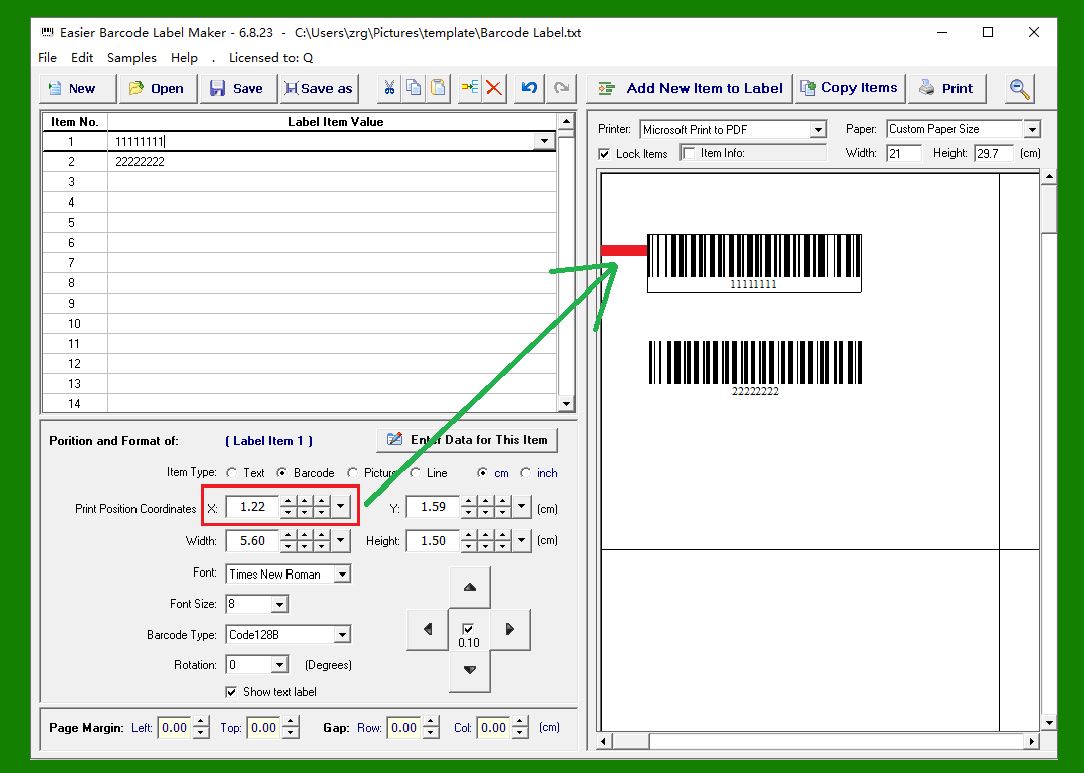
2. X Coordinate: |
This value defines the horizontal position of the barcode element. It represents the distance from the left edge of the barcode element to the left margin of the label. |
|
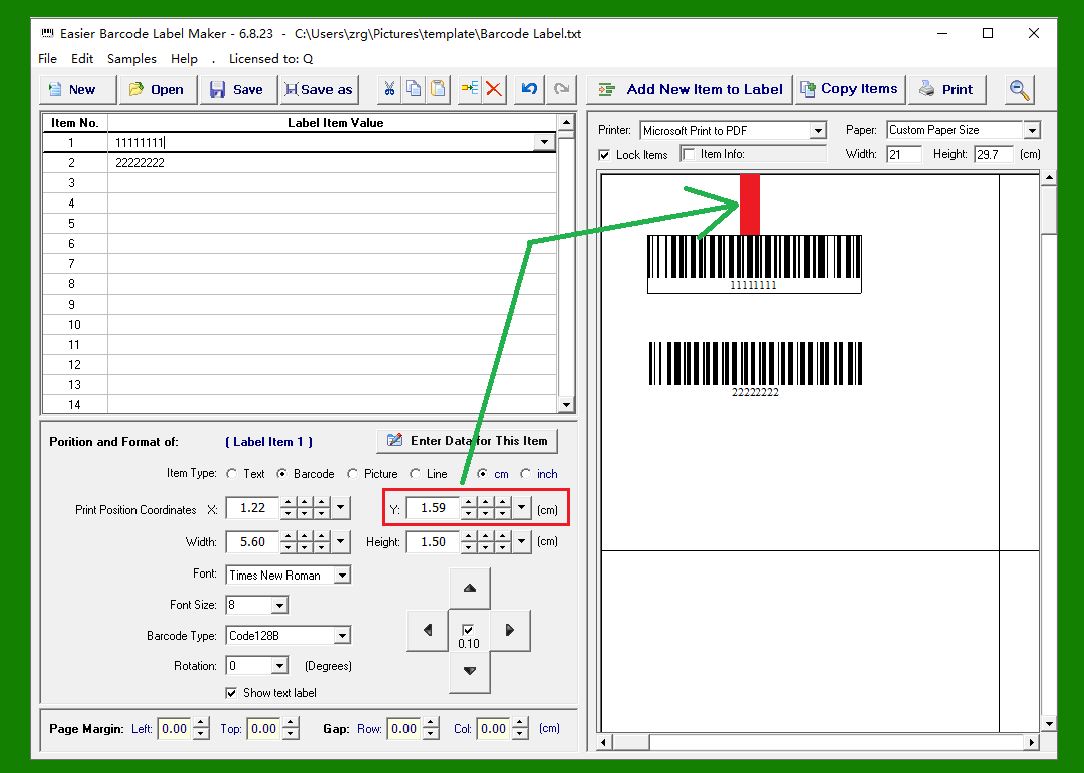
3. Y Coordinate: |
This value defines the vertical position of the barcode element. It represents the distance from the top edge of the barcode element to the top margin of the label. |
|
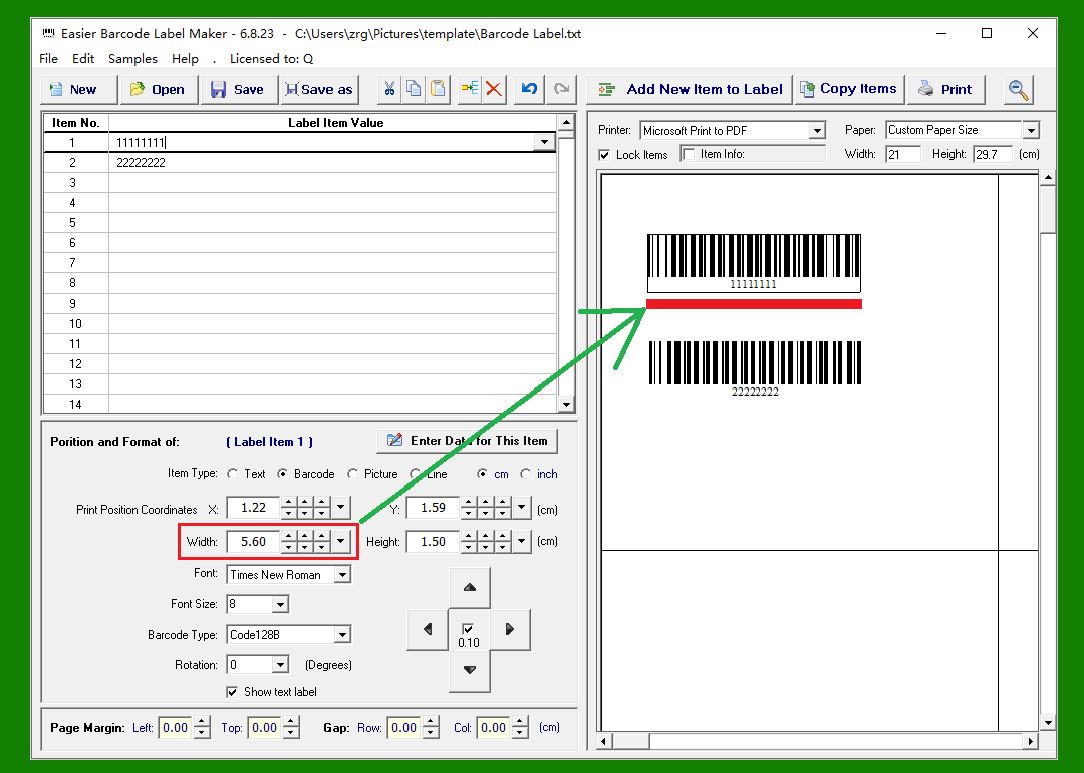
4. Width: |
Specifies the overall width of the barcode element on the label. Adjusting this value allows you to control how narrow or wide the printed barcode appears. |
|
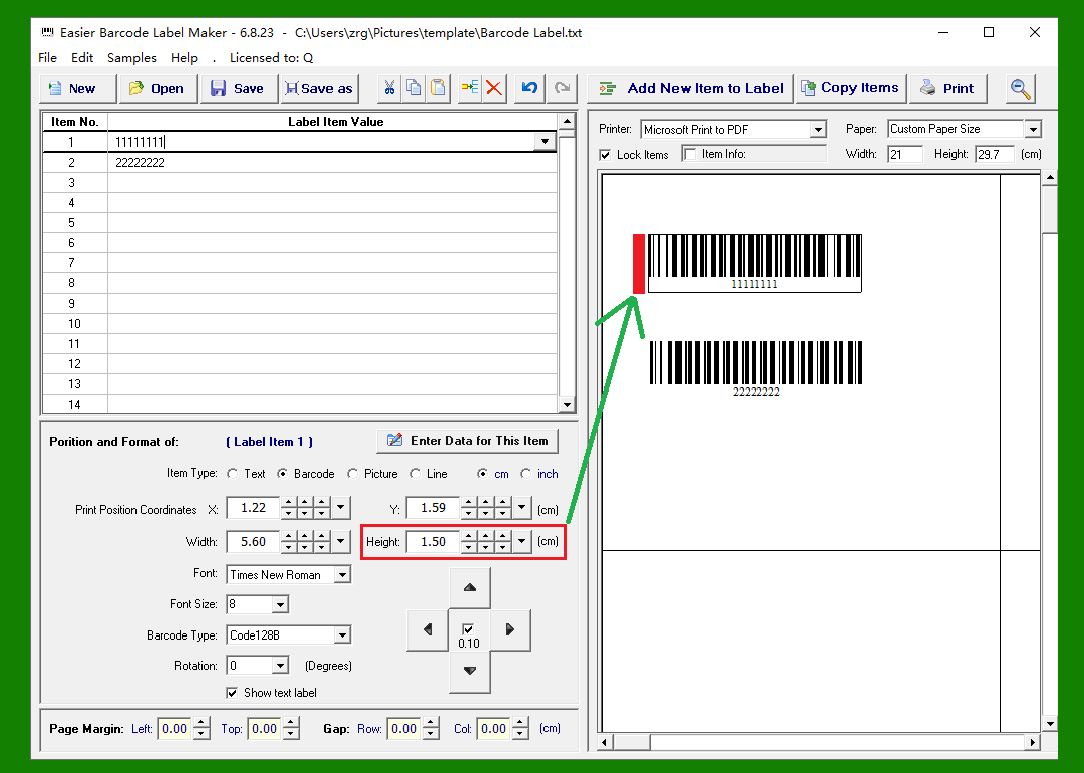
5. Height: |
Specifies the height of the barcode element. Increasing or decreasing this value will change how tall the printed barcode is on the label. |
|
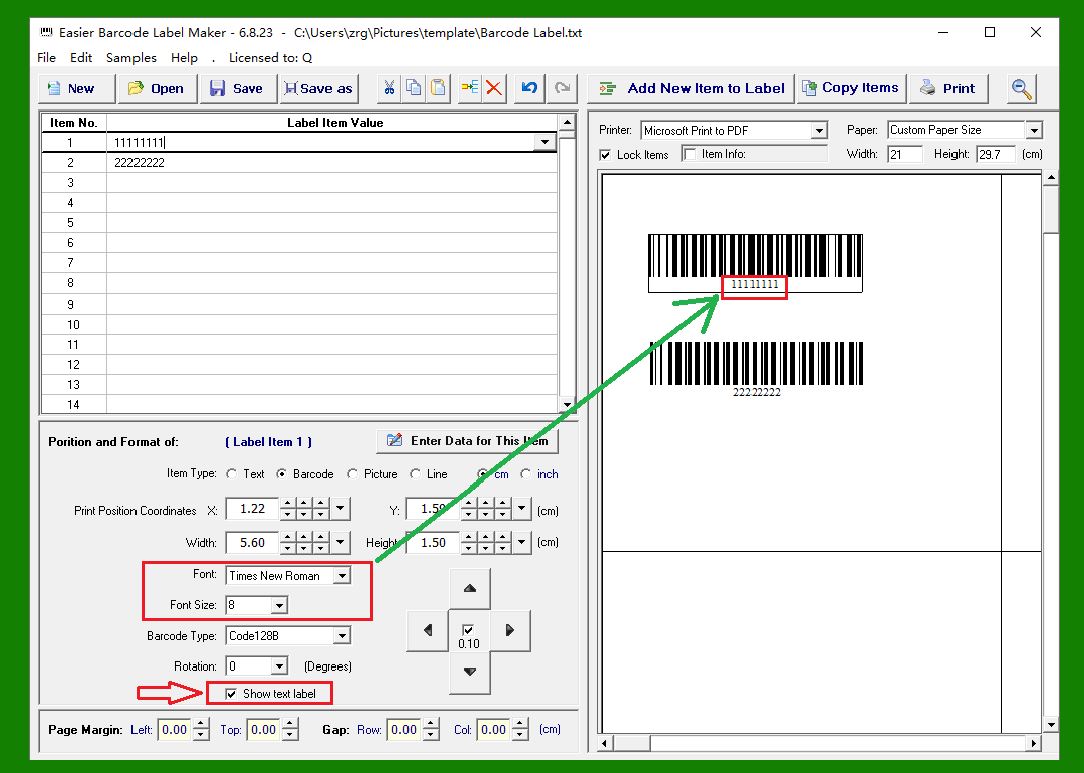
6. Font / Font Size: |
These settings control the typeface and size of the human-readable text displayed beneath the barcode. Note that these options only take effect when the 'Show Text Below Barcode' option is enabled. |
|
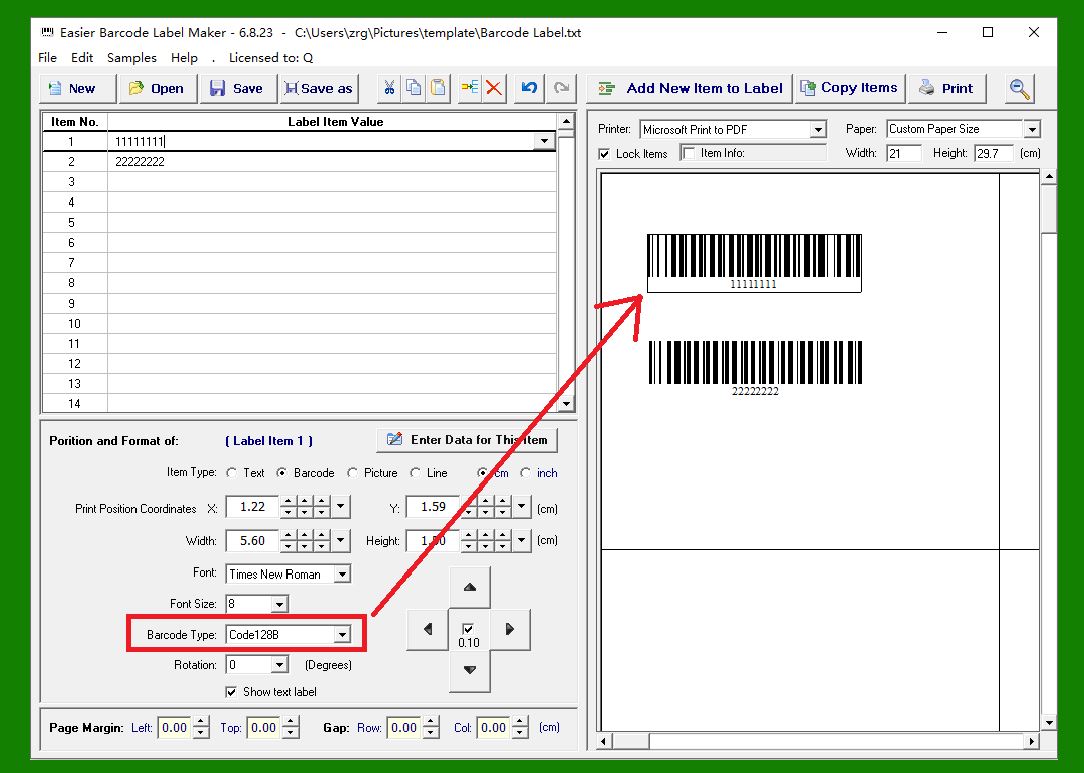
7. Barcode Type: |
The software supports a wide range of commonly used barcode symbologies, covering both 1D and 2D formats. Examples include EAN-13, Code 128, DataMatrix, QR Code, and many others. Selecting the correct barcode type ensures compatibility with your scanning and data requirements. |
|
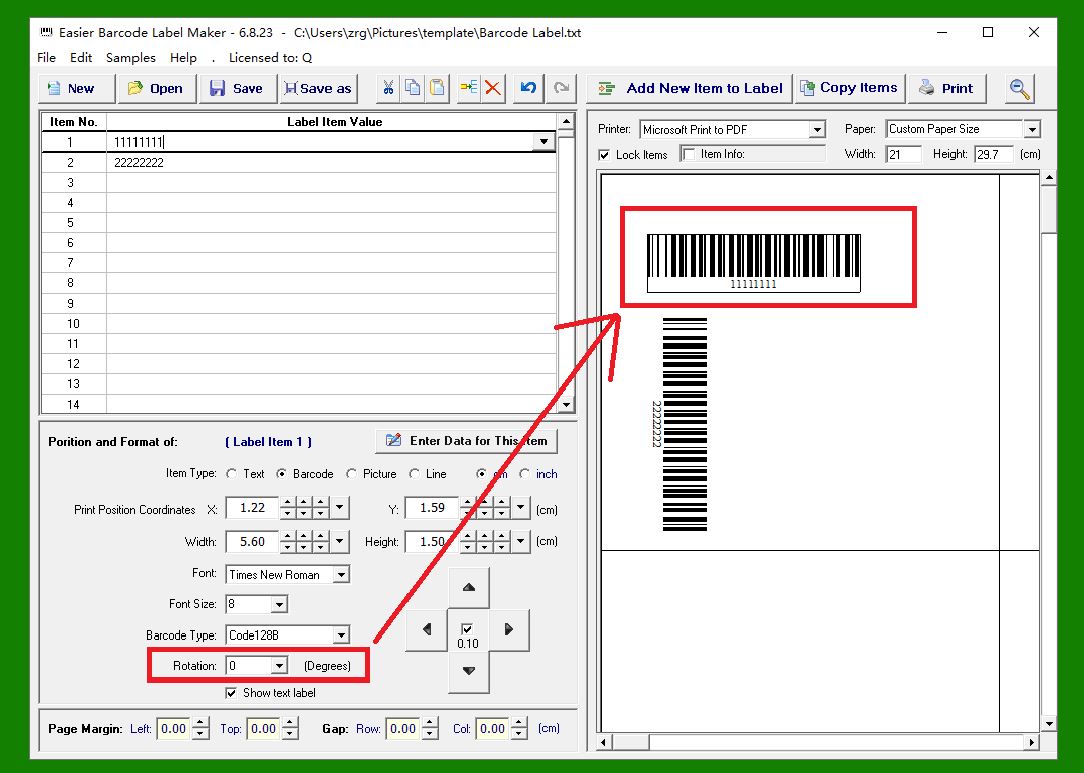
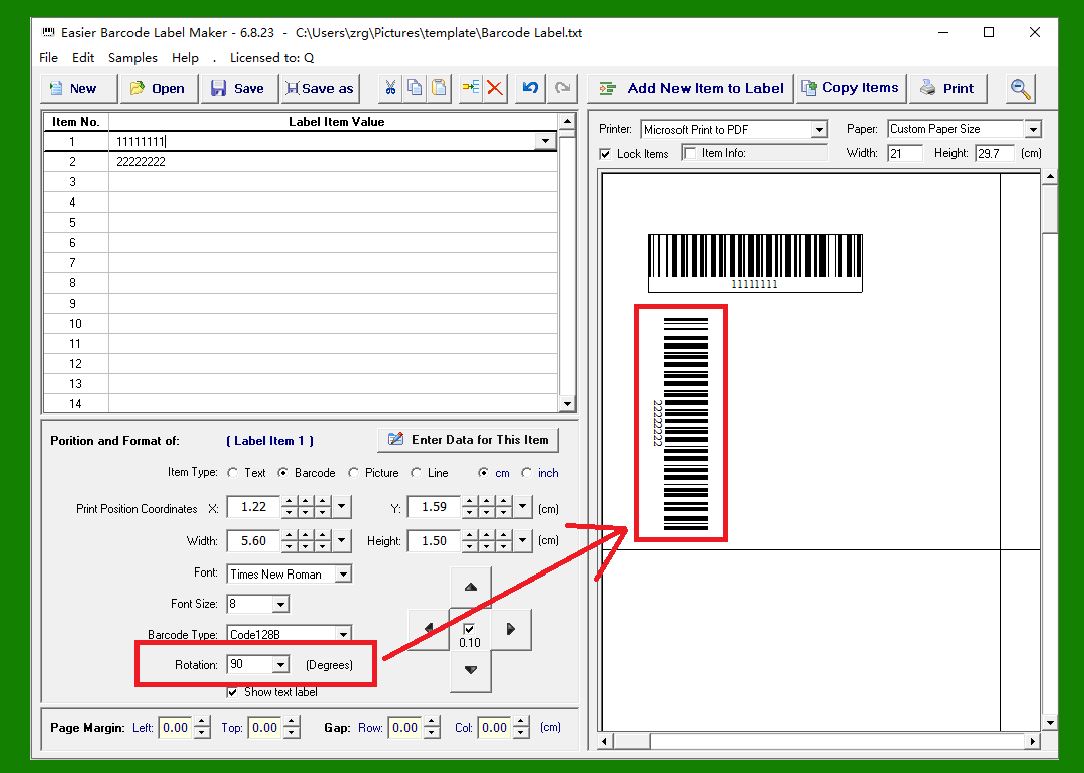
8. Rotation: |
Defines the orientation of the barcode element. The software provides four rotation options: 0, 90, 180, and 270. |
The image below shows an example with Rotation = 0. |
|
9. The following image demonstrates an example with Rotation = 90, where the barcode is displayed vertically. |
|
 cs@easiersoft.com