EasierSoft Barcode Label Designer |
Barcode Label Design & Bulk Label Printing Software |
Designing Labels for a 5164 Label Sheet |
A standard 5164 label sheet contains six labels arranged in two columns and three rows. Follow the steps below to begin designing your layout. |
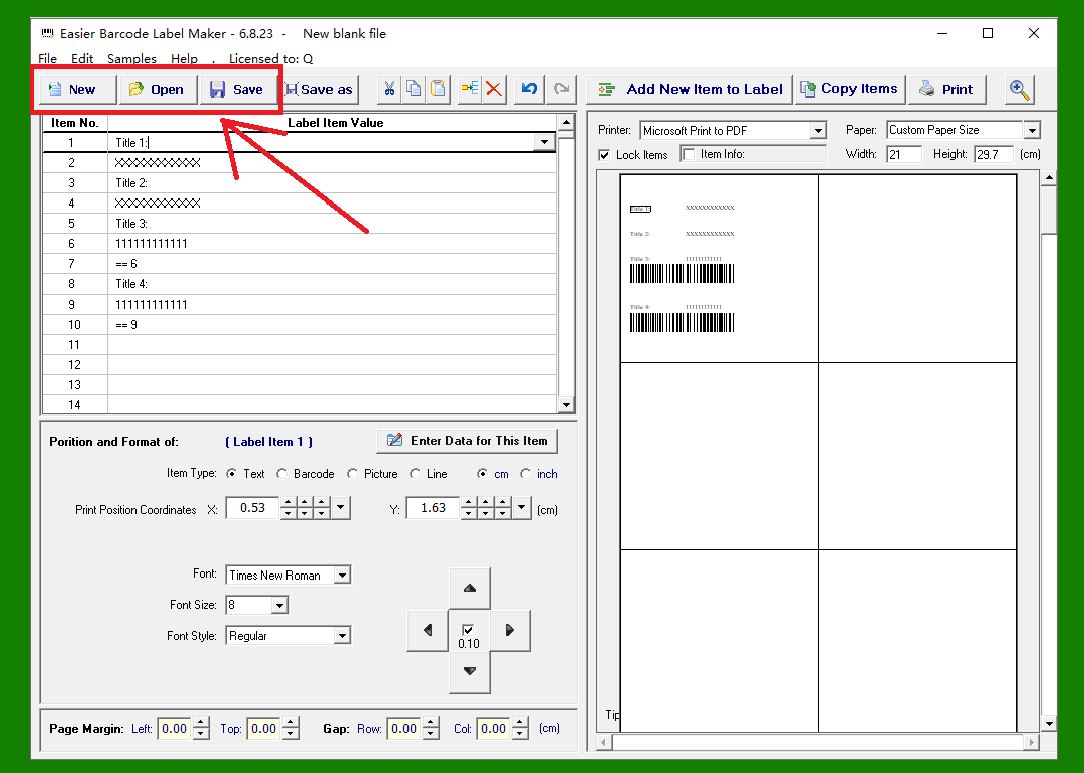
1. Click the 'New' button to create a new label file. |
In this software, each label profile is stored as its own file. The toolbar buttons 'New, Open, Save, and Save As' are used to create, load, and manage these profile files. |
|
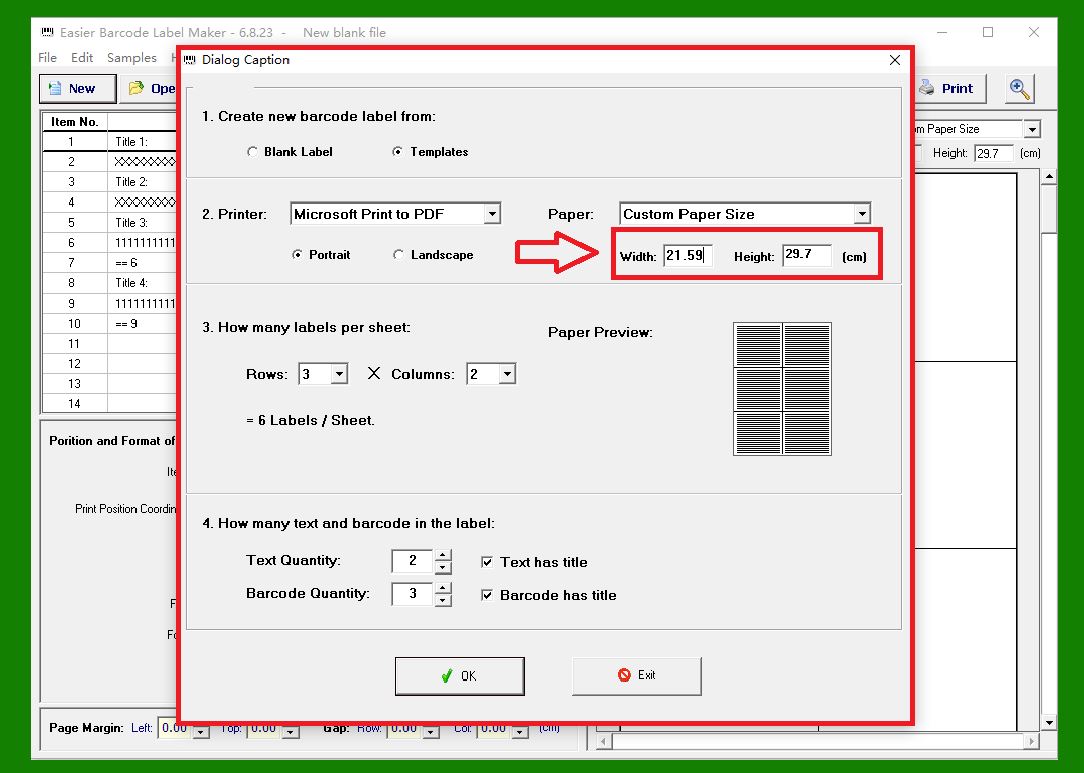
2. Specify the size of the full label sheet. |
For this example, we are using a 5164 label sheet. Its overall page size is 21.59 cm wide and 29.7 cm high. Make sure these dimensions are correctly entered so the printed output aligns with your physical sheet. |
|
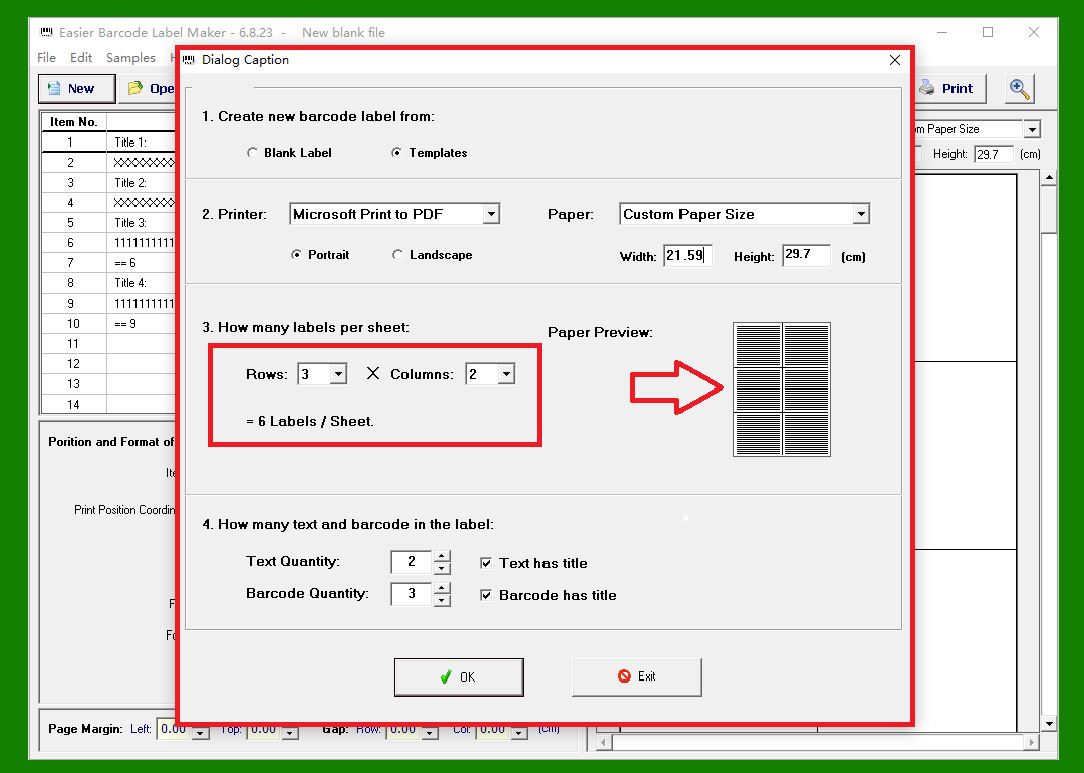
3. Define how many individual labels are on each sheet. |
A 5164 sheet contains 6 labels, arranged in 2 columns by 3 rows, as shown in the illustration. Enter these values so the software can divide the page into the correct grid. |
|
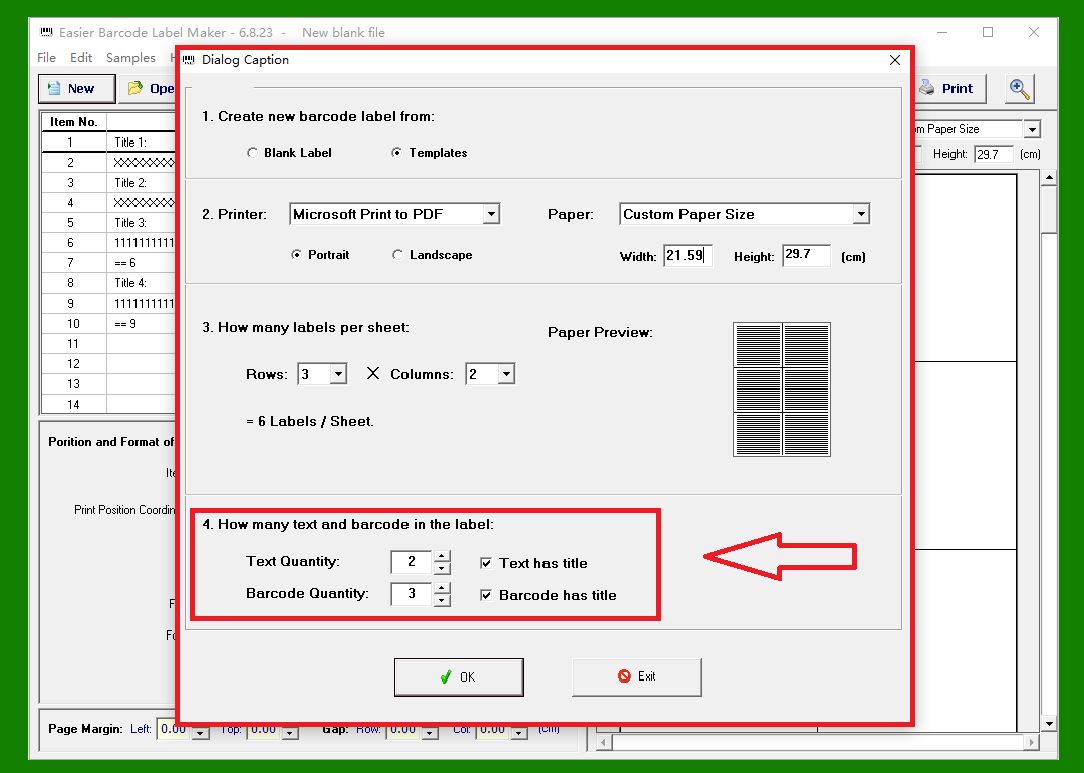
4. Set the number of barcode and text elements per label. |
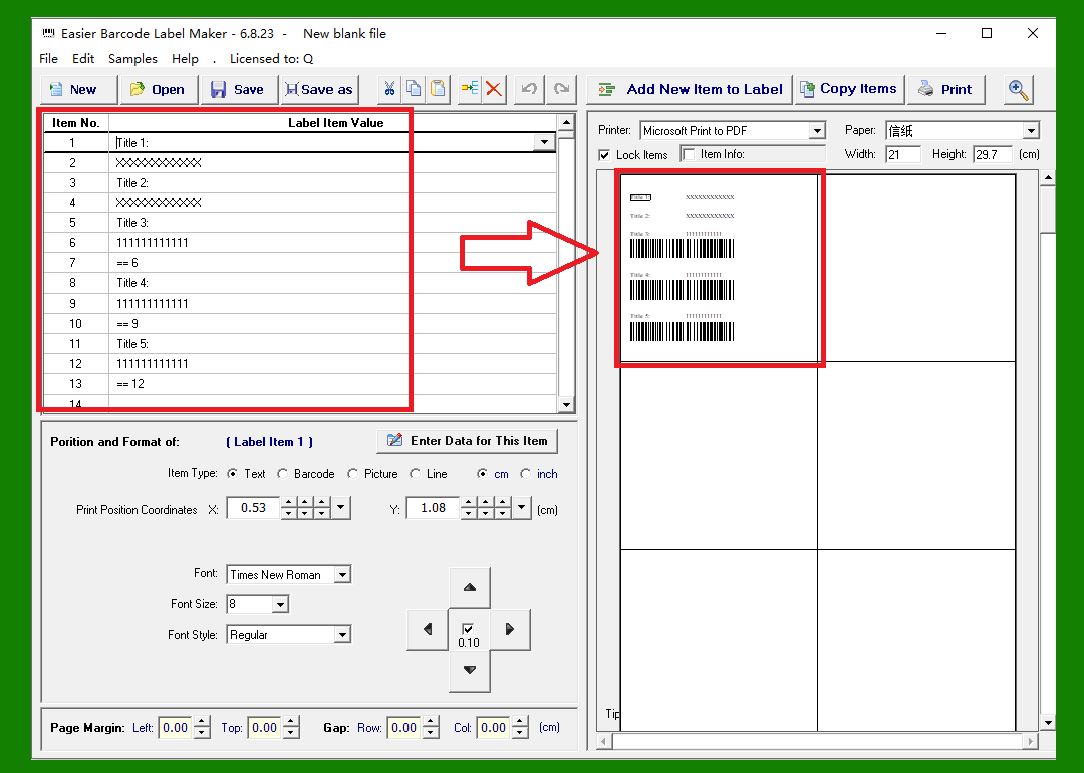
In this example, each label will include two lines of text and three barcodes. In addition, both the text elements and barcode elements will have their own title or header text. These settings allow the software to generate an initial layout containing all required components. |
|
5. Click 'OK' to automatically generate the initial label design. |
Based on the settings above, the program will produce a preliminary layout for all labels on the sheet. This automatically generated layout is meant as a starting point, it may not fully match your final design requirements. You can freely adjust and fine-tune the layout to suit your needs. |
|
For more detailed instruction on designing labels, please refer to other help articles. |
 cs@easiersoft.com