EasierSoft Barcode Label Designer |
Barcode Label Design & Bulk Label Printing Software |
Copying and Pasting Barcodes into Word or Excel |
When you're preparing a form or any type of document in Microsoft Word or Excel, you may occasionally need to insert a barcode or QR Code. Our software makes this process simple by allowing you to generate a barcode image and then copy and paste it directly into your Word or Excel file. |
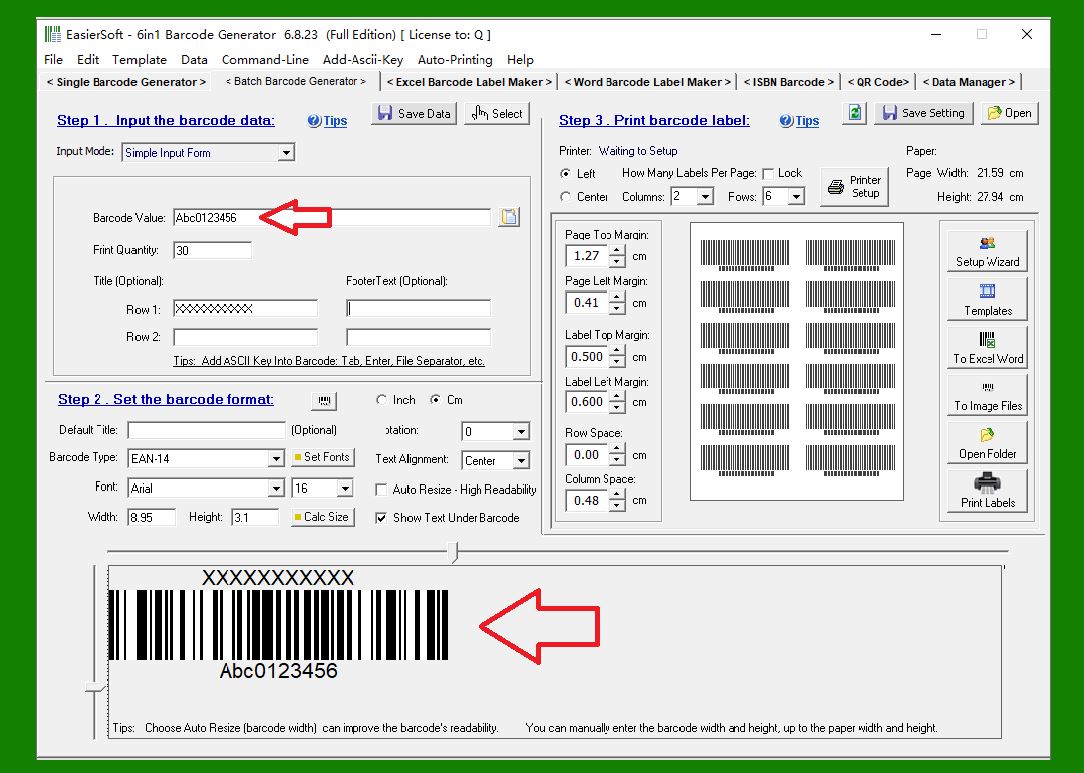
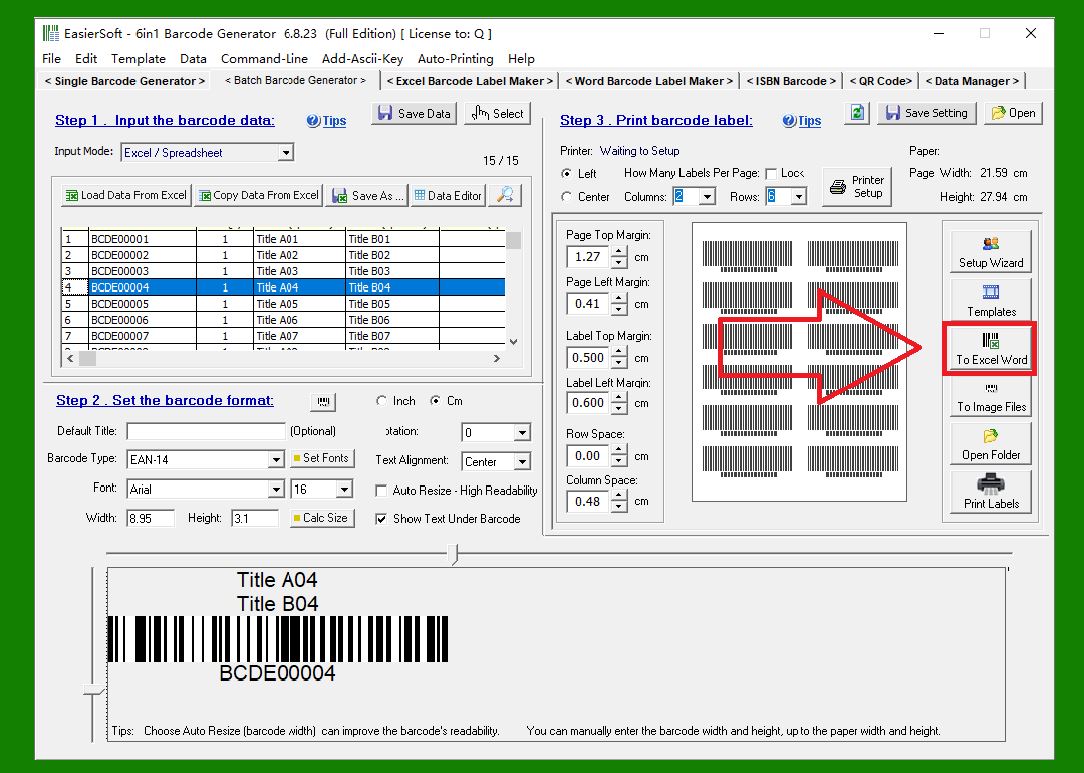
After you enter the barcode value in the software, the preview panel at the bottom of the window instantly displays the corresponding barcode, allowing you to verify the result before copying it. |
|
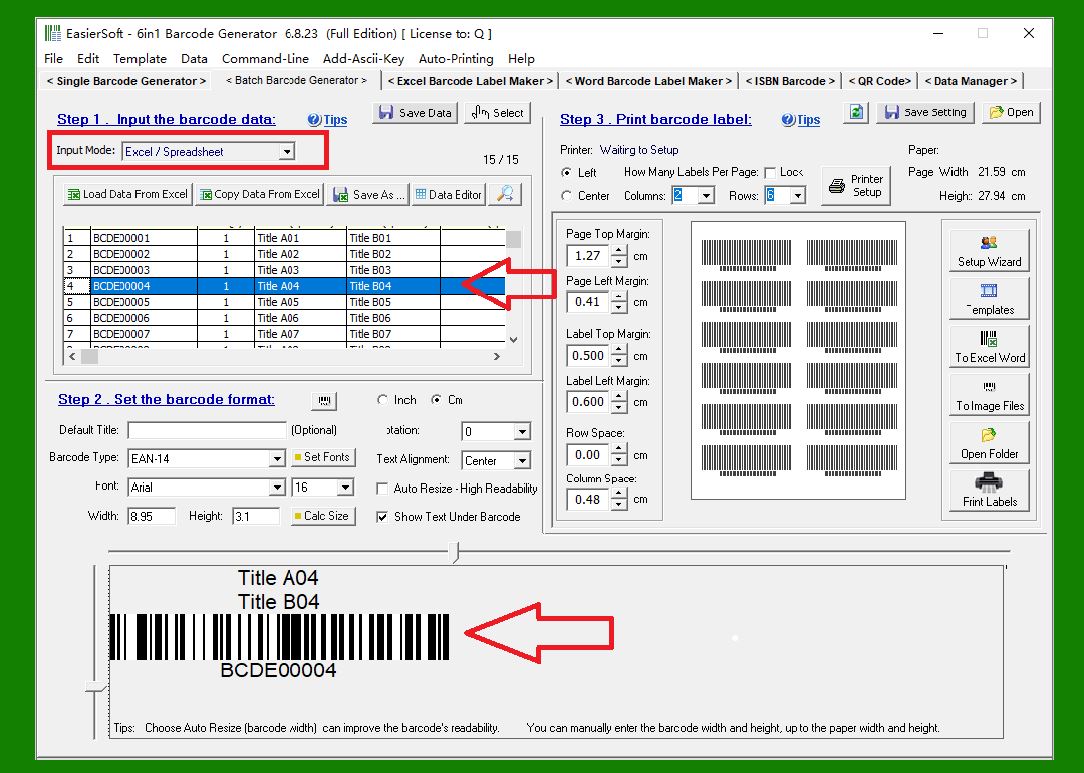
When using the 'Multiple Line Text' or 'Excel / Spreadsheet' input modes, hovering your mouse over any row automatically updates the preview window to show the barcode that corresponds to the selected line. This makes it easy to confirm that each barcode is generated correctly. |
|
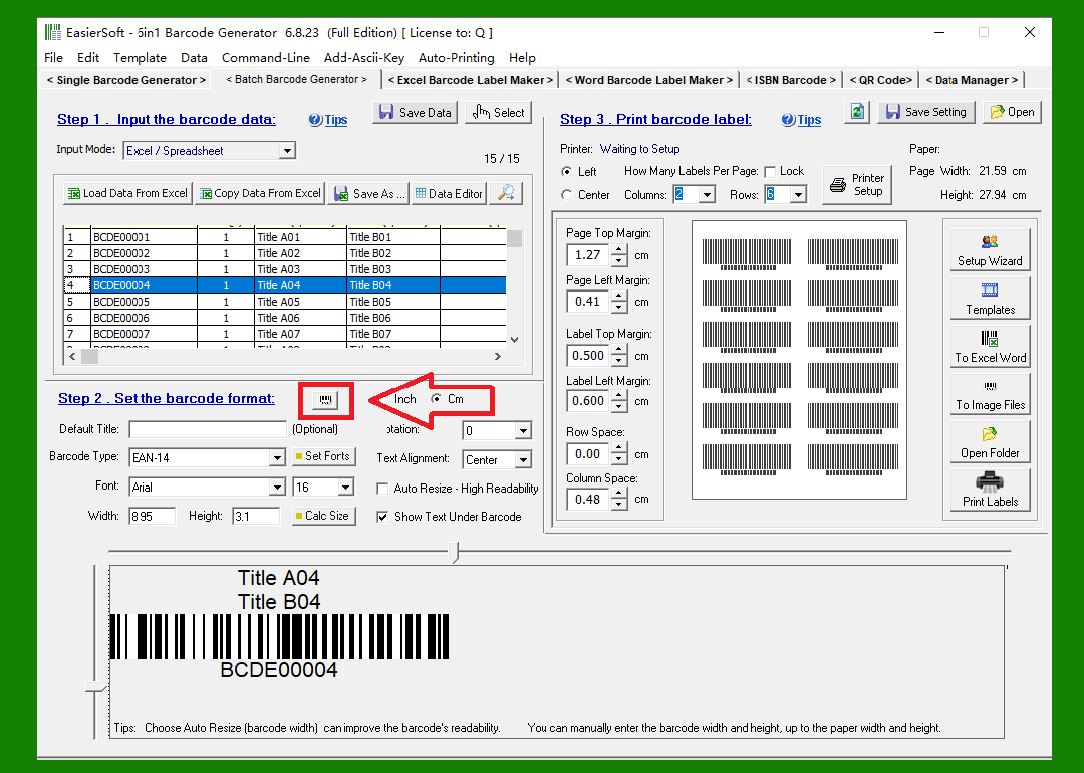
Click the 'Copy Barcode Image' button to place the generated barcode image onto your clipboard. |
|
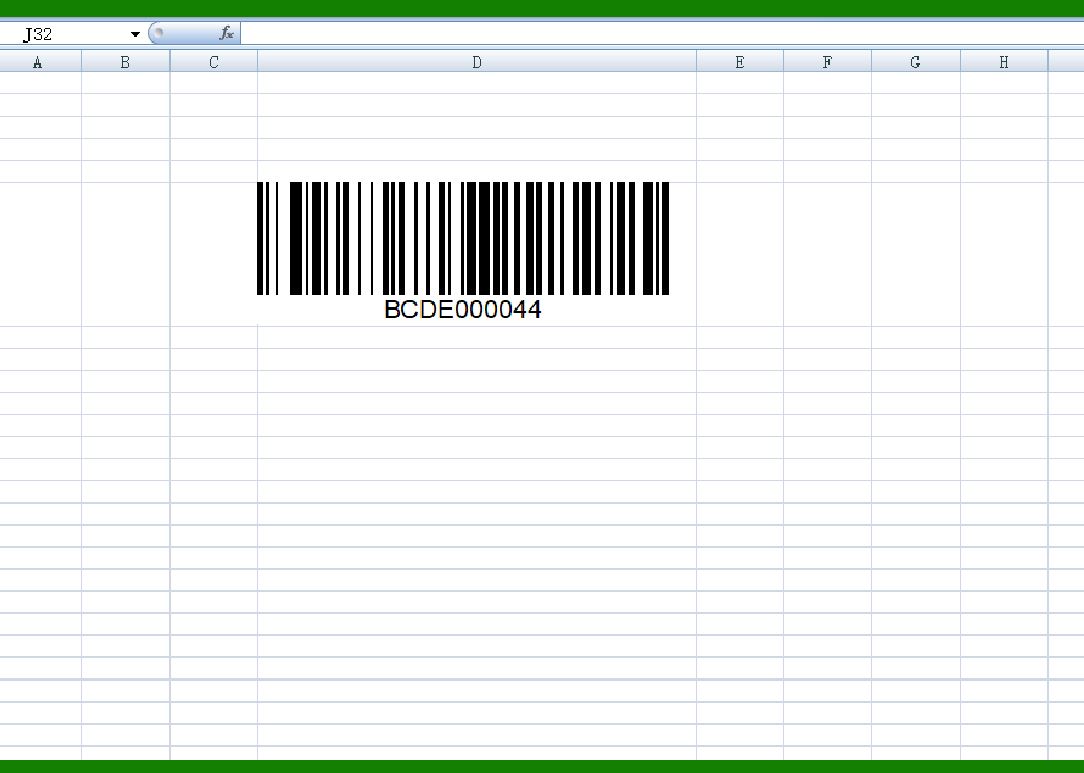
Open your Word or Excel document, right-click at the location where you want the barcode to appear, and choose Paste from the context menu. The barcode image will be inserted into the document exactly where you need it. |
|
You can also use the software's Export feature to batch-export multiple barcodes directly into Word or Excel. We will provide a detailed explanation of this functionality in another article. |
|
 cs@easiersoft.com