Standard Edition - Main Window Overview |
EasierSoft Bulk Barcode Generator and Label Printing Software |
Configuring a Barcode Label Printer |
1. Printer List Initialization |
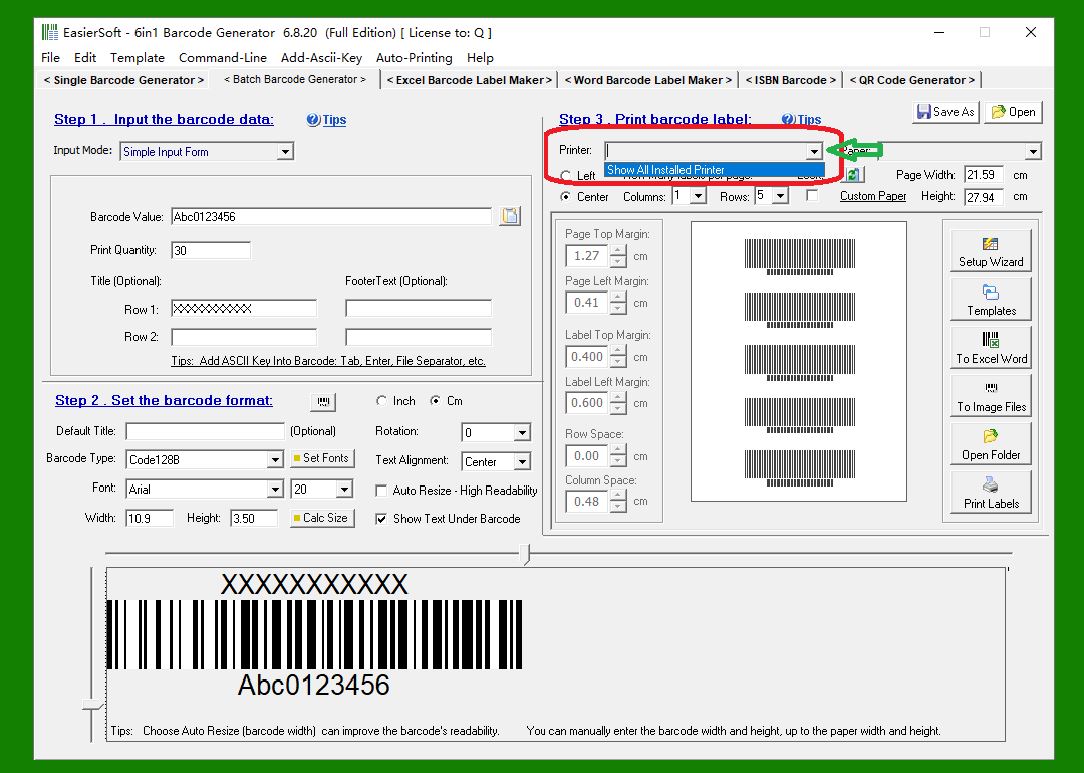
When the software is launched for the first time, the printer selection field will appear empty. As shown in the example interface, click the drop-down menu labeled 'Show All Installed Printers'. The software will then retrieve and display all printers whose drivers are already installed in your Windows system, allowing you to choose the one you want to use. |
|
2. Viewing the List of Installed Printers |
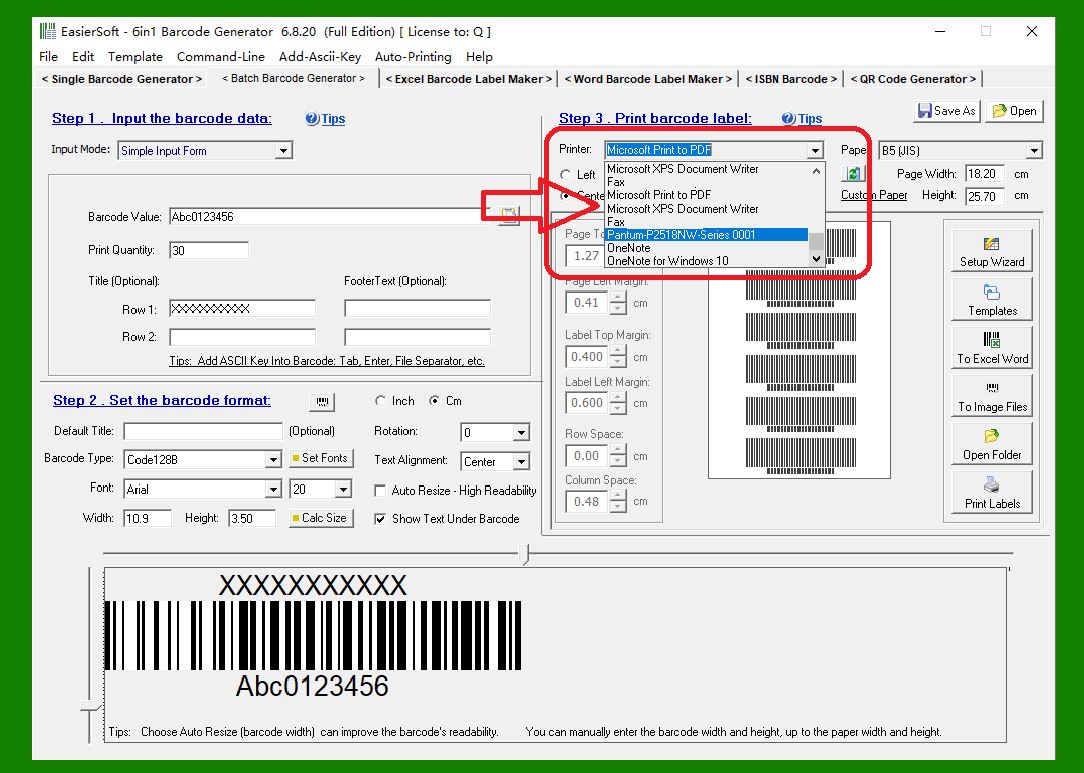
After the printers are loaded, the drop-down list will show the full set of available printer names detected from your system. You can scroll through this list to select the printer best suited for your label-printing task. |
|
3. Loading Predefined Paper Sizes |
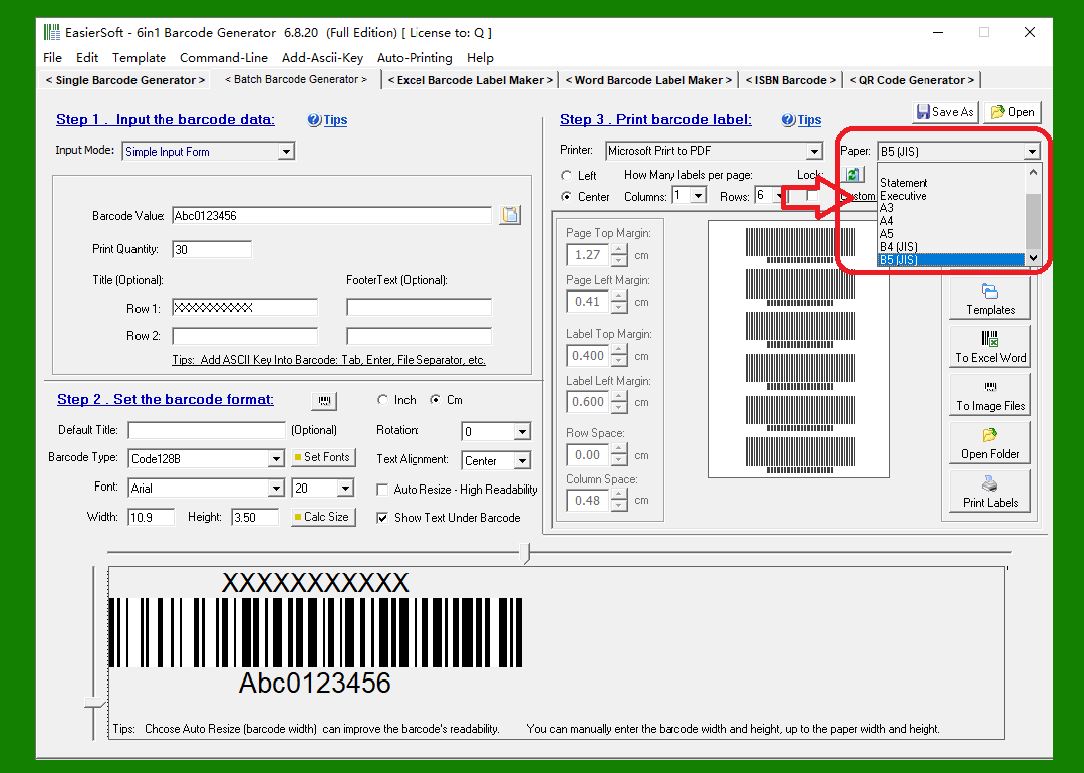
Once you select a printer, the paper-size list on the right side of the window will automatically update to display all predefined paper sizes supported by that specific printer. Different printers support different paper formats, so selecting a printer first is essential only then can the software correctly display the compatible paper options for that device. |
|
If no printer drivers are installed on your Windows system, you must install at least one printer driver before you can use the printing features of this barcode software. |
How do I install a label printer driver in Windows? |
To install a label printer driver in Windows, you typically have two options: |
Use the manufacturer's installation package: |
Download the latest driver from the printer manufacturer's website and run the installer. This is the recommended method because it ensures full compatibility with your model. |
Use Windows built-in 'Add Printer' feature: |
Go to Settings Bluetooth & devices Printers & scanners Add device, and let Windows search for available printers. If your printer appears, select it and allow Windows to install the appropriate driver. If it does not appear automatically, you can add it manually and choose the correct driver from the list. |
 cs@easiersoft.com